Handling Multiple Windows and Tabs in Selenium Java
1. Introduction
Modern web applications frequently open multiple windows and tabs during important user workflows. A user may start in the main application, click a Google login button, move to an OAuth tab, return to the main app, open a payment gateway window, view a PDF invoice, and then return to a dashboard. Selenium can interact with only one browser window or tab at a time, so managing window focus is essential for reliable automation.
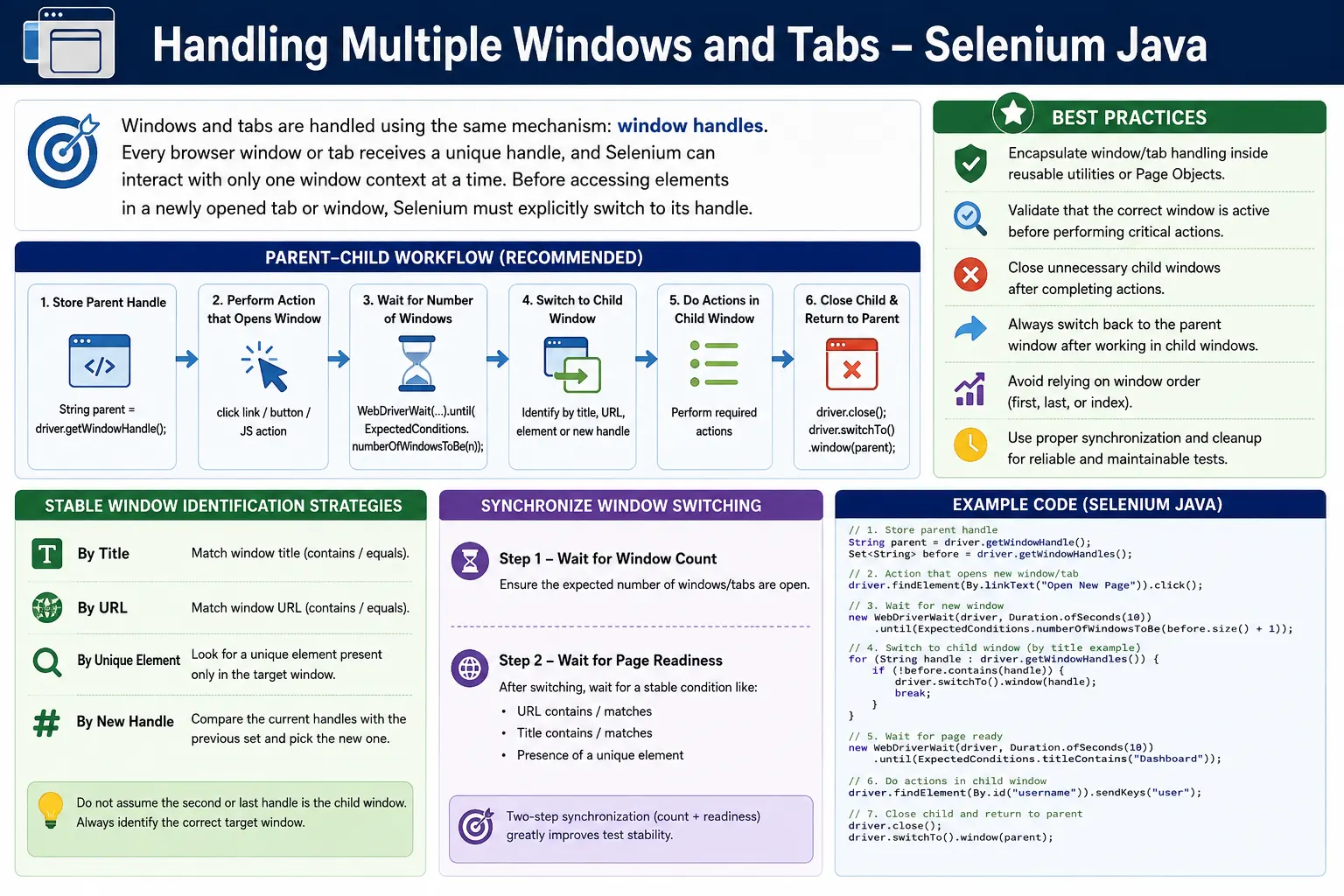
From Selenium's perspective, browser windows and browser tabs are handled through the same mechanism: window handles. Every open tab or window receives a unique handle. Selenium uses that handle to switch focus from one browser context to another. If the test does not switch to the correct handle, Selenium searches the wrong page and fails even when the locator is correct.
Multiple window handling is common in OAuth login, payment gateways, report exports, terms and conditions links, PDF viewers, social media redirects, document previews, and new tab navigation. The technical idea is simple, but real project reliability depends on good waiting, clear switching criteria, and cleanup.
2. Window vs Tab
A browser window is a separate top-level browser surface. A browser tab is a page inside a browser window. Users think of them differently, but Selenium treats both as window contexts with handles.
Browser Window
     |
     +-- Browser Tab
Whether the application opens a new tab or a new popup-style window, Selenium still uses getWindowHandle(), getWindowHandles(), and switchTo().window() to manage it. This is why Selenium documentation and interview questions often use the word window even when the browser UI shows a tab.
3. Selenium Window Architecture
Imagine a test flow with three browser contexts.
Main Application  - CDwindow-A1
Google Login      - CDwindow-B2
Payment Window    - CDwindow-C3
The exact handle values are generated during the browser session. You should never hardcode them. Instead, capture handles at runtime and switch based on a known rule: parent handle, new handle, title, URL, or page-specific element.
4. Required Imports
import java.time.Duration;
import java.util.ArrayList;
import java.util.List;
import java.util.Set;

import org.openqa.selenium.By;
import org.openqa.selenium.WebDriver;
import org.openqa.selenium.WindowType;
import org.openqa.selenium.support.ui.ExpectedConditions;
import org.openqa.selenium.support.ui.WebDriverWait;
These imports cover handle collections, list conversion, Selenium 4 tab creation, and explicit waiting for window count changes.
5. Get Current Window
getWindowHandle() returns the handle for the current focused window or tab.
String parentWindow =
        driver.getWindowHandle();

System.out.println(parentWindow);
Store this value before opening a new tab or window. It gives the test a reliable way to return to the main application later.
6. Get All Windows and Tabs
getWindowHandles() returns all open window and tab handles.
Set<String> allWindows =
        driver.getWindowHandles();

System.out.println("Total windows/tabs: "
        + allWindows.size());
The collection is a Set. Avoid building long-term logic on handle order. Prefer meaningful switching rules such as title, URL, or newly added handle.
7. Handling One Parent and One Child Window
The simplest real-world case is one parent window and one child window.
String parent =
        driver.getWindowHandle();

driver.findElement(By.id("openWindow"))
      .click();

for (String window : driver.getWindowHandles()) {
    if (!window.equals(parent)) {
        driver.switchTo().window(window);
        break;
    }
}
This works when the click opens exactly one child window. After switching, Selenium controls the child window.
8. Complete Parent to Child Example
String parentWindow =
        driver.getWindowHandle();

driver.findElement(By.id("newWindow"))
      .click();

WebDriverWait wait =
        new WebDriverWait(driver, Duration.ofSeconds(10));

wait.until(
        ExpectedConditions.numberOfWindowsToBe(2)
);

for (String handle : driver.getWindowHandles()) {
    if (!handle.equals(parentWindow)) {
        driver.switchTo().window(handle);
        break;
    }
}

System.out.println(driver.getTitle());
The explicit wait is the difference between a demo and a stable test. Without it, Selenium may read handles before the child window is created.
9. Switching Between Multiple Windows
When there are several windows, loop through the handles and inspect each window.
for (String handle : driver.getWindowHandles()) {
    driver.switchTo().window(handle);

    System.out.println(driver.getTitle());
}
This is useful for debugging. For actual business flows, switch to the required window by a clear condition rather than just looping and stopping randomly.
10. Switch Using Window Title
Title-based switching is readable when the target title is stable.
for (String handle : driver.getWindowHandles()) {
    driver.switchTo().window(handle);

    if (driver.getTitle().contains("Google")) {
        break;
    }
}
This changes Selenium focus to the window whose title contains Google. Be careful when titles are translated, delayed, or dynamic.
11. Switch Using URL
URL-based switching is often more reliable than title-based switching for OAuth, checkout, and report flows.
for (String handle : driver.getWindowHandles()) {
    driver.switchTo().window(handle);

    if (driver.getCurrentUrl()
              .contains("accounts.google")) {
        break;
    }
}
Use a stable fragment of the URL. Avoid matching full URLs when they include session IDs, tokens, timestamps, or environment-specific hostnames.
12. Window Count Validation
After an action that should open a new tab, validate the number of windows.
int count =
        driver.getWindowHandles().size();

System.out.println("Window Count: " + count);
In a test assertion, this confirms whether the expected child window appeared. It also catches popup-blocking or application failures early.
13. Wait for New Window
Do not use fixed sleep for window opening. Use an explicit wait.
WebDriverWait wait =
        new WebDriverWait(driver, Duration.ofSeconds(10));

wait.until(
        ExpectedConditions.numberOfWindowsToBe(2)
);
This waits until the browser session has exactly two windows or tabs. If the application may already have multiple windows open, wait for the previous count plus one.
14. Handling Three Windows
A workflow may open more than one child window.
String parent =
        driver.getWindowHandle();

driver.findElement(By.id("openGoogle")).click();
driver.findElement(By.id("openPayment")).click();

wait.until(
        ExpectedConditions.numberOfWindowsToBe(3)
);

for (String handle : driver.getWindowHandles()) {
    driver.switchTo().window(handle);
    System.out.println(driver.getTitle());
}
For real action, identify the right child by title, URL, or an expected page element. Do not assume handle order.
15. Close Child Window and Return
driver.close() closes only the current window. After closing a child, switch back to the parent.
driver.close();

driver.switchTo().window(parentWindow);
If the test continues while Selenium points to a closed window, the next command can fail with a window-related exception.
16. Close All Child Windows
String parent =
        driver.getWindowHandle();

for (String handle : driver.getWindowHandles()) {
    if (!handle.equals(parent)) {
        driver.switchTo().window(handle);
        driver.close();
    }
}

driver.switchTo().window(parent);
This is a common framework cleanup utility. It keeps the browser state predictable after multi-window workflows.
17. Selenium 4 Open New Tab
Selenium 4 can create a new tab directly.
driver.switchTo()
      .newWindow(WindowType.TAB);

driver.get("https://example.com");
The newly created tab becomes active automatically. Store the original handle first if you need to return to it.
18. Selenium 4 Open New Window
driver.switchTo()
      .newWindow(WindowType.WINDOW);

driver.get("https://example.com");
This creates a separate browser window. The switching and cleanup concepts are the same as tab handling.
19. Switch Back to Previous Tab
String firstTab =
        driver.getWindowHandle();

driver.switchTo()
      .newWindow(WindowType.TAB);

driver.get("https://example.com");

driver.switchTo().window(firstTab);
Storing the original tab keeps the flow simple and reliable.
20. Work in Child Tab and Return
String parent =
        driver.getWindowHandle();

driver.findElement(By.id("openTab")).click();

wait.until(
        ExpectedConditions.numberOfWindowsToBe(2)
);

for (String handle : driver.getWindowHandles()) {
    if (!handle.equals(parent)) {
        driver.switchTo().window(handle);
        driver.findElement(By.id("search"))
              .sendKeys("Selenium");
        driver.close();
        break;
    }
}

driver.switchTo().window(parent);
This is a complete child-tab pattern: open, wait, switch, work, close, return.
21. Open Multiple Tabs and Switch One by One
driver.switchTo().newWindow(WindowType.TAB);
driver.get("https://example.com");

driver.switchTo().newWindow(WindowType.TAB);
driver.get("https://selenium.dev");

for (String handle : driver.getWindowHandles()) {
    driver.switchTo().window(handle);
    System.out.println(driver.getTitle());
}
This is useful for controlled test setup and browser behavior checks. In production workflows, give each opened tab a clear purpose and switch using a stable condition.
22. Real Project Example: Google Login
OAuth login commonly opens a new tab or popup window.
String parent =
        driver.getWindowHandle();

googleLogin.click();

wait.until(
        ExpectedConditions.numberOfWindowsToBe(2)
);

for (String handle : driver.getWindowHandles()) {
    if (!handle.equals(parent)) {
        driver.switchTo().window(handle);
        break;
    }
}

driver.findElement(By.id("identifierId"))
      .sendKeys("user@gmail.com");
After the OAuth flow completes, the application may close the child window or redirect back to the parent. The test should handle the actual behavior rather than assuming one pattern for every application.
23. Real Project Example: Payment Gateway
Some payment providers open a separate window for secure payment entry.
String parent =
        driver.getWindowHandle();

payButton.click();

wait.until(
        ExpectedConditions.numberOfWindowsToBe(2)
);

for (String handle : driver.getWindowHandles()) {
    if (!handle.equals(parent)) {
        driver.switchTo().window(handle);
        break;
    }
}

driver.findElement(By.id("cardNumber"))
      .sendKeys("4111111111111111");
Use official test payment data and keep provider-specific selectors isolated in a payment page object.
24. Real Project Example: Terms Link
A terms and conditions link may open in a new tab while registration remains in the parent window. The test may verify that the terms page opens, then close it and return.
This is a good candidate for a small reusable helper because many pages have external policy links, help links, or documentation links that behave similarly.
25. Real Project Example: PDF Viewer
Invoices, reports, and documents often open in a new tab. Browser PDF viewers can vary across browsers and CI environments. Instead of over-automating the PDF viewer UI, verify the window opened, the URL or content type is correct, and the application workflow behaves as expected.
26. Switching to a Newly Added Handle
When multiple windows may already exist, store old handles before opening the next one and switch to the handle that was added.
Set<String> oldHandles =
        driver.getWindowHandles();

driver.findElement(By.id("openReport")).click();

wait.until(
        ExpectedConditions.numberOfWindowsToBe(
                oldHandles.size() + 1
        )
);

for (String handle : driver.getWindowHandles()) {
    if (!oldHandles.contains(handle)) {
        driver.switchTo().window(handle);
        break;
    }
}
This is more reliable than assuming a list index when several windows are already open.
27. Switch by Expected Element
Sometimes title and URL are not enough. You can switch through windows and look for a unique element.
for (String handle : driver.getWindowHandles()) {
    driver.switchTo().window(handle);

    if (driver.findElements(By.id("identifierId")).size() > 0) {
        break;
    }
}
Use this carefully. It can be slower, but it is useful when window identity is best proven by a page-specific element.
28. NoSuchWindowException
NoSuchWindowException occurs when Selenium tries to switch to an invalid or closed handle.
driver.switchTo().window("wrongHandle");It can also happen when the test closes a child window and then tries to use the child handle again. Always switch to an open handle after closing a window.
29. Window Closed Problems
String child =
        driver.getWindowHandle();

driver.close();

driver.switchTo().window(child);
This fails because the handle no longer points to an open window. The correct approach is to switch to a stored parent or another known open handle.
30. Reusable Method: Switch by Title
public void switchToWindowByTitle(
        String expectedTitle) {

    for (String handle : driver.getWindowHandles()) {
        driver.switchTo().window(handle);

        if (driver.getTitle().equals(expectedTitle)) {
            return;
        }
    }

    throw new RuntimeException(
            "Window not found with title: " + expectedTitle
    );
}
Utilities should throw clear errors when the expected window is not found. Silent failure leaves Selenium focused on an unknown window.
31. Reusable Method: Switch by URL
public void switchToWindowByUrl(
        String urlPart) {

    for (String handle : driver.getWindowHandles()) {
        driver.switchTo().window(handle);

        if (driver.getCurrentUrl().contains(urlPart)) {
            return;
        }
    }

    throw new RuntimeException(
            "Window not found with URL: " + urlPart
    );
}
This is useful for dashboard, checkout, OAuth, and report windows where URL patterns are stable.
32. Reusable Method: Close All Child Windows
public void closeAllChildWindows(
        String parentWindow) {

    for (String handle : driver.getWindowHandles()) {
        if (!handle.equals(parentWindow)) {
            driver.switchTo().window(handle);
            driver.close();
        }
    }

    driver.switchTo().window(parentWindow);
}
This helper is useful at the end of workflows that open several supporting tabs.
33. Page Object Model Guidance
Window handling can be placed in a base page, browser utility, or workflow object. Tests should not be cluttered with repeated handle loops. A test should read like a user journey: click login with Google, complete Google login, return to application. The page object or workflow can handle the window mechanics internally.
Keep parent handle storage close to the action that opens the child window. This prevents confusion when several windows are open at different points in the test.
34. Multiple Windows and Frames
Window context and frame context are separate. If a new window contains frames, switch to the window first, then switch into the frame. If a button inside a frame opens a new window, perform the click inside the frame, then switch to the new window handle.
Do not assume frame context carries across windows. Each window has its own main document and its own frame hierarchy.
35. Multiple Windows and Alerts
If an alert appears in a child window, Selenium must be focused on that child window before handling the alert. After accepting or dismissing the alert, continue in the child window or switch back to the parent based on the workflow.
36. Waiting for Window Content
Waiting for the window count proves that the browser context exists. It does not prove that the page inside that window is ready. After switching, wait for a stable URL, title, or element.
wait.until(
        ExpectedConditions.numberOfWindowsToBe(2)
);

switchToWindowByUrl("accounts.google");

wait.until(
        ExpectedConditions.visibilityOfElementLocated(
                By.id("identifierId")
        )
);
This two-layer wait is a key reliability improvement for real test suites.
37. CI and Headless Behavior
Multi-window tests can fail differently in CI. Browser settings, popup behavior, headless execution, network latency, and third-party pages can affect window opening and content loading. Log handle counts, titles, URLs, and screenshots when failures happen.
Use stable browser options and avoid relying on manual focus behavior. Selenium focus is controlled through handles, not by what the OS visually displays.
38. Test Data and Application State
Some windows open only for specific test data. A payment window may open for credit card payment but not for wallet payment. An OAuth tab may not open when the user is already authenticated. A report tab may open only after report data exists.
If an expected window does not appear, verify the test data and application state before changing the window-handling code.
39. Designing a Stable Multi-Window Workflow
A stable multi-window workflow should always have a known starting point and a known ending point. The starting point is usually the parent application window. The ending point is usually the parent application window again, after the child window has been completed or closed. If a test opens several tabs but does not return to a known parent, the next step becomes dependent on whichever window Selenium happens to control.
A clean workflow reads like this: store the parent handle, open the child window, wait for the new window, switch to the expected child, validate the child page, complete child actions, close or leave the child depending on the business flow, switch back to the parent, and validate the parent state. Each step has a reason. Skipping one step usually creates flaky behavior later.
40. Tracking Newly Added Handles
When only one parent and one child exist, switching to the handle that is not the parent is enough. When several windows are already open, a stronger approach is to capture the old handle set before the new action and then switch to the handle that appears afterward.
Set<String> before =
        driver.getWindowHandles();

driver.findElement(By.id("openDetails")).click();

wait.until(
        ExpectedConditions.numberOfWindowsToBe(
                before.size() + 1
        )
);

for (String handle : driver.getWindowHandles()) {
    if (!before.contains(handle)) {
        driver.switchTo().window(handle);
        break;
    }
}
This avoids relying on order and works well when a test already has a help tab, report tab, or payment tab open.
41. Validating the Correct Child Window
Switching to a handle only changes browser focus. It does not prove that the test selected the correct page. After switching, validate the child window using a title, URL, or unique element. This is especially important when more than one child window exists.
if (!driver.getCurrentUrl().contains("/checkout")) {
    throw new RuntimeException(
            "Expected checkout window but got: "
                    + driver.getCurrentUrl()
    );
}
This immediate validation creates clearer failures. Without it, the test may type data into the wrong window or fail several steps later with a vague locator error.
42. Handling Windows That Close Automatically
Some OAuth and payment windows close automatically after the user completes the flow. When that happens, the test should not keep trying to use the old child handle. It should wait for the window count to decrease and then switch back to the parent.
wait.until(
        ExpectedConditions.numberOfWindowsToBe(1)
);

driver.switchTo().window(parent);
After returning to the parent, wait for the application state that proves the child flow completed, such as a success message, user avatar, paid status, or redirected dashboard page.
43. Handling Windows That Stay Open
Other windows stay open until the user closes them. Report viewers, PDF previews, help pages, and external documentation tabs often behave this way. If the child window is not needed after verification, close it deliberately and return to the parent. Leaving it open can affect later handle loops.
If the test needs to compare information between two windows, keep both handles stored in named variables. For example, reportWindow and parentWindow are much clearer than repeatedly iterating through every handle.
44. Multiple Windows with Dynamic Titles
Window titles can be dynamic. A report title may include the report name. A user profile tab may include the user's name. A localized environment may display titles in a different language. If the title is dynamic, use partial title matching or URL matching instead of exact title matching.
if (driver.getTitle().contains("Report")) {
    return;
}
When both title and URL are dynamic, switch by a unique page element after moving through each handle.
45. Multiple Windows with Same Domain
Sometimes multiple windows use the same domain. For example, the parent application and a report window may both be under the same host. In that case, matching only the domain is not enough. Use a more specific URL path, title fragment, or page element.
A weak condition such as contains("softwaretips4u.com") could match every application tab. A stronger condition such as contains("/reports/export") identifies the actual workflow target.
46. Window Utility Failure Behavior
Reusable window utilities should fail loudly and clearly when the target window is not found. A utility that loops through windows and silently returns without finding the expected one leaves Selenium focused on whichever window was checked last. That creates confusing downstream failures.
A good utility should throw an exception that includes what it searched for and what windows were available. Titles and URLs in the error message make debugging much faster.
47. Cleanup in Test Teardown
Even with careful workflow cleanup, a test can fail before it closes child windows. A test teardown method can close all child windows and return to the parent if the browser session is still active. This keeps later tests isolated when the same session is reused.
Teardown cleanup should be conservative. It should not hide real failures, but it should prevent leftover windows from contaminating the rest of the suite. Logging what was closed helps diagnose why cleanup was needed.
48. Multiple Windows and Parallel Execution
In parallel execution, each test should own its own WebDriver instance. Window handles are valid only within the browser session that created them. Do not share handles between tests, threads, or browser sessions. A handle from one browser is meaningless in another browser.
Thread-safe test design matters. Parent handles, child handles, and window utility state should belong to the current test's driver instance. Shared static variables for window handles are a common source of cross-test contamination.
49. Choosing Between UI and API Coverage
Some multi-window workflows are expensive to automate through the UI. OAuth and payment providers can be slow, protected, or subject to external changes. A practical automation strategy often uses one or two UI tests for the critical user journey and API or integration tests for additional combinations.
The UI test proves that the browser workflow opens the child window, switches correctly, and returns to the application. Lower-level tests can cover error codes, edge cases, and data combinations more cheaply. This balance keeps the UI suite stable and valuable.
50. Restoring Focus After Failed Child Actions
One of the most practical framework problems is what happens when an action inside the child window fails. If an exception occurs after switching to the child, Selenium remains focused on that child window unless the code restores focus. The next cleanup or assertion may then run in the wrong browser context.
For critical workflows, use try and finally. The action can run in the child window, and the finally block can return to the parent if the parent is still open. This does not hide the original failure. It simply leaves the browser in a predictable state for logging, screenshots, and cleanup.
try {
    switchToWindowByUrl("checkout");
    driver.findElement(By.id("payNow")).click();
} finally {
    driver.switchTo().window(parent);
}
This pattern is especially useful in long end-to-end tests where a failed child-window step should not make every later diagnostic action fail for the wrong reason.
51. Keeping Named Handles
When a test intentionally works with several windows, store important handles in named variables. Names such as parentWindow, googleWindow, paymentWindow, and reportWindow communicate intent better than repeatedly looping through every handle.
Named handles are useful when the test must move back and forth between windows. For example, a report window may show exported data while the parent application shows filter criteria. Switching by stored named handles is clearer than scanning all titles every time.
Still, remember that a stored handle is valid only while that window remains open. If the window closes, the stored handle should not be reused.
52. Avoiding Overuse of Browser Tabs in Tests
Selenium can manage many tabs, but that does not mean every test should open many tabs. Each extra tab increases state, cleanup work, and failure surface. Prefer direct navigation or API setup when the business flow does not require proving the new-tab behavior.
Use multi-window automation where the window behavior itself matters: OAuth redirection, external payment, document preview, terms link validation, or user workflows that genuinely cross browser contexts. Keeping UI tests focused improves reliability and execution speed.
53. Utility Method Design Checklist
A strong window utility should accept clear input, wait when needed, switch deliberately, and fail with helpful information. It should not assume handle order unless the method name clearly says it does. It should not silently continue when the expected title or URL is missing.
Good utility errors include the expected title or URL, current handle count, and available window titles or URLs. This makes CI failures actionable without rerunning the test locally just to inspect browser state.
54. Common Beginner Mistakes
- Not storing the parent window before opening a child window.
- Assuming the second handle is always the new child.
- Using hardcoded list indexes in complex workflows.
- Trying to interact with a tab before switching to it.
- Forgetting to switch back to the parent window.
- Closing the parent window accidentally.
- Using
Thread.sleep()instead of explicit waits. - Not cleaning up extra child tabs after the workflow.
55. Debugging Checklist
- Print the parent handle before opening new windows.
- Print all handles after the new window action.
- Print titles and URLs for every window.
- Validate expected window count.
- Confirm which window Selenium currently controls.
- Check whether popup blockers prevented the child window.
- After closing a child, switch to an open parent handle.
- Capture screenshots and logs in CI failures.
56. Best Practices
- Store the parent window before opening a new window or tab.
- Use
numberOfWindowsToBe()when a new tab or window opens dynamically. - Prefer title, URL, or newly added handle switching over list index.
- Validate the active window before entering critical data.
- Close unnecessary child windows.
- Always switch back to the parent after child-window work.
- Use
driver.close()for the current tab or window. - Use
driver.quit()to close the whole browser session. - Encapsulate window handling in utilities or page objects.
- Make utility failure messages specific and actionable.
57. Interview Perspective
A short interview answer is: multiple windows and tabs are handled using window handles. Selenium provides getWindowHandle() for the current window, getWindowHandles() for all open windows, and switchTo().window() to change focus.
A stronger real-time answer is: I store the parent window handle before opening a new tab or window. After the new window appears, I wait with numberOfWindowsToBe(), retrieve all handles, and switch based on title, URL, or the newly added handle instead of relying on handle order. After completing actions, I close unnecessary child windows and switch back to the parent.
58. Key Takeaway
Tabs and windows are handled the same way in Selenium because both receive unique window handles. Selenium can control only one window context at a time, so switching focus explicitly is required before interacting with elements in another tab or window.
The biggest mistake in multi-window automation is assuming window order. Store the parent handle, wait for new windows, identify the correct window using title, URL, or newly added handles, and clean up child windows when the work is complete.
Reliable multiple-window handling keeps OAuth, payment, reporting, document, and new-tab workflows stable in real Selenium Java automation projects. It also makes failures easier to diagnose quickly during maintenance.