Handling Multiple Keys in Selenium Java
1. Introduction
Handling multiple keys in Selenium means pressing two or more keyboard keys together, or executing a controlled sequence of keyboard shortcuts. Examples include Control A, Control C, Control V, Control Shift A, Shift Tab, Control click, Shift click, and repeated arrow key navigation. These actions are common in real user workflows because modern applications often support shortcuts, keyboard navigation, multi-selection, rich text editing, and accessibility-friendly controls.
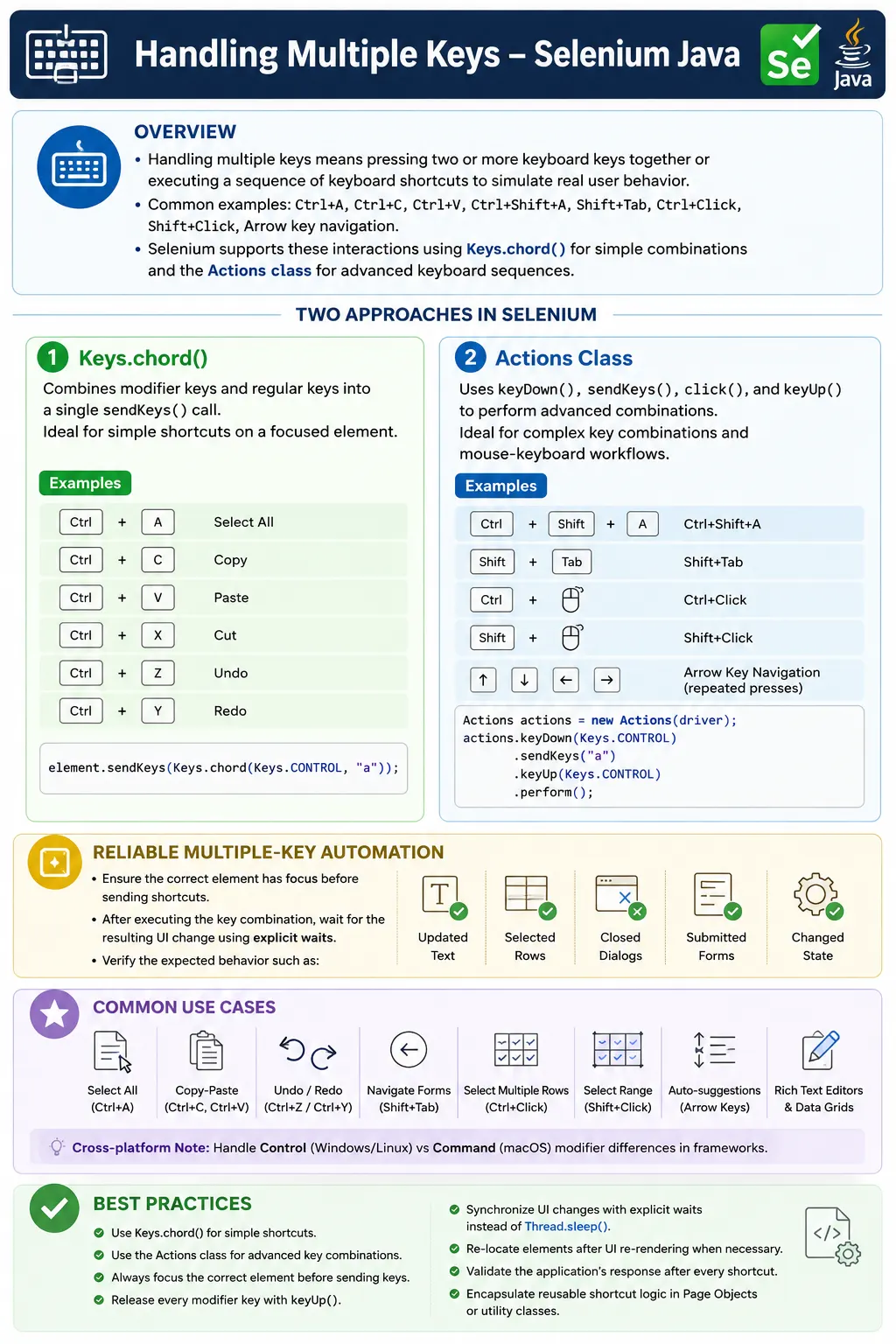
In Selenium Java, multiple key handling is usually done in two ways. For simple key combinations, Keys.chord() can combine a modifier key and a normal key into one send operation. For advanced shortcuts and mixed mouse-keyboard flows, the Actions class provides keyDown(), sendKeys(), click(), and keyUp(). Choosing the right approach makes the test easier to read and more stable.
The most important rule is that keyboard actions must be validated through application behavior. Sending Control A is not enough; the selected text should be replaced, deleted, copied, or otherwise proven. Sending Shift click is not enough; the selected range should be verified. Sending Arrow Down and Enter is not enough; the chosen auto-suggest value should be asserted. A keyboard shortcut is useful only when the application responds correctly.
2. Why Multiple Keys Are Important
Many applications are shortcut-driven. Users select all text with Control A, copy with Control C, paste with Control V, undo with Control Z, redo with Control Y, search with Control F, move backward through fields with Shift Tab, and select multiple rows with Control click or Shift click. Enterprise applications, dashboards, file managers, editors, and admin tools often depend on these behaviors.
Multiple key handling is also important for accessibility testing. A keyboard-only user must be able to navigate menus, dialogs, forms, grids, lists, and popups without using a mouse. Selenium can simulate many of these actions and verify that the workflow remains usable. This is especially useful for testing focus movement, modal dialogs, dropdowns, and custom widgets.
| Shortcut | Common Purpose |
|---|---|
| Control A | Select all text |
| Control C | Copy selected text |
| Control V | Paste text |
| Control X | Cut selected text |
| Control Z | Undo a change |
| Control Y | Redo a change |
| Shift Tab | Move focus backward |
| Control Click | Select multiple separate items |
| Shift Click | Select a range of items |
3. Required Imports
The core imports for multiple key handling are Keys, WebElement, and Actions.
import org.openqa.selenium.Keys;
import org.openqa.selenium.WebElement;
import org.openqa.selenium.interactions.Actions;
Most stable tests also use waits and assertions. If a shortcut opens a result panel, submits data, changes selection, or updates text, use explicit waits and verify the visible result.
4. Keys.chord for Simple Combinations
Keys.chord() combines multiple keys into a single operation. It is convenient for simple keyboard shortcuts such as Control A, Control C, Control V, and Control X on a focused element.
WebElement input = driver.findElement(By.id("username"));

input.sendKeys("SoftwareTips4U");
input.sendKeys(Keys.chord(Keys.CONTROL, "a"));
The result is that the entire text in the input is selected. This is a compact pattern and works well when the shortcut belongs directly to the element receiving the keys.
5. Control A and Delete
Control A followed by Delete is a reliable way to clear many modern inputs. It is especially useful in React and Angular applications where clear() may not trigger the same key events that a real user generates.
WebElement input = driver.findElement(By.id("username"));

input.click();
input.sendKeys(Keys.chord(Keys.CONTROL, "a"));
input.sendKeys(Keys.DELETE);
After clearing, verify that the field value is empty when the field is important.
Assert.assertEquals(input.getAttribute("value"), "");6. Control C and Control V
Copy and paste can be tested by selecting text in one element, copying it, focusing another element, and pasting it.
WebElement source = driver.findElement(By.id("source"));
WebElement target = driver.findElement(By.id("target"));

source.click();
source.sendKeys(Keys.chord(Keys.CONTROL, "a"));
source.sendKeys(Keys.chord(Keys.CONTROL, "c"));

target.click();
target.sendKeys(Keys.chord(Keys.CONTROL, "v"));
This workflow should be validated by checking the target value. Clipboard behavior may be affected by browser settings and security restrictions, so keep assertions clear and use this only when copy-paste behavior is part of the requirement.
7. Control X, Control Z, and Control Y
Control X cuts selected text. Control Z undoes a change. Control Y redoes a change. These shortcuts are common in editors, form fields, and productivity-style web applications.
input.sendKeys(Keys.chord(Keys.CONTROL, "x"));
input.sendKeys(Keys.chord(Keys.CONTROL, "z"));
input.sendKeys(Keys.chord(Keys.CONTROL, "y"));
Undo and redo tests should always validate the value or editor state after each operation. If a test types a new value, undoes it, and redoes it, the expected value should be asserted at each important step.
8. Actions for Advanced Key Combinations
For complex combinations, use Actions. Actions gives explicit control over when modifier keys are pressed and released.
Actions actions = new Actions(driver);

actions.keyDown(Keys.CONTROL)
       .sendKeys("a")
       .keyUp(Keys.CONTROL)
       .perform();
This is more verbose than Keys.chord(), but it is clearer for advanced workflows. It is also necessary when combining keyboard and mouse actions such as Control click and Shift click.
9. Control Shift A
Some applications define shortcuts that use two modifier keys. In Actions, press both modifiers, send the key, and then release the modifiers in a controlled order.
new Actions(driver)
    .keyDown(Keys.CONTROL)
    .keyDown(Keys.SHIFT)
    .sendKeys("a")
    .keyUp(Keys.SHIFT)
    .keyUp(Keys.CONTROL)
    .perform();
Releasing modifier keys matters. If the test leaves Control or Shift in a pressed state inside the action chain, later actions may behave differently from expected.
10. Shift Tab
Shift Tab moves focus backward through focusable elements. It is useful in form navigation and accessibility testing.
new Actions(driver)
    .keyDown(Keys.SHIFT)
    .sendKeys(Keys.TAB)
    .keyUp(Keys.SHIFT)
    .perform();
When testing focus movement, verify the active element after the shortcut. Focus-based tests should start from a known focus position.
11. Control Enter
Control Enter is common in chat applications, email applications, comment boxes, and ticketing systems. It may submit a message while plain Enter inserts a new line, or the opposite depending on the application design.
new Actions(driver)
    .keyDown(Keys.CONTROL)
    .sendKeys(Keys.ENTER)
    .keyUp(Keys.CONTROL)
    .perform();
After sending Control Enter, wait for the message, email, comment, or record state that proves the shortcut worked. Do not assume the shortcut submitted anything until the UI confirms it.
12. Control Click Multi-Selection
Control click allows selecting multiple non-adjacent items in many custom lists, file managers, and tables.
WebElement item1 = driver.findElement(By.id("item1"));
WebElement item2 = driver.findElement(By.id("item2"));

new Actions(driver)
    .keyDown(Keys.CONTROL)
    .click(item1)
    .click(item2)
    .keyUp(Keys.CONTROL)
    .perform();
After the action, verify that both items are selected. Depending on the application, this can be checked with selected classes, aria-selected, checkbox state, count labels, or enabled toolbar actions.
13. Shift Click Range Selection
Shift click selects a continuous range in many tables, inboxes, and file explorer-style UIs.
WebElement first = driver.findElement(By.id("row1"));
WebElement last = driver.findElement(By.id("row5"));

new Actions(driver)
    .click(first)
    .keyDown(Keys.SHIFT)
    .click(last)
    .keyUp(Keys.SHIFT)
    .perform();
Range selection needs stable test data. If rows are filtered, sorted, or dynamically inserted, the selected range may differ from the test expectation. Prepare predictable rows before running the test.
14. Multiple Arrow Keys
Repeated arrow keys are useful for menus, dropdowns, auto-suggest lists, date pickers, command palettes, and keyboard navigation tests.
new Actions(driver)
    .sendKeys(Keys.ARROW_DOWN)
    .sendKeys(Keys.ARROW_DOWN)
    .sendKeys(Keys.ARROW_DOWN)
    .sendKeys(Keys.ENTER)
    .perform();
This pattern selects the third option in a keyboard-driven list if focus is correct and the list is open. The test should validate the selected value rather than relying on the number of arrow presses alone.
15. Auto-Suggest Dropdown Workflow
Auto-suggest dropdowns are often more stable with keyboard navigation than with mouse clicks. Suggestions can move, re-render, or disappear when the mouse moves. Arrow keys and Enter follow a predictable interaction model.
WebElement searchBox = driver.findElement(By.id("search"));

searchBox.sendKeys("Ind");

new Actions(driver)
    .sendKeys(Keys.ARROW_DOWN)
    .sendKeys(Keys.ARROW_DOWN)
    .sendKeys(Keys.ENTER)
    .perform();
After Enter, validate that the input contains the expected selected value or that the page navigated to the expected result. If the suggestions load asynchronously, wait for the list before sending arrow keys.
16. Rich Text Editor Shortcuts
Rich text editors frequently support Control B for bold, Control I for italic, Control U for underline, Control Z for undo, Control Y for redo, and Control K for link insertion. These editors may use contenteditable regions rather than normal input fields.
WebElement editor = driver.findElement(By.id("editor"));

editor.click();

new Actions(driver)
    .keyDown(Keys.CONTROL)
    .sendKeys("b")
    .keyUp(Keys.CONTROL)
    .perform();
Validate formatting by checking toolbar state, generated HTML, visible styling, or saved content depending on what the product exposes. The shortcut itself is only the trigger; the editor state is the assertion.
17. Multi-Key Text Editing Workflow
A real workflow may combine selection, deletion, typing, focus movement, and submission in a single sequence.
new Actions(driver)
    .keyDown(Keys.CONTROL)
    .sendKeys("a")
    .keyUp(Keys.CONTROL)
    .sendKeys(Keys.DELETE)
    .sendKeys("New Value")
    .sendKeys(Keys.TAB)
    .sendKeys(Keys.ENTER)
    .build()
    .perform();
This sequence selects existing text, deletes it, enters a new value, tabs to the next control, and submits. Use this only when the workflow really depends on keyboard navigation. For simple form filling, direct element locators are usually clearer.
18. Browser Shortcuts and Limitations
Some shortcuts are browser-level or operating-system-level commands. Control F may open browser search. Control P may open print. Control T may open a new tab. Alt Tab may switch applications. These shortcuts may not be reliable or may be blocked by the browser, WebDriver, or operating system.
new Actions(driver)
    .keyDown(Keys.CONTROL)
    .sendKeys("f")
    .keyUp(Keys.CONTROL)
    .perform();
Use browser shortcuts only when they are part of the test objective. If the application has its own shortcut, focus the application area first and validate application behavior. Avoid shortcuts that pull focus into browser chrome when your goal is testing web app behavior.
19. Alt Tab and System-Level Shortcuts
Alt Tab is a system-level shortcut and may not work reliably through Selenium.
new Actions(driver)
    .keyDown(Keys.ALT)
    .sendKeys(Keys.TAB)
    .keyUp(Keys.ALT)
    .perform();
Most automation suites should avoid system-level shortcuts. Selenium is designed for browser automation, not desktop window management. If application switching is required, use tooling designed for desktop automation or restructure the test to avoid that dependency.
20. Operating System Modifier Differences
Control is common on Windows and Linux, while Command is common on macOS. Cross-platform test suites should choose the modifier key based on the environment.
Keys modifier = System.getProperty("os.name").toLowerCase().contains("mac")
    ? Keys.COMMAND
    : Keys.CONTROL;

new Actions(driver)
    .keyDown(modifier)
    .sendKeys("a")
    .keyUp(modifier)
    .perform();
This is important when running the same suite locally, in CI, and on cloud browser grids. A shortcut helper can hide these platform differences from test cases.
21. Focus Is the First Requirement
Multiple key actions depend heavily on focus. If the wrong element has focus, the shortcut may go to the body, browser UI, another input, or no useful target at all. Before sending a shortcut, click the intended element or verify the active element.
WebElement input = driver.findElement(By.id("username"));

input.click();
input.sendKeys(Keys.chord(Keys.CONTROL, "a"));
For focus-heavy workflows, use JavaScript to inspect document.activeElement during debugging. This quickly reveals whether the test and application are aligned.
22. Waiting Around Keyboard Actions
Keyboard shortcuts often trigger dynamic changes. Control Enter may submit data. Arrow Down may highlight an option. Escape may hide a modal. Control S may show a saved status. These changes need explicit waits.
new Actions(driver)
    .keyDown(Keys.CONTROL)
    .sendKeys(Keys.ENTER)
    .keyUp(Keys.CONTROL)
    .perform();

wait.until(
    ExpectedConditions.visibilityOfElementLocated(By.id("sentMessage"))
);
Do not add fixed sleeps as a default solution. Wait for the specific state that proves the shortcut completed.
23. Handling Stale Elements After Shortcuts
Frameworks can re-render fields, lists, editors, and modals after a key sequence. A WebElement captured before the shortcut may become stale afterward. Re-locate elements after actions that cause UI updates.
For example, an auto-suggest field may replace the suggestion list after each arrow press. A grid may re-render selected rows after Control click. A rich editor may rebuild toolbar state after Control B. Treat these transitions as expected framework behavior and synchronize with fresh locators.
24. Reusable Shortcut Method
A reusable method keeps shortcut handling consistent across the framework.
public void pressShortcut(Keys modifier1, Keys modifier2, CharSequence key) {
    Actions actions = new Actions(driver);

    if (modifier1 != null) {
        actions.keyDown(modifier1);
    }

    if (modifier2 != null) {
        actions.keyDown(modifier2);
    }

    actions.sendKeys(key);

    if (modifier2 != null) {
        actions.keyUp(modifier2);
    }

    if (modifier1 != null) {
        actions.keyUp(modifier1);
    }

    actions.perform();
}
Usage:
pressShortcut(Keys.CONTROL, null, "a");
pressShortcut(Keys.CONTROL, Keys.SHIFT, "a");
pressShortcut(Keys.CONTROL, null, Keys.END);
25. Clear and Type Utility
A very useful framework method combines focus, select all, delete, typing, and optional validation.
public void clearAndType(WebElement element, String value) {
    element.click();
    element.sendKeys(Keys.chord(Keys.CONTROL, "a"));
    element.sendKeys(Keys.DELETE);
    element.sendKeys(value);
}
This utility is practical for controlled inputs and masked fields. It should still be followed by value validation where the field is important to the test.
26. Validating the Result
Every meaningful multiple-key action should have an assertion. If Control A and Delete clears a field, assert the field value. If Control V pastes text, assert the pasted text. If Shift click selects a range, assert the selected count. If Escape closes a modal, assert invisibility. If Control S saves a record, assert the saved status or persisted value.
This is the difference between executing keys and testing behavior. Selenium can send the action, but the test must prove that the application responded correctly.
27. Common Issues and Fixes
| Issue | Cause | Fix |
|---|---|---|
| Shortcut not working | Wrong element focused | Click the target first and verify focus |
| Keys ignored | Element disabled or not ready | Wait for enabled and clickable state |
| Control remains pressed | Missing keyUp | Always release every keyDown |
| Browser shortcut opens | Browser owns the shortcut | Avoid browser-level shortcuts for app tests |
| React app ignores update | State not triggered correctly | Use user-like keys and verify value |
| Stale element exception | UI re-rendered after shortcut | Re-locate elements after state change |
28. Quick Code Patterns
28.1 Control A
new Actions(driver)
    .click(input)
    .keyDown(Keys.CONTROL)
    .sendKeys("a")
    .keyUp(Keys.CONTROL)
    .perform();
28.2 Control C
new Actions(driver)
    .click(input)
    .keyDown(Keys.CONTROL)
    .sendKeys("c")
    .keyUp(Keys.CONTROL)
    .perform();
28.3 Control V
new Actions(driver)
    .click(input)
    .keyDown(Keys.CONTROL)
    .sendKeys("v")
    .keyUp(Keys.CONTROL)
    .perform();
28.4 Shift Arrow Right
new Actions(driver)
    .keyDown(Keys.SHIFT)
    .sendKeys(Keys.ARROW_RIGHT)
    .sendKeys(Keys.ARROW_RIGHT)
    .keyUp(Keys.SHIFT)
    .perform();
28.5 Control End
new Actions(driver)
    .keyDown(Keys.CONTROL)
    .sendKeys(Keys.END)
    .keyUp(Keys.CONTROL)
    .perform();
29. Multiple Keys in Custom Dropdowns
Custom dropdowns often look like normal select boxes, but internally they are built with divs, buttons, list items, and JavaScript state. In these controls, multiple key handling can be more reliable than direct mouse clicks because the dropdown may support a keyboard navigation model. A user opens the dropdown, presses Arrow Down several times, and presses Enter to select the highlighted option.
The important detail is that the dropdown must be open and focused before the arrow keys are sent. If focus is on the page body, Arrow Down may scroll the page instead of moving through options. If focus is still on a previous input, the key may do nothing useful. A stable test opens the dropdown, waits for the options list, sends the keys, and validates the selected value.
WebElement country = driver.findElement(By.id("countryDropdown"));

country.click();

wait.until(
    ExpectedConditions.visibilityOfElementLocated(By.id("countryOptions"))
);

new Actions(driver)
    .sendKeys(Keys.ARROW_DOWN)
    .sendKeys(Keys.ARROW_DOWN)
    .sendKeys(Keys.ENTER)
    .perform();
If the application exposes aria-activedescendant or aria-selected, those attributes can help validate keyboard behavior. For business validation, the final displayed value is usually the strongest assertion.
30. Multiple Keys in Modal Workflows
Modal dialogs are another area where multiple key handling matters. A user may open a modal, tab through fields, use Shift Tab to move backward, press Escape to close, or press Control Enter to submit. These behaviors are more than shortcuts; they are part of accessibility and usability.
A modal keyboard test should start by verifying focus. When a modal opens, focus should usually move to the first meaningful control inside the modal. Tab should not move behind the modal. Shift Tab should cycle backward within the dialog. Escape should close the modal if the product design supports it. If these behaviors fail, keyboard users may be blocked.
Multiple key handling in modals should be validated with visible state. After Escape, the modal should disappear. After Control Enter, the form should submit or show validation. After Shift Tab, the active element should be the previous expected control. These assertions make the test useful instead of simply exercising key sequences.
31. Multiple Keys in Data Grids
Enterprise data grids frequently support spreadsheet-like keyboard behavior. Users may use arrows to move between cells, Shift arrows to select text inside an editable cell, Control C to copy selected cell values, Control V to paste, Delete to clear a cell, and Enter to save edits. Some grids also support Shift click for selecting a range of rows and Control click for selecting separate rows.
Grid tests should be designed carefully because grids often virtualize rows. A row that is visible in the browser may be a recycled DOM node that changes as the user scrolls. If the test captures a WebElement and then sends keys that cause the grid to re-render, that reference may become stale. Locate the target cell close to the action and re-locate after state changes.
For grid selection, validate business state rather than only visual classes when possible. For example, after Control click selects two rows, a toolbar may show "2 selected." After Shift click selects a range, bulk action buttons may become enabled. These are strong indicators that the application understood the multi-key workflow.
32. Multiple Keys in Contenteditable Areas
Many editors, comment boxes, and low-code tools use contenteditable instead of normal input elements. These areas can accept keyboard shortcuts, but their value is not stored in the value attribute. Selenium tests need to validate text or HTML differently.
After sending Control B, Control I, or Control K inside a contenteditable editor, inspect the editor's visible text, toolbar state, or inner HTML. If the editor exposes a save preview, validating the saved preview may be better than inspecting implementation-specific markup. Rich editors can change their DOM structure between versions, so tests should avoid brittle HTML assertions unless the HTML output itself is the requirement.
Focus is especially important for contenteditable areas. Clicking the editor wrapper may not place the caret in the editable region. Inspect the DOM and click the actual editable element when possible. If the editor uses an iframe, switch into the frame before sending keys.
33. Multiple Keys and Clipboard Limitations
Copy and paste shortcuts can be useful, but clipboard behavior has limitations. Browser security settings, operating system rules, remote grid behavior, and headless execution can all affect clipboard operations. A shortcut may appear to run, but no text may reach the target field.
When the test goal is to verify the application supports copy and paste, use keyboard shortcuts and assert both the source and target results. When the test only needs to put text into a target field, direct sendKeys() is usually better. Avoid making ordinary form tests depend on clipboard behavior if clipboard behavior is not the feature under test.
For remote execution, capture screenshots and field values on failure. If copy-paste is inconsistent across environments, separate the clipboard-specific test from core business tests so it does not destabilize unrelated regression coverage.
34. Building Platform-Aware Shortcut Utilities
Frameworks that run on multiple operating systems should centralize shortcut logic. Instead of writing Keys.CONTROL everywhere, create a helper that returns the correct primary modifier. On Windows and Linux, that modifier is usually Control. On macOS, it may be Command.
public Keys primaryModifier() {
    String os = System.getProperty("os.name").toLowerCase();
    return os.contains("mac") ? Keys.COMMAND : Keys.CONTROL;
}
Then shortcuts can call the helper.
pressShortcut(primaryModifier(), null, "a");This prevents duplicated platform checks throughout the suite. It also makes future changes easier if the execution environment changes from local browsers to cloud grids or containerized runners.
35. Sequencing Keys Safely
Long keyboard sequences can become difficult to debug. If a chain selects all text, deletes it, types a new value, tabs forward, and presses Enter, a failure could happen at any point. For stable workflows, the chain is fine. During debugging or for critical areas, split the workflow into smaller steps and validate intermediate state.
For example, after Control A and Delete, assert that the field is empty. After typing the new value, assert the value. After Tab, check the active element if focus matters. After Enter, wait for submission. This approach makes failures easier to diagnose because the test identifies the exact broken step.
Do not create overly clever shortcut chains just to reduce lines of code. Readable tests are more valuable than short tests, especially in enterprise suites maintained by many testers.
36. Debugging Multiple Key Failures
When a multiple-key action fails, inspect four things first: focus, readiness, platform, and ownership of the shortcut. Focus answers the question "Which element received the keys?" Readiness answers "Was the element enabled and ready?" Platform answers "Was the correct modifier used?" Ownership answers "Did the browser, operating system, or application handle the shortcut?"
Useful debugging evidence includes a screenshot, the current URL, the active element's tag and id, the target field value before and after the action, and any visible validation messages. If the shortcut interacts with a dropdown or modal, capture whether the dropdown or modal was open when keys were sent.
For CI failures, compare local and CI browser size, headless mode, operating system, and browser version. A shortcut that works locally may fail in CI because the target is hidden in a responsive layout or because focus starts in a different place.
37. When Not to Use Multiple Key Actions
Multiple key actions are powerful, but they are not always the best tool. If a normal button click is the documented workflow, use a click. If a native select element needs a value, use Selenium's Select class. If a form can be filled directly and the shortcut is not part of the requirement, direct locators may produce simpler and more stable tests.
Use multiple key handling when it represents real user behavior that matters: shortcuts, accessibility paths, text editing, multi-selection, keyboard navigation, or app-specific command flows. Avoid using it as a workaround for poor locators or unstable page state. If a click fails because the page is not ready, the fix is synchronization, not necessarily a keyboard shortcut.
38. Real Project Testing Strategy
In a real Selenium framework, multiple key tests should be organized by feature intent. A form suite may include tests for Control A Delete clearing and Tab order. A grid suite may include Control click and Shift click selection. An editor suite may include Control B, Control I, undo, redo, copy, paste, and save shortcuts. An accessibility suite may include Tab, Shift Tab, Enter, Space, and Escape behavior.
Keep these tests meaningful and isolated. Do not make every business test depend on shortcuts. Instead, cover shortcut behavior in focused tests and use simpler interactions for general functional coverage. This keeps the regression suite fast, understandable, and less fragile.
39. Enterprise Best Practices
- Use
Keys.chord()for simple shortcuts on a focused element. - Use Actions with
keyDown()andkeyUp()for advanced combinations. - Always release every modifier key that you press.
- Focus the correct element before sending shortcuts.
- Use platform-aware modifiers for cross-platform execution.
- Avoid browser-level and operating-system-level shortcuts unless required.
- Validate the application result after every important shortcut.
- Use explicit waits for UI changes caused by shortcuts.
- Re-locate elements after shortcuts that cause re-rendering.
- Wrap common shortcut patterns in reusable framework utilities.
40. Interview Perspective
A short interview answer is: multiple keys in Selenium can be handled using Keys.chord() for simple combinations and the Actions class with keyDown() and keyUp() for advanced keyboard shortcuts.
A stronger real-time answer is: In Selenium Java, I use Keys.chord() for simple shortcuts such as Control A, Control C, and Control V when a target element is focused. For complex shortcuts such as Control Shift A, Shift Tab, Control click multi-selection, and Shift click range selection, I use the Actions class with keyDown(), click(), sendKeys(), and keyUp(). I always make sure the correct element has focus, release modifier keys, wait for the UI response, and validate the result.
41. Final Summary
Handling multiple keys in Selenium Java allows automation to simulate real keyboard-driven workflows. It supports shortcuts such as Control A, Control C, Control V, Control X, Control Z, Control Y, Control Shift combinations, Shift Tab navigation, arrow key selection, Control click multi-selection, and Shift click range selection. These interactions are important for forms, editors, auto-suggest controls, grids, file managers, accessibility flows, and enterprise applications.
Use Keys.chord() for simple key combinations. Use Actions for advanced combinations, modifier keys, and mixed mouse-keyboard workflows. Always focus the correct element, release modifier keys with keyUp(), avoid browser-native shortcuts unless required, and validate the application result after the shortcut executes.
The key takeaway is simple: multiple key handling is not only about pressing keys together. It is about accurately simulating user intent and proving that the application responds correctly.