Handling Hidden Elements in Selenium Java
1. Introduction
A hidden element is an element that exists in the HTML DOM but is not visible or interactable from the user's perspective. Selenium can often locate such an element because it is present in the source structure, but Selenium usually refuses to click it, type into it, or treat it as a normal user-facing control. This behavior is intentional. Selenium is designed to automate the browser like a real user, and a real user cannot interact with something that is hidden.
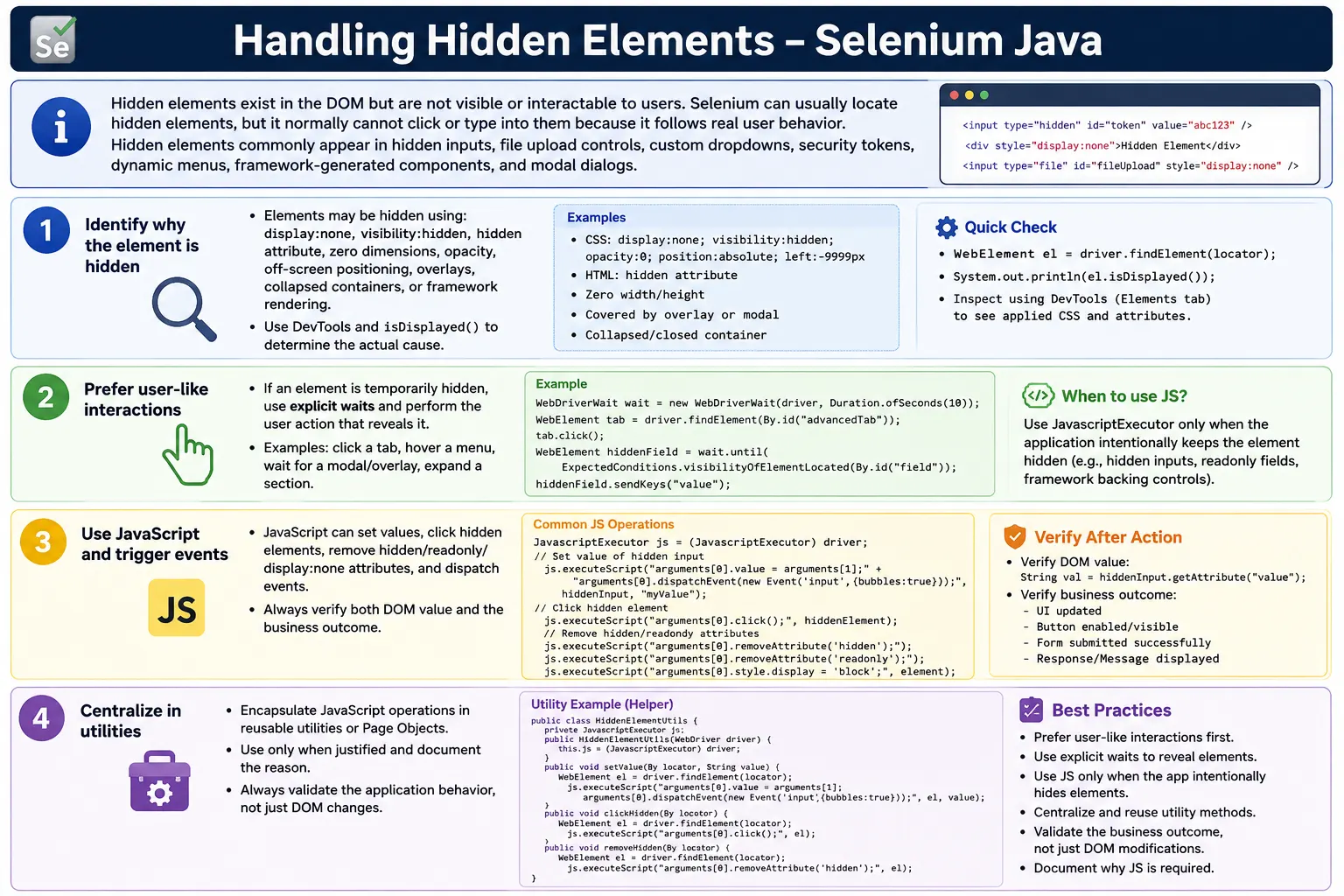
Hidden elements are common in modern applications. They appear in hidden input fields, file upload controls, dynamic menus, custom dropdowns, security tokens, framework-generated components, radio and checkbox wrappers, date pickers, modal dialogs, hover menus, and elements that become visible only after a click or animation. Because of this, handling hidden elements is a frequent real-world Selenium challenge.
The correct strategy depends on why the element is hidden. Sometimes the right solution is to wait until it becomes visible. Sometimes the right solution is to interact with the visible wrapper instead of the hidden real input. Sometimes JavaScriptExecutor is the practical fallback. A strong automation engineer does not blindly force every hidden element to become visible. The goal is to preserve the test intent while making the automation reliable.
2. What Is a Hidden Element?
An element is hidden when it exists in the DOM but is not visible to the user. For example:
<input id="username" style="display:none"><input id="username" hidden><input id="username" style="visibility:hidden">All of these elements may be found by Selenium using findElement(), but they are not displayed. Selenium's isDisplayed() returns false. If you try to interact with them using normal commands, Selenium will usually throw an exception because the element is not available for real user interaction.
3. Why Hidden Elements Cause Problems
WebElement element =
        driver.findElement(By.id("username"));

element.click();
If the element is hidden, the result may be ElementNotInteractableException. This is not a Selenium bug. It is Selenium enforcing real browser behavior. A hidden input cannot be clicked by a real person, and Selenium follows the same rule.
This is why hidden elements need careful handling. If the hidden element is part of normal UI behavior, the test should reveal it the way a user would. If it is a hidden technical field, reading or setting it through JavaScript may be acceptable. If it is a custom component, the visible component should usually be automated instead of the hidden backing element.
4. Common Ways Elements Become Hidden
One common method is display:none. This removes the element from the visual layout.
<button id="save" style="display:none">
    Save
</button>
Another method is visibility:hidden. The element may still occupy layout space, but it is invisible.
<button id="save" style="visibility:hidden">
    Save
</button>
The HTML hidden attribute also hides content.
<input hidden id="token">Elements can also be hidden by zero width and height, opacity set to zero, offscreen positioning, overlays, collapsed containers, inactive tabs, closed accordions, and framework rendering logic. Understanding the hiding mechanism helps you choose the right fix.
5. How to Identify Hidden Elements
The first tool is browser DevTools. Inspect the element and look for CSS such as display:none, visibility:hidden, opacity:0, zero dimensions, offscreen positioning, or the hidden attribute. Also check whether the visible UI is only a wrapper while the real input is hidden.
In Selenium, use isDisplayed() to confirm visibility.
WebElement element =
        driver.findElement(By.id("username"));

System.out.println(
        element.isDisplayed()
);
If the output is false, Selenium considers the element not visible. This does not mean the element is absent. It means the element is present but hidden from the user.
6. Hidden Element Example
<input id="secret" style="display:none">WebElement secret =
driver.findElement(By.id("secret"));
secret.sendKeys("admin");This usually fails with ElementNotInteractableException. The input exists, but the browser will not allow a user-like typing action because the field is hidden. In this case, JavaScript can set the value directly if that matches the test objective.
7. Required Import
import org.openqa.selenium.JavascriptExecutor;For most hidden element workarounds, JavascriptExecutor is the important interface. Waits, frame handling, and normal WebElement APIs are also often used depending on the situation.
8. Creating JavaScriptExecutor
JavascriptExecutor js =
        (JavascriptExecutor) driver;
JavaScript runs in the current browser context. If the target is inside a frame, switch into the frame first. If the target is in another window, switch to that window first. JavaScript does not remove the need for correct browser context.
9. Handling Hidden Elements Using JavaScript
The most common fallback is to use JavaScript to set a hidden field value.
WebElement element =
        driver.findElement(By.id("secret"));

js.executeScript(
        "arguments[0].value=arguments[1];",
        element,
        "admin"
);
This works because JavaScript bypasses Selenium's user-interaction visibility checks. It modifies the DOM directly. That power should be used carefully because it can perform actions that users cannot perform.
10. Hidden Textbox Example
<input id="username" style="display:none">WebElement textbox =
driver.findElement(By.id("username"));
js.executeScript(
"arguments[0].value=arguments[1];",
textbox,
"Selenium"
);If the application listens for value changes, also dispatch input or change events. Without events, the visible DOM value may change while the application state remains unchanged.
11. Hidden Button Example
<button id="save" style="display:none">
    Save
</button>
WebElement saveButton =
driver.findElement(By.id("save"));
js.executeScript(
"arguments[0].click();",
saveButton
);JavaScript click can trigger the element's click handler even though the element is hidden. Use this only when the test intentionally needs to trigger that handler. If the button is supposed to become visible after a user action, automate that user action instead.
12. Making a Hidden Element Visible
Another approach is to change CSS first and then use normal Selenium interactions.
js.executeScript(
        "arguments[0].style.display='block';",
        element
);

element.click();
This can be useful for controlled test utilities, but it changes the application UI. For end-to-end user tests, prefer the visible workflow unless there is a strong reason to modify the element.
13. Removing display:none
js.executeScript(
        "arguments[0].style.display='block';",
        element
);
This changes display:none to a visible display value. In some layouts, block may not be the original intended value. If the original element should be inline or flex, forcing block may affect layout. That is one reason direct CSS manipulation should be used carefully.
14. Removing visibility:hidden
js.executeScript(
        "arguments[0].style.visibility='visible';",
        element
);
This makes an invisible element visible while keeping its layout position. Again, ask whether the test should be changing UI styling or whether it should trigger the normal action that reveals the element.
15. Removing Hidden Attribute
<input hidden id="token">js.executeScript(
"arguments[0].removeAttribute('hidden');",
element
);Removing the hidden attribute can expose the element. This is useful when a technical field must be inspected, but it may not represent real user behavior.
16. Hidden File Upload Control
File uploads are a special case. Selenium can often send the file path directly to the file input even if the input is hidden. You do not need to click the hidden upload button.
WebElement upload =
        driver.findElement(By.id("upload"));

upload.sendKeys(
        "C:\\Files\\resume.pdf"
);
This is one of the few situations where interacting with a hidden control through Selenium is common and acceptable. The browser security model allows WebDriver to set the file path on the file input.
17. Hidden Checkbox
WebElement checkbox =
        driver.findElement(By.id("agree"));

js.executeScript(
        "arguments[0].checked=true;" +
        "arguments[0].dispatchEvent(new Event('change',{bubbles:true}));",
        checkbox
);
Hidden checkboxes are common in custom styled controls. The visible checkbox may be a label or span, while the real input is hidden. If possible, click the visible label. Use JavaScript on the hidden checkbox only when the visible UI cannot be automated reliably.
18. Hidden Radio Button
WebElement radioButton =
        driver.findElement(By.id("male"));

js.executeScript(
        "arguments[0].checked=true;" +
        "arguments[0].dispatchEvent(new Event('change',{bubbles:true}));",
        radioButton
);
Radio buttons also use the checked property. Triggering the change event helps the application respond to the selection.
19. Hidden Dropdown
WebElement dropdown =
        driver.findElement(By.id("country"));

js.executeScript(
        "arguments[0].value=arguments[1];",
        dropdown,
        "India"
);
Custom dropdowns often hide the actual select element and display a styled replacement. If the hidden select stores the real value, JavaScript can update it, but the visible label may not update unless events fire or the component re-renders.
20. Triggering Change Event
js.executeScript(
        "arguments[0].value=arguments[1];" +
        "arguments[0].dispatchEvent(new Event('change',{bubbles:true}));",
        dropdown,
        "India"
);
Events are important for framework-generated UI components. A hidden field value may change, but dependent UI, validation rules, and submit button state may not update until the correct event is dispatched.
21. Triggering Input Event
js.executeScript(
        "arguments[0].value=arguments[1];" +
        "arguments[0].dispatchEvent(new Event('input',{bubbles:true}));",
        textbox,
        "Selenium"
);
The input event is common for text fields, live search, counters, validation messages, and framework state updates. For React, Angular, and Vue controls, input events are often more important than basic value assignment.
22. Hidden Element Inside iFrame
driver.switchTo().frame("frame1");

WebElement element =
        driver.findElement(By.id("hidden"));

js.executeScript(
        "arguments[0].click();",
        element
);

driver.switchTo().defaultContent();
Frame switching is still required. JavaScript runs only in the current frame context. If you execute JavaScript from the main page while the element is inside an iframe, the script cannot access the element passed from a different context.
23. Hidden Element Inside Child Window
If the hidden element belongs to a child window or tab, switch to that window first.
driver.switchTo().window(childWindow);

WebElement hidden =
        driver.findElement(By.id("hiddenField"));

js.executeScript(
        "arguments[0].value=arguments[1];",
        hidden,
        "data"
);
JavaScript does not eliminate window handling. Selenium must still point to the correct browser window before the script runs.
24. Hidden Elements in React Applications
React applications often use hidden inputs, virtual DOM updates, and controlled components. An element may have aria-hidden="true", display:none, or a hidden backing input behind a styled control.
js.executeScript(
        "arguments[0].value=arguments[1];" +
        "arguments[0].dispatchEvent(new Event('input',{bubbles:true}));",
        textbox,
        "Selenium"
);
If the value appears but the form still behaves as if it is empty, the framework state did not update. Inspect which element owns the state and which event handlers fire during real interaction.
25. Reading Hidden Input Value
WebElement hidden =
        driver.findElement(By.id("token"));

String value =
        hidden.getAttribute("value");

System.out.println(value);
Reading hidden values is usually safer than modifying hidden values. It is useful for tokens, generated IDs, workflow state, and debugging.
26. Reading Hidden Text Content
String text =
        (String) js.executeScript(
                "return arguments[0].textContent;",
                hiddenElement
        );
getText() may return an empty value for hidden elements because Selenium returns visible text. JavaScript textContent can read text that exists in the DOM even when it is hidden.
27. Verify Hidden Element Value
String value =
        (String) js.executeScript(
                "return arguments[0].value;",
                textbox
        );

System.out.println(value);
After setting a hidden value, verify it. For functional flows, also verify the business result, such as form submission, enabled controls, saved data, or updated UI state.
28. Scroll Hidden Element into View
js.executeScript(
        "arguments[0].scrollIntoView(true);",
        element
);
Scrolling helps only when an element is outside the viewport but otherwise visible. It does not make display:none elements visible. If an element is hidden by CSS, scrolling alone will not make it interactable.
29. Change CSS Opacity
js.executeScript(
        "arguments[0].style.opacity='1';",
        element
);
An element with opacity:0 may occupy space and receive events depending on other CSS rules, but it is invisible. Changing opacity can reveal it, but this is still modifying application styling. Use it only when the test purpose justifies it.
30. Click Element Hidden Behind Overlay
js.executeScript(
        "document.getElementById('overlay').style.display='none';"
);

WebElement button =
        driver.findElement(By.id("submit"));

js.executeScript(
        "arguments[0].click();",
        button
);
Be careful with overlays. If the overlay is a loading spinner, hiding it can create a false pass while the application is still busy. The better solution is usually to wait until the overlay disappears naturally. Remove overlays only for very specific controlled scenarios.
31. Wait Until Hidden Element Becomes Visible
If the element is supposed to become visible after a user action, wait for visibility instead of forcing it.
WebDriverWait wait =
        new WebDriverWait(driver, Duration.ofSeconds(10));

WebElement element =
        wait.until(
                ExpectedConditions.visibilityOfElementLocated(
                        By.id("hiddenTextbox")
                )
        );

element.sendKeys("Selenium");
This is the best approach when hidden state is temporary. It preserves real user behavior and avoids unnecessary JavaScript manipulation.
32. Verify Hidden Element Exists
boolean exists =
        driver.findElements(
                By.id("hiddenTextbox")
        ).size() > 0;

System.out.println(exists);
Presence and visibility are different. An element can exist but be hidden. Use findElements() to check presence without throwing an exception, and use isDisplayed() to check visibility.
33. Removing Readonly Attribute
js.executeScript(
        "arguments[0].removeAttribute('readonly');",
        textbox
);

textbox.sendKeys("Editable Now");
Readonly fields are not always hidden, but they are related because they block normal typing. Removing the attribute is a workaround. Use it only if the test scenario requires direct entry and the product behavior is understood.
34. Removing Disabled Attribute
js.executeScript(
        "arguments[0].removeAttribute('disabled');",
        button
);
Removing disabled is more risky than removing readonly. A disabled button often represents an unmet business condition. Enabling it through JavaScript may bypass validation and produce a misleading test. Prefer satisfying the condition that enables the button naturally.
35. Reusable Utility: Set Hidden Value
public static void setHiddenValue(
        WebDriver driver,
        WebElement element,
        String value) {

    JavascriptExecutor js =
            (JavascriptExecutor) driver;

    js.executeScript(
            "arguments[0].value=arguments[1];",
            element,
            value
    );
}
This basic utility is useful for hidden technical fields. For framework components, use a stronger utility that dispatches events.
36. Reusable Utility: Set Hidden Value with Events
public static void setHiddenValueWithEvents(
        WebDriver driver,
        WebElement element,
        String value) {

    JavascriptExecutor js =
            (JavascriptExecutor) driver;

    js.executeScript(
            "arguments[0].value=arguments[1];" +
            "arguments[0].dispatchEvent(new Event('input',{bubbles:true}));" +
            "arguments[0].dispatchEvent(new Event('change',{bubbles:true}));",
            element,
            value
    );
}
This version is better for modern frameworks because it updates the value and notifies listeners.
37. Reusable Utility: Click Hidden Element
public static void clickHiddenElement(
        WebDriver driver,
        WebElement element) {

    JavascriptExecutor js =
            (JavascriptExecutor) driver;

    js.executeScript(
            "arguments[0].click();",
            element
    );
}
Keep this method centralized and use it sparingly. A JavaScript click on a hidden element can bypass important UI rules.
38. Real Project Example: Hidden Security Token
WebElement hiddenField =
        driver.findElement(By.id("csrfToken"));

String token =
        hiddenField.getAttribute("value");
Security tokens are often hidden inputs. Tests may need to verify that the token exists or pass it into an API call for setup. Reading the token is usually acceptable. Setting the token should be done only in controlled test setup scenarios.
39. Real Project Example: Hidden Upload Button
WebElement upload =
        driver.findElement(By.id("upload"));

upload.sendKeys(
        "C:\\Files\\document.pdf"
);
The visible upload button may be a styled label, while the actual file input is hidden. Selenium can send the path directly to the input. This avoids native OS file dialogs and is the standard WebDriver approach for uploads.
40. Real Project Example: Custom Dropdown
Many UI libraries hide a real select or input and render a custom dropdown. The best test is usually to click the visible dropdown and visible option. If that is not reliable, JavaScript can set the hidden backing value and dispatch a change event.
js.executeScript(
        "arguments[0].value=arguments[1];" +
        "arguments[0].dispatchEvent(new Event('change',{bubbles:true}));",
        dropdown,
        "India"
);
After this, verify that the visible label or dependent field updates. If only the hidden value changes, the user-facing UI may still be inconsistent.
41. Real Project Example: Dynamic Menus
Some menu items are hidden until hover or click. Do not use JavaScript click immediately. First try the real workflow: move to the parent menu, wait for the child item to become visible, and then click it. This validates the user experience.
JavaScript should be the fallback only if the goal is to trigger a known action and the UI interaction itself is not under test. For navigation menus, user-like actions are usually better because the menu behavior is part of the feature.
42. Common Exceptions
ElementNotInteractableException occurs when the element is present but cannot be interacted with, often because it is hidden. InvalidElementStateException can occur with readonly, disabled, or non-editable controls. NoSuchElementException means the element is not present at all, and JavaScript cannot fix a missing element.
Do not treat all exceptions as hidden element problems. Confirm presence, visibility, frame context, window context, and element state before choosing a workaround.
43. Hidden vs Not Present
A hidden element exists in the DOM. A missing element does not exist in the DOM at that moment. This distinction matters. Hidden elements can be read or modified with JavaScript. Missing elements cannot be handled until they are created by the application.
boolean present =
        driver.findElements(By.id("token")).size() > 0;
If present is false, wait for the element or trigger the action that creates it. Do not attempt JavaScript interaction with an element that does not exist.
44. Hidden vs Offscreen
An offscreen element may be visible in principle but positioned outside the current viewport. In that case, scrolling may solve the problem. A truly hidden element with display:none will not become visible through scrolling.
Use DevTools and isDisplayed() to distinguish these cases. If isDisplayed() returns true but click fails, the issue may be scrolling, overlays, or interception. If isDisplayed() returns false, the element is hidden or not user-visible.
45. Hidden Elements and Test Integrity
The biggest risk with hidden elements is false confidence. JavaScript can make a test pass by bypassing real UI behavior. That may be acceptable for setup, but it is dangerous for end-to-end validation. If the user cannot complete the workflow, the test should not pass by secretly modifying hidden DOM nodes.
Use JavaScript hidden-element handling when the application design genuinely requires it, and document the reason. Prefer visible user workflows for feature validation.
46. Custom Controls and Hidden Backing Inputs
Many modern design systems replace native controls with styled components. A checkbox may look like a rounded toggle, a dropdown may look like a searchable panel, and a file upload may look like a large drag-and-drop area. Behind the scenes, the real HTML input may be hidden and connected to the visible component through labels, JavaScript events, or framework state.
When testing these controls, inspect the DOM before choosing a strategy. If the visible wrapper has proper behavior and can be clicked, automate the visible wrapper. That validates the same path a user follows. If the visible wrapper is purely decorative and the hidden input is the actual control, JavaScript may be acceptable, but only after verifying that the application receives the update. For example, selecting a hidden checkbox should also update any visible status text, enable the next button, or change the stored state.
This distinction is important in enterprise applications. A test that changes the hidden input but leaves the visible component unchanged can create inconsistent browser state. The test may pass a simple DOM assertion while the screen still looks wrong to the user. Always validate the visible or business-level outcome after hidden backing input manipulation.
47. Hidden Elements and Explicit Wait Strategy
Not every hidden element needs JavaScript. Many elements are hidden only temporarily. A menu item may be hidden until hover, a tab panel may be hidden until its tab is clicked, and a modal field may be hidden until the modal animation finishes. In these cases, the best solution is usually an explicit wait.
WebElement menu =
        driver.findElement(By.id("settingsMenu"));

menu.click();

WebElement option =
        wait.until(
                ExpectedConditions.visibilityOfElementLocated(
                        By.id("advancedSettings")
                )
        );

option.click();
This approach keeps the test realistic. It performs the user action that reveals the element and waits for the browser to complete rendering. JavaScript should not be used just because an element is hidden at first. Use JavaScript when the element is intentionally hidden as a technical implementation detail, not when the application expects the user to reveal it.
48. Hidden Elements Behind Loading States
Loading spinners and overlays create a different problem. The target element may be visible in the DOM, but an overlay may cover it. In screenshots, the button may appear on the page, but Selenium cannot click it because another element receives the click. This is not the same as a hidden button. It is an interaction-blocking overlay problem.
The correct solution is usually to wait for the overlay to disappear. Removing the overlay with JavaScript can hide real application timing issues and cause unstable tests. For example, if a Save button appears while the page is still loading, forcing a click may run before the application is ready.
wait.until(
        ExpectedConditions.invisibilityOfElementLocated(
                By.id("loadingOverlay")
        )
);

driver.findElement(By.id("save")).click();
This preserves the real workflow and makes failures meaningful. If the overlay never disappears, the application has a timing or loading defect that the test should expose.
49. Handling Hidden Elements in Page Objects
Hidden-element logic should usually live in page objects or framework utilities, not directly inside test methods. Test methods should describe business intent. A test should say profilePage.uploadResume(filePath) or settingsPage.selectCountry("India"), not expose all the JavaScript needed to manipulate hidden implementation details.
Page objects can decide whether to click the visible control, wait for visibility, send a file path to a hidden file input, or use JavaScript as a fallback. This keeps tests readable and reduces duplication. It also gives the team one place to improve the hidden-element strategy if the UI component changes.
For maintainability, name helper methods honestly. A method named clickHiddenElement() should make reviewers pause and ask why it is needed. That is useful. Hidden-element handling should be visible enough to review, but encapsulated enough to avoid copy-paste JavaScript across the suite.
50. Code Review Questions for Hidden Element Handling
When reviewing Selenium code that handles hidden elements, ask a few practical questions. Is the element truly hidden, or is the locator pointing to the wrong node? Is there a visible label, button, or wrapper that should be automated instead? Is the element inside a frame or another window? Is the element expected to become visible after a user action? Is JavaScript being used to bypass a real product rule?
If the answer shows that JavaScript is being used because the test did not wait properly, the code should be improved. If JavaScript is used because the application intentionally stores the real value in a hidden input behind a custom widget, the approach may be acceptable. The review goal is not to ban JavaScript. The goal is to make sure JavaScript is used with a clear reason.
51. Real Project Example: Hidden Tab Content
Tabbed pages often keep inactive tab panels in the DOM but hidden. A field inside the second tab may be present but not displayed. If Selenium finds the field and tries to type immediately, it fails. The correct approach is to click the tab first and wait for the panel to become visible.
driver.findElement(By.id("billingTab")).click();

WebElement billingEmail =
        wait.until(
                ExpectedConditions.visibilityOfElementLocated(
                        By.id("billingEmail")
                )
        );

billingEmail.sendKeys("billing@example.com");
This is better than setting the hidden field with JavaScript because the tab behavior is part of the user experience. If the tab does not reveal its content, the test should fail.
52. Real Project Example: Hidden Validation Message
Validation messages are often hidden until an error occurs. A message element may exist in the DOM with display:none before the user submits the form. The test should not force the message visible. It should perform the invalid action and then wait for the message.
driver.findElement(By.id("email")).sendKeys("wrong");
driver.findElement(By.id("submit")).click();

WebElement error =
        wait.until(
                ExpectedConditions.visibilityOfElementLocated(
                        By.id("emailError")
                )
        );

Assert.assertTrue(
        error.getText().contains("valid email")
);
This validates the actual behavior. Hidden validation messages should be handled through the workflow that reveals them.
53. Common Beginner Mistakes
- Assuming hidden elements are absent from the DOM.
- Using JavaScript for every hidden-related issue without checking the real cause.
- Forgetting to trigger
inputorchangeevents after changing values. - Ignoring frames and child windows.
- Removing overlays instead of waiting for them to disappear naturally.
- Changing disabled controls and bypassing business validation.
- Clicking hidden buttons when the visible workflow should be tested.
- Not verifying the outcome after JavaScript interaction.
54. Best Practices
- Prefer interacting with visible UI whenever possible.
- Use explicit waits when elements are expected to become visible.
- Use JavaScript only when the application intentionally keeps the element hidden.
- Read hidden input values with
getAttribute("value"). - Trigger events when setting hidden values in framework-based applications.
- Keep hidden-element JavaScript utilities centralized.
- Document why JavaScript was necessary.
- Validate the business result after hidden-element handling.
55. Debugging Checklist
- Check whether the element is present in the DOM.
- Check
isDisplayed(). - Inspect CSS for
display:none,visibility:hidden, opacity, zero size, or offscreen positioning. - Confirm whether the element is inside a frame or child window.
- Check whether a visible wrapper should be used instead.
- Use waits if visibility is expected after an action.
- Use JavaScript only after understanding why the element is hidden.
- Verify final application behavior, not only DOM changes.
56. Interview Perspective
A short interview answer is: hidden elements are present in the DOM but not visible to the user. Selenium normally cannot interact with them because it follows user-like behavior. JavaScriptExecutor can be used to set values, click hidden elements, remove hidden attributes, or make elements visible when the test scenario requires it.
A stronger real-time answer is: in real projects, I first determine whether the element is temporarily hidden, technically hidden, inside a custom component, or hidden because of a frame or window context. If it should become visible, I use explicit waits and automate the visible workflow. If it is a hidden technical field, file upload input, or framework backing control, I use JavaScript carefully and trigger required events. I always verify the final business result after the interaction.
57. Key Takeaway
Hidden elements exist in the DOM but are not visible or interactable from a user's perspective. Selenium usually cannot click or type into them directly because Selenium respects real browser interaction rules.
The safest strategy is to automate the visible user workflow first. If the application design genuinely requires hidden-element handling, use JavaScriptExecutor to set values, trigger clicks, remove attributes, adjust visibility, or dispatch events. File uploads are a special case where sendKeys() to a hidden file input often works well.
Used carefully, hidden-element handling makes Selenium tests practical for custom widgets, security tokens, file uploads, framework-generated controls, and dynamic UI components. Used carelessly, it can bypass the product and create false confidence. The difference is understanding why the element is hidden and validating the outcome after the workaround.