getText()
The getText() method is used to retrieve the visible text of a web element in Selenium
WebDriver. It is one of the most important methods for UI validation because automated tests frequently need
to confirm what the user can actually see on the page. Page headings, labels, button captions, success
messages, error messages, menu items, table cells, product names, notification text, and validation messages
are all common examples where getText() is used.
The key phrase is "visible text." Selenium's getText() is not designed to return every piece of
text stored somewhere in the HTML. It returns rendered text that is available to the user through the page's
visible layout. This is why the method is useful for functional validation: it helps the test verify the
user-facing result of an action, not just an internal DOM value. If a login attempt displays "Invalid
password", if a save operation shows "Profile updated", or if a table row shows a customer's name,
getText() is usually the right method to read that visible content.
At the same time, getText() is a common source of confusion. It does not return values typed
inside <input> fields. It does not return placeholder text. It does not normally return
hidden text. It may normalize whitespace and line breaks depending on browser rendering. It can return an
empty string if the element is present but not visible, or if the text has not loaded yet. Understanding
these details is essential for writing stable Selenium assertions.
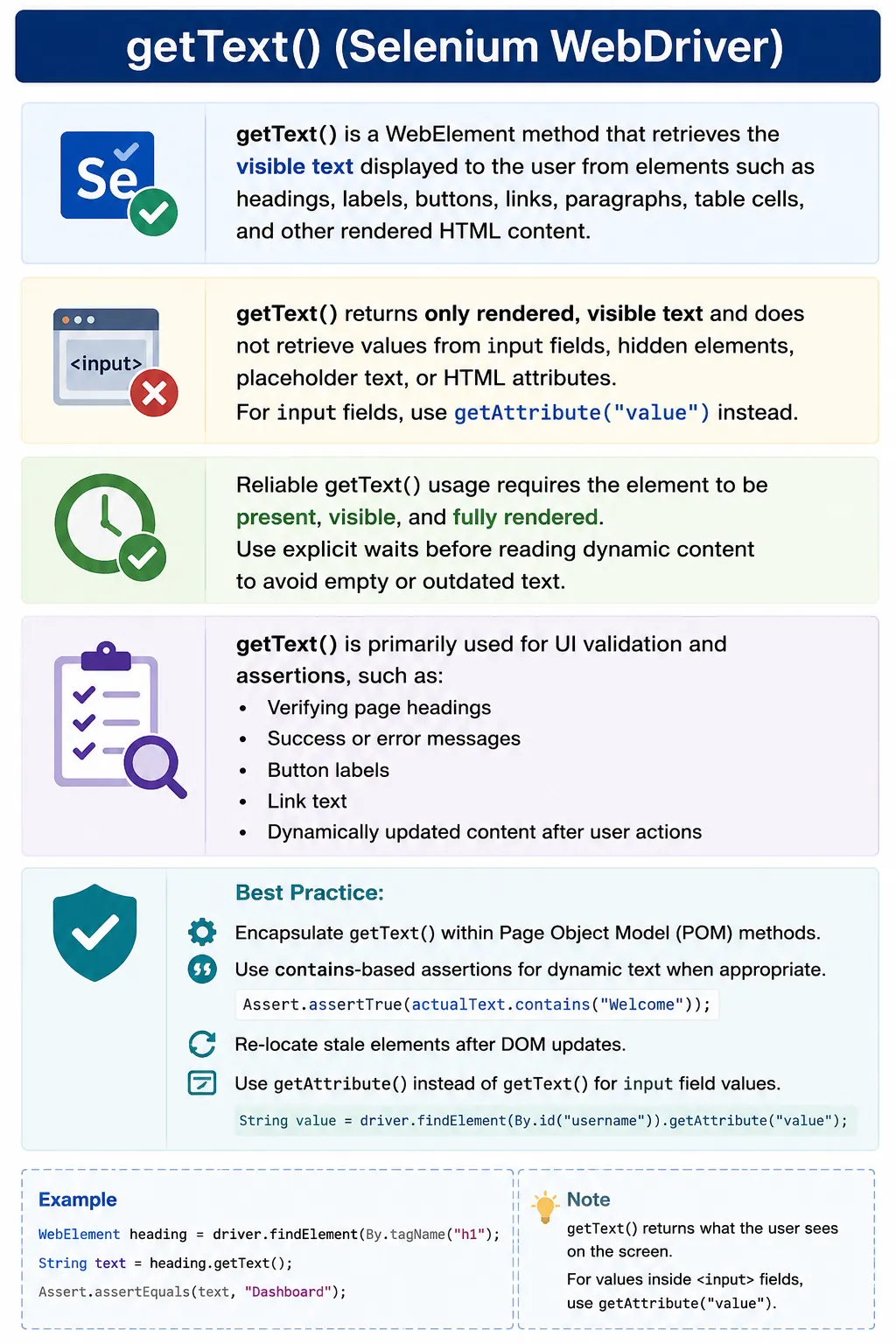
1. What getText() Does
Definition:
getText() returns the rendered, human-visible text of a WebElement as shown in the browser.
Internally, Selenium:
- Reads text from the DOM
- Returns only what is visible to the user
- Trims leading/trailing whitespace (browser-dependent)
When Selenium reads text, it follows browser rules rather than simply copying raw HTML. If an element contains nested elements, Selenium can return the visible text from those descendants as part of the parent element's text. If part of the content is hidden with CSS, that hidden portion is usually excluded. If the browser collapses whitespace in normal rendering, the returned string may reflect the rendered result rather than the exact spaces and line breaks written in the HTML source.
This behavior is valuable because users do not read raw HTML. They read rendered pages. If a test is
validating a user-facing label or message, getText() is aligned with the user's experience.
But if the test needs an internal attribute, hidden metadata, input value, tooltip attribute, ARIA label, or
raw text content, another retrieval method may be more appropriate.
2. What getText() Returns (and What It Does Not)
Returns:
- Visible text inside elements like:
- <div>, <span>, <p>
- Buttons, links
- Labels and headings
- Text rendered after JavaScript execution
Does NOT return:
- Text in input fields (<input>, <textarea>)
- Hidden text (display:none, visibility:hidden)
- Placeholder values
- Attribute values (e.g., value, title)
For inputs, use attribute-based retrieval, not getText().
The most important exception is input fields. Text typed into an <input> element is stored
in the element's value property, not as visible child text between opening and closing tags.
That is why getText() commonly returns an empty string for text boxes, email fields, password
fields, and search fields. To read what was typed, use getAttribute("value") or the equivalent
DOM property retrieval supported by the Selenium version and language binding in use.
Placeholder text is another common trap. A placeholder is a hint shown when the field is empty. It is stored
as an attribute, not as the input's value and not as visible element text in the way getText()
expects. If a test needs to verify placeholder text, retrieve the placeholder attribute. If a
test needs to verify a tooltip, retrieve the title attribute or the visible tooltip element,
depending on how the application implements it.
3. Common Use Cases
- Validate page headings
- Verify error/success messages
- Assert button or link labels
- Confirm dynamic messages after actions (login, submit)
- Read table cell values (visible content)
getText() is most useful after user actions. After clicking Login, the test may read a welcome
message or error message. After submitting a form, the test may read a confirmation banner. After applying a
filter, it may read table cells or result counts. After opening a modal, it may read the modal title. These
validations connect Selenium actions to visible application outcomes. A click or input step alone does not
prove success; reading and asserting the resulting text often does.
It is also useful for content comparison. A test may compare a product name on a listing page with the same
product name on a detail page. It may verify that every row in a filtered table contains a status value. It
may check that a selected dropdown option appears in a summary area. In all of these examples,
getText() helps confirm that the interface communicates the correct information to the user.
4. Preconditions for Reliable getText()
For stable results:
- Element must be present
- Element must be visible
- Page content must be fully rendered
- Correct window/frame context must be active
If content loads dynamically, apply explicit waits before calling getText().
Reliable text reading depends on timing. An element may be present before its text is filled. A message may
appear after an AJAX response. A table may render rows after a loading spinner disappears. A heading may
change after navigation completes. If the test calls getText() too early, it may read an empty
string, an old value, or partial content. The locator may be correct and the element may be visible, but the
desired text may not be ready yet.
The fix is to wait for the text condition that matters. Selenium provides expected conditions such as visibility of an element, text to be present in an element, and presence of all elements. In real frameworks, a page method may wait until an error message contains a known phrase or until a heading becomes the expected value. This is more reliable than adding a fixed sleep because it observes the actual application state.
5. getText() and Dynamic Content
Modern apps often update text via AJAX/JS:
- Calling getText() too early returns empty/old text
- Always synchronize on visibility or text presence
Best practice: Wait until the expected text is present before asserting.
Dynamic content is common in modern applications built with React, Angular, Vue, server-side rendering plus JavaScript hydration, and asynchronous API calls. The DOM can update several times after a page initially appears. A status label may start as "Loading", then change to "Processing", and finally become "Completed". If the test asserts exact text during the transition, it becomes flaky. The test should wait for the final state or assert against the correct intermediate state intentionally.
Dynamic text can also include variable data such as names, dates, generated IDs, counts, currency values, or environment-specific wording. In these cases, exact assertions may be too brittle. A contains assertion, regular expression, normalized comparison, or structured extraction may be more appropriate. The assertion should be strict enough to catch defects but flexible enough to allow legitimate dynamic content.
6. Common Pitfalls
- Using getText() on input fields (returns empty)
- Reading text before it becomes visible
- Asserting exact text when UI adds dynamic prefixes/suffixes
- Ignoring whitespace or line breaks in multi-line elements
Tip: Prefer contains checks for dynamic UI text.
Whitespace is a frequent pitfall. The browser may collapse multiple spaces, convert line breaks, or combine nested text in a way that differs from the HTML source. A message that visually appears on two lines may be returned as one string with a newline or a space. A table row may return all cell values combined. If a test compares raw strings without normalization, it may fail even though the visible text is acceptable.
A practical approach is to normalize text before comparison when exact formatting is not the subject of the test. Trim leading and trailing whitespace, collapse repeated spaces if necessary, and assert the meaningful content. But do not over-normalize when layout or formatting matters. If the test is specifically validating a multi-line address, line breaks may be part of the expected behavior.
7. getText() vs Attribute-Based Retrieval (Quick Context)
| Scenario | Use |
|---|---|
| Visible label/message | getText() |
| Input value | Attribute value |
| Tooltip/title | Attribute title |
| Hidden metadata | Attribute retrieval |
Choose based on where the text lives.
Choosing between getText() and attribute retrieval is one of the most common Selenium interview
topics. If the content is visible between tags, such as a heading or label, use getText(). If
the content is stored inside an attribute, such as value, placeholder,
title, href, aria-label, or data-testid, use attribute
retrieval. If the content is hidden and you have a legitimate reason to inspect it, JavaScript textContent
may be used carefully, but that is no longer a visible-user validation.
This distinction keeps tests honest. A functional UI test should usually validate what users see. A lower
level diagnostic or accessibility-focused check may validate attributes. Mixing these purposes creates
confusion. For example, testing that an input displays the correct typed value should use the value
attribute. Testing that a warning message appears below the input should use getText() on the
visible warning element.
8. getText() in Page Object Model (POM)
- Encapsulate text reads in page methods (e.g., getErrorMessage())
- Tests assert on returned strings
- Avoid assertions inside page classes
This keeps tests readable and maintainable.
In Page Object Model, text-reading methods should describe page meaning rather than low-level Selenium
mechanics. A method named getErrorMessage() is clearer than exposing the raw error label to the
test. A method named getDashboardHeading() tells the reader what business element is being read.
The page object owns the locator and wait strategy, while the test owns the assertion about what the text
should be.
Avoid putting most assertions inside page classes. A page object should usually return text to the test, and the test should decide the expected value. This separation allows the same page method to be reused in positive, negative, localization, and data-driven scenarios. The page class knows how to read the UI; the test knows what the scenario expects.
9. Common Exceptions
- StaleElementReferenceException
- DOM updated after locating the element: re-locate before reading.
- TimeoutException (indirect)
- Text never appears within wait: verify locator or app behavior.
getText() itself is simple, but failures around it often reveal timing or DOM lifecycle issues.
StaleElementReferenceException means the element was located, but the page replaced it before
Selenium read the text. This can happen after page refresh, component re-rendering, table updates, or
asynchronous content changes. The fix is to re-locate the element after the update or wait for a stable
condition before reading.
TimeoutException usually appears when the test waits for text and the expected text never
arrives. The reason may be a wrong locator, wrong page state, failed API call, missing test data, wrong
frame, wrong window, or a real application defect. Increasing the timeout may hide the symptom, but it does
not solve the root cause. Always inspect screenshot, page URL, locator, and current text when diagnosing text
wait failures.
10. Interview Perspective
Short Answer:
getText() retrieves the visible text of a web element for validation in Selenium.
Real-Time Answer:
In Selenium, getText() returns the text that is rendered and visible to the user on a WebElement. It does not return input values or hidden text, so proper synchronization and correct element selection are essential.
A complete interview answer should mention that getText() is a WebElement method,
not a WebDriver method. It returns visible rendered text. It is suitable for headings, labels,
links, buttons, paragraphs, table cells, and messages. It is not suitable for reading text typed into input
fields, where getAttribute("value") is normally required. It should be combined with explicit
waits when text is loaded dynamically.
11. Key Takeaway
- getText() reads visible UI text
- Not suitable for inputs or hidden content
- Synchronization is critical
- Prefer contains-based assertions for dynamic text
Validate what the user sees. getText() is the primary Selenium tool for that.
12. Visible Text vs DOM Text
A web page can contain more text than the user can currently see. Some text may be hidden for accessibility,
stored in collapsed sections, placed in templates, hidden behind tabs, or included in elements styled with
display: none. getText() focuses on visible rendered text. That makes it ideal for
user-facing validation, but it also means it may not match the raw HTML source. This is expected behavior,
not a Selenium bug.
For example, a dropdown may contain all options in the DOM while only the selected value is visible. A tab
component may keep inactive panel text in the DOM while hiding it from the user. A modal may be present but
invisible before it opens. If a test uses getText() on hidden content, it may get an empty
string. If the test truly needs hidden content, it should use a different technique and make that purpose
explicit.
This distinction helps keep tests aligned with user behavior. If the user cannot see a message, a functional
test should usually not pass by reading hidden text. The test should perform the action that makes the text
visible, then use getText(). Hidden text inspection is more appropriate for debugging,
accessibility checks, or implementation-specific tests.
13. Whitespace, Line Breaks, and Text Normalization
Text returned by getText() may include normalized whitespace. HTML rendering collapses many
spaces, ignores some line breaks, and treats nested blocks differently from inline spans. A card containing a
title, subtitle, and price may return those values as one combined string. A table row may return all cell
values separated by spaces or newlines. A paragraph may not preserve the exact formatting used in the source
file.
For ordinary message validation, exact whitespace rarely matters. It is often safer to call
trim(), collapse repeated whitespace, or assert that the text contains a meaningful phrase.
For example, a success message may contain a dynamic username or timestamp. Checking that it contains
"successfully saved" may be more stable than comparing the full string. However, when formatting is part of
the requirement, such as address blocks or legal content, exact comparison may be justified.
The important point is to choose assertion style deliberately. Exact assertions are strict and useful for stable labels. Contains assertions are useful for dynamic messages. Normalized assertions are useful for layout-generated whitespace. Regular expressions can help when the text includes dynamic IDs, counts, or dates. The assertion should match the business risk.
14. Waiting for Text Correctly
Waiting for visibility is sometimes enough, but not always. An element can be visible while its text is still loading or changing. A status label can be visible with "Loading" before it becomes "Complete". A table row can be visible before its cells finish updating. For text-specific validation, it is better to wait until the expected text appears, until the text changes from an old value, or until it is no longer empty.
A page object can provide methods that wait for meaningful text states. For example,
waitForSuccessMessage() can wait until the message contains "saved". getToastText()
can wait for a toast to be visible and then return its text. getResultCount() can wait until the
count label matches a pattern. These methods reduce repeated wait logic across tests and make the expected
page behavior clearer.
Avoid reading text immediately after an action that triggers asynchronous behavior. A click, submit, navigation, filter, file upload, or search can all update text after a delay. The right sequence is action, wait for result, then read text. This simple ordering removes many flaky failures.
15. getText() for Tables, Lists, and Repeated Elements
Tables and lists are common places to use getText(). A test may read every menu item, all table
rows, product card titles, breadcrumb labels, dropdown options, notification messages, or validation errors.
In these cases, findElements() and getText() work together. First collect the
matching elements, then loop through them and read the visible text of each element.
When reading repeated elements, always think about empty lists and timing. If the list is expected to contain
items, wait until the count is greater than zero before reading text. If the list may legitimately be empty,
assert that explicitly. Calling get(0) on an empty list creates an index error that is less
helpful than a clear assertion saying no result rows were found.
For table rows, reading the whole row can be useful for broad checks, but reading individual cells is better for precise assertions. A row's combined text may hide which column failed. A cell-specific locator lets the test say that the status column should be "Active" or the amount column should be "$100". This produces clearer failures and more maintainable tests.
16. getText() in Assertions
The value returned by getText() becomes useful when it is compared with an expected result.
Good assertions should include enough context for debugging. Instead of only asserting that two strings are
equal, include a message that explains which UI element was being validated. When a CI failure says
"Expected dashboard heading to be Account Summary but found Reports", the cause is easier to understand than
a generic string comparison failure.
Choose assertion strictness carefully. Page headings, button labels, and fixed menu items are often good candidates for exact assertions. Toast messages, generated summaries, and validation messages with dynamic values may be better validated with contains checks or regular expressions. Lists may be validated by count, order, membership, or every-item rules. Text validation is not one pattern; it depends on what the UI is promising to the user.
Avoid assertions that are too weak. Checking only that text is not empty may be useful as a smoke check, but it does not prove the correct message appeared. Checking only that text contains "Success" may pass for the wrong success message. The goal is to balance stability with meaningful failure detection.
17. Hidden Text and JavaScript Alternatives
Sometimes a test or diagnostic tool needs text that getText() does not return because the text
is hidden. JavaScript can retrieve textContent or innerText, depending on the
requirement. This can be useful for debugging or for technical checks, but it should not be confused with
visible UI validation. If users cannot see the text, then a functional assertion based on hidden text may be
misleading.
Use JavaScript alternatives sparingly and name them clearly. A helper named getHiddenText() is
more honest than silently replacing getText() everywhere. The team should understand why hidden
text is being read. In most user-facing tests, the better solution is to make the element visible through the
proper user action and then call getText().
This distinction also matters for accessibility. Some text may be visually hidden but available to screen readers. In that case, the test may need to validate accessibility attributes or accessible names rather than visible text. That is a different testing goal and should be represented with the correct retrieval method.
18. Page Object Design for Text Retrieval
Page objects should expose text through meaningful methods. A login page can provide
getErrorMessage(). A dashboard page can provide getWelcomeMessage(). A results page
can provide getResultTitles(). These methods hide locator details and can include waits for
visibility or text presence. The test then asserts business meaning: the login error should contain
"Invalid", or the result titles should include the searched product.
Page object text methods should usually return strings or collections of strings. This keeps assertions in
the test layer. It also makes methods reusable across scenarios with different expected values. A single
getErrorMessage() method can support invalid password, locked account, blank username, and
expired session tests. If the page object hardcodes assertions, reuse becomes harder.
For dynamic text, page objects can provide both waiting methods and reading methods. A method named
waitForErrorMessage() can return the visible text after it appears. A method named
getCurrentStatusText() can simply read the current status without waiting. Naming should tell
the caller whether synchronization is included.
19. Debugging Wrong or Empty Text
When getText() returns an unexpected value, start by checking what the user can see in the
screenshot. If the screenshot shows the expected text but Selenium returns empty, the locator may be pointing
to the wrong element, such as a hidden duplicate. If the screenshot also lacks the text, the test is likely
reading too early or the application did not reach the expected state. If the text appears inside an input,
switch to getAttribute("value").
Next, check context. The element may be inside a frame, a different window, a shadow root, or a component that re-rendered after lookup. The locator may match multiple elements and return the first one, which may be hidden or unrelated. The page may display different text based on environment, user role, locale, data setup, or feature flags. Text failures are often data or state failures, not just locator failures.
Good diagnostics make this easier. Log the locator name, current URL, page title, screenshot, actual text, expected text, and number of matching elements where useful. In a large suite, this information can save significant debugging time.
20. Interview-Ready Summary
getText() is a Selenium WebElement method that returns visible rendered text from an element.
It is used to validate user-facing content such as headings, labels, links, buttons, table cells, error
messages, success messages, and dynamic UI text. It does not return values typed inside input fields, hidden
text, placeholder values, or arbitrary attributes. For those cases, attribute or JavaScript-based retrieval
may be needed depending on the purpose.
Reliable use of getText() requires correct element selection and synchronization. Wait for text
to appear before asserting dynamic messages. Normalize whitespace when formatting is not important. Use
exact, contains, regex, or collection assertions based on the business requirement. In frameworks, wrap text
retrieval in meaningful page object methods and keep scenario-specific assertions in tests.
21. Practical Framework Rules for getText()
A practical Selenium framework should make text retrieval predictable. First, define whether the method is
reading visible text, an input value, an attribute, or hidden implementation text. These are different
operations and should not be hidden behind one vague helper. A method named getVisibleText()
should use getText(). A method named getInputValue() should read the value
attribute. A method named getTooltipTitle() should read the title attribute. Clear naming
prevents teams from using the wrong retrieval method and then adding unreliable workarounds.
Second, framework methods should include synchronization only when the method name promises it. A method
named waitForSuccessMessageText() can wait until the success message is visible and non-empty
before returning text. A method named getCurrentStatusText() can simply read the current text
without waiting. Both methods are useful, but they have different behavior. Making that difference explicit
helps test authors choose the correct method for each scenario.
Third, centralize common normalization rules. If the application frequently returns extra whitespace or
line breaks, a helper can normalize repeated whitespace before comparison. If localization is tested, helpers
can avoid hardcoded English strings and compare against expected resource values. If dynamic messages include
IDs or timestamps, helpers can extract the stable portion of the message. These framework choices turn
getText() from a raw Selenium call into a reliable validation tool.
22. getText() Practical Examples & Interview Notes
1. Basic getText() Usage
WebElement heading = driver.findElement(By.tagName("h1"));
String text = heading.getText();
System.out.println(text);
Key Point
- Returns visible text only
2. getText() on Button
WebElement btn = driver.findElement(By.id("submit"));
System.out.println(btn.getText());
3. getText() on Link
WebElement link = driver.findElement(By.linkText("Home"));
System.out.println(link.getText());
4. Validate Text Using Assertion
String actual = driver.findElement(By.id("msg")).getText();
Assert.assertEquals(actual, "Login Successful");
5. Partial Text Validation (Recommended)
String message = driver.findElement(By.id("msg")).getText();
Assert.assertTrue(message.contains("Success"));
6. getText() with Explicit Wait
WebDriverWait wait = new WebDriverWait(driver, Duration.ofSeconds(10));
WebElement msg =
    wait.until(ExpectedConditions.visibilityOfElementLocated(By.id("status")));

System.out.println(msg.getText());
7. getText() on Paragraph
WebElement para = driver.findElement(By.tagName("p"));
System.out.println(para.getText());
8. getText() on Multiple Elements
List<WebElement> items =
    driver.findElements(By.className("menu-item"));

for (WebElement item : items) {
    System.out.println(item.getText());
}
9. Validate List Values Using getText()
List<WebElement> options =
    driver.findElements(By.cssSelector(".dropdown li"));

Assert.assertEquals(options.get(0).getText(), "Option 1");
10. getText() on Table Cell
WebElement cell =
    driver.findElement(By.xpath("//table/tbody/tr[1]/td[2]"));

System.out.println(cell.getText());
11. getText() on Table Row (All Text)
WebElement row =
    driver.findElement(By.xpath("//table/tbody/tr[1]"));

System.out.println(row.getText());
12. getText() vs getAttribute("value") (Interview Favorite)
WebElement input = driver.findElement(By.id("username"));

System.out.println(input.getText());                 // empty
System.out.println(input.getAttribute("value"));     // actual text
Key Difference
- getText() is not for input fields
- getAttribute("value") is used for input fields
13. getText() After Button Click
driver.findElement(By.id("login")).click();
String msg = driver.findElement(By.id("result")).getText();
System.out.println(msg);
14. getText() After Page Refresh
WebElement label = driver.findElement(By.id("info"));
driver.navigate().refresh();

// label.getText(); would throw StaleElementReferenceException
label = driver.findElement(By.id("info"));
System.out.println(label.getText());
15. getText() Inside Frame
driver.switchTo().frame("contentFrame");
String text = driver.findElement(By.id("note")).getText();
driver.switchTo().defaultContent();
16. getText() from Hidden Element (Returns Empty)
WebElement hidden = driver.findElement(By.id("hiddenText"));
System.out.println(hidden.getText()); // ""
Why
- Element is not visible
17. Alternative for Hidden Text (JS - Last Resort)
JavascriptExecutor js = (JavascriptExecutor) driver;
String text = (String) js.executeScript(
    "return arguments[0].textContent;",
    driver.findElement(By.id("hiddenText"))
);
18. Trim Text from getText()
String text = driver.findElement(By.id("label")).getText().trim();Useful
- Removes extra spaces/newlines
19. getText() in Page Object Model (POM)
@FindBy(id = "welcomeMsg")
WebElement welcomeMsg;

public String getWelcomeText() {
    return welcomeMsg.getText();
}
20. Common Interview Mistake
driver.getText(); // invalidCorrect
driver.findElement(By.id("x")).getText(); // valid21. Validate Text Is Not Empty
String text = driver.findElement(By.id("status")).getText();
Assert.assertFalse(text.isEmpty());
22. Compare Text from Two Elements
String t1 = driver.findElement(By.id("label1")).getText();
String t2 = driver.findElement(By.id("label2")).getText();

Assert.assertEquals(t1, t2);
23. getText() for Error Message Validation
String error =
    driver.findElement(By.className("error")).getText();

Assert.assertTrue(error.contains("Invalid"));
24. Logging Text (Framework Style)
String msg = driver.findElement(By.id("msg")).getText();
System.out.println("Displayed message: " + msg);
25. Interview Summary - getText() in Selenium
element.getText();Key Points
- Returns visible text only
- Works on labels, links, buttons, headings
- Not for input fields
- Use waits for dynamic text
- Re-locate after refresh