getAttribute()
The getAttribute() method is used to retrieve the value of an HTML attribute from a web element
in Selenium WebDriver. It is essential when the data you need is not visible page text but is stored in the
element's markup or current DOM state. Input values, placeholder text, link destinations, image sources,
button types, CSS class names, disabled states, checked states, ARIA attributes, tooltip text, and custom
data-* attributes are all common examples where getAttribute() is useful.
Selenium tests validate two broad types of information. The first type is visible text, such as headings,
labels, error messages, table cells, and button captions. That is usually read with getText().
The second type is attribute-based information, such as the current value of an input field, the
href of a link, the src of an image, or the aria-expanded state of a
toggle. That is where getAttribute() belongs. Choosing the correct method keeps tests accurate
and prevents common false failures.
The method is especially important for form automation. After typing with sendKeys(), the text
inside an input field is not returned by getText(). It lives in the field's value property or
value attribute. To verify what was typed, read getAttribute("value"). This distinction is one
of the most frequent Selenium interview questions and one of the most common mistakes in beginner test
scripts.
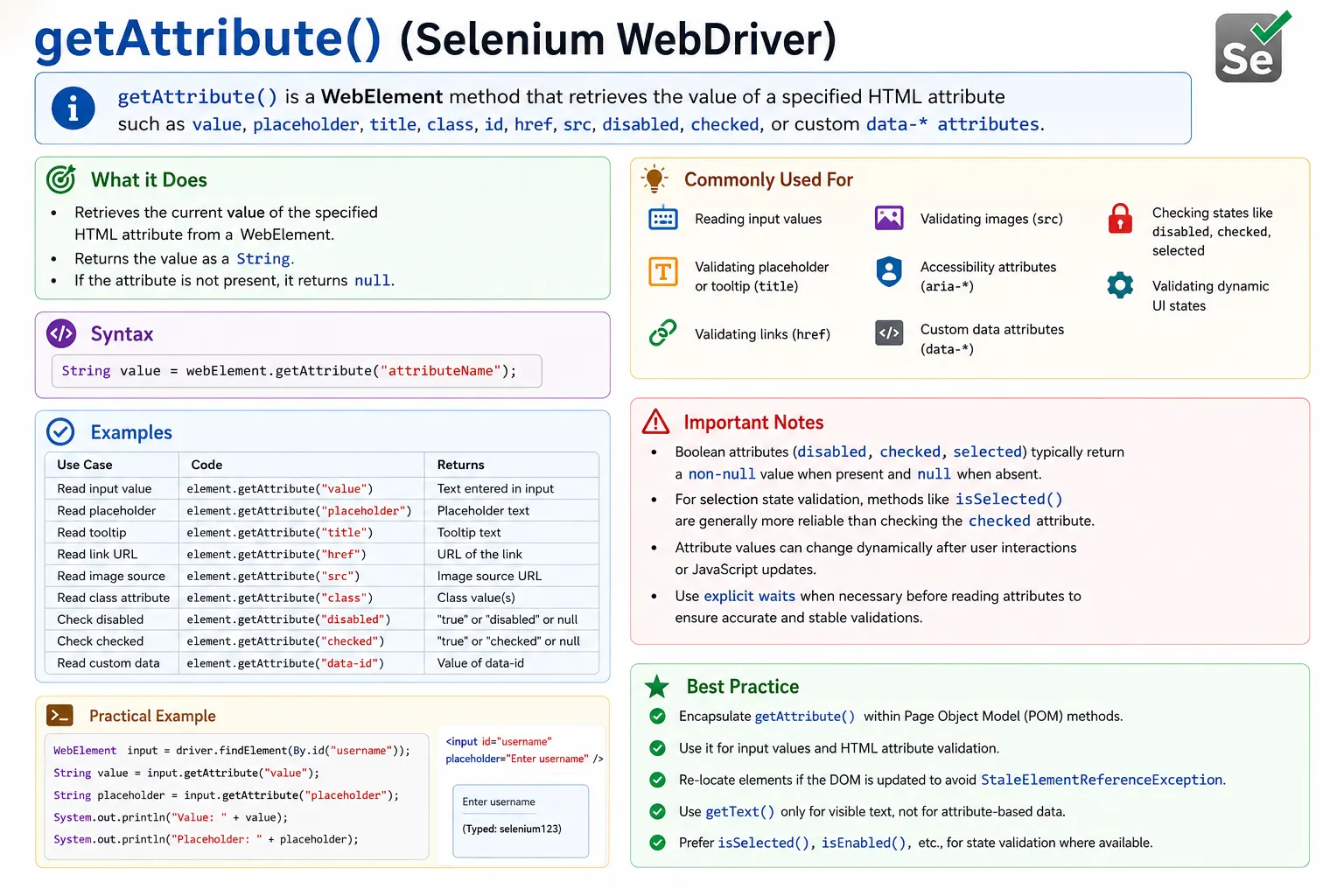
1. What getAttribute() Does
Definition:
getAttribute(String attributeName) returns the current value of the specified attribute of a
WebElement as a String.
Internally, Selenium:
- Reads the attribute value from the DOM
- Returns the value as it exists at the time of the call
- May return dynamically updated values set by JavaScript
From a test author's point of view, getAttribute() asks the browser, "What value does this
attribute have right now?" That "right now" part matters. Modern applications update attributes dynamically
after clicks, typing, validation, API responses, route changes, and component re-rendering. A button's class
may change from inactive to active. A toggle's aria-expanded value may change from false to
true. An input's value may be formatted after typing. A link's href may be generated after data loads.
Because attributes can change, getAttribute() should often be combined with waits. Reading the
value too early can produce an old value, an empty value, or null. A stable test waits for the attribute
state that matters, then asserts it. For example, after clicking an accordion, wait until
aria-expanded becomes "true". After typing into a masked phone field, wait until the value
matches the formatted phone number.
2. What getAttribute() Is Commonly Used For
- Reading input field values (value)
- Validating placeholder text
- Checking HTML attributes (id, name, class)
- Validating dynamic states (disabled, checked, selected)
- Reading hidden data attributes (data-*)
- Validating tooltips (title)
- Reading ARIA attributes (accessibility checks)
These use cases appear constantly in real projects. A login test reads the value of the username field to
confirm the intended test data was entered. A navigation test reads the href attribute of a
menu link to verify it points to the right route. An image test reads src to confirm the image
was configured. A UI state test reads class, disabled, or
aria-expanded to understand whether the component is active, unavailable, or expanded.
Attribute validation is also valuable for accessibility and testability. ARIA attributes communicate state
to assistive technologies. Custom data-testid or data-id attributes can provide
stable automation hooks. Tooltip content may live in a title attribute. These values are not
always visible as text on the page, but they can still be important to validate.
3. Most Important Attributes to Know
| Attribute | Purpose |
|---|---|
| value | Input/textarea current value |
| placeholder | Placeholder text |
| title | Tooltip text |
| class | CSS class names |
| id, name | Element identification |
| href | Link destination |
| src | Image/video source |
| disabled | Disabled state |
| checked | Checkbox/radio state |
| data-* | Custom application data |
The value attribute is the one every Selenium tester should remember first. It is the usual way
to read what is currently inside an input or textarea. The placeholder attribute is useful for
validating hint text shown before a value is entered. The href and src attributes
help validate links, images, downloads, and media. The class attribute can indicate visual or
logical state, although it should be used carefully because class names often change with styling.
ARIA and data attributes deserve special attention. ARIA attributes such as aria-expanded,
aria-selected, aria-label, and aria-disabled can describe UI state in
a way that is meaningful for accessibility and automation. Custom data attributes such as
data-id, data-testid, or data-status are often more stable than
generated CSS classes. Good automation locators and validations often depend on these attributes.
4. getAttribute() vs getText() (Key Difference)
| Aspect | getAttribute() | getText() |
|---|---|---|
| Reads | Attribute value | Visible text |
| Input fields | Yes (value) | No |
| Hidden data | Yes | No |
| Visible labels | Usually no | Yes |
| Dynamic JS values | Yes | Sometimes |
Rule: If text is visible, use getText(). If text is in an attribute, use getAttribute().
This rule prevents many mistakes. If a tester tries to verify a typed username with
getText(), the result is usually empty because input values are not visible child text. If a
tester tries to verify a heading with getAttribute("value"), the result is usually null because
headings do not have a value attribute. The correct method depends on where the data lives in the DOM and
how the browser exposes it.
The distinction also affects test intent. getText() validates what the user sees directly.
getAttribute() validates configuration, state, metadata, or values stored on an element. Both
are important, but they answer different questions. A complete Selenium engineer knows when to use each one
and can explain the difference clearly.
5. Common Real-World Validation Scenarios
5.1 Input Field Validation
- Verify typed value
- Verify auto-filled or masked value
5.2 Button & Field State Validation
- Check if button is disabled
- Verify read-only behavior
5.3 Link & Image Validation
- Validate navigation targets
- Verify image source loading
5.4 Tooltip & Accessibility Checks
- Validate tooltip text
- Verify ARIA attributes
Input validation is the most common real-world scenario. After a script clears and types into a field, the
test can read getAttribute("value") to confirm the final value. This is especially useful for
masked or formatted inputs, where the application may transform the raw text. For example, a phone field may
format digits with parentheses and hyphens. A currency field may add commas or decimal places. The final
value should be validated as the user sees and submits it.
Link and image validation are also practical. A test can read an anchor's href to check that a
navigation item points to the expected URL. It can read an image's src to confirm the right
asset was assigned. This does not prove the network loaded the image successfully in every case, but it does
prove the DOM is configured with the expected source. For deeper image validation, the test may combine
attribute checks with natural width, network checks, or visual validation depending on project needs.
Accessibility checks often rely on attributes. A custom dropdown may expose its selected state through
aria-selected. An accordion may expose expanded state through aria-expanded. An
icon button may expose its accessible name through aria-label. Reading these attributes helps
verify that the UI communicates state correctly, not only that it looks correct visually.
6. Handling Boolean Attributes (Important Detail)
HTML boolean attributes behave differently:
- Presence of attribute means true
- Absence usually means null
Examples:
- disabled
- checked
- selected
Implication: Do not expect "true" or "false" strings consistently. Check for null vs non-null.
Boolean attributes are a common trap because HTML does not always represent them as ordinary true/false
strings. In markup, an attribute such as disabled can be meaningful simply because it is
present. The exact string returned by Selenium can vary depending on browser, driver, DOM property behavior,
and the attribute involved. A test that blindly expects the text "true" can become brittle.
For many state checks, WebElement methods are clearer than raw attribute reads. Use isSelected()
for checkboxes and radio buttons when you want selected state. Use isEnabled() when you want to
know whether Selenium considers the element enabled for interaction. Use getAttribute() when
the attribute value itself matters, such as validating aria-disabled,
aria-expanded, or a custom state attribute.
7. Synchronization Considerations
- Attribute values may change dynamically
- Always wait until the attribute has the expected value
- Avoid reading attributes immediately after actions
Best practice: Synchronize on attribute state before assertion.
Attribute synchronization is important after user actions. A click may update a class name, a toggle state, an ARIA attribute, a link destination, or an input value after a short delay. If the test reads immediately, it may capture the old value. Instead of adding a fixed sleep, wait until the attribute contains, equals, or no longer equals the expected value. This makes the test follow application state rather than clock time.
For example, after clicking a menu button, wait until aria-expanded becomes "true". After
submitting invalid input, wait until the field's class contains "error" or until an error attribute appears.
After uploading a file, wait until the file input or upload label reflects the selected file. The best wait
condition depends on what the application promises to change.
8. Common Pitfalls
- Using getText() for input values (returns empty)
- Expecting boolean attributes to return "true"
- Reading attributes before DOM update
- Hardcoding attribute values that change dynamically
Another pitfall is hardcoding full attribute values that are not stable. CSS class attributes may include generated class names, theme classes, animation classes, or framework-specific tokens that change often. If the test only cares that an element is in a success state, assert that the class contains a meaningful stable token such as "success" rather than comparing the entire class string. For links, be careful with absolute URLs because browsers may normalize relative href values into full URLs.
Null handling is also important. If an attribute does not exist, getAttribute() may return null.
Calling string methods on null causes test-side errors that obscure the real validation. Check for null when
the attribute may be optional. If the attribute is mandatory, fail with a clear assertion message explaining
which attribute was expected and on which element.
9. getAttribute() in Page Object Model (POM)
- Wrap attribute reads in page methods
- Return meaningful data to tests
- Avoid assertions inside page classes
Example intent: getEnteredUsername() returns value attribute.
In Page Object Model, attribute reads should be wrapped behind meaningful methods. A page object method named
getEnteredEmail() can return getAttribute("value") from the email field. A method
named isMenuExpanded() can read aria-expanded and convert it into a boolean. A
method named getProfileLinkHref() can return the link destination. The test then asserts
business behavior instead of dealing with low-level attribute names everywhere.
Avoid putting most assertions inside page classes. Page objects should usually return values; test methods should decide what those values should be for the scenario. This separation keeps page objects reusable across positive, negative, accessibility, and data-driven tests. It also makes failures clearer because the assertion belongs to the scenario that defines the expected result.
10. Interview Perspective
Short Answer: getAttribute() retrieves the value of a specified HTML attribute from a web element.
Real-Time Answer: In Selenium, getAttribute() is used to read attribute values such as input values, tooltips, and state attributes like disabled or checked, which cannot be obtained using getText().
A complete interview answer should mention that getAttribute() is a WebElement method, not a
WebDriver method. It takes an attribute name and returns the current value as a String, or null if the
attribute is not present. It is commonly used for value, placeholder,
href, src, class, title, disabled,
checked, ARIA attributes, and custom data attributes. It complements getText(),
which reads visible text.
11. Key Takeaway
- getAttribute() reads HTML attributes
- Essential for input validation and hidden data
- Complements getText()
- Requires synchronization for dynamic values
If the data is not visible text, getAttribute() is the right tool.
12. Attribute Values vs DOM Properties
In browser automation, there is a practical distinction between attributes written in HTML and properties
maintained by the DOM. An attribute is part of the element markup, while a property is the live object value
in the browser. For many common cases Selenium's getAttribute() returns the value testers
expect, including values updated by JavaScript. Still, understanding the difference helps when debugging
confusing behavior around inputs, checkboxes, selected options, and dynamic components.
Consider an input field that is initially rendered with value="old". After the user types a new
value, the live value property changes. The original markup may not visibly change in the page source.
Selenium is generally interested in the current browser state, so reading the value through WebDriver returns
what the browser currently knows, not merely what was written in the original HTML file. This is why
getAttribute("value") is useful after sendKeys().
When behavior seems inconsistent, inspect both the DOM and the browser-rendered state. Developer tools, screenshots, and JavaScript console checks can help determine whether the attribute exists, whether the property changed, and whether the application framework has updated internal state. Selenium tests should validate the state that matters to the user or business requirement, not an implementation detail chosen by accident.
13. Reading Input Values Correctly
Input values are the most important practical use of getAttribute(). After entering text into a
username, email, search, phone, address, or password field, the test often needs to confirm the final field
value. getText() will not do that for standard inputs. The correct pattern is to locate the
field and read getAttribute("value"). For textareas, the same pattern is commonly used.
This is especially important with dynamic input behavior. If a test types 1234567890 into a
phone field, the application may display (123) 456-7890. If a test types 1000 into
a currency field, the application may display 1,000.00. The assertion should match the expected
final value, not necessarily the raw keystrokes. Reading the value attribute after typing lets the test
verify the value that the application actually accepted.
For password fields, be careful with logging. The value can often be read for validation, but printing passwords into logs is a security problem. Framework helpers should mask sensitive values in reports. In many login tests, it is better to validate the outcome of login rather than assert the password field value.
14. Links, Images, and Resource Attributes
The href attribute of an anchor and the src attribute of an image are common
validation targets. A test can verify that a profile link points to a profile route, a documentation link
points to the correct page, or a logo image uses the expected asset path. This type of validation catches
broken routing, wrong content configuration, and incorrect template data before the user clicks through.
Be aware that browsers often resolve relative URLs into absolute URLs. An HTML file may contain
href="/profile", but getAttribute("href") may return a full URL such as
https://example.com/profile. For that reason, contains checks or URL parsing may be more stable
than exact string equality when validating navigation targets. The assertion should focus on the meaningful
part of the URL.
For images, a non-empty src proves that the element has a source configured, but it does not
always prove the image successfully loaded. A deeper test may inspect natural dimensions, network status, or
visual rendering. In most functional tests, checking the expected src is enough; in visual or
content-heavy applications, stronger checks may be justified.
15. ARIA and Accessibility Attributes
ARIA attributes are increasingly important in modern UI automation because many custom components are not
built from simple native controls. A custom dropdown may use aria-expanded to indicate whether
the menu is open. A tab may use aria-selected to show which panel is active. An icon-only
button may use aria-label to provide an accessible name. These values affect assistive
technology and often provide stable state signals for automation.
Reading ARIA attributes with getAttribute() can make tests more meaningful than relying only on
CSS classes. A class might be added for styling, but an ARIA state describes intended interaction semantics.
If an accordion opens visually but aria-expanded remains false, that may be an accessibility
defect. A good test can catch both visual and semantic problems when the application requires accessible UI.
Attribute checks should still be purposeful. Do not assert every ARIA attribute on every element in every functional test. Use them where they represent important behavior, accessibility requirements, or stable state transitions. Over-asserting implementation details can make tests brittle.
16. Data Attributes and Stable Automation Hooks
Custom data-* attributes are common in testable applications. Developers may add
data-testid, data-qa, data-id, or data-status attributes
to make elements easier to locate and validate. These attributes are often more stable than CSS classes
because they are not tied to visual styling. Selenium can read them with getAttribute() just
like standard HTML attributes.
Data attributes are useful for both locators and assertions. A product card might expose
data-id so the test can verify that the correct product appeared. A row might expose
data-status so the test can validate workflow state without relying on a translated label. A
button might expose data-action so automation can distinguish similar buttons. These hooks
should be agreed with developers and kept stable as part of the application's testability contract.
The risk is overusing data attributes to ignore visible behavior. If the user-facing label is wrong but the data attribute is correct, a test that reads only the data attribute may pass while the user sees a defect. Use data attributes for stable identification and internal state when appropriate, but still validate visible text when the visible text is the requirement.
17. Dynamic Attribute Changes
Many attributes change after user actions. Clicking a favorite icon may add a selected class. Expanding a
menu may change aria-expanded. Typing in a form may remove the disabled attribute from the
submit button. Selecting a checkbox may add checked state. Uploading a file may update the value of a file
input or the text of an adjacent label. Reading attributes too early is a common source of flaky assertions.
The correct pattern is action, wait for attribute state, then assert. Selenium expected conditions and custom wait functions can wait until an attribute contains or equals a value. If the attribute should disappear, wait until the returned value is null or no longer contains the old token. This makes the test deterministic because it waits for the UI state transition rather than guessing a delay.
Dynamic classes require extra care. A class attribute can contain many tokens, and their order may change. Do not compare the whole class string unless order and exact content are truly required. Usually, checking for a stable class token is enough. For state, ARIA attributes or explicit data attributes may be more reliable than classes.
18. Page Object Design for Attribute Reading
Attribute access should be hidden behind meaningful page object methods. A test should not need to know that
the entered email lives in the value attribute or that a menu state lives in
aria-expanded. The page object can expose methods such as getEmailValue(),
isSubmitDisabled(), getProfileHref(), and isMenuExpanded(). The method
name turns an attribute detail into a business concept.
Page object methods can also convert raw strings into useful types. A method reading
aria-expanded can return a boolean. A method reading a data ID can return a String or integer
depending on the application. A method reading a class attribute can return whether a specific state token is
present. This keeps tests cleaner and prevents repeated null checks and string comparisons across the suite.
As with text retrieval, keep scenario-specific assertions in the test layer. The page object should know how to read the UI. The test should know what the expected value is for the scenario. This separation keeps the framework reusable and easier to maintain.
19. Debugging Attribute Failures
When an attribute assertion fails, first check whether the locator points to the intended element. Many pages contain hidden templates, duplicate controls, or repeated components. The first matching element may not be the visible control the user interacts with. Next, check whether the attribute exists in the current DOM state. If it is null, the element may not have that attribute, the state may not have changed yet, or the application may store the value somewhere else.
Then check timing. If an action triggers asynchronous behavior, the attribute may update after a delay. A screenshot, page source, current URL, and logged actual value can make the problem obvious. If the element is stale, re-locate it after the DOM update. If a framework re-renders the component, do not cache the old WebElement reference across the state change.
Finally, verify whether the assertion is too strict. Full URL values, full class strings, generated IDs, and framework-managed attributes may change legitimately. A better assertion may parse the URL, check for one stable class token, or validate a semantic ARIA or data attribute instead of a styling detail.
20. Interview-Ready Summary
getAttribute() is a Selenium WebElement method that reads the current value of a named HTML
attribute. It is commonly used for input values, placeholders, href, src, title, class, disabled, checked,
ARIA attributes, and custom data attributes. It is the right method when the value is stored in an attribute
rather than displayed as visible text. For visible labels and messages, getText() is usually
the better choice.
Reliable use of getAttribute() requires correct element selection, null handling, and
synchronization for dynamic values. Boolean attributes should be handled carefully because presence and
absence often matter more than true and false strings. In Page Object Model, attribute reads should be
wrapped in meaningful methods that return business-friendly values to tests.
21. Practical Framework Rules for getAttribute()
A practical Selenium framework should make attribute access intentional. Do not create one vague helper that
reads any attribute and leaves every test to interpret raw strings. Instead, build small page-level methods
that explain what the attribute means. A method named getSearchInputValue() is clearer than
getAttribute("value") scattered through test code. A method named
isAccordionExpanded() is clearer than repeatedly comparing aria-expanded to a
string. These names convert technical DOM details into readable test behavior.
Framework helpers should also handle null safely. Some attributes are optional by design, and some appear only after a user action. If a method expects an attribute to exist, it should fail with a useful message when the value is null. If the attribute is optional, the method can return null, an empty optional value, or a boolean depending on the language style used by the project. What matters is consistency. Inconsistent null handling leads to unclear failures and repeated defensive code.
Finally, decide where waits belong. A method named waitForButtonDisabled() should wait until
the disabled state appears. A method named getButtonDisabledAttribute() should simply read the
current value. Mixing those behaviors without clear names makes tests harder to reason about. When method
names describe whether they wait or simply read, the suite becomes easier to debug and maintain.
22. getAttribute() Practical Examples & Interview Notes
1. Basic getAttribute() Usage
WebElement input = driver.findElement(By.id("username"));
String value = input.getAttribute("value");
System.out.println(value);
Key Point
- Returns the value of the given HTML attribute
2. getAttribute("value") for Input Field (Very Common)
WebElement email = driver.findElement(By.id("email"));
email.sendKeys("test@example.com");

System.out.println(email.getAttribute("value"));
Interview Favorite
- Use getAttribute("value"), not getText()
3. getAttribute() on Button
WebElement btn = driver.findElement(By.id("submit"));
System.out.println(btn.getAttribute("type")); // submit
4. getAttribute() on Link (href)
WebElement link = driver.findElement(By.linkText("Home"));
String href = link.getAttribute("href");
System.out.println(href);
5. Validate URL from Anchor Tag
String href =
    driver.findElement(By.id("profileLink"))
          .getAttribute("href");

Assert.assertTrue(href.contains("/profile"));
6. getAttribute() on Image (src)
WebElement img = driver.findElement(By.id("logo"));
System.out.println(img.getAttribute("src"));
7. Validate Image Is Loaded
String src = driver.findElement(By.id("logo"))
                   .getAttribute("src");

Assert.assertFalse(src.isEmpty());
8. getAttribute() on Checkbox (checked)
WebElement checkbox = driver.findElement(By.id("agree"));

String checked = checkbox.getAttribute("checked");
System.out.println(checked); // true or null
Note
- checked exists only when selected
9. Better Checkbox Validation (Interview Tip)
Assert.assertTrue(checkbox.isSelected());Why
- isSelected() is more reliable than getAttribute("checked")
10. getAttribute() on Disabled Element
WebElement btn = driver.findElement(By.id("submit"));
String disabled = btn.getAttribute("disabled");

System.out.println(disabled); // true or null
11. Validate Element Is Disabled
Assert.assertNotNull(
    driver.findElement(By.id("submit"))
          .getAttribute("disabled")
);
12. getAttribute() for Placeholder Text
WebElement input = driver.findElement(By.id("search"));
System.out.println(input.getAttribute("placeholder"));
13. getAttribute() vs getText() (Side-by-Side)
WebElement input = driver.findElement(By.id("username"));

System.out.println(input.getText());              // ""
System.out.println(input.getAttribute("value"));  // actual text
14. getAttribute() for Class Attribute
WebElement element = driver.findElement(By.id("msg"));
System.out.println(element.getAttribute("class"));
15. Validate CSS Class Change (Dynamic UI)
String classes =
    driver.findElement(By.id("msg"))
          .getAttribute("class");

Assert.assertTrue(classes.contains("success"));
16. getAttribute() After Click (State Change)
driver.findElement(By.id("toggle")).click();

String state =
    driver.findElement(By.id("toggle"))
          .getAttribute("aria-expanded");

System.out.println(state); // true / false
17. getAttribute() with Explicit Wait
WebDriverWait wait = new WebDriverWait(driver, Duration.ofSeconds(10));

WebElement input =
    wait.until(ExpectedConditions.visibilityOfElementLocated(By.id("email")));

System.out.println(input.getAttribute("value"));
18. getAttribute() After Page Refresh (Stale Fix)
WebElement field = driver.findElement(By.id("name"));
driver.navigate().refresh();

// field.getAttribute("value"); would throw StaleElementReferenceException
field = driver.findElement(By.id("name"));
System.out.println(field.getAttribute("value"));
19. Loop with getAttribute()
List<WebElement> links =
    driver.findElements(By.tagName("a"));

for (WebElement link : links) {
    System.out.println(link.getAttribute("href"));
}
20. getAttribute() in Page Object Model (POM)
@FindBy(id = "email")
WebElement email;

public String getEmailValue() {
    return email.getAttribute("value");
}
21. Common Interview Mistake
driver.getAttribute("value"); // invalidCorrect
driver.findElement(By.id("x")).getAttribute("value"); // valid22. Validate Attribute Exists
String attr =
    driver.findElement(By.id("icon"))
          .getAttribute("title");

Assert.assertNotNull(attr);
23. getAttribute() for Data Attributes
WebElement item = driver.findElement(By.id("product"));
System.out.println(item.getAttribute("data-id"));
24. getAttribute() vs getCssValue() (Interview)
getAttribute("class")   // HTML attribute
getCssValue("color")    // computed CSS style
25. Interview Summary - getAttribute() in Selenium
element.getAttribute("attributeName");Key Points
- Reads HTML attributes
- Required for input fields (value)
- Works for href, src, class, disabled, placeholder
- Returns null if attribute not present
- Use waits for dynamic values