Frames vs iFrames in Selenium Java
1. Introduction
Frames and iFrames are HTML elements used to load one document inside another browser page. From Selenium's point of view, both are important because they create a separate DOM context. Selenium can see the main page by default, but it cannot directly access elements inside a frame or iFrame until the test switches into that frame. This is one of the most common reasons for NoSuchElementException even when the locator looks correct in browser developer tools.
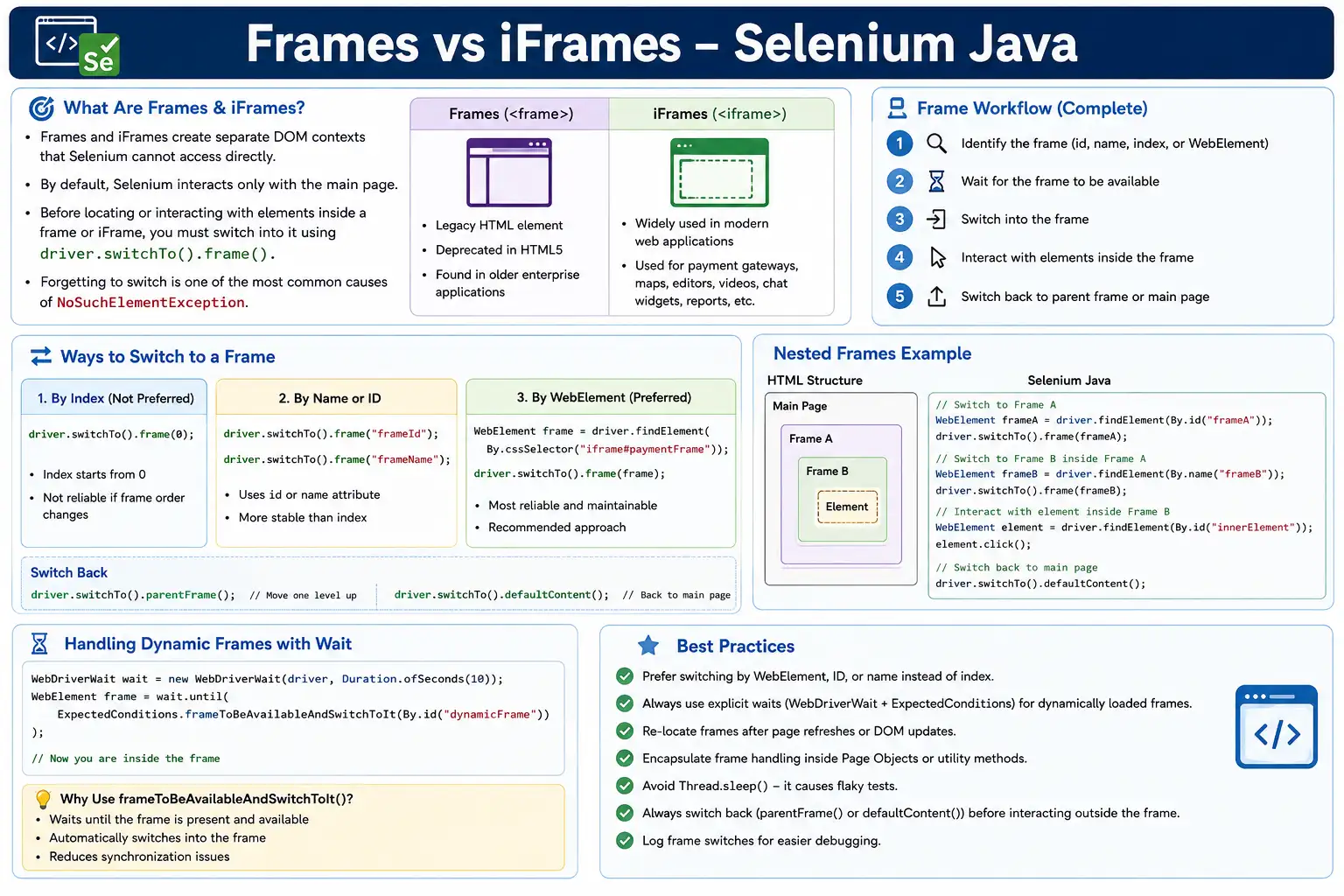
Modern applications use iFrames for payment gateways, advertisement widgets, rich text editors, embedded reports, maps, support widgets, document viewers, authentication components, and third-party integrations. Older applications may use frames, especially legacy intranet systems. Selenium handles both with the same driver.switchTo().frame() API, but the HTML usage and modern relevance are different.
A reliable frame test follows a clear pattern: identify the correct frame, wait for it to be available, switch into it, interact with elements inside it, and switch back to the main document or parent frame afterward. Forgetting any of these steps can make tests flaky, confusing, or completely broken.
2. What Is a Frame?
A frame is an older HTML structure that divides the browser window into multiple sections. Each section can load a separate document. Frames were commonly used in older websites to keep navigation in one section and content in another section.
<frameset cols="50%,50%">
    <frame src="menu.html">
    <frame src="content.html">
</frameset>
Frames are legacy technology and are rarely used in modern web applications. They are not part of modern HTML5 design patterns. However, automation testers may still encounter them in old enterprise systems, internal tools, and long-lived applications that have not been rewritten.
3. What Is an iFrame?
An iFrame, or inline frame, embeds another webpage inside the current page. Unlike old frames, iFrames are still common and supported in modern applications.
<iframe
    id="paymentFrame"
    src="payment.html">
</iframe>
iFrames are frequently used when one application needs to include a separate document or third-party feature inside a page. Payment gateways, embedded videos, maps, analytics reports, chatbot widgets, and rich text editors often use iFrames. The embedded document has its own DOM, which means Selenium must switch before finding elements inside it.
4. Frames vs iFrames
| Feature | Frame | iFrame |
|---|---|---|
| HTML Tag | <frame> | <iframe> |
| Modern Usage | Rare | Very common |
| Part of Frameset | Yes | No |
| HTML5 Support | Deprecated | Supported |
| Selenium Handling | switchTo().frame() | switchTo().frame() |
For Selenium, the key point is simple: both frames and iFrames require frame switching. The HTML tag may differ, but the automation concept is the same.
5. Why Selenium Cannot Access Frame Elements Directly
By default, Selenium focuses on the main page DOM. If an input is inside an iFrame, Selenium does not search inside that iFrame unless you switch into it first.
<html>
<body>
    <iframe id="loginFrame">
        <input id="username">
    </iframe>
</body>
</html>
This locator fails if Selenium is still in the main document:
driver.findElement(By.id("username"));The locator may be correct, but the context is wrong. Selenium is searching in the main page while the element exists in the iFrame DOM. The fix is to switch into the frame before finding the element.
6. Selenium Frame Architecture
A page with a frame has multiple document contexts. Think of it as a main page containing a smaller embedded page. Selenium can work in only one context at a time.
Main Page
    |
    |-- Header
    |-- Button
    |-- iFrame
          |
          |-- Username
          |-- Password
          |-- Login Button
To access frame elements, the test must switch to the frame, perform actions, and then switch back when it needs to access the main page again.
7. Required Imports
Frame handling commonly uses WebElement, By, WebDriverWait, and ExpectedConditions.
import org.openqa.selenium.By;
import org.openqa.selenium.WebElement;
import org.openqa.selenium.support.ui.ExpectedConditions;
import org.openqa.selenium.support.ui.WebDriverWait;
import java.time.Duration;
If you count frames or iterate through them, use List as well. In production code, explicit waits are strongly preferred because frames can load dynamically.
8. Switch to Frame by Index
Selenium can switch to a frame by index. Index starts at zero.
driver.switchTo().frame(0);

driver.findElement(By.id("username"))
      .sendKeys("admin");
This means Selenium switches into the first frame on the page. Although this is simple, it is not ideal for dynamic applications. If another frame is added before the target frame, the index changes and the test may switch into the wrong frame.
9. Switch to Frame by Name or ID
If the frame has a stable name or id, Selenium can switch with a string.
driver.switchTo().frame("loginFrame");

driver.findElement(By.id("username"))
      .sendKeys("admin");
This is more readable than an index. It clearly tells the next maintainer which frame the test expects. It is stable as long as the frame id or name does not change.
10. Switch to Frame Using WebElement
The WebElement approach is often the industry-preferred method because it allows you to locate the frame with a normal locator first and then switch using the located frame element.
WebElement frame =
    driver.findElement(By.id("loginFrame"));

driver.switchTo().frame(frame);

driver.findElement(By.id("username"))
      .sendKeys("admin");
This approach works well with explicit waits and complex locators. It is usually better than index-based switching in production frameworks.
11. Working Inside an iFrame
Once Selenium switches into the frame, it can interact with elements inside that frame as if they were normal page elements.
WebElement frame =
    driver.findElement(By.id("loginFrame"));

driver.switchTo().frame(frame);

driver.findElement(By.id("username")).sendKeys("admin");
driver.findElement(By.id("password")).sendKeys("admin123");
driver.findElement(By.id("loginButton")).click();
The important point is that Selenium remains inside that frame until you switch somewhere else. If the next action is on the main page, you must switch back.
12. Switch Back to Main Page
After working inside a frame, use defaultContent() to return to the main page.
driver.switchTo().defaultContent();This returns Selenium to the top-level document. Use this before interacting with elements outside the frame, such as page headers, navigation, global buttons, or messages in the main page.
13. parentFrame() vs defaultContent()
parentFrame() moves one level up. defaultContent() returns all the way to the main page.
driver.switchTo().parentFrame();driver.switchTo().defaultContent();In a simple single-frame page, both may appear similar after one switch. In nested frames, they are different. Use parentFrame() when you need to move from a child frame to its parent frame. Use defaultContent() when you want to reset to the main page.
14. Nested Frames
Nested frames are frames inside frames. To reach an element inside the inner frame, switch step by step from the main page to the outer frame and then to the inner frame.
<iframe id="frame1">
    <iframe id="frame2">
        <input id="username">
    </iframe>
</iframe>
driver.switchTo().frame("frame1");
driver.switchTo().frame("frame2");
driver.findElement(By.id("username"))
.sendKeys("admin");Selenium cannot jump directly into an inner frame unless the current context can see it. The test must follow the frame hierarchy.
15. Nested Frame Navigation
After working in a nested frame, you can move one level up or all the way out.
driver.switchTo().frame("frame1");
driver.switchTo().frame("frame2");

driver.findElement(By.id("username")).sendKeys("admin");

driver.switchTo().parentFrame();

driver.switchTo().defaultContent();
This kind of navigation is common in embedded editors and complex legacy systems. Be explicit about where the driver should be before each action.
16. Wait for Frame Before Switching
Frames may load after the main page. Selenium provides a wait condition that waits for the frame and switches into it automatically.
WebDriverWait wait =
    new WebDriverWait(driver, Duration.ofSeconds(10));

wait.until(
    ExpectedConditions.frameToBeAvailableAndSwitchToIt(
        By.id("loginFrame")
    )
);
This is a best-practice approach because it handles both synchronization and context switching. After this wait succeeds, Selenium is already inside the frame.
17. Wait Using WebElement
You can also wait using a WebElement reference.
WebElement frame =
    driver.findElement(By.id("loginFrame"));

WebDriverWait wait =
    new WebDriverWait(driver, Duration.ofSeconds(10));

wait.until(
    ExpectedConditions.frameToBeAvailableAndSwitchToIt(frame)
);
This can be useful when the frame is located by a more complex strategy. If the frame itself may appear later, locate it with a wait before using it.
18. Count Frames on a Page
Counting frames is useful for debugging. It helps confirm whether the page contains iFrames and how many are present.
List<WebElement> iframes =
    driver.findElements(By.tagName("iframe"));

System.out.println("Total iFrames: " + iframes.size());
You can count both old frames and iFrames if needed.
int frames = driver.findElements(By.tagName("frame")).size();
int iframes = driver.findElements(By.tagName("iframe")).size();

System.out.println("Frames: " + frames);
System.out.println("iFrames: " + iframes);
19. Switch to First Available iFrame
In exploratory debugging or simple test pages, you may switch to the first iFrame.
List<WebElement> frames =
    driver.findElements(By.tagName("iframe"));

driver.switchTo().frame(frames.get(0));
This is not recommended for production tests unless the first frame is truly guaranteed. Use a stable frame locator when possible.
20. Iterate Through Frames to Find an Element
Sometimes you may not know which frame contains an element. A debugging utility can iterate through frames and check for the target.
List<WebElement> frames =
    driver.findElements(By.tagName("iframe"));

for (int i = 0; i < frames.size(); i++) {
    driver.switchTo().defaultContent();
    driver.switchTo().frame(i);

    if (driver.findElements(By.id("submit")).size() > 0) {
        driver.findElement(By.id("submit")).click();
        break;
    }
}
This is useful for investigation, but production code should avoid guessing. Once the correct frame is known, use a stable locator and a page object method.
21. Real Project Example: Payment Gateway
Payment card fields are often hosted inside secure iFrames. This separates sensitive payment collection from the main application.
driver.switchTo().frame("paymentFrame");

driver.findElement(By.id("cardNumber"))
      .sendKeys("4111111111111111");

driver.findElement(By.id("expiry"))
      .sendKeys("12/30");

driver.switchTo().defaultContent();
Payment iFrames may be cross-origin and controlled by a third party. Selenium can switch into many such frames, but application and provider restrictions may affect what can be automated in lower environments.
22. Real Project Example: Rich Text Editor
Many rich text editors place the editable body inside an iFrame.
driver.switchTo().frame("editorFrame");

driver.findElement(By.tagName("body"))
      .sendKeys("Automation Notes");

driver.switchTo().defaultContent();
When automating editors, verify saved content after returning to the main page or after previewing the editor output. Typing inside the frame is only the first step.
23. Real Project Example: Embedded Reports
Analytics dashboards and reports are often embedded inside iFrames. Buttons such as Export, Filter, Download, or Refresh may live inside the frame.
driver.switchTo().frame("reportFrame");

driver.findElement(By.id("export")).click();

driver.switchTo().defaultContent();
Embedded reports can load slowly, so frame waits and element waits are usually required. Do not rely on fixed sleeps for report pages.
24. NoSuchFrameException
NoSuchFrameException occurs when Selenium cannot find the requested frame.
driver.switchTo().frame("wrongFrame");Common causes include wrong id, wrong name, frame not loaded yet, frame inside another frame, or trying to switch from the wrong current context. Use a correct locator and explicit wait.
25. NoSuchElementException Inside Frames
NoSuchElementException often happens when the element is inside a frame but Selenium is still in the main page.
driver.findElement(By.id("username"));If the locator works after manually inspecting the frame in DevTools, check whether you switched into the correct frame. Frame context should be one of the first things you verify when a locator looks correct but Selenium cannot find the element.
26. Stale Frames and Dynamic Pages
Modern applications may reload or replace iFrames after a tab change, payment provider update, report refresh, or editor initialization. If you store a frame WebElement and the page reloads that frame, the old reference can become stale.
When frames are dynamic, locate the frame close to the time you switch. If an action causes the frame to reload, switch back to default content, wait for the new frame, and switch again. Do not reuse old frame references across major page updates.
27. Cross-Origin iFrames
Many iFrames load content from a different domain, such as payment providers, ads, and third-party widgets. Selenium can often switch into cross-origin frames and interact with exposed elements, but browser security and provider behavior can limit automation. Some third-party frames intentionally restrict testability or change frequently.
For third-party integrations, keep tests focused. Validate that the frame loads, that the expected integration surface is available, and that your application handles the integration result. Avoid over-testing third-party internals that your team does not control.
28. Frame Handling in Page Object Model
Page objects should hide frame switching where it belongs to a specific component. A login component inside a frame can expose login(). A payment component can expose enterCardDetails(). The page object can switch into the frame, perform the action, and switch back.
public void switchToLoginFrame() {
    WebElement frame =
        driver.findElement(By.id("loginFrame"));

    driver.switchTo().frame(frame);
}
For complete business methods, include switching back to default content in a finally block or a clear cleanup step so that later test actions start from the expected context.
29. Reusable Frame Utility
A reusable frame utility should wait for the frame and switch into it.
public void switchToFrame(By locator) {
    WebDriverWait wait =
        new WebDriverWait(driver, Duration.ofSeconds(10));

    wait.until(
        ExpectedConditions.frameToBeAvailableAndSwitchToIt(locator)
    );
}
Usage:
switchToFrame(By.id("paymentFrame"));This is better than switching directly because it handles synchronization.
30. Safe Frame Workflow Utility
A stronger utility can switch into a frame, run an action, and always return to default content afterward.
public void insideFrame(By frameLocator, Runnable action) {
    try {
        switchToFrame(frameLocator);
        action.run();
    } finally {
        driver.switchTo().defaultContent();
    }
}
This pattern reduces the risk of forgetting to switch back. Use it carefully so test code remains readable.
31. Debugging Frame Problems
When frame tests fail, gather evidence. Count frames, print frame attributes, check the current context, and take screenshots. If an element cannot be found, first determine whether it is in the main page or inside a frame. Then verify whether the frame itself is available and whether the test has switched into it.
In Chrome DevTools, selecting an element inside an iFrame may show a separate document context. This is a strong clue that Selenium also needs a frame switch. Many locator problems become clear once the frame boundary is recognized.
32. Common Beginner Mistakes
- Forgetting to switch into the frame before locating elements.
- Forgetting to switch back to default content after frame actions.
- Using frame index on dynamic pages.
- Ignoring nested frame hierarchy.
- Trying to access inner frames directly from the main page.
- Using
Thread.sleep()instead of frame waits. - Reusing stale frame references after frame reloads.
33. Common Issues and Fixes
| Issue | Likely Cause | Fix |
|---|---|---|
| NoSuchFrameException | Wrong frame locator or frame not loaded | Verify locator and use frameToBeAvailableAndSwitchToIt |
| NoSuchElementException | Element is inside a frame but driver is in main page | Switch to the correct frame first |
| Element outside frame not found | Driver is still inside frame | Use defaultContent before main page actions |
| Nested frame element not found | Skipped parent frame | Switch through each frame level |
| Stale frame | Frame reloaded or was replaced | Re-locate frame and switch again |
34. Quick Code Patterns
34.1 Switch by Index
driver.switchTo().frame(0);34.2 Switch by ID or Name
driver.switchTo().frame("loginFrame");34.3 Switch by WebElement
WebElement frame = driver.findElement(By.id("loginFrame"));

driver.switchTo().frame(frame);
34.4 Return to Main Page
driver.switchTo().defaultContent();34.5 Move to Parent Frame
driver.switchTo().parentFrame();35. How to Identify Whether an Element Is Inside a Frame
When Selenium cannot find an element, one of the first checks should be whether the element is inside a frame. In browser developer tools, inspect the element and look upward in the DOM tree. If the element is under an <iframe> or <frame> tag, Selenium must switch into that frame before locating it. Many automation failures are misdiagnosed as locator problems when the real issue is frame context.
Another clue is that the locator works in DevTools only after selecting the frame's document. Browser developer tools often show frame boundaries, separate document nodes, or a frame selector in the console. If JavaScript in the main page cannot find the element directly, Selenium usually cannot find it directly either.
A practical debugging approach is to count frames, inspect their ids, names, and src attributes, then switch into the likely frame and try the locator. Once you find the right frame, replace the debugging code with a stable frame locator and an explicit wait.
36. Frame Context Is Stateful
Frame switching changes the driver's current context. This context remains active until the test switches somewhere else. If Selenium switches into a payment frame and the next test step tries to click a header button in the main page, that click will fail unless the test first calls defaultContent(). This stateful behavior is a common source of confusing failures.
Good tests make context transitions deliberate. Before frame work, switch into the frame. After frame work, switch back. If the code enters nested frames, use parentFrame() or defaultContent() intentionally. Do not assume Selenium automatically returns to the main page after an action inside a frame.
In page object design, each method should either leave the driver in a clearly documented context or restore the context before returning. For most business methods, restoring to default content is safer because the next test step usually expects the main page.
37. Dynamic Frame Loading
Many frames are not present immediately when the page loads. A payment iFrame may appear after selecting a payment method. A report iFrame may appear after the user chooses a report. An editor iFrame may be created after the editor script initializes. Direct switching can fail if the frame is not ready yet.
The right solution is frameToBeAvailableAndSwitchToIt(). This wait condition handles the common timing problem by waiting until the frame exists and is available for switching. It also switches into the frame after the condition succeeds, so the next locator should target elements inside the frame.
After switching into a dynamic frame, you may still need to wait for elements inside it. Frame availability only proves that Selenium can enter the frame. It does not prove that all frame content has loaded. For slow reports, editors, or third-party widgets, add element-specific waits inside the frame.
38. Frames That Reload After Actions
Some frames reload after user actions. A payment frame may refresh after entering a card number. A report frame may reload after changing filters. A rich text editor may rebuild its editable area after switching modes. When this happens, elements and even the frame reference itself can become stale.
If an action causes a frame reload, switch back to default content, wait for the frame again, and switch back into the fresh frame. Avoid keeping old WebElement references for frames or elements inside frames across reloads. Re-locating may feel repetitive, but it makes the test match the dynamic nature of the page.
For page objects, frame reload behavior should be hidden inside robust methods. A method such as applyReportFilter() can switch into the report frame, click the filter, return to default content, wait for the report frame to reload, switch again, and verify the updated result.
39. Third-Party iFrames
Third-party iFrames are common in real projects. Payment processors, identity providers, chat widgets, map providers, analytics reports, document signing tools, and advertisements may all be embedded as iFrames. These frames are owned by another system, so their DOM structure may change without your application code changing.
For third-party frames, avoid over-testing the provider's internal UI. Your application team usually does not control the provider's markup. Test what your application needs: the frame loads, required fields can be completed in test mode, the integration returns the expected result, and your application handles success or failure correctly.
When a provider gives stable test ids or a documented test integration flow, use those. If provider markup changes frequently, keep selectors isolated in one integration page object so updates do not spread through the suite.
40. Frames and Security Boundaries
iFrames are often used for security boundaries. Payment fields may be isolated so the main application never directly handles card numbers. Authentication widgets may be isolated so login logic lives with an identity provider. Document viewers may sandbox content. These design choices are good for the application, but they require careful automation.
Automation should respect these boundaries. Do not try to bypass frame behavior with JavaScript hacks unless there is a clear test-environment reason. Switching into the frame and interacting with the exposed fields is closer to real user behavior. If browser security prevents certain interactions, coordinate with the provider or use supported test hooks.
41. Frame Handling with Alerts and Windows
Frames can appear in workflows that also involve alerts or new windows. For example, a button inside a frame may trigger a JavaScript alert. In that case, switch into the frame, click the button, handle the alert, and then return to the correct page context. The alert itself is browser-level, but the triggering element was frame-level.
Similarly, a link inside a frame may open a new window or tab. After switching to the new window, frame context starts fresh for that window. If the new window contains frames, you must switch into those frames separately. Window context and frame context are separate concepts, and both must be managed explicitly.
42. Frame Handling and Test Data
Frame-based workflows often depend on external data. Payment frames may require test card numbers. Report frames may require report data. Editor frames may require saved content. If the frame loads but the expected element does not appear, the issue may be data setup rather than frame switching.
Stable data improves frame tests. For payment frames, use official test cards. For reports, seed data that makes the expected export button or row available. For editors, create a clean document state before typing. Frame switching solves context, but test data still controls what appears inside that context.
43. Frame Methods in Framework Utilities
Useful frame utilities should be small and predictable. A utility can switch to a frame by locator, switch to a nested frame path, switch back to default content, count frames, or run a function inside a frame and then restore context. The goal is to remove duplication without hiding important test intent.
public void switchToNestedFrames(By outer, By inner) {
    switchToFrame(outer);
    switchToFrame(inner);
}
For complex pages, page object methods are usually better than generic utilities alone. A method named enterPaymentCard() is clearer than a test that manually switches through frames and fills fields. The page object can use utilities internally while exposing meaningful behavior.
44. Assertions After Frame Actions
Frame interaction should be followed by assertions. If you type card details into a payment frame, validate that the main page shows payment readiness or enables the Pay button. If you type into a rich text editor frame, validate saved content or preview content. If you click Export inside a report frame, validate that the export action started or that the expected file appears.
Do not stop at "element was found inside the frame." The user goal is rarely just locating a frame element. The goal is completing a workflow. Assertions should prove that the workflow succeeded across the frame boundary.
45. When Not to Use Frame Index
Frame index is convenient in demos but fragile in production. The frame order can change when the application adds an advertisement, hidden tracking frame, support widget, or third-party integration. A test that switches to frame zero today may switch to the wrong frame tomorrow.
Use index only when the page is stable and the frame order is guaranteed, or when you are debugging. For maintainable tests, prefer a frame id, name, WebElement, or a locator that identifies the frame by a stable attribute. Readability matters: By.id("paymentFrame") explains intent better than frame(2).
46. Frames in CI and Headless Execution
Frame tests can fail in CI when third-party frames load slowly, network access differs, browser settings block content, or viewport size changes the page layout. Capture screenshots and logs when frame switching fails. Count frames on failure and log their attributes when practical. This makes CI failures easier to diagnose.
For headless browsers, use a stable window size. Some embedded widgets render differently in smaller viewports. Payment providers or report tools may show responsive layouts that hide fields or move controls. Stable browser configuration reduces this kind of environment-specific behavior.
47. Enterprise Best Practices
- Always switch into a frame before interacting with elements inside it.
- Use
defaultContent()before accessing main page elements. - Use
parentFrame()to move one level up in nested frames. - Prefer WebElement, name, or id switching over index switching.
- Use
frameToBeAvailableAndSwitchToIt()for dynamic frames. - Handle nested frames one level at a time.
- Re-locate frames after reloads or page updates.
- Keep frame logic inside page objects or reusable utilities.
- Do not use fixed sleeps for frame loading.
- Count frames only for debugging unless dynamic discovery is required.
48. Interview Perspective
A short interview answer is: frames and iFrames create separate DOM contexts. Selenium must switch into them using driver.switchTo().frame() before interacting with elements inside.
A stronger real-time answer is: In Selenium Java, both frames and iFrames isolate their DOM from the main page. I switch into them using frame index, name or id, or preferably a WebElement reference with an explicit wait. For dynamic frames, I use ExpectedConditions.frameToBeAvailableAndSwitchToIt(). After completing actions inside the frame, I return to the parent frame or main document using parentFrame() or defaultContent(). For nested frames, I switch through each level in order.
49. Final Summary
Frames and iFrames are embedded document contexts. Frames are legacy and rare, while iFrames are common in modern applications. Selenium handles both using the same frame-switching API. The important concept is not the tag name; it is the separate DOM context.
If Selenium cannot find an element and the locator appears correct, check whether the element is inside a frame. Switch into the frame before interacting with it, and switch back afterward. Use explicit waits for dynamic frames, avoid frame index when possible, and handle nested frames step by step.
The key takeaway is simple: Selenium searches only in the current document context. To work with frame content, switch to the correct frame first, perform the action, and return to the correct context for the next step.