findElement() vs findElements()
findElement() and findElements() are core element-locating methods in Selenium WebDriver. Choosing the right one affects test stability, control flow, and exception handling.
Every Selenium test eventually needs to locate something on the page. Before a test can click a login
button, type into an email field, read a success message, count table rows, or check whether an optional
popup exists, it must ask WebDriver to search the DOM. Selenium provides two closely related methods for
this job: findElement() and findElements(). They look similar, but their behavior
is intentionally different. One returns a single element and fails fast when the element is missing. The
other returns a list and allows the test to handle zero, one, or many matches safely.
The difference is not just syntax. It affects how tests communicate intent. When a test uses
findElement(), it is saying, "this element must exist for the test to continue." When a test
uses findElements(), it is often saying, "there may be zero or more matching elements, and I
want to inspect the result." That distinction helps you write tests that are clearer, less noisy, and easier
to debug.
Many flaky Selenium tests come from using the wrong locating method. Beginners often use
findElement() for optional banners, popups, or messages, then surround it with try/catch blocks
when the element is not present. That turns normal application behavior into exception-driven code. A better
pattern is to use findElements() for optional or repeated elements and check the list size.
This article explains the difference from a real framework perspective.
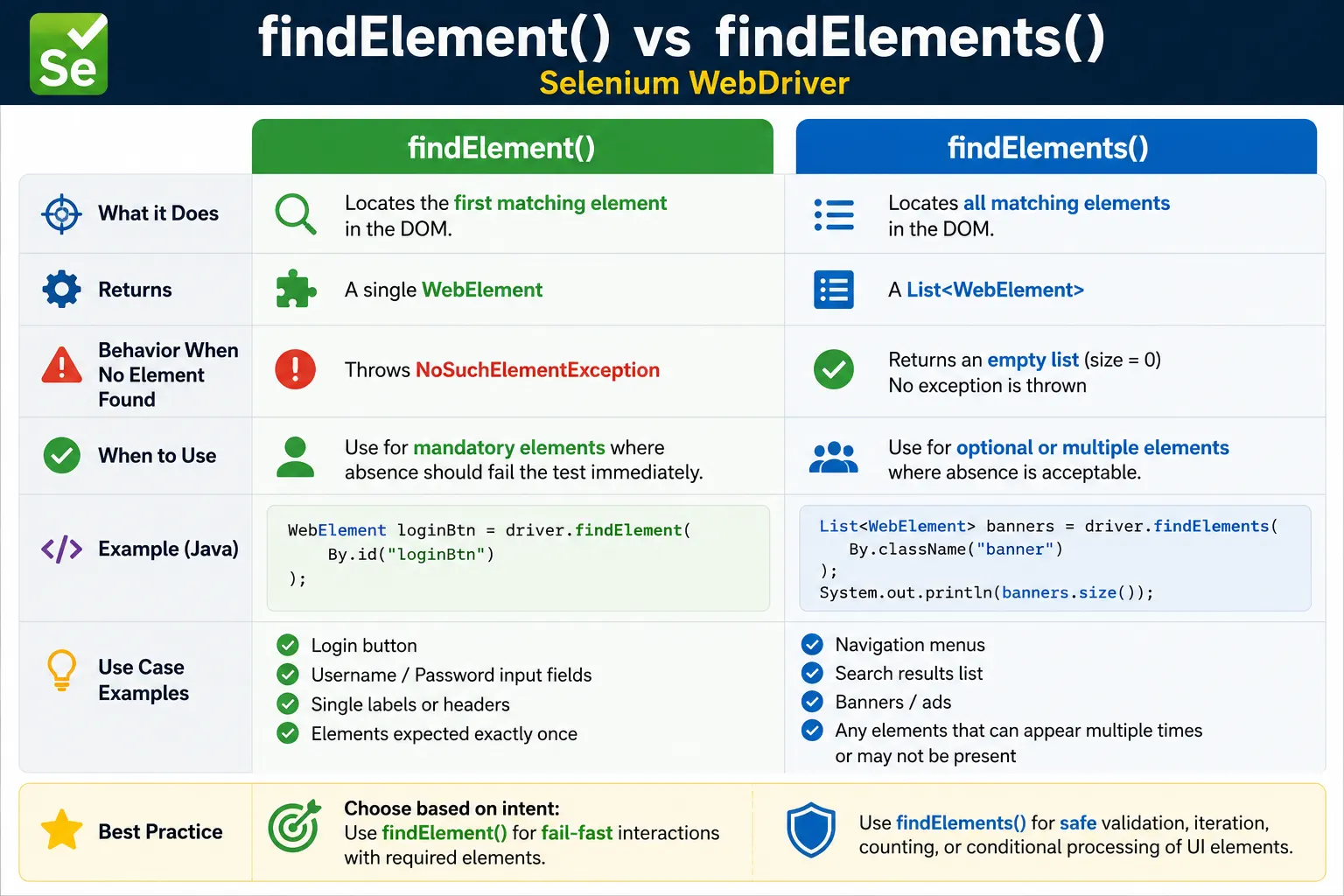
1. findElement() - Single Element Lookup
Definition:
findElement(By locator) locates the first matching element in the DOM and returns a WebElement.
Behavior:
- Returns one WebElement
- Throws NoSuchElementException if no element is found
- If multiple elements match, returns the first occurrence
When to Use:
- Element is mandatory (e.g., login button)
- Exactly one element is expected
- Failure should stop the test
Typical Use Cases:
- Username/password fields
- Submit buttons
- Single labels or headers
findElement() is the right choice when the element is required. A login page without a username
input is not usable. A checkout page without a place-order button is broken. A dashboard page without its
main heading may mean navigation failed. In these cases, an immediate exception is useful because the test
should not continue in the wrong state. The failure points directly to a missing mandatory element.
If the locator matches multiple elements, findElement() returns the first matching element in
DOM order. This is convenient when the locator is intentionally broad and the first match is acceptable, but
it is risky when the test expects a unique element. If a locator accidentally matches two login buttons, two
similar links, or repeated labels, the test may interact with the first one even if it is not the intended
target. For mandatory unique elements, write locators that are specific enough to identify the correct
element.
The fail-fast behavior of findElement() is not a weakness. It is useful when absence is a real
failure. The problem appears when it is used for elements that are optional, conditional, or repeated. If a
cookie banner appears only for new users, findElement() may throw on sessions where the banner
does not exist. That is not necessarily a product failure. It is optional UI, so findElements()
is usually a better fit.
2. findElements() - Multiple Element Lookup
Definition:
findElements(By locator) locates all matching elements and returns a List<WebElement>.
Behavior:
- Returns a list of WebElements
- Returns an empty list if no elements are found
- Never throws NoSuchElementException
- List size can be 0, 1, or many
When to Use:
- Elements are optional
- Multiple elements are expected
- Need to iterate, count, or conditionally validate
Typical Use Cases:
- Search results
- Menu items
- Table rows
- Validation of optional banners/messages
findElements() returns a list of all matching elements. This makes it ideal for repeated UI
structures such as search results, product cards, table rows, menu items, links, validation messages, or
notification banners. The list can contain many elements, one element, or no elements. When there are no
matches, Selenium returns an empty list instead of throwing NoSuchElementException. That
behavior is the main reason findElements() is useful for safe presence checks.
An empty list is normal data, not an exception. If a popup is optional, the test can call
findElements(), check isEmpty(), and close the popup only if it exists. If search
results may be zero, the test can assert that the list is empty for a no-results scenario or greater than
zero for a successful search. This style keeps the control flow clean and avoids noisy exception handling.
List-based element handling also makes validation more expressive. Instead of finding the first row and
assuming the table loaded, a test can count rows, loop through cells, validate every result title, or check
that at least one message appears. findElements() supports this type of collection-oriented UI
testing naturally.
3. Side-by-Side Comparison
| Aspect | findElement() | findElements() |
|---|---|---|
| Return type | WebElement | List<WebElement> |
| No element found | Exception | Empty list |
| Multiple matches | First element only | All matching elements |
| Control flow | Fail-fast | Defensive/conditional |
| Common usage | Mandatory UI elements | Optional or repeated UI |
This comparison captures the practical decision. Use findElement() when the test cannot
continue without the target element. Use findElements() when the test needs to count, iterate,
or handle absence as a valid condition. The right method makes test failure behavior match business intent.
The return type also affects code design. A WebElement can be clicked, typed into, or read directly. A list
must be inspected first. Before calling get(0), check that the list is not empty. Before
asserting a count, wait until the list has reached the expected state. Treating a list like a single element
is a common beginner mistake.
4. Exception Handling & Stability
With findElement():
- Missing element means immediate test failure
- Good for critical paths
With findElements():
- Missing element means an empty list
- Enables safe checks without exceptions
Real-project rule: Use findElements() to check presence, and findElement() to act.
Exception strategy is where the two methods have the biggest stability impact. Exceptions should describe
exceptional test failures, not normal optional UI. If a banner may or may not appear, absence should not
require a stack trace. If a menu item must always exist, absence should stop the test. This is why
findElement() is good for mandatory paths and findElements() is good for defensive
checks.
Wrapping findElement() in try/catch everywhere is usually a smell. It makes test logs noisy,
hides intent, and can accidentally swallow real failures. A clean presence check is simpler:
driver.findElements(locator).isEmpty(). If the list is empty, the element is not present. If it
is not empty, the first element can be used or the list can be inspected. This approach is readable and
avoids using exceptions as ordinary control flow.
5. Presence Check Pattern (Best Practice)
Instead of:
- Calling findElement() and catching exceptions
Prefer:
- Use findElements() and check list size
This avoids noisy logs and flaky exception handling.
Presence checks are common in real projects. A cookie banner may appear only once per browser profile. A
promotional modal may appear only in some environments. A validation message may appear only after invalid
input. A no-results message may appear only for certain searches. In each case, the test needs to ask whether
the element exists without failing immediately. findElements() is the natural tool.
The pattern should still be used carefully. If the element is expected to appear after an asynchronous action,
checking immediately may return an empty list before the application has had time to render it. In that case,
combine findElements() with an explicit wait or a polling utility. Safe absence checking and
synchronization are separate concerns.
6. Performance Considerations
- Both methods query the DOM
- findElements() may be slightly heavier if many elements match
- Difference is negligible for typical UI tests
Stability > micro-optimizations.
Performance is rarely the deciding factor between these methods. Both ask the browser to search the DOM using
the locator strategy. findElements() can return more data if many elements match, but for normal
page sizes the difference is usually not important. The bigger performance problem is poor locator design:
overly broad XPath, searching the entire page repeatedly when a scoped search would work, or using expensive
locators inside tight loops.
Choose the method for correctness first. If the test needs one mandatory element, use
findElement(). If it needs a list or optional check, use findElements(). After that,
improve locators and framework design if performance becomes measurable. Premature micro-optimization often
creates less readable Selenium code without improving suite stability.
7. Synchronization Considerations
- Neither method waits by default
-
If elements load dynamically:
- Use explicit waits before calling them
- Avoid mixing waits and exception handling
Neither method should be confused with a complete wait strategy. Depending on configured implicit waits, Selenium may poll for a period while locating elements, but relying on implicit wait behavior alone often makes timing harder to reason about. Explicit waits make intent clearer because they describe the condition the test needs: presence, visibility, clickability, number of elements, text availability, or invisibility.
For a mandatory button, use an explicit wait that returns a WebElement when it is visible or clickable. For a
list of rows, use a wait that checks the number of elements or waits until the list is non-empty. For an
optional element, use a short controlled check with findElements() if absence is acceptable.
Mixing long implicit waits with frequent optional checks can slow tests because each absence check may wait
longer than intended.
8. Common Beginner Mistakes
- Using findElement() for optional elements
- Wrapping findElement() in try/catch everywhere
- Assuming findElements() throws exception
- Interacting with list elements without checking size
9. Real-World Usage Examples (Conceptual)
- Check if banner exists: findElements()
- Click login button: findElement()
- Validate number of rows: findElements()
- Read first item text: findElements().get(0) after size check
10. Interview Perspective
Short Answer:
findElement() returns a single element and throws an exception if not found, while findElements() returns a list and returns an empty list when no elements are found.
Real-Time Answer:
In Selenium, findElement() is used for mandatory elements where failure should stop execution, whereas findElements() is used for optional or multiple elements, allowing safer presence checks without exceptions.
11. Key Takeaway
- findElement(): mandatory element, fail-fast
- findElements(): optional or multiple elements, safe checks
- Choose based on intent, not habit
Correct locator method selection reduces flaky tests more than any wait strategy.
12. How to Choose the Correct Method in a Real Test
The simplest way to choose between findElement() and findElements() is to ask what
absence means. If absence means the page is broken or the user cannot continue, use
findElement(), preferably with an explicit wait. If absence is an expected possibility, use
findElements() and inspect the list. This question is more reliable than choosing based on
habit. A button on a login form is mandatory. A warning message after invalid input is conditional. A search
result card is repeated. A cookie consent banner is optional. Each case suggests a different locating style.
Good Selenium code makes this intent visible. When a reader sees findElement() in a test or page
object, they should understand that the element is required at that point in the workflow. When they see
findElements(), they should understand that the code is handling a collection or checking an
optional condition. This readability matters in large test suites because failures are investigated by
people who may not have written the original test. Clear method choice shortens debugging time.
A common example is login validation. The email field, password field, and submit button should usually be
found with findElement() because the login page cannot function without them. After submitting
invalid credentials, the error message may be found with findElement() only if the test expects
the error to appear. But if the framework has a reusable helper that checks whether an error message exists
in many different scenarios, findElements() is safer because it allows both present and absent
states to be represented cleanly.
13. Mandatory Elements, Optional Elements, and Repeated Elements
Mandatory elements are the elements that define whether the page is usable. They are part of the page's
basic contract. A product details page should have a product title. A cart page should have a checkout
button when the cart contains items. A search page should have a search input. For these elements,
findElement() is appropriate because the test should fail if the element cannot be located.
Hiding the failure behind a list-size check can make the test weaker because it may continue after the page
has already entered an invalid state.
Optional elements are different. They appear only under certain conditions: popups, banners, alerts,
tooltips, validation summaries, empty-state messages, upgrade prompts, and feature flags. If optional UI is
handled with findElement(), the test often becomes filled with try/catch blocks. The code may
still work, but it becomes harder to read because a normal missing element is treated as an exception.
findElements() avoids that problem by returning an empty list.
Repeated elements are the natural domain of findElements(). Tables, cards, links, search
results, dropdown options, breadcrumb items, menus, notification rows, and form errors are usually better
represented as lists. Once the elements are in a list, the test can assert count, inspect text, filter by
content, click a specific match, or validate that every item follows a rule. Trying to validate repeated
content through only findElement() usually checks the first item and ignores the rest.
14. Presence Is Not the Same as Visibility
Another important distinction is the difference between an element being present in the DOM and being
visible to the user. Both findElement() and findElements() locate elements in the
DOM. An element may be present but hidden with CSS, covered by another element, disabled, outside the
viewport, or not ready for interaction. Finding an element is only the first step. Before clicking, typing,
or asserting user-visible behavior, the test may need to check isDisplayed(),
isEnabled(), or use an explicit wait such as visibility or clickability.
This is why a test can find a button and still fail when trying to click it. The locator succeeded, but the
interaction condition was not satisfied. The method choice does not remove the need for synchronization. For
required visible elements, combine findElement() with explicit waits. For repeated visible
elements, wait until the collection reaches the expected count or until all required elements are visible.
For optional elements, use a controlled presence check and then verify visibility only if the element exists.
In interviews, candidates often say findElements() is better because it does not throw
NoSuchElementException. That answer is incomplete. It is better only when the test needs a list
or when absence is acceptable. If the element is required and visible interaction is expected, a direct
exception can be the clearest failure. The real skill is matching the method to the page state and test
purpose.
15. Explicit Wait Patterns with findElement() and findElements()
Explicit waits make Selenium code more predictable because they wait for a named condition instead of
depending on arbitrary sleep time. With findElement(), the common pattern is to wait for
presence, visibility, or clickability and let the wait return a WebElement. For example, a
login button can be located through elementToBeClickable, which communicates that the test
needs the element to be ready for a click, not merely present in the DOM.
With findElements(), the wait condition is often about a collection. A test may wait until at
least one row appears, until the number of product cards is greater than zero, until a list has exactly five
items, or until all matching elements are visible. This is more expressive than finding one element and
assuming the whole list has loaded. Modern front-end applications often render sections gradually, so
collection-aware waits can remove timing gaps.
Avoid mixing long implicit waits with repeated optional checks. If the implicit wait is ten seconds, a simple
findElements() check for a missing optional popup may wait longer than expected, depending on
driver behavior and timing. In large suites, this can add minutes of wasted time. Many teams prefer explicit
waits and keep implicit waits low or disabled so each wait is deliberate and visible in the code.
16. Page Object Model Usage
In the Page Object Model, element lookup should usually be hidden behind meaningful page methods. Instead of
exposing raw locators everywhere, a page object can offer methods such as clickLogin(),
getSearchResultTitles(), isErrorMessageDisplayed(), and
closePromoIfPresent(). Inside those methods, findElement() or
findElements() can be chosen based on the behavior being modeled. The test then reads like a
business workflow rather than a series of locator operations.
For mandatory page actions, page object methods often use findElement() with explicit waits.
A method named clickSubmit() should fail if the submit button is missing, hidden, or disabled.
For optional or conditional UI, page object methods often use findElements(). A method named
dismissCookieBannerIfPresent() should not fail just because the banner has already been
accepted in a previous session.
This design keeps locator policy consistent. If every test author writes their own presence checks, the suite becomes inconsistent and harder to maintain. Centralizing decisions in page objects or helper utilities makes behavior reusable. It also makes future locator changes easier because the locator and the lookup strategy live close together.
17. Scoped Searches and Component-Based Locators
Both methods are available on WebDriver and WebElement. Calling
driver.findElements() searches from the whole document. Calling
someContainer.findElements() searches within that container. Scoped searches are extremely
useful when pages contain repeated components. For example, a table may contain many rows, and each row may
contain its own action buttons. Searching inside the row avoids accidentally clicking a similar button from
another row.
Component-scoped searching also improves readability. A page object can find a product card list, wrap each card in a small component object, and then locate the title, price, rating, and button inside each card. This prevents broad global locators from becoming fragile. It also reduces ambiguity when the same class names or labels appear in multiple areas of the page.
The same choice between single and multiple lookup applies inside scoped searches. If a product card must
contain exactly one title, card.findElement(titleLocator) is reasonable. If a card can contain
multiple tags, labels, or badges, card.findElements(badgeLocator) is better. The scope changes
where Selenium searches, but the intent rule remains the same.
18. Dynamic DOM and Stale Element Handling
Modern applications frequently update the DOM after a test has already located an element. A React, Angular,
Vue, or server-rendered page may replace a button, refresh a list, re-render a table, or update a modal.
When that happens, an old WebElement reference may become stale. This can affect both
findElement() and findElements() because both return element references tied to
the current DOM state.
The fix is not to cache elements aggressively. Store locators more often than elements. Re-locate elements after actions that refresh the page or update a component. If a click causes the list of results to change, fetch the list again before reading it. If a save button becomes stale after validation, wait for the updated button and then interact with the fresh reference. This pattern is more reliable than holding old element references across major UI changes.
Stale element problems are often misdiagnosed as locator problems. The locator may be correct, but the
element reference may no longer point to a live node. Understanding this difference helps you debug faster.
findElement() and findElements() locate elements at a moment in time. They do not
guarantee that the same DOM node will remain valid after the application changes.
19. Diagnostics and Debugging Locator Failures
When findElement() fails, the failure usually includes the locator in the exception message.
That is helpful, but it is only the starting point. The element might be missing because the page did not
navigate correctly, the user is not authenticated, the DOM has not loaded yet, the locator is outdated, the
element is inside an iframe, or the element belongs to a different window. A good debugging process checks
page URL, title, screenshot, page source, frames, and recent UI changes before changing the locator blindly.
When findElements() returns an empty list unexpectedly, the debugging approach is similar but
the failure may appear later. For example, calling get(0) on an empty list creates an
IndexOutOfBoundsException, which is less helpful than a locator failure. That is why list
handling should include clear assertions. If the test expects at least one result, assert that the list is
not empty with a meaningful message before using the first element.
Strong diagnostics are especially important in CI environments. A test that passes locally may fail on a slower machine, different browser version, or smaller viewport. Screenshots and locator-specific assertion messages help determine whether the issue is timing, layout, data, or real product behavior. The right lookup method reduces noise, but good failure messages make the remaining failures actionable.
20. Framework-Level Helper Methods
Many Selenium frameworks provide helper methods around element lookup. A simple helper such as
isElementPresent(By locator) often uses findElements(locator).size() > 0. A
click helper may wait for clickability and then use findElement(). A list helper may wait until
the number of matching elements reaches a minimum count. These helpers are useful when they express common
intent without hiding important failures.
Helper methods should not become a place where all exceptions are swallowed. If a required element is
missing, the framework should fail clearly. If an optional element is missing, the framework should return a
boolean or an empty list. The distinction must remain visible in method names. For example,
getRequiredElement() and findOptionalElements() communicate behavior better than a
vague method named getElement().
Well-designed helpers also reduce repeated mistakes. They can include wait logic, logging, screenshot hooks, and meaningful assertion messages. They can enforce a consistent locator strategy across the suite. Most importantly, they can teach new team members the correct mental model: single required element lookup is different from optional or multiple element lookup.
21. Interview-Ready Explanation
A strong interview answer should cover return type, missing-element behavior, multiple-match behavior, and
real use cases. You can say that findElement() returns a single WebElement, throws
NoSuchElementException if no match exists, and returns the first match if multiple elements are
found. You can then say that findElements() returns a List<WebElement>,
returns an empty list when no match exists, and is useful for optional elements, repeated elements, counts,
and iteration.
To make the answer practical, connect it to test design. For a login button, use
findElement() because the button is required. For search result rows, use
findElements() because there can be many rows. For a popup that may appear only sometimes, use
findElements() to check presence without exception handling. For dynamic pages, combine both
methods with explicit waits so the test waits for the correct state before acting.
The best closing line is simple: findElement() is for required single elements, and
findElements() is for optional or multiple elements. The method should be chosen based on
intent, not because one is generally better than the other.
22. Practical Examples & Interview Scenarios
1. findElement() - Element Exists
WebElement loginBtn = driver.findElement(By.id("login"));
loginBtn.click();
Behavior
- Returns the first matching element
- Works only if element exists
2. findElements() - Multiple Elements Exist
List<WebElement> links = driver.findElements(By.tagName("a"));
System.out.println(links.size());
Behavior
- Returns all matching elements
- Never throws exception
3. findElement() - Element Not Found (Exception)
driver.findElement(By.id("notPresent"));Result
- NoSuchElementException
4. findElements() - Element Not Found (Safe)
List<WebElement> elements =
    driver.findElements(By.id("notPresent"));

System.out.println(elements.size()); // 0
Interview Favorite
- No exception
- Returns empty list
5. Accessing First Element Using findElements()
List<WebElement> buttons =
    driver.findElements(By.tagName("button"));

buttons.get(0).click();
Note
- Must check size before get(0)
6. Safer Way to Click If Present
List<WebElement> btn =
    driver.findElements(By.id("submit"));

if (!btn.isEmpty()) {
    btn.get(0).click();
}
Best Practice
- Avoids exception
7. findElement() Always Returns First Match
WebElement firstLink =
    driver.findElement(By.tagName("a"));

System.out.println(firstLink.getText());
Important
- Even if 100 links exist, it returns only the first match
8. Looping Through Elements (findElements())
List<WebElement> links =
    driver.findElements(By.tagName("a"));

for (WebElement link : links) {
    System.out.println(link.getText());
}
9. Validate Count of Elements
List<WebElement> rows =
    driver.findElements(By.cssSelector("table tr"));

Assert.assertTrue(rows.size() > 0);
10. Conditional Logic Using findElements() (Real Project)
if (driver.findElements(By.id("popup")).size() > 0) {
    driver.findElement(By.id("close")).click();
}
Why
- Prevents NoSuchElementException
11. findElement() with Explicit Wait (Recommended)
WebDriverWait wait =
    new WebDriverWait(driver, Duration.ofSeconds(10));

WebElement btn =
    wait.until(ExpectedConditions.visibilityOfElementLocated(
        By.id("login")));

btn.click();
12. findElements() with Explicit Wait
WebDriverWait wait =
    new WebDriverWait(driver, Duration.ofSeconds(10));

List<WebElement> items =
    wait.until(ExpectedConditions.visibilityOfAllElementsLocatedBy(
        By.className("item")));

System.out.println(items.size());
13. Chaining with WebElement
WebElement table = driver.findElement(By.id("users"));
List<WebElement> rows =
    table.findElements(By.tagName("tr"));
14. findElement() Inside Loop (Anti-Pattern)
for (int i = 0; i < 5; i++) {
    driver.findElement(By.id("item")).click(); // avoid repeated global lookup
}
Problem
- Re-locates every time
- Can cause stale issues
15. Correct Loop Using findElements()
List<WebElement> items =
    driver.findElements(By.className("item"));

for (WebElement item : items) {
    item.click();
}
16. Checking Presence Without Exception (Interview Favorite)
boolean isPresent =
    driver.findElements(By.id("logout")).size() > 0;
17. Checking Visibility of Multiple Elements
List<WebElement> alerts =
    driver.findElements(By.className("alert"));

for (WebElement a : alerts) {
    System.out.println(a.isDisplayed());
}
18. Common Interview Mistake
driver.findElements(By.id("login")).click(); // invalid

Correct

driver.findElements(By.id("login")).get(0).click(); // works after size check
19. findElement() vs findElements() Performance
// findElement stops after first match
// findElements collects all matching elements
Implication
- Use findElement() when you need only one
- Use findElements() when you expect multiple or optional
20. Handling Optional UI (Banner / Ad)
List<WebElement> ads =
    driver.findElements(By.id("ad"));

if (!ads.isEmpty()) {
    ads.get(0).click();
}
21. Size Validation Use Case
Assert.assertEquals(
    driver.findElements(By.cssSelector(".menu li")).size(),
    5
);
22. findElements() Returns List Even for One Element
List<WebElement> login =
    driver.findElements(By.id("login"));

System.out.println(login.size()); // 1
23. Stale Element Scenario
WebElement btn = driver.findElement(By.id("save"));
driver.navigate().refresh();
// btn.click(); would throw StaleElementReferenceException

Fix

btn = driver.findElement(By.id("save"));
btn.click();
24. Framework Utility Method
public boolean isElementPresent(By locator) {
    return driver.findElements(locator).size() > 0;
}
25. Interview Summary - findElement() vs findElements()
Quick Summary:
findElement() returns WebElement or throws exception.
findElements() returns List<WebElement> and the list is empty if no match exists.
| Aspect | findElement() | findElements() |
|---|---|---|
| Return type | WebElement | List<WebElement> |
| If not found | Exception | Empty list |
| First match only | Yes | No |
| Best for | Mandatory element | Optional / multiple elements |