File Download Handling in Selenium Java
1. Introduction
File download handling is a common Selenium requirement in applications that generate PDF reports, Excel exports, CSV files, invoices, receipts, logs, account statements, attachments, and generated documents. Download automation looks simple from a user perspective: click a Download button and the file appears in the browser's downloads folder. In automation, it needs more discipline because Selenium WebDriver does not directly control the browser download manager.
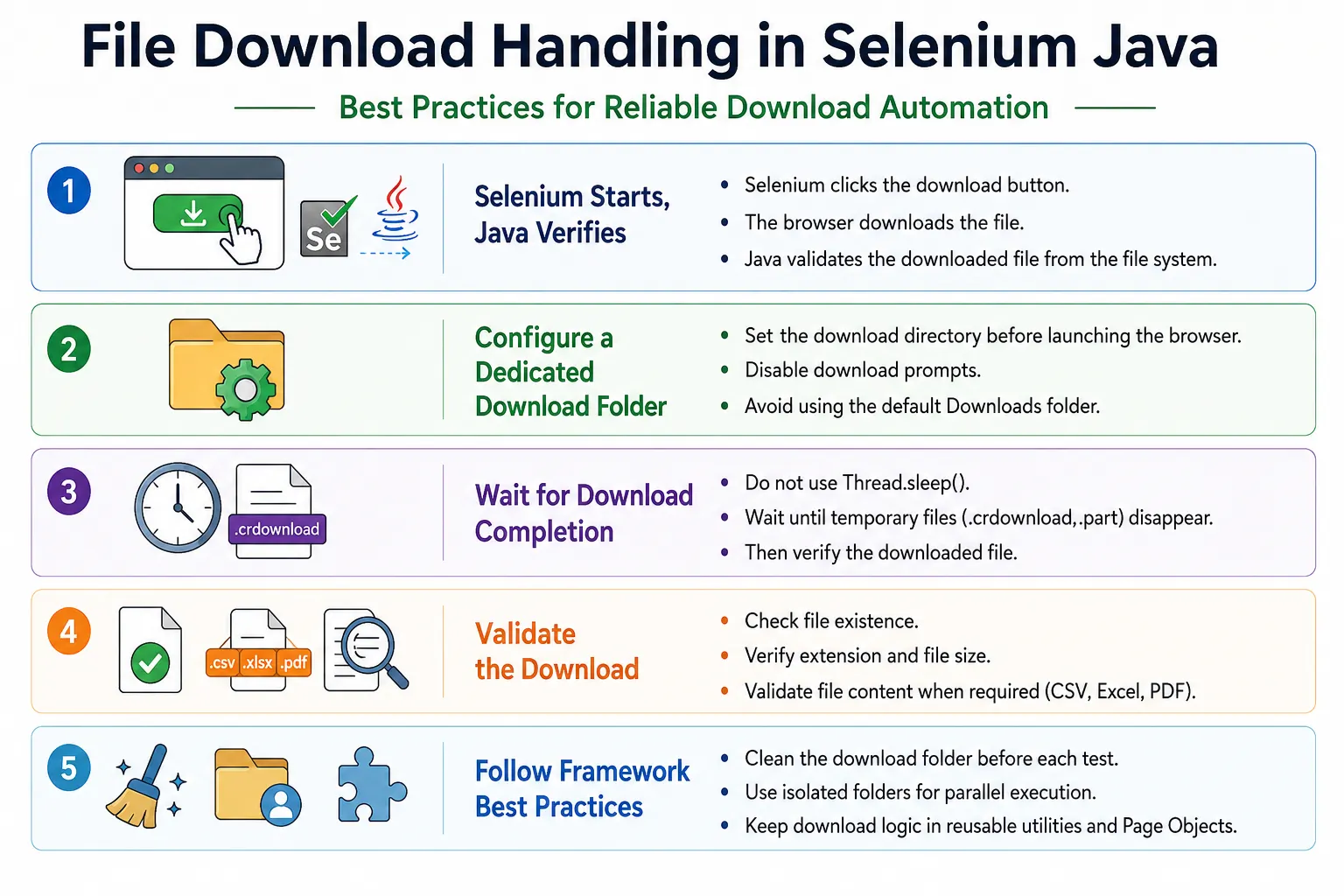
Selenium can click the download button or link. The browser handles the actual download. Java verifies the downloaded file from the local file system. This makes file download automation a combination of Selenium browser interaction, browser preference configuration, and Java file-system validation.
The best download tests configure a known download folder before the browser starts, clean that folder before the test, click the download action, wait until temporary download files disappear, and verify the downloaded file by name, extension, size, and sometimes content. Without these steps, tests can become flaky or produce false positives from old files left in the download directory.
2. What Is File Download Handling?
File download handling means automating and validating this flow:
Click Download Button
        ↓
Browser downloads file
        ↓
File saved in configured folder
        ↓
Automation verifies file exists
        ↓
Optional validation of name, size, extension, or content
Selenium is responsible for the browser action that starts the download. Java is responsible for checking the file system after the browser saves the file. This split is important. There is no standard Selenium command such as driver.waitForDownload() in normal WebDriver workflows.
3. Why Downloads Need Special Handling
Browsers may ask where to save a file, block certain downloads, show prompts, save files to the default Downloads folder, rename duplicate files, download slowly, or keep temporary extensions while downloading. If the test does not configure the browser, the downloaded file may go to an unknown folder or prompt the user, causing automation to stop.
Good download handling removes prompts and sets a predictable folder. It also avoids checking immediately after clicking because downloads may take time. A reliable test waits until the browser finishes writing the file.
4. Required Imports
import java.io.File;
import java.nio.file.Files;
import java.nio.file.Path;
import java.nio.file.Paths;
import java.time.Duration;
import java.util.HashMap;
import java.util.Map;

import org.openqa.selenium.By;
import org.openqa.selenium.WebDriver;
import org.openqa.selenium.chrome.ChromeDriver;
import org.openqa.selenium.chrome.ChromeOptions;
import org.openqa.selenium.edge.EdgeDriver;
import org.openqa.selenium.edge.EdgeOptions;
import org.openqa.selenium.firefox.FirefoxDriver;
import org.openqa.selenium.firefox.FirefoxOptions;
import org.openqa.selenium.firefox.FirefoxProfile;
import org.openqa.selenium.support.ui.WebDriverWait;
import org.testng.Assert;
The exact imports depend on the browser and validation style. File, Path, and Files are used for file-system validation. Browser options are used for configuring the download folder.
5. Choosing a Download Folder
Use a folder inside the project workspace or test output area. Avoid the user's default Downloads folder. A dedicated test download folder is easier to clean, easier to inspect, and safer for CI execution.
String downloadPath =
        System.getProperty("user.dir")
        + "\\downloads";
For cross-platform code, prefer Paths:
String downloadPath =
        Paths.get("downloads")
             .toAbsolutePath()
             .toString();
This works better across Windows, Linux, and macOS because Java handles path separators.
6. Chrome Download Configuration
String downloadPath =
        Paths.get("downloads")
             .toAbsolutePath()
             .toString();

Map<String, Object> prefs =
        new HashMap<>();

prefs.put(
        "download.default_directory",
        downloadPath
);
prefs.put(
        "download.prompt_for_download",
        false
);
prefs.put(
        "download.directory_upgrade",
        true
);
prefs.put(
        "safebrowsing.enabled",
        true
);

ChromeOptions options =
        new ChromeOptions();

options.setExperimentalOption(
        "prefs",
        prefs
);

WebDriver driver =
        new ChromeDriver(options);
This configuration tells Chrome where to save downloads and disables the download prompt. It must be set before launching the browser. Changing preferences after the browser starts is not a reliable download strategy.
7. Firefox Download Configuration
String downloadPath =
        Paths.get("downloads")
             .toAbsolutePath()
             .toString();

FirefoxProfile profile =
        new FirefoxProfile();

profile.setPreference(
        "browser.download.folderList",
        2
);
profile.setPreference(
        "browser.download.dir",
        downloadPath
);
profile.setPreference(
        "browser.helperApps.neverAsk.saveToDisk",
        "application/pdf,application/octet-stream,text/csv,application/vnd.ms-excel"
);
profile.setPreference(
        "pdfjs.disabled",
        true
);

FirefoxOptions options =
        new FirefoxOptions();

options.setProfile(profile);

WebDriver driver =
        new FirefoxDriver(options);
Firefox relies heavily on MIME type configuration. If Firefox still prompts, check the downloaded file's MIME type and add it to browser.helperApps.neverAsk.saveToDisk. Disabling the built-in PDF viewer helps when the test should download PDFs instead of opening them in the browser.
8. Edge Download Configuration
String downloadPath =
        Paths.get("downloads")
             .toAbsolutePath()
             .toString();

Map<String, Object> prefs =
        new HashMap<>();

prefs.put(
        "download.default_directory",
        downloadPath
);
prefs.put(
        "download.prompt_for_download",
        false
);

EdgeOptions options =
        new EdgeOptions();

options.setExperimentalOption(
        "prefs",
        prefs
);

WebDriver driver =
        new EdgeDriver(options);
Edge uses Chromium-style preferences, so its configuration is similar to Chrome. As with Chrome, set the preferences before browser launch.
9. Click Download Button
driver.findElement(By.id("downloadReport"))
      .click();
After this click, Selenium does not automatically wait for the file to finish downloading. The test must use Java file checks to wait for and verify the downloaded file.
10. Wait Until File Downloads
public boolean waitForFileDownload(
        String downloadDir,
        String fileName,
        int timeoutSeconds) {

    File file =
            new File(downloadDir, fileName);

    long endTime =
            System.currentTimeMillis()
            + timeoutSeconds * 1000L;

    while (System.currentTimeMillis() < endTime) {
        if (file.exists()
                && file.length() > 0) {
            return true;
        }
    }

    return false;
}
This waits for a specific filename to appear and have content. It is simple, but the loop should include a polling delay to avoid busy waiting.
11. Better Wait with Polling Delay
public boolean waitForFileDownload(
        String downloadDir,
        String fileName,
        int timeoutSeconds) {

    File file =
            new File(downloadDir, fileName);

    long endTime =
            System.currentTimeMillis()
            + timeoutSeconds * 1000L;

    while (System.currentTimeMillis() < endTime) {
        if (file.exists()
                && file.length() > 0) {
            return true;
        }

        try {
            Thread.sleep(500);
        } catch (InterruptedException e) {
            Thread.currentThread().interrupt();
            return false;
        }
    }

    return false;
}
The delay makes the wait more efficient. It checks periodically until the file appears or the timeout expires.
12. Usage of File Download Wait
boolean downloaded =
        waitForFileDownload(
                downloadPath,
                "report.pdf",
                30
        );

Assert.assertTrue(downloaded);
This is suitable when the expected file name is known. If the file name is dynamic, use latest-file or extension-based validation.
13. Check File Extension
File file =
        new File(downloadPath, "report.pdf");

Assert.assertTrue(file.exists());
Assert.assertTrue(
        file.getName().endsWith(".pdf")
);
Extension validation confirms the downloaded file type at a basic level. It does not prove the file content is valid, but it is a good first check.
14. Check File Size
File file =
        new File(downloadPath, "report.pdf");

Assert.assertTrue(
        file.length() > 0
);
A file that exists but has zero bytes is usually not a successful download. Size validation helps catch empty or incomplete files.
15. Check Latest Downloaded File
Dynamic filenames are common. Reports may include timestamps, user IDs, invoice numbers, or random suffixes. In such cases, get the latest file from the directory.
public File getLatestFileFromDir(
        String dirPath) {

    File dir =
            new File(dirPath);

    File[] files =
            dir.listFiles();

    if (files == null
            || files.length == 0) {
        return null;
    }

    File latestFile =
            files[0];

    for (File file : files) {
        if (file.lastModified()
                > latestFile.lastModified()) {
            latestFile = file;
        }
    }

    return latestFile;
}
After retrieving the latest file, validate extension, size, and name pattern.
16. Wait for Latest File by Extension
public File waitForFileByExtension(
        String dirPath,
        String extension,
        int timeoutSeconds) {

    long endTime =
            System.currentTimeMillis()
            + timeoutSeconds * 1000L;

    while (System.currentTimeMillis() < endTime) {
        File latest =
                getLatestFileFromDir(dirPath);

        if (latest != null
                && latest.getName().endsWith(extension)
                && latest.length() > 0) {
            return latest;
        }

        try {
            Thread.sleep(500);
        } catch (InterruptedException e) {
            Thread.currentThread().interrupt();
            return null;
        }
    }

    return null;
}
Usage:
File downloadedFile =
        waitForFileByExtension(
                downloadPath,
                ".csv",
                30
        );

Assert.assertNotNull(downloadedFile);
17. Handle Temporary Download Files
Chrome may create temporary files with .crdownload. Firefox may create .part files. These files indicate that a download is still in progress.
public boolean isDownloadInProgress(
        String downloadDir) {

    File dir =
            new File(downloadDir);

    File[] files =
            dir.listFiles();

    if (files == null) {
        return false;
    }

    for (File file : files) {
        if (file.getName().endsWith(".crdownload")
                || file.getName().endsWith(".part")) {
            return true;
        }
    }

    return false;
}
A robust download wait should consider temporary extensions, especially for larger files.
18. Wait Until Download Completes Fully
public boolean waitUntilDownloadComplete(
        String downloadDir,
        int timeoutSeconds) {

    long endTime =
            System.currentTimeMillis()
            + timeoutSeconds * 1000L;

    while (System.currentTimeMillis() < endTime) {
        if (!isDownloadInProgress(downloadDir)) {
            return true;
        }

        try {
            Thread.sleep(500);
        } catch (InterruptedException e) {
            Thread.currentThread().interrupt();
            return false;
        }
    }

    return false;
}
This waits until temporary download files disappear. Combine this with file existence and size checks. A folder with no temporary files does not automatically mean the expected file exists.
19. Delete Existing Files Before Test
Cleaning the download folder before each test prevents false positives. If an old report.pdf already exists, a test might pass without downloading anything new.
public void cleanDownloadFolder(
        String downloadDir) {

    File dir =
            new File(downloadDir);

    File[] files =
            dir.listFiles();

    if (files != null) {
        for (File file : files) {
            file.delete();
        }
    }
}
In more advanced frameworks, use Java NIO and handle delete failures explicitly. For simple test folders, this utility is often enough.
20. Complete Download Test Example
String downloadPath =
        Paths.get("downloads")
             .toAbsolutePath()
             .toString();

cleanDownloadFolder(downloadPath);

driver.findElement(By.id("downloadReport"))
      .click();

boolean completed =
        waitUntilDownloadComplete(
                downloadPath,
                30
        );

Assert.assertTrue(completed);

File latestFile =
        getLatestFileFromDir(downloadPath);

Assert.assertNotNull(latestFile);
Assert.assertTrue(
        latestFile.getName().endsWith(".pdf")
);
Assert.assertTrue(
        latestFile.length() > 0
);
This example cleans the folder, triggers the download, waits for completion, and validates the latest file. It is a practical framework pattern.
21. Download Validation in Page Object Model
public class ReportsPage {

    private WebDriver driver;

    private By downloadReportButton =
            By.id("downloadReport");

    public ReportsPage(WebDriver driver) {
        this.driver = driver;
    }

    public void clickDownloadReport() {
        driver.findElement(downloadReportButton)
              .click();
    }
}
Test:
reportsPage.clickDownloadReport();

File file =
        waitForFileByExtension(
                downloadPath,
                ".pdf",
                30
        );

Assert.assertNotNull(file);
Keep browser interaction in the page object and file-system verification in a utility or assertion layer.
22. Real Project Example: Excel Export
driver.findElement(By.id("exportExcel"))
      .click();

File file =
        waitForFileByExtension(
                downloadPath,
                ".xlsx",
                30
        );

Assert.assertNotNull(file);
Assert.assertTrue(file.length() > 0);
Excel exports are common in admin dashboards and reporting systems. For deeper validation, parse the spreadsheet and verify row headers or values.
23. Real Project Example: CSV Export
driver.findElement(By.id("exportCSV"))
      .click();

File file =
        waitForFileByExtension(
                downloadPath,
                ".csv",
                30
        );

Assert.assertNotNull(file);
Assert.assertTrue(
        file.getName().contains("Employees")
);
CSV exports are easy to validate further because they are plain text. You can read lines and assert expected column names.
24. Real Project Example: PDF Invoice
driver.findElement(By.id("downloadInvoice"))
      .click();

File file =
        waitForFileByExtension(
                downloadPath,
                ".pdf",
                30
        );

Assert.assertNotNull(file);
Assert.assertTrue(file.length() > 0);
For invoice PDFs, basic file validation may be enough for smoke tests. For detailed checks, use a PDF parsing library and validate invoice number, amount, or customer name.
25. Verify Download Using Java NIO
Path path =
        Paths.get(
                downloadPath,
                "report.pdf"
        );

Assert.assertTrue(
        Files.exists(path)
);
Java NIO is clean and modern. It works well with Path objects and cross-platform path construction.
26. Validating File Content
Checking that a file exists is the first level of validation. A stronger test can validate content. For CSV files, read the lines and check headers. For text logs, check expected messages. For Excel and PDF, use appropriate libraries if the project needs content-level assertions.
Path csvPath =
        downloadedFile.toPath();

String content =
        Files.readString(csvPath);

Assert.assertTrue(
        content.contains("EmployeeId")
);
Content validation is more expensive than existence validation, so use it where it adds real value.
27. Handling Dynamic File Names
Many applications add timestamps or unique IDs to downloaded files. Instead of asserting an exact name, validate a predictable pattern, extension, and size.
Assert.assertTrue(
        latestFile.getName()
                  .startsWith("Employee_Report")
);

Assert.assertTrue(
        latestFile.getName()
                  .endsWith(".xlsx")
);
This is more stable than expecting a full static name when the application intentionally generates dynamic names.
28. Common Download Issues
If the file is not downloaded, the button may be wrong, the request may fail, or the application may show an error. If a download popup appears, browser preferences are probably missing. If the filename changes, validate by extension or latest file. If the file is incomplete, wait for temporary extensions to disappear. If the test fails in CI, check folder permissions and use a writable workspace folder.
Download issues often require both browser debugging and filesystem debugging. Capture the current URL, screenshots, network behavior when possible, and the contents of the download folder.
29. Downloads in CI/CD
CI agents may not have access to the same user Downloads folder as a developer machine. Always use a workspace folder controlled by the test. Make sure the folder exists and is writable. Clean it before each test or test class.
For parallel execution, avoid sharing the same download folder across multiple tests. Use a unique folder per test thread or browser session to prevent collisions and false positives.
30. Downloads in Headless Browsers
Headless download behavior has improved in modern browsers, but it still depends on proper browser configuration. Always test download preferences in the same mode used by CI. A download that works in headed Chrome may fail in headless mode if preferences or permissions are wrong.
When debugging headless failures, print the download directory, list files after the click, and confirm temporary files are not stuck.
31. Cleaning Download Folder Safely
Only clean folders that are owned by the test. Never delete the user's real Downloads folder. A safe framework creates a test-specific folder inside the project, build output, or temporary directory.
If using parallel execution, each test should clean only its own folder. Shared cleanup can delete another test's file while it is still being validated.
32. Parallel Download Tests
Parallel tests need isolated download directories. If two tests download report.pdf into the same folder, they can interfere with each other. One test may validate the other test's file. Use a session ID, test name, or timestamp in the folder path.
String downloadPath =
        Paths.get(
                "downloads",
                Thread.currentThread().getName()
        ).toAbsolutePath()
         .toString();
Isolation prevents race conditions and makes test artifacts easier to inspect.
33. File Download vs API Validation
Sometimes a file download is triggered by a direct URL or API endpoint. UI tests can click the browser button to validate the user flow, while API tests can validate the file response more directly. The best strategy depends on the test goal.
If the goal is to test UI download behavior, click the UI and validate the local file. If the goal is to validate report data, an API or backend-level test may be faster and more precise. Many teams use both layers.
34. Browser Prompt Problems
One of the most common download failures is a browser prompt. The test clicks Download, but the browser asks whether to save or open the file. Selenium cannot continue because the expected file is not created in the folder. This usually means browser preferences were not configured correctly, the MIME type is not covered, or the browser is opening the file in a built-in viewer instead of downloading it.
PDF files are a classic example. Chrome or Firefox may open the PDF in the browser instead of downloading it. If the test requirement is to verify file download, configure the browser to download PDFs. If the requirement is to verify that the PDF opens in the browser, that is a different scenario and should be tested differently.
35. Validating Download Trigger vs File Result
There are two different things to validate: the UI trigger and the downloaded result. The UI trigger means the correct button or link was clicked and the application attempted to start a download. The file result means the expected file appeared in the configured folder and is usable. A strong test validates the result, not only the click.
For example, a disabled Download button should not start a download. A wrong report filter should not produce the expected file. A server error may produce an HTML error file instead of a PDF. These cases show why file validation should include extension, size, and sometimes content. A file existing in the folder is useful, but it is not always enough.
36. File Name Collision Handling
Browsers often rename duplicate downloads. If report.pdf already exists, the next download may become report (1).pdf. If the test expects exactly report.pdf, it may fail. If the old file remains and the test only checks existence, it may pass falsely. This is why cleaning the download folder before each test is a best practice.
When cleaning is not possible, validate the newest file by modification time and check its expected pattern. Another approach is to use unique report parameters that produce unique filenames. The important part is to avoid ambiguity. The test should know which file belongs to the current test run.
37. Content Validation for CSV Files
CSV files are easy to validate because they are text. After download, read the file and check headers, row count, or expected data values. This is useful for export features where the content matters more than the existence of the file.
Path csvPath =
        downloadedFile.toPath();

String content =
        Files.readString(csvPath);

Assert.assertTrue(
        content.contains("EmployeeId")
);

Assert.assertTrue(
        content.contains("EmployeeName")
);
For large CSV files, read line by line instead of loading the whole file into memory. Keep assertions focused on the requirement. Do not turn a UI download test into a full data warehouse validation unless that is the test goal.
38. Content Validation for Excel and PDF
Excel and PDF validation usually requires external libraries. For Excel, teams commonly use Apache POI. For PDF, teams may use PDFBox or another parser. These libraries are useful when the test must confirm that a report contains specific values. However, they add dependencies and processing time.
A practical strategy is layered validation. Smoke tests can verify file existence, extension, and size. More focused report tests can parse content. This keeps the general regression suite fast while still giving confidence for critical document generation features.
39. Download Folder Creation
Before launching the browser, make sure the configured download folder exists. Some browsers can create folders automatically, but relying on that behavior is not ideal. Java can create the folder during setup.
Path downloadDir =
        Paths.get("downloads")
             .toAbsolutePath();

Files.createDirectories(downloadDir);
Creating the directory explicitly also helps in CI where workspace folders may be cleaned between runs.
40. Robust Cleanup with Java NIO
Simple cleanup with file.delete() is often enough, but Java NIO provides stronger options. It can walk a directory and delete files in a controlled way. Be careful to delete only the test-owned download folder.
Files.list(downloadDir)
        .filter(Files::isRegularFile)
        .forEach(path -> {
            try {
                Files.deleteIfExists(path);
            } catch (IOException e) {
                throw new RuntimeException(e);
            }
        });
Never run broad cleanup against user folders. Download cleanup should be scoped tightly to the automation folder.
41. Download Verification Utility Class
In a framework, download logic should be centralized. A utility class can create the download directory, clean it, wait for temporary files to disappear, find the latest file, and validate extension and size. This prevents every test from reimplementing file polling.
Page objects should handle clicking the download buttons. Download utilities should handle filesystem verification. This separation keeps the code readable and makes maintenance easier when browser behavior changes.
42. Real Project Example: Monthly Statement
A banking application may allow users to download monthly statements as PDFs. The test flow may select an account, choose a month, click Download Statement, and verify that a PDF appears. A deeper test may parse the PDF and verify the account number or statement month.
The important timing detail is that statement generation may take several seconds. The test should wait for temporary files to disappear and then validate the newest PDF. A fixed sleep may work locally and fail in CI when report generation is slower.
43. Real Project Example: Audit Log Export
An admin application may export audit logs as CSV. The filename may include a timestamp, such as audit-log-2026-07-04.csv. Exact filename validation may be too brittle. Instead, validate that the newest file starts with audit-log, ends with .csv, has nonzero size, and contains expected headers such as user, action, and timestamp.
This style makes the test robust while still verifying the important business result.
44. Real Project Example: Report Download Permission
Download handling also includes negative permission scenarios. A user without report access should not be able to download the file. In that case, the test should click the button or visit the report page, verify the access error, and confirm that no new file appears in the download folder.
This is where cleaning the folder first matters. If the folder contains old files, it is difficult to prove that no new file was downloaded. A clean folder makes negative download assertions reliable.
45. Timeout Strategy for Downloads
Download timeout values should reflect the application and file size. A small CSV export might need only ten seconds. A generated PDF report may need thirty seconds. A large ZIP file may need longer. Avoid one arbitrary timeout for all download types if the application has very different download behaviors.
When a download times out, print useful diagnostics: expected extension, download folder, current files, temporary files, and file sizes. Those details make the failure much easier to investigate than a plain timeout message. Clear timeout messages save real debugging time.
46. Download Test Design in Page Objects
Page objects should not usually contain low-level file-system polling logic. A page object can expose the action that starts the download, such as clickExportCsv() or downloadInvoice(). A separate download utility can wait for and validate the file. This keeps responsibilities clear: the page object knows the UI, while the utility knows the filesystem.
This separation also makes tests easier to read. A test can say: open report page, click export, wait for downloaded CSV, validate file. The business flow stays visible, and the technical download handling remains reusable.
It also helps when the same download utility is reused across reports, invoices, receipts, and exports. If browser behavior changes, one utility can be updated instead of every test.
47. Logging Download Folder State
When download tests fail in CI, the fastest clue is often the folder contents. A framework can log each file name, size, and last modified time when a download wait times out. If a .crdownload file remains, the download was still in progress. If no files exist, the click may not have triggered the request. If an HTML file exists instead of a PDF, the server may have returned an error page.
These logs reduce guesswork and make download failures actionable for both testers and developers. Good diagnostics turn a vague timeout into a clear next step.
48. Common Beginner Mistakes
- Assuming Selenium waits for downloads automatically.
- Validating immediately after clicking the download button.
- Using the default Downloads folder.
- Not cleaning old files before the test.
- Hardcoding local machine paths.
- Ignoring temporary extensions such as
.crdownloadand.part. - Sharing one download folder across parallel tests.
- Checking only file existence when file size or content matters.
49. Best Practices
- Configure the download folder before browser launch.
- Use a dedicated test download folder.
- Clean the download folder before each test.
- Wait until temporary download files disappear.
- Validate file existence, extension, and size.
- Use extension-based validation for dynamic filenames.
- Use project workspace paths for CI/CD.
- Use isolated folders for parallel execution.
- Validate file content when the scenario requires it.
50. Debugging Checklist
- Confirm the browser download directory is configured before launch.
- Confirm the download folder exists and is writable.
- Check whether the download button actually triggers a request.
- List files in the download folder after clicking.
- Check for
.crdownloador.partfiles. - Check whether old files caused a false positive.
- Check whether the filename is dynamic.
- Check CI permissions and parallel execution folder isolation.
51. Interview Perspective
A short interview answer is: Selenium cannot directly verify browser downloads. We configure the browser download directory, click the download button, and use Java file handling to verify that the expected file exists in the configured folder.
A stronger real-time answer is: in Selenium projects, I configure download preferences before launching the browser, set a known download directory, clean that directory before the test, click the download action, wait until temporary download files such as .crdownload or .part disappear, and validate the downloaded file using Java by checking file existence, extension, size, and sometimes content.
52. Key Takeaway
File download automation is not only Selenium work. Selenium clicks the download action, the browser handles the actual download, and Java validates the downloaded file from the file system. A stable download test needs all three parts.
Use a custom download directory, configure the browser before launch, clean old files, wait for download completion, and validate the final file. Avoid default Downloads folders, fixed sleeps, and immediate assertions after clicking.
Handled carefully, file download validation becomes a reliable part of Selenium frameworks for PDF reports, Excel exports, CSV files, invoices, receipts, logs, statements, and generated documents.