Explicit Wait
Explicit Wait is the most important and reliable synchronization mechanism in Selenium. It allows WebDriver to wait for a specific condition on a specific element before proceeding further. This makes it the industry-standard solution for handling dynamic web applications.
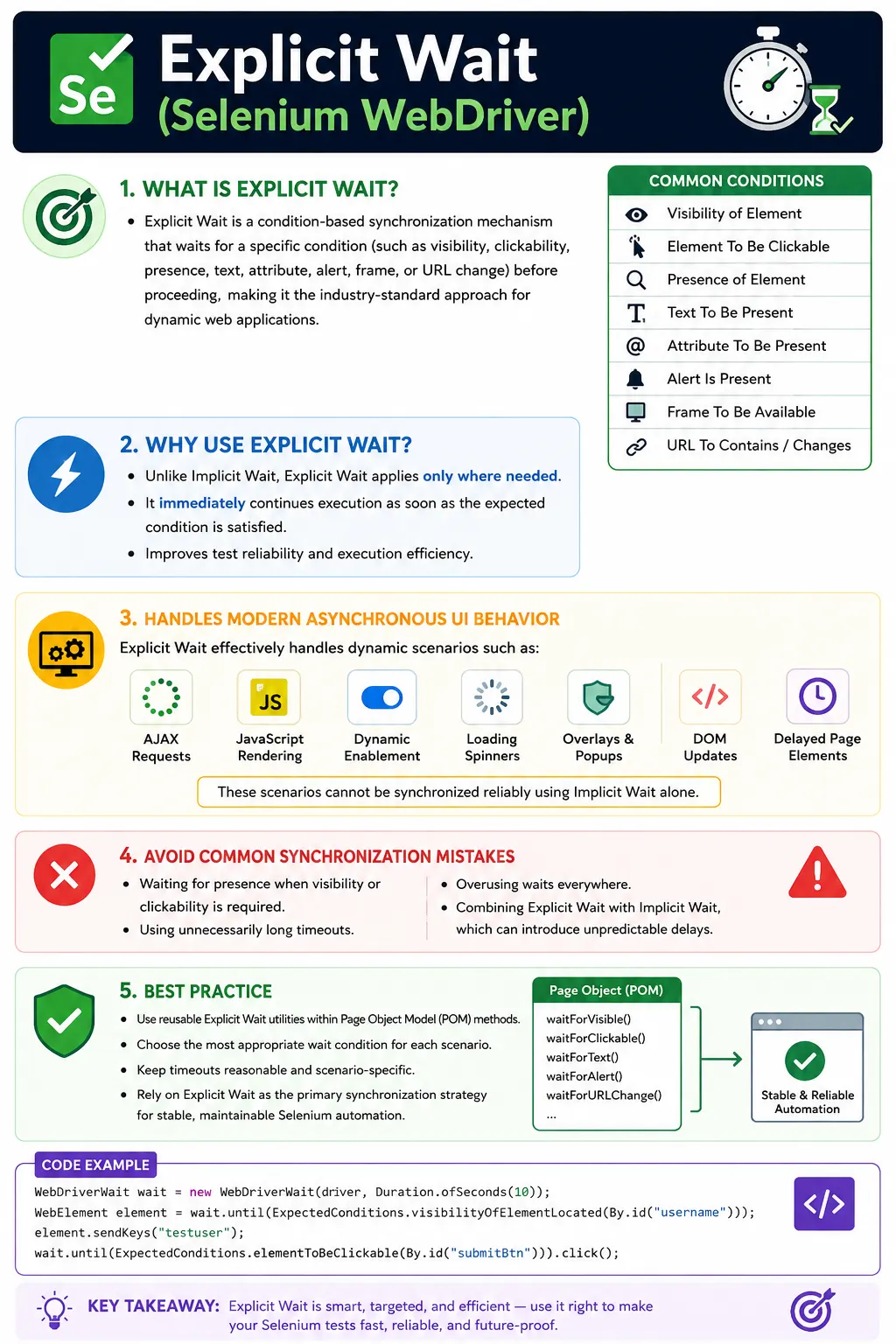
Understanding Explicit Wait in Selenium
Explicit Wait is Selenium's most practical synchronization tool for modern web automation. It allows a test to wait for a specific condition before moving to the next step. Instead of pausing blindly for a fixed number of seconds, explicit wait repeatedly checks whether the application has reached the state required by the test. If the condition becomes true before the timeout, the test continues immediately. If the condition does not become true within the allowed time, Selenium throws a TimeoutException with a meaningful failure point.
This condition-based behavior is what makes explicit wait stronger than hard sleeps and more precise than implicit wait. A modern application rarely becomes ready all at once. The page document may load, but a table may still be waiting for API data. A button may be present in the DOM, but still disabled. A dialog may be visible, but an animation or overlay may still block clicks. Explicit wait lets the automation target the exact state that matters: presence, visibility, clickability, text, URL, frame, alert, or a custom condition.
In real Selenium frameworks, explicit wait is not just a convenience. It is part of the architecture. Reliable page object methods usually wait for the page or component state they need before interacting. A login method waits for fields to be visible before typing and waits for the dashboard to be ready after clicking Login. A checkout method waits for a spinner to disappear before saving. This approach keeps synchronization close to the page behavior and prevents tests from becoming a collection of timing guesses.
Why Explicit Wait Is Needed
Modern Applications Load Asynchronously
Web applications today commonly use AJAX, fetch calls, client-side routing, lazy loading, animations, and component re-rendering. A user may see a page frame quickly while the data inside it arrives later. Selenium executes commands faster than the application responds, so a test can easily try to interact before the element is ready. Explicit wait bridges this speed mismatch by aligning test execution with application readiness.
Consider a product search page. After the user enters a search term, the page may send an API request and display a loading indicator. The result container may already exist, but the result cards may not be visible yet. An implicit wait can only help if elements are missing from the DOM. It cannot wait for the result count to become greater than zero or for the spinner to disappear. An explicit wait can express those conditions directly.
UI Readiness Is More Than DOM Presence
Element presence is only one readiness state. A present element may be hidden, disabled, covered, stale, or not updated with the expected text. For example, a Save button might appear immediately but remain disabled until validation completes. A Continue button might be visible but covered by a loading overlay. A status label might exist before the text changes from Processing to Completed. Explicit wait allows the test to wait for the correct state rather than assuming presence is enough.
This is why wait conditions should match the next operation. If the test will type into a text box, wait for the field to be visible and usable. If the test will click a button, wait for it to be clickable and make sure blockers are gone. If the test will assert a message, wait for the message to appear or for its text to update. The condition should describe what the user needs from the UI at that moment.
How Explicit Wait Works
Timeout, Polling, and Conditions
Explicit wait works by evaluating a condition repeatedly until it becomes true or the timeout expires. The timeout defines the maximum time Selenium should wait. Polling defines how often Selenium checks the condition. WebDriverWait uses a default polling interval, and Fluent Wait can customize it further. If the condition is satisfied early, Selenium does not wait for the full timeout. This makes explicit wait efficient: it waits only as long as needed.
A condition can be one of Selenium's built-in ExpectedConditions or a custom lambda. Built-in conditions cover common cases such as visibilityOfElementLocated, elementToBeClickable, presenceOfElementLocated, textToBe, invisibilityOfElementLocated, alertIsPresent, urlContains, and frameToBeAvailableAndSwitchToIt. Custom conditions are useful when the framework needs application-specific readiness, such as list size greater than zero, a JavaScript state flag, or an attribute changing to a known value.
Returning Values from Waits
Explicit wait often returns a useful value. For example, waiting for visibilityOfElementLocated returns the visible WebElement. Waiting for alertIsPresent returns an Alert. Waiting for visibilityOfAllElementsLocatedBy returns a list of WebElements. This allows the test or page object to wait and then immediately use the returned object. That is cleaner than finding an element, waiting separately, and then finding it again without reason.
However, dynamic pages require care with WebElement references. If the page re-renders after the wait, a returned WebElement can become stale. In such cases, store By locators and re-find elements close to the action. Explicit wait is strongest when combined with a framework habit of locating elements at the right time rather than keeping old references through DOM updates.
Common Explicit Wait Conditions
Presence, Visibility, and Clickability
Presence means the element exists in the DOM. It does not mean the element is visible or usable. Use presence when the test only needs to know that the element has been added to the DOM, or when a later condition will handle visibility. Visibility means the element is displayed and has a size. Use visibility before reading text or typing into visible fields. Clickability means the element is visible and enabled, making it more suitable before click actions.
A common mistake is waiting for presence before clicking. That may work sometimes, but it is not the correct condition. If an element is present but hidden, disabled, or covered, the click can fail. Another mistake is waiting for visibility when a known overlay is still blocking the element. In that case, wait for overlay invisibility as well. The best wait condition is the one that matches the real reason the next action can safely proceed.
Text, Attribute, and State Changes
Explicit waits are useful for UI updates after actions. A status message may change after a form submission. A badge count may update after adding an item. A submit button may gain an enabled class after required fields are filled. Conditions such as textToBe, textToBePresentInElementLocated, and attributeContains help align the test with these state changes. Without these waits, assertions can fail simply because the UI has not updated yet.
Waiting for text and attributes also separates synchronization from validation. The wait ensures the expected state is observable within a reasonable time. The assertion can then verify correctness. In some cases, the wait itself is enough to fail if the expected state never appears. In other cases, a separate assertion provides a clearer test report. The framework should choose the pattern that makes failures easiest to understand.
Frames, Alerts, Windows, and URLs
Explicit wait is not limited to elements. It can also wait for browser context changes. Frames may load after a delay, alerts may appear after server confirmation, new windows may open after a click, and URLs may change after navigation. Conditions such as frameToBeAvailableAndSwitchToIt, alertIsPresent, numberOfWindowsToBe, urlContains, and urlToBe handle these cases. This prevents tests from switching context too early.
Context readiness is a frequent source of confusion. A locator inside an iframe may be correct, but Selenium cannot find it until the driver switches into that frame. A new tab may exist only after the browser opens it. An alert may not be available immediately after clicking Delete. Explicit waits let the test wait for the context first and then interact inside it.
Explicit Wait vs Implicit Wait
Specific Conditions vs Global Presence
The critical difference is scope and precision. Implicit wait is global and affects element-finding operations. It waits for presence before throwing NoSuchElementException. Explicit wait is local and condition-based. It is applied only where needed and can wait for many different readiness states. This makes explicit wait much more suitable for dynamic applications.
Mixing implicit and explicit waits can create confusing timing behavior because element lookups inside explicit waits may be affected by the implicit timeout. This can make failures take longer than expected. Many mature frameworks set implicit wait to zero or keep it very small, then use explicit waits consistently. Predictable wait behavior matters in CI and large suites.
Explicit Wait vs Thread.sleep
Thread.sleep pauses for a fixed time whether the application is ready or not. Explicit wait checks a real condition and proceeds as soon as the condition is true. This means explicit wait is both smarter and often faster. A ten-second explicit wait may continue after one second if the element is ready. A ten-second sleep always wastes ten seconds. On slow runs, a sleep may still be too short. Explicit waits adapt better to environment variation.
Where to Use Explicit Wait in Real Projects
Before User Actions
Explicit wait should be used before actions that require a ready element. Before typing, wait for the input to be visible and enabled. Before clicking, wait for clickability and any known overlay disappearance. Before selecting dropdown values, wait for the dropdown and its options to be available. These waits make page object methods reliable because they prepare the UI for the action.
It is better to place these waits inside page methods than in test methods. A test should call loginPage.login or checkoutPage.saveOrder without knowing the timing details of that page. Page methods should know when their fields, buttons, and messages are ready. This keeps tests readable and centralizes synchronization in the page layer.
After Actions That Trigger UI Updates
Explicit waits are also important after actions. Clicking Search should be followed by waiting for results or a no-results message. Submitting a form should be followed by waiting for success, error, navigation, or field validation. Clicking Save should be followed by waiting for a spinner to disappear or a saved state to appear. Tests should not assume that the application finishes updating immediately after a click.
Post-action waits are often more important than pre-action waits because they verify the transition to the next state. A button may be clickable, but the product behavior happens after the click. Without waiting for the next state, assertions may run too early. Explicit wait turns asynchronous UI transitions into clear, testable checkpoints.
Explicit Wait in Page Object Model
Centralized Wait Utilities
Strong frameworks usually create reusable wait helpers. Methods such as waitForVisible, waitForClickable, waitForInvisible, waitForText, waitForUrlContains, waitForFrame, and waitForAlert reduce duplication and make timing behavior consistent. These helpers can define standard timeouts, polling intervals, logging, and error messages. They also make page object code shorter and easier to review.
A reusable wait method should accept a By locator where possible. This allows Selenium to re-find the element during polling, which helps with dynamic DOM updates. Passing a stored WebElement can be useful in some cases, but it can also increase stale element risk if the DOM re-renders. Locator-based waits are often safer for modern applications.
Page Readiness Methods
Page objects can also expose readiness methods. A dashboard page may be considered ready when its main header is visible, its loading overlay is gone, and the user menu is clickable. A search results page may be ready when the results container is visible and the item list has loaded. These page-specific readiness definitions make tests less flaky because they wait for meaningful application states rather than isolated elements.
Page readiness methods are especially useful after navigation. Instead of every test guessing what to wait for after clicking a menu item, the target page object can define its own ready condition. This creates a stable handoff between pages and makes the test flow easier to understand.
Common Mistakes with Explicit Wait
Using the Wrong Condition
The most common mistake is using a condition that is weaker than the next action requires. Waiting for presence before clicking is not enough. Waiting for visibility before a click may not be enough if overlays exist. Waiting for clickability before reading updated text is not relevant. The wait condition should match the operation and the page behavior. Good synchronization is specific.
Overusing Waits Without Understanding State
Explicit wait should be intentional. Adding waits everywhere without understanding why can make page methods noisy and hide real issues. If every line has a wait, the framework may be compensating for poor page readiness design. A cleaner approach is to wait at key state transitions: page load, component readiness, before critical interactions, and after actions that trigger asynchronous updates.
Using Large Timeouts as a Default Fix
Increasing timeout values is sometimes necessary for slow features, but it should not be the first fix. A large timeout can hide performance problems and slow down failures. If a condition regularly needs a long timeout, investigate whether the application is slow, the locator is wrong, the condition is too strict, or the test is waiting for the wrong signal. Timeout tuning should be based on evidence.
Debugging Explicit Wait Failures
Read the Timeout Condition
When an explicit wait fails, the first question is which condition timed out. A visibility timeout means the element did not become visible. A clickability timeout means the element was not clickable within the allowed time. A text timeout means the expected text did not appear. This information narrows the root cause. It is much more helpful than a blind sleep failure because the condition describes the expected state.
Screenshots and logs make wait failures easier to analyze. A screenshot may show a spinner, overlay, wrong page, validation error, or missing data. Logs can show which locator and wait condition were used. If the screenshot shows the target element present but disabled, the next step is different from a screenshot showing the element missing entirely. State-based debugging prevents random fixes.
Separate Locator, Timing, and Product Behavior
A timeout can be caused by a locator problem, a timing problem, or a product problem. If the locator never matches in DevTools, fix the locator. If the locator matches after the page settles but the test timed out, fix synchronization or context. If the expected state never appears because the application did not behave correctly, the test may have found a real defect. Explicit waits make this distinction clearer because they encode the state the product was expected to reach.
Interview Perspective on Explicit Wait
Short Interview Answer
Explicit wait tells Selenium to wait for a specific condition, such as visibility or clickability, before interacting with an element or continuing the test.
Detailed Interview Answer
In Selenium, explicit wait is a condition-based synchronization mechanism implemented with WebDriverWait. It repeatedly checks a condition until it becomes true or the timeout expires. It can wait for presence, visibility, clickability, text, attributes, alerts, frames, windows, titles, URLs, and custom conditions. It is preferred over implicit wait and Thread.sleep because it is precise, efficient, and aligned with dynamic UI behavior.
Real Project Explanation
In a real framework, I would centralize explicit waits in reusable helper methods and call them from Page Object Model methods. For example, a click helper would wait for the element to be clickable, a type helper would wait for visibility, and a save action would wait for the loading overlay to disappear afterward. This keeps tests readable and makes synchronization consistent across the suite.
Practical Guidelines for Explicit Wait
Match the Wait to the User Action
Use presence when the element only needs to exist, visibility when the user needs to see it, clickability when the user needs to click it, invisibility when a blocker must disappear, text waits when messages update, and context waits when frames, alerts, windows, or URLs change. The wait should always describe the readiness state required by the next step.
Keep Waits Centralized and Meaningful
Do not scatter raw WebDriverWait code throughout tests. Build reusable wait utilities and page readiness methods. Use clear method names that explain the condition. Good wait abstraction makes tests shorter, failures clearer, and framework behavior more consistent. It also makes it easier to change timeouts, logging, or polling behavior in one place.
Avoid Hiding Product Slowness
Explicit wait should make automation stable, but it should not hide serious product performance issues. If a page regularly takes close to the timeout, the framework should make that visible through logs or reports. Sometimes a timeout is an automation issue, and sometimes it is a valid signal that the application is too slow or not reaching the expected state. Good synchronization helps distinguish between the two.
Explicit Wait in Framework Design
Building Waits Around Business Actions
Mature Selenium frameworks do not treat explicit wait as a separate technical step that every test writer must remember manually. Instead, they build waits into the business actions exposed by page objects and helper classes. A method named submitLoginForm should not simply click a button and return immediately. It should wait for the login button to be clickable, perform the click, and then wait for the next meaningful application state, such as the dashboard heading, account menu, error message, or navigation URL. This approach keeps test cases focused on user intent while the framework handles the browser synchronization details.
This design also makes tests easier to review. When a test says loginPage.loginAsValidUser(), reviewers should not have to inspect every test case to confirm that waits were added correctly. The page object should already know what stable completion means for that action. The same principle applies to search, checkout, file upload, menu selection, modal confirmation, form submission, and table filtering. Each business action should include waits that match the user-visible result of that action.
Choosing Default and Special Timeouts
A framework usually needs more than one timeout value. A short timeout is useful for quick checks, such as confirming that an optional message does not appear. A normal timeout is suitable for ordinary UI readiness, such as waiting for fields, buttons, and labels. A longer timeout may be needed for slow operations such as report generation, large searches, heavy dashboard loading, or integration responses from external systems. Using one large timeout everywhere makes failures slow and hides useful performance signals.
The best practice is to define timeout values clearly and use them intentionally. For example, a framework may have shortWait, defaultWait, and longWait utilities, each with a clear purpose. The naming should communicate why the longer wait exists. If a test uses a long wait, that should mean the application action is known to take longer, not that the automation author was unsure how to synchronize the page. This discipline keeps the suite predictable as it grows.
Combining Waits with Strong Locators
Explicit wait cannot compensate for weak locators. If a locator points to the wrong element, matches multiple elements unpredictably, or depends on a fragile layout path, the wait may still fail or, worse, pass against the wrong target. Good synchronization depends on good identification. Locators should be stable, readable, and connected to the intent of the element. IDs, test attributes, accessible names, stable text, and carefully built CSS or XPath expressions all support better waits.
A useful framework pattern is to keep locators and wait conditions close together inside the page object. The page object knows both how to find the element and what state it must reach before interaction. This prevents test classes from combining locators and waits in inconsistent ways. It also makes maintenance easier when the UI changes, because the locator and its readiness rule can be updated in the same place.
Handling Stale Elements Cleanly
StaleElementReferenceException is common in dynamic applications because frameworks such as React, Angular, and Vue can replace DOM nodes after data updates. A reference that was valid a moment ago may become stale when the component re-renders. Explicit wait helps when it is written to locate the element fresh during polling instead of storing an old WebElement too early. Waiting with a locator is often safer than waiting with an already found element when the page is expected to refresh or re-render.
For example, a helper that waits for clickability should preferably accept a By locator, find the element during the wait, and return the fresh element when the condition passes. This reduces stale references and makes the final interaction more reliable. When stale elements are expected during a transition, the framework can ignore stale element exceptions during polling and continue checking until the stable version of the element appears. This is better than catching stale exceptions randomly in test methods.
Making Wait Failures Useful in Reports
A timeout message should help the tester understand what went wrong. A vague failure such as timeout after 20 seconds forces the team to spend extra time reproducing the issue. A useful failure message includes the page name, action name, locator, expected condition, timeout value, current URL, and optionally a screenshot path. If the wait was for a success banner, the message should say that the success banner did not become visible after submitting the form. This points directly to the expected behavior.
Meaningful wait diagnostics are especially important in CI environments where failures happen without a human watching the browser. Screenshots, browser console logs, network traces, and clear timeout messages make the difference between a failure that is investigated quickly and a failure that is rerun repeatedly without understanding. Explicit wait is therefore not only a synchronization feature. In a professional framework, it is also part of observability.
Using Explicit Wait in Continuous Integration
Tests often behave differently in CI than on a local machine because CI agents may have less CPU, run headless browsers, share resources, or execute tests in parallel. Explicit wait is essential in that environment because fixed sleeps become either too short for slow runs or too long for normal runs. A condition-based wait adapts to the actual browser state. If the condition appears quickly, the test continues quickly. If the environment is slower, the test still has a fair chance to pass without artificial delays everywhere.
However, CI stability also requires discipline. Parallel tests must not share browser sessions. Test data must be isolated. Page objects must not store state that becomes invalid across tests. Explicit wait solves timing problems, but it does not solve poor test isolation or unpredictable environments. The best Selenium suites use explicit waits together with clean setup, stable data, reliable locators, and independent test execution.
Keeping Waits Readable for New Team Members
Selenium frameworks are often maintained by teams with mixed experience levels. Some testers may be new to automation, while others may be comfortable with advanced wait conditions. Centralized explicit wait utilities make the framework easier for everyone. A new team member can use methods like waitForVisible, clickWhenReady, waitForText, waitForOverlayToDisappear, and waitForPageToLoad without immediately learning every WebDriverWait detail. As they gain experience, they can understand how those helpers work internally.
Readable waits also reduce duplicate problem solving. Without shared utilities, every tester may invent a different way to wait for a loader, dropdown, or toast message. Over time, the suite becomes inconsistent and harder to debug. With shared helpers, the team builds one reliable solution and applies it everywhere. This is one of the clearest signs that explicit wait has moved from a beginner concept to a framework design practice.
The key takeaway is that explicit wait is the primary synchronization mechanism for Selenium WebDriver. It waits intelligently for specific application states instead of pausing blindly. Used correctly, it handles dynamic elements, overlays, text updates, frames, alerts, and page transitions. Combined with strong locators and Page Object Model design, explicit wait is one of the main reasons a Selenium suite becomes stable and maintainable.
In Selenium, explicit waits are used to solve the majority of synchronization issues.
1. What Is Explicit Wait
Definition:
Explicit wait tells Selenium to pause execution until a defined condition is met or a timeout occurs.
Key characteristics:
- Condition-based (not time-based)
- Applied only where needed
- Stops waiting as soon as the condition is satisfied
2. Why Explicit Wait Is Needed
Modern web applications:
- Load elements asynchronously (AJAX)
- Update DOM dynamically
- Enable/disable elements based on validations
- Display overlays, spinners, and animations
Explicit wait ensures Selenium interacts only when the UI is truly ready.
3. How Explicit Wait Works (Conceptual Flow)
- Selenium evaluates the wait condition
- Repeatedly polls the DOM
- Checks whether the condition is satisfied
- Proceeds immediately when true
- Throws TimeoutException if time expires
This makes it efficient and intelligent, unlike hard waits.
4. What Explicit Wait Can Handle
Explicit wait can wait for:
- Element presence
- Element visibility
- Element clickability
- Text to appear
- Attribute value change
- Frame/window availability
- Alert presence
This flexibility makes it far superior to implicit wait.
5. Explicit Wait vs Implicit Wait (Critical Difference)
| Aspect | Explicit Wait | Implicit Wait |
|---|---|---|
| Scope | Specific element | Global |
| Wait type | Condition-based | Time-based |
| Visibility/clickability | Valid: Yes | Invalid: No |
| Precision | High | Low |
| Recommended | Valid: Yes | Invalid: Limited |
Rule:
Explicit waits solve real synchronization problems; implicit waits do not.
6. Where to Use Explicit Wait (Real Projects)
Use explicit waits when:
- Clicking buttons after AJAX calls
- Waiting for loaders/spinners to disappear
- Validating messages after form submission
- Handling dynamic enable/disable logic
- Switching frames/windows dynamically
7. What Explicit Wait Is NOT
- Not a replacement for good locators
- Not a validation mechanism
- Not a hard-coded delay
- Not global synchronization
Explicit wait should be intentional and targeted.
8. Common Beginner Mistakes
- Waiting for presence instead of visibility
- Waiting for visibility instead of clickability
- Overusing explicit waits everywhere
- Using large timeouts unnecessarily
- Combining with implicit wait (causes delays)
9. Explicit Wait in Page Object Model (POM)
Best practice:
- Place waits inside page methods
- Expose clean business actions to tests
- Centralize wait utilities if needed
Tests should never worry about how long to wait.
10. Interview Perspective
Short Answer
Explicit wait waits for a specific condition to occur before interacting with an element.
Real-Time Answer
In Selenium, explicit wait is used to synchronize tests with dynamic UI behavior by waiting for conditions like visibility or clickability of elements. It is preferred over implicit waits because it is precise, condition-based, and reliable.
11. Key Takeaway
- Explicit wait is the primary synchronization tool
- Condition-based, not time-based
- Solves most real-world Selenium failures
- Should be used thoughtfully and centrally
Good automation waits intelligently, not blindly.
12. Practical Explicit Wait Examples (Interview Ready)
Valid: 1. Wait for Element to Be Visible
WebDriverWait wait = new WebDriverWait(driver, Duration.ofSeconds(10));
WebElement element = wait.until(
        ExpectedConditions.visibilityOfElementLocated(By.id("username"))
);
element.sendKeys("admin");
Valid: 2. Wait for Element to Be Clickable
WebDriverWait wait = new WebDriverWait(driver, Duration.ofSeconds(10));
wait.until(ExpectedConditions.elementToBeClickable(By.id("loginBtn"))).click();
Valid: 3. Wait for Element to Be Present in DOM
WebDriverWait wait = new WebDriverWait(driver, Duration.ofSeconds(10));
wait.until(ExpectedConditions.presenceOfElementLocated(By.id("dashboard")));
Valid: 4. Wait for Element to Disappear (Invisibility)
WebDriverWait wait = new WebDriverWait(driver, Duration.ofSeconds(10));
wait.until(ExpectedConditions.invisibilityOfElementLocated(By.id("loadingSpinner")));
Valid: 5. Wait for Text to Be Present in Element
WebDriverWait wait = new WebDriverWait(driver, Duration.ofSeconds(10));
wait.until(ExpectedConditions.textToBePresentInElementLocated(
        By.id("status"), "Completed"));
Valid: 6. Wait for Exact Text Match
WebDriverWait wait = new WebDriverWait(driver, Duration.ofSeconds(10));
wait.until(ExpectedConditions.textToBe(By.id("orderStatus"), "Shipped"));
Valid: 7. Wait for Attribute to Contain Value
WebDriverWait wait = new WebDriverWait(driver, Duration.ofSeconds(10));
wait.until(ExpectedConditions.attributeContains(
        By.id("submitBtn"), "class", "enabled"));
Valid: 8. Wait for Frame and Switch
WebDriverWait wait = new WebDriverWait(driver, Duration.ofSeconds(10));
wait.until(ExpectedConditions.frameToBeAvailableAndSwitchToIt("paymentFrame"));
driver.findElement(By.id("cardNumber")).sendKeys("4111111111111111");
Valid: 9. Wait for Alert to Be Present
driver.findElement(By.id("deleteBtn")).click();

WebDriverWait wait = new WebDriverWait(driver, Duration.ofSeconds(10));
Alert alert = wait.until(ExpectedConditions.alertIsPresent());
alert.accept();
Valid: 10. Wait for URL to Contain Text
driver.findElement(By.id("goDashboard")).click();

WebDriverWait wait = new WebDriverWait(driver, Duration.ofSeconds(10));
wait.until(ExpectedConditions.urlContains("dashboard"));
Valid: 11. Wait for URL to Be Exact Match
WebDriverWait wait = new WebDriverWait(driver, Duration.ofSeconds(10));
wait.until(ExpectedConditions.urlToBe("https://example.com/home"));
Valid: 12. Wait for Number of Windows
driver.findElement(By.id("openWindow")).click();

WebDriverWait wait = new WebDriverWait(driver, Duration.ofSeconds(10));
wait.until(ExpectedConditions.numberOfWindowsToBe(2));
Valid: 13. Wait for Element to Be Selected (Checkbox)
WebDriverWait wait = new WebDriverWait(driver, Duration.ofSeconds(10));
wait.until(ExpectedConditions.elementToBeSelected(By.id("rememberMe")));
Valid: 14. Wait for All Elements to Be Visible
WebDriverWait wait = new WebDriverWait(driver, Duration.ofSeconds(10));
List<WebElement> products = wait.until(
        ExpectedConditions.visibilityOfAllElementsLocatedBy(By.className("product-card"))
);
Valid: 15. Wait for Presence of All Elements
WebDriverWait wait = new WebDriverWait(driver, Duration.ofSeconds(10));
List<WebElement> rows = wait.until(
        ExpectedConditions.presenceOfAllElementsLocatedBy(By.tagName("tr"))
);
Valid: 16. Wait Until Element Is Not Visible
WebDriverWait wait = new WebDriverWait(driver, Duration.ofSeconds(10));
wait.until(ExpectedConditions.not(
        ExpectedConditions.visibilityOfElementLocated(By.id("modal"))
));
Valid: 17. Wait for Title to Contain Text
WebDriverWait wait = new WebDriverWait(driver, Duration.ofSeconds(10));
wait.until(ExpectedConditions.titleContains("Dashboard"));
Valid: 18. Wait for Title to Be Exact
WebDriverWait wait = new WebDriverWait(driver, Duration.ofSeconds(10));
wait.until(ExpectedConditions.titleIs("Home Page"));
Valid: 19. Custom Wait - Wait for List Size > 0
WebDriverWait wait = new WebDriverWait(driver, Duration.ofSeconds(10));
wait.until(driver -> driver.findElements(By.className("result")).size() > 0);
Valid: 20. Wait for Document Ready State (JavaScript)
WebDriverWait wait = new WebDriverWait(driver, Duration.ofSeconds(10));

wait.until(driver -> ((JavascriptExecutor) driver)
        .executeScript("return document.readyState")
        .equals("complete"));
🚀 Best Practice (Framework Level)
Create a reusable method:
public WebElement waitForClickable(By locator) {
    WebDriverWait wait = new WebDriverWait(driver, Duration.ofSeconds(10));
    return wait.until(ExpectedConditions.elementToBeClickable(locator));
}
Usage:
waitForClickable(By.id("loginBtn")).click();