ExpectedConditions
ExpectedConditions is a utility class that provides predefined, reusable wait conditions used with WebDriverWait. It allows Selenium to wait intelligently for specific UI states, instead of relying on fixed delays.
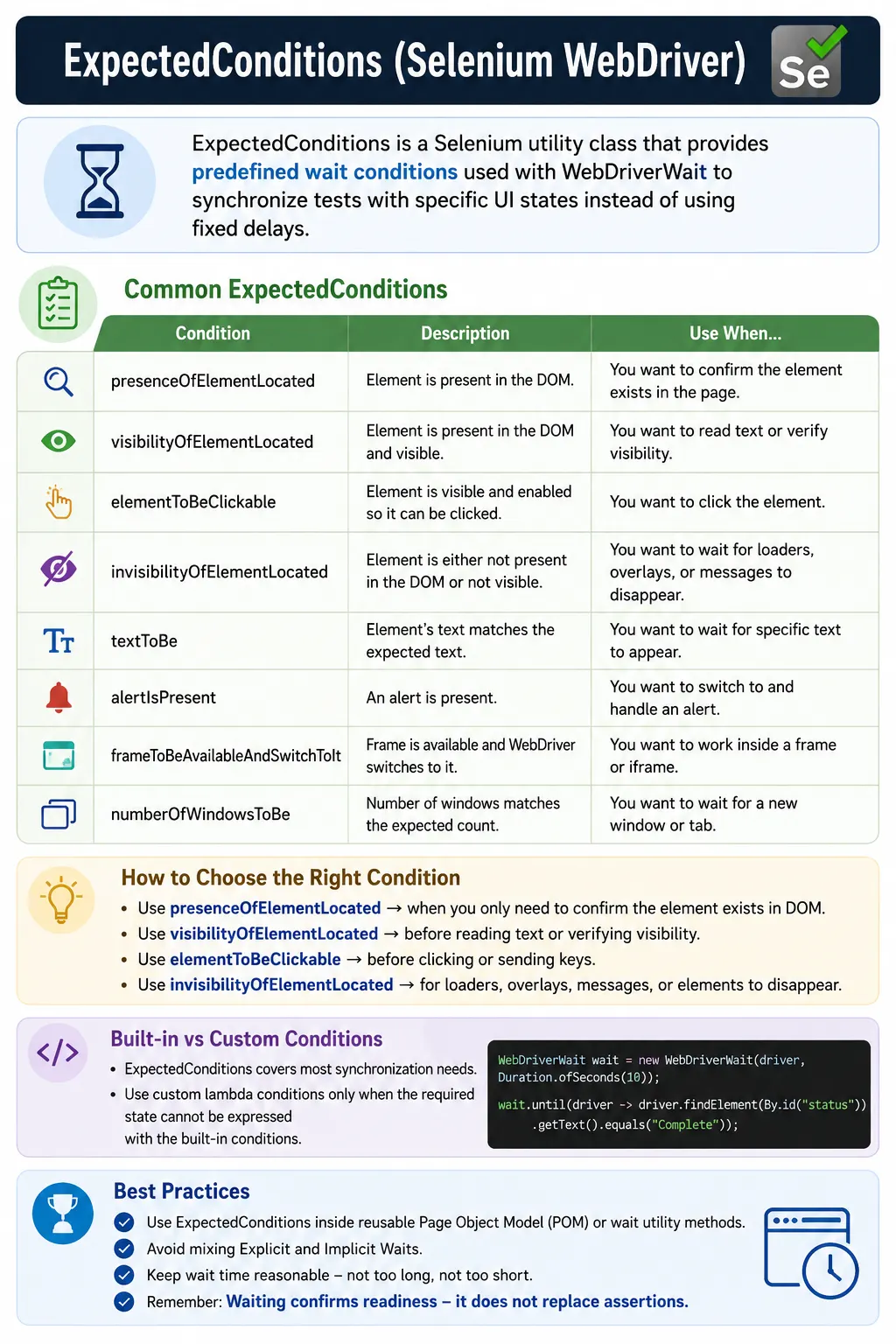
Understanding ExpectedConditions in Selenium
ExpectedConditions is one of the most commonly used helper classes in Selenium WebDriver because it gives automation engineers a readable way to describe what the browser should wait for. Selenium tests do not fail only because locators are wrong or assertions are incorrect. Many failures happen because the test reaches an element before the application is ready. The element may not exist yet, may exist but remain hidden, may be visible but disabled, or may be covered by a loading overlay. ExpectedConditions helps solve this problem by providing predefined wait conditions that can be used with WebDriverWait.
The purpose of ExpectedConditions is not to slow down tests. Its purpose is to synchronize tests with specific application states. Instead of waiting for five or ten seconds blindly, a test can wait until a login button is clickable, a success message is visible, a spinner disappears, a frame becomes available, an alert appears, or a URL changes. When the condition is met, the test continues immediately. If the condition never becomes true within the timeout, Selenium throws a timeout error that points to the state that was expected.
In mature Selenium frameworks, ExpectedConditions is usually hidden behind page methods and reusable wait utilities. Test cases should not be crowded with low-level synchronization details. A page object should know which element must be visible before typing, which button must be clickable before clicking, and which message confirms that an action finished. ExpectedConditions gives those page objects a clean vocabulary for waiting on UI states.
Why ExpectedConditions Are Important
Modern Pages Change After Initial Load
A modern web page is rarely finished when the browser first reports that the document has loaded. JavaScript may still be fetching data, rendering components, enabling controls, updating text, replacing DOM nodes, or showing and hiding overlays. In single-page applications, the URL may change without a full reload. A component may re-render several times before reaching its final state. Selenium executes commands quickly, so it can easily move faster than the application.
ExpectedConditions are important because they let the test wait for the specific signal that matters. If a table loads data asynchronously, the test can wait for table rows to be present or visible. If a form button becomes enabled only after valid input, the test can wait for the button to be clickable. If a save action shows a notification, the test can wait for the success text. This makes the wait tied to product behavior rather than arbitrary time.
They Reduce Timing-Related Flakiness
Flaky tests are expensive because they reduce trust in automation. A test that passes on one run and fails on the next without any code change forces the team to investigate the test, the environment, and the application. Many flaky Selenium tests are caused by weak synchronization. ExpectedConditions reduce that risk by making the test wait for the condition required by the next action. The test becomes less dependent on machine speed, browser speed, network timing, and backend response time.
This is especially important in CI pipelines. Continuous integration machines may run headless browsers, share resources, execute tests in parallel, or run on remote grids. A hard wait that seems sufficient locally may fail in CI. ExpectedConditions can adapt to the actual browser state. If the state appears quickly, the test continues quickly. If the environment is slower, the wait gives the application time to reach the expected state.
How ExpectedConditions Work with WebDriverWait
Condition-Based Polling
ExpectedConditions are used with WebDriverWait. WebDriverWait repeatedly calls the condition until it returns a successful value or the timeout expires. Some conditions return a Boolean result. Others return a WebElement, a list of WebElement objects, an Alert, or a driver context after switching to a frame. This return value is useful because the test can continue using the result as soon as it is ready.
For example, visibilityOfElementLocated returns the visible element when it is found. elementToBeClickable returns the clickable element. alertIsPresent returns the alert object. This makes the code concise and safe. The test does not need to find the same element again after the wait. It can use the returned object directly, provided the application is not expected to re-render the element again immediately afterward.
Timeouts and Failure Signals
If an ExpectedCondition does not become true before the timeout, WebDriverWait throws TimeoutException. This is not just a waiting failure; it is a statement that the expected application state did not appear in time. That information is valuable. A timeout waiting for clickability means something different from a timeout waiting for visibility. A timeout waiting for URL change means something different from a timeout waiting for a spinner to disappear.
Good frameworks improve this further with custom messages, screenshots, and logs. A timeout should tell the tester which page, action, locator, and condition were involved. ExpectedConditions make that possible because the condition itself describes the expected state. A failure that says the checkout button did not become clickable is easier to debug than a failure that simply says the test waited too long.
Most Important ExpectedConditions
presenceOfElementLocated
presenceOfElementLocated waits until an element exists in the DOM. It does not guarantee that the element is visible, enabled, or ready for interaction. This condition is useful when the test only needs to confirm that JavaScript has inserted an element into the page. It can also be useful before working with hidden elements or before checking attributes that do not require user visibility.
A common mistake is using presenceOfElementLocated before clicking. An element can be present but invisible, disabled, or blocked by another element. If the next step is a click, presence is usually too weak. The correct condition should match the action. Presence answers the question, "Does this element exist in the DOM?" It does not answer the question, "Can the user interact with it?"
visibilityOfElementLocated
visibilityOfElementLocated waits until an element is present and displayed. This condition is useful when the test needs to read visible text, verify that a component appears to the user, or type into a visible field. Visibility is stronger than presence because it checks that the element has a displayed state and meaningful dimensions. It is one of the most useful conditions for page readiness and user-facing validation.
Visibility still does not guarantee clickability. A visible element may be disabled or covered by an overlay. For example, a Submit button may be visible while a loading layer is still blocking the page. In that case, waiting for visibility is not enough before clicking. Use visibility when the test needs to see or read an element. Use clickability when the test needs to interact by clicking.
elementToBeClickable
elementToBeClickable waits until an element is visible and enabled. It is commonly used before clicking buttons, links, menu items, checkboxes, radio buttons, and other clickable controls. This condition is one of the most frequently used ExpectedConditions in Selenium because clicking too early is a common cause of flaky failures.
Clickability should still be understood carefully. Selenium's clickability condition checks visibility and enabled state, but real pages may still have overlays, animations, sticky headers, or layout shifts that interfere with clicks. If a clickability wait passes but clicks are still intercepted, the framework may also need to wait for a loader or overlay to disappear. The best wait strategy often combines the condition needed for the element with the condition needed for the page around it.
invisibilityOfElementLocated
invisibilityOfElementLocated waits until an element is hidden or no longer present. This is extremely useful for loaders, spinners, progress bars, blocking overlays, modal backdrops, and temporary messages. Many web pages show a loading indicator while data is being fetched or submitted. A test should not interact with the page until that indicator disappears.
Waiting for invisibility is often more reliable than waiting for a random delay after an action. If a search request takes one second, the test continues after one second. If it takes seven seconds, the test waits longer. If the spinner never disappears, the test fails with a meaningful timeout. This condition maps closely to the user experience because a real user also waits for the application to finish loading before continuing.
Text and Attribute Conditions
Text conditions such as textToBePresentInElementLocated and textToBe help tests wait for messages, statuses, labels, and dynamic content. These are useful after form submission, search, filtering, workflow changes, and validation. Instead of checking text immediately after an action, the test waits until the expected message appears. This reduces failures caused by asynchronous UI updates.
Attribute conditions such as attributeToBe and attributeContains are useful when state is represented through HTML attributes. A button may become enabled by changing disabled, a menu may open by changing aria-expanded, a row may be selected by changing class, or a field may receive a generated value. These conditions are powerful because they wait for the actual state marker used by the UI.
Context-Based ExpectedConditions
Alerts
alertIsPresent waits until a browser alert is available. This matters because Selenium cannot accept or dismiss an alert before it exists. If the test clicks Delete and immediately switches to an alert, it may fail when the alert appears a fraction of a second later. alertIsPresent makes the test wait for the browser prompt safely before interacting with it.
Alert waits are common in older applications, admin tools, confirmation flows, and JavaScript-driven warning messages. In modern applications, custom modal dialogs are often used instead of browser alerts. For custom modals, element visibility and clickability conditions are more appropriate because the modal is part of the DOM rather than a native browser alert.
Frames
frameToBeAvailableAndSwitchToIt waits until a frame is available and then switches the driver's context into that frame. This is useful for payment gateways, embedded widgets, editors, reports, ads, and third-party integrations. A frame may be present in the DOM before its content is ready, or it may be added dynamically after a script loads. Waiting for the frame avoids context-switching errors.
Once the driver is inside the frame, element locators operate within that frame context. After completing work inside the frame, the test should switch back to the default content when needed. ExpectedConditions helps with the timing of entering the frame, but framework design must still handle context management clearly.
Windows, URLs, and Titles
numberOfWindowsToBe waits until the expected number of tabs or windows is open. This is useful after clicking a link that opens a new tab, launching a report, previewing a document, or starting an external authentication flow. Waiting for the window count prevents the test from switching too early. After the window appears, the test can compare handles and switch to the new one safely.
URL and title conditions help synchronize navigation. urlContains, urlToBe, titleContains, and titleIs can be used after clicks, redirects, login flows, or route changes in single-page applications. They should not be the only validation of business success, but they are useful readiness signals. A URL change may indicate that the application has moved to the next page, while a title or heading can confirm the correct destination.
Choosing the Right ExpectedCondition
Match the Condition to the Action
The most important rule is to match the condition to the action that follows. If the next action is clicking, wait for clickability. If the next action is typing, wait for visibility and any required enabled state. If the next action is reading text, wait for visibility or for the exact text. If the next action is switching to a frame, wait for the frame. If the next action depends on a loader disappearing, wait for invisibility.
This rule prevents many common Selenium failures. Waiting for presence when clickability is needed creates a false sense of readiness. Waiting for visibility when a specific text update is needed may let the test read old content. Waiting for a URL when the page still has a loader may not be enough. Good synchronization is not about adding waits everywhere. It is about choosing the correct state for each step.
Think Like a User and Like the DOM
Selenium automation needs both user awareness and DOM awareness. A user thinks in terms of visible buttons, messages, forms, and pages. The DOM represents those things through elements, attributes, text, frames, and browser context. ExpectedConditions connect these two views. They let the framework wait for technical DOM states that correspond to user-visible readiness.
For example, a user sees a disabled button become active after entering valid data. In the DOM, that may appear as the disabled attribute being removed, a class changing, or the button becoming enabled. The correct condition depends on how the application implements the behavior. Strong automation engineers inspect the page and choose the wait condition that reflects the real readiness signal.
ExpectedConditions in Framework Design
Use Them Inside Page Objects
ExpectedConditions should usually live inside page objects or wait utilities, not directly in every test case. Test cases should describe business flow. Page objects should know how to wait for their elements. For example, a login page object can wait for the username field to be visible before typing, wait for the password field to be visible, wait for the login button to be clickable, and wait for the dashboard after submission. The test only needs to call a clear login method.
This makes the framework easier to maintain. If the login button changes from a simple button to a spinner button that becomes clickable only after validation, the wait logic changes in one page method. Test cases do not need to change. Centralized synchronization also improves consistency because every test interacts with the same page in the same reliable way.
Create Clear Wait Helper Methods
Reusable helper methods make ExpectedConditions easier to use correctly. Methods like waitForVisible, waitForClickable, waitForTextToBe, waitForElementToDisappear, waitForAlert, and waitForFrame are readable and specific. They reduce boilerplate while preserving meaning. A helper named waitForElement is less useful because it does not say whether it waits for presence, visibility, or clickability.
Helper methods can also standardize timeout values, polling behavior, logging, screenshots, and exception messages. This is valuable in large suites where dozens or hundreds of tests rely on the same synchronization patterns. A small improvement in a shared wait utility can improve the stability and diagnostics of the entire framework.
ExpectedConditions vs Custom Conditions
Use Built-In Conditions First
ExpectedConditions covers most day-to-day Selenium synchronization needs. Visibility, clickability, presence, invisibility, text, attributes, alerts, frames, windows, titles, and URLs handle a large percentage of real automation scenarios. Built-in conditions are readable, familiar to interviewers, and easy for team members to understand. They should be the first choice when they match the required state.
Built-in conditions also reduce the risk of poorly written custom wait logic. A custom lambda can be powerful, but it can also be vague or fragile if it hides exceptions incorrectly, returns the wrong value, or checks a state that does not truly represent readiness. Start with ExpectedConditions. Move to custom waits only when the application requires a condition that the built-in class does not express clearly.
When Custom Conditions Are Needed
Custom conditions are useful for application-specific readiness. A framework may need to wait until a list has a minimum number of rows, a chart finishes rendering, a custom JavaScript variable becomes false, a network-driven status reaches complete, or a combination of multiple UI states becomes true. These cases are valid, but the custom condition should still be readable and connected to a business or UI state.
A good custom wait is named clearly and kept in a reusable helper. For example, waitForCartItemCount, waitForReportToFinish, or waitForNotificationToDisappear communicates intent better than an anonymous wait hidden inside a test. Even when ExpectedConditions is not enough, the same principle remains: wait for a state, not for time.
Common Mistakes with ExpectedConditions
Using the Wrong Condition
The most common mistake is using a weaker condition than the action requires. presenceOfElementLocated before a click is the classic example. The element exists, so the wait passes, but the element may not be clickable. A similar mistake is waiting for visibility when the test actually needs specific updated text. The element is visible, but the old text is still displayed. The wait passes too early and the assertion fails.
The fix is to ask what the next step needs. If the next step is a click, use clickability. If the next step is a text assertion, wait for text. If the next step depends on a loader finishing, wait for invisibility. This simple habit makes ExpectedConditions much more effective.
Using Long Timeouts as a Default Solution
Long timeouts can hide problems. If every wait uses sixty seconds, failing tests become slow, and performance issues become less visible. A long timeout may be appropriate for slow reports or external integrations, but it should not be the default for every button, field, and message. Most UI readiness conditions should use realistic timeouts based on observed application behavior.
Timeout values should be part of framework design. A team may use short, normal, and long timeout categories. Each should have a clear purpose. If a page regularly needs the long timeout for basic interactions, the team should investigate the application performance or the wait condition instead of simply increasing delays.
Treating Waits as Assertions
Waits and assertions are related, but they are not the same. A wait prepares the test for an action or gives the application time to reach a state. An assertion verifies expected behavior. Sometimes a wait failure is enough to indicate that the expected state did not appear, but important business checks should still be expressed as assertions. For example, a test may wait for an order status to become visible, then assert that the status text is exactly Completed.
Keeping this distinction clear improves test readability. Waits answer the timing question: is the page ready for the next step? Assertions answer the validation question: did the application behave correctly? Good tests use both intentionally.
Debugging ExpectedConditions Failures
Read the Condition in the Failure
When a wait fails, the condition tells you what did not happen. A visibility failure means the element did not become visible. A clickability failure means the element did not become ready for clicking. An invisibility failure means a loader or overlay did not disappear. A text failure means the expected text did not appear. This information should guide the investigation.
The next step is to check whether the locator is correct, whether the application reached the expected page, whether an overlay or modal is blocking the element, and whether the expected data exists. Screenshots are very useful here. A screenshot may show that the user is still on the login page, an error banner is visible, a spinner is stuck, or the page layout has changed. ExpectedConditions failures become easier to solve when the framework captures enough context.
Separate Locator, Timing, and Product Issues
A timeout can be caused by a locator issue, a timing issue, or a real product issue. If the locator does not match in browser DevTools, the locator should be fixed. If the locator matches after the page settles but the wait condition was too weak or too strict, synchronization should be improved. If the expected state never appears because the application failed to save, load, or navigate, the automation may have found a valid defect.
ExpectedConditions help with this separation because they describe the expected state explicitly. A precise condition gives better evidence than a hard wait. Instead of saying the test slept for ten seconds and failed, the report can say that the payment frame was not available, the success message did not appear, or the loading overlay did not disappear.
Interview Perspective on ExpectedConditions
Short Interview Answer
ExpectedConditions is a Selenium utility class that provides predefined conditions used with WebDriverWait to wait for UI states such as visibility, clickability, presence, text, alerts, frames, windows, titles, and URLs.
Detailed Interview Answer
In Selenium, ExpectedConditions helps synchronize tests with dynamic web applications. WebDriverWait repeatedly evaluates an ExpectedCondition until it becomes true or the timeout expires. These conditions are preferred over hard waits because they are condition-based, readable, efficient, and specific to the action being performed. In real frameworks, they are usually placed inside page object methods or reusable wait utilities.
Real Project Explanation
In a real project, I would use ExpectedConditions to wait for a login button to be clickable, a dashboard to be visible, a spinner to disappear after search, a success message to contain the expected text, a payment frame to become available, and a new browser tab to open. I would centralize these waits in helper methods so test cases remain focused on business flow instead of low-level timing logic.
The key takeaway is that ExpectedConditions gives Selenium tests a clear, reusable way to wait for meaningful UI states. It works with WebDriverWait to replace blind delays with condition-based synchronization. When used with strong locators, Page Object Model design, practical timeouts, and useful diagnostics, ExpectedConditions removes much of the instability that usually affects Selenium automation suites.
In Selenium, ExpectedConditions is the most commonly used synchronization mechanism.
1. What Are ExpectedConditions
Definition:
ExpectedConditions is a collection of ready-made conditions that return:
- true / false
- a WebElement
These conditions are repeatedly evaluated by WebDriverWait until:
- the condition is satisfied
- the timeout expires
Key idea: Wait for a state, not for time.
2. Why ExpectedConditions Are Important
They help Selenium handle:
- Dynamic element loading
- AJAX responses
- UI enable/disable logic
- Text updates
- Alerts, frames, and windows
Without ExpectedConditions, tests become timing-dependent and flaky.
3. Most Commonly Used ExpectedConditions (Must-Know)
3.1 presenceOfElementLocated
- Waits until element exists in the DOM
- Does not guarantee visibility
Use when: You only need the element to exist (e.g., DOM injection).
3.2 visibilityOfElementLocated
- Waits until element is present and visible
- Height & width > 0
Use when: You need to read text or ensure the element is visible.
3.3 elementToBeClickable
- Waits until element is visible
- Waits until element is enabled
- Ensures the element is not blocked
Use when: You plan to click the element. This is the most commonly used condition.
3.4 invisibilityOfElementLocated
- Waits until element disappears
- Waits until element is hidden
Use when: Waiting for loading spinners, overlays, or progress indicators.
3.5 textToBePresentInElement
Waits until specific text appears.
Use when: Validating success/error messages after actions.
3.6 alertIsPresent
Waits until browser alert is available.
Use when: Handling JavaScript alerts safely.
3.7 frameToBeAvailableAndSwitchToIt
Waits for frame, then switches automatically.
Use when: Frames load dynamically.
3.8 numberOfWindowsToBe
Waits until expected number of windows/tabs open.
Use when: Handling new tabs or pop-ups.
4. Choosing the Right Condition (Very Important)
| Action | Correct Condition |
|---|---|
| Click element | elementToBeClickable |
| Read text | visibilityOfElementLocated |
| Check existence | presenceOfElementLocated |
| Wait for loader | invisibilityOfElementLocated |
| Handle alert | alertIsPresent |
| Switch frame | frameToBeAvailableAndSwitchToIt |
Rule: Match the condition to the action.
5. Common Mistakes with ExpectedConditions
- Using presenceOfElementLocated before clicking
- Waiting for visibility when clickability is required
- Using very long timeouts everywhere
- Mixing implicit wait with explicit wait
- Treating wait as validation (wait ≠ assert)
6. ExpectedConditions vs Custom Conditions
- ExpectedConditions: ready-made, readable, and covers ~90% of cases
- Custom wait (lambda): used when conditions are complex and built on top of WebDriverWait
Rule: Use ExpectedConditions first; customize only if necessary.
7. Usage in Page Object Model (POM)
Best practice:
- Use ExpectedConditions inside page methods
- Hide synchronization from test classes
- Keep tests business-focused
This makes frameworks cleaner, easier to maintain, and less flaky.
8. Interview Perspective
Short Answer:
ExpectedConditions provide predefined conditions used with WebDriverWait to synchronize Selenium tests.
Real-Time Answer:
In Selenium, ExpectedConditions are used with WebDriverWait to wait for specific UI states like visibility, clickability, or alert presence. They help synchronize tests with dynamic web behavior and are preferred over hard waits.
9. Key Takeaway
- ExpectedConditions enable intelligent waiting
- They solve most synchronization issues
- Always choose the condition that matches the action
- Prefer them over Thread.sleep()
Good waits are conditional, not chronological.
10. Top 20 ExpectedConditions with Practical Examples
Use these production-style snippets as a quick reference while building stable Selenium frameworks.
Valid: 1. visibilityOfElementLocated
WebElement element = wait.until(
        ExpectedConditions.visibilityOfElementLocated(By.id("username"))
);
element.sendKeys("admin");
Valid: 2. presenceOfElementLocated
wait.until(ExpectedConditions.presenceOfElementLocated(By.id("dashboard")));Valid: 3. elementToBeClickable
wait.until(ExpectedConditions.elementToBeClickable(By.id("loginBtn"))).click();Valid: 4. invisibilityOfElementLocated
wait.until(ExpectedConditions.invisibilityOfElementLocated(By.id("loadingSpinner")));Valid: 5. textToBePresentInElementLocated
wait.until(ExpectedConditions.textToBePresentInElementLocated(
        By.id("status"), "Success"));
Valid: 6. textToBe
wait.until(ExpectedConditions.textToBe(By.id("orderStatus"), "Completed"));Valid: 7. attributeToBe
wait.until(ExpectedConditions.attributeToBe(
        By.id("submitBtn"), "disabled", "false"));
Valid: 8. attributeContains
wait.until(ExpectedConditions.attributeContains(
        By.id("submitBtn"), "class", "active"));
Valid: 9. frameToBeAvailableAndSwitchToIt
wait.until(ExpectedConditions.frameToBeAvailableAndSwitchToIt("paymentFrame"));
driver.findElement(By.id("cardNumber")).sendKeys("4111111111111111");
Valid: 10. alertIsPresent
driver.findElement(By.id("deleteBtn")).click();

Alert alert = wait.until(ExpectedConditions.alertIsPresent());
alert.accept();
Valid: 11. urlContains
driver.findElement(By.id("goDashboard")).click();
wait.until(ExpectedConditions.urlContains("dashboard"));
Valid: 12. urlToBe
wait.until(ExpectedConditions.urlToBe("https://example.com/home"));Valid: 13. titleContains
wait.until(ExpectedConditions.titleContains("Home"));Valid: 14. titleIs
wait.until(ExpectedConditions.titleIs("Login Page"));Valid: 15. numberOfWindowsToBe
driver.findElement(By.id("openWindow")).click();
wait.until(ExpectedConditions.numberOfWindowsToBe(2));
Valid: 16. elementToBeSelected (Checkbox)
wait.until(ExpectedConditions.elementToBeSelected(By.id("rememberMe")));Valid: 17. visibilityOfAllElementsLocatedBy
List<WebElement> products = wait.until(
        ExpectedConditions.visibilityOfAllElementsLocatedBy(By.className("product"))
);
Valid: 18. presenceOfAllElementsLocatedBy
List<WebElement> rows = wait.until(
        ExpectedConditions.presenceOfAllElementsLocatedBy(By.tagName("tr"))
);
Valid: 19. not() Condition
wait.until(ExpectedConditions.not(
        ExpectedConditions.visibilityOfElementLocated(By.id("modal"))
));
Valid: 20. refreshed() for Stale Elements
By locator = By.id("profileName");

wait.until(ExpectedConditions.refreshed(
        ExpectedConditions.visibilityOfElementLocated(locator)
));
🚀 Advanced Framework Pattern (Reusable Utility)
public WebElement waitForClickable(By locator) {
    WebDriverWait wait = new WebDriverWait(driver, Duration.ofSeconds(10));
    return wait.until(ExpectedConditions.elementToBeClickable(locator));
}
Usage:
waitForClickable(By.id("submitBtn")).click();