ElementNotInteractableException in Selenium Java
ElementNotInteractableException is a common Selenium exception that occurs when Selenium successfully locates a web element, but cannot perform the requested action because the element is not currently in an interactable state. The element exists in the DOM, but a real user could not interact with it at that moment, or the browser driver cannot perform the requested action safely.
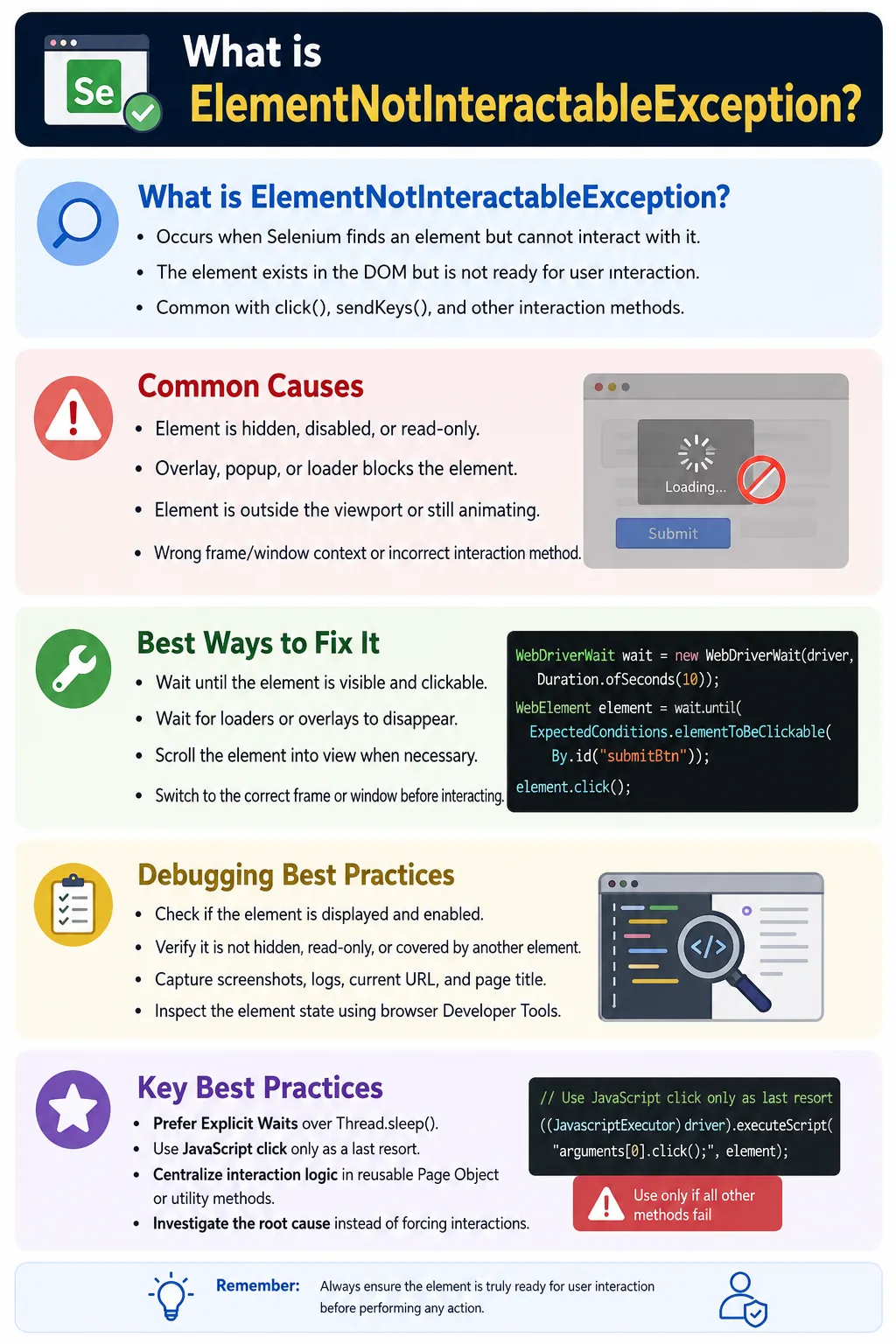
This exception is different from NoSuchElementException. In NoSuchElementException, Selenium cannot find the element at all. In ElementNotInteractableException, the locator usually works and the element is found, but Selenium cannot click it, type into it, or otherwise interact with it. That usually means the element is hidden, disabled, read-only, covered by an overlay, outside the viewport, not ready due to animation, inside the wrong frame or window, or not the correct element to interact with.
Modern web applications make this exception common. React, Angular, Vue, AJAX-heavy pages, animated modals, custom dropdowns, loaders, overlays, and disabled controls all create situations where an element may exist in the DOM before it is ready for user interaction. Stable Selenium automation requires synchronization with the actual user-ready state of the page, not just DOM presence.
1. What Is ElementNotInteractableException?
ElementNotInteractableException is thrown when Selenium locates an element but cannot perform the requested action on it. For example, Selenium may find a text box, but the text box may be hidden with CSS. Selenium may find a button, but the button may be disabled. Selenium may find a field, but it may be read-only. Selenium may find a visible element, but an overlay may block it.
driver.findElement(By.id("username"))
      .sendKeys("admin");
If the username field is hidden or disabled, Selenium can throw ElementNotInteractableException. The locator is not necessarily wrong. The interaction state is wrong.
2. How the Exception Happens
Selenium first locates the element. Then it tries to perform the action requested by the test, such as click(), sendKeys(), or another interaction. If the element is not in a state that allows that action, the browser driver rejects the interaction and Selenium reports the exception.
This is why the debugging approach must be different from a missing-element issue. With missing elements, you check the locator and page context. With non-interactable elements, you check visibility, enabled state, overlays, viewport position, animations, frames, windows, and whether the correct control is being targeted.
3. Common Causes
The exception can happen for many reasons. The most common are hidden elements, disabled elements, elements covered by another element, elements outside the viewport, animations still running, wrong frame, wrong window, read-only fields, and incorrect interaction method.
- The element exists but is hidden with CSS.
- The element is disabled and cannot receive input or clicks.
- A loader, popup, modal, or overlay covers the element.
- The element is outside the visible viewport.
- An animation or transition is still running.
- The element is inside an iframe and Selenium has not switched to it.
- The element exists in another window or tab.
- The field is read-only.
- The test uses the wrong interaction for a custom control.
4. Basic Hidden Element Example
Consider an input that exists in the DOM but is hidden with display:none.
<input
    id="username"
    style="display:none">
If Selenium tries to type into it, the element may be found but not interactable.
driver.findElement(By.id("username"))
      .sendKeys("admin");
The correct fix depends on the application. Usually, the test should interact with the visible control that reveals the field, or wait until the field becomes visible. Directly forcing hidden elements visible with JavaScript should not be the default approach.
5. Difference from NoSuchElementException
NoSuchElementException means Selenium could not find the element. ElementNotInteractableException means Selenium found the element but could not interact with it. This distinction helps you debug the right problem.
NoSuchElementException: element not found.ElementNotInteractableException: element found but not usable for the action.NoSuchElementExceptionoften points to wrong locator, wrong frame, or timing.ElementNotInteractableExceptionoften points to hidden, disabled, covered, or not-ready elements.
6. Cause: Hidden Element
Hidden elements are common in modern UIs. A real visual control may be built on top of a hidden input. File upload controls, custom checkboxes, custom dropdowns, and styled inputs often use hidden native elements behind the scenes.
<input
    id="username"
    style="display:none">
The best solution is to interact with the visible user-facing control or wait until the hidden element becomes visible through normal application behavior. JavaScript can be used only when the test's purpose allows direct DOM manipulation.
JavascriptExecutor js =
        (JavascriptExecutor) driver;

WebElement element =
        driver.findElement(By.id("username"));

js.executeScript(
        "arguments[0].style.display='block';",
        element
);

element.sendKeys("admin");
This JavaScript example demonstrates the concept, but use it carefully. It changes the page state artificially and may bypass the real user workflow.
7. Cause: Disabled Element
A disabled element cannot be clicked or typed into by a user. Selenium follows the browser's interaction rules, so it should not type into disabled inputs or click disabled buttons.
<input
    id="username"
    disabled>
The correct solution is to wait until the application enables the element. For example, a button may become enabled after required fields are filled.
WebDriverWait wait =
        new WebDriverWait(
                driver,
                Duration.ofSeconds(10)
        );

WebElement element =
        wait.until(
                ExpectedConditions
                        .elementToBeClickable(
                                By.id("username")
                        )
        );

element.sendKeys("admin");
8. Cause: Element Covered by Popup or Overlay
Loading overlays, modal backgrounds, cookie banners, chat widgets, and popups can prevent interaction. The target element may be visible in the DOM, but another layer may block user interaction.
wait.until(
        ExpectedConditions
                .invisibilityOfElementLocated(
                        By.id("loading")
                )
);

driver.findElement(By.id("login"))
      .click();
Waiting for overlays to disappear is often the correct solution. Clicking through overlays with JavaScript usually hides a real user experience problem and should be avoided unless there is a clear reason.
9. Cause: Element Outside Viewport
Some elements cannot be interacted with until they are scrolled into view. Selenium often scrolls automatically for clicks, but not every situation is handled perfectly, especially with sticky headers, nested scroll containers, or custom layouts.
JavascriptExecutor js =
        (JavascriptExecutor) driver;

WebElement submit =
        driver.findElement(By.id("submit"));

js.executeScript(
        "arguments[0].scrollIntoView(true);",
        submit
);

submit.click();
For complex pages, you may need to scroll a specific container rather than the main window. Always verify the screenshot when viewport-related failures occur.
10. Cause: Animation Not Finished
Animations and transitions can make an element temporarily non-interactable. A button may be sliding into place, a modal may be fading in, or a panel may still be expanding. Clicking too early can fail.
wait.until(
        ExpectedConditions
                .elementToBeClickable(
                        By.id("submit")
                )
);
Element clickability waits are often enough. If animations are long or custom, wait for a stable application state such as a modal class, disabled overlay disappearance, or visible final element.
11. Cause: Read-Only Field
A read-only field may be visible and enabled but not editable. Selenium cannot type into it using normal user input.
<input
    id="username"
    readonly>
If the field is supposed to be read-only, the test should not type into it. If another action should make it editable, perform that action first. Removing the read-only attribute with JavaScript should be a last resort and only when it matches the test objective.
12. Cause: Wrong Frame
If the element is inside an iframe, Selenium must switch into that frame before interacting. Otherwise, Selenium may interact with the wrong element or fail to interact properly.
<iframe id="loginFrame">
    <input id="username">
</iframe>
driver.switchTo().frame("loginFrame");
driver.findElement(By.id("username"))
.sendKeys("admin");
driver.switchTo().defaultContent();Frames are common in payment pages, login widgets, support chat tools, and embedded document viewers.
13. Cause: Wrong Window
If the element exists only in a child window or new tab, Selenium must switch to that window before interacting. Interacting from the parent window context can fail or target the wrong page state.
driver.switchTo().window(childWindow);

driver.findElement(By.id("payment"))
      .click();
Always confirm the active window when dealing with popups, payment windows, OAuth login windows, or report preview tabs.
14. Cause: Wrong Interaction Method
Sometimes the element is not interactable because the test uses the wrong action. For example, a custom dropdown may not accept sendKeys() on the visible container. The correct workflow may be click the dropdown, wait for options, and click the option.
// Less reliable for a custom dropdown
driver.findElement(By.id("country"))
      .sendKeys("India");

// Better user-like flow
driver.findElement(By.id("country"))
      .click();
Automation should follow the same interaction model a user follows. Custom controls often need custom handling.
15. Using Explicit Wait
The most common fix is to wait until the element is ready for interaction. For clicks, use elementToBeClickable().
WebDriverWait wait =
        new WebDriverWait(
                driver,
                Duration.ofSeconds(10)
        );

WebElement button =
        wait.until(
                ExpectedConditions
                        .elementToBeClickable(
                                By.id("submit")
                        )
        );

button.click();
This waits for visibility and enabled state. It does not always detect every overlay scenario, so loader and overlay waits may still be needed.
16. Wait Until Visible
For text entry, the field should be visible before sending keys.
WebDriverWait wait =
        new WebDriverWait(driver, Duration.ofSeconds(10));

WebElement textbox = wait.until(
        ExpectedConditions.visibilityOfElementLocated(
                By.id("username"))
);

textbox.sendKeys("admin");
Visibility is better than mere presence when the next step is user interaction.
17. Checking if Element Is Enabled
isEnabled() helps verify whether a control can accept interaction. It is useful for debugging and conditional checks.
WebElement element =
        driver.findElement(By.id("submit"));

System.out.println(
        element.isEnabled()
);
If a required button is disabled, investigate which precondition enables it. The test may need to fill required fields or wait for validation.
18. Checking if Element Is Displayed
isDisplayed() helps check whether Selenium considers the element visible.
WebElement element =
        driver.findElement(By.id("submit"));

System.out.println(
        element.isDisplayed()
);
A displayed element may still be blocked by overlays, but this is a useful first check.
19. Reusable Wait Method
A reusable wait method keeps interaction code consistent across the framework.
public WebElement waitUntilClickable(By locator) {

    WebDriverWait wait =
            new WebDriverWait(
                    driver,
                    Duration.ofSeconds(10)
            );

    return wait.until(
            ExpectedConditions
                    .elementToBeClickable(locator)
    );
}
waitUntilClickable(By.id("submit"))
.click();20. Exception Handling
You can catch ElementNotInteractableException, but do not use catch blocks to hide real failures. Use them to log context, capture screenshots, and rethrow.
try {

    driver.findElement(By.id("submit"))
          .click();

} catch (ElementNotInteractableException e) {

    System.out.println(
            "Submit button is not interactable."
    );
}
In production frameworks, use logging and screenshots instead of only console messages.
21. Logging the Exception
A good log should explain which element could not be interacted with and preserve the exception stack trace.
try {

    driver.findElement(By.id("submit"))
          .click();

} catch (ElementNotInteractableException e) {

    logger.error(
            "Submit button cannot be interacted with.",
            e
    );

    throw e;
}
Log the current URL and page title for difficult interaction failures.
22. Screenshot on Exception
A screenshot is often the fastest way to diagnose interaction failures. It can show a loader, popup, disabled button, hidden panel, or wrong page.
catch (ElementNotInteractableException e) {

    ScreenshotUtil.captureScreenshot(
            driver,
            "ElementNotInteractable"
    );

    throw e;
}
23. JavaScript Click
JavaScript click can trigger a click directly on the element. It can bypass some WebDriver interaction checks, so it should not be the default solution. Use it only when you understand why normal user interaction is not suitable.
WebElement button =
        driver.findElement(By.id("submit"));

JavascriptExecutor js =
        (JavascriptExecutor) driver;

js.executeScript(
        "arguments[0].click();",
        button);
JavaScript click may not fully simulate a real user's click behavior. It can bypass hover, focus, scrolling, and overlay behavior. Prefer normal WebDriver click when possible.
24. JavaScript Set Value
JavaScript can set an input value directly, but this may bypass application event handlers unless additional events are fired. Use it carefully.
WebElement textbox =
        driver.findElement(By.id("username"));

JavascriptExecutor js =
        (JavascriptExecutor) driver;

js.executeScript(
        "arguments[0].value='admin';",
        textbox);
Many React or Angular forms listen for input events. Directly setting value may not update application state. Normal sendKeys() is usually better when possible.
25. Removing Disabled or ReadOnly Attributes
JavaScript can remove disabled or readonly attributes, but this changes application behavior. It should be used only for special technical cases, not normal user flow validation.
WebElement button =
        driver.findElement(By.id("submit"));

JavascriptExecutor js =
        (JavascriptExecutor) driver;

js.executeScript(
        "arguments[0].removeAttribute('disabled');",
        button);
If a button is disabled, the better test is usually to satisfy the conditions that enable it, not force-enable it.
26. Use Actions Class
The Actions class can move to an element and click it. This is useful for hover-driven controls, menus, and cases where moving the mouse into position matters.
WebElement button =
        driver.findElement(By.id("submit"));

Actions actions = new Actions(driver);

actions.moveToElement(button)
       .click()
       .perform();
Actions are closer to user behavior than direct JavaScript clicks. Use them when the UI requires mouse movement or hover state.
27. Retry Interaction
A limited retry can help with transient timing issues, but it should not replace proper waits.
for (int i = 0; i < 3; i++) {

    try {

        driver.findElement(By.id("submit")).click();
        break;

    } catch (ElementNotInteractableException e) {

        System.out.println("Retrying...");
    }
}
Retries should include logging and should fail clearly if all attempts fail. Infinite retries are not acceptable.
28. Real Project Example: Login Page
Login buttons may be disabled until the username and password fields are valid, or a page loader may block the button briefly. Wait for clickability before clicking.
WebDriverWait wait =
        new WebDriverWait(
                driver,
                Duration.ofSeconds(10)
        );

WebElement login =
        wait.until(
                ExpectedConditions
                        .elementToBeClickable(
                                By.id("login")
                        )
        );

login.click();
29. Real Project Example: Save Button
Save buttons often become interactable only after loaders disappear or validation completes.
wait.until(
        ExpectedConditions
                .invisibilityOfElementLocated(
                        By.id("loader")
                )
);

driver.findElement(By.id("save"))
      .click();
30. Framework Click Helper
A framework click helper can wait for overlay disappearance, scroll the element into view, wait for clickability, and then click.
public void click(By locator) {

    WebDriverWait wait =
            new WebDriverWait(
                    driver,
                    Duration.ofSeconds(10)
            );

    wait.until(
            ExpectedConditions
                    .elementToBeClickable(locator)
    ).click();
}click(By.id("submit"));31. Framework sendKeys Helper
A text entry helper should wait for visibility before typing and log details if interaction fails.
public void sendKeys(By locator, String value) {

    try {

        WebDriverWait wait =
                new WebDriverWait(driver,
                        Duration.ofSeconds(10));

        wait.until(
                ExpectedConditions
                        .visibilityOfElementLocated(locator)
        ).sendKeys(value);

    } catch (ElementNotInteractableException e) {

        logger.error("Cannot interact with: " + locator);

        ScreenshotUtil.capture(driver,
                "ElementNotInteractable");

        throw e;
    }
}
sendKeys(By.id("username"), "admin");32. ElementNotInteractableException vs ElementClickInterceptedException
These two exceptions are related but different. ElementNotInteractableException means the element is not in a usable state for interaction. ElementClickInterceptedException usually means the element is visible and clickable in theory, but another element intercepts the click.
ElementNotInteractableExceptionoften involves hidden, disabled, read-only, or not-ready elements.ElementClickInterceptedExceptionusually involves another element blocking the click.- Both can be caused by overlays, loaders, or animation timing.
- Both benefit from screenshots, logs, and proper waits.
33. Custom Dropdowns and Styled Controls
Custom dropdowns, date pickers, sliders, and styled checkboxes often wrap hidden native elements. Selenium may find the hidden native input, but user interaction is meant to happen through a visible wrapper. If the test sends keys to the hidden input, it may fail.
The correct approach is to identify the actual user-facing control. For dropdowns, click the visible dropdown, wait for the option list, and click the desired option. For date pickers, open the calendar and select the date. For custom checkboxes, click the visible label or control that the user would click.
34. Hidden File Inputs and Upload Controls
File upload controls are a special case. Many applications hide the native file input and show a styled upload button. The visible button may open the file dialog, while the actual input type="file" is hidden. Selenium cannot interact with native operating system dialogs directly through normal WebDriver commands, so the recommended approach is usually to send the file path to the file input if it exists in the DOM.
If the input is hidden but still accepts file paths, sendKeys() may work on the file input depending on browser and implementation. But if the application blocks interaction or uses a custom upload widget, the framework may need a different strategy. The important point is to understand which element is the true upload input and which element is only a styled visual control.
Do not blindly click the styled upload button and expect Selenium to handle the OS file picker. For upload workflows, inspect the DOM, identify the native file input if available, and design the test around the actual HTML behavior.
35. Sticky Headers and Fixed Footers
Sometimes an element appears to be visible, but a sticky header, fixed footer, floating toolbar, or chat widget overlaps it. The element may be in the viewport, but the actual clickable point is covered. Depending on the exact browser and driver behavior, this can lead to interaction exceptions or click interception errors.
When this happens, scrolling the element into view may not be enough. If the element is aligned behind a sticky header, the click point may still be blocked. A better scroll strategy may center the element in the viewport rather than placing it at the top.
js.executeScript(
        "arguments[0].scrollIntoView({block:'center'});",
        submit
);
Screenshots are very helpful in this situation because they show whether the element is covered by a fixed page component.
36. Shadow DOM Considerations
Some modern applications use Shadow DOM. If the visible control is inside a shadow root, normal element lookup and interaction may require shadow DOM handling. A test may locate a host element but fail to interact with the actual inner control. This can look like an interaction problem when the real issue is that the test has not reached the correct element inside the component.
When debugging a difficult non-interactable element, inspect whether the element is inside a shadow root, iframe, custom web component, or nested control. The correct solution is to locate the real interactive element in the correct DOM context.
37. User-Like Interaction vs DOM Manipulation
There is an important difference between user-like interaction and DOM manipulation. WebDriver click and sendKeys are designed to simulate real user actions. JavaScript manipulation directly changes the DOM or invokes events. JavaScript can be useful, but it can also bypass the behavior your test is supposed to validate.
For example, if a Save button is disabled until a form is valid, removing the disabled attribute with JavaScript does not prove the form works. It bypasses validation. If a hidden input is not meant to be edited directly, setting its value with JavaScript may not trigger the application events that a real user action would trigger.
Use JavaScript fallback only after understanding the business flow and technical behavior. For normal functional tests, prefer actions that match what a user can actually do.
38. Designing Robust Page Object Methods
Page Object methods should hide interaction details and expose business-readable actions. Instead of letting tests call driver.findElement() directly and manage waits everywhere, page methods can wait for visibility, wait for clickability, scroll when needed, and then interact.
public void submitForm() {
    wait.until(
            ExpectedConditions
                    .invisibilityOfElementLocated(loader)
    );

    wait.until(
            ExpectedConditions
                    .elementToBeClickable(submitButton)
    ).click();
}
This makes tests more stable and easier to read. The test says formPage.submitForm(), while the page object handles the synchronization needed for that specific page.
39. Diagnosing with Computed State
When an element is not interactable, the browser's computed state often explains why. Developer tools can show whether the element has display:none, visibility:hidden, opacity:0, disabled state, pointer-events disabled, or a covering element. Selenium logs and screenshots help, but developer tools inspection is often necessary for persistent issues.
For difficult failures, compare the DOM at the time of failure with the expected interactive state. Check CSS classes, ARIA attributes, disabled attributes, read-only attributes, and overlay elements. Many interaction failures are caused by application state rather than Selenium itself.
40. CI and Headless Browser Behavior
Interaction failures can appear more often in CI or headless execution. The browser window size may be different, responsive layout may place elements differently, sticky headers may cover controls, and animations may behave differently under load. A test that passes locally in a large visible browser may fail in CI because the viewport is smaller.
Set a consistent browser window size in automation. Capture screenshots on CI failures. Log current URL, page title, and browser dimensions when debugging recurring interaction problems. If the screenshot shows a mobile or tablet layout unexpectedly, the issue may be viewport configuration rather than element readiness.
41. Handling Interactions in Dynamic Forms
Dynamic forms frequently enable and disable controls based on earlier inputs. For example, a State dropdown may remain disabled until a Country is selected. A Submit button may remain disabled until required fields pass validation. If Selenium tries to interact too early, the element exists but is not interactable.
The correct solution is to model the form flow accurately. Select the prerequisite field, wait for the dependent field to become enabled or clickable, and then interact. Do not force-enable dependent controls with JavaScript in a functional test because that bypasses the behavior being tested.
42. Interaction Decision Flow
When this exception occurs, use a consistent decision flow. First ask whether Selenium is targeting the correct element. If the element is a hidden input behind a styled control, target the visible control instead. Next ask whether the element is visible and enabled. If not, wait for the application state that makes it ready. Then check whether anything is covering it, such as a loader, modal, or sticky header. After that, check frame and window context. Only after these checks should you consider JavaScript fallback.
This order matters because it keeps tests user-focused. A real user cannot click hidden elements, type into disabled fields, or bypass overlays. Automation should normally behave like the user. JavaScript should be the exception, not the habit.
For framework design, convert this decision flow into reusable helper methods instead of repeating the same checks in every test. A good click helper can wait for blockers to disappear, scroll the element into a sensible viewport position, wait for clickability, and then perform the click. A good typing helper can wait for visibility, confirm that the field is enabled and editable, clear existing text when required, and then enter the value. This keeps test scripts readable while still handling real browser behavior carefully.
43. Debugging Checklist
- Check whether the element is displayed.
- Check whether the element is enabled.
- Check whether the field is read-only.
- Check whether an overlay, loader, modal, or popup blocks the element.
- Check whether the element is outside the viewport.
- Check whether animation or transition is still running.
- Check whether Selenium is in the correct frame.
- Check whether Selenium is in the correct window or tab.
- Check whether the test is using the correct interaction method.
- Capture screenshot and current URL when the exception occurs.
44. Common Mistakes
- Clicking hidden elements.
- Typing into disabled or read-only fields.
- Ignoring loading overlays and modal blockers.
- Not waiting for animations to complete.
- Forgetting frame or window switching.
- Using
sendKeys()on custom dropdown wrappers. - Relying on
Thread.sleep()instead of explicit waits. - Using JavaScript click as the first solution for every interaction problem.
- Failing to log and screenshot interaction failures.
45. Best Practices
- Wait until elements are visible and clickable before interaction.
- Verify elements are displayed and enabled.
- Wait for loaders, overlays, and animations to finish.
- Scroll elements into view when necessary.
- Use the correct interaction flow for custom controls.
- Switch to the correct frame or window before interacting.
- Use Actions when mouse movement or hover state matters.
- Use JavaScript only as a controlled fallback.
- Log failures and capture screenshots for troubleshooting.
- Centralize interaction logic in reusable framework methods.
46. Interview Perspective
A short interview answer is: ElementNotInteractableException occurs when Selenium successfully locates an element, but the element is not in a state that allows interaction, such as being hidden, disabled, read-only, covered, outside the viewport, or not yet ready.
A stronger real-time answer is: in real projects, I first verify whether the element is visible, enabled, and in the correct frame or window. I check whether overlays, loaders, animations, or custom controls are involved. I use explicit waits such as elementToBeClickable() or visibilityOfElementLocated(), wait for blockers to disappear, and scroll when needed. I use JavaScript only as a fallback when normal WebDriver interaction is not appropriate and the behavior is understood.
47. Key Takeaway
ElementNotInteractableException means Selenium found the element, but could not interact with it in its current state. The locator may be correct, but the element is not ready for the requested action.
The preferred solution is proper synchronization and page-state validation: wait for visibility, wait for clickability, ensure the element is enabled, wait for overlays to disappear, scroll if needed, and switch to the correct frame or window. Avoid treating JavaScript as the default fix.
Most interaction failures happen because automation acts too early or targets the wrong layer of a custom control. Stable Selenium frameworks solve this with explicit waits, clear Page Object methods, reusable interaction helpers, logs, and screenshots.