ElementClickInterceptedException in Selenium Java
ElementClickInterceptedException is a Selenium exception that occurs when Selenium finds the target element and attempts to click it, but the browser reports that another element would receive the click instead. In simple terms, Selenium is aiming at the correct element, but something else is physically sitting on top of it in the rendered page. The target may be visible, enabled, and present in the DOM, yet the click cannot be completed because a loader, popup, banner, sticky header, animation layer, advertisement, or another overlapping component intercepts the click.
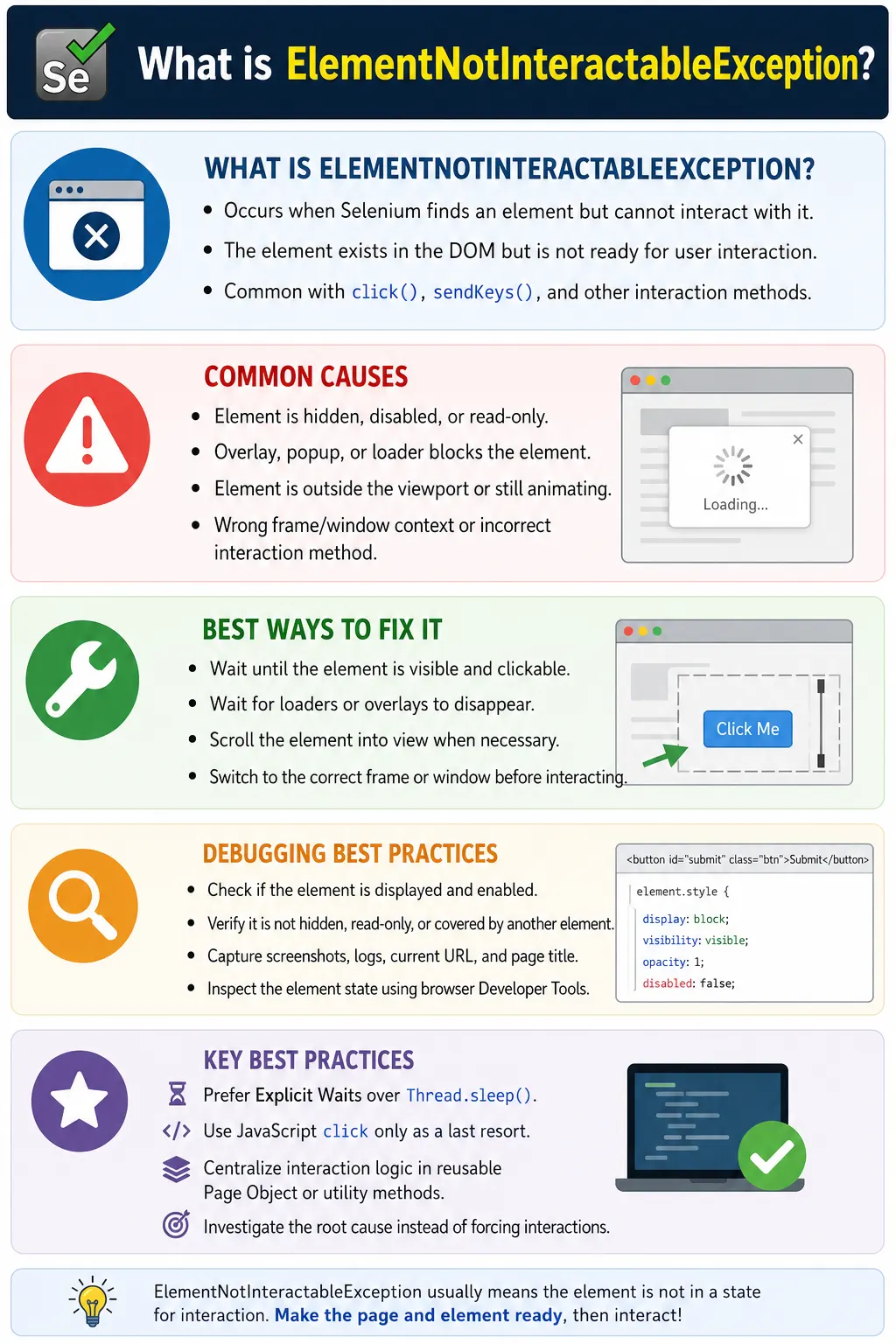
This exception is very common in modern web applications because pages are no longer static. Applications frequently show progress overlays while API calls are running, display cookie consent panels, animate menus, open modal dialogs, use sticky navigation bars, inject advertisements, and render custom controls that temporarily cover other elements. Selenium behaves like a user-level browser automation tool, so it cannot click through a blocking layer in the same way a real user cannot click a button hidden behind a popup.
The important point is that ElementClickInterceptedException is not mainly a locator problem. The locator may be completely correct. Selenium may have located the right button. The failure happens at the click stage because the browser's hit testing says a different element is receiving the click. Good Selenium frameworks handle this by waiting for blockers to disappear, scrolling elements into a safe position, closing expected popups, and using JavaScript click only as a controlled fallback.
1. What Is ElementClickInterceptedException?
ElementClickInterceptedException is thrown when the WebDriver tries to click a web element, but another element receives that click. The target element is usually present and may even appear clickable from a simple DOM perspective. However, Selenium does not click the DOM node directly. It asks the browser to perform a real click at a calculated coordinate. If another element occupies that coordinate, the browser blocks the action and Selenium reports the exception.
driver.findElement(By.id("login"))
      .click();
A typical error message may say that the element click is intercepted and that another element would receive the click. That message is valuable because it often names the blocking element. For example, it may mention an overlay div, a cookie banner, a modal backdrop, a loading spinner, or a fixed header. Do not ignore that detail. It usually points directly to the cause.
2. How It Differs from ElementNotInteractableException
ElementClickInterceptedException and ElementNotInteractableException are related but not the same. ElementNotInteractableException usually means the element itself is not ready for interaction. It may be hidden, disabled, read-only, collapsed, or not usable for the requested action. ElementClickInterceptedException usually means the target element may be ready, but another rendered element is blocking the click.
For example, if a button is disabled, Selenium may report that the element is not interactable. If the button is enabled but a loading overlay sits above it, Selenium may report that the click was intercepted. This distinction matters because the fix is different. For a non-interactable element, you wait for the target to become interactable. For an intercepted click, you identify and remove or wait out the blocker.
3. The Browser-Level Click Flow
When Selenium executes click(), the browser driver does several things. It locates the element, checks whether it can be scrolled into view, calculates a clickable point, and asks the browser to perform the click. The browser then determines which element is actually at that point. If the element at that point is not the target or a valid child of the target, the click can be rejected.
Selenium locates target
        ↓
Browser scrolls target into view
        ↓
Browser calculates click coordinate
        ↓
Hit testing checks top element at that coordinate
        ↓
Another element receives click
        ↓
ElementClickInterceptedException
This browser-level behavior explains why a simple wait for presence is not enough. Presence only tells you that the element exists in the DOM. It says nothing about whether a different visual layer is covering it. Even elementToBeClickable() can be insufficient when a dynamic overlay appears after the wait condition passes. Reliable code must understand the page behavior around the element.
4. Common Causes
The most frequent causes are loading overlays, progress spinners, modal dialogs, cookie consent banners, sticky headers, fixed footers, advertisement popups, auto-suggestion dropdowns, animated panels, floating menus, toast messages, and elements with a higher z-index. The target element may be visually near the blocker or hidden underneath it.
- A loading overlay remains active after an API call starts.
- A modal dialog or backdrop covers the page.
- A cookie banner covers buttons near the bottom of the page.
- A sticky header overlaps the target after scrolling.
- A fixed footer blocks a checkout or submit button.
- An advertisement popup appears above the content.
- An auto-complete list opens over a nearby button.
- A slide animation has not completed.
- A floating menu or tooltip covers the click coordinate.
- The page layout changes after Selenium calculates the target position.
5. Basic Example
Consider a page where a loading overlay appears while data is being saved. The submit button exists in the DOM, but the overlay sits above it.
<div id="loading">Loading...</div>

<button id="submit">
    Submit
</button>
driver.findElement(By.id("submit"))
.click();If Selenium clicks before the overlay disappears, the browser may report that the overlay receives the click. The solution is not to change the locator. The solution is to wait for the overlay to disappear and then click the button.
6. Loading Overlay Cause
Loading overlays are probably the most common reason for this exception in enterprise applications. Many applications show a full-page overlay during data loading, form submission, page transitions, or payment processing. The overlay may be transparent or semi-transparent, so the target button can still be visible underneath it. Selenium can see the button, but the overlay intercepts the click.
WebDriverWait wait =
new WebDriverWait(
driver,
Duration.ofSeconds(10)
);
wait.until(
ExpectedConditions
.invisibilityOfElementLocated(
By.id("loading")
)
);
driver.findElement(By.id("submit"))
.click();This pattern is better than waiting for the button alone. If the application has a known loader, wait for the loader to disappear before interacting with any control that it can block. In a framework, this often becomes a common method such as waitForPageReady() or waitForLoadersToDisappear().
7. Modal Popup Cause
A modal popup is designed to block the rest of the page. When a modal is open, the user is expected to respond to it before continuing. If Selenium tries to click a page button behind the modal, the click is intercepted by the modal or its backdrop. This is correct browser behavior because a real user cannot click the hidden page control either.
driver.findElement(By.id("closePopup"))
      .click();

driver.findElement(By.id("submit"))
      .click();
The right fix is to handle the modal intentionally. If the modal is part of the workflow, assert its content and close it or choose the proper action. If it appears only for marketing or onboarding, close it in setup logic. Avoid blindly removing modals with JavaScript unless the test objective specifically allows that shortcut.
8. Cookie Banner Cause
Cookie consent banners frequently cause click interception, especially for buttons near the bottom of the viewport. A banner may appear only in fresh browser sessions, which makes tests pass locally but fail in CI. It may also appear only for certain domains, environments, or browser profiles.
driver.findElement(By.id("acceptCookies"))
      .click();

driver.findElement(By.id("checkout"))
      .click();
In a stable automation suite, cookie consent handling should be centralized. The framework can accept or dismiss the banner once at the beginning of relevant tests. Another approach is to pre-seed browser state when the product permits it. The key is to make the behavior deterministic instead of allowing the banner to randomly block unrelated actions.
9. Sticky Header Cause
Sticky headers and fixed navigation bars remain visible when the page scrolls. Selenium may scroll a target element into view, but place it under the sticky header. The element is technically visible, but the header occupies the click coordinate. This often happens when scrollIntoView(true) aligns the target with the top of the viewport.
WebElement button =
        driver.findElement(By.id("submit"));

JavascriptExecutor js =
        (JavascriptExecutor) driver;

js.executeScript(
        "arguments[0].scrollIntoView({block:'center'});",
        button
);

button.click();
Using {block:'center'} is often safer than scrolling the element to the top. It places the element near the center of the viewport, away from sticky headers and fixed footers. This is a practical improvement for many Selenium frameworks.
10. Animation Cause
Animations and transitions can temporarily cover, move, or resize elements. A menu may slide down over a button. A panel may fade out but still occupy the click area. A submit button may move as validation messages appear. If Selenium clicks during the transition, the click can be intercepted by the moving layer.
WebDriverWait wait =
        new WebDriverWait(
                driver,
                Duration.ofSeconds(10)
        );

WebElement button =
        wait.until(
                ExpectedConditions
                        .elementToBeClickable(
                                By.id("submit")
                        )
        );

button.click();
For heavily animated applications, you may need a more specific wait. Waiting for a CSS class such as animating to disappear can be more reliable than a generic clickable wait. The best wait is tied to the application behavior that actually controls readiness.
11. Auto-Suggestion List Cause
Search fields and address fields often display auto-suggestion lists. These lists can cover buttons below or next to the input field. If Selenium types into the field and immediately clicks a search button, the suggestion panel may intercept the click.
driver.findElement(By.id("search"))
      .sendKeys(Keys.ESCAPE);

driver.findElement(By.id("searchButton"))
      .click();
Another valid solution is to select a suggestion intentionally if that is the expected workflow. The important part is to avoid leaving the suggestion list open when it can block the next click. User flows should reflect how the product expects the user to proceed.
12. Advertisement Popup Cause
Advertisement popups are common in public-facing sites and training environments. They may appear after a delay, based on scroll position, or after the first interaction. These popups often create flaky failures because they do not always appear at the same time.
driver.findElement(By.className("close"))
      .click();

driver.findElement(By.id("submit"))
      .click();
For production automation, advertisements should ideally be disabled in test environments. If they cannot be disabled, the framework should detect known ad containers and close them safely. Do not let unrelated ad behavior decide whether critical functional tests pass or fail.
13. Fixed Footer Cause
Fixed footers can cause the same issue as sticky headers, but at the bottom of the viewport. This is common on mobile layouts, checkout pages, chat widgets, and pages with floating action bars. Selenium may scroll a button near the bottom of the page, only for a footer to cover it.
Center scrolling usually helps. Another option is to scroll slightly past the element or click a visible parent control if that matches user behavior. The goal is to place the target in a part of the viewport that is not occupied by persistent UI chrome.
14. Using Explicit Wait Correctly
elementToBeClickable() is useful because it waits for visibility and enabled state. However, it does not always know about every overlay or custom blocker in the application. It should be used, but it should not be treated as a complete solution for all click interception issues.
WebDriverWait wait =
        new WebDriverWait(
                driver,
                Duration.ofSeconds(10)
        );

WebElement submit =
        wait.until(
                ExpectedConditions
                        .elementToBeClickable(
                                By.id("submit")
                        )
        );

submit.click();
A stronger approach combines clickable waits with application-specific blocker waits. First wait for loaders, overlays, and modals to disappear. Then wait for the target element to be clickable. This layered synchronization matches how users experience the page.
15. Waiting for Overlay Invisibility
If the application uses predictable overlay locators, waiting for invisibility is one of the cleanest solutions. This wait succeeds when the overlay is absent from the DOM or present but not visible.
wait.until(
        ExpectedConditions
                .invisibilityOfElementLocated(
                        By.id("overlay")
                )
);

driver.findElement(By.id("submit"))
      .click();
This is especially useful after actions that trigger asynchronous behavior, such as saving a form, changing a dropdown, applying a filter, or navigating between wizard steps. If the page displays a loader during these operations, every subsequent interaction should wait for the loader to clear.
16. Retry Logic
Retry logic can help when click interception is temporary. For example, an animation may finish a fraction of a second after the first attempt. A short retry can make the framework more resilient. However, retry logic should be limited and should not hide real product issues.
public void clickWithRetry(By locator) {

    int attempts = 0;

    while (attempts < 3) {

        try {

            driver.findElement(locator)
                  .click();

            return;

        } catch (ElementClickInterceptedException e) {

            attempts++;

            try {
                Thread.sleep(500);
            } catch (InterruptedException ex) {
                Thread.currentThread().interrupt();
            }
        }
    }

    throw new RuntimeException(
            "Unable to click element."
    );
}
In a mature framework, replace raw Thread.sleep() with explicit waits where possible. The example shows the concept, but production code should log the blocking condition and use a controlled delay or wait strategy. Retry without diagnosis can turn a clear problem into a slow flaky test.
17. JavaScript Click as Fallback
JavaScript click can bypass normal browser hit testing because it directly invokes a click event on the element. This can make a failing test pass, but it may not represent real user behavior. If a real user cannot click the button because a modal covers it, JavaScript click is usually the wrong fix.
WebElement button =
        driver.findElement(By.id("submit"));

JavascriptExecutor js =
        (JavascriptExecutor) driver;

js.executeScript(
        "arguments[0].click();",
        button
);
Use JavaScript click only when the application implementation intentionally requires it or when normal WebDriver click is blocked by a known browser-driver limitation. Document the reason in the helper method or test code. Otherwise, JavaScript click can hide accessibility problems, layering defects, and broken user flows.
18. Using the Actions Class
The Actions class can help when mouse movement is part of the interaction. Some menus appear only after hover. Some controls become active only when the mouse is over a parent element. In such cases, directly clicking the child element may fail because the UI is not in the required state.
WebElement button =
        driver.findElement(By.id("submit"));

Actions actions = new Actions(driver);

actions.moveToElement(button)
       .click()
       .perform();
Actions should be used when the user interaction is genuinely mouse-based. They are not a replacement for waiting on overlays or closing popups. If a modal covers the page, moving the mouse to the button will not solve the root cause.
19. Frame and Window Context
Sometimes click interception appears because Selenium is not operating in the expected context. A button may be inside a frame, while an outer page element is being targeted instead. Or a new tab may open, but Selenium remains focused on the old tab. Although this is less common than overlays, context should still be checked during debugging.
driver.switchTo().frame("paymentFrame");

driver.findElement(By.id("payNow"))
      .click();

driver.switchTo().defaultContent();
Always switch into the correct frame before interacting with elements inside it. After finishing frame-specific work, switch back to the default content. For multiple windows, switch to the correct window handle before clicking controls that belong to the new page.
20. Real Project Example: Checkout Button
Checkout pages often call APIs to calculate tax, shipping, discounts, and availability. During those calculations, the page may display a spinner or disable parts of the screen. If the test clicks Checkout while those updates are still running, the click may be intercepted.
wait.until(
        ExpectedConditions
                .invisibilityOfElementLocated(
                        By.id("loadingSpinner")
                )
);

driver.findElement(By.id("checkout"))
      .click();
This is better than adding a fixed sleep because it adapts to actual page readiness. If the spinner disappears quickly, the test continues quickly. If the operation takes longer, the test waits up to the configured timeout.
21. Real Project Example: Payment Button
Payment pages commonly contain third-party iframes, fraud-check overlays, terms checkboxes, and cookie banners. A Pay Now button may be blocked by consent UI or by an overlay while the payment provider initializes.
driver.findElement(By.id("acceptCookies"))
      .click();

wait.until(
        ExpectedConditions
                .elementToBeClickable(
                        By.id("payNow")
                )
).click();
Payment flows should be automated carefully because incorrect clicks can create unstable test data or duplicate transactions. The framework should wait for the page to become stable, verify the correct amount and state, and then click only when the business flow is ready.
22. Building a Reusable Safe Click Method
A reusable click method helps keep test code clean. Instead of writing waits and overlay checks in every test, centralize the logic in a framework helper or base page class. The helper can wait for common blockers, scroll the element to the center, wait for clickability, and perform a normal WebDriver click.
public void safeClick(By locator) {

    WebDriverWait wait =
            new WebDriverWait(
                    driver,
                    Duration.ofSeconds(10)
            );

    wait.until(
            ExpectedConditions
                    .invisibilityOfElementLocated(
                            By.cssSelector(".loading-overlay")
                    )
    );

    WebElement element =
            wait.until(
                    ExpectedConditions
                            .elementToBeClickable(locator)
            );

    ((JavascriptExecutor) driver).executeScript(
            "arguments[0].scrollIntoView({block:'center'});",
            element
    );

    element.click();
}
This method should be adapted to your application. Use real overlay locators, real timeout values, and logging that helps identify blockers. Avoid a generic helper that silently JavaScript-clicks everything because that removes the value of browser-level automation.
23. Logging the Exception
When click interception happens, logs should include the locator, page URL, page title, and ideally information about known blockers. Without logging, the failure may be difficult to reproduce later, especially in CI where the browser window is not visible.
try {

    driver.findElement(By.id("submit"))
          .click();

} catch (ElementClickInterceptedException e) {

    logger.error(
            "Submit button click intercepted.",
            e
    );

    throw e;
}
Good logs shorten debugging time. If the exception message says a cookie banner or overlay received the click, capture that message. It is usually more useful than a generic error such as "click failed."
24. Screenshot on Exception
Screenshots are extremely useful for this exception because the cause is often visual. A screenshot can show the loader, popup, banner, sticky header, or advertisement that intercepted the click. This is one of the clearest examples of why screenshots should be captured on test failure.
catch (ElementClickInterceptedException e) {

    ScreenshotUtil.captureScreenshot(
            driver,
            "ClickIntercepted"
    );

    throw e;
}
For CI failures, also capture the browser size. Many click interception issues happen only at smaller viewport sizes where responsive layouts show sticky mobile headers, bottom action bars, or expanded menus.
25. Debugging with Developer Tools
Developer tools can identify the blocking element. Inspect the target button, then inspect the area above it. Check computed styles, z-index, position, opacity, pointer events, fixed positioning, and visibility. The browser's element picker can often reveal which element is actually on top at the click location.
Also review the exception message. Selenium often reports the exact element that would receive the click. Search for that element in the DOM. If it is a loader, modal backdrop, banner, or ad container, you have found the blocker. Then decide whether to wait for it, close it, or handle it as part of the workflow.
26. Mobile and Responsive Layout Issues
Responsive layouts can introduce click interception that does not appear on desktop. A sticky bottom navigation bar may cover a submit button. A hamburger menu may remain open over the page. A cookie banner may take a larger portion of the viewport. A chat widget may cover bottom-right controls.
Use consistent browser dimensions for test runs. If tests run in headless mode, explicitly set the window size. Do not assume CI uses the same viewport as your local browser. When a failure appears only in CI, compare screenshots and viewport dimensions before changing locators.
27. Headless Browser Behavior
Headless browsers can expose timing and layout issues. The page may load slightly differently, fonts may render differently, or the default viewport may be smaller. These differences can make sticky headers or overlays cover controls that are not covered locally.
driver.manage()
      .window()
      .setSize(new Dimension(1366, 768));
A stable viewport is a basic requirement for reliable UI automation. If a page is responsive, write tests with the intended viewport in mind. Desktop tests should run with desktop dimensions. Mobile tests should intentionally run with mobile dimensions and handle mobile-specific UI.
28. Removing Overlay with JavaScript
Some examples show removing overlays with JavaScript. This can be useful in controlled test environments when a third-party layer is outside the test objective, but it should be used carefully. Removing application UI can change the behavior being tested.
JavascriptExecutor js =
        (JavascriptExecutor) driver;

js.executeScript(
        "document.getElementById('overlay').remove();"
);

driver.findElement(By.id("submit"))
      .click();
For functional tests, prefer user-like handling: wait for the overlay to disappear, close the popup, accept the banner, or complete the required modal action. Remove elements only when you have a clear testing reason and the team agrees that the layer is not part of the behavior under test.
29. Checking Displayed and Enabled State
Checking isDisplayed() and isEnabled() is useful, but it does not guarantee that a click will succeed. A button can be displayed and enabled while still covered by another element. Treat these checks as part of diagnosis, not as the complete solution.
WebElement button =
        driver.findElement(By.id("submit"));

if (button.isDisplayed() && button.isEnabled()) {

    button.click();
}
If this code still throws ElementClickInterceptedException, the target state is not the issue. The blocking element is the issue. Look for overlays, fixed components, animation layers, or responsive UI elements covering the target coordinate.
30. Exception Handling Pattern
A catch block should not simply swallow this exception. If the click fails and the test continues as if the action happened, later assertions become misleading. Either recover intentionally or rethrow the exception after logging and screenshot capture.
try {

    driver.findElement(By.id("submit"))
          .click();

} catch (ElementClickInterceptedException e) {

    System.out.println(
            "Click was intercepted."
    );

    throw e;
}
Recovery is valid when the blocking condition is expected and understood. For example, if a cookie banner appears, accept it and retry the click. If an unknown element intercepts the click, fail the test with good evidence.
31. Framework Helper with Limited Retry
A more complete helper can combine overlay waits, scroll, clickability, and a small retry loop. The retry should be limited because infinite retry loops hide real defects and waste build time.
public void safeClickWithRetry(By locator) {

    for (int i = 0; i < 3; i++) {

        try {

            safeClick(locator);
            return;

        } catch (ElementClickInterceptedException e) {

            logger.warn(
                    "Retrying click after interception.",
                    e
            );
        }
    }

    throw new RuntimeException(
            "Unable to click element after retries."
    );
}
This structure keeps the test readable while still making transient UI timing more robust. In real projects, the helper should capture a screenshot on the final failure and include the locator in the error message.
32. Page Object Design
Page Objects should hide synchronization complexity from tests. A test should not need to know that a checkout button is blocked by a shipping-rate overlay. The page object method should perform the correct page-specific waiting before clicking.
public void clickCheckout() {

    waitForShippingCalculationToFinish();
    safeClick(By.id("checkout"));
}
This makes the test express the business action instead of the technical mechanics. The test says cartPage.clickCheckout(). The page object knows how that page behaves and waits for the correct readiness state.
33. ElementClickInterceptedException vs Other Exceptions
This exception should be separated from missing-element and stale-element problems. If Selenium cannot find the element, investigate locator, timing, frame, and page context. If the element becomes stale, investigate DOM re-rendering. If the click is intercepted, investigate visual blockers and hit testing.
NoSuchElementException: Selenium cannot locate the element.StaleElementReferenceException: the stored element reference no longer points to a live DOM element.ElementNotInteractableException: the target element itself is not ready for the action.ElementClickInterceptedException: another element receives the click instead of the target.
34. Decision Flow for Fixing the Exception
Use a consistent decision flow. First, read the exception message and identify the element that receives the click. Second, capture a screenshot and confirm the visual blocker. Third, decide whether the blocker is expected. If it is a loader, wait for it. If it is a popup, close it or complete it. If it is a sticky header, scroll differently. If it is a context issue, switch frame or window. Only after these checks should you consider JavaScript click.
This sequence keeps automation aligned with real user behavior. It also prevents overusing JavaScript click, which can make tests pass while the application remains unusable for actual users.
35. Required Imports
Depending on the solution, you may need WebDriver wait classes, Selenium exceptions, JavaScript execution support, Actions, and common Selenium element classes.
import java.time.Duration;

import org.openqa.selenium.By;
import org.openqa.selenium.Dimension;
import org.openqa.selenium.ElementClickInterceptedException;
import org.openqa.selenium.JavascriptExecutor;
import org.openqa.selenium.Keys;
import org.openqa.selenium.WebElement;
import org.openqa.selenium.interactions.Actions;
import org.openqa.selenium.support.ui.ExpectedConditions;
import org.openqa.selenium.support.ui.WebDriverWait;
36. Common Mistakes
- Clicking before a loading overlay disappears.
- Ignoring cookie banners in fresh browser sessions.
- Not waiting for modal dialogs or animations to close.
- Using
scrollIntoView(true)and placing elements under sticky headers. - Using JavaScript click as the first solution.
- Using fixed sleeps everywhere instead of explicit waits.
- Catching the exception and continuing without verifying the action happened.
- Failing to capture screenshots for visual blockers.
- Running CI with a different viewport than local test runs.
37. Best Practices
- Wait for overlays, loaders, modals, and banners to disappear or be handled.
- Use
elementToBeClickable()before clicking important elements. - Scroll elements into the center of the viewport when sticky UI exists.
- Close expected popups and cookie banners explicitly.
- Use Actions when hover or mouse movement is part of the real user flow.
- Use retry logic only for short-lived transitions.
- Capture screenshots and logs when click interception occurs.
- Keep click synchronization inside reusable framework helpers.
- Reserve JavaScript click for documented fallback scenarios.
38. Interview Perspective
A short interview answer is: ElementClickInterceptedException occurs when Selenium tries to click an element, but another element such as a loader, popup, cookie banner, sticky header, or modal receives the click instead.
A stronger real-time answer is: in real projects, I first identify the blocker using the exception message, screenshots, and developer tools. If it is a loader or overlay, I wait for it to disappear. If it is a cookie banner or modal, I handle it explicitly. If the issue is caused by sticky headers or fixed footers, I scroll the element into the center of the viewport. I use explicit waits and reusable safe-click helpers, and I use JavaScript click only as a last resort when normal user-like interaction is not appropriate.
39. Key Takeaway
ElementClickInterceptedException means Selenium found the target element, but the browser determined that another element would receive the click. The issue is usually not the locator. The issue is a visual or timing blocker between Selenium and the target element.
The best fix is to behave like a real user: wait for loaders to disappear, close popups, accept or dismiss cookie banners, scroll around sticky headers, wait for animations to finish, and click only when the page is ready. JavaScript click should be a controlled fallback, not the default solution.
Stable Selenium frameworks solve this exception with explicit waits, page-specific readiness checks, screenshots, useful logs, consistent viewport configuration, and reusable click helper methods that understand the application's common blockers.