Dropdowns (Select Class)
In Selenium, dropdown handling is a very common automation task.
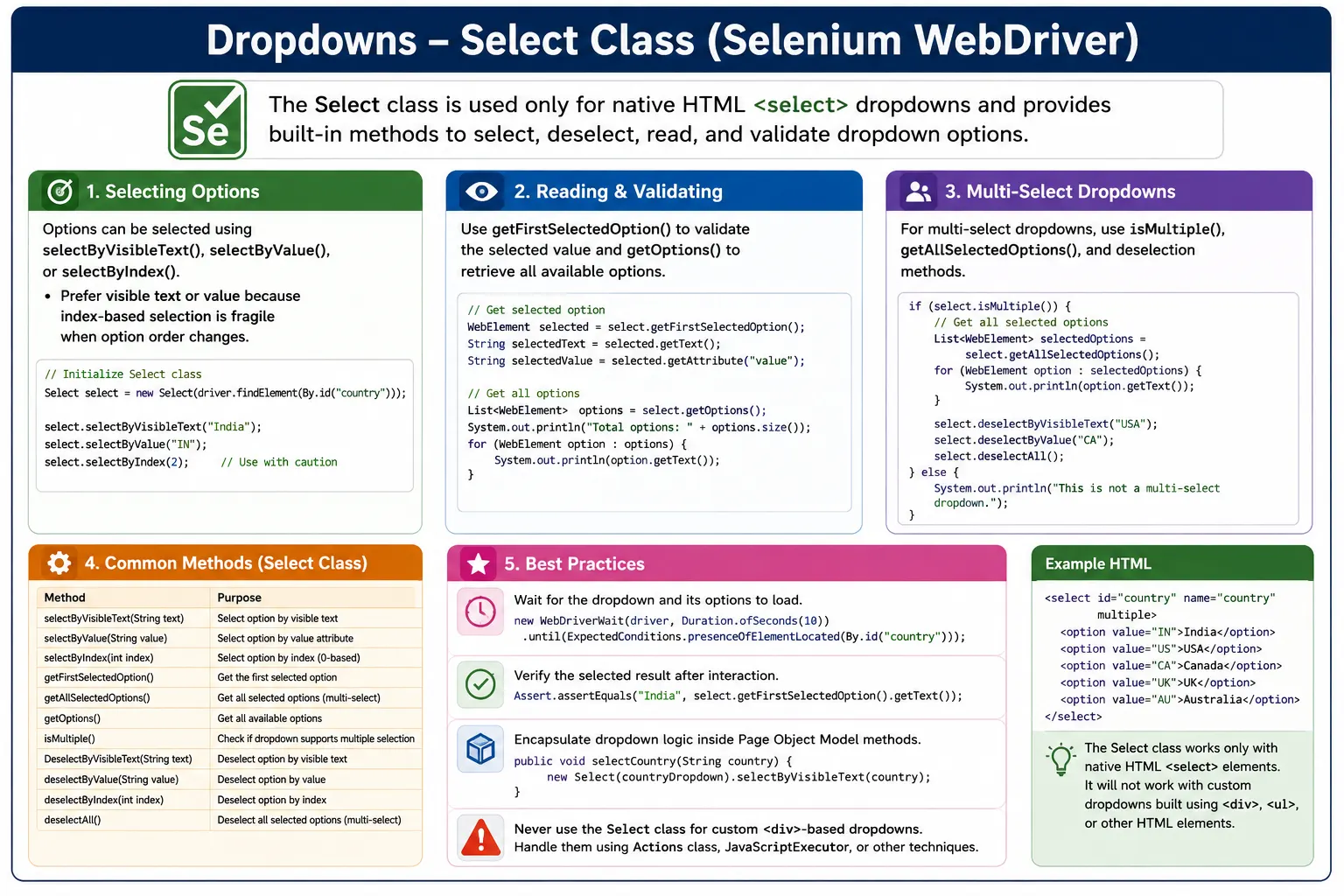
Understanding Dropdowns and the Select Class in Selenium
Dropdowns are common UI controls in web applications, especially in forms, filters, settings pages, checkout flows, registration screens, admin panels, and search interfaces. They allow users to choose one value from a list, or in some cases choose multiple values from the same control. In Selenium, native HTML dropdowns are handled through a dedicated helper called the Select class. This class gives clean methods for selecting options, reading the selected value, validating available options, and working with multi-select dropdowns.
The most important point is that Selenium's Select class works only with native HTML select elements. It does not work with custom dropdowns built from div, span, ul, li, button, or component-library markup. Many modern applications use custom dropdown components for styling, searching, virtualization, or advanced behavior. Those controls require normal click and locator strategies. The Select class is specifically for select tags and option tags.
When a dropdown is native, Select class automation is usually cleaner than manually clicking options. You can select by visible text, value, or index. You can read all options. You can check whether the dropdown supports multiple selection. You can retrieve selected options and validate default values. This makes Select class a frequent interview topic and an important practical tool for Selenium Java automation.
What Is the Select Class?
A Selenium Utility for Native Select Elements
The Select class is a Selenium support class designed to work with native HTML select dropdowns. A native dropdown contains a select tag and one or more option tags. The Select object wraps the select WebElement and exposes methods that understand dropdown behavior. This is better than treating the dropdown as a normal clickable element because the class knows how to inspect and choose options.
A Select object is created by first locating the select element and then passing it to the Select constructor. If the located element is not a select tag, Selenium throws an error. This behavior is useful because it tells you immediately whether the control is a native dropdown or a custom UI component. Before writing Select code, inspect the HTML and confirm that the element is actually a select.
Why Select Is Useful
Select makes dropdown automation readable. selectByVisibleText("India") clearly communicates the user's choice. selectByValue("IN") clearly communicates that the value attribute is being used. getFirstSelectedOption() clearly retrieves the current selected option. These methods are easier to understand than manual option loops in many cases.
Select also reduces accidental mistakes. For a native dropdown, manually clicking the select and then clicking an option can be inconsistent across browsers and operating systems. The Select class interacts with the dropdown at the WebDriver level and provides purpose-built methods. This is why it is the preferred approach whenever the application uses standard HTML select elements.
Native Dropdowns vs Custom Dropdowns
Native Select Dropdowns
A native dropdown uses the select tag. Its options are represented by option tags. It may allow one selected option or multiple selected options if the multiple attribute is present. Native dropdowns are simple, semantic, keyboard-accessible by default, and directly supported by Selenium's Select class. They are common in older forms, simple admin screens, and applications that prioritize standard HTML controls.
For native dropdowns, Selenium can select options without needing to open the dropdown visually. This is normal and reliable. The automation can then validate the selected option through Select methods. Native dropdowns are generally easier to automate than custom dropdowns because the browser provides the behavior.
Custom Dropdowns
Custom dropdowns are built from regular HTML elements and JavaScript. They may use divs, buttons, list items, ARIA roles, search inputs, virtualized lists, or popover panels. They often appear in design systems such as Material UI, Bootstrap, React Select, Angular Material, and other component libraries. These controls do not use select and option tags in the standard way, so the Select class cannot automate them.
Custom dropdowns require a different strategy. The test usually clicks the dropdown trigger, waits for the option panel, locates the desired option, clicks it, and validates the selected text or underlying state. Before choosing an approach, inspect the DOM. If it is a select tag, use Select. If it is not, use normal WebElement interactions.
Creating a Select Object
Locate the Select Element First
To use the Select class, first locate the dropdown WebElement. This should be the select element itself, not an option, label, surrounding div, or visible wrapper. Once you have the select element, create a Select object from it. After that, you can call selection and validation methods.
Locator quality still matters. Use stable IDs, names, data attributes, or CSS selectors that identify the select element clearly. Avoid locating by fragile layout paths. A dropdown often controls important form behavior, so a wrong locator may select the wrong field and produce misleading test failures.
Validate the Dropdown Is Ready
The dropdown should be visible and enabled before interaction. If a select element exists but is disabled, a real user cannot change it. If the dropdown is populated dynamically, the element may be present before its options are loaded. In those cases, wait for the dropdown and its expected options before selecting. This avoids early selection failures.
For example, a country dropdown may load immediately, while a state dropdown may populate only after a country is selected. A test should wait until the state dropdown contains more than one option or contains the expected state. Selecting too early can fail or select a placeholder instead of the intended option.
Selecting Dropdown Options
Select by Visible Text
selectByVisibleText is often the most readable selection method. It selects the option based on the text that a user sees in the dropdown. For business-facing tests, this is usually the clearest approach. A test that selects India, United States, Monthly Plan, or Express Delivery reads naturally and matches the user experience.
Visible text selection works best when option labels are stable. If labels change due to localization, branding, formatting, or content updates, tests may need a more stable strategy. Still, when visible labels are part of the requirement, selecting by visible text is a strong and readable choice.
Select by Value
selectByValue selects an option based on the value attribute. This is useful when the value is stable and meaningful. For example, country options may display India while using value="IN". A payment frequency option may display Monthly while using value="monthly". If visible text is likely to change but value remains stable, selecting by value can make tests more resilient.
The value attribute should still be treated as part of the application contract. If values are generated, unstable, or unclear, relying on them may be fragile. Inspect the HTML and choose the method that best represents the application's stable behavior.
Select by Index
selectByIndex selects an option based on its zero-based position. This is the least preferred method because option order can change. A new option may be inserted at the top, a placeholder may be added, or sorting may change by locale. When that happens, the same index selects a different option. This can create silent test failures.
Index selection is acceptable only when order is the actual thing being tested or when options have no reliable text or value and the list is controlled. Even then, validate the selected option afterward. In most business tests, visible text or value is better.
Reading and Validating Dropdown State
Get the Selected Option
After selecting an option, a reliable test should validate the selected state. getFirstSelectedOption returns the selected option for a single-select dropdown. The test can read its visible text or value attribute and assert the expected result. This confirms that the selection actually changed and that the dropdown is in the intended state.
Validation is especially important when selecting values triggers dependent behavior. A country selection may load states. A plan selection may update price. A role selection may reveal permission controls. Start by confirming the dropdown value, then wait for and validate the dependent UI changes.
Get All Options
getOptions returns all options in the dropdown. This is useful for validating dropdown contents, option count, sorting order, default placeholders, and business rules. For example, a country dropdown should include expected countries. A status dropdown may need specific workflow states. A role dropdown may show different options depending on user permissions.
Option validation should be business-aware. If the requirement says a disabled user should not see Admin role, the test can inspect all options and verify that Admin is absent. If the requirement says statuses must appear in a particular order, the test can compare the option list to the expected order. Select class makes these checks straightforward for native dropdowns.
Multi-Select Dropdowns
Understanding Multiple Selection
A native select element can allow multiple selections when it has the multiple attribute. In that case, users can select more than one option. Selenium's Select class supports this with isMultiple(), getAllSelectedOptions, and deselect methods. Before using any deselect method, the test should check isMultiple(). Calling deselect on a single-select dropdown causes an exception.
Multi-select dropdowns are less common than single-select controls, but they appear in admin tools, permissions, skills lists, categories, and advanced filters. Tests should validate all selected options, not just the first one. If the order of selected values matters to the application, validate that as well.
Deselecting Options Safely
Deselect operations are available only for multi-select dropdowns. Selenium provides deselectByVisibleText, deselectByValue, deselectByIndex, and deselectAll. These methods are useful when a test needs to reset a dropdown state or verify removal of selected options. Always confirm that the dropdown is multiple before calling them.
Just as with checkboxes, multi-select interactions should be state-aware. If a test needs Java and Selenium selected, it should set that final state and validate it. Blindly selecting or deselecting without checking can leave the dropdown in an unexpected state when test data is reused.
Dynamic Dropdown Loading
Wait for Options, Not Just the Select Element
A common Selenium dropdown failure happens when the select element is present but its options are not loaded yet. This occurs when options are populated by AJAX, dependent selections, or delayed JavaScript rendering. A presence or visibility wait on the select element is not enough. The test should wait until the desired option exists or until the option count reaches the expected minimum.
For example, after selecting a country, the state dropdown may initially contain only "Select State". The test should wait until the state option list includes the desired value. This is a condition-based wait. It is much more reliable than Thread.sleep because it adapts to actual loading time.
Dependent Dropdowns
Dependent dropdowns are common in address forms, product configuration, category filters, and workflow screens. Selecting one dropdown changes the options available in another. Selenium tests should validate both the initial dependency and the final result. If selecting Country changes State options, verify that the correct State options appear. If selecting Category changes Subcategory options, validate that the list updates correctly.
Page objects can make dependent dropdown handling clean. A method can select the parent value, wait for child options, select the child value, and validate both selected states. This keeps test methods focused on the business scenario rather than dropdown timing details.
Disabled Dropdowns and Business Rules
Validate Enabled and Disabled State
Some dropdowns are disabled until prerequisites are met. A State dropdown may be disabled until Country is selected. A payment option dropdown may be disabled until a payment method is chosen. A role dropdown may be disabled for users without permission. Selenium should not force selection into disabled controls. It should validate disabled state or perform the prerequisite action and wait for enablement.
Disabled state is often a business rule. A test can verify that the dropdown is disabled in the wrong context and enabled in the correct context. This validates more than the control; it validates the workflow logic.
Default and Placeholder Options
Many dropdowns start with a placeholder such as Select Country, Choose One, or Please Select. Tests should know whether that placeholder is expected and whether it is selectable. Some placeholders have empty values and are invalid for submission. Others are disabled options. Validating default selected option is important in forms where the user must make an explicit choice.
A good dropdown test may verify the default option, select a valid option, validate the selected option, and submit the form. For negative validation, it may leave the placeholder selected and verify the required-field error. Select class supports these checks through selected option and option-list methods.
Dropdowns in Page Object Model
Encapsulate Selection Logic
Page objects should expose semantic methods such as selectCountry, selectState, selectRole, choosePlan, or selectShippingMethod. These methods should create the Select object internally, choose the option using the most stable strategy, and validate the selected state. Test methods should not repeat Select construction and validation logic everywhere.
Encapsulation improves maintainability. If a dropdown changes from native select to a custom component, the page method can change while the test scenario remains the same. This is a major reason to avoid exposing low-level Select code directly in tests.
Safe Selection Helpers
Frameworks often use helper methods such as selectByText, selectByValue, getSelectedText, getOptionsText, and waitForOption. A safe select method can check the current selected option and avoid selecting again when the desired value is already selected. This can prevent unnecessary change events, dependent reloads, and re-rendering.
Safe helpers should still validate final state. If selecting by visible text fails because the option is missing, the failure should clearly identify the dropdown and expected option. Good error messages make dropdown failures easy to debug.
Common Mistakes with Select Class
Using Select on Custom Dropdowns
The most common mistake is trying to use Select on a custom dropdown. If the element is not a select tag, Select is the wrong tool. Inspect the HTML first. For custom dropdowns, click the trigger, wait for the option list, click the desired option, and validate the displayed selected value. Do not force the Select class where it does not apply.
Using Index Without Need
selectByIndex is fragile because option order can change. It should not be the default method. Use visible text when readability matters and value when the value attribute is stable. If index is used, validate the selected option afterward so an order change does not silently choose the wrong value.
Not Validating After Selection
Selecting an option is an action; validation confirms the result. Tests should verify the selected option and any dependent changes. Without validation, a dropdown interaction may appear to pass even when the wrong value remains selected or the dependent UI fails to update.
Interview Perspective on Dropdowns Select Class
Short Interview Answer
The Select class is used in Selenium to handle native HTML select dropdowns. It provides methods such as selectByVisibleText, selectByValue, selectByIndex, getOptions, getFirstSelectedOption, and multi-select deselection methods.
Detailed Interview Answer
In Selenium WebDriver, the Select class works only for native select tags. I create a Select object by passing the dropdown WebElement, then select options by visible text, value, or index. I prefer visible text for readability and value for stable internal values. After selection, I validate the selected option using getFirstSelectedOption. For multi-select dropdowns, I check isMultiple before selecting multiple options or calling deselect methods.
Real Project Explanation
In a real project, I would wrap dropdown interactions inside Page Object Model methods. For dynamic dropdowns, I would wait until the expected option is loaded before selecting. For dependent dropdowns, I would select the parent value, wait for the child options, then select and validate the child value. If the dropdown is custom and not a select tag, I would not use Select class; I would automate it with normal click, wait, and option locators.
The key takeaway is that Select class is the right tool for native HTML dropdowns. Reliable dropdown automation uses stable locators, chooses the right selection method, waits for dynamic options, validates selected state, handles multi-select carefully, and encapsulates the logic inside page objects.
Real-World Dropdown Scenarios
Country, State, and City Dropdowns
Address forms often use dependent dropdowns for country, state, and city. This is one of the most common real project examples. The country dropdown may be populated when the page loads, but the state dropdown may remain disabled or contain only a placeholder until a country is selected. After selecting the country, the application may call an API and populate the state list. After selecting the state, the city list may load. Selenium tests should wait for each dependent option list before selecting from it.
This workflow should be tested as a chain of state transitions. Select Country, validate selected country, wait for State options, select State, validate selected state, wait for City options, select City, and validate the final address state. A fixed sleep after each selection is fragile. A condition that waits for the expected option is much more reliable and gives better failure information when the application does not populate data.
Role, Status, and Workflow Dropdowns
Admin systems frequently use dropdowns for user roles, ticket statuses, priority levels, order states, and workflow transitions. These dropdowns often contain business rules. A normal user may see fewer role options than an administrator. A closed ticket may not allow all status transitions. A cancelled order may have locked fields. Dropdown tests should validate that the correct options are present or absent for the current user and state.
Select class helps by exposing all options through getOptions. The automation can compare the option list with the expected business rules. This is stronger than simply selecting one happy-path value. It verifies that the dropdown itself is configured correctly for the scenario.
Filter Dropdowns and Result Updates
Filter dropdowns are common in reports, dashboards, product listings, and search pages. Selecting a filter value may update a table, chart, card list, or result count. The selected option is only the first validation point. The test should also wait for the results area to refresh and verify the outcome. For example, selecting Completed in a status dropdown should update the table to completed records, show an active filter indicator, or change the result count.
This is another place where post-selection synchronization matters. The Select method may finish immediately, but the application may still be loading filtered data. A robust page method selects the option and then waits for the results state that proves the filter was applied.
Accessibility and Dropdown Automation
Native Select Elements Are Accessible by Default
One advantage of native select elements is that browsers provide built-in keyboard and accessibility behavior. Users can focus the control, move through options, and select values using standard browser interactions. Screen readers can announce the control and its options when labels are connected properly. Selenium's Select class benefits from this standard structure because the browser exposes a clear select and option model.
Tests can still validate important accessibility-related details indirectly. A dropdown should have a meaningful label. Placeholder options should not be confusing. Disabled options should be intentional. Required dropdowns should show clear validation messages when no valid selection is made. While Selenium is not a complete accessibility audit tool, dropdown automation can reveal missing labels, wrong defaults, and broken disabled states.
Custom Dropdown Accessibility Is Different
Custom dropdowns often need ARIA roles and keyboard handling to match native behavior. They may use role combobox, listbox, option, aria-expanded, aria-selected, and aria-activedescendant. These controls are not handled by Select class, but understanding the distinction helps automation design. A custom dropdown test may need to validate visible selected text, aria-selected state, or keyboard behavior rather than selected option state from a native select.
Before deciding how to automate a dropdown, inspect whether it is native or custom. This prevents a common mistake: trying to force the Select class onto a custom component. The right automation strategy follows the actual HTML structure.
Dropdown Stability in CI
Why Dropdown Tests Fail in Pipelines
Dropdown tests can pass locally and fail in CI when options load slowly, dependent dropdowns are not populated yet, or the control is disabled while an API call completes. A local machine may be fast enough that the option appears before Selenium reaches the selection step. A CI runner, remote grid, or headless browser may expose the timing issue. The failure often appears as an option not found error even though the locator for the dropdown is correct.
CI-stable dropdown automation waits for the option list, not just the dropdown element. The wait can check that option count is greater than one, that a specific visible text exists, or that a dependent dropdown is enabled. After selection, the test should validate the selected option and any dependent UI update. This pattern removes most dropdown timing flakiness.
Useful Dropdown Failure Diagnostics
When a dropdown selection fails, the report should include the dropdown locator, desired visible text or value, current selected option, current option list, enabled state, current URL, and screenshot path. If the expected option is missing, logging all available options immediately shows whether the application failed to load data, the test expected the wrong label, or the user role does not have access to that option.
Good diagnostics prevent random fixes. Instead of increasing sleep time, the team can see that the option list contained only a placeholder, that the child dropdown was still disabled, or that the selected value was already correct. Dropdown failures become easy to investigate when the framework records the state of the select element at the time of failure.
Designing a Dropdown Utility Layer
Reusable Methods for Native Selects
A useful framework usually includes a small dropdown utility layer for native selects. Methods can include selectByVisibleTextSafe, selectByValueSafe, getSelectedText, getSelectedValue, getOptionTexts, waitForOptionText, assertOptionExists, and isMultiSelect. These helpers keep Select usage consistent and reduce repeated boilerplate in page objects.
The utility should fail with clear messages. If an option is not available, the error should mention the expected option and list the available options. If a deselect method is called on a single-select dropdown, the failure should explain that the dropdown is not multi-select. Clear helper behavior makes dropdown tests easier for the whole team to maintain.
Keep Native and Custom Dropdown Helpers Separate
Native select helpers and custom dropdown helpers should not be mixed. A native helper should require a select element and use Select class. A custom helper should click triggers, wait for option panels, choose visible options, and validate displayed selected text. Separating these helpers prevents confusion and makes the page object implementation honest about the UI component being automated.
This separation also helps future maintenance. If a native dropdown is replaced by a custom component, only the page method should change from native helper to custom helper. The test scenario can still call selectCountry or chooseStatus without knowing the implementation details.
For native HTML <select> dropdowns, Selenium provides a dedicated utility called the Select class.
- Warning:️ Important: Select works only for <select> tags.
- It does NOT work for custom <div>-based dropdowns.
1. What is the Select Class?
The Select class is used to:
- Select options
- Deselect options (multi-select only)
- Read selected values
- Validate dropdown contents
Example HTML
<select id="country">
    <option value="us">United States</option>
    <option value="in">India</option>
    <option value="uk">United Kingdom</option>
</select>
2. Creating a Select Object
WebElement dropdown = driver.findElement(By.id("country"));
Select select = new Select(dropdown);
3. Selection Methods (Must Know)
3.1 Select by Visible Text (Most Used)
select.selectByVisibleText("India");
- Valid: Business-readable
- Valid: Recommended approach
3.2 Select by Value
select.selectByValue("us");
- Valid: Stable when value attribute is fixed
- Valid: Useful when text may change
3.3 Select by Index (Least Preferred)
select.selectByIndex(2); // 0-based index
Warning:️ Fragile if order changes.
4. Reading Selected Option
4.1 Get Selected Option (Single Select)
String selected = select.getFirstSelectedOption().getText();
System.out.println(selected);
4.2 Validate Default Selected Option
Assert.assertEquals(
        select.getFirstSelectedOption().getText(),
        "United States"
);
5. Getting All Dropdown Options
List<WebElement> options = select.getOptions();
for (WebElement option : options) {
    System.out.println(option.getText());
}
Use Cases:
- Validate option count
- Verify dropdown values
- Check sorting order
6. Multi-Select Dropdowns
HTML Example:
<select id="skills" multiple>
    <option>Java</option>
    <option>Python</option>
    <option>Selenium</option>
</select>
6.1 Check if Dropdown is Multi-Select
boolean isMulti = select.isMultiple();
System.out.println(isMulti);
6.2 Select Multiple Options
if (select.isMultiple()) {
    select.selectByVisibleText("Java");
    select.selectByVisibleText("Python");
}
6.3 Get All Selected Options
List<WebElement> selectedOptions = select.getAllSelectedOptions();
for (WebElement option : selectedOptions) {
    System.out.println(option.getText());
}
6.4 Deselect Options (Multi-Select Only)
select.deselectByVisibleText("Python");
select.deselectAll();
Invalid: Calling deselect on single-select means Exception.
7. Wait for Dropdown to Load Dynamically
If options load via AJAX:
WebDriverWait wait = new WebDriverWait(driver, Duration.ofSeconds(10));
wait.until(driver -> {
    Select s = new Select(dropdown);
    return s.getOptions().size() > 1;
});
select.selectByVisibleText("India");
Valid: Prevents early selection failures.
8. Safe Selection Utility (Best Practice)
public void selectByTextSafe(WebElement dropdown, String text) {
    Select select = new Select(dropdown);
    String current = select.getFirstSelectedOption().getText();
    if (!current.equals(text)) {
        select.selectByVisibleText(text);
    }
}
- Valid: Avoids unnecessary DOM updates
- Valid: Reduces flakiness
9. Handling Disabled Dropdown
Assert.assertFalse(dropdown.isEnabled());
// or
Assert.assertTrue(dropdown.isEnabled());
Always verify state before interacting.
10. Page Object Model (Enterprise Pattern)
public class RegistrationPage {
    @FindBy(id = "country")
    private WebElement countryDropdown;

    public void selectCountry(String country) {
        Select select = new Select(countryDropdown);
        select.selectByVisibleText(country);
    }

    public String getSelectedCountry() {
        Select select = new Select(countryDropdown);
        return select.getFirstSelectedOption().getText();
    }
}
Test Code:
registrationPage.selectCountry("India");
Assert.assertEquals(
        registrationPage.getSelectedCountry(),
        "India"
);
- Valid: Clean
- Valid: Maintainable
- Valid: Scalable
11. Common Mistakes (Very Important)
- Invalid: Using Select on <div> dropdown
- Invalid: Using index unnecessarily
- Invalid: Not validating after selection
- Invalid: Not checking isMultiple()
- Invalid: Using Thread.sleep() instead of waits
12. Interview Perspective
Short Answer
The Select class is used to handle native HTML <select> dropdowns in Selenium. It provides methods like selectByVisibleText(), selectByValue(), and selectByIndex().
Real-Time Answer
In Selenium automation, I use the Select class to handle <select> dropdowns. I prefer selecting by visible text or value, validate the selection using getFirstSelectedOption(), and check isMultiple() before performing deselect operations.
13. Key Takeaway
- Select works only for <select>
- Prefer visible text or value
- Avoid index when possible
- Validate after selecting
- Use waits for dynamic loading
- Wrap logic inside Page Objects
Correct dropdown handling prevents silent test failures and improves automation reliability.
Examples (Quick Reference)
1. Select by Visible Text
WebElement dropdown = driver.findElement(By.id("country"));
Select select = new Select(dropdown);
select.selectByVisibleText("India");
2. Select by Value
Select select = new Select(driver.findElement(By.id("country")));
select.selectByValue("IN");
3. Select by Index
Select select = new Select(driver.findElement(By.id("country")));
select.selectByIndex(2);
4. Get All Options
Select select = new Select(driver.findElement(By.id("country")));
List<WebElement> options = select.getOptions();
for (WebElement option : options) {
    System.out.println(option.getText());
}
5. Get First Selected Option
Select select = new Select(driver.findElement(By.id("country")));
WebElement selected = select.getFirstSelectedOption();
System.out.println(selected.getText());
6. Verify Dropdown Is Multiple
Select select = new Select(driver.findElement(By.id("countries")));
System.out.println("Is Multiple: " + select.isMultiple());
7. Select Multiple Options (Multi-Select)
Select select = new Select(driver.findElement(By.id("countries")));
select.selectByVisibleText("India");
select.selectByVisibleText("USA");
8. Deselect by Visible Text (Multi-Select)
Select select = new Select(driver.findElement(By.id("countries")));
select.deselectByVisibleText("India");
9. Deselect by Value
Select select = new Select(driver.findElement(By.id("countries")));
select.deselectByValue("US");
10. Deselect by Index
Select select = new Select(driver.findElement(By.id("countries")));
select.deselectByIndex(1);
11. Deselect All (Multi-Select Only)
Select select = new Select(driver.findElement(By.id("countries")));
select.deselectAll();
12. Wait and Select Dropdown
WebDriverWait wait = new WebDriverWait(driver, Duration.ofSeconds(10));
WebElement dropdown = wait.until(
        ExpectedConditions.elementToBeClickable(By.id("country"))
);
Select select = new Select(dropdown);
select.selectByVisibleText("Canada");
13. Select Option Dynamically Using Loop
Select select = new Select(driver.findElement(By.id("country")));
for (WebElement option : select.getOptions()) {
    if (option.getText().equals("Germany")) {
        option.click();
        break;
    }
}
14. Print All Selected Options (Multi-Select)
Select select = new Select(driver.findElement(By.id("countries")));
List<WebElement> selectedOptions = select.getAllSelectedOptions();
for (WebElement option : selectedOptions) {
    System.out.println(option.getText());
}
15. Select Dropdown Inside Frame
driver.switchTo().frame("frame1");
Select select = new Select(driver.findElement(By.id("country")));
select.selectByVisibleText("India");
driver.switchTo().defaultContent();
16. Validate Dropdown Size
Select select = new Select(driver.findElement(By.id("country")));
int size = select.getOptions().size();
System.out.println("Total options: " + size);
17. Verify Option Exists
Select select = new Select(driver.findElement(By.id("country")));
boolean found = false;
for (WebElement option : select.getOptions()) {
    if (option.getText().equals("India")) {
        found = true;
        break;
    }
}
System.out.println("Option exists: " + found);
18. Handle Dropdown in Modal
WebDriverWait wait = new WebDriverWait(driver, Duration.ofSeconds(10));
wait.until(ExpectedConditions.visibilityOfElementLocated(By.id("modal")));
Select select = new Select(driver.findElement(By.id("country")));
select.selectByValue("IN");
19. Validate Selected Value Using Attribute
Select select = new Select(driver.findElement(By.id("country")));
String selectedValue = select.getFirstSelectedOption()
                             .getAttribute("value");
System.out.println("Selected value: " + selectedValue);
20. Dropdown in Page Object Model (POM)
public class RegistrationPage {
    WebDriver driver;
    By countryDropdown = By.id("country");

    public RegistrationPage(WebDriver driver) {
        this.driver = driver;
    }

    public void selectCountry(String countryName) {
        Select select = new Select(driver.findElement(countryDropdown));
        select.selectByVisibleText(countryName);
    }
}
Dropdown Automation Best Practices
- Prefer selectByVisibleText() for readability
- Avoid using index unless necessary
- Use isMultiple() before deselecting
- Use Explicit Wait for dynamic dropdowns
- Validate selected option after selection
- Do not use Select class for non-<select> dropdowns (custom UI libraries require different handling)