Drag and Drop in Selenium Java
1. Introduction
Drag and drop is one of the most failure-prone interactions in Selenium automation. A simple button click usually maps cleanly to a browser action, but drag-and-drop often depends on pointer movement, JavaScript event handlers, HTML5 drag events, animations, drop zones, re-rendering, scrolling, and framework-specific behavior. This is why one drag-and-drop method may work on a simple demo page and fail completely on a modern Kanban board or sortable React list.
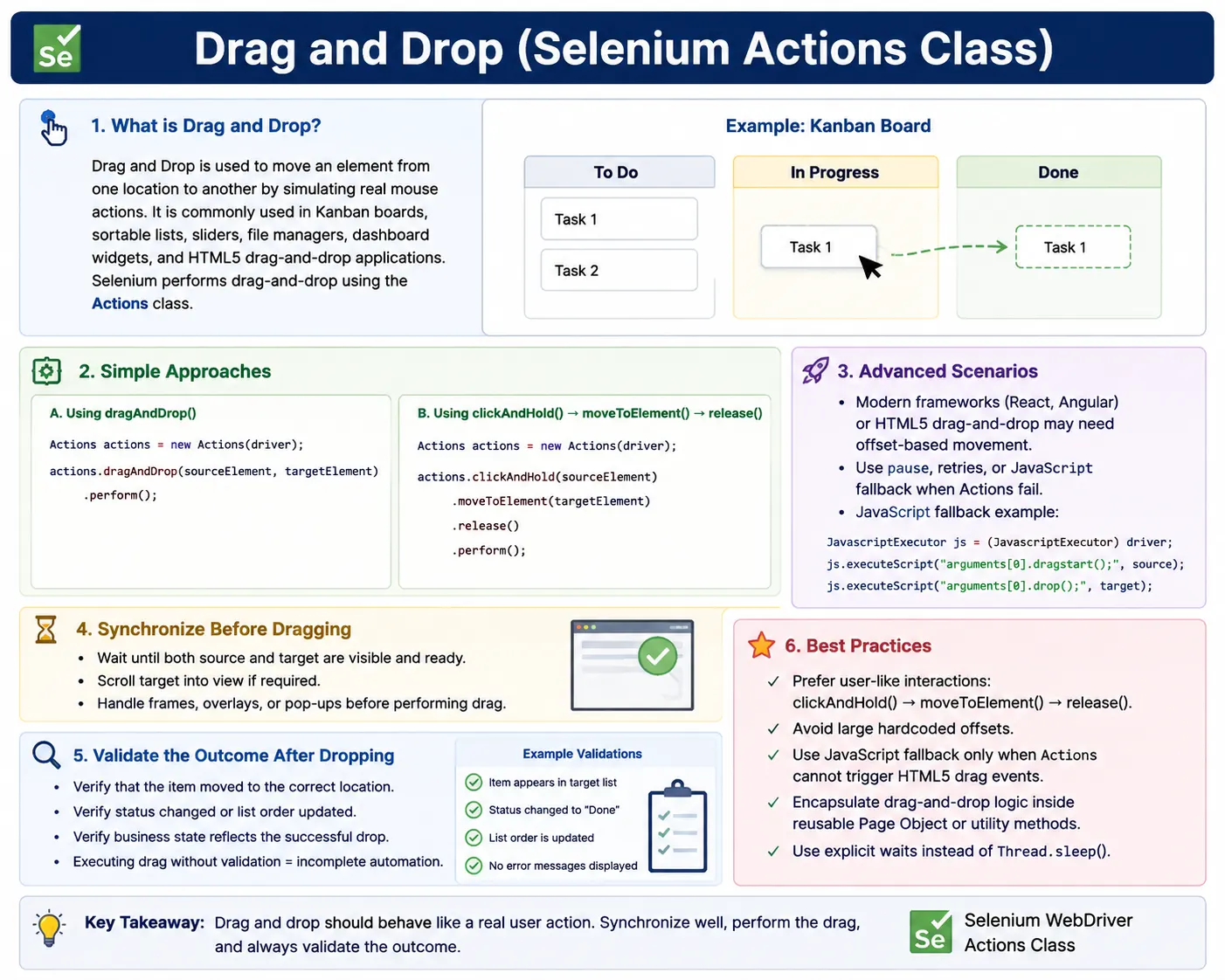
In Selenium Java, drag-and-drop is normally automated with the Actions class. The simplest method is dragAndDrop(source, target). In real projects, however, clickAndHold(), moveToElement(), moveByOffset(), pause(), and release() are often more reliable. For HTML5 drag-and-drop implementations, JavaScript fallback may be required because some applications ignore the synthetic pointer sequence created by WebDriver.
A reliable drag-and-drop test should do four things: wait for the source and target, perform a realistic movement, handle implementation-specific behavior, and validate the final outcome. If the test only executes a drag command and assumes success, it is incomplete. A good test verifies that the item moved, the status changed, the target class updated, the order changed, or the business state reflected the drop.
2. Why Drag and Drop Is Difficult
Drag and drop is difficult because web applications implement it in different ways. A classic DOM-based drag-and-drop widget may respond well to Selenium's dragAndDrop(). A modern HTML5 drag-and-drop application may depend on a DataTransfer object and specific drag events. A React or Angular component may update state during movement and re-render the DOM. A sortable list may calculate position based on pointer offset rather than target element. A slider may require movement by pixels rather than dropping into a container.
These differences mean Selenium engineers need a layered strategy. Try the clean Actions method first. If that fails, use click-hold-move-release. If the target is off-screen, scroll first. If the UI is HTML5 drag/drop and Actions does not trigger the required events, use JavaScript fallback carefully. If the application re-renders, re-locate elements and retry. The correct approach depends on how the UI is implemented.
- Classic drag/drop may work with
dragAndDrop(). - HTML5 drag/drop may require JavaScript event fallback.
- Sortable lists and sliders often need offset-based movement.
- Framework applications may re-render during the action.
- Animations and overlays can interfere with the drop.
3. Required Import
Drag-and-drop automation usually requires the Selenium Actions class:
import org.openqa.selenium.interactions.Actions;Real project examples may also require:
import org.openqa.selenium.JavascriptExecutor;
import org.openqa.selenium.WebElement;
import org.openqa.selenium.By;
import org.openqa.selenium.support.ui.WebDriverWait;
import org.openqa.selenium.support.ui.ExpectedConditions;
import java.time.Duration;
4. Basic Drag and Drop
The simplest drag-and-drop approach is dragAndDrop(source, target). It is clean, readable, and works for many simple UI implementations.
WebElement source = driver.findElement(By.id("drag"));
WebElement target = driver.findElement(By.id("drop"));

new Actions(driver)
    .dragAndDrop(source, target)
    .perform();
This method is a good first attempt when testing a basic drag/drop demo or a simple widget. The downside is that it may fail for HTML5 applications, custom framework widgets, or components that require more detailed pointer movement. If the action does not register, do not immediately assume the locator is wrong. The issue may be the drag implementation.
5. Click-Hold-Move-Release
For dynamic UIs, clickAndHold(), moveToElement(), and release() often work better because they describe the user gesture more explicitly.
WebElement source = driver.findElement(By.id("drag"));
WebElement target = driver.findElement(By.id("drop"));

new Actions(driver)
    .clickAndHold(source)
    .moveToElement(target)
    .release()
    .perform();
This approach is commonly preferred in real projects. It triggers a more controlled sequence: mouse down on source, pointer move to target, mouse up on target. For many custom widgets, this sequence is closer to what the application expects than the shortcut dragAndDrop() method.
6. Drag and Drop by Offset
Offset movement is useful for sliders, resizable components, sortable rows, and interactions where the destination is not a separate drop target. It moves the element by a specific X and Y distance.
WebElement element = driver.findElement(By.id("drag"));

new Actions(driver)
    .clickAndHold(element)
    .moveByOffset(150, 0)
    .release()
    .perform();
Vertical movement uses Y offset:
WebElement source = driver.findElement(By.id("drag"));

new Actions(driver)
    .dragAndDropBy(source, 0, 80)
    .perform();
Offset-based movement is powerful but fragile if hardcoded. Pixel offsets can vary with screen size, browser zoom, responsive layout, and operating system scaling. If possible, calculate offsets based on element or container dimensions.
7. Drag with Pause Between Steps
Some UIs need a small pause to register drag start, hover over target, or drop activation. The Actions class supports pause().
WebElement source = driver.findElement(By.id("drag"));
WebElement target = driver.findElement(By.id("drop"));

new Actions(driver)
    .clickAndHold(source)
    .pause(Duration.ofMillis(300))
    .moveToElement(target)
    .pause(Duration.ofMillis(300))
    .release()
    .perform();
Use pauses carefully. A short pause can help with UI animation or drag registration, but it should not replace explicit waits before and after the action. The best validation is still the final UI state.
8. Drop to a Specific Offset Inside Target
Some drop targets require dropping at a specific position inside the target element. This can happen in canvas-like areas, design tools, dashboards, maps, or custom layout builders.
WebElement source = driver.findElement(By.id("drag"));
WebElement target = driver.findElement(By.id("drop"));

new Actions(driver)
    .clickAndHold(source)
    .moveToElement(target, 30, 10)
    .release()
    .perform();
This drops the item at a specific offset relative to the target. Use this only when the exact drop location matters. For normal drop zones, moving to the target element center is usually simpler.
9. Kanban Card Example
Kanban boards are a common drag-and-drop scenario. A card may be dragged from one column to another. These UIs often use JavaScript frameworks and can be sensitive to timing.
WebDriverWait wait =
    new WebDriverWait(driver, Duration.ofSeconds(10));

WebElement card = wait.until(
    ExpectedConditions.visibilityOfElementLocated(By.cssSelector(".card"))
);

WebElement column = wait.until(
    ExpectedConditions.visibilityOfElementLocated(
        By.cssSelector(".column[data-name='Done']")
    )
);

new Actions(driver)
    .clickAndHold(card)
    .moveToElement(column)
    .pause(Duration.ofMillis(200))
    .release()
    .perform();
The pause gives the UI a moment to register the drop target. After dropping, validate that the card appears inside the Done column or that its status changed to Done.
10. Drag and Drop with Scrolling
If the drop target is off-screen, scroll it into view before performing the action. Selenium cannot reliably drop onto a target that is not in the visible viewport.
WebElement source = driver.findElement(By.id("drag"));
WebElement target = driver.findElement(By.id("drop"));

((JavascriptExecutor) driver)
    .executeScript("arguments[0].scrollIntoView(true);", target);

new Actions(driver)
    .clickAndHold(source)
    .moveToElement(target)
    .release()
    .perform();
For long pages, also consider sticky headers or overlays that may cover the target after scrolling. A target can be technically in view but still not usable if another layer is on top.
11. Drag and Drop in an Iframe
If the source or target is inside an iframe, switch into the frame before locating and dragging elements.
driver.switchTo().frame("frame1");

WebElement source = driver.findElement(By.id("drag"));
WebElement target = driver.findElement(By.id("drop"));

new Actions(driver)
    .dragAndDrop(source, target)
    .perform();

driver.switchTo().defaultContent();
Frame issues are common. If Selenium cannot find a visible drag element, inspect whether it is inside a frame. Also avoid dragging between different frames unless the application explicitly supports it and the automation strategy has been tested carefully.
12. Sortable List Movement
Sortable lists often require dragging an item over another item or moving by vertical offset. For example, moving row 3 above row 1 may look like this:
WebElement item = driver.findElement(By.id("row3"));
WebElement target = driver.findElement(By.id("row1"));

new Actions(driver)
    .clickAndHold(item)
    .moveToElement(target)
    .release()
    .perform();
After the move, validate the order. A sortable list test should read the list items and confirm the expected sequence. Without order validation, the test does not prove the drag succeeded.
13. Drag Multiple Items
When dragging multiple items one by one, be careful with stale elements. If the DOM changes after each drag, the original element list may become invalid.
List<WebElement> items =
    driver.findElements(By.cssSelector(".draggable"));

WebElement target = driver.findElement(By.id("drop"));
Actions actions = new Actions(driver);

for (WebElement item : items) {
    actions.clickAndHold(item)
           .moveToElement(target)
           .release()
           .perform();
}
For dynamic lists, re-locate items inside the loop or process stable item identifiers. This prevents stale element failures after the first drop.
14. Drag Element to Trash
Some applications use a trash or delete area as a drop target. This is common in file managers, design tools, and dashboard builders.
WebElement file = driver.findElement(By.id("file1"));
WebElement trash = driver.findElement(By.id("trash"));

new Actions(driver)
    .clickAndHold(file)
    .moveToElement(trash)
    .release()
    .perform();
Validate that the item was deleted, moved to trash, or removed from its original location. Destructive actions should be tested carefully with safe test data.
15. HTML5 Drag and Drop JavaScript Fallback
Some HTML5 drag-and-drop implementations do not respond to Selenium Actions because they expect a DataTransfer object and specific drag events. In those cases, JavaScript fallback may help.
public void html5DragAndDrop(WebElement source, WebElement target) {
    String script =
        "function triggerDragAndDrop(sourceNode, destinationNode) {" +
        "  const dataTransfer = new DataTransfer();" +
        "  sourceNode.dispatchEvent(new DragEvent('dragstart', { dataTransfer }));" +
        "  destinationNode.dispatchEvent(new DragEvent('drop', { dataTransfer }));" +
        "  sourceNode.dispatchEvent(new DragEvent('dragend', { dataTransfer }));" +
        "}" +
        "triggerDragAndDrop(arguments[0], arguments[1]);";

    ((JavascriptExecutor) driver).executeScript(script, source, target);
}
Usage:
WebElement source = driver.findElement(By.id("drag"));
WebElement target = driver.findElement(By.id("drop"));

html5DragAndDrop(source, target);
Use JavaScript fallback only when Actions methods fail. Some applications still block synthetic drag events, and JavaScript may bypass real user behavior. If JS fallback is used, validation becomes even more important.
16. Drag and Drop with Retry
React, Angular, and other frameworks may re-render elements during drag operations. Retrying after stale element references can improve stability when used carefully.
public void dragAndDropWithRetry(By sourceLocator, By targetLocator) {
    WebDriverWait wait =
        new WebDriverWait(driver, Duration.ofSeconds(10));

    for (int attempt = 0; attempt < 3; attempt++) {
        try {
            WebElement source = wait.until(
                ExpectedConditions.elementToBeClickable(sourceLocator)
            );
            WebElement target = wait.until(
                ExpectedConditions.visibilityOfElementLocated(targetLocator)
            );

            new Actions(driver)
                .clickAndHold(source)
                .moveToElement(target)
                .release()
                .perform();
            return;
        } catch (StaleElementReferenceException ignored) {
            // retry
        }
    }

    throw new RuntimeException(
        "Drag and drop failed due to stale elements."
    );
}
Retries should be limited and purposeful. They should not hide persistent failures. Log attempts and still validate the final state after a successful drag.
17. Validate Drag and Drop
Validation is mandatory. After a drop, verify the outcome. For example, confirm that the dropped element appears inside the target container:
WebElement dropped =
    driver.findElement(By.cssSelector("#drop .item"));

Assert.assertTrue(dropped.isDisplayed());
Or verify status text:
String status =
    driver.findElement(By.id("status")).getText();

Assert.assertEquals(status, "Dropped!");
You can also validate class changes:
String classes = target.getAttribute("class");

System.out.println("Target classes: " + classes);
Choose the validation that reflects the business behavior. A Kanban card should be in the new column. A sortable list should have the new order. A file dropped in trash should be removed or marked deleted.
18. Common Failures and Fixes
| Problem | Cause | Fix |
|---|---|---|
| Drag does not move | HTML5 or custom JavaScript handlers | Use click-hold-move-release or JS fallback |
| Drop does not register | Animation or target activation delay | Add a short pause during movement and validate |
| Element not visible | Target is off-screen | Scroll target into view before dragging |
| Click intercepted | Overlay or loading mask | Wait for overlay invisibility |
| Stale elements | Framework re-render | Re-locate elements and retry carefully |
19. Debugging Drag-and-Drop Tests
When drag-and-drop fails, first identify where the failure occurs. Is the source visible? Is the target visible? Is the target inside a frame? Does the drag start but not drop? Does the item move visually but return to the original location? Does the DOM re-render and make elements stale? Each failure suggests a different fix.
Use screenshots and DOM inspection at failure time. A screenshot can show that the target is off-screen, an overlay is blocking it, or the application is in a different responsive layout. DOM inspection can reveal whether the drop target was created dynamically or whether the item moved to a different container.
Do not solve every drag failure with Thread.sleep(). A sleep may hide timing problems temporarily but usually makes tests slower and less deterministic. Use waits, stable locators, controlled movement, and meaningful validation.
20. Drag-and-Drop in Modern Frameworks
Modern frameworks often implement drag-and-drop through component state. During a drag, the application may add placeholder elements, update classes, re-render lists, or calculate target positions. The DOM may change multiple times before the drop completes. This can make WebElement references stale.
For framework UIs, locate source and target as late as possible, wait for readiness, and validate with fresh locators after the drop. If a drag creates a placeholder or ghost element, do not assert too early. Wait for the final stable state. If the list order changes after a debounce or server update, wait for the new order or status.
Framework-specific drag libraries may require different movement strategies. Some respond to target center movement. Some need offsets. Some need pauses. Some are best tested through higher-level behavior rather than exact pointer coordinates.
21. Accessibility Perspective
Drag-and-drop interactions can create accessibility challenges. Users who cannot use a mouse may need keyboard alternatives. Applications should provide accessible ways to move items, reorder lists, or change status without requiring pointer drag. For example, a Kanban card might include a menu action to move it to another column.
Selenium drag-and-drop tests prove pointer behavior, but they do not prove accessibility. For important workflows, also test keyboard-accessible alternatives or verify that the application provides them. This is especially important in enterprise systems where accessibility compliance matters.
22. Understanding Drag Event Models
Drag-and-drop behavior can be built using different event models. Some widgets respond to low-level mouse or pointer events such as mouse down, mouse move, and mouse up. Some HTML5 implementations rely on drag events such as dragstart, dragover, drop, and dragend. Some modern libraries use a combination of pointer events, internal state, placeholder elements, and calculated positions.
This matters because Selenium Actions primarily simulate pointer-style user input through the browser. If the application listens to pointer movement, Actions may work well. If the application expects a full HTML5 DataTransfer object during drag events, normal Actions may not trigger the complete behavior. That is why HTML5 drag-and-drop often needs a JavaScript fallback while classic drag widgets may not.
When a drag test fails, inspect the implementation instead of guessing. Check whether the source element has draggable="true". Check whether the application uses a library such as a sortable list, Kanban board, or drag/drop framework. Check whether the DOM adds a placeholder while dragging. These clues help determine whether to use target-based drag, offset movement, or JavaScript event dispatch.
23. Locator Strategy for Drag and Drop
Drag-and-drop tests require stable locators for both the source and the target. The source is the item being dragged. The target is the drop zone, destination column, trash area, list location, or container. If either locator is weak, the test becomes unreliable. Avoid locating drag sources only by visual order unless order is exactly what the test is verifying.
For source elements, prefer stable IDs, test attributes, visible text, or business identifiers. For example, a Kanban card might have a task ID, title, or data-testid. For target containers, prefer attributes that describe the destination, such as data-name="Done" or data-status="complete". These locators make the test readable and resistant to layout changes.
When testing sortable lists, locator strategy becomes even more important. If you drag row 3 above row 1, verify the new order by reading the list after the drop. Do not rely on the same WebElement references captured before the movement because the list may re-render and replace the old nodes.
24. Calculating Offsets Safely
Offset-based dragging is common for sliders, resize handles, and sortable components. The problem is that hardcoded values such as 150 pixels may not work across different screen sizes, zoom levels, responsive layouts, or operating systems. A better approach is to calculate movement from element dimensions whenever possible.
For example, if a slider track is 400 pixels wide and the target value is 50 percent, the movement should be based on half of the track width rather than a fixed number. If a list item needs to move one row up, calculate or use the target row location instead of guessing a vertical offset. This makes tests more portable and easier to maintain.
Offset calculations should still be validated. Some components snap to the nearest step. Some drop zones activate only when the pointer crosses a threshold. Some drag libraries use the pointer position relative to the handle center. Because of these details, final UI validation is always required.
25. Headless and CI Considerations
Drag-and-drop tests can behave differently in headless browsers and CI environments. Window size, browser zoom, device pixel ratio, animation performance, and rendering speed can all affect pointer-based interactions. A test that passes on a developer's full browser may fail in CI if the headless browser starts with a small viewport or renders the responsive mobile layout.
Set a predictable window size for drag-and-drop suites. If the target UI is desktop-only, use a desktop viewport. If the test is specifically for responsive behavior, make the viewport part of the test setup. Also check whether animations are slower in CI. A small pause() during drag may help a drop zone register, but use it deliberately and keep it short.
Screenshots are useful for CI failures. They often reveal that the source is off-screen, the target is hidden, a banner is covering the page, or the layout is different from local execution. Treat environment differences as test design inputs rather than random failures.
26. Business-Level Validation
The best drag-and-drop tests validate business outcomes, not only UI movement. If a task card is moved to Done, verify that the card appears in the Done column and that its status changed. If a file is dropped into a trash area, verify that it is removed from the file list or appears in deleted items. If a list is reordered, verify the new order. If a dashboard widget is rearranged, verify the saved layout.
Business validation catches defects that simple DOM checks may miss. A card might visually move but not save the status. A list might reorder temporarily but revert after refresh. A file might disappear from the current view but not actually be deleted. Strong tests validate the effect users care about.
Layered assertions are useful. First validate the immediate UI change. Then validate persistence or downstream behavior if the workflow requires it. For example, after dragging a card to Done, refresh the board or reopen it if persistence is part of the requirement. This turns a pointer interaction test into a meaningful workflow test.
27. Drag-and-Drop and Test Data
Drag-and-drop tests need clean test data. If a test expects a task card in the To Do column, that card should be created or reset before the test begins. If tests share the same board or list, one test may move an item and break another test. This is a common source of order-dependent failures.
Use isolated data where possible. Create a unique task card for the test, move it, validate it, and clean it up afterward. If using seeded data, reset the data before each run. For sortable lists, make sure the initial order is known before testing a reorder operation.
Good data management makes drag-and-drop tests far more reliable. The interaction itself is already complex; the test should not also depend on unpredictable application state.
28. Page Object Design for Drag Components
Drag-and-drop logic belongs in page objects or component objects. A test should read like a user workflow: move task to Done, reorder item, drag file to trash, or place widget in dashboard. The low-level Actions sequence should be hidden behind a meaningful method name.
For example, a Kanban page object might expose moveCardToColumn("Payment Bug", "Done"). Internally, it can locate the card, locate the column, perform click-hold-move-release, wait for the result, and validate that the card appears in the column. This is easier to maintain than repeating Actions code in every test.
Component objects are useful when the same drag behavior appears in many pages. A reusable sortable list component can expose methods such as moveItemBefore() or getCurrentOrder(). A slider component can expose setValue(). These abstractions keep tests focused on behavior.
29. When to Use JavaScript Fallback
JavaScript fallback should be used only after normal user-like interactions fail and the team understands the widget behavior. It is appropriate for some HTML5 drag-and-drop implementations that do not respond to WebDriver Actions. It can also be useful for legacy third-party widgets where the automation goal is to set up state rather than test pointer behavior directly.
The risk is that JavaScript fallback can bypass real user interaction. If a real user cannot drag the item but JavaScript can dispatch a synthetic event, the test may hide a product defect. For this reason, use JavaScript fallback carefully and document why it is necessary. If the purpose of the test is specifically to validate drag behavior, Actions is more representative. If the purpose is to prepare data for a later workflow, JavaScript may be acceptable as setup.
Even with JavaScript fallback, always validate the final application state. Synthetic events may be blocked, ignored, or partially handled by the application.
30. Choosing the Right Drag Strategy
A practical drag-and-drop strategy should start with the simplest user-like method and become more specialized only when needed. For a basic demo-style widget, try dragAndDrop(). For a modern application, prefer clickAndHold(), movement, and release(). For sliders or sortable rows, use offsets or calculated movement. For HTML5 widgets that ignore pointer actions, use JavaScript fallback only after confirming that normal Actions methods cannot trigger the behavior.
This decision process makes tests easier to explain in code reviews and interviews. It also prevents overengineering. Not every drag test needs JavaScript, retry logic, and custom event dispatch. At the same time, not every drag widget can be handled by the one-line dragAndDrop() method. The best automation engineers choose the smallest reliable method and validate the result with a meaningful assertion.
31. Enterprise Best Practices
- Prefer
clickAndHold(), movement, andrelease()overdragAndDrop()for complex modern apps. - Always wait for source and target readiness before dragging.
- Validate the result after every drag-and-drop action.
- Avoid large hardcoded offsets when calculated movement is possible.
- Use JavaScript fallback only when Actions cannot trigger the implementation.
- Scroll targets into view when needed.
- Handle iframes before locating drag elements.
- Re-locate elements after framework re-rendering.
- Wrap drag-and-drop logic in reusable utilities or page object methods.
- Use screenshots and logs for debugging flaky failures.
32. Reusable Drag and Drop Utility
A reusable method keeps tests cleaner and makes future maintenance easier.
public void dragAndDrop(By sourceBy, By targetBy) {
    WebElement source = driver.findElement(sourceBy);
    WebElement target = driver.findElement(targetBy);

    new Actions(driver)
        .clickAndHold(source)
        .moveToElement(target)
        .release()
        .perform();
}
Usage:
dragAndDrop(By.id("drag"), By.id("drop"));In a production framework, this method can include waits, scrolling, retry logic, and validation hooks. Keep utilities focused and readable. Avoid one oversized method that tries to handle every possible widget with many flags.
33. Quick Code Patterns
33.1 Basic Drag and Drop
WebElement source = driver.findElement(By.id("drag"));
WebElement target = driver.findElement(By.id("drop"));

new Actions(driver)
    .dragAndDrop(source, target)
    .perform();
33.2 More Reliable Click-Hold-Move-Release
WebElement source = driver.findElement(By.id("drag"));
WebElement target = driver.findElement(By.id("drop"));

new Actions(driver)
    .clickAndHold(source)
    .moveToElement(target)
    .release()
    .perform();
33.3 Drag by Offset
WebElement source = driver.findElement(By.id("drag"));

new Actions(driver)
    .dragAndDropBy(source, 120, 0)
    .perform();
33.4 Drag Slider Handle
WebElement slider = driver.findElement(By.id("sliderHandle"));

new Actions(driver)
    .dragAndDropBy(slider, 60, 0)
    .perform();
33.5 Verify Drop Success
WebElement source = driver.findElement(By.id("drag"));
WebElement target = driver.findElement(By.id("drop"));

new Actions(driver)
    .dragAndDrop(source, target)
    .perform();

String result = target.getText();
System.out.println("Drop result: " + result);
34. Interview Perspective
A short interview answer is: drag and drop is handled using Selenium's Actions class with dragAndDrop() or with clickAndHold(), moveToElement(), and release().
A stronger real-time answer is: In real-world automation, drag-and-drop can be unreliable because many applications use HTML5 or custom JavaScript implementations. I typically start with Actions, prefer click-hold-move-release for stability, use explicit waits for the source and target, scroll if the target is off-screen, and validate the final UI state. If Actions cannot trigger HTML5 drag events, I use a JavaScript fallback only when necessary.
35. Final Summary
Drag-and-drop automation in Selenium Java is highly UI-dependent. Simple DOM-based widgets may work with dragAndDrop(), while modern JavaScript and HTML5 widgets often need clickAndHold(), controlled movement, pauses, scrolling, retries, or JavaScript fallback. Sortable lists and sliders may require offset-based movement rather than target-based dropping.
The safest approach is to wait for source and target readiness, use the most user-like interaction that works, avoid unnecessary hardcoded offsets, handle frames and scrolling, and always validate the result. Drag-and-drop tests should prove the business outcome, not just execute a movement command. This keeps the test valuable when the UI changes.