Double Click in Selenium Java
1. Introduction
A double click is used when an application triggers an action only after two quick mouse clicks on the same element. In Selenium Java, double-click automation is performed with the Actions class using the doubleClick() method. This interaction is common in file managers, editable grids, tree structures, canvas applications, desktop-like web applications, and custom widgets where a single click selects an item but a double click opens, edits, expands, or activates it.
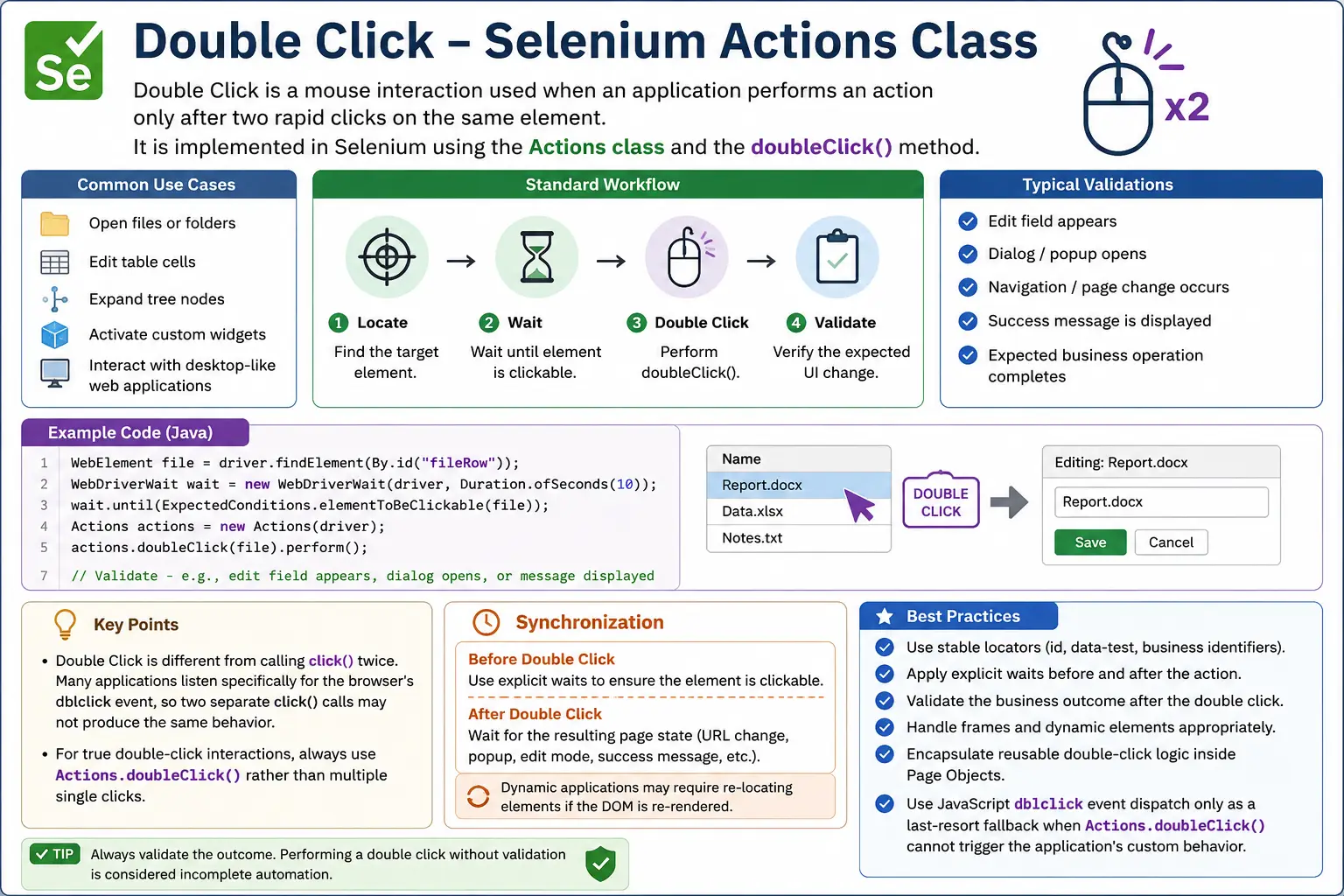
Double-click automation looks simple at first, but real applications can make it tricky. The target element must be visible and stable. The application may animate, re-render, or replace the element after the first click. A table cell may enter edit mode only after the double click is completed. A file row may open a folder, trigger navigation, or display a dialog. A canvas application may depend on the exact pointer coordinate. Because of this, a double-click test must not only perform the action but also validate the outcome.
A good Selenium double-click test follows a clear pattern: wait for the target element, perform the double click using Actions, wait for the expected UI change, and assert the result. This is much stronger than performing doubleClick() and assuming success. In interview and real project work, the key is understanding when double click is needed, how to perform it, and how to make the test stable in dynamic applications.
2. When Double Click Is Used
Double click is usually used when the application wants to distinguish selection from activation. A single click may select a row, highlight a card, focus a file, or place the cursor. A double click may open the file, enter edit mode, expand a tree node, or launch a detailed view. This desktop-style behavior is still common in rich web applications.
- File managers where double click opens a folder or file
- Editable data grids where double click opens cell edit mode
- Canvas applications where double click creates or edits objects
- Tree structures where double click expands or opens a node
- Custom widgets that require activation after selection
- Admin dashboards with row-level detail screens
Before automating, confirm that the requirement really needs double click. Sometimes applications respond to single click, Enter key, or an edit icon. Testing the intended user behavior is important. If the real requirement is double click, use Actions. If a simpler interaction is officially supported, prefer the simpler user path.
3. Required Import
The required import for double click is the Selenium Actions class:
import org.openqa.selenium.interactions.Actions;Most practical examples also require WebDriver, WebElement, By, WebDriverWait, ExpectedConditions, Duration, Alert, Keys, JavascriptExecutor, and assertions from TestNG or JUnit depending on the framework.
4. Basic Double Click Example
The basic pattern is to locate the element and call doubleClick(element).
WebElement element = driver.findElement(By.id("doubleClickBtn"));

Actions actions = new Actions(driver);
actions.doubleClick(element).perform();
This simulates a user double-clicking the element. The action does not become meaningful until the test verifies what happened afterward. For a demo button, that may be a message. For a file row, it may be navigation. For a table cell, it may be an input field appearing.
5. Double Click Using CSS Selector and XPath
Double click works with any locator strategy that returns the correct WebElement. CSS selector example:
WebElement element =
    driver.findElement(By.cssSelector(".dbl-click"));

new Actions(driver)
    .doubleClick(element)
    .perform();
XPath example:
WebElement element =
    driver.findElement(By.xpath("//button[text()='Double Click Me']"));

new Actions(driver)
    .doubleClick(element)
    .perform();
Use stable locators. If the application has dynamic classes, generated IDs, or changing text, request a stable test attribute or choose a locator based on business meaning. A double click on the wrong row or cell can cause misleading test results.
6. Move to Element and Double Click
Sometimes moving to the element first makes the interaction more reliable. This is useful when the element needs hover, when the pointer position matters, or when the UI changes on mouse movement.
WebElement element = driver.findElement(By.id("item"));

new Actions(driver)
    .moveToElement(element)
    .doubleClick()
    .perform();
This first moves the mouse pointer to the element and then performs the double click at the current pointer location. If the element displays an overlay or action state on hover, this approach may be more representative of a real user interaction.
7. Double Click with Explicit Wait
Always wait for dynamic elements before double-clicking. A visible element may not be clickable yet if animation, loading, or overlay behavior is still active.
WebDriverWait wait =
    new WebDriverWait(driver, Duration.ofSeconds(10));

WebElement element = wait.until(
    ExpectedConditions.elementToBeClickable(By.id("doubleClickBtn"))
);

new Actions(driver)
    .doubleClick(element)
    .perform();
This is more stable than locating the element immediately. It gives the application time to render the target and avoids clicking before the element is ready.
8. Double Click and Validate Message
A complete double-click test validates the result. If the application shows a message, wait for the message and assert its text.
WebDriverWait wait =
    new WebDriverWait(driver, Duration.ofSeconds(10));

WebElement button = driver.findElement(By.id("doubleClickBtn"));

new Actions(driver)
    .doubleClick(button)
    .perform();

WebElement msg = wait.until(
    ExpectedConditions.visibilityOfElementLocated(By.id("successMsg"))
);

Assert.assertEquals(
    msg.getText().trim(),
    "Double click successful"
);
This proves that the double click triggered the application state, not merely that Selenium attempted a gesture.
9. Double Click to Edit Table Cell
Editable grids are a common real project use case. A double click on a cell may replace the text with an input field. The test should wait for the cell, double click it, wait for the input, type the new value, and save.
WebDriverWait wait =
    new WebDriverWait(driver, Duration.ofSeconds(10));

WebElement cell = wait.until(
    ExpectedConditions.visibilityOfElementLocated(
        By.cssSelector("td.editable")
    )
);

new Actions(driver)
    .doubleClick(cell)
    .perform();

WebElement input = wait.until(
    ExpectedConditions.visibilityOfElementLocated(
        By.cssSelector("td.editable input")
    )
);

input.clear();
input.sendKeys("Updated Value");
input.sendKeys(Keys.ENTER);
After saving, validate that the cell contains the updated value. If the grid saves asynchronously, wait for the final text or a success indicator.
10. Double Click on Table Cell by Text
You can locate a specific table cell by visible text and double-click it.
WebElement cell =
    driver.findElement(By.xpath("//td[text()='John']"));

new Actions(driver)
    .doubleClick(cell)
    .perform();
This is useful when the row or cell is identified by business text. For more complex tables, locate the correct row first and then find the correct cell within that row to avoid editing the wrong field.
11. Double Click with Offset
For canvas, image, chart, map, or custom coordinate-based areas, double-clicking a specific offset may be required.
WebElement canvas = driver.findElement(By.id("canvas"));

new Actions(driver)
    .moveToElement(canvas, 80, 40)
    .doubleClick()
    .perform();
Offset-based double click is more fragile than element-based double click because it depends on layout, browser window size, zoom, and rendering. Use it only when the application behavior depends on a coordinate inside a larger element.
12. Double Click Inside Frame
If the target is inside an iframe, switch into the frame before locating the element.
driver.switchTo().frame("frame1");

WebElement element =
    driver.findElement(By.id("doubleClickBtn"));

new Actions(driver)
    .doubleClick(element)
    .perform();

driver.switchTo().defaultContent();
If Selenium cannot find a visible double-click element, inspect whether it is inside a frame. Frame context is one of the most common causes of element lookup failures.
13. Double Click and Handle Alert
Some applications or demo pages show a browser alert after double click. Handle it with Selenium's Alert API.
WebElement element =
    driver.findElement(By.id("doubleClickBtn"));

new Actions(driver)
    .doubleClick(element)
    .perform();

Alert alert = driver.switchTo().alert();
System.out.println(alert.getText());
alert.accept();
For custom modals, use normal locators and waits instead of the Alert API. Inspect the UI to determine whether the dialog is browser-native or web-based.
14. Double Click and Verify CSS Change
Some widgets change style after double click. Selenium can read CSS values after the action.
WebElement element =
    driver.findElement(By.id("doubleClickBtn"));

new Actions(driver)
    .doubleClick(element)
    .perform();

String color = element.getCssValue("background-color");
System.out.println("New color: " + color);
CSS assertions should be used when styling is the actual requirement. For business behavior, prefer assertions that validate state, text, navigation, or data changes.
15. Double Click Multiple Elements
You may need to double-click multiple items in a list. Be careful with dynamic DOM updates after each interaction.
List<WebElement> elements =
    driver.findElements(By.className("dbl-item"));

Actions actions = new Actions(driver);

for (WebElement el : elements) {
    actions.doubleClick(el).perform();
}
If double-clicking one item changes the page or re-renders the list, previously captured elements may become stale. Re-locate elements inside the loop when necessary.
16. Double Click and Open Edit Mode
Many enterprise grids and forms use double click to open edit mode.
WebElement element =
    driver.findElement(By.id("editableField"));

new Actions(driver)
    .doubleClick(element)
    .perform();

driver.findElement(By.id("editInput"))
      .sendKeys("Updated Value");
A stronger test waits for the edit input, clears it, enters a value, saves, and validates the final display text. This validates the workflow rather than only the double-click trigger.
17. Double Click with Pause
If an element needs hover or animation settling before double click, a short Actions pause can be used.
WebElement element =
    driver.findElement(By.id("doubleClickBtn"));

new Actions(driver)
    .moveToElement(element)
    .pause(Duration.ofMillis(300))
    .doubleClick()
    .perform();
Use pauses carefully. Prefer explicit waits for real conditions. A pause can be acceptable when the UI has a known animation requirement, but it should not replace proper synchronization.
18. Double Click After Hover
Some elements become active after hover and then require double click.
WebElement element =
    driver.findElement(By.id("hoverThenDouble"));

Actions actions = new Actions(driver);

actions.moveToElement(element)
       .doubleClick()
       .perform();
If hover reveals the element or changes its state, wait for that state before double-clicking where possible.
19. Double Click and Navigate
Some applications navigate after double click, such as opening a file or record.
WebElement element =
    driver.findElement(By.id("doubleClickLink"));

new Actions(driver)
    .doubleClick(element)
    .perform();

System.out.println("Current URL: " + driver.getCurrentUrl());
A production test should wait for the navigation result, such as a URL change, page heading, loaded detail panel, or record title. Printing the URL is useful for debugging but not a final assertion.
20. JavaScript Double Click Fallback
If Actions fails and the application listens specifically for a dblclick event, JavaScript can dispatch that event. This should be used only as a fallback.
WebElement element =
    driver.findElement(By.id("doubleClickBtn"));

JavascriptExecutor js = (JavascriptExecutor) driver;

js.executeScript(
    "var evt = new MouseEvent('dblclick', {bubbles:true});" +
    "arguments[0].dispatchEvent(evt);",
    element
);
JavaScript can bypass real pointer behavior. If the test goal is to verify actual user double-click behavior, prefer Actions. If JavaScript is used, validate the resulting UI state carefully and document why fallback is needed.
21. Handle Stale Element with Retry
Modern applications can re-render between locating the element and performing the double click. A limited retry method can help when stale references are expected.
public void doubleClickWithRetry(By locator) {
    WebDriverWait wait =
        new WebDriverWait(driver, Duration.ofSeconds(10));

    for (int attempt = 0; attempt < 3; attempt++) {
        try {
            WebElement element = wait.until(
                ExpectedConditions.elementToBeClickable(locator)
            );
            new Actions(driver)
                .doubleClick(element)
                .perform();
            return;
        } catch (StaleElementReferenceException ignored) {
        }
    }

    throw new RuntimeException(
        "Double click failed due to stale element: " + locator
    );
}
Retries should be limited and purposeful. If every attempt fails, the test should fail clearly. After retry success, still validate the expected result.
22. Headless Mode Stability
Double-click tests can behave differently in headless execution if viewport size changes the layout. Set a predictable window size in Chrome headless.
ChromeOptions options = new ChromeOptions();

options.addArguments("--headless=new");
options.addArguments("--window-size=1920,1080");
If a double-click test passes locally but fails in CI, inspect the CI screenshot. The element may be off-screen, covered, rendered in a mobile layout, or blocked by a modal or banner.
23. Common Issues and Fixes
| Issue | Cause | Fix |
|---|---|---|
| Double click not triggered | Element not clickable or wrong target | Wait for clickability and verify locator |
| Element moves | Animation or UI transition | Wait for stable state |
| Click intercepted | Overlay present | Wait for overlay invisibility |
| Headless issue | Small viewport or different rendering | Set stable window size |
| Stale element | Framework re-render | Re-locate and retry carefully |
24. Understanding the Double-Click Event
A double click is not just two random clicks in a test script. Browsers generate a sequence of mouse events, including click-related events and a final dblclick event when the timing and target match. Applications may listen to the double-click event directly, or they may interpret two clicks through their own logic.
This matters because calling click() twice is not always equivalent to a true user double click. Two separate WebDriver clicks may be slower or may trigger different intermediate state. The Actions doubleClick() method is designed to express the double-click gesture more directly.
If an application depends on exact event behavior, prefer Actions over repeated simple clicks. Use JavaScript dblclick fallback only when you have confirmed that the application listens for that event and Actions cannot trigger it reliably.
25. Locator Strategy for Double Click
Double-click tests require precise locators. If the test double-clicks the wrong table cell, wrong file row, or wrong canvas object, the resulting behavior may still look valid but test the wrong thing. Use locators that express business intent: file name, row identifier, cell header, card title, or stable test attribute.
For tables, locate the correct row first, then locate the cell within that row. For file managers, locate by file name. For tree structures, locate by node label. For editable grids, locate by row and column rather than the first editable cell. This makes the test more readable and reduces accidental false positives.
26. Dynamic UI and Framework Behavior
React, Angular, Vue, and similar frameworks may re-render after click or double click. A single click may select an item and update state before the double-click sequence completes. Some applications replace a text cell with an input field after double click, which means the old element no longer exists.
To handle this, locate elements as close to the action as possible, wait before the double click, and wait for the new UI state afterward. Do not keep WebElement references across major state transitions. If the double click opens edit mode, use a fresh locator for the input field after the action.
27. Accessibility Perspective
Double-click-only actions can be difficult for some users. Applications should often provide an alternative such as Enter key, an Edit button, a context menu option, or a clearly reachable action control. If a workflow can only be completed through double click, it may create usability and accessibility concerns.
Automation can cover both paths when available. Test double click if it is a supported mouse interaction, but also test keyboard or button alternatives for critical workflows. This is especially relevant in enterprise applications where accessibility requirements matter.
28. Validating Business Outcomes
Double-click validation should match the business purpose. If double click opens a folder, verify the folder contents or breadcrumb. If it enters edit mode, verify the input appears and saving works. If it opens a record detail page, verify the page title or record identifier. If it shows a popup, verify popup visibility and content.
Do not validate only that the double-click command ran. A successful Selenium action does not guarantee that the application completed the workflow. Assertions should confirm what the user expects to happen.
29. Page Object Utility
Repeated double-click behavior should be wrapped in a utility or page object method.
public void doubleClick(By locator) {
    WebElement element = driver.findElement(locator);
    new Actions(driver).doubleClick(element).perform();
}
Usage:
doubleClick(By.id("doubleClickBtn"));For real page objects, prefer intent-based methods such as openFolder("Reports") or editCell(row, column). These methods can include waits, the double click, and final validation.
30. Double Click vs Two Separate Clicks
A common question is whether two normal click() calls are the same as a double click. In many applications, they are not. A browser double click has a specific timing and event sequence. The application may listen for dblclick, and two separate WebDriver click commands may not fire that event in the expected way. They may also trigger single-click behavior twice, which can change the state before the second click occurs.
For example, a grid row may single-click to select and double-click to edit. If your test performs two separate clicks, the first click may select the row and the second click may simply toggle selection or trigger a different behavior. Using Actions.doubleClick() expresses the intended user gesture more accurately.
Use repeated click() only when the application requirement specifically says two separate clicks are needed. For a true double-click interaction, use the Actions class.
31. Editable Grid Workflow Design
Editable grids are one of the most practical uses of double click in enterprise automation. A user double-clicks a cell, an input appears, the user changes the value, saves, and the grid updates. This workflow should be treated as more than a double-click action. It is an edit workflow with several states.
A robust test should locate the correct row and column, double-click the cell, wait for edit mode, enter the new value, submit the change, and validate the saved value. If the grid updates through an API, wait for save completion. If the application shows a success message, validate it. If the value persists after refresh, verify persistence if that is part of the requirement.
Do not rely on a generic td.editable selector in serious tests unless there is only one editable cell. Use row identifiers and column relationships. This prevents editing the wrong cell when table order changes.
32. File Manager and Tree UI Patterns
File managers and tree structures often use desktop-like behavior. A single click selects a file or node, while a double click opens it. In a web application, this may update a breadcrumb, open a preview, navigate to a folder, or expand a tree branch. These tests should validate the resulting state.
For a file manager, double-clicking a folder should show that folder's contents. Validate the folder title, breadcrumb, URL, or visible files. For a tree, double-clicking a node may expand children or open details. Validate the child nodes or detail panel. These assertions prove that the double click produced the expected application behavior.
Desktop-like UIs may also support keyboard alternatives such as Enter. If the workflow is important, testing both double click and keyboard activation can improve coverage and accessibility confidence.
33. Timing and Event Sensitivity
Double click is timing-sensitive. The two clicks must occur close enough together and on the same target for the browser to treat them as a double click. Selenium's Actions class handles this timing better than manual sleeps or repeated calls. However, the application can still be sensitive to animation, overlays, or layout shifts during the action.
If an element moves between clicks because of hover animation or layout change, the double click may fail. If a loading overlay appears after the first click, the second click may be intercepted. If a React component re-renders after selection, the original target may no longer be valid. These are not random Selenium issues; they are timing and state issues.
The best defense is to wait for a stable target before double-clicking and then wait for the expected result afterward. If the UI is moving, wait for the movement to complete. If the application re-renders, locate the element as close to the action as possible.
34. Double Click on Canvas and Charts
Canvas, chart, and diagram applications may require double-clicking a specific coordinate rather than a normal HTML element. For example, double-clicking a shape may open a properties panel, or double-clicking a chart point may show details. Selenium cannot locate individual canvas-drawn objects as normal DOM elements, so offset-based actions may be required.
Offset-based double click should be designed carefully. The coordinate should be calculated or tied to known test data where possible. Hardcoded offsets can break if the canvas size changes, if the browser zoom changes, or if the chart is responsive. When possible, use application APIs, labels, or stable test fixtures to make the canvas state predictable before interaction.
After double-clicking a coordinate, validate a real result such as a details panel, selected object name, modal title, or displayed data. Coordinate actions without strong validation are hard to trust.
35. Handling Overlays and Interception
Double-click actions can be intercepted by overlays, sticky headers, loading masks, cookie banners, modal backdrops, and advertisements. If Selenium reports that another element would receive the click, inspect the page state rather than forcing the action. A real user may also be blocked by the same overlay.
Before double-clicking, wait for loading masks to disappear. Handle cookie banners during setup. Close modals that are not part of the current test. If a sticky header covers the target after scrolling, scroll differently or use a more stable layout position. Interception issues usually indicate that the page is not ready or the test environment is not controlled.
When debugging CI failures, screenshots are especially useful. They show whether the target is covered, off-screen, or rendered differently from local execution.
36. Test Data for Double Click Workflows
Double-click tests often act on specific records, files, rows, or nodes. The test data must be predictable. If a file manager test opens the Reports folder, that folder must exist. If a grid test edits a cell for user John, that row must exist and be unique. If a tree test expands a node, the node should have known children.
Uncontrolled data causes flaky tests. One test may rename a record that another test expects. A previous run may leave a grid in a different state. Sorting or filtering may move rows. Good double-click tests either create their own data, reset data before execution, or use stable seeded data with clear cleanup rules.
Stable data makes locators better too. It lets you find records by meaningful text or identifiers instead of relying on the first row or first file.
37. CI and Headless Debugging
Double-click tests can fail in headless mode when the viewport differs from local runs. A smaller window may switch the application into a responsive layout where the target is hidden or replaced. Set a stable window size and capture screenshots on failure. This helps confirm whether the UI is in the expected layout.
Headless environments may also run more slowly. If the page is still loading or a grid is still rendering, a double click may happen too early. Use explicit waits for the target and the result. Avoid adding broad sleeps because they slow the whole suite and still may not solve the real issue.
If a double-click test fails only in CI, compare local and CI screenshots, browser versions, window sizes, zoom settings, test data, and timing. The cause is usually discoverable with enough evidence.
38. Choosing the Right Strategy
Start with Actions.doubleClick(element) for a normal element. If the element needs hover first, use moveToElement() and then doubleClick(). If the target is coordinate-based, use offset movement. If the element is in a frame, switch first. If the element is dynamic, wait and re-locate close to the action. If Actions cannot trigger an application that listens only for dblclick, JavaScript fallback may be used as a last resort.
The right strategy should be the simplest reliable representation of user behavior. Do not use JavaScript first. Do not use offsets for normal buttons or rows. Do not use repeated simple clicks when a true double-click gesture is required. Choose the method that matches how a real user performs the action.
39. Best Practices
- Always call
perform(). - Use explicit waits before double-clicking.
- Validate the outcome after the double click.
- Use stable locators such as IDs, data attributes, or business text.
- Handle frames before locating target elements.
- Use retry logic carefully for dynamic UIs.
- Use JavaScript fallback only when Actions fails and the app supports
dblclick. - Avoid
Thread.sleep(); wait for real UI states. - Set a consistent viewport in headless execution.
- Wrap repeated double-click logic in page objects.
40. Quick Code Patterns
40.1 Basic Double Click
WebElement element = driver.findElement(By.id("doubleClickBtn"));

Actions actions = new Actions(driver);
actions.doubleClick(element).perform();
40.2 Double Click and Validate Text
WebElement element = driver.findElement(By.id("doubleClickBtn"));

new Actions(driver)
    .doubleClick(element)
    .perform();

String result = driver.findElement(By.id("message")).getText();
System.out.println("Result: " + result);
40.3 Double Click Using Offset
WebElement element = driver.findElement(By.id("canvas"));

new Actions(driver)
    .moveToElement(element, 30, 15)
    .doubleClick()
    .perform();
40.4 Double Click and Validate New Element
WebElement element = driver.findElement(By.id("doubleClickBtn"));

new Actions(driver)
    .doubleClick(element)
    .perform();

WebElement popup = driver.findElement(By.id("popup"));
System.out.println("Popup visible: " + popup.isDisplayed());
40.5 Double Click and Navigate
WebElement element = driver.findElement(By.id("doubleClickLink"));

new Actions(driver)
    .doubleClick(element)
    .perform();

System.out.println("Current URL: " + driver.getCurrentUrl());
41. Interview Perspective
A short interview answer is: double click in Selenium is performed using the Actions class with the doubleClick() method.
A stronger real-time answer is: In Selenium automation, I use the Actions class for double-click interactions, especially in editable tables, file-like UIs, tree structures, and custom widgets. I wait for the element to be clickable, perform doubleClick(), and then validate the UI change such as an input field appearing, a success message displaying, an alert opening, or navigation occurring. For dynamic applications, I handle stale elements with careful re-location or limited retry logic.
42. Final Summary
Double-click automation in Selenium Java is handled with Actions.doubleClick(). It is used when applications perform an action only after a double mouse click, such as opening a file, editing a table cell, expanding a tree node, or activating a custom widget. A reliable double-click test waits for the element, performs the action, waits for the result, and validates the expected state.
Double-click tests should use stable locators, explicit waits, frame handling where needed, and meaningful assertions. JavaScript dblclick fallback should be rare and used only when Actions cannot trigger a supported event. The goal is not only to perform a gesture but to prove that the application responded correctly.