Debugging Failed Tests in Selenium
Debugging Failed Tests in Selenium means analyzing failed automation test cases to identify the real reason for failure and fix the correct problem. A Selenium test can fail because of an application defect, locator issue, timing issue, test data problem, environment problem, browser issue, driver mismatch, Selenium Grid failure, assertion mismatch, or framework design weakness. Debugging is the process that separates these possibilities and finds the actual root cause.
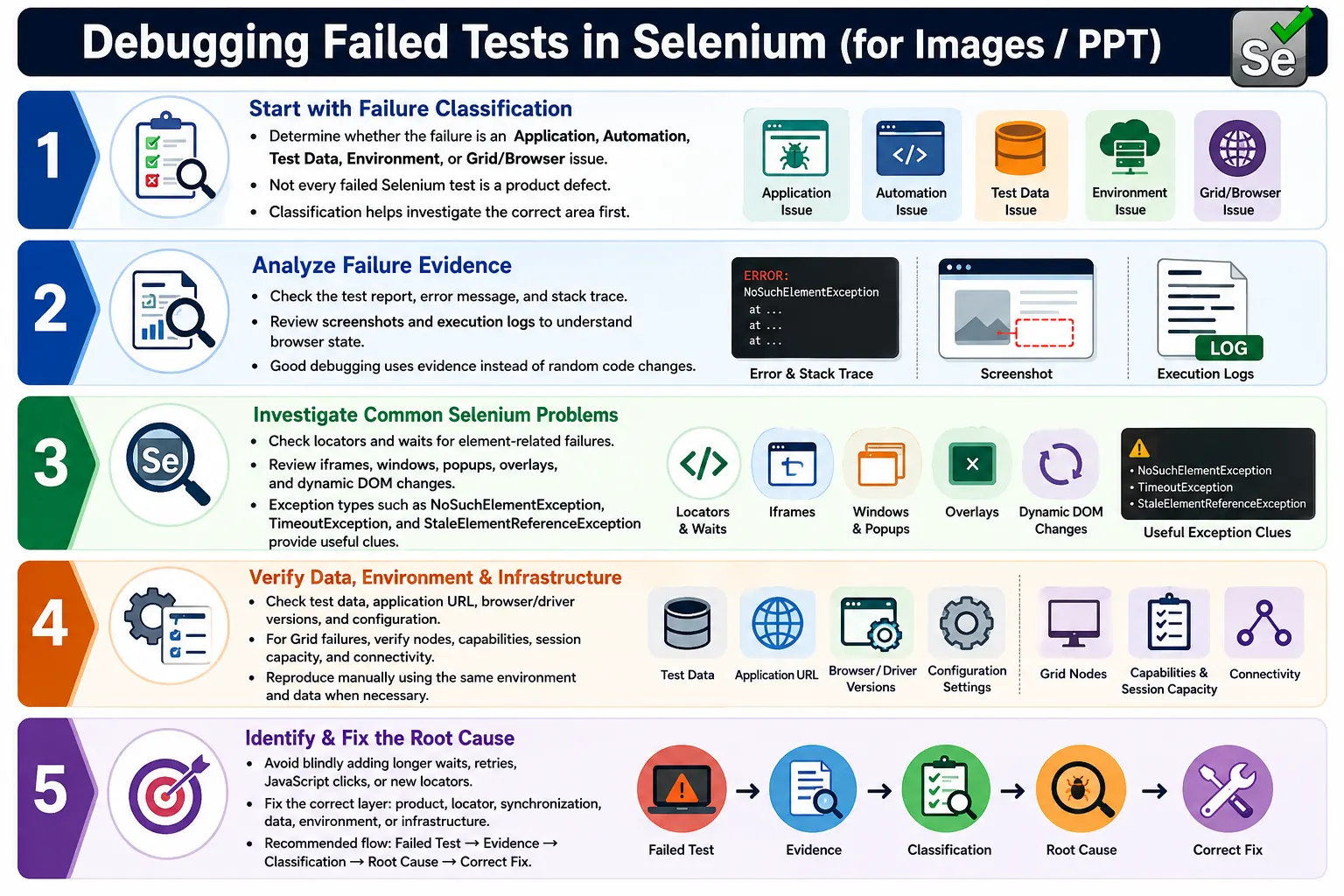
In enterprise automation, debugging is not just reading the last error message and changing code until the test passes. A good debugging process uses test reports, stack traces, screenshots, execution logs, browser console logs, network information, video recordings, test data review, environment validation, and manual reproduction. The goal is not to make the failure disappear temporarily. The goal is to understand why it happened and apply the right fix.
1. What Test Debugging Means
Test debugging is the investigation process used after an automated test fails. A failed test tells the team that something went wrong. Debugging explains why it went wrong. That distinction matters because the same visible failure can have many different causes. A login test may fail because the application rejected valid credentials, because the password expired, because a popup covered the login button, because the environment was down, or because the locator changed.
Failed Test
  Something went wrong

Debugging
  Why did it go wrong?
Good debugging prevents random fixes. Without debugging, testers may increase timeouts, change locators, add retries, or update assertions without understanding the real issue. Those changes can hide defects or create future instability.
2. Why Selenium Tests Fail
Selenium tests fail for many reasons. Application defects are only one category. Automation scripts can fail because locators are wrong, waits are weak, page objects are outdated, test data is invalid, browser sessions are unstable, Grid nodes are unavailable, environment URLs are incorrect, or assertions no longer match requirements.
Not every failed test is a product bug. This is one of the most important debugging principles. A tester should classify the failure before raising a defect. If the application fails manually under the same conditions, it may be a product defect. If manual testing passes but automation fails, the cause may be script logic, synchronization, data, environment, or browser handling.
3. First Rule of Debugging
The first rule is: do not immediately blame the application. Start by classifying the failure. Ask whether it looks like an application issue, automation script issue, environment issue, data issue, or infrastructure issue. This prevents wasted time and avoids incorrect defects being reported to developers.
Failure Classification
  Application Issue?
  Automation Script Issue?
  Environment Issue?
  Test Data Issue?
  Grid or Browser Issue?
Classification does not need to be perfect immediately. It gives the investigation direction. As evidence is reviewed, the classification may change.
4. Debugging Workflow
A practical debugging workflow starts with the report, then error message, stack trace, screenshot, logs, test data, environment details, and manual reproduction. After collecting evidence, classify the failure and fix the correct root cause. If it is an application defect, report it clearly. If it is an automation issue, update the framework or test. If it is environment-related, escalate to the correct owner.
Test Failed
  Check Report
    Read Error Message
      Check Screenshot
        Review Logs
          Reproduce Manually
            Identify Root Cause
              Fix or Report Bug
This sequence avoids guesswork. It also creates a repeatable process that any team member can follow.
5. Check the Test Report
The report gives the first structured view of failure. It should identify the test name, failure step, error message, screenshot, browser, environment, execution time, and sometimes retry status. A good report helps the debugger understand where to start.
Verify Login Test
  FAILED
  ElementClickInterceptedException
  Browser: Chrome
  Environment: QA
If the report does not show enough information, improve reporting. A weak report increases debugging time for every future failure.
6. Read the Stack Trace
The stack trace shows exception type, class name, method name, line number, and the chain of method calls that led to the failure. For example, NoSuchElementException in LoginPage.java:42 called from LoginTest.java:18 tells the debugger that the immediate failure happened inside the LoginPage object at line 42.
The first visible exception is not always the root cause, but it is a strong starting point. If a page object method failed because an element was not found, the root cause may be a locator issue, timing issue, wrong page, iframe, or environment problem. The stack trace tells where the symptom occurred.
7. Check the Screenshot
Screenshots often explain Selenium failures faster than logs. A screenshot can show whether the wrong page opened, a popup blocked the button, a spinner was still visible, an error message appeared, a button was disabled, a layout issue occurred, or the user was logged out. It reveals the actual browser state at the moment of failure.
Every failure should capture a screenshot when possible. In CI/CD, screenshots are especially important because the tester cannot see the browser. Reports should link screenshots clearly to the failed attempt and test name.
8. Check Logs
Logs show the execution flow before failure. Good logs might show that the browser launched, the application opened, the username was entered, the password was entered, the login button was clicked, and the dashboard was not displayed. This helps identify the last successful step.
Browser launched
Application opened
Entered username
Entered password
Clicked login
Dashboard not displayed
Logs should describe meaningful business steps, not only technical clicks. A log saying Clicked button is weaker than User clicked Login after entering valid credentials.
9. Reproduce Manually
After reviewing reports, screenshots, and logs, reproduce the same scenario manually using the same environment, user, test data, and browser when possible. If manual testing also fails, the issue is likely an application defect or environment problem. If manual testing passes, the issue may be automation timing, locator design, test data setup, browser configuration, or framework logic.
Manual reproduction should not be skipped when raising application defects. Developers need confidence that the issue is real and not only an automation artifact.
10. Common Selenium Exceptions
Common exceptions provide clues. NoSuchElementException often means the locator is wrong, the element did not load, the wrong page opened, or the element is inside an iframe. TimeoutException means a wait condition was not satisfied. StaleElementReferenceException means the DOM changed after the element was found. ElementClickInterceptedException means another element blocked the click. ElementNotInteractableException means the element was hidden, disabled, or not ready. WebDriverException often points to browser, driver, or session issues.
NoSuchElementException
  Locator, load, frame, or wrong page issue

TimeoutException
  Wait condition not satisfied

StaleElementReferenceException
  DOM refreshed after lookup

ElementClickInterceptedException
  Overlay or popup blocking click
11. Debugging NoSuchElementException
When NoSuchElementException occurs, first verify whether the locator is correct in browser DevTools. Check whether the element is present at the time of failure. Review the screenshot to confirm the page state. Make sure the test navigated to the expected page. Check whether the element is inside an iframe, shadow DOM, modal, or dynamically loaded section.
Do not blindly add a larger wait. If the locator is wrong, no wait will help. If the element is inside an iframe, the fix is switching frame context. If the wrong page opened, the fix is earlier in the flow. Debugging should identify which condition applies.
12. Debugging TimeoutException
TimeoutException occurs when an explicit wait condition is not satisfied within the configured time. The cause may be slow application response, wrong expected condition, incorrect locator, backend delay, failed navigation, or a real application defect.
wait.until(
        ExpectedConditions.visibilityOfElementLocated(locator)
);
Do not increase timeout first. Ask why the condition failed. Did the element never appear? Did the locator match the wrong element? Did a spinner remain visible? Did the application return an error? A larger timeout only helps if the page is legitimately slow and still within acceptable performance limits.
13. Debugging StaleElementReferenceException
StaleElementReferenceException means Selenium found an element, but the DOM changed before Selenium interacted with it. This is common in applications that re-render components after AJAX calls, filtering, sorting, pagination, or state updates.
wait.until(
        ExpectedConditions.elementToBeClickable(locator)
).click();
A good fix is to re-locate the element after the DOM update and wait for the final stable state. Avoid storing WebElement references too early when the page is dynamic. Store By locators in page objects and locate elements close to the action.
14. Debugging ElementClickInterceptedException
ElementClickInterceptedException means another element is covering the target element. Common blockers include popups, spinners, cookie banners, modals, sticky headers, toast messages, and animations. The screenshot usually reveals the blocking element.
Fixes include waiting for overlays to disappear, closing known popups, scrolling the element into view, waiting for animations to finish, or improving the page object method. JavaScript click should not be the default fix because it can bypass real user behavior and hide usability issues.
15. Debugging Assertion Failures
Assertion failures show a mismatch between expected and actual result. For example, expected Dashboard but actual Login may mean login failed, credentials were wrong, validation appeared, redirection failed, or the application changed requirements.
For assertion failures, review the screenshot, logs, input data, and application state. Determine whether the expected result is still correct. If requirements changed, update the test. If the application behavior is wrong, report a defect. If the test used invalid data, fix the data setup.
16. Debugging Test Data Issues
Test data problems are common in Selenium failures. Signs include invalid username, expired password, duplicate email, missing product, insufficient balance, locked account, unavailable inventory, or reused order number. These failures may look like application defects but are actually data setup problems.
Fixes include using fresh data, resetting data before execution, avoiding shared accounts, generating unique values, using API setup carefully, and cleaning up after tests. In parallel execution, test data must be isolated so tests do not interfere with each other.
17. Debugging Environment Issues
Environment issues are common in CI/CD. Check the URL, environment name, application availability, build version, browser version, driver version, Grid node availability, network connectivity, database state, test user access, and environment configuration. A test that passes locally and fails only in Jenkins often points to environment or infrastructure differences.
Reports should include environment details. If the report does not show browser, URL, environment, headless mode, Grid URL, and build number, debugging becomes slower.
18. Debugging Browser and Driver Issues
Browser and driver issues may appear as SessionNotCreatedException, browser startup failure, browser crash, driver mismatch, or unexpected WebDriverException. These failures often happen after browser updates, driver updates, CI image changes, or Grid configuration changes.
Fixes include checking browser version, driver version, Selenium version, WebDriverManager or Selenium Manager behavior, CI machine configuration, browser options, and operating system dependencies. If the failure happens before the application opens, the issue is probably not an application defect.
19. Debugging Grid Failures
Selenium Grid failures require checking whether the Grid is running, nodes are registered, requested browsers are available, the session queue is full, capabilities match available nodes, and network communication between test runner and Grid is working. Requesting Safari when only Chrome nodes exist will block or fail execution.
Grid dashboards, node logs, session logs, and Jenkins console output are useful. If tests fail before session creation, inspect Grid capacity and capability configuration before changing test logic.
20. Debugging Parallel Execution Failures
Parallel execution failures often come from shared state. Common causes include static WebDriver, shared test data, shared report object, non-thread-safe utilities, same screenshot filenames, shared page objects, and static variables that are modified by multiple tests.
Use ThreadLocal<WebDriver>, independent test data, thread-safe report handling, unique filenames, and per-test context. If a failure happens only in parallel mode, review thread safety before blaming the application.
21. Use Breakpoints in IDE
For local debugging, IDE breakpoints are useful. Add a breakpoint at the failing line, run the test in debug mode, inspect variables, step into page methods, check locator values, and observe browser state. This is especially useful when debugging script logic, condition checks, data values, or page object methods.
Breakpoints are less useful in CI, but they are excellent for reproducing and understanding local failures. Once the root cause is understood, fix the framework or test so the issue does not recur.
22. Use Browser DevTools
Browser DevTools is essential for UI automation debugging. Use Elements panel to verify locators, Console panel to inspect JavaScript errors, Network panel to review failed API calls, Application panel to inspect cookies and storage, and DOM inspection to understand dynamic updates.
DevTools can quickly reveal whether the element exists, whether the locator matches multiple elements, whether a hidden element is used, whether the UI is blocked by an overlay, or whether the backend call failed.
23. Use Screenshot, Logs, and Stack Trace Together
The strongest debugging evidence combines screenshot, logs, and stack trace. Screenshot gives visual proof. Logs show execution flow. Stack trace provides technical failure location. Separately, each can be incomplete. Together, they usually reveal the failure story.
Screenshot
  Visual State

Logs
  Execution Flow

Stack Trace
  Technical Failure Point
24. Common Beginner Mistakes
Common mistakes include checking only the last error message, increasing wait time blindly, ignoring screenshots, assuming every failure is a bug, not reproducing manually, ignoring test data, ignoring environment differences, and debugging parallel failures without checking thread safety.
Another mistake is applying fixes without evidence. Adding sleeps, retries, JavaScript clicks, or new locators may make the test pass once, but it can make the framework weaker. Debugging should be evidence-driven.
25. Best Practices
Capture screenshots on every failure. Generate detailed reports. Log meaningful business steps. Keep stack traces in reports. Use explicit waits. Use stable locators. Keep tests independent. Use unique test data. Reproduce manually before raising defects. Classify failures before fixing. Preserve CI artifacts such as screenshots, logs, and reports.
Best practices should be built into the framework. Do not rely on each tester to remember every debugging step manually. Listeners, report utilities, screenshot utilities, and logging standards should collect evidence automatically.
26. Defect or Automation Issue
To decide whether a failure is a defect or automation issue, ask focused questions. Does the same scenario fail manually? If yes, it is likely an application defect. Does the locator fail only in automation? It may be an automation issue. Does it fail only in CI? It may be environment or Grid related. Does it fail randomly? It may be flaky or synchronization related. Does it fail only for one data row? It may be test data related.
Manual Failure
  Application Defect

Automation Only Failure
  Script, locator, wait, or framework issue

CI Only Failure
  Environment or Grid issue

Random Failure
  Flaky or synchronization issue
27. Debugging in CI/CD
CI/CD debugging requires strong artifacts because the browser is usually not visible. Jenkins or another CI tool should archive reports, screenshots, logs, Surefire reports, Extent Reports, browser console logs where possible, and execution configuration. Without artifacts, CI failures become difficult to reproduce.
When a test fails only in CI, compare local and CI execution. Check browser version, headless mode, window size, environment variables, file paths, network access, Grid URL, test data, and timing. CI failures often reveal assumptions that were hidden on a local machine.
28. Root Cause Analysis
Root cause analysis means identifying the real reason behind the failure, not only the visible symptom. For example, NoSuchElementException is a symptom. The root cause may be that the user was not logged in, the page redirected, the locator changed, the element loaded late, or the element moved into an iframe.
A good root cause statement is specific. Instead of saying "test failed due to Selenium issue," say "test failed because the login success wait checked the dashboard title before the redirect completed." Specific root causes lead to specific fixes.
29. Fixing the Correct Layer
After identifying root cause, fix the correct layer. If the product is wrong, raise a defect. If the locator is weak, update the page object. If the wait is wrong, improve synchronization. If data is invalid, fix data setup. If Grid is overloaded, tune infrastructure. If a report lacks evidence, improve the framework.
Fixing the wrong layer creates future problems. Adding a retry for a product defect hides the defect. Increasing timeout for a wrong locator wastes time. Changing expected results without confirming requirements weakens validation.
30. Debugging Checklist
A practical debugging checklist includes: read the report, identify failed test and step, read stack trace, inspect screenshot, review logs, check data, confirm environment, reproduce manually, inspect locator in DevTools, check frames and windows, verify waits, review browser and driver versions, check Grid status, classify failure, and fix the correct root cause.
Using a checklist improves consistency. It also helps new automation engineers learn a disciplined debugging approach instead of relying on random trial and error.
31. Interview Perspective
A short interview answer is: debugging failed Selenium tests involves analyzing reports, screenshots, logs, stack traces, test data, browser state, and environment details to identify whether the failure is due to an application defect, automation issue, data issue, or environment problem.
A stronger real-time answer is: in my Selenium framework, failed tests are debugged using Extent Reports, screenshots, logs, and stack traces. First, I check the failure message and the exact line where the test failed. Then I review the screenshot to understand the UI state and check logs to identify the last successful action. If needed, I reproduce the scenario manually to determine whether it is an application defect or automation issue. For Selenium-specific failures, I check locator stability, waits, frames, windows, browser versions, Grid nodes, and test data. This structured approach helps identify the true root cause instead of applying random fixes.
32. Debugging with Browser Console Logs
Browser console logs can reveal JavaScript errors, failed client-side validations, blocked resources, CORS problems, and framework runtime issues. A Selenium test may fail because a button did not behave correctly, but the browser console may show that a JavaScript error occurred before the click handler executed. Without console logs, the failure may look like a Selenium timing issue.
Console logs are especially useful when debugging modern single-page applications. React, Angular, Vue, and other JavaScript frameworks often report errors in the console before the UI visibly breaks. If a page looks normal in a screenshot but a key action does nothing, check the console. A JavaScript exception may have stopped the workflow.
In CI/CD, browser console logs can be captured and attached to reports. This is not always enabled by default, but for critical pipelines it can save significant debugging time. Console logs should be reviewed alongside screenshots and stack traces, not as a replacement for them.
33. Debugging with Network Information
Network failures are another common hidden cause of Selenium test failures. The UI may not show expected data because an API request failed, timed out, returned a server error, or returned an unexpected response. Selenium sees only the browser state, but the real issue may be behind the page in the network layer.
Browser DevTools Network tab helps identify failed requests, slow APIs, blocked calls, incorrect status codes, and missing payloads. If a search results table is empty, the cause may be a backend response issue. If a dashboard never loads, the cause may be a failed API call. If login appears successful but redirect fails, an authentication or session call may be failing.
For deep investigation, teams may capture network logs through browser DevTools protocol, proxy tools, or application logs. This is useful for intermittent CI failures where manual reproduction is difficult.
34. Debugging Windows, Tabs, and Frames
Some failures happen because Selenium is looking in the wrong context. If an element is inside an iframe, Selenium must switch to that frame before locating it. If a click opens a new window or tab, Selenium must switch to the correct window handle. If the test remains in the old window, locators for the new page will fail.
When a locator looks correct in DevTools but Selenium cannot find it, check frame context. When the screenshot shows one page but the expected element belongs to another page, check window handles and navigation. Context mistakes are common in applications with payment gateways, embedded reports, file previews, chat widgets, and authentication popups.
Good page objects should handle context switching clearly. Test methods should not have hidden frame or window assumptions scattered across the codebase.
35. Debugging File Upload and Download Failures
File upload and download tests fail for reasons that are different from normal UI tests. Upload failures may be caused by wrong file path, missing file in CI workspace, hidden file input, unsupported file type, file size restrictions, or OS-specific path handling. Download failures may be caused by browser download preferences, blocked prompts, incorrect download directory, slow download completion, or file name mismatch.
When debugging upload failures, confirm that the file exists on the machine where the test runs. A path that works locally may not exist in Jenkins. Use project-relative paths or configuration-driven paths. For downloads, verify browser preferences and wait until the file is fully downloaded before asserting. Partial download files can produce false failures.
36. Debugging Headless Failures
A test may pass in headed mode and fail in headless mode. Common causes include different viewport size, missing browser permissions, download handling differences, graphics behavior, hidden responsive layouts, or timing differences. Headless failures should be investigated by capturing screenshots and comparing page layout with headed execution.
Set a consistent window size in headless mode. Many failures happen because the default headless viewport is smaller than expected, causing menus to collapse or elements to move. If the application behaves differently at mobile widths, a headless test may accidentally run against a responsive layout that the test was not designed for.
Do not assume headless mode is the problem by itself. Often the real issue is viewport, timing, permissions, or download configuration.
37. Debugging Retry-Passed Tests
If a test fails first and passes on retry, the team should still investigate. A retry pass means the final build may be green, but the first failure contains useful information. It may indicate a synchronization issue, environment delay, data conflict, Grid instability, or application performance problem.
Retry attempts should be logged clearly. Screenshots from failed attempts should be preserved. Reports should show that a retry occurred. If the same test regularly passes only after retry, it should be treated as flaky and assigned for root cause analysis. Retry should reduce false failure noise, not hide recurring instability.
38. Debugging Slow Failures
Some tests fail only after a long delay. These failures often involve timeouts, slow pages, backend delays, Grid queue time, or inefficient waits. Debugging slow failures requires measuring where time is spent. Is the browser slow to start? Is the login API slow? Is the page waiting for data? Is a wait condition checking the wrong element? Is the test stuck in a retry loop?
Execution timestamps in logs are useful. If each log entry has time, the debugger can identify the slow step quickly. Without timestamps, it is hard to distinguish a slow application response from a slow framework operation.
39. Debugging After Requirement Changes
Sometimes a test fails because the requirement changed, not because the application or automation is wrong. For example, a button label may change, a workflow may add a confirmation step, a validation message may be rewritten, or a redirect may go to a new page. In these cases, the test expectation must be reviewed against the latest requirement.
Before reporting a defect for assertion mismatch, confirm whether the expected result is still valid. Automation tests are living documentation of expected behavior. When behavior changes intentionally, tests must be updated. When behavior changes unintentionally, a defect should be raised.
40. Debugging Documentation
Important debugging findings should be documented. If a failure root cause is unusual, record it in the defect, test notes, framework documentation, or team knowledge base. Examples include known Grid capability issues, special iframe handling, environment reset rules, data setup requirements, and browser-specific behavior.
Documentation reduces repeated investigation. If the same issue appears later, the team can resolve it faster. Debugging knowledge should not stay only in one person's memory.
41. Debugging Governance
Debugging governance means the team has rules for how failures are investigated and classified. For example, failures should not be closed without evidence. Product defects should include manual reproduction steps when possible. Automation defects should identify the framework or script root cause. Environment issues should include environment details and timestamps. Flaky tests should be tracked separately.
Governance prevents random fixes and improves trust. When everyone follows the same debugging process, reports become clearer, defects become better, and automation maintenance becomes more predictable.
42. Key Takeaway
Debugging failed tests is not about making the test pass somehow. It is about identifying the real root cause and fixing the right problem. A failed Selenium test should be analyzed with reports, screenshots, logs, stack traces, browser state, environment details, and manual reproduction before deciding whether it is an application defect, automation issue, data issue, or environment issue.
Failed Test
  Report + Screenshot + Logs
    Classify Failure
      Application Defect
      Automation Issue
      Test Data Issue
      Environment Issue
        Fix Correct Root Cause
The most important practices are to collect strong failure evidence automatically, classify the failure before fixing, avoid random changes, reproduce manually when needed, inspect locators and waits carefully, review test data and environment, and fix the correct layer. A disciplined debugging process makes Selenium automation more reliable, maintainable, and trusted by the team.