Date Pickers
Date pickers are one of the most challenging UI elements in Selenium because many are custom JavaScript widgets (not simple inputs). The right automation strategy depends on the type of date picker.
In Selenium, you'll typically face these 3 types:
- Simple input date (
<input type="date">) - Input + calendar popup (custom) (most common)
- Date-time pickers (date + time)
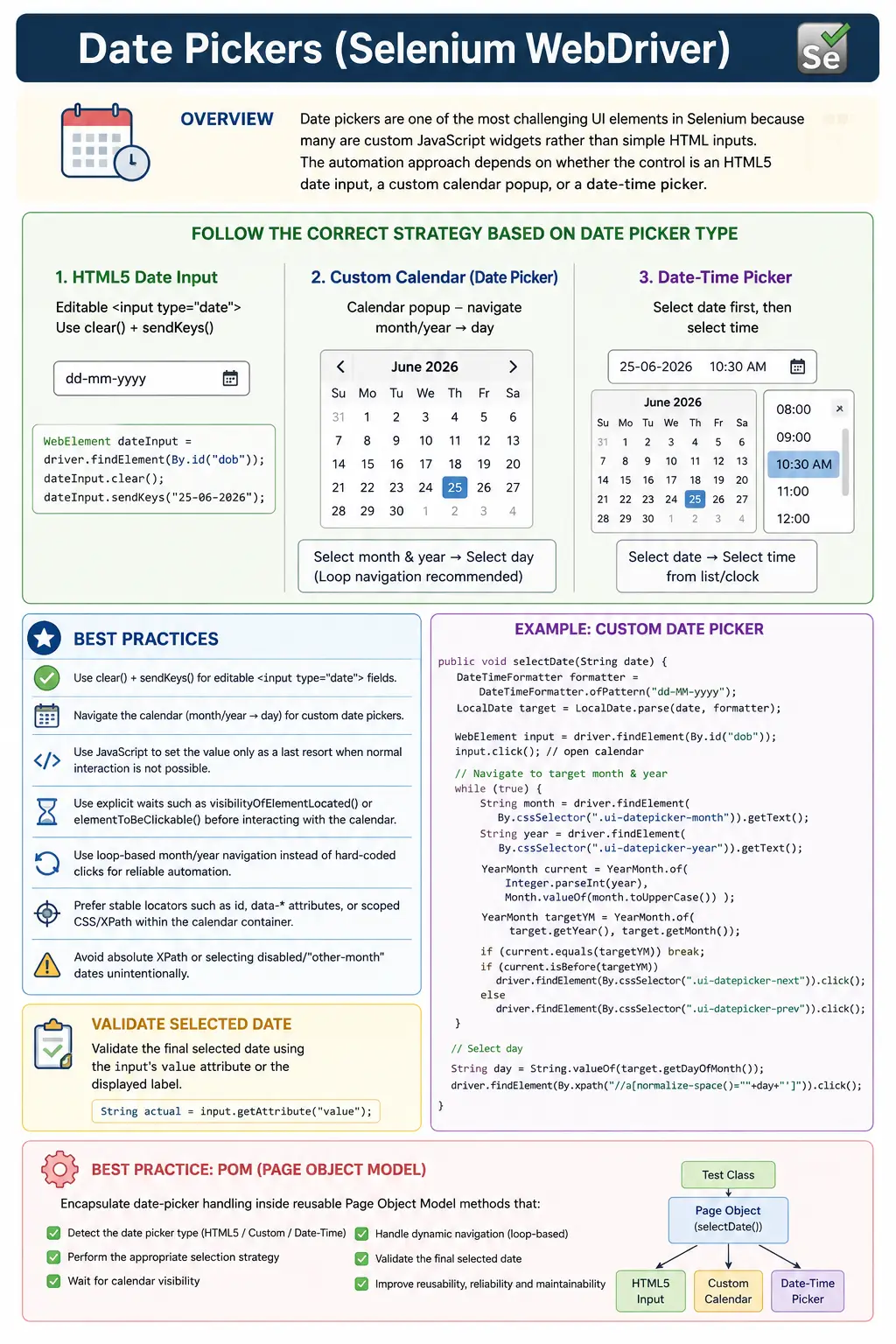
Understanding Date Pickers in Selenium
Date pickers are UI controls that allow users to choose a date, a date range, or a date and time from an input field or calendar widget. They look simple to users because the interaction is visual: click the field, choose a month, choose a day, and continue. For Selenium automation, date pickers can be challenging because the visible control may be implemented in several different ways. Some are plain HTML5 date inputs. Some are custom JavaScript calendars. Some have separate month and year dropdowns. Some render inside modals or overlays. Some support ranges, disabled dates, time lists, localization, and dynamic validation.
The most important skill in date picker automation is choosing the correct strategy for the actual control. Selenium does not care that a widget looks like a calendar. It interacts with the DOM. If the date picker is a normal editable input, typing the date may be the fastest and most stable option. If typing is blocked, Selenium must open the calendar and select the date through the UI. If the calendar is extremely complex or hidden behind framework behavior, JavaScript may be used as a last resort to set the value and trigger the appropriate change event. The correct solution depends on how the date picker is built and how the application validates the selected value.
Date picker questions are common in interviews because they reveal whether a tester can think beyond one
Selenium command. A weak answer says, "I click the date." A strong answer says, "First I identify whether it
is an editable input or a custom calendar. If the input accepts typing, I use sendKeys() with
the expected format and validate the value. If it is a custom calendar, I open it, wait for the calendar,
navigate to the target month and year, select the enabled day, and validate the final field value." That
answer reflects real project practice.
Why Date Pickers Are Harder Than Normal Inputs
A standard text box has a direct relationship between the user's action and the field value. A user types text, and the input value changes. A date picker may involve multiple layers. The visible field may be read-only. The calendar may appear only after a click. The day cells may be buttons, links, table cells, or divs. The selected date may be stored in a hidden input while the visible text is formatted differently. The application may reject weekends, holidays, future dates, or dates outside a business range. Automation must respect these rules.
Date pickers also introduce format problems. An HTML5 date input usually stores values as
yyyy-MM-dd, even if the browser displays the date differently to the user. A business
application may display February 14, 2026, while the input value is
2026-02-14. Another application may expect 02/14/2026 or
14/02/2026 depending on locale. Tests that ignore date format can pass in one browser and fail
in another. A reliable test understands what value the application expects and what value should be
asserted.
Many date pickers are also dynamic. Calendar widgets may re-render when moving between months. React, Angular, and Vue components may replace day elements after every navigation click. A WebElement found before clicking the next month may become stale after the UI updates. This is why date picker automation should re-locate changing elements after navigation and use explicit waits instead of fixed sleeps.
Choosing the Right Date Picker Strategy
Use Typing When the Input Allows It
If the date field accepts typing, direct input is usually the best strategy. It is fast, readable, and less
dependent on calendar layout. For HTML5 date inputs, the safest format is often yyyy-MM-dd.
For custom text inputs, the format depends on the application. After typing, the test should validate the
field value with getAttribute("value") or validate the visible label if the date is rendered
outside the input.
Direct typing is not always available. Some date fields are read-only to force users to choose from the
calendar. Others allow typing but validate only after blur, Tab, or Enter. In those cases, the test may need
to send Keys.TAB after entering the date so the application triggers validation. The main
principle is simple: if the application supports user typing, automate the user typing path before
attempting complex calendar navigation.
Use Calendar Navigation When Typing Is Blocked
If typing is blocked, the test must use the calendar UI. The common flow is to click the date field, wait for the calendar popup, navigate to the required month and year, select the correct day, and validate the selected value. Navigation may use next and previous buttons, month and year dropdowns, a year picker view, or direct month/year selection. The code should be written around the widget's actual behavior.
Calendar navigation should be controlled by visible state, not by assumptions. For example, instead of clicking the next button ten times because the target date is ten months away, the helper should read the current month-year header, compare it with the target, and continue until the target month-year is visible. This makes the code reusable and easier to diagnose when it fails.
Use JavaScript Only as a Last Resort
JavaScript can set an input value directly, and sometimes that is necessary. However, it should not be the first choice for every date picker. A JavaScript value assignment may bypass user events that the application depends on. Many frameworks listen for input, change, blur, or custom events. If JavaScript sets the value but does not dispatch the required event, the UI may show one value while the application state remains unchanged.
When JavaScript is used, it should usually set the value and dispatch a change event. Some frameworks may need an input event as well. The test should always validate the final application state after using JavaScript. This confirms that the date was not only written into the DOM but also accepted by the application.
Automating HTML5 Date Inputs
HTML5 date inputs are the simplest date picker case. The DOM contains an input such as
<input type="date">. Depending on the browser, the user may see a native calendar icon or
date control. Selenium can often type the value directly. The recommended value format is usually
yyyy-MM-dd, because that is the standard value format for HTML date inputs.
Browser and locale behavior can still matter. A browser may display the date in the user's regional format,
while the underlying value remains ISO formatted. That means validation should read the input's
value attribute, not the visual display. If a test sends 02/14/2026 into an HTML5
date input, it may work in one context and fail in another. Sending 2026-02-14 is generally
more reliable for native date inputs.
Some HTML5 date inputs respond better to selecting all text before typing rather than calling
clear(). A robust helper may click the field, send Control+A, type the date, and then send Tab
to trigger validation. The exact implementation should be based on how the application behaves in the
supported browsers.
Automating Custom Calendar Popups
Custom calendar popups are the most common date picker type in enterprise web applications. A user clicks a field and a calendar panel appears. The panel may show one month, two months, a year picker, navigation arrows, disabled dates, and footer buttons such as Today, Clear, Apply, or Cancel. Selenium must interact with the same elements a user would.
The first requirement is to wait for the calendar to be visible. It is not enough to click the input and
immediately locate a day. The calendar may animate or render asynchronously. The second requirement is to
scope locators to the active calendar. This matters when multiple calendars exist on the page or when
hidden calendars remain in the DOM. A broad XPath such as //td[text()='14'] may click the wrong
day if another month grid is present. A scoped locator inside the visible calendar container is safer.
The third requirement is to avoid disabled or other-month dates unless the test intentionally selects them.
Many calendars show trailing days from the previous or next month. Clicking a visible 14 may
select a day from the wrong month if the XPath is too broad. Reliable locators exclude disabled classes,
other-month classes, or hidden cells. If the widget provides attributes such as data-date, that
is often the best locator because it maps directly to the target date.
Month and Year Navigation
Month and year navigation is where many date picker tests become fragile. The common mistake is hardcoding a number of next clicks. That may work today, but it fails when the current date changes, when the default calendar month changes, or when the target date is updated. A better approach is to read the displayed month-year header and navigate until it matches the target.
If the target date is in the future, click the next button until the header matches. If the target date is in the past, click the previous button. A more advanced helper can parse the current and target month-year values into date objects and choose the correct direction automatically. This avoids infinite loops and unnecessary clicks. A max navigation limit is also useful so the test fails clearly if the calendar cannot reach the target month.
Some widgets provide month and year dropdowns. This is usually faster than repeated navigation clicks. If
the month and year controls are native select elements, Selenium's Select class can be used for
those controls. If they are custom dropdowns, they must be automated as custom dropdowns. After month and
year are selected, the test can click the target day and validate the final date.
Date-Time Pickers
Date-time pickers combine calendar selection with time selection. The UI may show a calendar first and a
time list second, or both may appear together. Some controls use separate fields for date and time. Others
use one field with a combined value such as 2026-02-14 10:30 AM. Automation should treat this
as two related selections: choose the date, choose the time, then validate the combined value.
Time selection can have its own challenges. Time values may be in a scrollable list. Disabled times may represent business hours, booked slots, or blackout periods. Time format may be 12-hour or 24-hour depending on locale. If a date-time picker filters available times after the date is selected, the test must wait for the time list to update before selecting a time. As with date selection, exact matching and validation are essential.
Date Range Pickers
Date range pickers allow users to select a start date and an end date. They are common in reports, booking systems, dashboards, analytics filters, leave requests, and search screens. Some range pickers use two separate input fields. Others use one calendar where the first click selects the start date and the second click selects the end date. The test must understand which interaction model the application uses.
For range pickers, validation is more than checking one date. The test should verify both start and end values, and it should confirm that the range is valid. Some applications prevent the end date from being before the start date. Others disable unavailable dates or require clicking an Apply button after selecting the range. If the calendar stays open until Apply is clicked, the automation must include that final step before validating the result.
Disabled Dates, Holidays, and Business Rules
Date pickers often enforce business rules. A travel application may disable past dates. A booking system may disable fully booked days. A finance system may disable weekends and holidays. A date of birth field may block future dates. Selenium tests should not blindly click any visible day number. They should recognize disabled dates and either avoid them or verify that they cannot be selected when that is the purpose of the test.
Locators can exclude disabled dates by checking class names, attributes, or ARIA states. For example, a day
button may have disabled, aria-disabled="true", or a CSS class such as
disabled. A positive selection test should click only enabled dates. A negative test may
intentionally assert that a disabled date is not clickable. This makes the automation align with business
rules instead of only exercising UI mechanics.
Validation Patterns for Date Pickers
Validation should happen after every date selection. If the selected date is stored in an input, use
getAttribute("value"). If the selected date appears in a label, use getText(). If
a date filter changes a table or report, validate the filtered result. The correct validation depends on
what the date selection is supposed to do.
Format differences must be handled carefully. The application may store 2026-02-14 but display
Feb 14, 2026. A test can either assert the exact displayed format or parse the value into a
date object and compare the logical date. Exact format assertions are useful when the format itself is a
requirement. Logical date assertions are useful when the business meaning matters more than display style.
Page Object Model Design for Date Pickers
Date picker automation should be wrapped in reusable page object methods or component helpers. Tests should
read like business steps, such as selectDateOfBirth, chooseStartAndEndDate, or
setAppointmentDateTime. The test should not repeat month navigation, disabled-date checks, and
validation logic everywhere. Centralizing that logic improves readability and maintenance.
A reusable date picker component can accept locators for the input, calendar container, month-year header, next button, previous button, day cells, month dropdown, year dropdown, apply button, and selected value. It can provide methods for direct typing, UI navigation, JavaScript fallback, range selection, and validation. This design is especially useful when the same date picker library is used across multiple pages.
Common Mistakes with Date Picker Automation
One common mistake is using absolute XPath to click a day cell. Calendar markup often changes between months, themes, and framework versions. Another mistake is selecting by day number without scoping the locator to the current month. This can select an other-month day. A third mistake is using JavaScript without triggering change events. The input may contain the date, but the application may not know the value changed.
Another common mistake is ignoring time zones and locale. If a test calculates today's date in one time zone while the application server uses another, tests around midnight can fail unexpectedly. If a test assumes US date format but runs in a browser using another locale, typed input may be rejected. Date tests should use explicit fixed dates when possible and should format dates according to the application's expected input format.
Real-World Date Picker Scenarios
Booking and Appointment Applications
Booking applications use date and time pickers to select appointments, hotel stays, travel dates, and service slots. These scenarios often include disabled dates, unavailable times, and validation rules. A good test selects a valid date, waits for available times, chooses a time, confirms the booking, and validates the summary.
Reports and Dashboard Filters
Reports frequently use date range pickers. The selected date range controls the data shown in charts, tables, and exported files. A strong automation test selects the range, applies the filter, waits for the results to refresh, and verifies that the displayed data falls within the selected range.
Registration and Profile Forms
Registration forms use date pickers for date of birth, joining date, expiry date, or document validity. In these cases, business rules matter. A date of birth field may reject future dates. A document expiry field may require a future date. Tests should include both valid and invalid date scenarios.
Interview Perspective on Date Pickers
In interviews, date picker questions usually test strategy. A short answer is that date pickers are handled either by typing into an editable input or by selecting a date from the calendar popup using waits and stable locators. A stronger answer adds that the first step is to identify the type of date picker. If it is HTML5 input, use the expected value format and validate the input value. If it is custom, open the calendar, navigate to month and year, avoid disabled dates, select the day, and validate the result. JavaScript is used only when normal interaction is blocked and the application accepts programmatic changes.
A real-time answer should mention common problems: multiple calendars visible, disabled dates, stale elements after month navigation, locale format mismatch, and calendar overlays. Explaining these problems shows practical experience because these are the issues that make date picker tests flaky in real projects.
Troubleshooting Date Picker Failures
When a date picker test fails, debug it in the same order as the user flow. First confirm that the input or trigger is clickable. If the calendar does not open, the issue may be a wrong locator, a disabled field, an overlay, or a validation state that prevents interaction. Next confirm that the expected calendar container is visible. If the calendar is present in the DOM but hidden, the test may be using presence when it should wait for visibility. If the calendar is visible but the target day is not found, check whether the test is on the correct month and year.
If Selenium clicks the wrong day, inspect whether multiple calendars are visible or whether trailing days from the previous and next months are shown. This is a common issue in range pickers and dual-month calendars. Scoping the day locator inside the active month container usually fixes it. If the day is found but not clickable, inspect disabled classes, overlay layers, scroll position, and animation timing. A screenshot at failure time is useful because it shows whether the problem is locator logic or real UI state.
Clear failure messages make date picker automation easier to maintain. A helper should not fail with only "element not found" when the real issue is that the target month was never reached. Better messages include the target date, the current visible month-year, the selector used, and whether the target day was disabled. This turns date picker failures from guesswork into actionable debugging.
CI Stability and Date Picker Tests
Date picker tests often fail in CI when they depend on timing or the current system date. A pipeline may run in a different time zone, at a different screen size, or in a headless browser. If the test selects "today" or calculates dates relative to the current day, failures around midnight or month boundaries can occur. For stable automated tests, fixed dates are usually better than dynamic dates unless the scenario truly requires current-date behavior.
Browser window size also matters. A date picker may render differently on mobile-sized or narrow screens. A popup may become a modal, the month layout may change, or the navigation controls may move. If the test suite runs in a standard desktop viewport, set that viewport consistently before running date picker tests. If responsive behavior must be tested, create separate tests with expectations for each viewport.
CI stability improves when date picker helpers wait for the calendar to open, wait after month navigation, re-locate elements after re-rendering, and validate the final value. These waits should be condition-based, not broad sleeps. The goal is to synchronize with application state while keeping the suite fast.
Data and Locale Considerations
Dates are more sensitive to environment than many other input values. Locale affects display format, first
day of the week, month names, and sometimes accepted typing format. A calendar in English may show
March 2026, while another locale may show a translated month name. If the test compares header
text directly, it must account for the language used by the test environment. Alternatively, the test can
use data attributes such as data-date when the widget provides them.
Business data also matters. Some dates may be valid in one environment and disabled in another because of holidays, blackout periods, or existing bookings. Tests should use dates that are valid for the target environment or should create the required data as part of setup. When validating business rules, include both positive scenarios that select valid dates and negative scenarios that prove invalid dates cannot be selected.
Practical Takeaway
Date picker automation is reliable when the strategy matches the widget. Prefer direct typing when the input allows it. Use calendar navigation when the UI requires it. Use JavaScript only as a controlled fallback. Scope locators to the visible calendar, avoid disabled and other-month dates, wait for dynamic rendering, and always validate the selected value. With these habits, Selenium date picker tests become maintainable instead of fragile.
1. Strategy Decision (Most Important)
Valid: If it's a plain input field and accepts typing means Use clear() + sendKeys() (fastest, most stable).
Valid: If typing is blocked and calendar UI is required means Use calendar navigation (month/year means day).
Valid: If it's fully custom and hard to automate means Use JavaScript set value (last resort).
2. Type 1: HTML5 <input type="date"> (Best Case)
Example: Send date directly
WebElement dateInput = driver.findElement(By.id("dob"));
dateInput.clear();
dateInput.sendKeys("02/14/2026"); // format depends on app/browser
Valid: Works when input is editable
Warning: Date format may vary by browser/locale
Validate value
String value = dateInput.getAttribute("value");
System.out.println(value);
3. Type 2: Custom Date Picker (Calendar Popup) - Most Common
Common flow:
- Click date field
- Wait for calendar popup
- Navigate to correct month/year
- Select day
4. Example 1: Select a Date by Navigating Month/Year (Generic Pattern)
Assumptions:
- Calendar shows month/year header (e.g., "February 2026")
- Has next/prev buttons
public void selectDate(By inputLocator, By monthYearLocator, By nextBtnLocator,
                       String targetMonthYear, String day) {
WebDriverWait wait = new WebDriverWait(driver, Duration.ofSeconds(10));
driver.findElement(inputLocator).click();
    wait.until(ExpectedConditions.visibilityOfElementLocated(monthYearLocator));
while (true) {
        String current = driver.findElement(monthYearLocator).getText().trim();
        if (current.equals(targetMonthYear)) {
            break;
        }
        driver.findElement(nextBtnLocator).click();
        wait.until(ExpectedConditions.visibilityOfElementLocated(monthYearLocator));
    }
driver.findElement(By.xpath("//td[normalize-space()='" + day + "']")).click();
}
Usage:
selectDate(
    By.id("dateField"),
    By.cssSelector(".calendar-header"),
    By.cssSelector(".calendar-next"),
    "February 2026",
    "14"
);
Valid: Reusable
Warning: Replace locators based on your UI
5. Example 2: Select Date Using Dynamic XPath for Day (Safer)
Avoid selecting disabled days:
driver.findElement(By.xpath(
    "//td[not(contains(@class,'disabled')) and normalize-space()='14']"
)).click();
6. Example 3: Date Picker With Month Dropdown + Year Dropdown
Some widgets allow direct selection:
WebDriverWait wait = new WebDriverWait(driver, Duration.ofSeconds(10));
driver.findElement(By.id("dateField")).click();
WebElement monthDropdown = wait.until(
    ExpectedConditions.visibilityOfElementLocated(By.id("monthSelect"))
);
Select month = new Select(monthDropdown);
month.selectByVisibleText("February");
WebElement yearDropdown = driver.findElement(By.id("yearSelect"));
Select year = new Select(yearDropdown);
year.selectByVisibleText("2026");
driver.findElement(By.xpath("//td[normalize-space()='14']")).click();
Valid: Faster than repeated next clicks
7. Example 4: Set Date Using JavaScript (Last Resort)
Use when typing is blocked, calendar selection is unstable, or app accepts programmatic value set.
WebElement dateInput = driver.findElement(By.id("dateField"));
JavascriptExecutor js = (JavascriptExecutor) driver;
js.executeScript("arguments[0].value='2026-02-14';", dateInput);
Valid: Works for many frameworks
Warning: Sometimes you must trigger change event:
js.executeScript(
    "arguments[0].value='2026-02-14'; arguments[0].dispatchEvent(new Event('change'));",
    dateInput
);
8. Example 5: Date-Time Picker (Date + Time)
driver.findElement(By.id("dateTimeField")).click();
// pick date like normal calendar
driver.findElement(By.xpath("//td[normalize-space()='14']")).click();
// select time (depends on UI)
driver.findElement(By.xpath("//li[normalize-space()='10:30 AM']")).click();
Valid: Handle in two steps: date then time
9. Example 6: Validate Selected Date
If date is stored in input:
String selected = driver.findElement(By.id("dateField")).getAttribute("value");
Assert.assertTrue(selected.contains("2026"));
If date is shown as text label:
String label = driver.findElement(By.id("selectedDateLabel")).getText();
Assert.assertEquals(label, "February 14, 2026");
10. Common Date Picker Problems + Fixes
| Problem | Cause | Fix |
|---|---|---|
| Wrong day clicked | multiple calendars visible | scope XPath inside calendar container |
| Stale elements | React re-render | re-locate elements after navigation |
| Disabled dates | weekends/holidays blocked | exclude disabled class in XPath |
| Slow UI | AJAX / animation | explicit waits, not sleep |
| Locale mismatch | date format differs | validate via value attribute |
11. Best Practices (Enterprise)
- Prefer typing into input when allowed
- Avoid absolute XPaths
- Use explicit waits for calendar visibility
- Scope locators inside the calendar container
- Handle disabled dates
- Wrap date-picker logic into a reusable method / utility
- Validate the selected date after action
12. Interview Perspective
Short Answer
Date pickers are handled by either typing into the date input or selecting the date from the calendar popup, using explicit waits and stable locators.
Real-Time Answer
In Selenium, date pickers are usually custom widgets. First check if the input accepts typing; if yes, set the date using sendKeys and validate it. If typing is blocked, open the calendar, navigate to the required month/year, select the day, and validate the final value. For complex widgets, use JavaScript to set the value and trigger change events when needed.
13. Key Takeaway
Valid: Identify date picker type first
Valid: Use typing when possible (stable)
Valid: Use UI navigation when required
Valid: Use JS only as last resort
Valid: Always validate selected date
Date Picker Code Snippets
1. HTML5 Date Input (<input type="date">) using sendKeys
WebElement date = driver.findElement(By.id("dob"));
date.sendKeys("2026-02-14");  // yyyy-MM-dd
2. Clear and Set Date in HTML5 Date Input
WebElement date = driver.findElement(By.id("dob"));
date.sendKeys(Keys.CONTROL + "a");
date.sendKeys("2026-03-01");
3. Set Date Using JavaScript (when sendKeys fails)
WebElement date = driver.findElement(By.id("dob"));
JavascriptExecutor js = (JavascriptExecutor) driver;
js.executeScript("arguments[0].value='2026-02-14';", date);
4. Open Calendar and Pick a Day by Exact Text
driver.findElement(By.id("datePicker")).click();
driver.findElement(By.xpath("//td[normalize-space()='14']")).click();
5. Wait for Calendar Visible and Select Day
WebDriverWait wait = new WebDriverWait(driver, Duration.ofSeconds(10));
driver.findElement(By.id("datePicker")).click();
wait.until(ExpectedConditions.visibilityOfElementLocated(By.id("calendar")));
driver.findElement(By.xpath("//td[normalize-space()='14']")).click();
6. Select Today Button (if available)
driver.findElement(By.id("datePicker")).click();
driver.findElement(By.xpath("//button[normalize-space()='Today']")).click();
7. Select Date Using data-date Attribute (common in calendars)
driver.findElement(By.id("datePicker")).click();
driver.findElement(By.cssSelector("[data-date='2026-02-14']")).click();
8. Navigate to Next Month and Select Date
driver.findElement(By.id("datePicker")).click();
driver.findElement(By.cssSelector(".ui-datepicker-next")).click();
driver.findElement(By.xpath("//a[normalize-space()='14']")).click();
9. Navigate to Previous Month and Select Date
driver.findElement(By.id("datePicker")).click();
driver.findElement(By.cssSelector(".ui-datepicker-prev")).click();
driver.findElement(By.xpath("//a[normalize-space()='14']")).click();
10. Select Date by Month-Year Header Match (Loop Navigation)
driver.findElement(By.id("datePicker")).click();
String targetMonthYear = "March 2026";
while (true) {
    String header = driver.findElement(By.cssSelector(".ui-datepicker-title")).getText();
    if (header.equals(targetMonthYear)) break;
    driver.findElement(By.cssSelector(".ui-datepicker-next")).click();
}
driver.findElement(By.xpath("//a[normalize-space()='15']")).click();
11. Select Date Only If Not Disabled
driver.findElement(By.id("datePicker")).click();
WebElement day = driver.findElement(By.xpath("//td[normalize-space()='14']"));
String classes = day.getAttribute("class");
if (!classes.contains("disabled")) {
    day.click();
}
12. Select Date From Specific Month Grid (avoid other-month days)
driver.findElement(By.id("datePicker")).click();
driver.findElement(By.xpath("//td[not(contains(@class,'ui-datepicker-other-month')) and normalize-space()='14']/a"))
      .click();
13. React Date Picker: select option by role
driver.findElement(By.id("datePicker")).click();
WebDriverWait wait = new WebDriverWait(driver, Duration.ofSeconds(10));
wait.until(ExpectedConditions.visibilityOfElementLocated(By.cssSelector("[role='dialog']")));
driver.findElement(By.xpath("//button[@role='gridcell' and normalize-space()='14']")).click();
14. Material UI Date Picker: select day button
driver.findElement(By.id("datePicker")).click();
WebDriverWait wait = new WebDriverWait(driver, Duration.ofSeconds(10));
wait.until(ExpectedConditions.visibilityOfElementLocated(By.cssSelector(".MuiPickersCalendar-root")));
driver.findElement(By.xpath("//button[contains(@class,'MuiPickersDay-root') and text()='14']")).click();
15. Pick Month from Month Dropdown + Select Day
driver.findElement(By.id("datePicker")).click();
new Select(driver.findElement(By.id("monthSelect"))).selectByVisibleText("March");
new Select(driver.findElement(By.id("yearSelect"))).selectByVisibleText("2026");
driver.findElement(By.xpath("//td[normalize-space()='15']")).click();
16. Select Date Range: Start Date and End Date
driver.findElement(By.id("startDate")).click();
driver.findElement(By.xpath("//td[normalize-space()='10']")).click();
driver.findElement(By.id("endDate")).click();
driver.findElement(By.xpath("//td[normalize-space()='20']")).click();
17. Date Range Picker Using Keyboard (Tab + Enter)
WebElement start = driver.findElement(By.id("startDate"));
start.sendKeys("02/10/2026");
start.sendKeys(Keys.TAB);
WebElement end = driver.findElement(By.id("endDate"));
end.sendKeys("02/20/2026");
end.sendKeys(Keys.ENTER);
18. Validate Selected Date in Input (value)
WebElement input = driver.findElement(By.id("datePicker"));
String selected = input.getAttribute("value");
System.out.println("Selected date: " + selected);
19. Wait for Calendar to Close After Selection
driver.findElement(By.id("datePicker")).click();
driver.findElement(By.xpath("//td[normalize-space()='14']")).click();
WebDriverWait wait = new WebDriverWait(driver, Duration.ofSeconds(10));
wait.until(ExpectedConditions.invisibilityOfElementLocated(By.id("calendar")));
20. POM Method: Select Date by Month-Year + Day (Reusable)
public class DatePickerComponent {
private WebDriver driver;
    private WebDriverWait wait;
private By input = By.id("datePicker");
    private By header = By.cssSelector(".ui-datepicker-title");
    private By nextBtn = By.cssSelector(".ui-datepicker-next");
public DatePickerComponent(WebDriver driver) {
        this.driver = driver;
        this.wait = new WebDriverWait(driver, Duration.ofSeconds(10));
    }
public void selectDate(String monthYear, String day) {
        driver.findElement(input).click();
        wait.until(ExpectedConditions.visibilityOfElementLocated(header));
while (!driver.findElement(header).getText().equals(monthYear)) {
            driver.findElement(nextBtn).click();
        }
driver.findElement(By.xpath("//a[normalize-space()='" + day + "']")).click();
    }
}
Usage:
new DatePickerComponent(driver).selectDate("March 2026", "15");Date Picker Best Practices
- If it's
<input type="date">, prefersendKeys("yyyy-MM-dd") - For custom calendars, always wait for calendar visibility
- Avoid selecting "other-month" dates unless intended
- Use loop navigation based on month-year header
- Avoid
Thread.sleep(); use waits