Custom Wait Logic
Custom wait logic is used when Selenium's built-in ExpectedConditions are not sufficient for your application's behavior. It allows you to define business-specific readiness conditions (e.g., "wait until loader disappears and results count > 0") using WebDriverWait or FluentWait with a custom function (lambda).
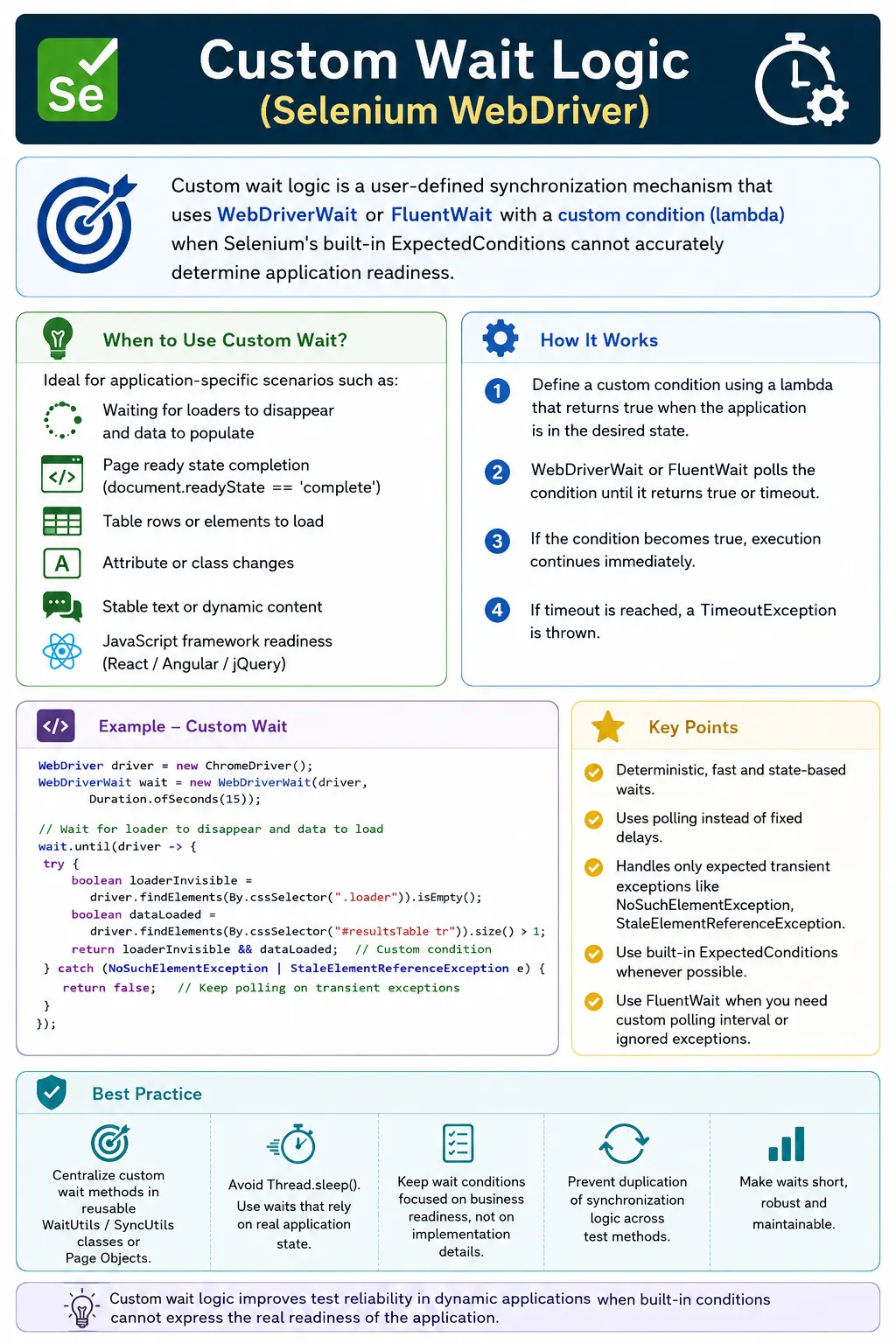
Understanding Custom Wait Logic in Selenium
Custom wait logic is used when Selenium's built-in wait conditions do not fully describe the readiness state of your application. Selenium provides strong synchronization tools such as WebDriverWait, Fluent Wait, and ExpectedConditions, but real applications often have business-specific timing behavior. A page may be visible while data is still loading. A button may be clickable according to Selenium while a transparent overlay still blocks the user. A table may exist in the DOM before the rows are populated. A status label may change several times before reaching the final value. Custom wait logic exists for these situations.
The goal of a custom wait is not to wait longer. The goal is to wait better. Instead of guessing a fixed number of seconds, a custom wait repeatedly checks a meaningful condition until the application reaches a usable state. That condition can be technical, such as document.readyState being complete, or business-oriented, such as the search results table containing at least one row or a No Results message. Good custom waits make Selenium tests more stable because they synchronize with real application behavior rather than generic page timing.
In basic scripts, testers often add sleeps whenever a page behaves unpredictably. In enterprise frameworks, custom waits replace those sleeps with reusable readiness rules. These rules are usually placed in wait utility classes or page objects. That is why custom wait logic is often a key difference between a beginner Selenium script and a maintainable automation framework. It shows that the framework understands the application, not just Selenium commands.
Why Custom Wait Logic Is Needed
Built-In Conditions Cover Common Cases
ExpectedConditions covers many common Selenium waiting needs. You can wait for presence, visibility, clickability, invisibility, text, attributes, alerts, frames, windows, URLs, and titles. For many pages, these conditions are enough. A login button can be handled with elementToBeClickable. A loading spinner can be handled with invisibilityOfElementLocated. A success message can be handled with textToBePresentInElementLocated. These standard waits should be used first because they are readable and familiar.
Custom wait logic is needed when the built-in condition is too general or checks only part of the readiness state. For example, elementToBeClickable may say a button is visible and enabled, but it may not know that a page-level overlay is still fading out. visibilityOfElementLocated may say a table is visible, but it may not know that the table rows are still empty. document.readyState may be complete, but an AJAX call may still be loading data. In these cases, the application needs a more specific wait.
Application Readiness Can Be Business-Specific
Every application has its own signals of readiness. An e-commerce page may be ready when product cards appear or a No Results message is shown. A banking page may be ready when account balances stop showing placeholder values. A dashboard may be ready when widgets finish rendering and counters stop changing. A file upload page may be ready when progress reaches 100 percent and the uploaded filename appears. These states cannot always be expressed with one built-in ExpectedCondition.
Custom wait logic allows the automation framework to encode these signals. The wait can check multiple conditions together, such as loader disappearance plus row count greater than zero. It can wait for either of two acceptable outcomes, such as results appearing or a no-data message appearing. It can wait for text to become stable over multiple polling cycles. This type of waiting is closer to how a real user understands the page.
How Custom Wait Logic Works
Condition Functions and Polling
Custom waits are usually implemented by passing a condition function to WebDriverWait or Fluent Wait. In Java, this is often written as a lambda expression. The wait repeatedly calls the function until it returns a successful result or the timeout expires. A successful result may be true, a non-null WebElement, a non-empty list, or another object that the calling code can use. If the function returns false or null, polling continues.
This polling model is important. A custom wait should check the state quickly and return control to the wait mechanism. It should not contain Thread.sleep calls inside the condition. Sleeping inside the condition defeats the purpose of polling and can make timeouts unpredictable. WebDriverWait or Fluent Wait should control the timeout and polling rhythm. The custom condition should only inspect the current state and report whether it is ready.
Success, Timeout, and Failure Meaning
A successful custom wait means the application reached the state described by the condition. If the wait returns a WebElement, the test can continue interacting with it. If the wait returns true, the test can continue to the next step. If the wait returns a list, the test can inspect or use the list. The return value should be chosen based on what the caller needs next.
A timeout means the expected state did not appear within the allowed time. This may indicate a timing problem, a locator problem, an environment issue, or a real product defect. Good custom waits include meaningful timeout messages. A failure that says "results table did not contain rows or no-results message after search" is much more useful than a failure that says "custom wait timed out." The wait condition should communicate intent.
What Makes a Good Custom Wait
Deterministic Conditions
A good custom wait is deterministic. It returns success only when the application is genuinely ready. It should not pass because one small part of the page is present while the rest is still loading. If a test needs search results, the wait should not pass merely because the search container exists. It should pass when results are loaded or when the application clearly shows that no results are available. Deterministic waits reduce false readiness.
Determinism also means the condition should not depend on random timing. A condition like "wait until two seconds have passed after clicking" is not a good custom wait. A condition like "wait until the loading overlay is gone and the result count is available" is better because it is tied to observable state. Custom waits should describe what the product must look like, not how long the tester hopes it will take.
Fast and Lightweight Checks
A custom wait condition should be fast to evaluate. It may locate elements, read text, inspect attributes, check JavaScript state, or count rows, but it should avoid heavy operations. Polling happens repeatedly, so expensive checks can slow down the browser and make the suite inefficient. If the condition needs JavaScript execution, keep the script small and focused. If it needs multiple locators, use only the ones required for readiness.
Lightweight checks also make failures easier to understand. A condition that does too much can fail for many reasons. A focused condition has a clearer meaning. For example, waitForOverlayToDisappear should only check overlay absence or invisibility. waitForSearchResultsToLoad can check loader disappearance and result state. Separate helper methods can be combined in page methods when the workflow requires more than one readiness check.
Specific and Readable Intent
Custom waits should be named according to the state they wait for. waitForElement is too vague. waitForVisible, waitForResultsToLoad, waitForCartCountToUpdate, waitForToastToDisappear, and waitForAngularStable communicate more clearly. Good names make tests and page objects easier to read. They also help future maintainers understand why the wait exists.
Specific waits are easier to debug than generic waits. If waitForDashboardWidgetsToRender fails, the tester knows the dashboard widgets did not reach the expected state. If waitForSomething fails, the tester has to open the implementation to understand what was expected. Naming is part of framework quality.
Common Custom Wait Patterns
Waiting for Page Ready State
A common custom wait checks the browser document ready state. It waits until document.readyState returns complete. This is useful after full-page navigation or heavy reloads. It confirms that the browser considers the document loaded. However, it should not be treated as proof that all application data is ready. In many modern applications, API calls and component rendering continue after the document is complete.
Page ready state is best used as one layer of readiness, not the only layer. After a full navigation, the framework may wait for document ready and then wait for a page-specific element, loader disappearance, or data condition. This layered approach is more reliable than relying on document ready alone.
Waiting for Loaders and Overlays
Loaders and overlays are a major source of Selenium click failures. The target element may be visible and enabled, but an overlay may still cover it. In that case, Selenium may throw ElementClickInterceptedException. A custom wait can check that the overlay is absent, invisible, or has a count of zero before allowing clicks. This is especially useful in applications that use full-page loading masks.
A good overlay wait should handle both possible states: the overlay may not exist at all, or it may exist but be hidden. It should also avoid failing just because the overlay appears briefly during polling. The final success state should mean the UI is not blocked. Once that wait is centralized in a click helper or page action, many intercepted-click failures disappear.
Waiting for Dynamic Tables and Lists
Tables and lists often appear before their data is ready. A table element may be present in the DOM immediately, while rows are populated after an API response. A custom wait can wait until the row count is greater than zero, until a specific row appears, or until either results or a no-results message is shown. This is more meaningful than waiting for table visibility alone.
Dynamic data waits should reflect valid outcomes. If a search can return results or no results, the wait should allow both states. Otherwise, a no-results search may timeout even though the application behaved correctly. This is where business understanding matters. The wait condition should know what successful readiness means for that feature.
Waiting for Attribute and Class Changes
Many modern UI frameworks represent state through attributes and classes. A button may become enabled when a disabled attribute is removed. A dropdown may open when aria-expanded becomes true. A tab may become active when a class changes. A validation message may appear when aria-invalid changes. Custom waits can inspect these attributes directly.
Attribute-based waits are useful because they often match how the front end controls behavior. They can be more precise than visibility checks. If the test waits for a button's class to contain active or for aria-selected to become true, it is waiting for the actual UI state transition. This makes tests more aligned with the application implementation.
Waiting for Text Stability
Some pages update text progressively. Dashboards, counters, live feeds, report summaries, and status panels may change several times before settling. A simple text-present condition may pass too early if it catches an intermediate value. A custom wait can check that text is non-empty, matches a pattern, or remains unchanged for multiple polling cycles.
Text stability waits should be used carefully because live pages may intentionally keep changing. The condition should define what stable means for the feature. For a report total, stable may mean the same value appears in two consecutive polls. For a status, stable may mean the status equals Completed. For a live ticker, stability may not be the right condition at all. The wait must match the page behavior.
Handling Exceptions in Custom Waits
Expected Transient Exceptions
Dynamic applications can throw exceptions while the wait is polling. NoSuchElementException may occur before an element is created. StaleElementReferenceException may occur when a component re-renders. NoSuchFrameException may occur before a frame loads. In some cases, ElementClickInterceptedException may occur during a safe-click retry while an overlay is fading. These exceptions can be expected during a transition.
A custom wait should handle only the exceptions that are expected for that condition. If the wait is checking for a list that appears later, NoSuchElementException may be expected. If the wait is handling a re-rendering component, stale element exceptions may be expected. Catching or ignoring all exceptions is dangerous because it can hide invalid selectors, broken driver sessions, JavaScript errors, or real product failures.
Fail Fast for Unexpected Problems
Not every exception should be retried. Some failures should stop immediately because retrying will not help. An invalid selector will not become valid after more polling. A closed browser session will not recover because a wait retries. A permissions issue, navigation error, or serious JavaScript failure may need immediate investigation. Custom waits should be defensive without becoming silent.
This is why exception handling must be narrow. A good wait condition catches known transient exceptions and lets unexpected exceptions surface. That balance keeps the framework stable without masking real issues. The goal is resilience, not silence.
Custom Wait Logic vs Fluent Wait
What You Wait For vs How You Wait
Custom wait logic and Fluent Wait are related, but they are not the same concept. Custom wait logic describes what state you are waiting for. Fluent Wait controls how the waiting happens, including timeout, polling interval, and ignored exceptions. You can use custom logic with WebDriverWait, and you can also use custom logic with Fluent Wait when you need more control.
For most frameworks, WebDriverWait with a custom lambda is enough. Fluent Wait becomes useful when you need custom polling intervals or carefully configured ignored exceptions. The decision should be based on the problem. If the condition is custom but polling behavior is normal, use WebDriverWait. If polling and exception behavior also need tuning, use Fluent Wait.
Avoid Choosing Complexity Too Early
Automation frameworks become hard to maintain when every problem is solved with the most complex tool. Start with ExpectedConditions when they fit. Use custom WebDriverWait conditions when the readiness state is specific to the application. Use Fluent Wait when the wait mechanics also need customization. This layered approach keeps the framework understandable.
The best wait strategy is not the most advanced one. It is the simplest one that accurately describes the application's required state. That principle keeps code readable and prevents wait utilities from becoming a collection of hard-to-debug retries.
Where to Put Custom Waits in a Framework
Wait Utility Classes
Common custom waits belong in centralized utility classes such as WaitUtils or SyncUtils. These utilities can provide methods for visibility, clickability, overlay disappearance, DOM ready state, URL changes, alert handling, frame switching, and list population. Centralization reduces duplication and allows the team to standardize timeouts, polling, exception handling, logging, and screenshots.
Utility methods should be clearly named and focused. They should accept locators rather than stale WebElement references when the DOM is expected to change. They should provide useful timeout messages. They should avoid hidden sleeps unless the purpose is clearly documented and there is no better signal. A utility class should make synchronization more consistent, not more mysterious.
Page Object Methods
Page-specific custom waits often belong inside page objects. A page object knows what readiness means for its own page. A dashboard page can define waitForWidgetsToRender. A search page can define waitForResultsOrNoData. A checkout page can define waitForPaymentFrameReady. These methods hide page-specific timing details from test cases and keep tests focused on business flow.
The Page Object Model is not only a place to store locators. It is a place to model how a user safely interacts with the page. That includes waiting for the page to be ready before actions and after actions. Custom waits are a natural part of that model.
Common Mistakes with Custom Wait Logic
Putting Thread.sleep Inside the Wait
One common mistake is placing Thread.sleep inside a custom wait loop or condition. This defeats the purpose of using WebDriverWait or Fluent Wait because the wait framework already controls polling. Sleeps inside the condition can make the actual timeout longer than expected and slow the suite unnecessarily. The condition should check state and return quickly.
If polling needs to happen less frequently, configure the polling interval through Fluent Wait. If the condition needs to wait for a state, express that state directly. Avoid combining manual sleeps with wait utilities unless there is a very specific and documented reason.
Writing Conditions That Pass Too Early
A custom wait that passes too early is worse than a timeout because it gives false confidence. For example, waiting for a table container to be visible does not mean rows are loaded. Waiting for a spinner to disappear does not always mean content has been populated. Waiting for text to be non-empty may catch an intermediate loading message. A good custom wait checks the final usable state.
When designing a custom condition, ask what the next test step needs. If the next step reads a result row, wait for result rows. If the next step clicks a button, wait for the page to be unblocked and the button to be ready. If the next step asserts a status, wait for the final status. This prevents premature success.
Ignoring All Exceptions
Catching Exception inside every custom wait is tempting because it seems to make the wait robust. In reality, it can hide serious problems. Invalid locators, driver failures, wrong contexts, and unexpected application errors may be swallowed until timeout. The final error then becomes vague and harder to debug. Robust waits handle expected transient exceptions, not every possible exception.
A good practice is to list the exceptions that are intentionally ignored and keep the list small. If the wait ignores stale elements, the reason should be that the page re-renders. If it ignores missing elements, the reason should be that the element appears later. Anything else should be allowed to fail loudly.
Debugging Custom Wait Failures
Make Timeout Messages Specific
Custom waits must be diagnosable. A timeout message should describe the expected state, the locator or page involved, and the timeout used. A message like "custom wait timed out" is not enough. A better message says "search results did not load: no rows and no no-results message after 15 seconds." That message tells the tester exactly what state failed.
Logging can include the current URL, page title, final observed text, final row count, overlay count, and screenshot path. These details are especially important in CI where nobody watches the browser. A custom wait should not become a black box. It should produce evidence.
Separate Locator, Timing, and Product Behavior
A custom wait timeout can mean several things. The locator may be wrong. The state may not have appeared in time. The timeout may be too short for a known slow operation. The product may have failed to load data or complete the action. Debugging should separate these possibilities. First confirm that the locators work in the browser. Then confirm that the wait condition matches the intended state. Finally, check whether the application actually reached that state.
This methodical approach prevents random fixes. Increasing the timeout may hide a product performance issue. Changing the locator may not help if the data never loads. Adding another wait may not help if the application shows an error message. Custom waits are strongest when their failures are investigated as evidence, not treated as noise.
Interview Perspective on Custom Wait Logic
Short Interview Answer
Custom wait logic is a user-defined explicit wait condition used when Selenium's built-in ExpectedConditions do not fully represent the application's readiness state.
Detailed Interview Answer
In Selenium, custom waits are implemented with WebDriverWait or Fluent Wait by passing a lambda or function to until(). The function checks an application-specific condition, such as loader disappearance, data population, attribute changes, text stability, JavaScript readiness, or a combination of states. Custom waits reduce flaky failures when built-in conditions are too general, but they should be centralized and used only when necessary.
Real Project Explanation
In a real project, I would create custom waits for page-specific readiness states. For example, after a search I might wait until the loader disappears and either result rows appear or a no-results message is displayed. On a dashboard, I might wait until all widgets finish rendering. For a checkout flow, I might wait until the payment iframe is available and the overlay is gone. I would keep this logic in WaitUtils or page objects so test cases stay clean.
The key takeaway is that custom wait logic should synchronize Selenium with business readiness, not simply add more time. A strong custom wait is deterministic, lightweight, specific, safe with expected transient exceptions, and easy to diagnose when it fails. Used carefully, custom waits make Selenium frameworks more reliable because they wait for the exact state the application must reach.
In real Selenium frameworks, custom waits are a key differentiator between basic scripts and enterprise-grade automation.
1. What Is Custom Wait Logic
Definition:
Custom wait logic is a user-defined condition that Selenium repeatedly evaluates until it returns:
- true (condition met)
- a non-null value (e.g., WebElement)
- timeout occurs (TimeoutException)
It is typically implemented using:
- WebDriverWait.until(driver -> condition)
- FluentWait.until(driver -> condition)
2. Why Custom Waits Are Needed
Use custom waits when:
- UI readiness depends on multiple conditions
- A "clickable" condition is not enough due to overlays
- Elements are present but data is not loaded
- The app has custom states (React hydration, skeleton loaders)
- You must wait for application-specific JS events or API-driven changes
Example problems:
- "Element is visible but clicking fails due to transparent overlay"
- "Table exists but rows are not loaded yet"
- "Spinner disappears but API still populates content afterward"
3. What Makes a Good Custom Wait Condition
A good custom wait is:
- Deterministic: returns true only when the app is genuinely ready
- Fast: checks quickly and relies on polling (no sleeps)
- Safe: handles transient exceptions
- Specific: avoids overly broad checks
Rule: A custom wait should reflect application readiness, not just element presence.
4. Common Custom Wait Patterns (Enterprise Use)
4.1 Wait for Page Ready State
Goal: Ensure page finished loading.
- Wait until browser state is "complete"
Used when: heavy navigation and full-page reloads.
4.2 Wait for Loader/Overlay to Disappear
Goal: Ensure UI is not blocked.
- Wait until spinner is not visible
- Optionally verify overlay count is 0
Used when: click interception is frequent.
4.3 Wait for Dynamic Data to Load (Tables/Lists)
Goal: Ensure content is populated.
- Wait until table has at least 1 row
- Or until "No results" message appears
Used when: grids load after API calls.
4.4 Wait for Attribute or Class to Change
Goal: Wait for UI state transition.
- Example: button becomes enabled (disabled removed)
- Example: class changes from loading to loaded
Used when: modern JS apps represent state via classes/attributes.
4.5 Wait for Text to Become Stable
Goal: Ensure text stops changing due to progressive rendering.
- Wait until text is non-empty and matches expected pattern
- Or until it remains unchanged for multiple polls
Used when: dashboards, counters, live updates.
5. Handling Exceptions in Custom Waits (Very Important)
Dynamic apps can throw transient exceptions during polling:
- StaleElementReferenceException
- NoSuchElementException
- ElementClickInterceptedException (in some checks)
Best practice:
- Ignore or catch only expected transient exceptions
- Do not ignore everything (masks real failures)
6. Custom Wait vs Fluent Wait (How to Decide)
- Custom wait logic = what you wait for (your condition)
- Fluent Wait = how you wait (polling + ignored exceptions tuning)
Most frameworks use:
- WebDriverWait + custom condition (default)
- FluentWait + custom condition (only when tuning is needed)
7. Where to Place Custom Waits (Framework Best Practice)
Put custom waits in:
- A centralized WaitUtils / SyncUtils
- Or inside Page Objects as private helper methods
Avoid: Copying custom wait logic inside test methods.
Reason: Maintainability and consistency.
8. Common Beginner Mistakes
- Using Thread.sleep() inside a custom wait (defeats the purpose)
- Writing broad conditions that pass too early
- Ignoring all exceptions (hides real defects)
- Creating waits that depend on timing rather than state
- Overusing custom waits where ExpectedConditions is enough
9. Interview Perspective
Short Answer:
Custom wait logic is a user-defined explicit wait condition used when ExpectedConditions are not sufficient.
Real-Time Answer:
In Selenium, custom waits are implemented using WebDriverWait/FluentWait with a lambda condition to synchronize against application-specific states-such as loader disappearance, data population, attribute changes, or text stability. They help reduce flaky tests in highly dynamic UIs.
10. Key Takeaway
- Custom waits synchronize on business readiness, not just element presence
- Implement via until() with a lambda/condition
- Handle transient exceptions carefully
- Centralize waits in utilities or Page Objects
- Use only when built-in conditions are not enough
Enterprise Selenium stability comes from waiting for the right state-not waiting longer.
11. Custom Wait Utility Methods (Ready to Use)
Below are practical custom wait methods you can add to a Selenium Java utility class.
1) Custom wait: element exists (presence)
public WebElement waitForPresence(By by, int timeoutSec) {
    long end = System.currentTimeMillis() + timeoutSec * 1000L;
    while (System.currentTimeMillis() < end) {
        try {
            return driver.findElement(by);
        } catch (NoSuchElementException ignored) { }
        sleep(300);
    }
    throw new TimeoutException("Element not present: " + by);
}
2) Custom wait: element visible
public WebElement waitForVisible(By by, int timeoutSec) {
    long end = System.currentTimeMillis() + timeoutSec * 1000L;
    while (System.currentTimeMillis() < end) {
        try {
            WebElement el = driver.findElement(by);
            if (el.isDisplayed()) return el;
        } catch (NoSuchElementException | StaleElementReferenceException ignored) { }
        sleep(300);
    }
    throw new TimeoutException("Element not visible: " + by);
}
3) Custom wait: element clickable (displayed + enabled)
public WebElement waitForClickable(By by, int timeoutSec) {
    long end = System.currentTimeMillis() + timeoutSec * 1000L;
    while (System.currentTimeMillis() < end) {
        try {
            WebElement el = driver.findElement(by);
            if (el.isDisplayed() && el.isEnabled()) return el;
        } catch (NoSuchElementException | StaleElementReferenceException ignored) { }
        sleep(250);
    }
    throw new TimeoutException("Element not clickable: " + by);
}
4) Custom wait: element disappears
public void waitForDisappear(By by, int timeoutSec) {
    long end = System.currentTimeMillis() + timeoutSec * 1000L;
    while (System.currentTimeMillis() < end) {
        try {
            if (driver.findElements(by).isEmpty()) return;
        } catch (Exception ignored) { }
        sleep(300);
    }
    throw new TimeoutException("Element did not disappear: " + by);
}
5) Custom wait: text equals
public void waitForTextEquals(By by, String expected, int timeoutSec) {
    long end = System.currentTimeMillis() + timeoutSec * 1000L;
    while (System.currentTimeMillis() < end) {
        try {
            String actual = driver.findElement(by).getText().trim();
            if (actual.equals(expected)) return;
        } catch (NoSuchElementException | StaleElementReferenceException ignored) { }
        sleep(300);
    }
    throw new TimeoutException("Text not matched for " + by + " expected=" + expected);
}
6) Custom wait: text contains
public void waitForTextContains(By by, String expectedPart, int timeoutSec) {
    long end = System.currentTimeMillis() + timeoutSec * 1000L;
    while (System.currentTimeMillis() < end) {
        try {
            String txt = driver.findElement(by).getText();
            if (txt != null && txt.contains(expectedPart)) return;
        } catch (NoSuchElementException | StaleElementReferenceException ignored) { }
        sleep(300);
    }
    throw new TimeoutException("Text not containing '" + expectedPart + "' for " + by);
}
7) Custom wait: attribute equals
public void waitForAttributeEquals(By by, String attr, String value, int timeoutSec) {
    long end = System.currentTimeMillis() + timeoutSec * 1000L;
    while (System.currentTimeMillis() < end) {
        try {
            String actual = driver.findElement(by).getAttribute(attr);
            if (value.equals(actual)) return;
        } catch (NoSuchElementException | StaleElementReferenceException ignored) { }
        sleep(300);
    }
    throw new TimeoutException("Attribute not matched: " + attr + "=" + value + " for " + by);
}
8) Custom wait: attribute contains
public void waitForAttributeContains(By by, String attr, String part, int timeoutSec) {
    long end = System.currentTimeMillis() + timeoutSec * 1000L;
    while (System.currentTimeMillis() < end) {
        try {
            String actual = driver.findElement(by).getAttribute(attr);
            if (actual != null && actual.contains(part)) return;
        } catch (NoSuchElementException | StaleElementReferenceException ignored) { }
        sleep(300);
    }
    throw new TimeoutException("Attribute not containing '" + part + "' for " + by);
}
9) Custom wait: URL contains
public void waitForUrlContains(String part, int timeoutSec) {
    long end = System.currentTimeMillis() + timeoutSec * 1000L;
    while (System.currentTimeMillis() < end) {
        if (driver.getCurrentUrl().contains(part)) return;
        sleep(250);
    }
    throw new TimeoutException("URL not containing: " + part);
}
10) Custom wait: title equals
public void waitForTitleIs(String title, int timeoutSec) {
    long end = System.currentTimeMillis() + timeoutSec * 1000L;
    while (System.currentTimeMillis() < end) {
        if (driver.getTitle().equals(title)) return;
        sleep(250);
    }
    throw new TimeoutException("Title not matched: " + title);
}
11) Custom wait: page readyState complete
public void waitForDomReady(int timeoutSec) {
    long end = System.currentTimeMillis() + timeoutSec * 1000L;
    JavascriptExecutor js = (JavascriptExecutor) driver;

    while (System.currentTimeMillis() < end) {
        try {
            String state = (String) js.executeScript("return document.readyState");
            if ("complete".equals(state)) return;
        } catch (Exception ignored) { }
        sleep(300);
    }
    throw new TimeoutException("DOM not ready after " + timeoutSec + "s");
}
12) Custom wait: jQuery active == 0 (if app uses jQuery)
public void waitForJQueryIdle(int timeoutSec) {
    long end = System.currentTimeMillis() + timeoutSec * 1000L;
    JavascriptExecutor js = (JavascriptExecutor) driver;

    while (System.currentTimeMillis() < end) {
        try {
            Boolean idle = (Boolean) js.executeScript(
                    "return window.jQuery != null && jQuery.active === 0");
            if (Boolean.TRUE.equals(idle)) return;
        } catch (Exception ignored) { }
        sleep(300);
    }
    throw new TimeoutException("jQuery not idle after " + timeoutSec + "s");
}
13) Custom wait: angular stability (common heuristic)
public void waitForAngularStable(int timeoutSec) {
    long end = System.currentTimeMillis() + timeoutSec * 1000L;
    JavascriptExecutor js = (JavascriptExecutor) driver;

    while (System.currentTimeMillis() < end) {
        try {
            Object res = js.executeScript(
                "return (window.getAllAngularTestabilities && " +
                "window.getAllAngularTestabilities().every(x => x.isStable()));");
            if (res instanceof Boolean && (Boolean) res) return;
        } catch (Exception ignored) { }
        sleep(400);
    }
    throw new TimeoutException("Angular not stable after " + timeoutSec + "s");
}
14) Custom wait: window count equals
public void waitForWindowCount(int expected, int timeoutSec) {
    long end = System.currentTimeMillis() + timeoutSec * 1000L;
    while (System.currentTimeMillis() < end) {
        if (driver.getWindowHandles().size() == expected) return;
        sleep(250);
    }
    throw new TimeoutException("Window count not " + expected);
}
15) Custom wait: alert present
public Alert waitForAlert(int timeoutSec) {
    long end = System.currentTimeMillis() + timeoutSec * 1000L;
    while (System.currentTimeMillis() < end) {
        try {
            return driver.switchTo().alert();
        } catch (NoAlertPresentException ignored) { }
        sleep(250);
    }
    throw new TimeoutException("Alert not present after " + timeoutSec + "s");
}
16) Custom wait: frame available and switch
public void waitForFrameAndSwitch(By frameBy, int timeoutSec) {
    long end = System.currentTimeMillis() + timeoutSec * 1000L;
    while (System.currentTimeMillis() < end) {
        try {
            WebElement frame = driver.findElement(frameBy);
            driver.switchTo().frame(frame);
            return;
        } catch (NoSuchElementException | NoSuchFrameException | StaleElementReferenceException ignored) { }
        sleep(300);
    }
    throw new TimeoutException("Frame not available: " + frameBy);
}
17) Custom wait: list size > N
public void waitForListSizeGreaterThan(By by, int minSize, int timeoutSec) {
    long end = System.currentTimeMillis() + timeoutSec * 1000L;
    while (System.currentTimeMillis() < end) {
        int size = driver.findElements(by).size();
        if (size > minSize) return;
        sleep(300);
    }
    throw new TimeoutException("List size not > " + minSize + " for " + by);
}
18) Custom wait: element stops moving (layout stabilization)
public void waitForElementStableLocation(By by, int timeoutSec) {
    long end = System.currentTimeMillis() + timeoutSec * 1000L;
    Point prev = null;

    while (System.currentTimeMillis() < end) {
        try {
            Point now = driver.findElement(by).getLocation();
            if (prev != null && now.equals(prev)) return;
            prev = now;
        } catch (NoSuchElementException | StaleElementReferenceException ignored) { }
        sleep(300);
    }
    throw new TimeoutException("Element location not stable: " + by);
}
19) Custom wait: safe click with retry (handles stale/intercept)
public void safeClick(By by, int timeoutSec) {
    long end = System.currentTimeMillis() + timeoutSec * 1000L;

    while (System.currentTimeMillis() < end) {
        try {
            WebElement el = driver.findElement(by);
            if (el.isDisplayed() && el.isEnabled()) {
                el.click();
                return;
            }
        } catch (StaleElementReferenceException | ElementClickInterceptedException | NoSuchElementException ignored) { }
        sleep(300);
    }
    throw new TimeoutException("Could not click: " + by);
}
20) Custom wait: generic "until" (reusable condition interface)
@FunctionalInterface
public interface Condition<T> { T apply(); }

public <T> T until(Condition<T> condition, int timeoutSec, int pollMs) {
    long end = System.currentTimeMillis() + timeoutSec * 1000L;
    while (System.currentTimeMillis() < end) {
        try {
            T result = condition.apply();
            if (result != null) return result;
        } catch (Exception ignored) { }
        sleep(pollMs);
    }
    throw new TimeoutException("Custom wait condition timed out");
}
Usage
WebElement el = until(() -> {
    WebElement e = driver.findElement(By.id("confirm"));
    return e.isDisplayed() ? e : null;
}, 10, 300);

el.click();
Helper (used above): sleep()
private void sleep(long ms) {
    try { Thread.sleep(ms); } catch (InterruptedException e) { Thread.currentThread().interrupt(); }
}