Custom Report Design in Selenium
Custom report design in Selenium is the process of creating personalized, branded, and information-rich automation reports instead of relying only on default report layouts. A default TestNG report may be enough for a small local run, but enterprise automation requires more than a plain pass and fail list. Teams need reports that show execution status, environment details, screenshots, exception information, test categories, authors, devices, build numbers, execution time, and release readiness in a format that different audiences can understand quickly.
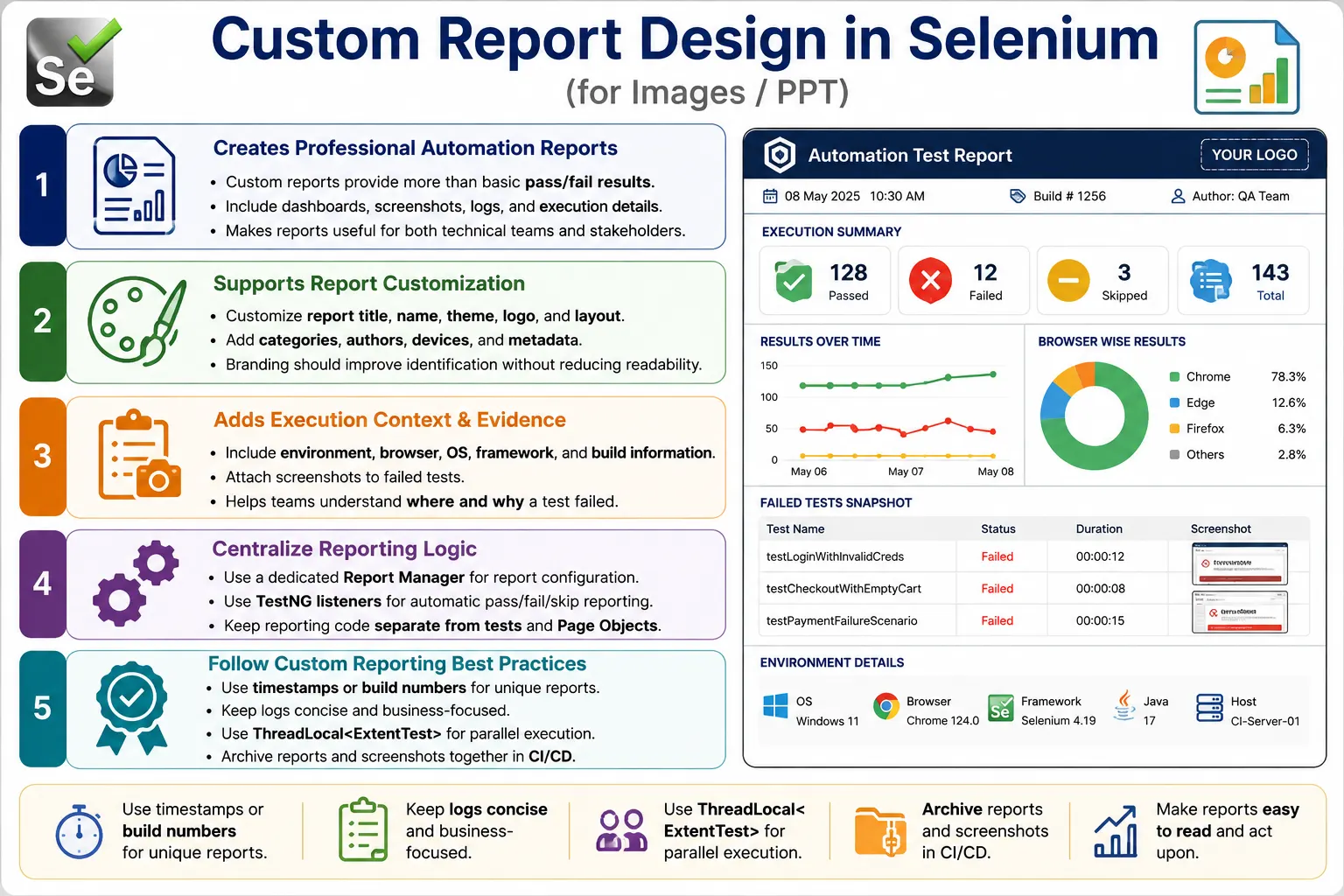
Reporting libraries such as Extent Reports, Allure Reports, and TestNG reports provide built-in structures, but most mature frameworks customize those reports to match project needs. Customization may be simple, such as changing the report title and theme, or it may be advanced, such as adding company branding, custom CSS, JavaScript, parent and child test nodes, metadata, charts, CI/CD links, and date-based report folders. A good custom report answers three practical questions: what tests were executed, which tests passed or failed, and why a failed test failed.
1. What Custom Report Design Means
Custom report design means modifying or extending the automation report so it communicates test execution clearly. It can include custom report names, themes, logos, dashboards, screenshots, system information, category filters, author details, device names, and structured logs. The goal is not only to make the report look better. The real goal is to make the report easier to analyze, easier to share, and more useful for decision-making.
In Selenium projects, custom report design is commonly implemented through Extent Reports because Extent provides APIs for report configuration, logging, screenshots, metadata, categories, authors, and devices. The framework collects execution results from TestNG, captures evidence from Selenium, and sends the information to Extent Reports for presentation.
2. Why Custom Reports Are Needed
Different people read automation reports for different reasons. A developer wants exception details, stack traces, screenshots, and possibly the exact browser state. A tester wants to understand which scenario failed and whether it was an application issue, data issue, environment issue, or automation issue. A test lead wants the pass percentage, failed modules, unstable areas, and release risk. A manager or client wants an execution summary and confidence level.
A default report usually cannot serve all these audiences well. It may show results, but it may not show the information in a business-friendly format. Custom reports solve this by combining technical evidence with readable summaries. A well-designed report gives technical depth without forcing every reader to inspect raw logs.
3. Problems with Default Reports
Default reports are useful, but they often have fixed layouts, limited styling, generic titles, basic colors, and minimal metadata. They may not show company name, project name, environment, browser, build number, execution owner, test category, or screenshot evidence. They may also lack an interactive dashboard that quickly shows pass, fail, skip, execution time, and failure distribution.
These limitations become visible when reports are shared outside the automation team. A stakeholder may open a default report and not understand whether the result is good or bad. A developer may need more context than the default report provides. A custom report improves this experience by organizing information intentionally.
4. Core Idea of Custom Report Design
The core idea is to transform a raw automation result into a professional execution artifact. The report should not merely say that a test failed. It should explain the failure context, show evidence, identify the environment, and make the result easy to filter and review.
Test Execution
  Reporting Engine
    Custom Configuration
      Logs and Screenshots
        Metadata and Categories
          Branded HTML Report
This report becomes part of the framework output. It can be opened locally, attached to defect reports, archived in Jenkins, shared with the team, or reviewed after regression execution. When reports are designed well, they reduce communication gaps between automation, development, QA leadership, and business stakeholders.
5. What Can Be Customized
Common customization areas include report title, report name, browser tab title, company logo, project name, theme, colors, charts, layout, screenshots, categories, authors, devices, environment details, system information, execution summary, timestamps, build numbers, and custom metadata. Some teams also customize CSS and JavaScript in Extent Reports, although excessive customization can make reports harder to maintain.
The best customizations are practical. A custom title helps identify the report. Environment details help failure analysis. Categories help filtering. Screenshots help debugging. Authors help ownership. Devices help cross-browser execution review. Custom CSS should improve readability, not create unnecessary complexity.
6. Required Maven Dependency
If Extent Reports is used for custom report design, the Extent dependency must be added to the Maven project. The version can change over time, but the dependency structure remains the same.
<dependency>
    <groupId>com.aventstack</groupId>
    <artifactId>extentreports</artifactId>
    <version>5.1.2</version>
</dependency>
After this dependency is available, the framework can use ExtentReports, ExtentSparkReporter, ExtentTest, report themes, markup helpers, and configuration APIs. In a mature framework, this dependency is managed alongside Selenium, TestNG, WebDriverManager, logging libraries, and data handling libraries.
7. Custom Report Title
The document title appears in the browser tab and helps identify the report file when it is opened. Instead of a generic title, use a meaningful title that identifies the project or automation suite.
ExtentSparkReporter spark =
        new ExtentSparkReporter(
                "test-output/CustomReport.html"
        );

spark.config().setDocumentTitle(
        "SoftwareTips4U Automation Report"
);
A clear document title is useful when multiple reports are open in different browser tabs. It also gives the report a more professional identity when shared with stakeholders.
8. Custom Report Name
The report name is displayed inside the report. It should describe the execution type, such as regression suite, smoke suite, sanity suite, cross-browser execution, or nightly build execution.
spark.config().setReportName(
        "Selenium Regression Test Results"
);
When reports are archived by build number or date, a meaningful report name helps readers understand what the execution represents without checking external pipeline details.
9. Theme Configuration
Extent Reports supports standard and dark themes. Theme choice is mostly a visual preference, but consistency matters. A team should choose a theme and use it across reports so the report appearance remains familiar.
spark.config().setTheme(Theme.DARK);spark.config().setTheme(Theme.STANDARD);The standard theme is often easier for printed or shared reports, while dark theme may look better for dashboards. The report should be readable first and stylish second.
10. Encoding and Timestamp Format
Encoding and timestamp formatting improve report consistency. UTF-8 encoding helps handle special characters. A clear timestamp format helps users understand when steps were executed.
spark.config().setEncoding("UTF-8");

spark.config().setTimeStampFormat(
        "dd-MMM-yyyy HH:mm:ss"
);
This is useful in distributed teams and CI/CD systems where reports are reviewed across different machines and regional settings. A consistent timestamp format prevents ambiguity.
11. Adding System Information
System information is one of the most valuable report customizations. It records the execution context: project, environment, browser, operating system, framework, Java version, build number, and tester or pipeline name.
ExtentReports extent = new ExtentReports();

extent.setSystemInfo("Project", "SoftwareTips4U");
extent.setSystemInfo("Environment", "QA");
extent.setSystemInfo("Browser", "Chrome");
extent.setSystemInfo("Operating System", "Windows");
extent.setSystemInfo("Framework", "Selenium TestNG");
When a failure is environment-specific, system information helps quickly identify that context. A test that fails in staging on Edge may pass in QA on Chrome. The report should make that visible without requiring a separate investigation.
12. Company Branding
Company branding can include company name, project name, department name, product name, logo, and report title. This is useful when automation reports are shared outside the QA team. Branding makes the report look like an official project artifact rather than a raw tool output.
ABC Technologies
Automation Execution Report
Project: E-Commerce
Environment: QA
QA Automation Team
Branding should remain simple. A report overloaded with logos, colors, and decorative elements may look polished but become less readable. The best branding improves identification without distracting from results.
13. Custom CSS
Extent Reports allows custom CSS. This can be used to adjust labels, badges, spacing, or other small visual details. However, custom CSS should be used carefully because reporting library internals may change between versions.
spark.config().setCss(
        ".badge-primary {" +
        "font-weight: bold;" +
        "border-radius: 6px;" +
        "}"
);
Use CSS when it improves readability or aligns with project style. Avoid heavy CSS changes that make report upgrades difficult or hide important information.
14. Custom JavaScript
Custom JavaScript can be added to reports for small behavior changes, such as changing the document title. Like CSS, JavaScript customization should be minimal and maintainable.
spark.config().setJs(
        "document.title='SoftwareTips4U Test Results';"
);
Advanced JavaScript customization is usually unnecessary for most automation teams. The report should remain stable across library upgrades and browser versions.
15. Timestamped Report Names
If every execution writes to the same file, the previous report is overwritten. Timestamped report names preserve history and make CI/CD archives easier to manage.
String timestamp = LocalDateTime.now()
        .format(DateTimeFormatter.ofPattern(
                "yyyyMMdd_HHmmss"
        ));

String reportPath =
        "test-output/AutomationReport_"
        + timestamp
        + ".html";

ExtentSparkReporter spark =
        new ExtentSparkReporter(reportPath);
Timestamped reports are useful for nightly runs, release regression runs, and debugging repeated failures. They allow teams to compare execution history without manually renaming files.
16. Date-Based Report Folders
For larger frameworks, storing reports in date-based or build-based folders is cleaner than putting all reports in one directory. Each execution can have its own folder containing the report and screenshots.
String dateFolder = LocalDate.now()
        .format(DateTimeFormatter.ofPattern(
                "yyyy-MM-dd"
        ));

Path reportFolder = Paths.get(
        "test-output",
        "reports",
        dateFolder
);

Files.createDirectories(reportFolder);

ExtentSparkReporter spark =
        new ExtentSparkReporter(
                reportFolder.resolve(
                        "ExtentReport.html"
                ).toString()
        );
This structure improves organization and helps cleanup. Old reports can be removed based on date while recent reports remain available for analysis.
17. Assigning Categories
Categories help readers filter tests by module, suite type, risk level, or business area. Examples include smoke, regression, sanity, login, checkout, payment, search, critical, UI, API, and cross-browser.
ExtentTest test =
        extent.createTest("Valid Login Test");

test.assignCategory(
        "Smoke",
        "Login",
        "Critical"
);
Category names should be consistent with TestNG groups or project test classifications. Random category names reduce filtering value. A consistent naming strategy makes reports easier to analyze across executions.
18. Assigning Authors
Author information helps identify test ownership. It does not mean the author caused a failure. It simply shows who maintains the test or who is responsible for the area.
ExtentTest test =
        extent.createTest("Checkout Test");

test.assignAuthor("Suresh");
In large teams, author assignment can help distribute debugging and maintenance work. It can be configured manually, from annotations, from external metadata, or from ownership mappings.
19. Assigning Devices
Device information can represent the browser, platform, mobile device, or execution target. This is useful in cross-browser and cross-platform testing.
ExtentTest test =
        extent.createTest("Cross-Browser Test");

test.assignDevice("Chrome 150");
If tests run on Selenium Grid or a cloud browser provider, device details can include browser version, operating system, resolution, or mobile device name. This helps identify platform-specific failures.
20. Screenshots in Custom Reports
Screenshots make custom reports more useful. A failed test with logs alone may still require reproduction. A failed test with logs, exception, and screenshot provides immediate visual context.
test.fail("Login failed")
    .addScreenCaptureFromPath(screenshotPath);
For report portability, keep screenshots near the report or embed them as Base64. If reports are archived in CI/CD, the screenshot folder should be archived with the HTML report so image links remain valid.
21. Custom Test Logs
Custom logs should describe meaningful actions and validation points. Good logs tell a readable story: browser launched, login page opened, credentials entered, login submitted, dashboard verified. Poor logs describe every tiny Selenium action and make the report noisy.
test.info("Launching browser");
test.info("Opening login page");
test.pass("Login completed successfully");
Readable logs are useful for both technical and non-technical readers. They help the reader understand the test flow without opening the source code.
22. Parent and Child Test Nodes
Extent Reports supports parent and child nodes. This helps represent features and scenarios. A parent can represent a feature, while child nodes represent individual test scenarios or steps.
ExtentTest parent =
        extent.createTest("Login Feature");

ExtentTest child =
        parent.createNode(
                "Valid Login Scenario"
        );

child.info("Opening login page");
child.pass("Login completed successfully");
This structure is useful when reports need to show business features rather than only method names. It also aligns well with BDD-style reporting, where features and scenarios are naturally hierarchical.
23. Styled Messages with Markup
Extent Reports provides markup helpers for styled labels and tables. Styled messages can make important statuses easier to scan, but they should not be overused.
ExtentTest test =
        extent.createTest("Login Test");

test.info(
        MarkupHelper.createLabel(
                "Login test execution started",
                ExtentColor.BLUE
        )
);

test.pass(
        MarkupHelper.createLabel(
                "Login successful",
                ExtentColor.GREEN
        )
);
Use styled labels for important milestones or summary messages. If every message is styled, the report becomes visually noisy.
24. Data Tables in Reports
Data tables are useful for data-driven tests. They can show the input values used during execution, expected results, or selected business data. Avoid logging sensitive data such as passwords or tokens.
String[][] testData = {
        {"Username", "Password", "Expected"},
        {"admin", "masked", "Success"},
        {"admin", "masked", "Failure"}
};

ExtentTest test =
        extent.createTest("Login Data Test");

test.info(
        MarkupHelper.createTable(
                testData
        )
);
Tables should be concise. A report is not a database dump. It should show enough data to understand the execution without exposing private information.
25. JSON-Based Report Configuration
Extent configuration can also be stored outside Java code in a JSON file. This separates report appearance from framework logic and allows configuration changes without editing Java source code.
{
  "theme": "DARK",
  "documentTitle": "SoftwareTips4U Report",
  "reportName": "Selenium Automation Results",
  "encoding": "UTF-8",
  "timeStampFormat": "dd-MMM-yyyy HH:mm:ss"
}
ExtentSparkReporter spark =
new ExtentSparkReporter(
"test-output/CustomReport.html"
);
spark.loadJSONConfig(
new File("extent-config.json")
);This approach is useful when multiple environments or teams need slightly different report settings. It keeps the report manager cleaner and configuration-driven.
26. Custom TestNG Listener
A custom listener centralizes report creation and status logging. It can create a test entry at the start, assign categories from TestNG groups, log pass and failure status, and flush the report when execution finishes.
public class CustomReportListener
        implements ITestListener {

    private static final ExtentReports extent;
    private static final ThreadLocal<ExtentTest> tests =
            new ThreadLocal<>();

    static {
        ExtentSparkReporter spark =
                new ExtentSparkReporter(
                        "test-output/CustomReport.html"
                );

        spark.config().setDocumentTitle(
                "SoftwareTips4U Automation"
        );
        spark.config().setReportName(
                "Selenium Test Execution"
        );
        spark.config().setTheme(
                Theme.DARK
        );

        extent = new ExtentReports();
        extent.attachReporter(spark);
        extent.setSystemInfo(
                "Environment",
                "QA"
        );
    }

    @Override
    public void onTestStart(ITestResult result) {
        ExtentTest test =
                extent.createTest(
                        result.getMethod()
                              .getMethodName()
                );

        test.assignCategory(
                result.getMethod()
                      .getGroups()
        );
        tests.set(test);
    }

    @Override
    public void onTestSuccess(ITestResult result) {
        tests.get().pass(
                "Test passed successfully"
        );
    }

    @Override
    public void onTestFailure(ITestResult result) {
        tests.get().fail(
                result.getThrowable()
        );
    }

    @Override
    public void onFinish(ITestContext context) {
        extent.flush();
        tests.remove();
    }
}
This listener keeps test classes clean. Test methods no longer need to create report entries or manually log final status. The listener observes execution and updates the report automatically.
27. Complete Custom Report Manager
A report manager class is a better place for report setup than individual test classes. It can create timestamped report files, configure title and theme, add system information, create folders, and return the shared report instance.
public final class CustomReportManager {
    private static ExtentReports extent;

    private CustomReportManager() {
    }

    public static synchronized ExtentReports
            getInstance() {

        if (extent == null) {
            String timestamp =
                    LocalDateTime.now()
                            .format(
                                    DateTimeFormatter.ofPattern(
                                            "yyyyMMdd_HHmmss"
                                    )
                            );

            Path reportFolder = Paths.get(
                    "test-output",
                    "reports"
            );

            try {
                Files.createDirectories(
                        reportFolder
                );
            } catch (IOException exception) {
                throw new RuntimeException(
                        "Unable to create report folder",
                        exception
                );
            }

            String reportPath =
                    reportFolder.resolve(
                            "AutomationReport_"
                            + timestamp
                            + ".html"
                    ).toString();

            ExtentSparkReporter spark =
                    new ExtentSparkReporter(
                            reportPath
                    );

            spark.config().setDocumentTitle(
                    "SoftwareTips4U Automation Report"
            );
            spark.config().setReportName(
                    "Selenium Java Test Results"
            );
            spark.config().setTheme(
                    Theme.DARK
            );
            spark.config().setEncoding(
                    "UTF-8"
            );

            extent = new ExtentReports();
            extent.attachReporter(spark);
            extent.setSystemInfo(
                    "Application",
                    "SoftwareTips4U"
            );
            extent.setSystemInfo(
                    "Environment",
                    "QA"
            );
            extent.setSystemInfo(
                    "Framework",
                    "Selenium Java TestNG"
            );
        }

        return extent;
    }
}
This class makes report setup reusable. It also prevents multiple inconsistent report configurations from appearing across the framework.
28. Custom Execution Summary
A custom report should highlight the execution summary. At minimum, it should help readers identify total tests, passed tests, failed tests, skipped tests, execution duration, pass percentage, environment, browser, and execution date. Extent dashboards provide many of these details, and additional metadata can be added through system information and logs.
Automation Execution Report
  Project: E-Commerce
  Environment: QA
  Browser: Chrome
  Passed: 98
  Failed: 2
  Skipped: 0
  Pass Percentage: 98%
This type of summary is helpful for management and release discussions. It lets stakeholders understand the result quickly before drilling into individual failures.
29. Integration with Hybrid Framework
In a hybrid Selenium framework, custom reporting works with TestNG, base test classes, page objects, listeners, screenshot utilities, and configuration managers. The reporting logic should not be scattered through page objects. It should be centralized in managers and listeners.
BaseTest
  TestNG Execution
    Listener
      Screenshot Utility
        Extent Report Manager
          Custom Dashboard
This architecture keeps responsibilities clean. Page objects perform business actions. Tests validate behavior. Listeners track execution results. Report managers build the report. Screenshot utilities provide visual evidence.
30. CI/CD Publishing
Custom reports are most valuable when published through CI/CD pipelines. Jenkins, GitHub Actions, Azure DevOps, and similar tools can archive the generated report folder after each execution. This allows developers and testers to open reports from the build page.
When publishing reports, archive screenshots together with the HTML report. If screenshots are referenced by relative path and the screenshot folder is missing, the report will open but images will be broken. A self-contained report folder is the safest approach.
CI/CD publishing also changes how reports should be named. A local report can have a simple name, but a pipeline report should ideally include a build number, branch name, suite name, execution date, or environment. This helps teams compare results across multiple executions. For example, a nightly regression report should not overwrite the previous night's report if the team needs historical analysis. The report path can be generated using pipeline variables, build numbers, or timestamps.
In Jenkins, the custom report folder can be archived as a build artifact or published through an HTML publisher plugin. In GitHub Actions or Azure DevOps, the report can be uploaded as an artifact. The important point is that the report and its dependencies must be archived together. If custom reports depend on external screenshots, CSS, or attachments, those files must be included in the archived output. Otherwise, the report may look correct locally but incomplete in the pipeline.
31. Advantages of Custom Report Design
Custom reports improve readability, professionalism, debugging, stakeholder communication, and framework maturity. They support company branding, interactive dashboards, screenshots, categories, authors, devices, system information, and CI/CD publishing. They help different audiences get the information they need without reading raw logs.
Custom reports also improve accountability. Categories show which module failed. Authors show test ownership. Environment details show execution context. Screenshots show evidence. Together, these details make automation output more actionable.
Another advantage is faster triage. A well-designed report can help the team separate product defects from automation issues. For example, if several tests fail with the same login screen screenshot, the issue may be authentication or environment instability. If only one test fails and the screenshot shows a changed label or moved button, the issue may be locator maintenance. If a failure is linked with a specific browser or device, the report can guide cross-browser debugging. These insights are difficult to extract from a plain result count.
Custom reports also improve communication during release testing. Instead of sending scattered screenshots, console logs, and text summaries, the automation team can share one report artifact. The report becomes a single source of truth for that execution. This is especially useful when a regression cycle includes multiple modules, multiple testers, and multiple environments.
32. Limitations
Custom reports require setup and maintenance. Advanced CSS or JavaScript customization can break when the reporting library changes. Large screenshot-heavy reports can consume storage. Overly detailed logs can make reports difficult to read. Too many custom fields can distract from the actual execution result.
The solution is balance. Customize enough to improve clarity and analysis, but avoid turning the report into a complex application. The report should support the framework, not become the most fragile part of it.
There is also a security concern. Reports often contain URLs, usernames, test data, stack traces, API messages, and screenshots. If a screenshot displays customer data, payment data, tokens, or internal system details, the report can expose sensitive information. Custom report design should include rules for masking passwords, avoiding token logs, limiting personally identifiable information, and controlling where reports are published. A report is an execution artifact, but it can still leak private information if the framework logs carelessly.
Another limitation is report interpretation. A beautiful dashboard does not automatically mean the framework is reliable. If tests are flaky, locators are unstable, or assertions are weak, a custom report only makes unstable results look polished. Reporting quality should improve visibility, but it cannot replace good automation design, stable locators, meaningful assertions, controlled test data, and reliable environments.
33. Common Beginner Mistakes
The first mistake is forgetting extent.flush(). Without flushing, the report may be incomplete. The second mistake is logging every tiny Selenium action, which creates noisy reports. The third mistake is missing screenshots for failures. The fourth mistake is hardcoding report paths such as local desktop folders. The fifth mistake is overwriting every report with the same filename.
Another mistake is adding report code directly to every test method. That leads to duplication and inconsistent reporting. Use report managers and TestNG listeners instead. Also avoid logging sensitive information such as passwords, tokens, card data, or private customer details.
34. Best Practices
Keep report initialization in a dedicated manager class. Generate unique report names using timestamps or build numbers. Add environment, browser, operating system, framework, and execution date details. Use categories, authors, and devices for filtering. Attach screenshots for failures. Keep logs concise and business-focused. Store reports in dedicated folders. Archive reports and screenshots in CI/CD.
Use ThreadLocal<ExtentTest> for parallel execution. Call flush() only after report logging is complete. Avoid excessive CSS and JavaScript customization. Use TestNG listeners to centralize pass, failure, skip, and screenshot reporting. Review reports with the team and improve them based on real debugging needs.
Design reports for the audience. Developers need stack traces, screenshots, and exact failure steps. Testers need scenario names, data context, and validation messages. Leads need module-level summaries and failed counts. Managers need pass percentage, release risk, and overall quality indicators. A single report can support all these needs if it is structured carefully: dashboard first, execution context next, failed tests with evidence after that, and detailed logs inside each test.
Maintain report consistency across the framework. If one team uses category names such as Smoke and another uses smoke-test, filtering becomes messy. If screenshot names are inconsistent, artifact review becomes difficult. Define conventions for report names, categories, authors, devices, folder structure, screenshot naming, and log messages. A custom report is more valuable when every test follows the same reporting language.
Review the report after real failures and adjust it based on what was missing. If developers repeatedly ask for browser version, add browser version. If testers cannot identify the data set, add masked data context. If screenshots are broken in CI/CD, fix archive paths. Report design should evolve from real debugging feedback, not only from appearance preferences.
35. Interview Perspective
A short interview answer is: Custom report design is the process of enhancing automation reports with branding, themes, dashboards, screenshots, execution summaries, system information, categories, authors, and metadata so the reports are useful for developers, testers, managers, and stakeholders.
A stronger real-time answer is: in my Selenium hybrid framework, I customize Extent Reports by setting a custom document title, report name, theme, timestamp format, and system information such as browser, environment, operating system, and framework. I use TestNG listeners to create report entries, log pass and failure status, attach screenshots on failures, assign categories from groups, and flush the report at the end. Reports are stored in timestamped folders and archived in CI/CD along with screenshots.
36. Custom Report Design Workflow
The custom report workflow starts when the test suite begins. The report manager initializes Extent Reports and applies configuration. TestNG executes tests. The listener creates report entries and logs status. Selenium provides browser evidence through screenshots. The report manager flushes output at the end. CI/CD archives the report folder.
Test Execution
  Collect Results
    Capture Logs
      Capture Screenshots
        Apply Branding
          Add System Information
            Generate Interactive HTML Report
This workflow gives the team a clear and repeatable reporting process. Each execution produces a professional artifact that supports debugging, communication, and release decisions.
37. Key Takeaway
Custom report design transforms ordinary Selenium automation output into a readable, branded, and stakeholder-friendly report. It combines execution results, screenshots, logs, environment details, categories, authors, devices, custom themes, and dashboards into a single report that supports both technical debugging and management review.
Automation Execution
  Custom Report Design
    Company Branding
    Themes
    Dashboard
    Screenshots
    Logs
    Categories
    Authors
    Devices
    System Information
      Professional HTML Report
The best custom report is not the most decorated report. It is the report that clearly explains what ran, what passed, what failed, why it failed, and where the evidence is. In enterprise Selenium frameworks, thoughtful custom reporting improves collaboration, reduces debugging time, strengthens CI/CD visibility, and turns automation execution into a useful quality communication tool.