Custom Dropdowns
Most modern web apps (React/Angular/Vue, Bootstrap, Material UI, Ant Design, Select2, etc.) use custom dropdowns built with div / ul / li / span, not <select>.
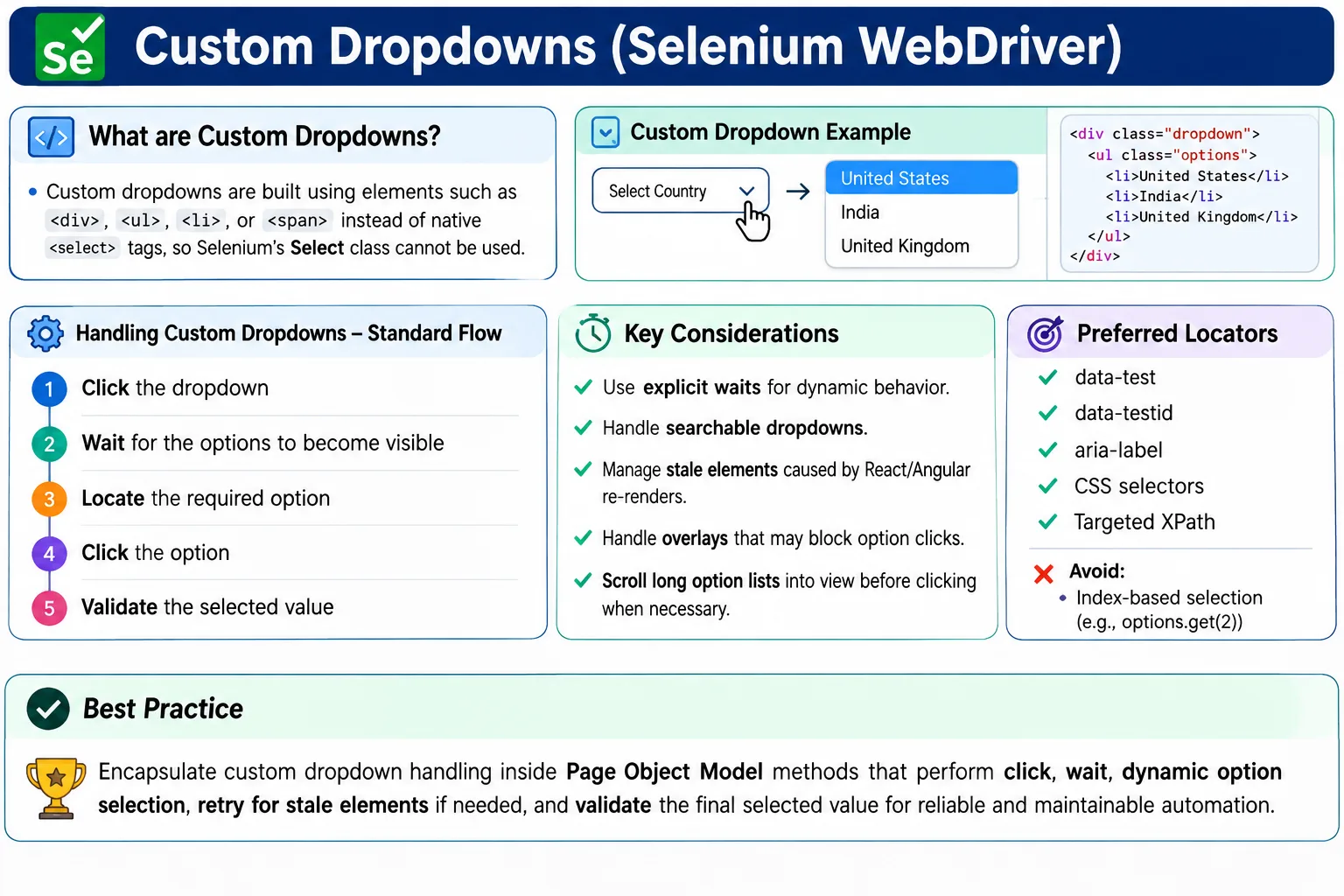
So Selenium Select class will NOT work.
Custom dropdown automation is a real-project skill in Selenium.
Understanding Custom Dropdowns in Selenium
Custom dropdowns are one of the clearest examples of the difference between simple Selenium practice and
real project automation. In beginner examples, dropdown handling usually starts with the HTML
<select> tag and Selenium's Select class. That is useful, but it does not
represent what many modern applications actually render. Applications built with React, Angular, Vue,
Bootstrap, Material UI, Ant Design, PrimeNG, Select2, and similar frameworks often display dropdowns using
ordinary HTML elements such as div, span, ul, li, input
fields, popover panels, and dynamically inserted option containers. To the user, these controls look like
dropdowns. To Selenium, they are just normal clickable elements that must be opened, searched, waited for,
clicked, and validated like any other part of the page.
This distinction matters because Selenium does not choose automation strategy based on appearance. It works
with the DOM. If a control is a native <select>, the Select class can read
options, select by visible text, select by value, select by index, and handle multi-select behavior. If the
control is built from custom markup, none of those methods apply. Trying to create a Select
object for a div-based dropdown will fail because Selenium expects a real
<select> element. For that reason, the first skill in custom dropdown automation is not
writing code. It is inspecting the DOM and identifying what kind of control you are dealing with.
A tester should not assume that a dropdown is native just because it has an arrow icon, opens a menu, or
lets a user choose a value. The browser developer tools should be used to inspect the element. If the
clickable part is a div or button, and the options appear somewhere else in the
DOM after clicking, the control is custom. If a search input appears inside the dropdown panel, it is
custom. If the selected values are shown as removable chips, it is custom. If the options are rendered only
after scrolling or typing, it is custom. Once this is understood, the automation approach becomes more
realistic and reliable.
Why Modern Applications Use Custom Dropdowns
Modern user interfaces use custom dropdowns because native dropdowns are limited in styling and behavior. Product teams often need controls that support searching, filtering, grouping, icons, tags, asynchronous data loading, keyboard shortcuts, virtual scrolling, multi-selection chips, disabled options, helper text, validation messages, or mobile-friendly behavior. Native HTML select controls are simple and accessible, but they do not provide the design flexibility required by many enterprise applications. Framework components solve those interface problems by building their own dropdown behavior using standard elements and JavaScript.
From an automation point of view, this gives us more responsibility. A native select has a stable browser behavior. A custom dropdown depends on framework rendering, event handlers, animation timing, overlay positioning, keyboard focus, API calls, and state management. In a React application, clicking the dropdown may update component state and render a new option list. In Angular Material, options may be inserted into a global overlay container near the bottom of the DOM, not inside the original form. In Bootstrap, the menu may be a sibling of the trigger. In Select2 or similar libraries, the visible label may be separate from the hidden original input. Selenium code must follow the real structure instead of relying on how the control looks on screen.
This is why custom dropdown automation is often asked in interviews. It tests whether a candidate has moved
beyond memorizing Selenium methods and can reason about the DOM. A strong answer explains that the
Select class works only for native select tags, while custom dropdowns require click, wait,
locate options, choose by text or attribute, handle dynamic rendering, and validate the final selected
value. That answer reflects real project experience because those are the exact steps automation engineers
use every day.
Core Automation Flow for Custom Dropdowns
Open the Dropdown Intentionally
The first step is to open the dropdown by clicking the correct trigger element. The trigger may be a button,
a text field, a div with role combobox, or a wrapper around a visible label. Choosing the wrong
trigger is a common source of flaky tests. For example, clicking a decorative arrow icon may work on one
screen size but fail on another if the icon is replaced or covered. A better locator targets the actual
control, preferably through a stable attribute such as data-testid, aria-label, an
accessible role, or a meaningful id supplied by the application.
Opening the dropdown should usually be done through a normal Selenium click after waiting for the trigger to be clickable. A JavaScript click should not be the default choice because it can bypass real user behavior. However, there are edge cases where JavaScript click is useful for hidden or heavily customized controls. When JavaScript is used, it should be treated as a workaround and documented in the helper or page object so future maintainers understand why it exists.
Wait for the Option Container
After the dropdown is clicked, the option container may not exist immediately. The page may need to render the list, fetch data from an API, run an animation, or position an overlay. If automation code clicks and immediately searches for options without waiting, it may pass on a fast machine and fail in a pipeline. Reliable custom dropdown automation uses explicit waits. The wait should target a meaningful state, such as option container visibility, at least one option being present, or the target option becoming clickable.
Waiting for the dropdown trigger alone is not enough. A trigger can be clickable before the menu is open. The test must wait for the list that appears after the click. In some frameworks, the list is rendered in an overlay root, so the locator should search globally rather than only under the form field. In other frameworks, the options remain in the DOM but are hidden until opened, so the wait should check visibility rather than presence. Understanding this difference makes the test more stable.
Select the Correct Option
Once the options are visible, the test should select the intended value. The safest approach is usually to match exact visible text after trimming whitespace, or to use a stable business attribute if the application provides one. Matching by index is fragile because option order can change with sorting, localization, personalization, permissions, or backend data changes. Matching partial text can be useful for search results, but it must be used carefully because it may click the wrong option when multiple values contain the same phrase.
A reusable helper can open the dropdown, wait for options, loop through the list, compare text, click the
matching option, and throw a clear exception if the value is not found. Throwing a clear exception is better
than silently doing nothing because it makes failure diagnosis easier. If the test says
Option not found: India, the engineer immediately knows whether the issue is missing data,
changed text, bad locator, or a failed dropdown open action.
Validate the Selected Value
Dropdown automation should not stop after clicking an option. A click only proves that Selenium attempted the interaction. It does not prove that the application accepted the value. The final selected value should be validated from the visible dropdown label, selected chip, hidden field, form state, table filter, or application result affected by the selection. This validation is especially important in custom controls because the UI may close without updating state if the click is intercepted, the item is disabled, or the application rejects the value.
Validation also protects against false positives. A test that clicks India and moves on may pass
even if the dropdown still shows Select Country. A better test verifies that the field now
displays India or that the related business flow behaves as expected. In enterprise test suites,
this difference matters because a suite full of unvalidated clicks can give confidence without actually
checking application behavior.
Handling Searchable Custom Dropdowns
Searchable dropdowns are common in applications where the option list is long. Country pickers, customer selectors, product lists, city fields, user assignment controls, and tag selectors often include a search input inside the dropdown. The automation flow changes slightly. Instead of opening the dropdown and scanning all options, the test opens the control, waits for the search input, types the search text, waits for filtered results, selects the matching item, and validates the final field state.
A key point is that typing into the original visible field may not always be correct. Some libraries render a new input inside the dropdown panel only after the control is opened. Others use the same input as both the trigger and the search box. Some controls debounce the search, meaning results update only after a small delay. This makes explicit waits essential. The wait should not be a fixed sleep. It should wait for the target option, the result count, or a loading indicator to disappear.
Searchable dropdowns also require careful data design. If the test searches for Ind, the result
may include India, Indonesia, and Indiana. The code should still match
the final option exactly unless the requirement is truly partial matching. When test data is unique, search
logic becomes simpler and less fragile. When test data is shared across environments, robust matching and
clear failure messages become more important.
Dynamic Rendering and Stale Element Problems
Custom dropdowns in modern frameworks often re-render. A Selenium element reference points to a specific
DOM node. If React, Angular, or Vue replaces that node after a state update, Selenium's stored reference is
no longer valid and a StaleElementReferenceException can occur. This is especially common when
typing into a searchable dropdown because every keystroke may cause the option list to be rebuilt.
The practical solution is to avoid storing option elements for too long. Locate options after the dropdown is open and after the relevant wait condition is satisfied. If stale element exceptions still occur, use a small retry strategy that re-locates the element and attempts the click again. A retry should not hide real problems forever. It should be limited, usually to two or three attempts, and should throw a clear error when the option cannot be clicked.
Dynamic rendering also affects validation. The selected label may update after an animation or state transition. Instead of validating immediately after the click, wait until the label text becomes the expected value or until the selected chip is visible. This makes the test reflect how users experience the application: they click, the application processes the change, and the selected state becomes visible.
Overlay, Scroll, and Click Interception Challenges
Many custom dropdowns render their option list in an overlay. That overlay may sit above the page, attach
to the body, or position itself near the control. Overlays introduce timing and visibility issues. If a
loading spinner, modal backdrop, sticky header, or animation layer covers the option, Selenium may throw an
ElementClickInterceptedException. This means Selenium found the option, but another element
received or blocked the click.
Good automation handles this by waiting for blocking overlays to disappear before clicking. If the dropdown appears inside a modal, the locator should be scoped carefully so the test does not accidentally find a similar option elsewhere on the page. If the option is outside the viewport, scroll it into view before clicking. Long dropdown lists may use virtual scrolling, where only visible options exist in the DOM. In that case, the test may need to scroll the option panel itself until the desired option is rendered.
Click interception is not always a Selenium problem. Sometimes it reveals a real usability issue. If a dropdown option is visually covered by a sticky footer or overlay, a user may also have trouble selecting it. Before adding a workaround, inspect the page. The goal is not just to force the test through; the goal is to produce reliable feedback about the application.
Single-Select and Multi-Select Custom Dropdowns
Custom dropdowns may support one selected value or many selected values. A single-select dropdown usually closes after one option is clicked and displays the selected value as a label. A multi-select custom dropdown may stay open after each selection and show selected values as chips, tags, checkmarks, or a count. The automation helper should not assume both controls behave the same way.
For single-select controls, the helper can usually open, select one option, and validate one final label. For multi-select controls, the helper may need to select several options, avoid selecting values that are already selected, remove existing values when the scenario requires a clean state, and compare selected values as a set. Order may not matter in a multi-select field, so assertions should often compare expected and actual values without depending on display order.
Deselecting values in a custom multi-select is also different from native select behavior. There may be a small remove button inside each chip, a checkbox inside the dropdown option, or a clear-all icon. The test should interact with the control the way a user would. If the page uses selected chips, remove the chip and validate it disappears. If it uses checkboxes inside a dropdown list, click the checked option again and validate the value is no longer selected.
Locator Strategy for Custom Dropdowns
Locator quality is the foundation of stable dropdown automation. The best locators are stable, meaningful,
and close to the business intent of the test. Attributes such as data-testid,
data-test, aria-label, and stable ids are usually better than long XPath chains.
A locator such as [data-testid='country-dropdown'] communicates intent. A long absolute XPath
that depends on nested div positions communicates fragility.
Option locators should also be designed carefully. If the option list is specific to one dropdown, the
locator can target that menu's option class. If multiple dropdowns are open or similar menus exist on the
page, the locator should be scoped to the active dropdown panel. Some frameworks add attributes such as
role='option', aria-selected, or component-specific classes. These can be useful
when visible text is not enough.
XPath is helpful when selecting by visible text because CSS does not support direct text matching. CSS is often better for stable attributes and classes. In many real projects, both are used: CSS for opening the dropdown trigger and XPath for selecting the visible option. The best strategy is not about choosing one locator type forever. It is about choosing the locator that expresses the target clearly and survives UI changes.
Page Object Model Design for Custom Dropdowns
Custom dropdown logic should not be duplicated across every test. If multiple pages contain dropdowns, the
code should be moved into page objects or reusable component helpers. A page object method such as
selectCountry("India") is much more readable than a test that contains all the details about
clicking the trigger, waiting for options, looping through items, and validating text. The test should focus
on the business scenario. The page object should know how the page works.
In larger frameworks, dropdown behavior can be represented as a reusable component class. The component can
accept locators for the trigger, option list, search input, selected label, clear button, and loading
indicator. It can expose methods such as selectByText, searchAndSelect,
selectMultiple, clearSelection, getSelectedText, and
isOptionAvailable. This design reduces duplication and makes framework behavior consistent.
Page object design should still remain practical. Not every dropdown needs a complex abstraction. A simple page with one dropdown may only need one method. A product with dozens of similar React Select controls may benefit from a generic helper. The right level of abstraction is the level that removes real duplication and makes tests easier to maintain without hiding important behavior.
Common Mistakes with Custom Dropdown Automation
The most common mistake is using the Select class for a custom dropdown. The second common
mistake is clicking the dropdown and immediately clicking an option without waiting for the option list.
The third is selecting by index because it seems quick. These approaches may work in a demo, but they tend
to fail in real suites where data, timing, and UI rendering vary.
Another mistake is treating every failure as a need for Thread.sleep(). A sleep may hide a
timing issue temporarily, but it slows down the suite and still fails when the environment is slower than
expected. Explicit waits are more reliable because they wait for a condition, not for an arbitrary amount of
time. If the option appears quickly, the test continues quickly. If the option is delayed, the test waits
only as long as needed within the timeout.
A subtle mistake is validating the wrong element. Some custom dropdowns keep a hidden input for form submission while showing the selected text elsewhere. Others update a chip list rather than the trigger text. A test should validate the user-visible selected state or the business outcome, not just any nearby attribute. If the locator points to a placeholder that never changes, the validation will be meaningless.
Real-World Scenarios Where Custom Dropdowns Matter
Registration and Profile Forms
Registration forms often use custom dropdowns for country, state, language, role, timezone, profession, and interest selection. These fields may be dependent. Choosing a country may load states. Choosing a role may display different permissions. Automation must handle the complete behavior: select the value, wait for dependent fields, and verify that the form reflects the chosen option.
Search and Filter Screens
Enterprise applications frequently use dropdown filters on dashboards, reports, order lists, defect lists, and customer tables. A test might choose a status, owner, category, or date range. The dropdown selection is only one part of the scenario. The actual validation should check that the filtered result changes correctly. This makes the test stronger because it confirms both the UI interaction and the business behavior behind it.
Admin and Permission Screens
Admin pages often include multi-select custom dropdowns for assigning roles, groups, applications, or feature permissions. These fields can be sensitive because a wrong selection may grant or remove access. A good automated test selects the values, validates selected chips or checkmarks, saves the form, reloads the page, and verifies that the permissions persist. This type of test provides more value than simply clicking an option once.
Interview Perspective on Custom Dropdowns
In interviews, custom dropdown questions are usually designed to see whether the candidate understands both
Selenium and modern UI behavior. A short answer should state that the Select class is only for
native <select> tags and cannot be used for div-based custom dropdowns. The
automation approach is to click the dropdown, wait for the option list, locate the option, click it, and
validate the selected value.
A stronger real-time answer adds practical details. You can say that in React or Angular applications, the option list may render dynamically, so you use explicit waits and sometimes retry stale elements. For searchable dropdowns, you type into the search field and wait for filtered results. For long lists, you may scroll the option into view. For overlays, you wait for loaders or backdrops to disappear. For maintainable automation, you wrap dropdown behavior inside page objects or reusable helpers.
This answer shows that you understand why dropdown tests fail and how to design them properly. It also shows that you do not depend on one Selenium method for every situation. Custom dropdowns are not difficult once the pattern is clear, but they require disciplined locators, waits, validation, and framework-aware thinking.
Troubleshooting Custom Dropdown Failures
When a custom dropdown test fails, debug it in the same order a user experiences the control. First confirm that the trigger was found and clicked. Then confirm that the option panel opened. After that, confirm that the expected option exists, is visible, and is clickable. Finally, confirm that the selected state changed after the click. This sequence prevents random guessing. It also helps separate locator failures from timing failures, data failures, overlay failures, and validation failures.
Screenshots and DOM snapshots are useful when diagnosing dropdown failures in CI pipelines. A local run may pass because the machine is fast and the browser is visible. A pipeline run may fail because the dropdown is still loading, the option is outside the viewport, or the application theme renders a different class name. Logging the option texts found by Selenium can quickly reveal whether the menu opened correctly and whether the expected data was present. Good dropdown helpers should fail loudly with useful messages instead of hiding the actual problem behind a generic click error.
Practical Takeaway
Custom dropdown automation is built around a simple idea: treat the dropdown as a collection of normal web elements, not as a native select control. Inspect the DOM, identify the trigger, wait for the option panel, select the right item, and validate the result. When the dropdown is searchable, dynamic, scrollable, or rendered in an overlay, add the specific handling required by that behavior. When the pattern repeats, move it into a reusable helper or page object.
Mastering custom dropdowns makes Selenium automation more realistic. It prepares you for modern application frameworks, reduces flaky UI tests, and gives you strong interview examples. The difference between a weak dropdown test and a strong one is not the number of lines of code. It is whether the test waits for the right state, chooses the right element, handles dynamic rendering, and proves the selected value actually changed in the application.
1. How to Identify a Custom Dropdown
Custom dropdown signs:
- No <select> tag in HTML
- Options appear only after clicking
- Options are inside ul > li or div list
- Search box exists inside dropdown
Example structure:
<div class="dropdown">
  <div class="dropdown-trigger">Select Country</div>
  <ul class="dropdown-menu">
    <li>India</li>
    <li>USA</li>
  </ul>
</div>
2. Standard Automation Steps (Core Pattern)
For custom dropdowns, the standard flow is:
- Click dropdown to open
- Wait for options list to be visible
- Find the matching option
- Click the option
- Validate the selection
3. Custom Dropdown Example 1 (Click + List Items)
HTML (Typical)
<div id="countryDropdown">Select Country</div>
<ul class="options">
  <li>India</li>
  <li>USA</li>
  <li>UK</li>
</ul>
Selenium Java Code
WebDriverWait wait = new WebDriverWait(driver, Duration.ofSeconds(10));
WebElement dropdown = driver.findElement(By.id("countryDropdown"));
dropdown.click();
By optionsLocator = By.cssSelector("ul.options li");
wait.until(ExpectedConditions.visibilityOfElementLocated(optionsLocator));
List<WebElement> options = driver.findElements(optionsLocator);
for (WebElement option : options) {
    if (option.getText().equals("India")) {
        option.click();
        break;
    }
}
4. Example 2 (Reusable Utility Method - Best Practice)
public void selectCustomDropdownByText(By dropdownLocator, By optionsLocator, String value) {
    WebDriverWait wait = new WebDriverWait(driver, Duration.ofSeconds(10));
    driver.findElement(dropdownLocator).click();
    wait.until(ExpectedConditions.visibilityOfAllElementsLocatedBy(optionsLocator));
    List<WebElement> options = driver.findElements(optionsLocator);
    for (WebElement option : options) {
        if (option.getText().trim().equals(value)) {
            option.click();
            return;
        }
    }
    throw new RuntimeException("Option not found: " + value);
}
Usage:
selectCustomDropdownByText(
        By.id("countryDropdown"),
        By.cssSelector("ul.options li"),
        "USA"
);
5. Example 3 (Dropdown with Search Box Inside)
Common in: Select2, React Select, Material UI Autocomplete
Flow:
- Click dropdown
- Type into search input
- Wait for filtered result
- Click match
WebDriverWait wait = new WebDriverWait(driver, Duration.ofSeconds(10));
driver.findElement(By.id("countryDropdown")).click();
WebElement searchBox = wait.until(
        ExpectedConditions.visibilityOfElementLocated(By.cssSelector("input[type='search']"))
);
searchBox.sendKeys("Ind");
By resultLocator = By.cssSelector("ul.options li");
wait.until(ExpectedConditions.numberOfElementsToBeMoreThan(resultLocator, 0));
for (WebElement option : driver.findElements(resultLocator)) {
    if (option.getText().equals("India")) {
        option.click();
        break;
    }
}
6. Example 4 (Handle StaleElement on React Re-render)
React often re-renders and causes StaleElementReferenceException. Fix: re-locate and retry.
public void clickOptionWithRetry(By optionLocator) {
    WebDriverWait wait = new WebDriverWait(driver, Duration.ofSeconds(10));
    for (int i = 0; i < 3; i++) {
        try {
            WebElement option = wait.until(ExpectedConditions.elementToBeClickable(optionLocator));
            option.click();
            return;
        } catch (StaleElementReferenceException ignored) {
        }
    }
    throw new RuntimeException("Failed to click option due to stale element: " + optionLocator);
}
7. Example 5 (Scroll to Option Before Click)
For long lists, option may be outside viewport.
WebElement option = driver.findElement(By.xpath("//li[text()='United States']"));
((JavascriptExecutor) driver).executeScript("arguments[0].scrollIntoView(true);", option);
option.click();
8. Example 6 (Click Intercepted by Overlay)
WebDriverWait wait = new WebDriverWait(driver, Duration.ofSeconds(10));
By overlay = By.cssSelector(".loading-overlay");
wait.until(ExpectedConditions.invisibilityOfElementLocated(overlay));
driver.findElement(By.id("countryDropdown")).click();
9. Validation After Selection (Must Do)
Example: dropdown shows selected text:
String selected = driver.findElement(By.id("countryDropdown")).getText();
Assert.assertEquals(selected.trim(), "India");
10. Custom Dropdown Best Practices (Enterprise)
- Prefer stable locators (data-testid, aria-label)
- Avoid index-based option selection
- Always add explicit waits (options visibility)
- Handle re-renders (stale element retry)
- Handle scrolling for long lists
- Wrap logic in Page Objects
11. Interview Perspective
Short Answer
Custom dropdowns are not <select> elements, so Selenium Select class cannot be used. We automate them by clicking to open, locating list items, selecting by text, and validating the selected value.
Real-Time Answer
In real projects, dropdowns are often div-based. I handle them by clicking the trigger, waiting for the options to be visible, selecting an option by matching text, handling dynamic rendering issues like stale elements, and validating the selected value afterward.
12. Key Takeaway
- Select class works only for <select>
- Custom dropdown means click + wait + locate options + select + validate
- Real projects use custom dropdowns heavily
Custom Dropdown Examples (Interview + Real-Time)
1. Click Dropdown and Select Option by Visible Text
driver.findElement(By.id("countryDropdown")).click();
driver.findElement(By.xpath("//li[text()='India']")).click();
2. Select Option Using Contains Text
driver.findElement(By.id("countryDropdown")).click();
driver.findElement(By.xpath("//li[contains(text(),'Ind')]")).click();
3. Select Option Using data-test Attribute
driver.findElement(By.cssSelector("[data-test='country-dropdown']")).click();
driver.findElement(By.cssSelector("[data-test='country-india']")).click();
4. Wait and Select from Custom Dropdown
WebDriverWait wait = new WebDriverWait(driver, Duration.ofSeconds(10));
wait.until(ExpectedConditions.elementToBeClickable(By.id("countryDropdown"))).click();
wait.until(ExpectedConditions.visibilityOfElementLocated(
        By.xpath("//li[text()='USA']"))).click();
5. Select Option Using Loop (Dynamic Selection)
driver.findElement(By.id("countryDropdown")).click();
List<WebElement> options = driver.findElements(By.cssSelector(".dropdown-item"));
for (WebElement option : options) {
    if (option.getText().equals("Canada")) {
        option.click();
        break;
    }
}
6. Select Option from React Dropdown
driver.findElement(By.cssSelector(".react-select__control")).click();
driver.findElement(By.xpath("//div[contains(@class,'option') and text()='India']"))
      .click();
7. Select Option from Angular Material Dropdown
driver.findElement(By.cssSelector("mat-select")).click();
driver.findElement(By.xpath("//mat-option//span[text()='India']")).click();
8. Select Option from Bootstrap Dropdown
driver.findElement(By.cssSelector(".dropdown-toggle")).click();
driver.findElement(By.xpath("//a[@class='dropdown-item' and text()='India']"))
      .click();
9. Handle Searchable Custom Dropdown
driver.findElement(By.id("countryDropdown")).click();
driver.findElement(By.cssSelector("input[type='search']")).sendKeys("Ind");
driver.findElement(By.xpath("//li[text()='India']")).click();
10. Validate Selected Value
String selected = driver.findElement(By.id("countryDropdown")).getText();
System.out.println("Selected: " + selected);
11. Handle Multi-Select Custom Dropdown
driver.findElement(By.id("countryDropdown")).click();
driver.findElement(By.xpath("//li[text()='India']")).click();
driver.findElement(By.xpath("//li[text()='USA']")).click();
12. Deselect Option in Custom Multi-Select
driver.findElement(By.xpath("//span[text()='India']/following-sibling::button"))
      .click();
13. Select Option Using JavaScript (Hidden Option)
WebElement option = driver.findElement(By.xpath("//li[text()='India']"));
JavascriptExecutor js = (JavascriptExecutor) driver;
js.executeScript("arguments[0].click();", option);
14. Handle Dropdown Inside Frame
driver.switchTo().frame("frame1");
driver.findElement(By.id("countryDropdown")).click();
driver.findElement(By.xpath("//li[text()='India']")).click();
driver.switchTo().defaultContent();
15. Close Dropdown After Selection
driver.findElement(By.id("countryDropdown")).click();
driver.findElement(By.xpath("//li[text()='India']")).click();
// Click outside to close
driver.findElement(By.tagName("body")).click();
16. Validate Option Exists Before Clicking
driver.findElement(By.id("countryDropdown")).click();
List<WebElement> options = driver.findElements(By.cssSelector(".dropdown-item"));
boolean found = false;
for (WebElement option : options) {
    if (option.getText().equals("India")) {
        found = true;
        break;
    }
}
System.out.println("Option exists: " + found);
17. Select Option by Index
driver.findElement(By.id("countryDropdown")).click();
List<WebElement> options = driver.findElements(By.cssSelector(".dropdown-item"));
options.get(2).click();
18. Scroll and Select (Long Dropdown)
driver.findElement(By.id("countryDropdown")).click();
WebElement option = driver.findElement(By.xpath("//li[text()='Australia']"));
((JavascriptExecutor) driver).executeScript("arguments[0].scrollIntoView(true);", option);
option.click();
19. Handle Auto-Close Dropdown
driver.findElement(By.id("countryDropdown")).click();
WebDriverWait wait = new WebDriverWait(driver, Duration.ofSeconds(10));
wait.until(ExpectedConditions.visibilityOfElementLocated(
        By.xpath("//li[text()='Germany']"))).click();
20. Custom Dropdown in Page Object Model (POM)
public class RegistrationPage {
    WebDriver driver;
    By dropdown = By.id("countryDropdown");
    By options = By.cssSelector(".dropdown-item");

    public RegistrationPage(WebDriver driver) {
        this.driver = driver;
    }

    public void selectCountry(String country) {
        driver.findElement(dropdown).click();
        List<WebElement> list = driver.findElements(options);
        for (WebElement option : list) {
            if (option.getText().equals(country)) {
                option.click();
                break;
            }
        }
    }
}
Custom Dropdown Best Practices
- Do NOT use Select class (only for <select> tag)
- Use proper wait before clicking
- Handle searchable dropdowns carefully
- Use loop for dynamic selection
- Prefer data-test attributes
- Scroll for long lists
- Handle overlay/modals properly