CSS Selector Basics
CSS Selectors are a fast, readable, and widely used locator strategy in Selenium. They are preferred when simple, attribute-based identification is sufficient and when performance and readability matter. In Selenium, CSS selectors are often the first alternative to ID and Name, and in many teams, they are preferred over XPath for day-to-day automation.
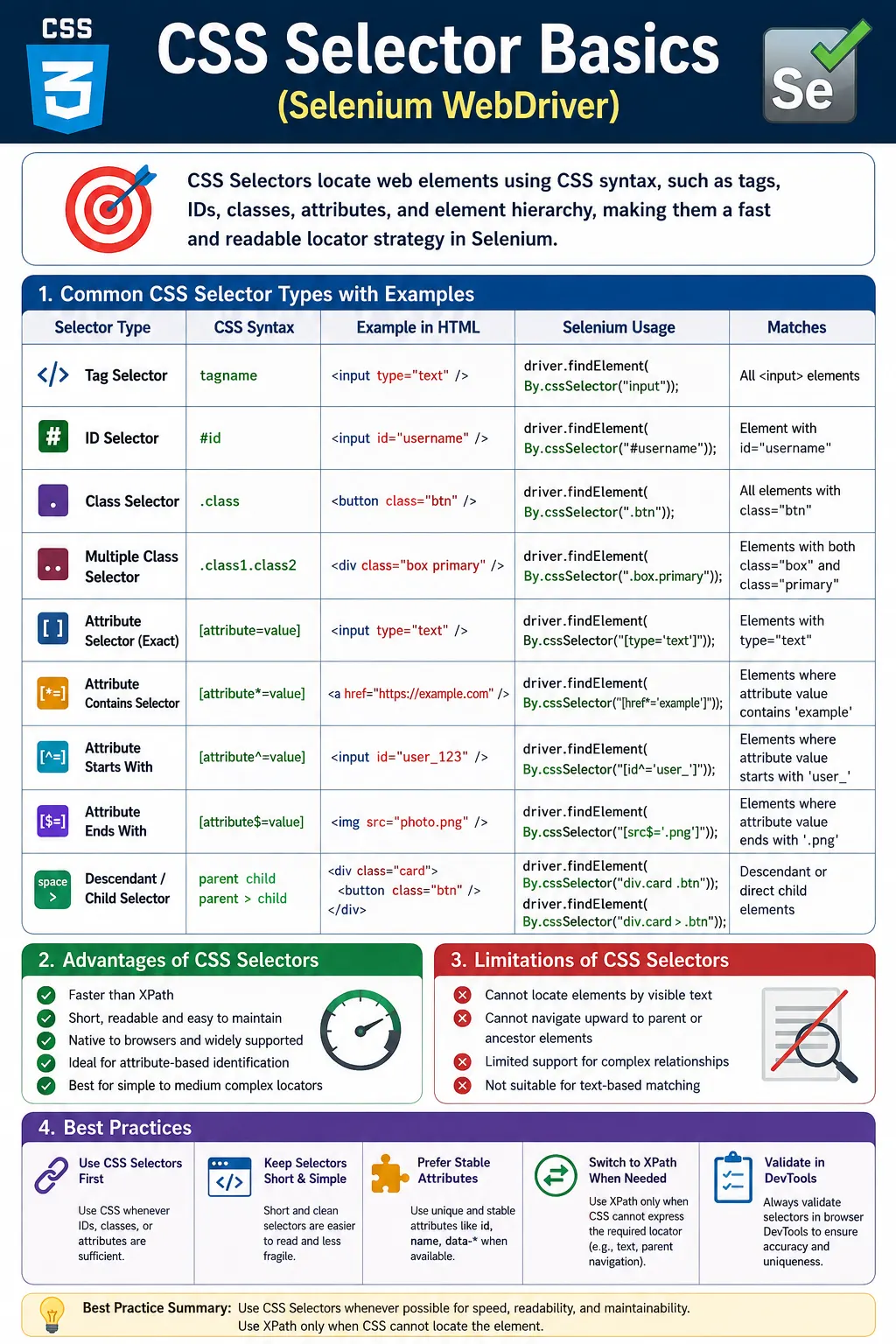
Understanding CSS Selectors in Selenium
CSS selectors are one of the most practical locator strategies in Selenium because they are fast, readable, and closely connected to how browsers already understand the page. When a browser applies styles, it uses CSS selector rules to decide which elements should receive which styling. Selenium can use the same selector language to query the DOM and find elements for automation. This makes CSS selectors familiar to frontend developers, efficient for the browser engine, and clean for test automation engineers who want locators that are short and easy to maintain.
A CSS selector is simply a pattern that describes one or more HTML elements. The pattern may be based on a tag name, an id, a class, an attribute, a partial attribute value, or a relationship between elements. In Selenium, the selector is passed to By.cssSelector, and WebDriver asks the browser to return the matching element or elements. If the selector is well written, the test can interact with the intended element without relying on long paths, fragile indexes, or unnecessary DOM traversal.
CSS selectors are often preferred for day-to-day Selenium automation because many web elements can be located directly through ids, classes, names, roles, or custom data attributes. A selector such as #username or button.login-btn communicates intent quickly. It is easier to read than a long XPath and often easier to discuss with developers because the syntax is familiar in frontend work. This readability becomes important as a test suite grows. Locators are not temporary strings; they are part of the automation design.
Why CSS Selectors Matter for Automation
Speed, Readability, and Browser-Native Querying
CSS selectors matter because they provide a direct way to describe elements using the same language browsers already support natively. In most practical Selenium projects, locator speed is rarely the only concern, but a clean CSS selector is still a good default because it is lightweight and readable. A simple CSS selector avoids the complexity of XPath when the requirement is only to match an id, class, or attribute. This helps keep test code focused on behavior rather than locator mechanics.
Readability is just as important as speed. When a test fails, someone has to understand what the locator was trying to find. A selector such as input[name='email'] is easy to understand. It says that Selenium is looking for an input element with the name email. A selector such as button.primary.submit-action is also easy to reason about when those classes are meaningful. By contrast, a copied absolute XPath may require counting divs and inspecting the page structure before anyone knows what it represents.
CSS selectors also fit well into conversations between testers and developers. If a locator is unstable because a component uses generated classes, a tester can ask for a stable data-testid or data-qa attribute and then use a concise CSS selector against that attribute. This collaboration improves the application and the test suite. Instead of hiding instability behind complex locators, the team creates stable hooks for automation.
When CSS Selectors Are the Right First Choice
CSS selectors are usually the right first choice when an element can be identified through stable attributes. If the element has a unique id, By.id is even simpler, but #id as a CSS selector is also clear. If the element has a stable name, type, aria-label, placeholder, href, data-testid, data-test, or data-qa attribute, CSS can express that cleanly. If an element needs to be found inside a known container, CSS descendant and child selectors can keep the search scoped and readable.
CSS selectors are also strong when multiple classes must be matched. Selenium's By.className locator accepts only a single class name, but CSS selectors can combine classes naturally. A selector such as button.btn.primary means a button element that has both btn and primary classes. This is useful when a class alone is too broad but the combination of tag and classes identifies the target clearly. It gives testers more control while still staying readable.
Another common use is partial attribute matching. CSS supports contains, starts-with, and ends-with style attribute selectors using *=, ^=, and $=. These are useful when a value has a stable part and a dynamic part. For example, an id may include a generated suffix, but it may always begin with user_. CSS can match that stable prefix without requiring XPath. For many dynamic attribute cases, CSS selectors provide enough flexibility.
Core CSS Selector Syntax
Tag Selectors
A tag selector selects elements by HTML tag name. Examples include input, button, a, select, textarea, div, and span. Tag selectors are simple, but they are rarely unique on a real page. A page may contain many inputs and many buttons. For this reason, tag selectors are usually used as part of a more specific selector rather than alone. For example, input[name='email'] is much stronger than input because it combines the tag with an attribute.
Tag selectors are useful when using findElements to collect multiple elements of the same type. A test may need all links inside a navigation menu, all rows in a table, or all options inside a dropdown. In those cases, selecting by tag inside a scoped container can be reasonable. The key is context. A broad selector such as a across the entire page may return many unrelated links, but nav a or footer a communicates where the links should come from.
ID Selectors
The id selector uses the # prefix. If an element has id username, the CSS selector is #username. IDs are intended to be unique in a valid HTML document, so id-based locators are usually strong when the id is stable. In Selenium, By.id("username") is often the simplest option, but By.cssSelector("#username") is also common in frameworks that standardize on CSS selectors.
The caution with ids is that not every id is stable. Modern component libraries sometimes generate ids at runtime. An id such as username is stable; an id such as input-938471 may not be. Before using an id, inspect whether it is likely to remain the same across sessions, builds, and data states. If the id is generated but has a stable prefix or suffix, a partial attribute selector may be better than an exact id selector.
Class Selectors
The class selector uses the dot prefix. If an element has class login-btn, the CSS selector is .login-btn. Class selectors are useful because classes are common in HTML, but they are not required to be unique. Many elements may share the same class for styling. A class such as btn or form-control is usually too broad by itself. A class such as login-submit or error-message may be more meaningful if the application uses semantic class names.
Multiple classes can be combined without spaces. A selector such as button.btn.primary means a button element with both btn and primary classes. This is different from button .btn .primary, which would mean nested descendants. The no-space form is used when the same element must contain all listed classes. This is a common interview point because many beginners confuse multiple class selection with descendant selection.
Attribute Selectors
Exact Attribute Matching
Attribute selectors are extremely useful in Selenium because many reliable locator hooks are stored in attributes. An exact attribute selector uses square brackets, such as input[name='username'] or button[type='submit']. This style is clear because it describes both the element type and the attribute that identifies it. Exact attribute matching is best when the attribute value is stable and meaningful.
Data attributes are especially useful for automation. Selectors such as [data-testid='login-button'] or [data-qa='email-input'] are stable when the development team treats those attributes as an automation contract. They are not tied to visual styling, layout, or generated framework internals. In a mature automation project, data attributes often produce the cleanest CSS selectors.
Partial Attribute Matching
CSS provides three common partial attribute operators. The contains operator, written *=, matches when the attribute contains a value anywhere. The starts-with operator, written ^=, matches when the attribute begins with a value. The ends-with operator, written $=, matches when the attribute ends with a value. These are useful when part of the attribute is stable and another part is dynamic.
Partial matching should be used with precision. A selector such as input[id*='user'] may be appropriate if the page has one relevant user input, but it may be too broad if the page also contains user role, user search, and user status fields. A stronger selector may include the tag, type, parent form, or another attribute. Dynamic selectors should ignore unstable pieces, but they should not ignore element identity.
Starts-with is often more precise than contains when a generated value follows a known prefix. For example, div[id^='menu_'] communicates that the id should begin with menu_. Ends-with is useful when the stable part is at the end, such as input[id$='_name']. These selectors are the CSS equivalent of many common dynamic XPath techniques. They let testers handle changing attributes without leaving CSS.
Hierarchy Selectors
Descendant Selectors
A descendant selector uses a space between two selectors. For example, form input selects input elements at any depth inside a form. This is useful when the exact number of wrapper elements does not matter. Modern pages often place inputs inside several divs for layout and styling. A descendant selector can stay readable without depending on every wrapper. However, it can also become broad if the parent context is not specific enough.
Descendant selectors are powerful when scoped to a meaningful container. A selector such as form#loginForm input[name='username'] is clear because it searches for the username input inside the login form. A selector such as div input is too vague because most pages contain many divs and many inputs. Good CSS locators use hierarchy to narrow scope, not to recreate the entire DOM path.
Direct Child Selectors
A direct child selector uses the greater-than symbol. For example, form > input selects only input elements that are immediate children of the form. This is stricter than a descendant selector. It is useful when the DOM structure is intentionally stable and the direct relationship matters. It can also prevent accidental matches in nested areas. However, it may fail if a wrapper div is added between the form and the input.
The choice between descendant and direct child depends on how stable the structure is. If the application often adds layout wrappers, descendant may be more resilient. If direct child structure is part of the component contract, direct child may be more precise. As with every locator decision, the best choice is the one that matches the real stability of the page.
Combining Selectors for Reliable Locators
Combining Tag, ID, Class, and Attributes
CSS selectors become most useful when simple pieces are combined. A selector can include a tag, id, class, and attribute in one readable expression. For example, input#username identifies an input with id username, while input[type='text'][name='email'] identifies a text input with name email. Combining selectors helps avoid broad matches and makes the locator intention clearer.
Over-combining should be avoided. A selector does not become better just because it has more parts. A long selector that includes several parent containers and styling classes may be more fragile than a short selector based on a stable data attribute. The goal is not maximum detail; the goal is meaningful uniqueness. If [data-testid='submit-button'] is stable and unique, adding body main div form button around it does not improve the locator. It only creates more ways for the locator to break.
Scoped Searches in Selenium
CSS selectors work very well with scoped WebElement searches. A test can first locate a card, form, modal, or row, and then find an element inside that container using a short CSS selector. This pattern is often cleaner than writing one large page-level selector. For example, locate a product card by a stable attribute or class, then call card.findElement(By.cssSelector("button.add-to-cart")). The second selector only needs to be unique inside the card, not across the whole page.
Scoped searches are particularly valuable when pages contain repeated components. A dashboard may have several cards with identical internal classes. A global selector for .action-button could find the wrong card. A scoped selector inside the correct card reduces that risk. This is a practical design habit that improves reliability even when the CSS selector itself is simple.
CSS Selectors in Page Object Model
Centralizing Selector Knowledge
In a Page Object Model, CSS selectors should be stored close to the page behavior they support. Test methods should not be filled with raw selector strings. Instead, page classes should expose meaningful methods such as enterEmail, clickLogin, selectRememberMe, or getValidationMessage. The CSS selectors remain in the page class, where they can be updated if the UI changes. This keeps test cases readable and reduces duplication.
Page objects also make it easier to standardize locator style. A team can agree to prefer data attributes, then ids, then stable attribute selectors, then class combinations, and only use XPath for text or upward traversal. This consistency makes reviews easier. When a new selector appears, the reviewer can evaluate it against known rules instead of debating locator strategy from scratch every time.
Readable Selectors and Maintainable Names
A selector should be paired with a meaningful variable or method name. A variable named loginButton is easier to understand than a raw selector repeated across several tests. If the selector is complex, the name should explain the role of the element. Good naming reduces the need for comments. Comments are helpful when a selector uses a workaround for dynamic markup, but most selectors should be understandable from their structure and the page object method that uses them.
Maintainability also means avoiding styling-only classes when possible. A class such as blue, mt-4, col-md-6, or flex may change when the design changes. A class such as login-button may be more stable if the team treats it as semantic. Data attributes are usually better still. The more a selector depends on visual styling, the more likely it is to break during design updates that do not change behavior.
What CSS Selectors Cannot Express
Text Matching Limitations
A major limitation of CSS selectors in Selenium is that they cannot directly locate elements by visible text. If a test needs to find a button whose text is Save or a link whose text is Profile, XPath is often the better tool. CSS can match attributes and structure, but it cannot use a text() function like XPath. This limitation is one reason experienced automation engineers use both CSS and XPath rather than treating one as universally superior.
Sometimes text can be represented in an attribute such as aria-label, title, value, placeholder, or data-testid. In those cases, CSS can still be used. For example, button[aria-label='Close'] is a strong CSS selector for an icon button if the aria-label is stable. But if the only reliable clue is visible text between tags, XPath is required. Choosing CSS should never mean forcing the wrong locator strategy onto the page.
Parent and Ancestor Traversal Limits
CSS selectors also cannot traverse upward to a parent or ancestor in the way XPath axes can. CSS can select descendants and direct children, but it cannot start from a known child and move up to a parent container. This matters in forms, tables, and repeated cards. If the only stable clue is inside the container and the target is the container or another element relative to it, XPath may be clearer.
This does not make CSS weak. It simply defines its boundary. CSS is excellent for locating elements by stable attributes and downward relationships. XPath is better for visible text, upward traversal, and advanced relationship-based selection. Strong Selenium frameworks use the right tool for the locator requirement.
CSS Selector vs XPath in Real Projects
Choosing by Requirement, Not Preference
Many teams ask whether CSS selectors are better than XPath. The practical answer is that neither is always better. CSS selectors are usually cleaner for id, class, attribute, and simple hierarchy matching. XPath is stronger for text matching, parent traversal, ancestor lookup, and label-to-input relationships. A locator strategy should be based on the element, the DOM, and the test intent, not on a fixed rule that one syntax must always be used.
For example, a login button with data-testid='login-button' should probably be located with CSS. A field next to a label when the input has no stable attribute may require XPath. A product card with a stable data product id can use CSS. A table row found by visible customer name may use XPath. The best automation engineer is not the one who memorizes one locator strategy; it is the one who chooses the simplest reliable expression for the situation.
Performance vs Reliability
CSS selectors are often described as faster than XPath. In many browser contexts, CSS querying is highly optimized because it is native to styling and DOM selection. However, in real Selenium suites, reliability usually matters more than tiny selector speed differences. A brittle CSS selector that times out repeatedly is worse than a stable XPath that finds the correct element quickly. Performance should be considered, but it should not override clarity and stability.
The most expensive locator is often the one that fails. Failed locators cause retries, waits, screenshots, debugging, and test reruns. A clean CSS selector improves performance indirectly by being stable and easy to diagnose. A locator that finds the intended element without ambiguity keeps the test suite fast in practice. This is why CSS selector basics are not just syntax; they are part of reliable automation design.
Common Mistakes with CSS Selectors
Using XPath Syntax Inside cssSelector
A very common beginner mistake is passing XPath syntax to By.cssSelector. For example, //input[@id='username'] is XPath, not CSS. The CSS equivalent is #username or input[id='username']. Selenium will not translate XPath into CSS automatically. Each locator method expects the syntax that belongs to it. This distinction is simple but important in interviews and real debugging.
Depending on Generated Classes
Another mistake is relying on generated framework classes. Libraries sometimes create class names that include hashes, build numbers, or state-specific fragments. These values may change after deployment or page refresh. If a class is clearly generated, avoid using it as the main locator clue. Look for stable attributes, semantic classes, or data attributes instead. If no stable hook exists, request one from the development team.
Over-Specifying the DOM Path
Over-specific selectors are fragile. A selector that starts from body and walks through several containers may break when a wrapper div is added. CSS supports hierarchy, but that does not mean the selector should mirror the full page structure. Use just enough hierarchy to scope the target. A short selector based on a stable attribute is usually better than a long selector based on layout.
Interview Perspective on CSS Selectors
Short Interview Answer
CSS selectors are used in Selenium to locate elements using CSS-style patterns based on tags, ids, classes, attributes, and hierarchy. They are fast, readable, and useful for most simple and medium-complex locators.
Detailed Interview Answer
In Selenium, CSS selectors provide a browser-native way to query the DOM using the same selector syntax used by stylesheets. They support id selectors, class selectors, attribute selectors, partial attribute matching, descendant selectors, direct child selectors, and combinations of these patterns. They are preferred for clean attribute-based locators because they are concise and readable. However, CSS selectors cannot locate elements by visible text or move upward to a parent or ancestor, so XPath is still needed for those cases.
Real-Time Explanation
In a real project, CSS selectors are commonly used for fields, buttons, links, checkboxes, and containers that have stable ids, classes, or data attributes. They work well in Page Object Model classes because they are short and easy to maintain. If a page has repeated components, a tester can first locate the correct container and then use a scoped CSS selector inside it. If the requirement involves text or parent traversal, the tester should switch to XPath rather than forcing CSS beyond its limits.
Practical Guidelines for CSS Selector Basics
Start with Stable Attributes
The best CSS selector strategy starts with stable attributes. Prefer unique ids when they are stable, then data-testid or data-qa attributes, then meaningful names, aria labels, roles, and semantic classes. Avoid selectors based on visual styling or generated framework internals. A locator should describe the element's role in the application, not merely its current appearance.
Keep Selectors Short and Meaningful
Keep CSS selectors as short as possible while still unique. A selector should not include every parent element unless those parents are needed for context. If the selector is too broad, add one meaningful condition. If it is too long, look for a better attribute or use scoped WebElement searches. A maintainable selector balances uniqueness, readability, and resilience.
Know When to Switch to XPath
CSS selectors are excellent, but they are not universal. Switch to XPath when the locator must use visible text, move from a child to a parent, locate a row by cell text, or express a complex relationship that CSS cannot describe. This is not a failure of CSS. It is correct tool selection. Strong Selenium automation comes from knowing both CSS and XPath and applying each where it fits best.
The key takeaway is that CSS selectors should be part of every Selenium tester's core skill set. They are fast, clean, readable, and ideal for attribute-based locators. When used with stable attributes, scoped searches, and Page Object Model design, CSS selectors make tests easier to read and maintain. Mastering the basics gives you a reliable default locator strategy, while understanding the limitations tells you when XPath is the better choice.
1. What Is a CSS Selector
Definition: A CSS selector is a pattern used to select HTML elements based on:
- Tag
- ID
- Class
- Attributes
- Hierarchy
Selenium uses CSS selectors to query the DOM in the same way browsers apply styles, making them fast and native.
2. Why CSS Selectors Are Important
CSS selectors are:
- Faster than XPath
- More readable
- Less verbose
- Well-known to front-end developers
Industry trend: Prefer CSS selectors for simple and medium-complex locators; use XPath for advanced relationships and text-based matching.
3. Basic CSS Selector Syntax
3.1 Tag Selector
Selects elements by tag name.
input
button
a
Finds all elements of that tag.
3.2 ID Selector (Most Preferred)
#username
#loginBtn
Equivalent to: HTML: id="username"
Rules:
#prefix- ID must be unique
3.3 Class Selector
.login-btn
.error-message
Equivalent to: HTML: class="login-btn"
Important:
- Matches one class
- Multiple elements may share the same class
3.4 Multiple Classes (Very Powerful)
button.btn.primaryMatches:
<button class="btn primary">...</button>This is a major advantage over className locator.
4. Attribute Selectors (Very Common)
4.1 Exact Attribute Match
input[name='username']4.2 Partial Attribute Match
Selector meaning:
*=means contains^=means starts with$=means ends with
Examples:
input[id*='user']
input[id^='user_']
input[id$='_name']
These are the CSS equivalent of dynamic XPath functions.
5. Parent-Child & Hierarchy Selectors
5.1 Direct Child (>)
form > inputSelects only direct children.
5.2 Descendant (Space)
form inputSelects all nested inputs.
6. Combining Selectors for Uniqueness
form#loginForm input[name='username']Combines:
- Tag
- ID
- Attribute
This creates highly stable locators.
7. What CSS Selectors CANNOT Do (Important Limitation)
CSS selectors cannot:
- Locate elements by visible text
- Traverse upward (parent/ancestor)
- Use complex DOM relationships like XPath axes
If you need these, XPath is required.
8. CSS Selector vs XPath (Quick Basics)
Comparison:
| Feature | CSS Selector | XPath |
|---|---|---|
| Speed | Faster | Slower |
| Readability | High | Medium |
| Text matching | No | Yes |
| Parent traversal | No | Yes |
| Complexity handling | Medium | High |
9. CSS Selectors in Page Object Model (POM)
Best practices:
- Prefer CSS selectors for IDs, classes, and attributes
- Keep selectors short and intention-revealing
- Centralize in page classes
- Avoid over-specific selectors
10. Common Beginner Mistakes
- Using CSS when text-based match is needed
- Over-specifying selectors (too many parents)
- Using dynamic auto-generated classes
- Confusing class selector with className locator
11. Interview Perspective
Short Answer: CSS selectors are used in Selenium to locate elements using CSS-style patterns based on IDs, classes, attributes, and hierarchy.
Real-Time Answer: In Selenium, CSS selectors provide a fast and readable way to locate elements using IDs, classes, and attributes. They are preferred over XPath for simple locators but cannot locate elements by visible text or traverse upward in the DOM.
12. Key Takeaway
- CSS selectors are fast and clean
- Excellent for attribute-based locators
- Support multiple classes and partial matches
- Cannot match text or parent elements
- Use XPath when CSS reaches its limits
- Use CSS selectors by default-switch to XPath only when CSS cannot express the requirement.
13. CSS Selector Examples in Selenium (Quick Reference)
1. Basic CSS Selector (By Tag)
driver.findElement(By.cssSelector("input"));Matches: First <input> element
2. CSS Selector by ID
driver.findElement(By.cssSelector("#username"))
      .sendKeys("admin");
Equivalent to: By.id("username")
3. CSS Selector by Class
driver.findElement(By.cssSelector(".login-btn"))
      .click();
4. CSS Selector by Tag + ID
driver.findElement(By.cssSelector("input#username"))
      .sendKeys("admin");
5. CSS Selector by Tag + Class
driver.findElement(By.cssSelector("button.login-btn"))
      .click();
6. CSS Selector by Attribute
driver.findElement(By.cssSelector("input[type='password']"))
      .sendKeys("secret");
7. CSS Selector Multiple Attributes
driver.findElement(
    By.cssSelector("input[type='text'][name='email']")
).sendKeys("test@example.com");
8. CSS Selector Using Partial Attribute Match (*=)
driver.findElement(
    By.cssSelector("input[id*='user']")
).sendKeys("admin");
Equivalent to: XPath contains()
9. CSS Selector Using Starts-With (^=)
driver.findElement(
    By.cssSelector("div[id^='menu_']")
);
10. CSS Selector Using Ends-With ($=)
driver.findElement(
    By.cssSelector("input[id$='_name']")
);
11. CSS Selector Direct Child (>)
driver.findElement(
    By.cssSelector("form#loginForm > input")
);
Scope: Direct child only
12. CSS Selector Descendant (Space)
driver.findElement(
    By.cssSelector("form#loginForm input")
);
Scope: Any depth
13. CSS Selector with Index (nth-child)
driver.findElement(
    By.cssSelector("ul#menu li:nth-child(2)")
).click();
14. CSS Selector Last Child
driver.findElement(
    By.cssSelector("ul#menu li:last-child")
).click();
15. CSS Selector First Child
driver.findElement(
    By.cssSelector("ul#menu li:first-child")
).click();
16. CSS Selector for Checkbox
driver.findElement(
    By.cssSelector("input[type='checkbox']")
).click();
17. CSS Selector for Link
driver.findElement(
    By.cssSelector("a[href='/profile']")
).click();
18. CSS Selector Inside Context (findElement chaining)
WebElement card = driver.findElement(By.className("product-card"));

card.findElement(
    By.cssSelector("button.add-to-cart")
).click();
19. CSS Selector After Page Refresh (Stale Fix)
WebElement btn =
    driver.findElement(By.cssSelector("button.save"));

driver.navigate().refresh();

btn =
    driver.findElement(By.cssSelector("button.save"));
btn.click();
20. CSS Selector Stored as By (Framework Style)
By username = By.cssSelector("#username");
driver.findElement(username).sendKeys("admin");
21. CSS Selector in Page Object Model (POM)
@FindBy(css = "button.login-btn")
WebElement loginBtn;
22. Common Interview Mistake
By.cssSelector("//input[@id='username']"); // Invalid: XPath syntaxCorrect:
By.cssSelector("#username"); // Valid: CSS syntax23. CSS Selector vs XPath Equivalent
CSS:
By.cssSelector("input[id='username']");XPath:
By.xpath("//input[@id='username']");24. When CSS Selector Is Better
- Faster than XPath
- Cleaner syntax
- Better for dynamic attributes
- Works well with classes and IDs
25. When CSS Selector Is NOT Suitable
- Cannot go upward (no parent axis)
- Cannot use
text() - Limited DOM traversal for advanced cases
26. Interview Summary - CSS Selector Basics
driver.findElement(By.cssSelector("cssExpression"));Key Points:
- Uses CSS syntax
- Faster than XPath
- Supports partial matches (
*=^=$=) - No text-based selection
- No parent navigation