Cross Browser Testing in Selenium (In Depth)
Cross Browser Testing is the process of verifying that a web application works correctly across different browsers, browser versions, operating systems, and rendering engines. A user may open the same application in Chrome, Firefox, Edge, Safari, or a mobile browser, and the application should still provide consistent functionality, layout, navigation, validation, and performance. Selenium is one of the most common tools used for this kind of validation because it supports browser automation across multiple browser drivers, Selenium Grid, RemoteWebDriver, and cloud testing providers.
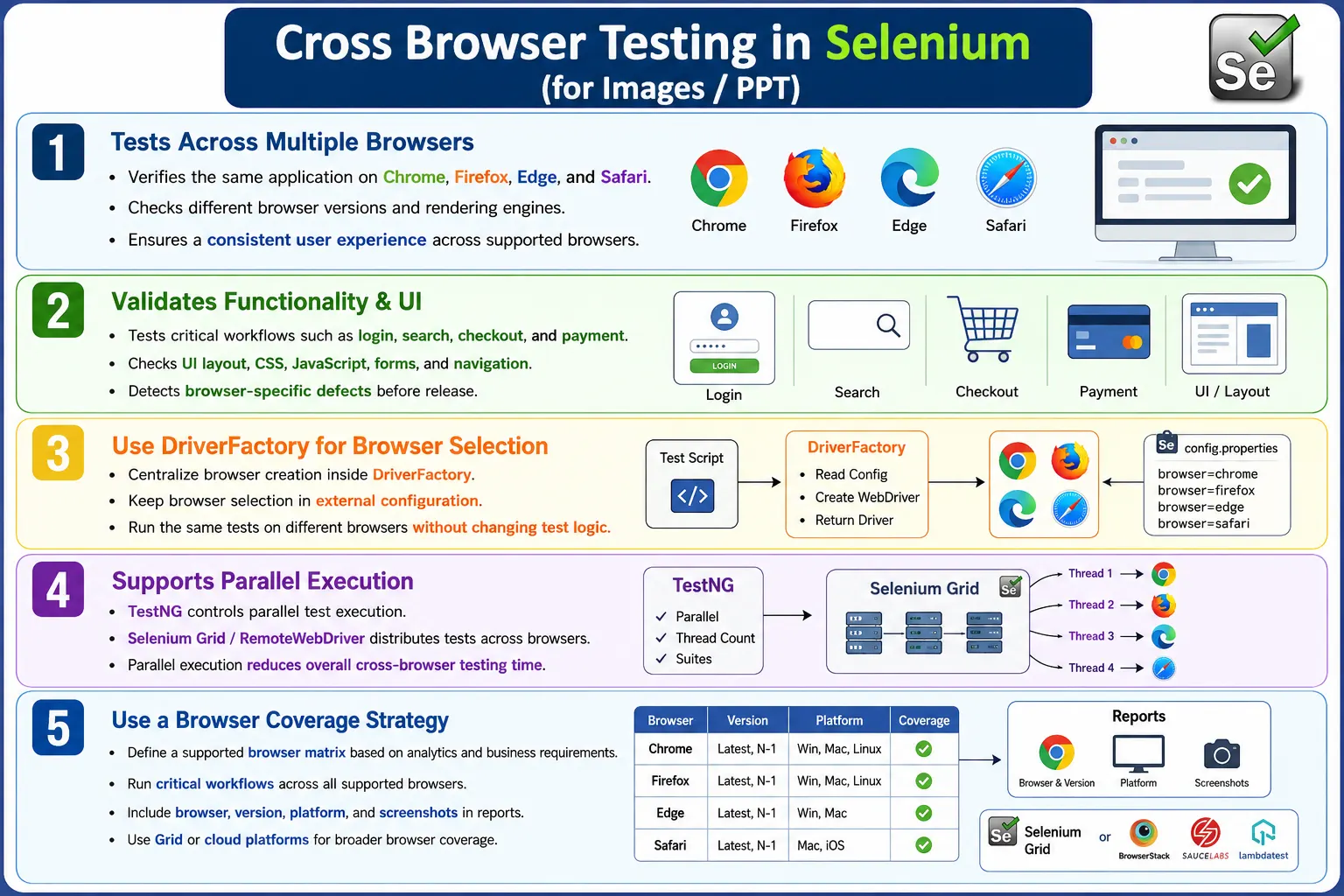
Cross Browser Testing is not only about checking whether a page opens. It verifies whether real business workflows behave correctly across browsers. Login, registration, search, checkout, payment, file upload, file download, forms, menus, modal dialogs, alerts, responsive layouts, and JavaScript-heavy screens may behave differently from one browser to another. A browser-specific defect can reach production even when all tests pass on Chrome, because Chrome is not the same as Firefox, Safari, or Edge in every detail.
1. What Cross Browser Testing Means
Cross Browser Testing means executing the same application workflows on multiple browsers to confirm consistent behavior. The goal is to verify functionality, UI layout, CSS rendering, JavaScript execution, browser-specific features, and user experience. It ensures that users receive a reliable experience regardless of which supported browser they use.
For example, if a login test passes on Chrome, the team should not automatically assume it works on Safari. Safari may render a button differently, handle a JavaScript event differently, apply stricter browser policies, or expose a layout issue. Cross Browser Testing gives confidence that critical user journeys work across the project's supported browser list.
2. Why Cross Browser Testing Is Needed
Users do not all use the same browser. Some use Chrome, some use Edge, some use Firefox, and many macOS and iOS users use Safari. In enterprise environments, browser usage may be driven by company policy. In consumer products, browser usage may be driven by geography, device type, and user preference. A product team cannot assume that Chrome coverage alone is enough unless analytics and business decisions clearly support that.
Browser-specific defects can be expensive. A hidden login button on Safari, a broken file upload on Firefox, a payment issue on Edge, or a layout failure on mobile Safari can block real users. Cross Browser Testing detects these differences before release. It protects user experience and reduces production defects caused by browser compatibility gaps.
3. Problems Without Cross Browser Testing
When testing is performed only on one browser, the team gets a narrow view of quality. The application may work perfectly on Chrome and fail on Safari. A CSS grid layout may look correct on Edge and misaligned on Firefox. A JavaScript event may behave correctly in Chrome but fail in a stricter browser. Browser security policies, media support, cookie behavior, download handling, and font rendering can also differ.
Without Cross Browser Testing, browser-specific issues are often discovered by users after release. At that point, the team must investigate production complaints, reproduce the issue on the affected browser, patch the code, and possibly rush a hotfix. It is cheaper to detect these problems during testing.
4. Core Idea
The core idea is simple: run the same important test cases across multiple supported browsers and compare behavior. If the same workflow passes on Chrome, Firefox, Edge, and Safari, the team has stronger confidence in compatibility. If a workflow passes on one browser and fails on another, the difference must be investigated.
One Browser
  One Validation

Multiple Browsers
  Same Test Cases
    Compare Results
      Confirm Consistent Behavior
This does not mean every test must run on every browser every time. A practical cross-browser strategy prioritizes important workflows and supported browsers based on risk, analytics, and release needs.
5. What Is Tested
Cross Browser Testing verifies functional behavior, UI layout, CSS rendering, JavaScript execution, responsive design, fonts, images, forms, navigation, media behavior, browser APIs, alerts, cookies, storage, downloads, uploads, and security-related browser policies. It also checks whether validations, success messages, error messages, and redirects behave consistently.
Functional compatibility confirms that workflows work. UI compatibility confirms that the application looks usable. JavaScript compatibility confirms scripts run correctly. CSS compatibility confirms layout and styling remain stable. Responsive compatibility confirms the application adapts across viewport sizes and browser environments.
6. Browsers Commonly Tested
The most common modern browsers are Google Chrome, Mozilla Firefox, Microsoft Edge, and Apple Safari. Some legacy enterprise systems may still mention Internet Explorer, but Internet Explorer is retired and should only appear in special legacy contexts. For modern automation, Chrome, Firefox, Edge, and Safari are the main browser targets.
Modern Browser Coverage
  Chrome
  Firefox
  Edge
  Safari
The exact supported browser list should come from product requirements, customer contracts, and analytics. Testing every possible browser and version is not practical, so teams define a supported browser matrix.
7. Browser Rendering Engines
Different browsers use different rendering engines. Chrome and modern Edge use Blink. Firefox uses Gecko. Safari uses WebKit. Rendering engines interpret HTML, CSS, JavaScript behavior, layout, fonts, forms, media, and browser APIs. Modern browsers are much more consistent than older browsers, but differences still exist.
Chrome: Blink
Edge: Blink
Firefox: Gecko
Safari: WebKit
Understanding rendering engines helps explain why Cross Browser Testing is necessary. Even when browsers follow standards, implementation differences and release timing can create behavior differences.
8. Example Scenario
Consider a login page with a logo, username field, password field, and login button. On Chrome, everything appears aligned and the login succeeds. On Firefox, the same workflow also works. On Safari, the login button may appear slightly misaligned or may be hidden behind another element due to CSS behavior. If the team tested only Chrome, the Safari issue would be missed.
This example shows that Cross Browser Testing must include both functional validation and visual checks. A workflow can be technically functional but still unusable if layout breaks in a supported browser.
9. Types of Browser Differences
Browser differences may appear in CSS rendering, JavaScript behavior, font rendering, scrollbars, browser security policies, media support, file downloads, file uploads, alert handling, popups, cookies, local storage, session storage, and browser APIs. Some differences are obvious, while others appear only in specific workflows.
For automation, these differences may also affect locators and waits. A button may be visible earlier in one browser and later in another. A click may be intercepted on one browser because rendering timing differs. A dropdown may behave slightly differently. Stable automation must account for these differences without writing browser-specific hacks everywhere.
10. Functional Compatibility
Functional compatibility means the application workflows produce the same expected result across browsers. Login should work. Registration should work. Search should return results. Checkout should complete. Logout should end the session. File upload and download should behave correctly where supported.
Functional compatibility is usually the first priority. If a critical workflow fails on a supported browser, the release risk is high. UI differences may be acceptable if minor, but broken functionality must be fixed or clearly documented with browser support decisions.
11. UI Compatibility
UI compatibility verifies alignment, colors, buttons, menus, icons, images, fonts, spacing, modals, tables, forms, responsive layout, and overall usability. Selenium can validate some UI properties, but visual review and screenshot comparison may also be useful for layout-heavy applications.
Minor visual differences are normal across browsers. The goal is not pixel-perfect sameness in every case. The goal is consistent usability and brand-safe appearance. A button that is two pixels different may be acceptable. A button that is hidden or unclickable is not acceptable.
12. JavaScript Compatibility
JavaScript compatibility verifies whether browser-side scripts behave consistently. A script may work in Chrome and fail in Firefox because of browser API differences, timing assumptions, event handling, or unsupported features. Selenium tests can detect this when a workflow does not complete or expected elements do not appear.
Modern frontend frameworks reduce many compatibility problems, but they do not eliminate them. Browser policies, security restrictions, file APIs, clipboard access, media permissions, and popup behavior can still differ. Cross Browser Testing helps expose those differences.
13. CSS Compatibility
CSS compatibility checks whether layout and styling work across browsers. Flexbox, grid, margins, scroll behavior, font rendering, form controls, and responsive breakpoints can behave slightly differently. Modern browsers support most CSS features consistently, but edge cases still occur.
CSS issues are often found through screenshots or visual inspection. Selenium can validate element visibility, position, size, and text, but some UI issues require human review or visual testing tools. Cross Browser Testing should include enough visual checks to catch serious rendering problems.
14. Responsive Testing vs Cross Browser Testing
Cross Browser Testing focuses on browser compatibility. Responsive Testing focuses on screen size and layout adaptation. They are related but not the same. Chrome versus Firefox is a browser comparison. Desktop versus mobile viewport is a responsive comparison. A complete compatibility strategy may include both.
Cross Browser Testing
  Chrome vs Firefox vs Edge vs Safari

Responsive Testing
  Desktop vs Tablet vs Mobile
A page may work on Chrome desktop but fail on Safari mobile. That is both browser and device context. For mobile-heavy applications, browser matrix planning should include mobile browsers and responsive viewport coverage.
15. Selenium Browser Support
Selenium supports major browsers through browser-specific drivers such as ChromeDriver, FirefoxDriver, EdgeDriver, and SafariDriver. For remote execution, Selenium uses RemoteWebDriver with browser options. This allows the same framework to run locally or on Selenium Grid.
Local browser drivers are useful for development and debugging. RemoteWebDriver is useful for Selenium Grid, Docker Grid, cloud providers, and parallel execution across machines. A good framework supports both local and remote execution modes.
16. DriverFactory Example
A DriverFactory centralizes browser selection. Tests should not create drivers directly. Instead, configuration determines the browser, and DriverFactory creates the correct driver.
switch (browser.toLowerCase()) {
    case "chrome":
        driver = new ChromeDriver();
        break;

    case "firefox":
        driver = new FirefoxDriver();
        break;

    case "edge":
        driver = new EdgeDriver();
        break;

    case "safari":
        driver = new SafariDriver();
        break;

    default:
        throw new IllegalArgumentException(
                "Unsupported browser: " + browser
        );
}
This is a basic local execution example. In enterprise frameworks, DriverFactory also handles browser options, remote execution, headless mode, window size, downloads, and cloud capabilities.
17. Browser Configuration
Browser selection should be externalized into configuration. This allows testers to change browser without modifying code. For example, the configuration may contain browser=chrome. Changing it to browser=firefox should run the same suite on Firefox.
browser=chrome
executionMode=local

browser=firefox
executionMode=remote
This approach is essential for CI/CD. Pipelines can pass browser values as parameters, allowing the same test suite to run across different browsers automatically.
18. Selenium Grid Integration
Selenium Grid allows cross-browser tests to run in parallel on multiple nodes. TestNG starts tests in parallel. DriverFactory creates RemoteWebDriver. Selenium Grid assigns each test to a suitable browser node.
TestNG
  RemoteWebDriver
    Selenium Grid
      Chrome
      Firefox
      Edge
      Safari
Grid is especially useful when the browser matrix is large. Running Chrome, Firefox, Edge, and Safari sequentially can take too long. Running them in parallel reduces execution time and improves release feedback.
19. Cloud Testing Platforms
Cloud testing platforms such as BrowserStack, Sauce Labs, LambdaTest, and TestingBot provide hosted browser environments. They support many browser and operating system combinations without requiring the team to maintain local infrastructure.
Local Test
  Cloud Grid
    Real Browser
      Execution Result
Cloud platforms are useful when teams need broad coverage, real devices, old browser versions, or operating systems that are not available locally. The tradeoffs are cost, network dependency, provider-specific capabilities, and security review for sensitive applications.
20. Cross Platform Testing
Cross Platform Testing checks application behavior across operating systems such as Windows, Linux, and macOS. Cross Browser Testing checks browsers. In real projects, both are often combined. Chrome on Windows and Chrome on macOS may behave similarly, but platform differences can still affect fonts, scrollbars, file paths, downloads, and browser security behavior.
Safari testing usually requires macOS or a cloud provider that offers Safari. Linux is commonly used in CI/CD containers. Windows is common in enterprise desktop environments. The supported platform matrix should be based on user needs and product requirements.
21. Execution Flow
A typical Selenium cross-browser execution flow starts with configuration. DriverFactory reads browser settings. The selected driver or remote driver is created. Tests execute. Results are collected. Reports show browser-specific outcomes.
Configuration
  DriverFactory
    Browser Selection
      Execute Selenium Tests
        Validate Results
          Generate Reports
This flow keeps browser selection separate from test logic. The same test case can run on different browsers without duplication.
22. Recommended Folder Structure
A framework that supports Cross Browser Testing should keep driver code, configuration, tests, pages, utilities, and reports organized. DriverFactory decides whether to create Chrome, Firefox, Edge, Safari, or a remote browser.
AutomationFramework
  driver
    DriverFactory.java
  config
    config.properties
  tests
  pages
  utilities
  reports
Centralizing driver creation prevents browser-specific code from spreading through tests and page objects.
23. Browser Matrix Planning
A browser matrix defines which browsers, versions, operating systems, and devices the application supports. It should be based on analytics, customer contracts, product policy, business risk, and technical feasibility. Testing every possible browser version is not practical.
A practical strategy may run smoke tests on all supported browsers, full regression on the primary browser, and scheduled broader compatibility runs before release. Critical journeys such as login, checkout, payment, account creation, and search should receive wider browser coverage than low-risk admin screens used by a small internal audience.
24. Prioritizing Browsers
Browser priority should be data-driven. If analytics show most users are on Chrome and Safari, those browsers deserve strong coverage. If an enterprise client requires Edge, Edge must be included. If Firefox usage is small but still supported, a targeted smoke suite may be enough.
Browser support should be reviewed periodically. Browser usage changes over time. Product teams and QA teams should agree on which browsers are officially supported and which are best-effort or unsupported.
25. Advantages
Cross Browser Testing improves browser compatibility, user experience, defect detection, release confidence, and product quality. It catches browser-specific bugs before users find them. It supports enterprise requirements where applications must work across different browsers and platforms.
It also improves stakeholder confidence. When a report shows critical workflows passing on Chrome, Firefox, Edge, and Safari, release discussions become more concrete. The team can make decisions based on evidence rather than assumptions.
26. Limitations
Cross Browser Testing increases execution time if run sequentially. It requires browser infrastructure, driver management, version management, and additional maintenance. The browser matrix can become large if not controlled. Some browser-specific failures are harder to debug because they occur only on certain platforms.
Selenium Grid and cloud providers reduce execution time and infrastructure limitations, but they do not remove the need for good test design. Tests must still use stable locators, reliable waits, isolated data, and thread-safe framework code.
27. Cross Browser vs Cross Platform Testing
Cross Browser Testing validates different browsers such as Chrome, Firefox, Edge, and Safari. Cross Platform Testing validates different operating systems such as Windows, Linux, and macOS. They are related but distinct.
Cross Browser Testing
  Different browsers

Cross Platform Testing
  Different operating systems
A complete compatibility plan may combine both: Chrome on Windows, Firefox on Linux, Edge on Windows, and Safari on macOS.
28. Common Beginner Mistakes
The most common mistake is testing only Chrome and assuming all browsers behave the same. Another mistake is hardcoding new ChromeDriver() in tests, which prevents easy browser switching. Browser selection should come from configuration and DriverFactory.
Beginners also ignore browser versions. Chrome 137 and Chrome 138 may differ after updates. They run browsers sequentially even when the suite is large. They forget to include browser and version details in reports. They also write browser-specific test logic instead of fixing the application or improving framework design.
29. Best Practices
Prioritize browsers based on user analytics and product support policy. Use DriverFactory for browser selection. Externalize browser configuration. Execute browsers in parallel using Selenium Grid or cloud providers. Keep browser drivers updated. Test critical journeys across all supported browsers. Include browser and version details in reports.
Use stable waits instead of browser-specific sleeps. Keep tests browser-neutral. Avoid hardcoded local browser assumptions. Review browser support regularly with product teams. Use screenshots and logs to diagnose browser-specific failures.
30. Reporting for Cross Browser Testing
Reports should clearly show which browser each test used. A failed test without browser information is incomplete. Extent Reports or similar tools can assign browser details as device information or system metadata. Reports should include browser name, browser version, platform, execution mode, and screenshots for failures.
Browser-specific reporting helps triage. If the same test passes on Chrome and fails on Safari, the report should make that visible. If multiple tests fail only on Firefox, the team can investigate Firefox-specific behavior instead of treating each failure as unrelated.
31. Real Enterprise Architecture
A real enterprise architecture may begin with a developer push to Git. Jenkins starts a TestNG suite. Configuration defines the browser matrix. DriverFactory creates local or remote drivers. Selenium Grid or a cloud provider distributes execution across browsers. Extent Reports capture browser-specific results.
Developer Push
  Git Repository
    Jenkins Pipeline
      TestNG Suite
        DriverFactory
          Selenium Grid
            Chrome
            Firefox
            Edge
            Safari
              Extent Reports
This architecture makes cross-browser execution repeatable and CI/CD-friendly. It also allows teams to scale testing without rewriting test logic.
32. Interview Perspective
A short interview answer is: Cross Browser Testing is the process of verifying that a web application works correctly across multiple browsers, browser versions, and rendering engines to ensure a consistent user experience.
A stronger real-time answer is: in my Selenium hybrid framework, I perform Cross Browser Testing by externalizing browser configuration and creating browser instances through DriverFactory. For local execution, the framework creates browser-specific drivers such as ChromeDriver, FirefoxDriver, EdgeDriver, or SafariDriver. For large regression suites, I use RemoteWebDriver with Selenium Grid to execute tests in parallel across Chrome, Firefox, Edge, and Safari. TestNG manages parallel execution, while Extent Reports capture browser-specific execution results.
33. Cross Browser Testing Workflow
The workflow begins with test cases and browser configuration. DriverFactory selects the browser. Tests execute on Chrome, Firefox, Edge, Safari, or remote browser sessions. Results are compared, and reports are generated with browser-specific details.
Test Cases
  DriverFactory
    Browser Selection
      Chrome, Firefox, Edge, Safari
        Execute Tests
          Compare Results
            Generate Reports
This workflow ensures that the same business scenarios are validated across the supported browser matrix.
34. Choosing the Right Test Coverage
One of the most important decisions in Cross Browser Testing is deciding what to run on every browser. Running every test on every browser may sound ideal, but it can become expensive, slow, and difficult to maintain. A better approach is risk-based coverage. Critical business journeys should run across all supported browsers. Lower-risk tests may run only on the primary browser or during scheduled compatibility cycles.
For example, login, registration, checkout, payment, account settings, password reset, and search may run on Chrome, Firefox, Edge, and Safari. Admin-only configuration screens may run on the primary supported browser unless there is a known browser risk. This approach gives strong coverage where it matters most without making the automation suite unnecessarily large.
The browser matrix should be reviewed with product owners, analytics teams, and support teams. If customer analytics show high Safari usage, Safari should not be treated as optional. If an enterprise customer mandates Edge, Edge coverage must be included. If a browser has very low usage and no support commitment, it may be removed from regular automation and tested only during special cycles.
35. Parallel Execution Risks
Parallel cross-browser execution reduces time, but it also exposes framework design problems. Static WebDriver variables, shared test data, shared user accounts, fixed download folders, and non-thread-safe reporting can cause false failures. These failures may look like browser compatibility issues, but the real issue is framework concurrency.
Before increasing parallel execution, verify that each thread has its own WebDriver instance, its own test data where needed, and its own report entry. If multiple browsers use the same user account at the same time, one test may log out another test or modify shared cart data. If multiple tests download files to the same folder with the same file name, verification may become unreliable.
Thread count should also match infrastructure capacity. Running twenty browser sessions on a machine that can reliably handle five will create slowness and flaky failures. Selenium Grid or cloud execution helps distribute load, but capacity planning remains necessary.
36. Safari and Browser-Specific Considerations
Safari often needs special planning because it runs on macOS and behaves differently from Chromium-based browsers. If the product supports Safari, teams need access to macOS machines, a Selenium Grid Node running Safari, or a cloud provider that offers Safari sessions. Safari may expose differences in scrolling, popups, permissions, file downloads, and WebKit rendering.
Firefox can also reveal differences because it uses the Gecko engine. JavaScript timing, CSS rendering, file upload behavior, and scroll handling may differ from Chrome. Edge uses Blink like Chrome, but enterprise Edge policies or browser settings can still create different behavior. Cross Browser Testing should assume that browsers are similar enough for shared tests but different enough to require validation.
Avoid writing many browser-specific conditions in test code. If the application behaves differently because of a genuine browser bug or unsupported feature, document it clearly. If automation needs a small browser-specific setup, keep it inside DriverFactory or browser options rather than spreading conditions across tests and page objects.
37. CI/CD Scheduling Strategy
Cross-browser execution should be scheduled intelligently in CI/CD. A common strategy is to run a fast smoke suite on the main browser for every commit, run smoke coverage across all supported browsers for important merges, and run full cross-browser regression nightly or before release. This balances fast feedback with broad compatibility coverage.
Pipeline parameters can control browser selection. For example, a Jenkins job may allow the user to choose Chrome, Firefox, Edge, Safari, or all browsers. Nightly jobs may run the full matrix automatically. Release jobs may run only approved browser combinations from the support policy. Reports should clearly show which browser matrix was executed.
This scheduling strategy prevents cross-browser testing from becoming a bottleneck. Developers still get fast feedback, while QA and release teams still get broader compatibility evidence when it matters.
38. Diagnosing Browser-Specific Failures
When a test fails on only one browser, start by checking whether the application actually behaves differently. Review screenshots, console logs, browser version, operating system, viewport size, and the exact failure point. If the test fails because an element is not clickable, inspect whether layout, scrolling, sticky headers, or popups differ in that browser.
Next, check whether the automation is making browser assumptions. A locator based on styling classes may be fragile. A hardcoded sleep may pass on Chrome and fail on Firefox because timing differs. JavaScript clicks may hide real user interaction issues. A stable cross-browser test should behave like a real user and wait for meaningful conditions.
If a failure is confirmed as a product issue, report it with browser details and screenshot evidence. If it is an automation issue, fix the framework or page object so the same test remains browser-neutral. The goal is not to make tests pass by ignoring browser differences. The goal is to identify whether the difference is a real compatibility defect or an automation design problem.
39. Key Takeaway
Cross Browser Testing ensures that every user receives a consistent and reliable experience regardless of the browser they use. It validates functionality, UI, CSS, JavaScript, responsive behavior, browser compatibility, and critical business workflows across supported browsers.
Automation Tests
  Cross Browser Testing
    Chrome
    Firefox
    Edge
    Safari
      Consistent User Experience
The most important practices are to define a browser support matrix, prioritize browsers using analytics and business needs, externalize browser configuration, use DriverFactory, run large suites in parallel through Selenium Grid or cloud providers, keep browser and version details in reports, and focus cross-browser coverage on critical user journeys. When implemented well, Cross Browser Testing protects users from browser-specific failures and gives teams stronger release confidence.