Clicking Elements Using JavaScript in Selenium Java
1. Introduction
In Selenium Java, clicking an element is normally done with element.click(). That is the preferred approach because it represents a real user-style browser interaction. However, real web applications are not always simple. Buttons may be covered by overlays, elements may be outside the viewport, JavaScript frameworks may re-render the DOM, animations may still be running, and custom controls may not behave like ordinary HTML controls. In these situations, a normal Selenium click can fail even when the element locator is correct.
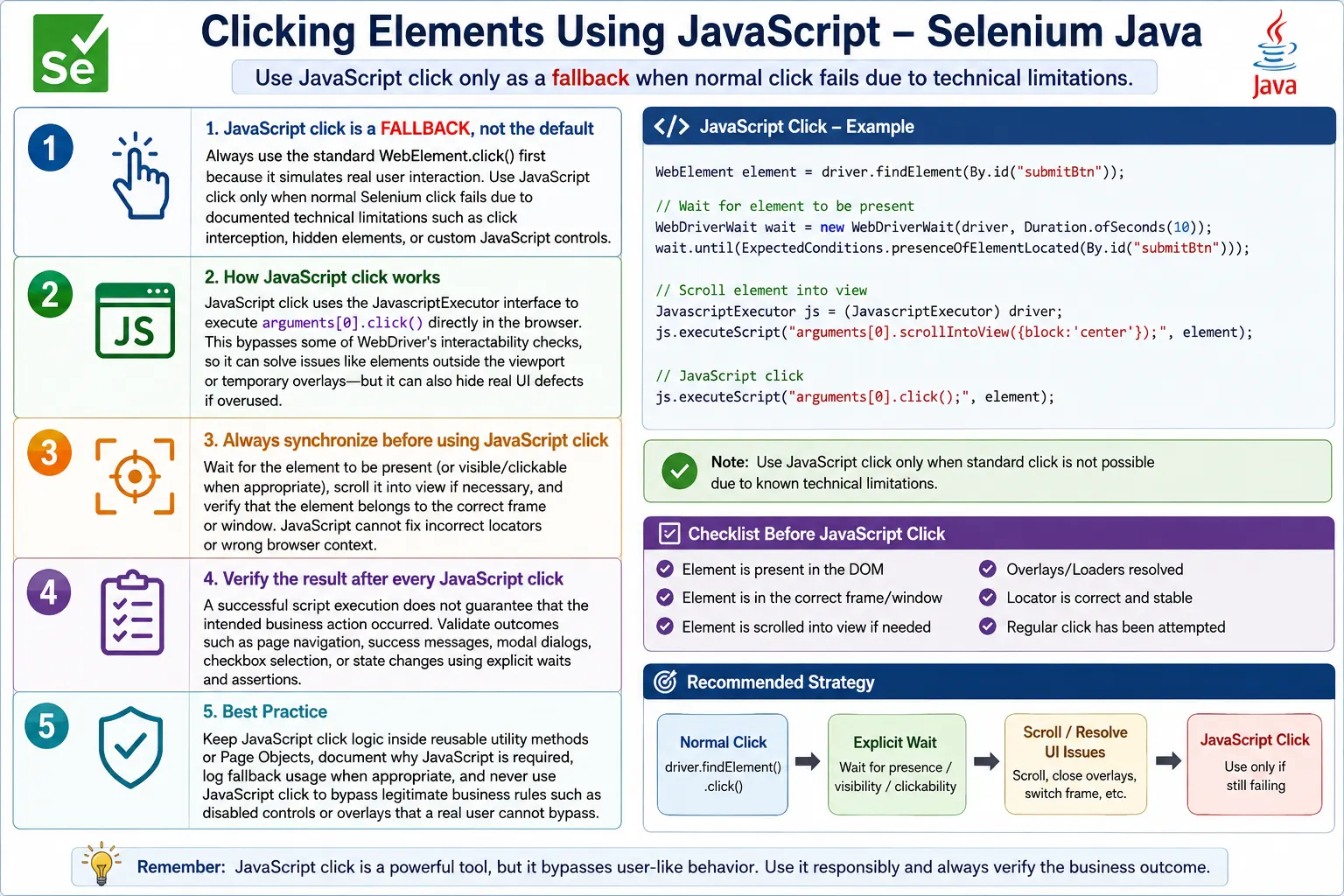
JavaScript click is a fallback technique that uses JavascriptExecutor to execute the element's browser-side click event directly. Instead of asking WebDriver to move and click like a user, Selenium asks the browser's JavaScript engine to run arguments[0].click() on the target element. This can solve some difficult automation problems, but it can also hide real application issues if overused.
The important engineering rule is balance. Use normal Selenium click first. Use explicit waits and proper scrolling when needed. Use JavaScript click only when there is a clear reason and when the resulting test still represents a valid workflow.
2. What Is JavaScript Click?
JavaScript click means triggering an element's click event through the browser's JavaScript engine. The normal Selenium click flow is closer to a user interaction: Selenium checks interactability, moves to the element when needed, and asks the browser to perform a click. JavaScript click is more direct.
Selenium Click:
Selenium -> Mouse-style interaction -> Browser

JavaScript Click:
Selenium -> JavaScript Engine -> Element click event
This directness is why JavaScript click can bypass some issues. It is also why it must be used carefully. If the click succeeds only because JavaScript bypassed a visible overlay, the test may not reflect what a real user can do.
3. Why Use JavaScript Click?
Normal Selenium click can fail for many reasons: the element is covered, a spinner is still visible, the element is outside the viewport, the control is custom-built, an animation is moving the element, or a framework has not finished rendering. JavaScript click can sometimes complete the action when normal WebDriver click fails.
Common situations include custom checkboxes, hidden upload triggers, buttons under complex CSS transitions, links after scroll, Angular Material controls, React components, and click interception caused by temporary overlays. These are practical cases, but they should still be investigated instead of blindly solved with JavaScript.
4. Required Imports
import org.openqa.selenium.By;
import org.openqa.selenium.JavascriptExecutor;
import org.openqa.selenium.WebDriver;
import org.openqa.selenium.WebElement;
import org.openqa.selenium.support.ui.ExpectedConditions;
import org.openqa.selenium.support.ui.WebDriverWait;
import java.time.Duration;
import java.util.List;
The key import is JavascriptExecutor. In real examples, waits and elements are usually needed because JavaScript click still requires a valid WebElement reference.
5. Creating JavaScriptExecutor Object
Most Selenium drivers support JavaScript execution, so the WebDriver instance can be cast to JavascriptExecutor.
WebDriver driver = new ChromeDriver();

JavascriptExecutor js =
        (JavascriptExecutor) driver;
After this cast, js.executeScript() can run JavaScript in the currently focused page, frame, or window context.
6. Basic JavaScript Click
A normal Selenium click looks like this:
WebElement loginButton =
        driver.findElement(By.id("login"));

loginButton.click();
The JavaScript click version passes the element as an argument to the script.
WebElement loginButton =
        driver.findElement(By.id("login"));

JavascriptExecutor js =
        (JavascriptExecutor) driver;

js.executeScript(
        "arguments[0].click();",
        loginButton
);
This directly calls the element's click method inside the browser.
7. Understanding arguments[0]
In executeScript(), extra Java arguments are available inside JavaScript through the arguments array. The first Java argument becomes arguments[0], the second becomes arguments[1], and so on.
js.executeScript(
        "arguments[0].click();",
        loginButton
);
Here, arguments[0] refers to loginButton. This is safer and cleaner than building a JavaScript string that tries to locate the element again inside the browser.
8. Complete Example
WebDriver driver =
        new ChromeDriver();

driver.get("https://example.com");

WebElement loginButton =
        driver.findElement(By.id("login"));

JavascriptExecutor js =
        (JavascriptExecutor) driver;

js.executeScript(
        "arguments[0].click();",
        loginButton
);
This example assumes the element is already present. In real automation, use explicit waits before clicking dynamic elements.
9. JavaScript Click After Explicit Wait
JavaScript click does not remove the need for synchronization. The element must exist before it can be clicked.
WebDriverWait wait =
        new WebDriverWait(driver, Duration.ofSeconds(10));

WebElement button =
        wait.until(
                ExpectedConditions.presenceOfElementLocated(
                        By.id("login")
                )
        );

JavascriptExecutor js =
        (JavascriptExecutor) driver;

js.executeScript(
        "arguments[0].click();",
        button
);
Sometimes elementToBeClickable() is better if you still want to confirm normal interactability. Use presenceOfElementLocated() only when you intentionally plan to click something that may not satisfy Selenium's normal clickability checks.
10. Click Hidden Element
A hidden element may fail with normal Selenium click because a real user cannot click it directly.
<button id="submit" style="display:none;">
    Submit
</button>
js.executeScript(
"arguments[0].click();",
button
);This may trigger the event, but it should be used carefully. If the element is hidden by design, the test may be bypassing the real UI workflow.
11. Click Checkbox Using JavaScript
WebElement checkbox =
driver.findElement(By.id("terms"));
js.executeScript(
"arguments[0].click();",
checkbox
);This is useful when a styled checkbox hides the native input behind a custom UI. Still, prefer clicking the visible label or custom control when possible.
12. Click Radio Button and Link
WebElement radio =
driver.findElement(By.id("male"));
js.executeScript(
"arguments[0].click();",
radio
);
WebElement link =
driver.findElement(By.linkText("Home"));
js.executeScript(
"arguments[0].click();",
link
);The technique is the same for buttons, links, images, checkboxes, and radio buttons. The question is not whether JavaScript can click it; the question is whether JavaScript should click it for that test.
13. Scroll and Click
A common pattern is to scroll an element into view and then click it.
WebElement button =
driver.findElement(By.id("save"));
js.executeScript(
"arguments[0].scrollIntoView(true);",
button
);
js.executeScript(
        "arguments[0].click();",
        button
);Often, after scrolling, a normal Selenium click may work. Consider trying button.click() after scrollIntoView() before falling back to JavaScript click.
14. Dynamic Element Click
Dynamic elements should be waited for before JavaScript click.
WebElement button =
        new WebDriverWait(driver, Duration.ofSeconds(10))
                .until(
                        ExpectedConditions.presenceOfElementLocated(
                                By.id("save")
                        )
                );

js.executeScript(
        "arguments[0].click();",
        button
);
If the page re-renders after the wait, the element can still become stale. In that case, locate it again before clicking.
15. Click Using CSS Selector
WebElement button =
        driver.findElement(
                By.cssSelector(".btn-primary")
        );

js.executeScript(
        "arguments[0].click();",
        button
);
The locator strategy is separate from the click strategy. Use stable CSS or XPath locators, then decide whether normal click or JavaScript click is appropriate.
16. Click Using XPath
WebElement button =
        driver.findElement(
                By.xpath("//button[text()='Login']")
        );

js.executeScript(
        "arguments[0].click();",
        button
);
Keep XPath readable and avoid brittle absolute paths. JavaScript click will not fix a poor locator.
17. Generic Reusable Method
public static void jsClick(
        WebDriver driver,
        WebElement element) {

    JavascriptExecutor js =
            (JavascriptExecutor) driver;

    js.executeScript(
            "arguments[0].click();",
            element
    );
}
This reusable method centralizes the JavaScript click. A framework can later add logging or screenshots around every JavaScript click.
18. Click Using Locator Utility
public static void jsClick(
        WebDriver driver,
        By locator) {

    WebElement element =
            driver.findElement(locator);

    JavascriptExecutor js =
            (JavascriptExecutor) driver;

    js.executeScript(
            "arguments[0].click();",
            element
    );
}
A locator-based utility is convenient, but it should still use waits in real framework code.
19. Hidden Upload Button
Some applications hide upload controls and expose a styled button instead.
<input type="file"
       id="upload"
       style="display:none;">
For file upload, Selenium usually uses sendKeys() on the file input rather than clicking it. JavaScript click may trigger the file dialog, but WebDriver cannot automate native file chooser dialogs directly in the same way. Use the correct upload strategy for the application.
20. Angular Material and React Controls
Angular Material, React, and other UI libraries often create custom controls around native elements. Normal Selenium click may fail if the visible area is not the actual input, if an animation is still running, or if the DOM re-renders during the action.
JavaScript click can be a fallback, but the better first step is to click the visible user-facing control with a stable locator and a proper wait. If JavaScript click is used, document the framework-specific reason in the page object.
21. Exceptions Solved by JavaScript Click
JavaScript click can help with ElementClickInterceptedException when a temporary overlay or layout issue blocks WebDriver click. It can help with ElementNotInteractableException for some hidden elements. It can help with viewport problems when combined with scrollIntoView().
However, solving the exception is not always the same as solving the test correctly. Investigate the reason before choosing JavaScript click as the permanent solution.
22. When JavaScript Click Will Not Help
JavaScript click cannot fix a wrong locator, an element that is not present, a wrong frame, or a wrong window. If the element exists inside an iFrame, switch to the frame first. If the element exists in a child tab, switch to the correct window first. If the locator is wrong, fix the locator.
JavaScript click needs a valid WebElement reference. It is not magic; it only runs JavaScript against the current browser context.
23. Click Button Inside Frame
driver.switchTo().frame("paymentFrame");

WebElement button =
        driver.findElement(By.id("payNow"));

JavascriptExecutor js =
        (JavascriptExecutor) driver;

js.executeScript(
        "arguments[0].click();",
        button
);

driver.switchTo().defaultContent();
Frame context still matters. JavaScriptExecutor runs inside the current frame or page context selected by Selenium.
24. Highlight Before Clicking
js.executeScript(
    "arguments[0].style.border='3px solid red';",
    button
);

js.executeScript(
    "arguments[0].click();",
    button
);
Highlighting before clicking can be useful for demos and screenshots, but it should not be necessary in ordinary tests.
25. Click Last Button in a List
List<WebElement> buttons =
        driver.findElements(By.tagName("button"));

js.executeScript(
    "arguments[0].click();",
    buttons.get(buttons.size() - 1)
);
Be careful with list-based selection. It can be fragile if the page adds another button. Prefer meaningful locators where possible.
26. Click Element Found Dynamically
List<WebElement> buttons =
        driver.findElements(By.className("action"));

for (WebElement button : buttons) {
    if (button.getText().equals("Save")) {
        js.executeScript(
                "arguments[0].click();",
                button
        );
        break;
    }
}
This is useful when there are repeated controls. Still, consider a better locator if the label or row context can identify the button directly.
27. Click Using querySelector
js.executeScript(
    "document.querySelector('#submit').click();"
);
This works, but passing a WebElement through arguments[0] is usually better because Selenium still controls the locator strategy and element lookup.
28. Removing Disabled Attribute Before Click
js.executeScript(
    "arguments[0].removeAttribute('disabled');",
    button
);

js.executeScript(
    "arguments[0].click();",
    button
);
This is risky. If the button is disabled for a business reason, forcing it enabled does not represent user behavior. Use this only for controlled setup or client-side behavior experiments, and document why.
29. JavaScript Click vs Selenium Click
Selenium click is user-like. It checks whether the element is interactable and tries to perform a real browser click. JavaScript click directly triggers the element's click method. Selenium click is preferred because it catches real usability problems. JavaScript click is a fallback because it can bypass some UI restrictions.
The difference matters in quality engineering. A test that always uses JavaScript click may pass even when real users cannot click the button. That is not a reliable signal of product quality.
30. JavaScript Click and Event Behavior
JavaScript click usually triggers the element's click event, but it may not reproduce every mouse event sequence exactly. A real click can involve mouse move, mouse down, focus, mouse up, and click behavior. Some custom widgets depend on specific sequences.
If JavaScript click does not trigger the expected application behavior, the control may require a more realistic interaction using Actions class or a normal WebDriver click after proper waits.
31. JavaScript Click in Page Object Model
In Page Object Model, tests should not contain raw JavaScript click snippets. Hide the workaround inside a meaningful page method.
public void clickLogin() {
    WebElement button =
            wait.until(
                    ExpectedConditions.presenceOfElementLocated(
                            By.id("login")
                    )
            );

    jsClick(button);
}
The test calls clickLogin(). The page object owns the implementation detail.
32. Logging JavaScript Click Usage
Because JavaScript click is a fallback, it is useful to log when it is used. A log message can explain that a framework animation or known overlay issue requires JavaScript click. This helps future maintainers understand that the choice was intentional.
Logging also helps identify overuse. If most clicks in a suite are JavaScript clicks, the framework may be hiding synchronization or locator problems.
33. Safer Utility with Wait
public void jsClick(By locator) {
    WebElement element =
            wait.until(
                    ExpectedConditions.presenceOfElementLocated(
                            locator
                    )
            );

    ((JavascriptExecutor) driver).executeScript(
            "arguments[0].click();",
            element
    );
}
This is safer than immediately finding the element, but choose the expected condition carefully. Presence is enough for some JavaScript clicks; visibility or clickability may be better when you still want user-like readiness.
34. Verify Result After Click
After any click, especially JavaScript click, verify the expected outcome. The page should navigate, a modal should open, a checkbox should become selected, a message should appear, or a value should change.
Do not assume that no exception means success. JavaScript may run without producing the business result if the application ignored the event or the element was not the right target.
35. When to Use JavaScript Click
Use JavaScript click when a normal click fails due to a known technical limitation, when the application uses custom controls that are difficult for WebDriver to interact with, or when scrolling and waiting still do not make native click reliable. Use it for debugging or controlled fallback behavior.
Do not use JavaScript click as the first choice for every button. Do not use it to hide real overlays, disabled states, or broken user flows.
36. When JavaScript Click Is a Bad Choice
JavaScript click is a bad choice when the element is blocked because the user should not be able to click it yet. For example, if a modal overlay is intentionally preventing access to the page, forcing a JavaScript click behind the overlay bypasses the application rule. If a submit button is disabled until required fields are completed, removing the disabled state and clicking it does not test the real user workflow.
It is also a bad choice when the root cause is a poor locator. If the locator points to a wrapper instead of the real control, JavaScript click may appear to help in one browser and fail in another. Fixing the locator is better than forcing the click.
37. Click Interception Root Cause Analysis
ElementClickInterceptedException is one of the main reasons testers reach for JavaScript click. Before using it, inspect what intercepted the click. It may be a loading spinner, sticky header, cookie banner, modal backdrop, animation layer, or overlapping element. Each cause has a different proper fix.
If a spinner is blocking the button, wait for the spinner to disappear. If a sticky header covers the element after scrolling, scroll with a custom offset or use Actions. If a cookie banner blocks the page, close the banner. JavaScript click should be the fallback after the real UI state has been handled.
wait.until(
        ExpectedConditions.invisibilityOfElementLocated(
                By.cssSelector(".loading-spinner")
        )
);

button.click();
This style preserves real user behavior better than immediately bypassing the spinner with JavaScript.
38. Custom Controls and Label Clicks
Custom checkboxes and radio buttons often hide the native input and show a styled label or container. In those cases, clicking the native input with JavaScript may change the state, but clicking the visible label may be closer to what a real user does. Always inspect the markup and identify the intended clickable area.
If the visible label has stable text or a useful relationship with the input, prefer clicking that visible control. Use JavaScript click only when the custom component has a known issue with WebDriver interaction and the team accepts the fallback.
39. JavaScript Click and Application Events
A JavaScript click invokes the element's click behavior, but some applications depend on additional mouse events, focus behavior, pointer events, or framework-specific event handling. A real user click can trigger a sequence of events such as mouse move, mouse down, focus, mouse up, and click. A direct JavaScript click may not reproduce that full sequence.
If JavaScript click does not produce the expected application result, the problem may be event behavior. In that case, try a normal WebDriver click with better waits, Actions class, or clicking the visible parent control. The goal is not merely to execute a click method; the goal is to make the application respond as it should.
40. JavaScript Click and React or Angular State
React, Angular, Vue, and similar frameworks maintain internal state. JavaScript click usually triggers the event handlers, but timing still matters. If the element is stale because the framework re-rendered it, JavaScript click will fail or click an old reference. Re-locate elements after significant DOM updates.
For framework-heavy pages, avoid storing WebElements for long periods. Wait for the final state, locate the element close to the click, and then choose normal or JavaScript click. This reduces stale reference problems.
41. JavaScript Click Inside Shadow DOM
Some web components use Shadow DOM. If an element is inside a shadow root, JavaScript click alone will not help unless the test first locates the correct shadow element. Selenium has support for shadow roots in modern versions, and JavaScript can also inspect shadow DOM when needed.
The key is to diagnose the page structure correctly. If the element is inside a frame, switch frame. If it is inside a shadow root, handle shadow DOM. If it is in another window, switch window. JavaScript click only works after the test has reached the correct context and element.
42. JavaScript Click and Accessibility Signals
Overusing JavaScript click can hide accessibility problems. A real user may rely on keyboard navigation, visible focus, labels, roles, and accessible names. If a control can only be operated by forced JavaScript, the product may have a usability or accessibility issue.
For critical controls, include tests that use normal user-like interaction. JavaScript click may be useful for a workaround, but it should not be the only evidence that a control is usable.
43. JavaScript Click in Utility Classes
A JavaScript click utility should be small, predictable, and easy to audit. It should not silently replace every click in the framework. A good utility can log the locator or element description, optionally scroll into view, perform the JavaScript click, and then let the page object verify the result.
public void jsClickWithScroll(WebElement element) {
    JavascriptExecutor js =
            (JavascriptExecutor) driver;

    js.executeScript(
            "arguments[0].scrollIntoView(true);",
            element
    );

    js.executeScript(
            "arguments[0].click();",
            element
    );
}
Keep the utility focused. Business decisions about when to use it should remain in the page object or framework policy.
44. JavaScript Click in Page Object Methods
Page object methods should communicate user intent. A method named clickSubmit() or acceptTerms() is better than exposing jsClick() directly to the test. The page object can use normal click first and JavaScript click as a fallback when the page requires it.
This design makes future maintenance easier. If the application changes and normal click starts working reliably, only the page object method needs to change.
45. Fallback Click Strategy
Some frameworks implement a fallback strategy: try normal click, catch a specific click-interception problem, then use JavaScript click with logging. This can be useful, but it must be controlled. Catching broad exceptions and always forcing JavaScript click can hide serious problems.
try {
    button.click();
} catch (ElementClickInterceptedException e) {
    js.executeScript(
            "arguments[0].click();",
            button
    );
}
If you use this pattern, add logging and consider whether the intercepted click should fail the test instead. A fallback is appropriate only when the team understands and accepts the behavior.
46. CI and Headless Behavior
JavaScript click can behave differently in CI if the page layout, viewport size, or timing differs from local execution. A sticky header may cover an element only at certain widths. A slow animation may last longer in headless mode. A third-party widget may render differently in CI.
Use a stable browser window size, explicit waits, screenshots, and logs to diagnose CI failures. Do not assume JavaScript click is always more stable than native click. It solves some problems and introduces different risks.
47. Security and Business Rule Concerns
Clicking hidden or disabled elements with JavaScript can bypass security-related or business-rule-related UI behavior. For example, a disabled purchase button may protect against incomplete checkout data. If a test removes the disabled attribute and clicks it, the test no longer represents a valid user journey.
Use such techniques only in controlled negative testing, debugging, or setup scenarios. For end-to-end validation, follow the same path a real user would follow.
48. Result Verification Patterns
After JavaScript click, verify the expected result with a strong assertion. If a click should navigate, wait for the URL or page title. If it should open a modal, wait for the modal. If it should select a checkbox, verify selected state. If it should submit a form, verify the success message or next page.
js.executeScript(
        "arguments[0].click();",
        button
);

wait.until(
        ExpectedConditions.visibilityOfElementLocated(
                By.id("successMessage")
        )
);
This prevents false confidence from a script that ran but did not trigger the intended business behavior.
49. Team Review Rules for JavaScript Click
Because JavaScript click can bypass normal interaction checks, it should be visible during code review. A reviewer should ask why native click is not enough, whether the test waits for the correct page state, whether the target element is the same element a user would click, and whether the result is asserted after the click. These questions keep JavaScript click from becoming a silent shortcut.
A useful team rule is that every repeated JavaScript click belongs in a page object or utility, not directly in a test method. Another useful rule is that behavior-changing JavaScript should have a short explanation when the reason is not obvious. This keeps the framework honest and makes future cleanup easier when the UI becomes more automation-friendly.
50. Practical Decision Flow
A practical decision flow is: wait for the element, try normal click, investigate any click failure, scroll or close blockers if needed, and only then use JavaScript click when the team accepts the reason. This flow protects the test from hiding real defects while still giving the automation engineer a dependable fallback for difficult pages.
51. Common Beginner Mistakes
- Using JavaScript click for every element.
- Ignoring synchronization before JavaScript click.
- Using JavaScript to hide real UI defects.
- Clicking hidden or disabled elements without understanding the business rule.
- Trying JavaScript click when the element is in the wrong frame or window.
- Using poor locators and expecting JavaScript to fix them.
- Not verifying the result after the click.
- Putting raw JavaScript snippets directly in many test methods.
52. Debugging Checklist
- Try normal Selenium click with proper waits first.
- Check whether an overlay or spinner blocks the element.
- Confirm the element is in the current frame and window.
- Scroll the element into view.
- Verify that the locator points to the actual clickable element.
- Use JavaScript click only after understanding the native click failure.
- Log JavaScript click usage when it becomes a framework fallback.
- Assert the result after the click.
53. Best Practices
- Prefer
WebElement.click()for realistic user interaction. - Use JavaScript click only as a fallback.
- Use explicit waits before JavaScript click.
- Use
arguments[0].click()instead of locating elements inside JavaScript strings. - Scroll into view before clicking when viewport position is the problem.
- Avoid removing disabled attributes unless the test intentionally requires it.
- Keep JavaScript click logic in reusable utilities or page objects.
- Document why JavaScript click is needed.
- Do not use JavaScript click to hide product defects.
- Validate the business outcome after clicking.
54. Interview Perspective
A short interview answer is: JavaScript click uses the JavascriptExecutor interface to directly trigger an element's click event with arguments[0].click(). It is used when normal Selenium click fails due to issues such as click interception, hidden elements, scrolling problems, or complex JavaScript UI controls.
A stronger real-time answer is: I prefer normal WebElement.click() because it represents real user behavior. If it fails, I first check waits, overlays, scrolling, frames, windows, and locators. If there is a valid technical reason, I use JavaScript click as a fallback through a utility method, log why it was used, and verify the result after the click.
55. Key Takeaway
JavaScript click is one of Selenium's most useful fallback techniques. It directly triggers browser-side click behavior through JavascriptExecutor and can help with hidden controls, intercepted clicks, scrolling problems, custom widgets, and complex JavaScript UIs.
Its strength is also its risk. Because JavaScript click can bypass normal user interaction checks, overusing it can produce tests that pass while the real application is difficult or impossible for users to operate. Use it deliberately, keep it centralized, and document the reason.
The practical rule is clear: normal Selenium click first, JavaScript click only when needed, and always verify the user-visible result after the action.