click()
The click() method is one of the most frequently used WebElement actions in Selenium
WebDriver. It simulates a user clicking a visible and enabled element on a web page, such as a button, link,
checkbox, radio button, icon, menu item, tab, or custom control. Almost every meaningful browser automation
flow contains clicks because users move through applications by clicking controls, submitting forms,
opening menus, selecting options, confirming dialogs, and navigating between pages.
Although click() looks simple, it is not a trivial command in real automation. Many Selenium
failures are related directly or indirectly to clicking too early, clicking an element that is hidden,
clicking an element covered by an overlay, clicking an element from the wrong frame, or clicking a stale
reference after the DOM has changed. A test may pass on a fast local machine and fail in CI because the
element was present but not ready. Understanding click() therefore means understanding DOM
timing, browser interaction rules, synchronization, page state, and framework design.
In a strong Selenium framework, clicking is treated as a user action with preconditions, not just as a line of code. The element must exist in the current browsing context, be visible enough for interaction, be enabled, not be blocked by another element, and remain attached to the DOM when the command is sent. When any of these conditions is not true, Selenium raises an exception. Those exceptions are useful because they tell the automation engineer whether the problem is timing, visibility, locator quality, page state, or an application issue.
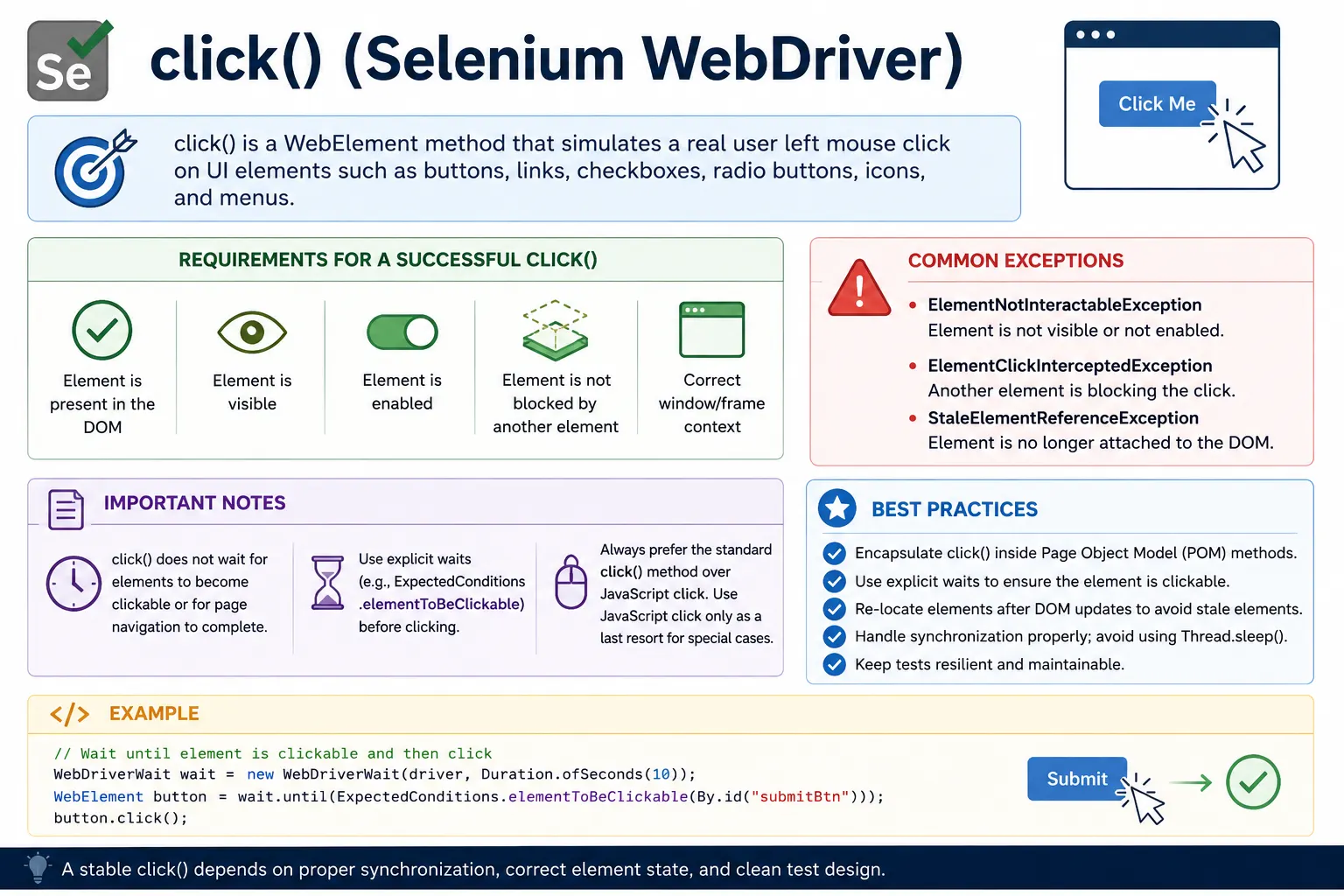
1. What click() Does
Definition: click() performs a left mouse click on the target WebElement.
Internally, Selenium:
- Verifies the element is present
- Checks visibility and interactability
- Sends a click command to the browser via WebDriver
When the click command is executed, WebDriver does more than call a Java method. The Java test code sends a command through the WebDriver protocol to the browser driver. The browser driver then asks the browser to interact with the element in a user-like way. Selenium does not simply change the DOM property or trigger a random event. A normal WebDriver click is intended to follow browser interaction rules, which is why it can fail when the element is hidden, disabled, covered, or outside the correct context.
This user-like behavior is exactly why normal click() is preferred over JavaScript click in
most automation. If the application would not allow a real user to click a hidden or blocked control, the
test should usually not bypass that behavior. A failing click often reveals a genuine user experience issue:
the button is covered by a loader, the modal animation is incomplete, the page is not ready, or the element
is not accessible in the current state.
If any required condition fails, Selenium throws an exception.
2. Preconditions for a Successful click()
For click() to work, all of the following must be true:
- Element is present in the DOM
- Element is visible on the page
- Element is enabled
- Element is not overlapped by another element
- Browser is in correct window/frame context
These preconditions explain why locating an element is not the same as successfully clicking it. A locator may find a button in the DOM even while the button is hidden behind a spinner. A checkbox may exist but be disabled until the user accepts terms. A submit button may be visible but covered by a sticky header after a scroll. A confirmation button may exist inside an iframe while the driver is still focused on the parent page. In all of these cases, the locator can be correct and the click can still fail.
Good Selenium tests therefore separate element lookup from interaction readiness. It is not enough to say,
"I found the element." The test must ask, "Is this element ready for the specific action I want to perform?"
For a click, the element should usually be visible and enabled, and no overlay should block it. In many
cases the best practice is to use an explicit wait for clickability before calling click().
3. Common Elements Clicked Using click()
- Buttons (Submit, Login, Save)
- Links (<a> tags)
- Checkboxes
- Radio buttons
- Icons and menus
- Tabs and navigation items
The method is the same for all of these elements, but the meaning of the click can be different. Clicking a link usually changes the URL or navigates to another page. Clicking a button may submit a form, open a modal, save a record, or trigger an asynchronous API call. Clicking a checkbox changes selection state. Clicking a tab may reveal a new panel without changing the page URL. Because the visible effect varies, a good test should verify the result of the click, not just execute the command.
For example, after clicking a login button, the test should wait for the dashboard, error message, or next
page state. After clicking a checkbox, the test should verify isSelected(). After clicking a
menu item, the test should verify that the target content appeared. A click without a follow-up assertion
proves very little. It only proves that Selenium sent the command without an immediate exception.
4. What click() Does NOT Do (Important)
click():
- Does NOT wait for page load
- Does NOT wait for element visibility
- Does NOT retry automatically
- Does NOT scroll automatically (in many cases)
Synchronization must be handled explicitly.
One of the biggest beginner misunderstandings is expecting click() to wait for the application
to become ready. Selenium does not automatically understand that a spinner is still active, that a React
component is still rendering, or that an animation needs another second to finish. If the element is not
clickable at the exact moment Selenium tries to interact, the command can fail. This is why
Thread.sleep() appears in many unstable beginner scripts: the script is compensating for missing
synchronization.
A better approach is to wait for the condition that matters. If the click target should be clickable, wait for clickability. If an overlay must disappear first, wait for invisibility of the overlay. If a navigation happens after the click, wait for the new URL, title, heading, or page-specific element. Explicit waits make the test describe application behavior instead of guessing how long the browser might need.
5. Common Exceptions Related to click()
5.1 ElementNotInteractableException
Cause: Element exists but is not interactable (hidden/disabled)
Fix: Wait for visibility and enabled state
This exception usually means Selenium found an element, but the browser could not interact with it as a user
would. The element may have display: none, zero size, disabled state, or it may belong to a
hidden section of the page. The fix is not always a longer wait. Sometimes the locator is too broad and is
finding a hidden template element instead of the visible element. In that case, improve the locator or scope
the search to the visible container.
5.2 ElementClickInterceptedException
Cause: Another element (popup, loader, overlay) blocks the click
Fix:
- Wait for overlay to disappear
- Scroll element into view
- Close interfering elements
Click interception is common in modern applications. A loader, toast message, fixed header, cookie banner, modal backdrop, or animation layer may sit above the target element. Selenium protects the test from clicking through that layer because a real user would click the topmost element, not the hidden target underneath. When this exception appears, inspect the screenshot and DOM state at failure time. The problem is often visible in the captured screenshot.
5.3 StaleElementReferenceException
Cause: DOM refreshed after locating element
Fix: Re-locate the element before clicking
A stale reference means the Java variable still holds a WebElement object, but the browser no longer has the same DOM node. This happens after page refresh, navigation, table reloads, AJAX updates, component re-rendering, and some animations. The solution is to store locators more often than long-lived elements. After an action changes the page, locate the element again before clicking.
5.4 TimeoutException
Cause: Element never becomes clickable within wait time
Fix:
- Verify locator
- Increase wait or fix application issue
A timeout around clickability means the expected condition was not satisfied within the wait period. It may be a slow environment, but it may also be a real issue: the locator is wrong, the user is on the wrong page, the feature flag is disabled, the data setup is incomplete, or the browser is focused on the wrong frame or window. Increasing timeout blindly can hide the root cause. First confirm that the test is in the right state and that the locator identifies the intended element.
6. click() and Synchronization (Critical)
Because click() does not wait, best practice is:
- Wait for element to be clickable
- Then perform click()
This avoids most flaky failures.
Synchronization is the heart of reliable clicking. A test should wait for readiness before action and wait for outcome after action. Waiting before the click prevents premature interaction. Waiting after the click prevents the next step from running before the application has responded. For example, after clicking "Save", the test might wait for a success toast, a disabled saving state to disappear, a table row to update, or the URL to change. The click itself is only the trigger; the verification belongs to the next state.
Explicit waits should be placed close to the action they protect. A page object method such as
clickLoginButton() can wait for the login button to be clickable and then click it. A higher
level method such as login() can click and then wait for the dashboard. This keeps tests
readable and ensures every action has a clear readiness and result condition.
7. click() vs JavaScript Click (Conceptual)
Normal click():
- Preferred
- Simulates real user behavior
- Triggers all browser events
JavaScript click:
- Bypasses browser interaction layer
- Used only as a last resort
Rule: Always try click() first. Use JavaScript click only if unavoidable.
JavaScript click is tempting because it can appear to fix difficult failures quickly. It executes a click event directly through JavaScript and may bypass browser-level checks. That means it can click elements that a real user could not click. In some cases this is useful, especially with complex custom controls or applications where a known browser-driver limitation exists. But it should not be the default solution. If a normal user interaction fails, the automation should first investigate why.
A practical rule is to use JavaScript click only after checking the basics: the locator is correct, the element is visible, the element is enabled, the page is not covered by a loader, the element is in the right frame, the browser is in the right window, and scrolling has been handled if necessary. If all of that is true and a specific UI library still causes click issues, JavaScript click can be wrapped in a clearly named framework helper so the exception is intentional and traceable.
8. click() in Page Object Model (POM)
In real frameworks:
- click() is wrapped inside page methods
- Tests never call click() directly on locators
Example concept:
- Page method: clickLoginButton()
- Test method: loginPage.login()
This improves readability and maintainability.
Page Object Model design is where click handling becomes maintainable. Test methods should not know every
locator, wait condition, and overlay rule. They should express the business flow. A test should say
loginPage.loginAsValidUser() or cartPage.proceedToCheckout(), while the page
object handles the underlying click mechanics. This separation makes tests easier to read and gives the
framework one place to improve click reliability.
A page method should be named for user intent, not merely for the Selenium command. A method named
clickLoginButton() is acceptable for a low-level page action. A method named
login() is often better at the test level because it represents the workflow. Inside that
method, the framework can type credentials, wait for the login button, click it, and wait for the result.
The test becomes focused on behavior rather than mechanical browser control.
9. Common Beginner Mistakes
- Clicking elements without waits
- Clicking hidden elements
- Using Thread.sleep() before click
- Using JavaScript click unnecessarily
- Clicking stale elements after page reload
These cause unstable automation.
The most damaging mistake is clicking immediately after locating the element without considering page state.
A locator can return quickly while the application is still rendering. Another common mistake is using
Thread.sleep() as a universal fix. Fixed sleeps make tests slower and still unreliable because
they guess timing instead of observing conditions. A third mistake is using JavaScript click for every
problem, which can hide real defects and create tests that do not reflect user behavior.
Beginners also forget about frames and windows. If an element is inside an iframe, Selenium must switch into that frame before locating and clicking it. If a click opens a new window or tab, Selenium must switch to the new window before clicking elements there. Without context switching, the locator may fail even though the element is visible on the screen. Selenium interacts with the current browser context, not with whatever the human eye sees globally.
10. Real-Project Best Practices
- Always ensure element is clickable
- Handle loaders and overlays
- Re-locate elements after DOM refresh
- Centralize click logic in page classes
- Log failures with screenshots
In real projects, reliable click handling usually includes a small set of framework conventions. Use strong locators that point to stable attributes. Prefer explicit waits over sleeps. Capture screenshots on click failures. Log the locator, page URL, and current window or frame context. Re-locate elements after DOM changes. Use scoped locators inside components when many similar buttons exist on the same page. Avoid clicking by text alone when the same label appears multiple times.
It is also useful to think about click outcomes. If a method clicks a delete button, the page object should often wait for the confirmation dialog. If it clicks a confirm button, it should wait for the item to disappear or for a success message. If it clicks a navigation link, it should wait for the target page. This makes the method complete from a user's point of view and prevents the next test step from racing the application.
11. Interview Perspective
Short Answer:
click() is a WebElement method used to simulate a mouse click on an element such as a button or link.
Real-Time Answer:
In Selenium, click() performs a real user-like mouse click on a visible and enabled WebElement. It requires proper synchronization, as Selenium does not wait automatically for the element to become clickable.
A strong interview answer should mention both behavior and limitations. You can explain that
click() is a WebElement method, not a WebDriver method. It works on
elements that are present, visible, enabled, and interactable. It may fail with exceptions such as
ElementNotInteractableException, ElementClickInterceptedException,
StaleElementReferenceException, or TimeoutException. You should also mention that
explicit waits are preferred for stability and JavaScript click should be a last resort.
12. Key Takeaway
- click() is simple but not trivial
- Most failures are due to timing or visibility
- Synchronization is mandatory
- Use JavaScript click only as fallback
Mastering click() means mastering synchronization and DOM behavior.
13. Clickability in Modern Web Applications
Modern web applications are dynamic. A page may load shell markup first, then fetch data, then render components, then animate controls into place. During this process, an element may exist in the DOM before it is usable. A button may be disabled until validation passes. A menu item may be present but hidden until a hover action. A save button may be re-created by the front-end framework after every state update. These realities are why click failures are so common in Selenium suites.
The correct response is not to blame Selenium immediately. Selenium is exposing the gap between test timing and application readiness. If a real user can click only after a loader disappears, the automated test should wait for the loader to disappear. If a button becomes enabled only after data loads, the test should wait for enabled state. If the element is re-rendered after an action, the test should locate it again. Stable tests follow the same sequence a user follows.
Clickability also depends on layout. A button can be visible but partly covered by a sticky footer. A link can be visible but outside the viewport. A custom dropdown option can be present but hidden until the dropdown opens. These problems often show up only in headless browsers or CI because viewport size differs from the developer's machine. For serious automation, browser window size and responsive layout should be controlled intentionally.
14. Waiting Before and After Clicks
A reliable click has two sides: waiting before the click and waiting after the click. Waiting before the click ensures the target is ready. Waiting after the click ensures the application has completed the expected response. Many tests handle the first side but forget the second. They click a button and immediately try to read the next page, causing intermittent failures when the next page is not ready yet.
Before clicking, a test may wait for an element to be visible, enabled, or clickable. After clicking, a test may wait for a URL change, heading text, modal opening, toast message, table refresh, disabled state, or element disappearance. The exact condition depends on the business flow. A good wait condition describes a meaningful application state, not just a technical delay.
Avoid using a single generic wait for every click. A login button, dropdown item, delete confirmation, and pagination control all have different outcomes. Framework utilities can still centralize common logic, but page methods should remain specific enough to wait for the correct result. This balance keeps tests both reusable and accurate.
15. Handling Overlays, Loaders, and Popups
Overlays are one of the most common causes of intercepted clicks. A loader may cover the entire page for a fraction of a second. A modal backdrop may remain after the modal closes. A toast notification may sit over a button. A cookie banner may appear only for some sessions. The click target may look visible, but Selenium correctly refuses to click it because another element receives the pointer event.
The right fix depends on the overlay. If the overlay represents loading, wait for it to disappear before clicking. If it is a legitimate modal, close or handle the modal first. If it is a cookie banner, add a reusable method that dismisses it when present. If a toast temporarily covers the target, wait for the toast to become invisible or change the click sequence so the target is not covered. These fixes model real user behavior better than forcing a JavaScript click.
Screenshots are especially valuable for overlay issues. The exception message may say the click was intercepted, but the screenshot often shows exactly what blocked the click. Add screenshot capture to the framework's failure handling so the team can diagnose these issues without reproducing them manually.
16. Frames, Windows, and Context
Selenium clicks operate in the current browsing context. If the target element is inside an iframe, the driver must switch into that iframe before locating and clicking. If a click opens a new tab or window, the driver must switch to that new window before interacting with its elements. If the test stays in the old context, Selenium will not find or click elements in the new context even if they are visible to the user.
Frame and window problems are often mistaken for locator problems. The locator may be perfectly correct, but Selenium is searching in the wrong document. Before changing locators, check whether the element is inside a frame, nested frame, shadow DOM boundary, or new window. Context should be handled explicitly in page objects or helper methods so tests do not scatter frame-switching logic everywhere.
After finishing work inside a frame, switch back to the default content when needed. After finishing work in a child window, switch back to the parent window if the workflow continues there. Context discipline prevents later clicks from failing unexpectedly because the driver remained focused on the wrong document.
17. Disabled, Hidden, and Custom Controls
Standard HTML controls have clear states. A disabled button cannot be clicked. A hidden element should not be
clicked. A checkbox can be selected or not selected. Selenium respects these states because it interacts
through the browser. For standard controls, the best practice is to verify state before clicking when state
matters. For example, check isEnabled() before clicking a submit button that may be disabled
until the form is valid.
Custom controls require more care. A visually styled dropdown may not use a standard select
element. A checkbox may be represented by a hidden input and a visible label. A button may be a
div with JavaScript event handlers. In these cases, the correct click target may be the visible
wrapper rather than the hidden input. Inspect the DOM and confirm which element receives the user event.
Clicking the wrong internal element can create flaky or misleading tests.
Accessibility attributes can help here. Elements with meaningful roles, labels, names, and test IDs are easier to locate and interact with. Automation engineers should work with developers to make important controls testable and accessible. A stable UI is easier for both users and tests.
18. Page Object and Framework Click Utilities
Many teams create a reusable click utility that waits for clickability, logs the action, captures diagnostic information on failure, and then performs the click. This can be useful, but it should not hide all details. A generic click helper cannot know the business outcome of every click. It can ensure the element is ready, but the page object should still wait for the result that matters in that workflow.
A clean pattern is to keep low-level readiness in a utility and high-level outcomes in page methods. The
utility might provide clickWhenReady(By locator). The page method might call that utility and
then wait for a dashboard header, success message, modal, or refreshed list. This structure prevents
duplicated wait code while keeping the business behavior clear.
Avoid overusing fallback clicks inside utilities. If a normal click fails, automatically trying scroll, Actions click, and JavaScript click can make failures disappear without explaining why. A better framework records the failure clearly and uses fallback behavior only in well-understood cases. Test stability should come from correct synchronization and page modeling, not from blindly bypassing browser rules.
19. Debugging click() Failures
When a click fails, start with the exception type. NoSuchElementException means the element was
not found. ElementNotInteractableException means it was found but not usable.
ElementClickInterceptedException means another element blocked the click.
StaleElementReferenceException means the element reference is no longer attached to the DOM.
TimeoutException means the wait condition never became true. Each exception points to a
different root cause.
Next, inspect context. Confirm the URL, page title, screenshot, frame, window handle, and viewport size. Check whether the locator matches more than one element. Check whether the intended element is visible and enabled. Check whether a loader, modal, or banner is present. Check whether the DOM refreshes between locate and click. Debugging becomes much faster when the framework captures these details automatically.
Do not solve every click failure by adding a sleep. A sleep may reduce failure frequency while making the suite slower and hiding the actual issue. A targeted wait, better locator, correct context switch, or improved page method is almost always a better long-term fix.
20. Interview-Ready Summary
In Selenium, click() is a WebElement method used to perform a user-like mouse click
on an element. It works when the element is present, visible, enabled, and interactable in the current
browser context. It does not automatically wait for page readiness, so explicit synchronization is essential.
Common failures include not interactable elements, intercepted clicks, stale references, timeouts, wrong
frames, wrong windows, and disabled controls.
The preferred approach is to use normal click() with explicit waits and verify the result after
the click. Use JavaScript click only as a fallback when normal user-like interaction is not possible and the
reason is understood. In real frameworks, click logic should be wrapped in page objects and helper methods so
tests remain readable, stable, and focused on business behavior.
21. click() Practical Examples & Interview Scenarios
1. Basic click() on Button
WebElement loginBtn = driver.findElement(By.id("login"));
loginBtn.click();
Use Case
- Standard clickable element
2. click() on Link
driver.findElement(By.linkText("Home")).click();3. click() Using CSS Selector
driver.findElement(By.cssSelector(".submit-btn")).click();4. click() Using XPath
driver.findElement(By.xpath("//button[text()='Submit']")).click();5. click() After Clearing and Typing
WebElement input = driver.findElement(By.id("search"));
input.clear();
input.sendKeys("Selenium");
driver.findElement(By.id("searchBtn")).click();
6. click() with Explicit Wait (Best Practice)
WebDriverWait wait = new WebDriverWait(driver, Duration.ofSeconds(10));
WebElement btn = wait.until(
    ExpectedConditions.elementToBeClickable(By.id("login"))
);
btn.click();
Why
- Avoids ElementNotInteractableException
7. click() on Checkbox
WebElement checkbox = driver.findElement(By.id("agree"));
if (!checkbox.isSelected()) {
    checkbox.click();
}
8. click() on Radio Button
driver.findElement(By.id("male")).click();9. click() on First Element from findElements()
List<WebElement> buttons =
    driver.findElements(By.className("btn"));

buttons.get(0).click();
10. Loop and click() Multiple Elements
List<WebElement> items =
    driver.findElements(By.cssSelector(".menu li"));

for (WebElement item : items) {
    item.click();
}
11. Conditional click() (Element May or May Not Exist)
List<WebElement> popup =
    driver.findElements(By.id("closePopup"));

if (!popup.isEmpty()) {
    popup.get(0).click();
}
12. click() After Scrolling Into View
WebElement btn = driver.findElement(By.id("submit"));
JavascriptExecutor js = (JavascriptExecutor) driver;
js.executeScript("arguments[0].scrollIntoView(true);", btn);
btn.click();
13. JavaScript click() (When Normal Click Fails)
WebElement btn = driver.findElement(By.id("submit"));
JavascriptExecutor js = (JavascriptExecutor) driver;
js.executeScript("arguments[0].click();", btn);
Use When
- Hidden or overlapped elements
- Complex UI frameworks
14. click() on Hidden Element (Will Fail)
driver.findElement(By.id("hiddenBtn")).click(); // fails if hiddenFix
- Make it visible
- Or use JS click (last option)
15. click() After Page Refresh (Stale Element Case)
WebElement btn = driver.findElement(By.id("save"));
driver.navigate().refresh();

// btn.click(); would throw StaleElementReferenceException
btn = driver.findElement(By.id("save")); // re-locate
btn.click();
16. click() on Element Inside Frame
driver.switchTo().frame("frame1");
driver.findElement(By.id("submit")).click();
driver.switchTo().defaultContent();
17. click() on Element in New Window
String parent = driver.getWindowHandle();

for (String win : driver.getWindowHandles()) {
    driver.switchTo().window(win);
}

driver.findElement(By.id("confirm")).click();
driver.switchTo().window(parent);
18. click() with Actions Class
Actions actions = new Actions(driver);
WebElement btn = driver.findElement(By.id("submit"));
actions.moveToElement(btn).click().perform();
Use Case
- Hover-dependent elements
19. Double Click (Not click() but Interview Related)
Actions actions = new Actions(driver);
actions.doubleClick(driver.findElement(By.id("item"))).perform();
20. Right Click (Context Click)
Actions actions = new Actions(driver);
actions.contextClick(driver.findElement(By.id("menu"))).perform();
21. click() After Page Load Validation
Assert.assertTrue(driver.getTitle().contains("Dashboard"));
driver.findElement(By.id("profile")).click();
22. Common Interview Mistake
driver.click(); // invalidCorrect
driver.findElement(By.id("x")).click(); // valid23. Clicking Disabled Element
WebElement btn = driver.findElement(By.id("submit"));
btn.click(); // fails if disabled
Better
Assert.assertTrue(btn.isEnabled());
btn.click();
24. click() in Page Object Model (POM)
@FindBy(id = "login")
WebElement loginBtn;

public void clickLogin() {
    loginBtn.click();
}
25. Interview Summary - click() in Selenium
element.click();Key Points
- Works only on visible and enabled elements
- Use explicit waits for stability
- JS click is last resort
- Re-locate element after refresh
- Actions.click() for complex UI