clear()
The clear() method is used to remove existing editable text from input-capable elements in
Selenium WebDriver. It is commonly used with text fields, password fields, email inputs, number inputs,
search boxes, and textareas before entering a fresh value with sendKeys(). Although it is a
small method, it has a large impact on test reliability because many automated form failures come from old
values, autofill data, cached browser state, default text, or previously typed input that was never removed.
In real automation, clean input is not optional. A field that already contains "admin" will become
"adminuser" if the test simply calls sendKeys("user"). A search box that preserves the previous
query can create wrong results. A profile form with saved values may submit old data instead of the intended
test data. The purpose of clear() is to make the starting state predictable before the next
typing action.
At the same time, clear() is not magic. It works only on editable elements. It does not wait for
a field to become visible or enabled. It does not prove that the field stayed empty after clearing. It does
not remove placeholder text because placeholder text is not an actual value. It may behave differently with
masked, JavaScript-controlled, or auto-formatting inputs. This article explains how to use
clear() correctly in Selenium, when to combine it with sendKeys(), how to validate
the result, and how to handle cases where normal clearing is not enough.
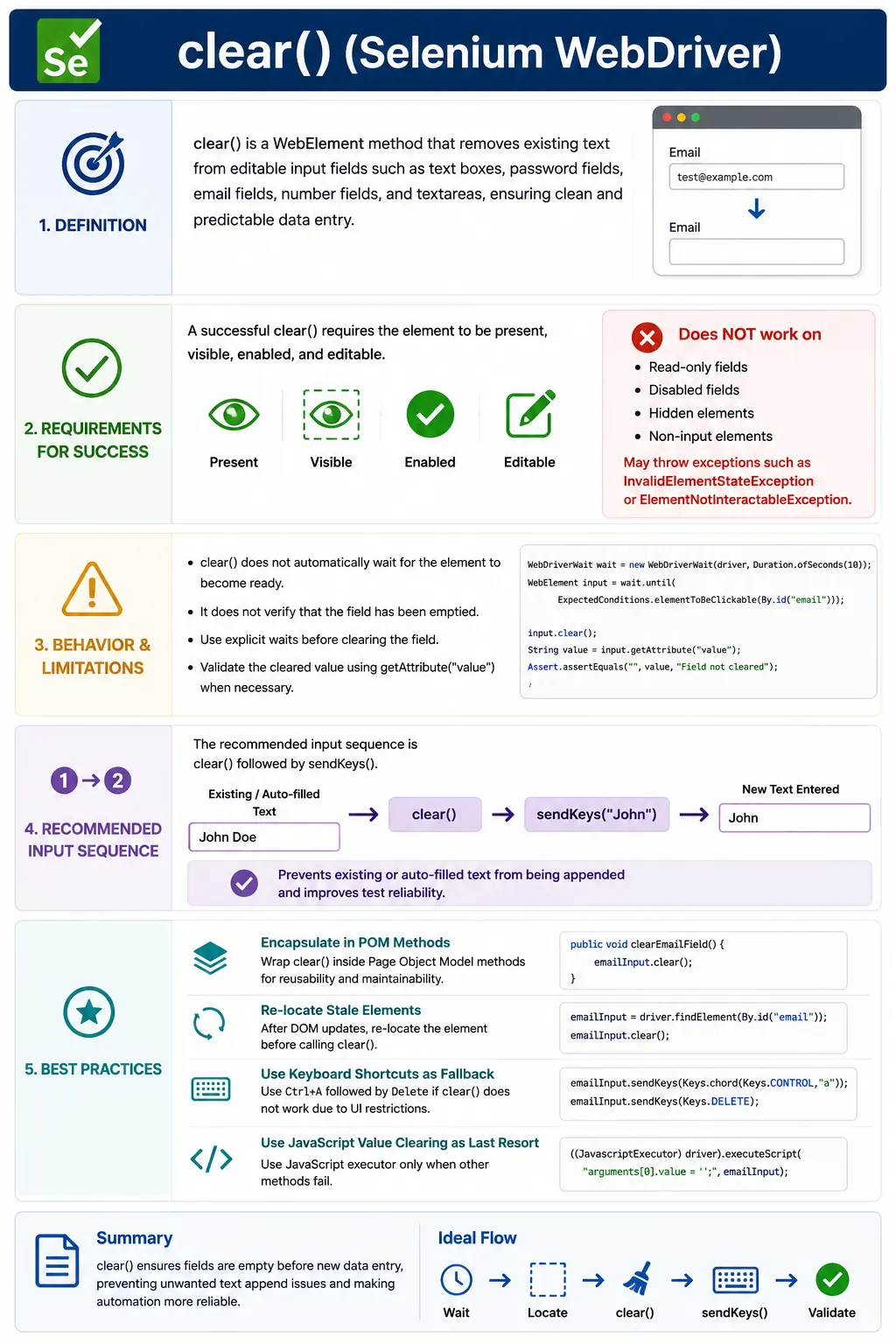
1. What clear() Does
Definition:
clear() removes all user-editable text from a WebElement that supports text input.
Internally, Selenium:
- Focuses the element
- Selects existing content
- Deletes the value using browser-native behavior
Conceptually, clear() asks the browser to empty the current value of an editable control. It is
not a Java string operation and it is not a direct modification of your test variable. Selenium sends the
command to the browser driver, and the browser performs the clearing action against the element. This matters
because the behavior can depend on the type and state of the element. A visible editable input can usually be
cleared. A hidden, disabled, read-only, or non-editable element cannot be cleared through normal user-like
interaction.
The method does not return the removed text, nor does it return a boolean that says whether the field became
empty. Its return type is void. If the command succeeds, the script continues. If the element
cannot be cleared, Selenium raises an exception. If the test needs proof that the value is empty, it should
read the field's value attribute after clearing and assert the expected result.
2. Elements That Support clear()
- Text inputs (<input type="text">)
- Password fields
- Email, number fields
- Textareas
Elements That Do NOT Support clear()
- Labels
- Buttons
- Links
- Read-only fields
- Disabled inputs
Calling clear() on unsupported elements causes an exception.
The key phrase is "input-capable." A normal label, button, link, heading, image, table cell, or icon does
not hold editable text in the same way that an input field does. Calling clear() on those
elements is a misuse of the API. If visible text needs to be removed from the page, that is application
behavior, not Selenium input cleanup. The test should perform the user action that removes the text, such as
clicking a delete button, clearing a form field, or resetting a form.
Read-only and disabled fields are especially important. They may look like normal inputs, but they are not editable by the user in their current state. Selenium follows that rule. If the business flow expects a field to be editable, a failure while clearing it may reveal a real defect or a missing setup step. For example, a date field may become editable only after a checkbox is selected, or an address field may remain disabled until the user chooses manual entry.
3. Why clear() Is Important
Without clearing:
- New text may append to existing text
- Auto-filled values may interfere
- Tests become data-dependent and flaky
Real-project rule: Always clear fields before typing, unless explicitly validating prefilled values.
Clearing is important because tests should not depend on accidental browser state. Browsers may remember values through autofill. Applications may prepopulate forms from previous data. A test may revisit the same page during a workflow. A data-driven test may enter multiple values into the same field. Without clearing, the test can pass or fail depending on what was already present before it typed. That kind of hidden dependency is one of the main causes of unstable UI automation.
However, the rule has a useful exception: do not clear when the purpose of the test is to validate prefilled
data. If a profile page should display the user's saved name, clearing the field before asserting it would
destroy the condition being tested. If a shopping cart form should remember the shipping address, the test
should inspect the existing value first. Use clear() when replacing input, not when validating
that input was loaded correctly.
4. Typical Usage Pattern (Best Practice)
The standard, reliable sequence:
- Wait for visibility and enablement
- Call clear()
- Call sendKeys()
- Validate the final value
This pattern avoids most input-related issues.
The sequence matters. Waiting before clearing ensures the element exists and is ready for interaction. Clearing removes any previous value. Typing sends the new value through normal keyboard input. Validation confirms that the browser and application accepted the intended value. Skipping any part of this sequence can make failures harder to diagnose. If the field was never visible, the wait should fail. If the field could not be cleared, the clear action should fail. If the application reformatted the value, validation should reveal the final state.
In a framework, this sequence is often wrapped in a helper or page object method. A method named
setUsername(String value) can wait for the username field, clear it, type the value, and
optionally verify that the field contains the expected text. This keeps test methods focused on business
behavior while the page object handles the mechanical details of reliable input replacement.
5. What clear() Does NOT Do
- Does NOT wait for the element
- Does NOT validate that text is cleared
- Does NOT work on hidden or disabled elements
- Does NOT clear placeholder text (placeholders are not values)
Validation must be done separately if required.
Placeholder text deserves special attention. A placeholder is only a hint displayed by the browser when the
input value is empty. It is not the same as the field's value. Calling clear() does not remove a
placeholder because there is nothing to remove from the value. If a field shows "Enter email" after clearing,
that may be normal placeholder behavior. To verify whether the field is truly empty, inspect
getAttribute("value"), not the visible placeholder text.
clear() also does not submit forms, trigger all custom validation flows in every application,
or guarantee that a JavaScript framework has updated its internal state exactly as expected. Most standard
applications handle it correctly, but dynamic controls can be more complex. If the field is controlled by a
front-end framework, validate the final value and the business outcome after clearing and typing.
6. Common Exceptions with clear()
InvalidElementStateException
Cause: Element is read-only or disabled.
Fix:
- Verify element attributes
- Use correct input field
ElementNotInteractableException
Cause: Element exists but is hidden.
Fix: Wait for visibility.
StaleElementReferenceException
Cause: DOM refreshed after locating element.
Fix: Re-locate the element.
These exceptions should be read as diagnostic signals. InvalidElementStateException usually
means the element is not editable in its current state. ElementNotInteractableException usually
means the element exists but is not visible or usable. StaleElementReferenceException means the
WebElement reference points to an old DOM node that has been replaced. Each problem has a different fix, so
adding a sleep or switching to JavaScript immediately is rarely the best first response.
When clearing fails, check whether the locator points to the visible editable field, whether the field is inside a frame, whether a modal or overlay is blocking interaction, whether the field is disabled or read-only, and whether the application re-rendered after the element was found. A screenshot and the current DOM state usually explain the failure faster than guessing.
7. clear() and Dynamic Inputs
Modern applications often use:
- Input masks
- JavaScript-controlled fields
- Auto-formatting
Dynamic fields are where clear() needs the most care. A currency field may clear and then
immediately restore a default value such as "0.00". A phone number field may remove visible characters but
keep formatting symbols. A date picker may reject a blank value and repopulate the previous date when it
loses focus. A React or Angular controlled input may re-render after clearing. These behaviors are
application-specific, so the test should validate the final value after clearing.
If normal clearing does not work for a masked or controlled field, keyboard-based clearing may behave more like a real user. The test can click the field, select all text, press DELETE or BACKSPACE, and then verify the value. This approach triggers keyboard events that some UI components expect. JavaScript value assignment should be reserved for cases where user-like approaches are not viable and the team understands the risk of bypassing normal events.
Implications:
- clear() may not fully remove value
- Field may re-populate automatically
Best Practices:
- Verify the field value after clear
- Combine with keyboard actions (e.g., select-all + delete) if needed
- Ensure application allows clearing
8. clear() vs Keyboard-Based Clearing (Conceptual)
-
clear():
- Simple
- Browser-native
- Preferred first approach
-
Keyboard-based clearing:
- Used when clear() fails
- Depends on OS shortcuts
- More complex
Rule: Try clear() first; use keyboard clearing only as fallback.
Normal clear() is simple and readable, so it should be the first choice for standard fields.
Keyboard clearing is useful when a field reacts to real keyboard events or when clear() does
not trigger the same application behavior. For example, a control may update validation only after key
events. Selecting all text and pressing DELETE can be closer to what a user does manually.
Keyboard shortcuts can be platform dependent. CTRL+A is common on Windows and Linux, while COMMAND+A is
common on macOS. If tests run across different operating systems, the framework should abstract this
difference. A helper method named clearByKeyboard() can choose the correct modifier key based on
the execution environment. Keeping that detail in one place prevents repeated platform-specific code in
tests.
9. clear() in Page Object Model (POM)
In frameworks:
- clear() is encapsulated inside page methods
- Tests should not call clear() directly
Example intent: setUsername(String value) handles clear + type internally.
This keeps test code clean and intention-driven.
Page Object Model is the right place to decide how a field should be cleared. A test should not need to know
whether a username field uses normal clear(), keyboard clearing, or a component-specific helper.
The test should call a meaningful method such as loginPage.enterUsername("admin"). The page
object can wait for the field, clear it, type the value, and verify the result if needed. This keeps tests
stable even when the UI implementation changes.
Method naming should express intent. setEmail(value) suggests replacement. appendComment
(text) suggests adding to existing content. clearSearch() suggests leaving the field
empty. If all methods are named generically, the test reader cannot tell whether the workflow replaces,
appends, or validates values. Clear page object names prevent confusion.
10. Common Beginner Mistakes
- Skipping clear() before sendKeys()
- Calling clear() on non-input elements
- Using Thread.sleep() instead of waits
- Assuming placeholder text is cleared
- Ignoring dynamic re-population
A common beginner mistake is assuming sendKeys() replaces text automatically. It does not. If a
field contains a value, new text is usually appended. Another common mistake is clearing the wrong element.
Many custom controls contain a visible wrapper and a hidden input. The locator may find the hidden input,
but the real user interacts with a different visible element. Inspect the DOM before deciding which element
should receive clear().
Beginners also confuse placeholders with values. If placeholder text remains visible after clearing, that
does not mean the clear failed. It may mean the input is empty and the browser is showing the hint. Use the
value attribute to confirm the actual input value. Finally, avoid using Thread.sleep() as a
default fix. A targeted wait for visibility, enabled state, or value change is more reliable.
11. Interview Perspective
Short Answer:
clear() is used to remove existing text from an input field before entering new data.
Real-Time Answer:
In Selenium, clear() removes the current value from an editable input element. It does not wait or validate automatically, so it is typically used with proper synchronization and followed by sendKeys() to ensure clean input.
A complete interview answer should also mention that clear() is a WebElement
method, not a WebDriver method. It works on editable input fields and textareas. It has no
return value. It does not remove placeholder text. It may fail on disabled, read-only, hidden, stale, or
unsupported elements. For dynamic controls, value validation after clearing is important.
12. Key Takeaway
- clear() ensures predictable input
- Use it before sendKeys()
- Works only on editable fields
- Requires proper waits
- Validate when dealing with dynamic fields
Clean input starts with a clean field. clear() is small, but essential.
13. Clear vs Replace: Understanding the User Intent
The most common use of clear() is replacement. The user wants the old value removed and a new
value entered. This is common in login fields, profile forms, search boxes, filters, checkout fields, and
admin edit screens. In this case, the expected method sequence is wait, clear, type, and validate. The test
is not interested in preserving existing text. It wants a known value in a known field.
There are other cases where clearing is not appropriate. A notes field may support appending a new comment to
existing text. A rich text editor may preserve previous content intentionally. A test for default data may
need to assert the prefilled value before making any change. A test for reset behavior may need to verify
that a reset button clears the value without manually calling clear(). In those cases, using
clear() too early can damage the scenario.
Reliable automation starts by naming the intent. Are you replacing a value, appending text, checking a
default, validating reset behavior, or testing that a field cannot be edited? Once the intent is clear, the
correct use of clear() becomes obvious. This is a design decision, not just a Selenium command.
14. Validating That a Field Is Actually Empty
Because clear() returns void, the test must read the field if it needs evidence
that clearing worked. For normal input and textarea elements, the value is usually available through
getAttribute("value"). A field whose value attribute is an empty string is empty, even if a
placeholder is visible. This is a common point in interviews and in real debugging.
Value validation is especially important after clearing dynamic fields. A field may clear and then immediately repopulate from application state. A date field may restore the old date after blur. A masked field may show formatting characters even when no real value remains. A controlled component may display an empty DOM value while internal application state still holds the old value. The next user action usually reveals whether the application accepted the empty state, so validation should match the business flow.
In a framework, a helper method can wait until the value becomes empty after clearing. This is better than clearing and immediately typing if the application processes changes asynchronously. The helper can also produce a meaningful error message when the value does not become empty, making failures easier to diagnose.
15. Synchronization Before and After clear()
Synchronization before clearing ensures the element is ready. The field should be present, visible, enabled, and in the correct frame or window. If the page is still loading, a spinner is active, or the form section is collapsed, the clear operation may fail or act on the wrong state. Explicit waits are usually better than fixed sleeps because they wait for the actual condition the test needs.
Synchronization after clearing is also useful. Some applications validate immediately when a field is cleared. Others enable or disable buttons based on whether the field is empty. Some show "required field" messages after the value is removed. If the next test step depends on one of these outcomes, wait for it explicitly. A strong test does not simply clear the field; it verifies the application response to the cleared field.
For example, after clearing an email field, a test may wait for a validation message saying the email is required. After clearing a search box, it may wait for the results list to reset. After clearing a quantity field, it may wait for the save button to become disabled. These waits turn clearing from a mechanical step into a meaningful user-flow validation.
16. JavaScript-Controlled Fields
Modern UI frameworks often use controlled inputs. The visible field value is connected to internal
application state. When a user types, the framework receives events and updates state. When state changes,
the framework re-renders the input. In these applications, directly changing the DOM value with JavaScript
may not update the framework state. Normal clear() and keyboard clearing are usually safer
because they follow the event path the application expects.
If clear() appears to work visually but the application submits the old value, suspect a
controlled-input issue. The test should verify not only the DOM value but also the business result. In some
cases, keyboard-based clearing followed by typing is more reliable because it triggers input events. In rare
cases, JavaScript fallback may need to dispatch events manually, but that should be a deliberate framework
decision, not a quick workaround inside a test.
Collaboration with developers helps here. Stable test IDs, accessible labels, and predictable field behavior make automation easier. If an important field cannot be cleared like a user would clear it, that may indicate a UI implementation problem worth fixing.
17. Data-Driven Testing and Reusing the Same Field
Data-driven tests often reuse the same input field with multiple values. A search test may run terms such as
"selenium", "webdriver", and "grid". A validation test may enter valid, invalid, blank, and long values into
the same field. In these scenarios, clear() prevents one data row from leaking into the next.
Without it, the second value may append to the first, producing failures that look like application bugs but
are actually test setup mistakes.
Reusing the same WebElement reference in a loop can also be risky if the page re-renders after each input. If typing causes the DOM to refresh, the field reference may become stale. In that case, locate the field inside the loop before clearing and typing. A slightly more repetitive lookup is better than using a stale element. Framework helpers can hide this detail while keeping the test data loop readable.
Logging matters in data-driven flows. When a clear or input action fails, the report should show which data row was being executed and which field was being edited. Sensitive values should be masked, but ordinary test data should be visible enough to debug.
18. Page Object Design for Clearing Fields
Page objects should decide whether clearing is part of a field action. A method named
enterUsername() may clear first because the username should be replaced. A method named
addComment() may not clear because comments are appended. A method named
clearSearch() may clear and then wait for search results to reset. The method name and behavior
should match the user's intention.
Avoid exposing too many low-level element operations directly to tests. If every test calls
clear() and sendKeys() manually, the suite becomes inconsistent. Some tests will
forget waits. Some will forget validation. Some will use JavaScript unnecessarily. Centralizing the pattern
in page objects improves maintainability and makes future UI changes easier to absorb.
A mature framework may provide a reusable replaceText(By locator, String value) helper. That
helper can wait for the element, clear it, verify the empty state if needed, type the new value, and verify
the final value. Page objects can call the helper with meaningful locators. Tests then stay clean and
business-focused.
19. Debugging clear() Failures
When clear() fails, first identify the exception. If the element is not found, the locator or
page state is wrong. If the element is not interactable, it may be hidden, covered, or not the visible input.
If the element state is invalid, it may be read-only or disabled. If the element is stale, the DOM changed
after lookup. If the field clears but repopulates, the application logic is restoring the value.
A good failure report should include the locator name, page URL, screenshot, current frame or window context, and the value before and after clearing when possible. These details reduce guesswork. In CI, where failures may not be reproducible immediately, diagnostics are essential.
The wrong fix is to add a long sleep after every clear. That slows the suite and often hides the real issue. A better fix is to wait for the input to be editable, use the correct clearing strategy, and assert the value or business state that should follow.
20. Interview-Ready Summary
clear() is a Selenium WebElement method used to remove existing text from editable input fields
and textareas. It is commonly used before sendKeys() to avoid appending new text to old values.
It works only on editable elements, has no return value, does not wait automatically, and does not clear
placeholder text because placeholders are not actual values. For dynamic fields, the cleared state should be
validated with getAttribute("value") or by checking the resulting application behavior.
In real projects, clear() belongs inside meaningful page object methods that replace or reset
field values. Normal clearing should be tried first. Keyboard-based clearing can be used when fields depend
on key events. JavaScript clearing should be treated as a last resort because it can bypass UI events and
framework state updates. Mastering clear() is part of mastering reliable form automation.
21. Practical Clearing Strategy for Frameworks
A practical Selenium framework should not treat every field exactly the same. Standard text fields can often use a simple clear-and-type sequence. Masked fields may need keyboard clearing. Rich text editors may need a component-specific approach. File inputs may not need clearing at all, depending on the workflow. Search boxes may need clearing followed by a wait for results to reset. Because fields behave differently, the framework should provide clear, named methods rather than forcing every test to decide the low-level details.
A useful pattern is to define a normal replacement helper for ordinary fields and specialized helpers for
unusual widgets. The normal helper can wait for visibility, verify enabled state, call clear(),
optionally wait until the value becomes empty, type the new value, and verify the final value. A masked
helper can use select-all and delete before typing. A search helper can clear the field and wait for the
empty-search state. A date picker helper can use the calendar control instead of manually clearing text if
that is how users normally work with the application.
This strategy keeps test code expressive. A test should read like profilePage.updateCity("Austin")
or searchPage.clearSearchTerm(), not like a scattered mix of waits, clear calls, keyboard
shortcuts, JavaScript snippets, and assertions. When clearing behavior changes because the UI component
changes, only the page object or helper needs to be updated. That is the real maintainability benefit of
encapsulating clear() correctly.
The final rule is to validate at the level that matters. If the test only needs the field empty before typing, validating the value attribute may be enough. If clearing should disable a submit button, validate the button state. If clearing should show a required-field message, validate the message. If clearing should reset search results, validate the list. A reliable test proves the user-visible outcome, not just that a Selenium command was executed.
22. clear() Practical Examples & Interview Notes
1. Basic clear() Usage
WebElement input = driver.findElement(By.id("username"));
input.clear();
Key Point
- Removes existing text from input/textarea
2. clear() Before sendKeys() (Best Practice)
WebElement email = driver.findElement(By.id("email"));
email.clear();
email.sendKeys("test@example.com");
3. clear() on Search Box
WebElement search = driver.findElement(By.name("q"));
search.clear();
search.sendKeys("Selenium WebDriver");
4. clear() with Explicit Wait (Recommended)
WebDriverWait wait = new WebDriverWait(driver, Duration.ofSeconds(10));
WebElement input =
    wait.until(ExpectedConditions.visibilityOfElementLocated(By.id("username")));

input.clear();
5. clear() Validation Using getAttribute()
WebElement input = driver.findElement(By.id("city"));
input.clear();

Assert.assertEquals(input.getAttribute("value"), "");
Interview Favorite
- clear() does not return a value
6. clear() on TextArea
WebElement comments = driver.findElement(By.id("comments"));
comments.clear();
comments.sendKeys("Updated comment");
7. clear() After Form Reset
driver.findElement(By.id("resetBtn")).click();
WebElement field = driver.findElement(By.id("name"));
field.clear(); // safe even if already empty
8. clear() on Disabled Field (Fails)
driver.findElement(By.id("disabledField")).clear(); // fails when disabledFix
Assert.assertTrue(field.isEnabled());
field.clear();
9. Alternative to clear() Using Keyboard
import org.openqa.selenium.Keys;

WebElement input = driver.findElement(By.id("username"));
input.sendKeys(Keys.CONTROL, "a");
input.sendKeys(Keys.DELETE);
Use When
- clear() does not work properly
10. clear() Using Actions Class
Actions actions = new Actions(driver);
WebElement input = driver.findElement(By.id("search"));

actions.click(input)
       .keyDown(Keys.CONTROL)
       .sendKeys("a")
       .keyUp(Keys.CONTROL)
       .sendKeys(Keys.DELETE)
       .perform();
11. clear() with JavaScript (Last Resort)
WebElement input = driver.findElement(By.id("username"));
JavascriptExecutor js = (JavascriptExecutor) driver;
js.executeScript("arguments[0].value='';", input);
Warning
- Bypasses UI events
12. clear() After Page Refresh (Stale Fix)
WebElement input = driver.findElement(By.id("email"));
driver.navigate().refresh();

// input.clear(); would throw StaleElementReferenceException
input = driver.findElement(By.id("email"));
input.clear();
13. Loop with clear() (Data-Driven)
String[] values = {"one", "two", "three"};
WebElement input = driver.findElement(By.id("data"));

for (String v : values) {
    input.clear();
    input.sendKeys(v);
}
14. clear() Inside Frame
driver.switchTo().frame("formFrame");
WebElement input = driver.findElement(By.id("name"));
input.clear();
driver.switchTo().defaultContent();
15. clear() on Dynamic Field
WebElement input = driver.findElement(By.id("price"));
input.clear();
input.sendKeys("100");
16. Common Interview Mistake
driver.clear(); // invalidCorrect
driver.findElement(By.id("x")).clear(); // valid17. clear() in Page Object Model (POM)
@FindBy(id = "username")
WebElement username;

public void clearUsername() {
    username.clear();
}
18. clear() + isDisplayed() Check
WebElement input = driver.findElement(By.id("email"));
if (input.isDisplayed()) {
    input.clear();
}
19. clear() in Login Test Flow
WebElement user = driver.findElement(By.id("username"));
user.clear();
user.sendKeys("admin");
20. Interview Summary - clear() in Selenium
element.clear();Key Points
- Works only on input/textarea
- Clears existing value
- No return value
- Use keyboard/JS if clear() fails
- Re-locate after refresh