Checkboxes
Checkboxes are selectable UI controls that allow users to choose one or more independent options. Unlike radio buttons, checkboxes do not enforce mutual exclusivity, which makes state management and validation the core challenge in automation.
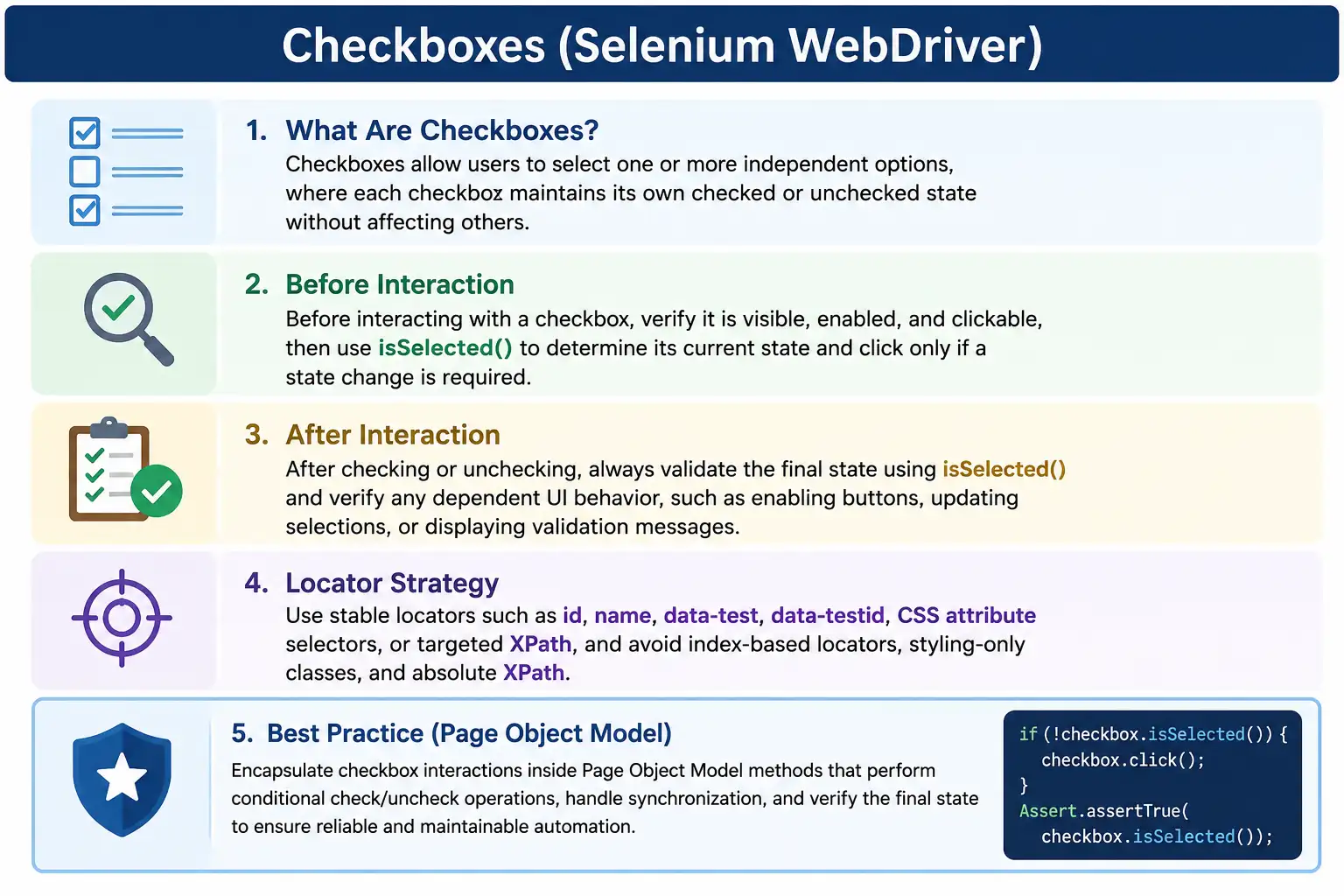
Understanding Checkboxes in Selenium
Checkboxes are common form controls used when a user can turn an option on or off. They appear in registration pages, settings screens, permission panels, checkout forms, filters, notification preferences, agreement flows, and multi-select lists. At first, a checkbox looks easy to automate because Selenium can click it like any other element. The important detail is that a checkbox click toggles state. If it is unchecked, a click checks it. If it is checked, a click unchecks it. That makes blind clicking risky.
Reliable checkbox automation is about controlling state, not just performing clicks. A test should know whether it wants the checkbox checked or unchecked. It should inspect the current state with isSelected(), click only when a state change is needed, and verify the final state afterward. This pattern is called idempotent behavior: running the method repeatedly should leave the checkbox in the intended state rather than toggling it back and forth.
In a professional Selenium framework, checkbox behavior should be hidden behind page methods such as acceptTerms, enableNewsletter, disableSmsAlerts, selectPreference, or setMarketingConsent. Tests should express the desired user state. Page objects should handle waits, locators, click mechanics, and final validation. This keeps tests readable and prevents accidental toggling from spreading through the suite.
What Is a Checkbox?
A Binary Input State
A checkbox is a control with a binary state: checked or unchecked. In HTML, it is commonly represented by input type="checkbox". When selected, the checkbox contributes its value to a submitted form. When unselected, it may not submit any value at all, depending on the application. This simple state is often connected to important business behavior, such as consent, permissions, filters, feature choices, or optional add-ons.
Unlike radio buttons, checkboxes are independent by default. Multiple checkboxes can be selected at the same time because they do not enforce mutual exclusivity. A user may choose Email and SMS notifications together, or select several hobbies, product categories, permissions, or filters. Selenium tests should therefore validate each checkbox according to its own expected state.
Independent Options and Grouped Options
Some checkboxes stand alone. A Terms and Conditions checkbox is often a single required control. A Remember Me checkbox is another common standalone example. Other checkboxes appear in groups, such as a list of interests, notification channels, permissions, or product filters. Grouped checkboxes are not mutually exclusive, but they may still have business rules. For example, at least one option may be required, or selecting All may affect the rest of the group.
Understanding whether a checkbox is standalone or part of a group changes the test design. A standalone checkbox may only require a checked or unchecked assertion. A group may require validating multiple options, count of selected options, select-all behavior, or dependent UI updates. Checkbox automation must match the business role of the control.
How Checkbox Behavior Differs from Radio Buttons
Checkboxes Toggle
The biggest behavioral difference is toggling. A checkbox changes state every time it is clicked. This means a method that blindly clicks a checkbox is not safe. If the checkbox was already in the desired state, the click changes it to the wrong state. This is one of the most common beginner mistakes in Selenium checkbox handling.
A safe method checks the current state first. If the desired state is checked and isSelected() already returns true, the method does nothing. If the desired state is checked and isSelected() returns false, the method clicks and validates. The same logic applies for unchecking. This creates predictable behavior no matter what the initial state was.
Checkboxes Can Be Multi-Selected
Radio buttons enforce one selected option within a group. Checkboxes allow multiple selections. This makes them useful for preferences and filters, but it also means tests need to validate each selected option individually. A test that selects Sports and Music should verify both are selected. It should also verify that unrelated options remain unchanged if that matters to the workflow.
Multi-selection also affects cleanup. If tests share state or reuse accounts, checkbox preferences may persist across sessions. A framework should set the desired state explicitly rather than assuming a default. Idempotent checkbox methods help here because they can safely force the UI into the required state for each test.
Core Selenium Operations on Checkboxes
Checking a Checkbox
To check a checkbox, Selenium uses click(), but only after confirming that the checkbox is not already selected. The page object can locate the checkbox, wait until it is ready, call isSelected(), and click only if the result is false. After the click, the method should validate that isSelected() returns true. This confirms that the state changed as expected.
This final validation is important because a click can be intercepted, ignored, or applied to the wrong element. A checkbox may also be visually clicked through a label while the input state fails to update because of a JavaScript issue. isSelected() confirms the real selection state of the input.
Unchecking a Checkbox
Unchecking uses the same principle in reverse. Selenium should click only when isSelected() returns true. If the checkbox is already unchecked, the method should do nothing. After clicking, validate that isSelected() returns false. This makes uncheck methods safe to call repeatedly without accidentally rechecking the option.
This is especially useful in setup steps. A test may need to ensure that promotional emails are disabled before verifying opt-in behavior. It should not assume the initial account state. A safe uncheck helper makes the test independent of previous data.
Reading Checkbox State
isSelected() is the preferred Selenium method for reading checkbox state. It reads whether the input is checked from the browser's perspective. Some testers try to read the checked attribute with getAttribute("checked"). That can be inconsistent because the attribute may represent the initial markup rather than the live property, depending on browser behavior and framework implementation. isSelected() is clearer for normal checkbox state.
Attribute checks can still be useful for custom components, accessibility state, or business-specific flags. For native checkbox inputs, start with isSelected(). For custom checkbox components, inspect the DOM and determine whether the true state is stored in a hidden input, aria-checked, a class, or another attribute.
Recommended Checkbox Interaction Pattern
Use Idempotent State Methods
The best checkbox pattern is idempotent. A method named checkTerms should leave the Terms checkbox checked no matter whether it started checked or unchecked. A method named uncheckNewsletter should leave the newsletter checkbox unchecked no matter its initial state. The method should not blindly toggle. It should set the desired state.
This pattern makes tests stable and easier to understand. When a test calls enableEmailNotifications, the reader knows the final state. The method name expresses intent. The implementation handles the mechanics. This is much better than calling clickNewsletterCheckbox, because a click method does not reveal the final state.
Wait Before and Validate After
A checkbox should be ready before interaction. It may appear before it is enabled. It may be inside a modal, hidden behind a label, or blocked by an overlay. Wait for the checkbox or label to be interactable before clicking. After the click, validate the final state and any dependent UI changes. For example, accepting Terms may enable a Continue button; selecting a filter may update a results count.
The after-click validation is what turns checkbox handling into real testing. Without it, the script only attempted an action. With it, the test confirms that the application state changed correctly.
Locating Checkboxes Reliably
Prefer Stable Attributes
Stable checkbox locators usually rely on ID, name, value, or automation-specific attributes such as data-test, data-testid, or data-qa. A CSS selector such as input[type='checkbox'][name='terms'] can be clear and robust when the attributes are stable. For grouped checkboxes, value attributes are often useful because they identify the business option, such as Sports, Music, Email, or SMS.
Avoid absolute XPath and index-based locators. A locator that selects the third checkbox on the page can break when a new option is added. A locator based on styling classes can break after a redesign. Checkbox locators should identify the intended option, not its current visual position.
Use Labels for User-Like Clicking
Many checkboxes are small or visually hidden while the label is the intended clickable area. In such cases, clicking the label may be more reliable and more realistic than clicking the input directly. The final state should still be validated on the checkbox input. This pattern mirrors user behavior while keeping state validation accurate.
Label relationships can be implemented in several ways. The label may wrap the input, or it may use a for attribute that points to the input ID. Custom design systems may use a label-like wrapper with JavaScript click handling. Inspect the DOM and choose the locator strategy that matches the implementation.
Common Checkbox Scenarios
Terms and Conditions
Terms and Conditions checkboxes are common in registration, checkout, and consent flows. They often control whether a Submit, Continue, or Create Account button becomes enabled. A good test verifies the checkbox state and the dependent button state. Initially, the button may be disabled. After checking the box, the button should become enabled. If the checkbox is unchecked again, the button may become disabled.
This scenario is a good example of why checkbox testing should include dependent UI behavior. The checkbox itself may become selected correctly, but the button enablement logic may still be broken. Selenium should validate both when the requirement depends on both.
Multi-Select Preferences
Preference screens often allow users to select multiple notification channels, interests, categories, hobbies, or permissions. In this case, each checkbox has an independent expected state. The test may need to select some options, unselect others, and verify the final combination. Idempotent helpers make this clean because the test can set each option to the desired state explicitly.
Multi-select tests should also consider persistence. After saving preferences, the test may refresh the page or reopen the settings screen and verify that the selections remain. This validates not only UI toggling but also backend storage and retrieval.
Select All and Deselect All
Select All behavior is more complex than a normal checkbox. One checkbox controls a group of other checkboxes. Selecting All should select every child option. Deselecting All should clear every child option. If the user unchecks one child option, the All checkbox may become unchecked or indeterminate. Selenium tests should verify this cascading behavior when it is part of the feature.
The indeterminate state is especially important. Some applications show a partial selection state when only some child checkboxes are selected. This may be represented through a property, class, or aria-checked="mixed". Native isSelected() may not fully describe the visual indeterminate state, so custom state validation may be needed.
Disabled, Read-Only, and Custom Checkboxes
Disabled Checkboxes
A disabled checkbox cannot be clicked by a normal user. Selenium's isEnabled() usually returns false for native disabled inputs. Tests should validate disabled state when it is expected and avoid forcing clicks with JavaScript. If the checkbox should become enabled after a prerequisite action, perform that action and wait for enablement.
Disabled state often reflects business rules. A premium feature may be unavailable for a basic account. A shipping option may be unavailable for a selected region. A permission may be locked for a specific role. The test should validate the business context, not only the technical disabled attribute.
Read-Only Behavior and Custom Components
HTML does not commonly use readonly for checkbox behavior the same way it does for text inputs. Many applications simulate read-only checkboxes through CSS, JavaScript, or ARIA attributes. The checkbox may appear locked but still be technically enabled. In such cases, isEnabled() may not be enough. Automation should inspect the state markers used by the component and validate user-facing behavior.
Custom checkbox components may use hidden inputs, styled spans, aria-checked, aria-disabled, or class changes. The correct Selenium strategy depends on where the true state is stored. Click the user-visible control when needed, but validate the reliable state source afterward.
Synchronization Challenges with Checkboxes
Dynamic Enablement and Re-Rendering
Checkboxes may become enabled after API validation, form entry, role selection, or page initialization. They may also re-render after being clicked, especially in React, Angular, or Vue applications. If Selenium stores a WebElement too early, it may become stale after the state change. A robust framework locates the checkbox when needed and re-locates it after actions when validation is required.
Explicit waits are better than fixed sleeps. Wait for clickability before changing state. After clicking, wait for the selected state, dependent button state, updated count, or any other outcome caused by the checkbox. This makes the test resilient to slower environments and dynamic rendering.
Delayed Dependent UI Updates
A checkbox may trigger changes elsewhere on the page. Selecting a filter may update search results. Checking a permission may reveal additional options. Accepting terms may enable Continue. These updates may not happen instantly. The test should wait for the dependent UI state after changing the checkbox.
This is where checkbox automation becomes business validation. The checkbox state is only part of the behavior. The dependent result proves that the application responded correctly to the state change.
Checkboxes in Page Object Model
Expose State-Based Methods
Page objects should expose state-based methods rather than raw click methods. Methods such as checkTerms, uncheckNewsletter, setEmailPreference(boolean enabled), and isPermissionSelected are clearer than clickCheckbox. The method name should describe the intended final state. The implementation should handle current-state checks, waits, click, and validation.
This approach prevents accidental toggling. A test that calls setNewsletter(false) expects newsletter disabled. It does not care whether the checkbox started checked or unchecked. The page object handles that safely.
Centralize Group Helpers
Checkbox groups benefit from helper methods. A page object can select multiple values, clear all values, return selected values, or verify selected count. For a permissions page, a method may set permissions from a list. For a filter page, a method may select categories and wait for results. Centralized helpers make group behavior consistent and reduce repeated loops in test code.
Group helpers also improve diagnostics. If a selected count does not match expectation, the helper can log which values were selected and which were missing. This makes failures much easier to investigate.
Common Mistakes with Checkboxes
Blind Clicking
Blind clicking is the biggest checkbox mistake. Because checkboxes toggle, a blind click can create the opposite state from what the test intended. Always check isSelected() first and click only if the state change is needed. This single practice removes many checkbox failures.
Not Validating the Final State
Another mistake is clicking and assuming success. A click may be blocked, ignored, or applied to the wrong element. The final state should be validated with isSelected() or the component's reliable state marker. If the checkbox triggers dependent behavior, validate that behavior as well.
Using Fragile Locators
Index-based XPath is especially risky for checkbox groups because options are often added, removed, or reordered. Prefer meaningful locators based on ID, name, value, data attributes, or stable labels. A checkbox locator should identify the business option, not its position on the screen.
Interview Perspective on Checkboxes
Short Interview Answer
Checkboxes are independent toggle controls. In Selenium, they are clicked with click() and validated with isSelected(), but we should check current state before clicking to avoid accidental toggling.
Detailed Interview Answer
In Selenium automation, checkboxes represent checked and unchecked states. A reliable test should wait for the checkbox, read its current state with isSelected(), click only when a state change is required, and validate the final state. Unlike radio buttons, multiple checkboxes can be selected at the same time, so grouped checkbox scenarios require validating each independent option or select-all behavior.
Real Project Explanation
In a real project, I would create page methods such as acceptTerms, enableNewsletter, disableSmsAlerts, and setPreference. Each method would use idempotent logic: check the current state, click only if needed, and verify the final state. For select-all groups, I would validate cascading behavior. For custom components, I would inspect the reliable state attribute or hidden input rather than relying only on visual styling.
The key takeaway is that checkbox automation is about state control. Stable Selenium tests do not blindly click checkboxes. They set the desired state, validate the result, handle labels and custom components carefully, and encapsulate checkbox logic in page objects. This makes checkbox tests predictable, readable, and reliable.
Real-World Checkbox Scenarios
Consent, Privacy, and Legal Agreements
Consent checkboxes are common in registration, checkout, subscription, and privacy workflows. These checkboxes often have legal or compliance meaning. A user may need to accept terms, agree to privacy policy, confirm age, allow marketing communication, or acknowledge a warning before continuing. Selenium tests should verify that the checkbox state controls the workflow correctly. If the Continue button should remain disabled until consent is checked, the test should validate both the initial disabled state and the enabled state after checking.
Consent flows should also include negative validation. If the checkbox is unchecked, the form should not submit or should show the correct validation message. A strong test checks that the application enforces the rule, not only that Selenium can check the box. This is especially important for terms and privacy features because the checkbox is part of the product's legal behavior.
Filters and Search Results
Search and listing pages often use checkboxes as filters. A user may select categories, brands, locations, ratings, availability, or price ranges. Each selection can trigger a result update. Automation should wait for the checkbox state and then wait for the results area to refresh. The result count, active filter chip, URL query parameter, or displayed items may be used as the post-click readiness signal.
Filter checkboxes are often dynamic. Selecting one filter may disable incompatible filters or update counts next to other options. A test should not only check the selected state. It should validate the effect on the results when that effect is part of the requirement. This turns checkbox testing into meaningful functional coverage.
Permissions and Role Management
Admin screens often use checkboxes for permissions such as view, create, edit, delete, export, approve, or manage users. These permissions may have dependencies. Selecting Admin may select several child permissions. Unchecking a required base permission may disable related options. A select-all checkbox may apply permissions across a module. These are important business rules that deserve careful validation.
In permission screens, group helpers are valuable. The framework can set a permission matrix to a desired state, save it, reload the page, and verify persistence. It can also validate cascading behavior. This is far more robust than clicking checkboxes by index, which becomes fragile as permission lists grow.
Accessibility and Checkbox Testing
Labels and Keyboard Behavior
Proper checkbox labels improve both accessibility and automation. A connected label lets users click the text, not only the small box. It also helps screen readers announce the purpose of the checkbox. Selenium tests can use label clicks to mimic user behavior, especially when the input is visually hidden. The final state should still be validated through the input or reliable component state.
Keyboard behavior may also matter. Users can often toggle a focused checkbox with the Space key. For accessibility-sensitive applications, tests may include keyboard interaction to ensure the checkbox can be used without a mouse. Selenium's sendKeys(Keys.SPACE) can support this pattern after focusing the control. This is not necessary for every functional test, but it is useful when validating accessible form behavior.
ARIA Checked and Mixed States
Custom checkbox components may use role="checkbox" and aria-checked to represent state. aria-checked can be true, false, or mixed. The mixed value is common for select-all controls when only some child options are selected. Native isSelected() may not capture this visual or accessibility state if the checkbox is implemented as a custom element instead of a native input.
For custom components, inspect the DOM and decide which state marker is authoritative. If the component uses a hidden input, isSelected() on that input may be right. If the component is fully custom, aria-checked or a state class may be necessary. The framework should validate the state that the application and users actually rely on.
Checkbox Stability in CI
Why Checkbox Tests Fail in Pipelines
Checkbox tests can become flaky in CI when the page loads slowly, the checkbox is enabled after validation, a modal is still animating, or a front-end component re-renders after selection. A local machine may be fast enough that the issue is not visible. A headless CI browser or remote grid can expose the timing gap. Fixed sleeps are not the right solution because they do not verify the final selected state or dependent UI behavior.
CI-stable checkbox tests use explicit waits, idempotent state methods, and post-click validation. They locate the checkbox fresh when needed, click only when a state change is required, and wait for any dependent state such as enabled buttons, updated results, or saved preference messages. This makes tests more reliable across local, remote, headless, and parallel execution.
Useful Failure Diagnostics
Checkbox failures should include useful details in reports. Log the locator, desired state, actual selected state, displayed state, enabled state, current URL, and screenshot path. For groups, log which values were selected and which were expected. For select-all behavior, log child selected counts and the parent state. These details make failures easier to diagnose.
A screenshot may show that the checkbox was disabled, hidden inside a collapsed section, blocked by a modal, or already in the wrong state because of test data. Good diagnostics prevent teams from adding random sleeps or JavaScript clicks. They show whether the issue is a locator problem, timing issue, business rule, test data issue, or product defect.
In Selenium, stable checkbox automation depends on idempotent actions (check/uncheck safely), correct state validation, and synchronization.
1. What Is a Checkbox
Definition:
A checkbox is an input element that represents a binary state:
- Checked
- Unchecked
Typical HTML:
<input type="checkbox" name="subscribe" value="email">
Key characteristics:
- Multiple checkboxes can be selected simultaneously
- Each checkbox has an independent state
2. Checkbox Behavior (Important Distinctions)
- Clicking toggles the state
- Clicking a checked checkbox means unchecks it
- Clicking an unchecked checkbox means checks it
- A checkbox may have:
- Default checked state
- Disabled/read-only state
Implication:
Automation must check current state before clicking.
3. Core Operations on Checkboxes
3.1 Selecting (Checking)
- Click only if the checkbox is not already selected
- Validate using isSelected()
3.2 Deselecting (Unchecking)
- Click only if the checkbox is currently selected
- Validate final state
3.3 Reading State
- Use isSelected() (preferred)
- Attribute checks (checked) are secondary and inconsistent
4. Recommended Interaction Pattern (Best Practice)
Use idempotent logic to avoid accidental toggling:
- Ensure checkbox is visible
- Ensure checkbox is enabled
- Check current state using isSelected()
- Click only if state change is required
- Validate final state
Rule:
Never blindly click a checkbox.
5. Locating Checkboxes (Best Practices)
Preferred locator order:
- ID (unique, stable)
- data-testid / data-qa (enterprise standard)
- CSS selector using type='checkbox' + attribute
- XPath using label-input relationship
Avoid:
- Index-based locators
- Styling-only classes
- Absolute XPath
6. Checkboxes with Labels (Very Common)
Often the checkbox input is small or hidden, and the label is the clickable area.
Example:
<label>
  <input type="checkbox" name="terms">
  I agree to Terms & Conditions
</label>
Best practice:
- Click the label when the input is hidden
- Validate the checkbox input state using isSelected()
7. Common Checkbox Scenarios
7.1 Terms & Conditions
- Must be checked to enable Submit button
- Validate checkbox selection and button enablement
7.2 Multi-Select Preferences
- Select multiple independent options
- Validate each option individually
7.3 Select All / Deselect All
- One checkbox controls others
- Validate cascading selection logic:
- Selecting "All" checks all
- Unchecking one updates "All"
8. Disabled & Read-Only Checkboxes
- Disabled checkbox:
- isEnabled() returns false
- Cannot be clicked
- Read-only behavior:
- Often simulated via CSS/JS
- isEnabled() may still return true
Best practice:
- Validate based on business rules, not just Selenium state
- Check relevant attributes/classes used by the app
9. Synchronization Challenges
Common issues:
- Checkbox enabled after API validation
- DOM refresh after click (React re-render)
- Delayed state propagation to dependent UI elements
Solutions:
- Wait for clickability before clicking
- Re-locate element if DOM refreshes
- Wait for dependent UI state (button enabled, message shown)
10. Checkboxes in Page Object Model (POM)
Best practice:
- Expose semantic methods:
- checkTermsAndConditions()
- uncheckNewsletter()
- isPreferenceSelected(String option)
Page methods should:
- Handle waits
- Apply idempotent logic
- Validate final state
Tests should never manage toggle logic directly.
11. Common Beginner Mistakes
- Blindly clicking checkboxes
- Not validating final state
- Using getAttribute("checked") instead of isSelected()
- Ignoring disabled/read-only behavior
- Using index-based locators for checkbox groups
12. Interview Perspective
Short Answer:
Checkboxes allow selecting multiple independent options, and in Selenium they are handled using click() and validated using isSelected().
Real-Time Answer:
In Selenium automation, checkboxes represent independent toggle states. We always verify the current state using isSelected(), click only if a state change is required, and validate the final state. In real projects, we also handle labels, disabled states, and dependent UI behavior carefully.
13. Key Takeaway
- Checkboxes are independent toggles
- Always check state before clicking
- Use isSelected() for validation
- Handle labels and disabled states carefully
- Encapsulate logic in page objects
Checkbox automation is about controlling state-not just clicking elements.
14. Selenium Java Checkbox Code Snippets
1. Select Checkbox by ID
driver.findElement(By.id("subscribe")).click();
2. Select Checkbox by Name
driver.findElement(By.name("terms")).click();
3. Select Checkbox Using CSS Selector
driver.findElement(By.cssSelector("input[type='checkbox'][value='newsletter']")).click();
4. Select Checkbox Using XPath
driver.findElement(By.xpath("//input[@type='checkbox' and @value='email']")).click();
5. Verify Checkbox Is Selected
WebElement checkbox = driver.findElement(By.id("subscribe"));

if (checkbox.isSelected()) {
    System.out.println("Checkbox is selected");
}
6. Select Checkbox Only If Not Selected
WebElement checkbox = driver.findElement(By.id("subscribe"));

if (!checkbox.isSelected()) {
    checkbox.click();
}
7. Uncheck Checkbox If Selected
WebElement checkbox = driver.findElement(By.id("subscribe"));

if (checkbox.isSelected()) {
    checkbox.click();
}
8. Select Checkbox Using Label Text
driver.findElement(By.xpath("//label[text()='Accept Terms']")).click();
9. Get All Checkboxes in a Group
List<WebElement> checkboxes = driver.findElements(By.name("hobbies"));

for (WebElement cb : checkboxes) {
    System.out.println(cb.getAttribute("value"));
}
10. Select Multiple Checkboxes Dynamically
List<WebElement> checkboxes = driver.findElements(By.name("hobbies"));

for (WebElement cb : checkboxes) {
    if (cb.getAttribute("value").equals("Sports") ||
        cb.getAttribute("value").equals("Music")) {
        cb.click();
    }
}
11. Validate Number of Selected Checkboxes
List<WebElement> checkboxes = driver.findElements(By.name("hobbies"));

int selectedCount = 0;

for (WebElement cb : checkboxes) {
    if (cb.isSelected()) {
        selectedCount++;
    }
}

System.out.println("Selected count: " + selectedCount);
12. Wait and Select Checkbox
WebDriverWait wait = new WebDriverWait(driver, Duration.ofSeconds(10));

WebElement checkbox = wait.until(
        ExpectedConditions.elementToBeClickable(By.id("subscribe"))
);

checkbox.click();
13. Select Checkbox Using JavaScript (If Hidden)
WebElement checkbox = driver.findElement(By.id("subscribe"));

JavascriptExecutor js = (JavascriptExecutor) driver;
js.executeScript("arguments[0].click();", checkbox);
14. Verify Checkbox Is Enabled
WebElement checkbox = driver.findElement(By.id("subscribe"));

if (checkbox.isEnabled()) {
    checkbox.click();
}
15. Handle Checkbox Inside Frame
driver.switchTo().frame("frame1");
driver.findElement(By.id("subscribe")).click();
driver.switchTo().defaultContent();
16. Select Checkbox Using Contains in XPath
driver.findElement(By.xpath("//input[contains(@value,'News')]")).click();
17. Validate Checkbox Attribute
WebElement checkbox = driver.findElement(By.id("subscribe"));

String value = checkbox.getAttribute("value");
System.out.println("Checkbox value: " + value);
18. Click Checkbox Inside Modal
WebDriverWait wait = new WebDriverWait(driver, Duration.ofSeconds(10));

wait.until(ExpectedConditions.visibilityOfElementLocated(By.id("modal")));
driver.findElement(By.id("subscribe")).click();
19. Select Checkbox Using data-test Attribute
driver.findElement(By.cssSelector("input[data-test='accept-terms']")).click();
20. Checkbox in Page Object Model (POM)
public class SettingsPage {

    WebDriver driver;

    By newsletterCheckbox = By.id("newsletter");

    public SettingsPage(WebDriver driver) {
        this.driver = driver;
    }

    public void enableNewsletter() {
        WebElement checkbox = driver.findElement(newsletterCheckbox);
        if (!checkbox.isSelected()) {
            checkbox.click();
        }
    }
}
Checkbox Automation Best Practices
- Always verify using isSelected()
- Use conditional logic before clicking
- Prefer id, name, or data-test locators
- Use Explicit Wait for dynamic pages
- Avoid index-based XPath
- Handle frames/modals properly