Buttons
Buttons are action-triggering UI elements that initiate navigation, form submission, validations, API calls, and state changes. Although simple in appearance, buttons are a major source of flakiness due to dynamic enablement, overlays, and asynchronous behavior.
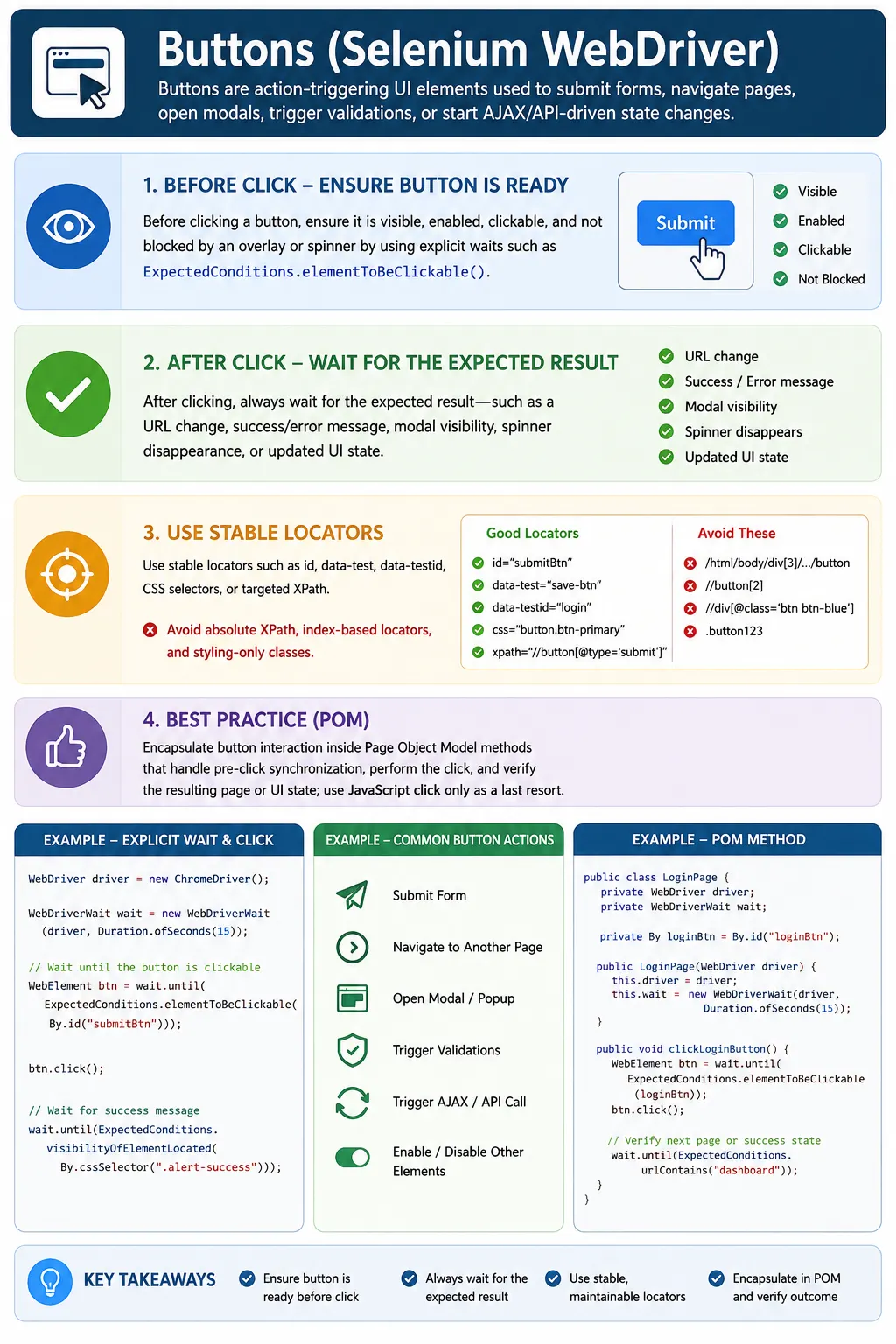
Understanding Buttons in Selenium
Buttons are among the most important action elements in any web application. Users click buttons to submit forms, save records, search data, open modals, navigate between pages, confirm decisions, upload files, trigger workflows, and start backend operations. In Selenium automation, a button is not just something to click. A button is usually the start of a transition. That transition may change the URL, show a message, display a loader, open a dialog, update a table, disable controls, or trigger a server call. Reliable automation must handle the click and the result of the click.
Beginner scripts often locate a button and call click() immediately. This can work on simple pages, but it becomes fragile in real applications. The button may be visible but disabled. It may be enabled but covered by a spinner. It may exist in the DOM but not yet be rendered to the user. It may be inside a modal, frame, or dynamically re-rendered component. Selenium is fast, and it can attempt a click before the application is ready. That is why stable button automation depends on locator quality, synchronization before the click, and synchronization after the click.
In professional frameworks, button interactions are usually wrapped inside page object methods. A test should call clickLogin, submitOrder, saveProfile, confirmDelete, or openReport. The page method should wait for the button to be ready, perform the click, and then wait for the expected outcome. This keeps tests readable and prevents repeated low-level click code from spreading through the suite.
What Is a Button in Web Automation?
Semantic and Non-Semantic Buttons
In HTML, the best button implementation is usually the button element. Applications may also use input elements with types such as button, submit, or reset. Links can act like buttons when they navigate or trigger actions. Modern JavaScript frameworks sometimes use div or span elements styled as buttons with click handlers. Some elements use ARIA roles such as role="button" to communicate interactive behavior to assistive technologies. From a user's perspective, all of these may look like buttons, but Selenium may need different locator and state strategies for each variant.
Semantic buttons are easier to automate because browser behavior and accessibility semantics are clearer. Non-semantic buttons require more care. A div styled as a button may not support isEnabled() in the same way as a real button. Its disabled state may be represented by a CSS class, aria-disabled, or custom data attribute. Automation should inspect how the application represents the button state rather than assuming every clickable element behaves like a native button.
Buttons Represent Intent
Every button has an intent. A Login button submits credentials. A Save button persists a form. A Search button refreshes results. A Delete button may open a confirmation dialog. A Next button moves a workflow forward. A Pay Now button may switch into a payment provider flow. Understanding the intent matters because it determines what the test should wait for after clicking.
A button click without outcome validation is incomplete. If a test clicks Save and does not wait for a success message or data update, it has only tested that Selenium attempted a click. It has not proven that the application completed the action. Strong tests treat button clicks as transitions and verify the transition result.
Core Selenium Operations on Buttons
Clicking with click()
The standard Selenium method for activating a button is click(). It simulates a user click through WebDriver. For normal buttons, this is the preferred approach because it follows browser interaction rules. If the element is hidden, disabled, covered, or not interactable, Selenium reports a failure. That failure is useful because it often reflects a real readiness problem in the test or application.
Before calling click(), the framework should wait for the button to be visible and clickable. WebDriverWait with elementToBeClickable is commonly used. If the page has loaders or overlays, the framework may also need to wait for those blockers to disappear. A button being visible and enabled is not always enough when a page-level overlay intercepts clicks. Button readiness often includes both element readiness and page readiness.
Validating Button State
Button state can be checked with isDisplayed() and isEnabled() for standard elements. isDisplayed() confirms that the element is visible to Selenium. isEnabled() confirms that Selenium considers it enabled for interaction. These checks are useful, but they are not always complete. Non-standard framework buttons may use CSS classes or aria-disabled instead of the native disabled attribute.
For business validation, the framework should inspect the state that the application actually uses. If the app marks disabled buttons with aria-disabled="true", validate that attribute. If it uses a disabled class, validate the class. If it removes click handlers until validation passes, use the user-visible behavior and resulting state. Selenium state methods are helpful, but application-specific state may require attribute or class checks.
Verifying the Outcome
The most important button operation is often what happens after the click. A button may navigate to a new page, submit a form, open a modal, close a dialog, call an API, update a table, show a toast, or change another element's state. Selenium tests should wait for and validate that outcome. This is what turns a click script into a real test.
The correct post-click wait depends on the button. After a navigation button, wait for URL, title, heading, or page-specific element. After a submit button, wait for success or error message. After an AJAX button, wait for loader disappearance and updated content. After a modal button, wait for modal visibility or invisibility. After a delete button, wait for confirmation and row removal. Button automation is outcome-driven.
Synchronization Before Clicking
Wait for Visibility and Clickability
A button should be visible before Selenium clicks it. Waiting for presence in the DOM is often too weak because a button can exist while hidden inside a collapsed section, inactive tab, or not-yet-rendered component. visibilityOfElementLocated is better when the button must be seen. elementToBeClickable is usually better when the next action is clicking because it checks visibility and enabled state.
Clickability is not magic, but it is a strong baseline. It prevents many failures caused by clicking too early. For complex pages, clickability should be combined with other waits. If a loader appears over the page, wait for the loader to disappear. If the button is inside a modal, wait for the modal first. If the button appears after a dynamic table refresh, wait for the table state and then the button.
Wait for Overlays and Spinners
ElementClickInterceptedException often occurs when another element receives the click instead of the intended button. Loaders, spinners, transparent overlays, sticky headers, cookie banners, and modal backdrops can all intercept clicks. The button may look ready in the DOM while the page is still blocked. This is why stable frameworks often include waitForOverlayToDisappear before critical clicks.
Overlay waits should be specific to the application. Some overlays are removed from the DOM. Others remain but become hidden. Some have opacity transitions. A good wait checks the real blocker state. Once that logic is centralized, button clicks across the suite become more reliable.
Handle Dynamic Enablement
Many buttons are disabled until the user completes required fields, accepts terms, chooses an option, or waits for validation. For example, a Submit button may remain disabled until all required text boxes are valid. A Checkout button may be disabled until inventory and pricing are confirmed. A Continue button may be enabled only after a checkbox is selected. Tests should wait for the button to become enabled instead of forcing a click.
Dynamic enablement is part of the requirement. A test can validate that the button is disabled before the prerequisite action, then perform the prerequisite action, wait for enablement, and click. This verifies the workflow more accurately than clicking with JavaScript or bypassing the UI state.
Synchronization After Clicking
Navigation Buttons
When a button navigates to another page or route, the test should wait for a navigation signal. That signal may be a URL change, title change, page heading, breadcrumb, or key element on the destination page. Waiting only for document ready may not be enough in single-page applications because the document may remain loaded while the route changes dynamically.
Page objects can make this clean. A method named goToDashboard can click the dashboard button and return a DashboardPage object only after the dashboard page is ready. This ensures that the next test step does not start before navigation is complete.
Submit Buttons
Submit buttons often trigger validation and server-side processing. After clicking Submit, the test should wait for the appropriate result. For valid data, that may be a success message, redirect, saved record, or updated status. For invalid data, that may be field-level errors or a form-level warning. The wait should reflect the expected path for the test.
A common mistake is clicking Submit and immediately asserting the message. On a fast local machine, this may pass. In CI, the message may appear later. A better pattern is to wait for the success or error message and then assert its exact text. The wait handles timing; the assertion handles correctness.
AJAX and Background Actions
Many buttons trigger AJAX calls without full-page navigation. Save, Search, Refresh, Apply Filter, Add to Cart, and Load More buttons commonly work this way. After clicking, the page may show a spinner, disable controls, update content, and then become interactive again. The test should wait for the final state, not merely for the click to return.
Good post-click waits include spinner invisibility, result count changes, status text updates, button state changes, or notification visibility. The correct wait depends on what the application does. This is why button click helpers should sometimes accept or call a page-specific post-click readiness method.
Choosing Stable Button Locators
Prefer IDs and Test Attributes
Stable locators are essential for button automation. IDs are often the best option when they are unique and stable. In enterprise applications, data-testid, data-test, or data-qa attributes are excellent because they are designed for automation and are less likely to change with styling. These attributes also make intent clear: data-test="save-button" is easier to understand than a long CSS path.
When stable attributes are not available, CSS selectors and XPath can be used carefully. CSS is often concise for attribute-based locators. XPath is useful when locating by visible text or relationships, such as a button in a specific table row. The locator should remain readable and tied to the button's purpose, not its fragile visual position.
Avoid Fragile Locators
Index-based locators, absolute XPath, and styling-only classes are common causes of broken button tests. A locator like the third button on the page may break when another button is added. An absolute XPath may break when layout changes. A CSS class used only for styling may change during redesign. These locators make tests brittle because they depend on implementation details unrelated to button intent.
Good locators describe purpose. A Delete button in a table row can be located based on the row data and the button role. A Save button can use a data attribute. A modal confirmation button can be scoped inside the modal. Scoped locators reduce accidental matches and make tests easier to review.
Handling Non-Standard Buttons
JavaScript Framework Buttons
Modern front-end frameworks sometimes implement buttons with custom components. The DOM may contain a div, span, or anchor element with click handlers, ARIA roles, and CSS state classes. Selenium can click these elements if they are interactable, but standard state checks may not fully describe them. A custom button may appear disabled through a class while isEnabled() still returns true.
For these components, inspect the DOM and accessibility attributes. Look for aria-disabled, role, tabindex, class changes, and data attributes. The automation framework may need a custom wait for the application-specific enabled state. This is better than assuming every custom component behaves like a native button.
JavaScript Click as a Last Resort
Selenium allows JavaScript execution, and some testers use JavaScript click when normal click fails. This should be a last resort. A JavaScript click can bypass user-like interaction and may hide problems such as overlays, disabled state, or layout issues. If a real user cannot click the button, a Selenium test should usually not bypass that restriction.
Before using JavaScript click, investigate why the normal click fails. Is the locator wrong? Is the element covered? Is the page still loading? Is the button disabled? Is it outside the viewport? Fixing the root cause creates a better test. JavaScript click may be acceptable for rare framework limitations, but it should be documented and isolated.
Buttons in Page Object Model
Encapsulate Button Actions
Button actions belong in page object methods. A test should not repeatedly locate a button, wait for it, click it, and wait for the result. The page object should own that sequence. For example, LoginPage.clickLogin can wait for the login button, click it, and wait for either dashboard navigation or login error. CheckoutPage. submitOrder can wait for Pay Now, click it, and wait for confirmation or payment validation.
Encapsulation makes tests easier to read and maintain. If the button locator changes or the post-click behavior changes, the page object can be updated in one place. Test cases remain focused on user workflows rather than browser mechanics.
Use Safe Click Helpers Carefully
Many frameworks create safeClick helpers that wait for clickability, scroll the element into view, handle overlays, and click. This can be useful, but safeClick should not become a black box that hides product issues. It should log what it waited for and fail clearly when the button is not ready. Safe click logic should be predictable and specific.
A good safe click helper waits for the element to be clickable and optionally waits for known blockers to disappear. It should not catch every exception and retry forever. If the button cannot be clicked within the timeout, the failure should explain which button was not clickable and what page state was observed.
Common Mistakes with Button Automation
Clicking Without Waiting
Clicking immediately after locating a button is one of the most common causes of flaky Selenium tests. The button may be present but not ready. It may be disabled, hidden, or blocked. The fix is to wait for the right readiness state. For most buttons, that means clickability and absence of known overlays.
Thread.sleep() is not the right fix. A sleep may hide the problem on one machine and fail on another. Explicit waits and page-specific readiness checks are more reliable because they wait for actual state.
Ignoring the Result of the Click
Another common mistake is clicking a button and ending the test or moving immediately to the next action without verifying the result. A click may be accepted by the browser but fail at the application level. The server may reject the request, validation may fail, or a modal may not open. Tests should validate outcomes, not just actions.
Every important button should have a post-click expectation. If the button saves, verify save completion. If it navigates, verify destination. If it opens a modal, verify modal visibility. If it deletes, verify row removal or confirmation. This makes the test meaningful.
Using Fragile Text Locators
Text-based XPath can be useful, but it can also be fragile when button text changes, contains extra spaces, or is localized. If the application supports multiple languages or frequently updates labels, data attributes are better. If text-based locators are necessary, normalize-space can help handle whitespace, and scoping the locator to a region can prevent matching the wrong button.
Locator strategy should match the application. Do not use text locators simply because they are quick to write. Use them when text is stable and meaningful. Otherwise, prefer stable attributes.
Interview Perspective on Buttons
Short Interview Answer
Buttons are clickable UI elements automated in Selenium using click(), usually after waiting for visibility and clickability, followed by validation of the action triggered by the click.
Detailed Interview Answer
In Selenium, button automation requires more than calling click(). A reliable test should locate the button with a stable locator, wait until it is visible, enabled, and clickable, handle overlays or loaders, perform the click, and then wait for the expected outcome such as navigation, message display, modal visibility, or AJAX completion. In real frameworks, button logic should be encapsulated inside Page Object Model methods.
Real Project Explanation
In a real project, I would create page methods such as clickLogin, saveProfile, confirmDelete, and submitOrder. Each method would wait for the button to be ready, click it, and then synchronize with the expected result. For dynamic buttons, I would wait for enablement or application-specific attributes. For buttons blocked by loaders, I would wait for overlay invisibility before clicking. I would use JavaScript click only as a documented last resort.
The key takeaway is that buttons trigger transitions. Stable Selenium automation synchronizes before clicking and after clicking. When button locators are stable, waits are condition-based, outcomes are validated, and button logic is centralized in page objects, click-related flakiness drops significantly.
Button Stability in CI and Automation Frameworks
Why Button Tests Fail More Often in CI
Button tests often pass locally and fail in CI because click timing is sensitive to environment speed. A shared CI runner may render pages more slowly, run browsers headlessly, execute tests in parallel, or communicate with a remote Selenium Grid. A button that becomes clickable quickly on a laptop may remain disabled or covered for longer in CI. If the test clicks without condition-based waits, the failure appears random even though the real problem is synchronization.
A stable CI-ready button strategy waits for the same readiness signals every time. Before clicking, the page object waits for visibility, enablement, clickability, and absence of known blockers. After clicking, it waits for the expected transition. This makes the test independent of machine speed. The same logic works when the application is fast and when the environment is temporarily slow.
Log Button Failures with Useful Evidence
Button failures should be easy to investigate. A good framework logs the button locator, page name, current URL, displayed state, enabled state, clickability condition, overlay status, and screenshot path. If a post-click wait fails, the log should say what outcome was expected, such as a modal opening, a URL changing, or a success message appearing. This information is much more useful than a generic click failed message.
Screenshots are especially valuable for button issues. They may show a spinner, disabled button, validation error, cookie banner, modal overlay, sticky header, or wrong page. With this evidence, the team can decide whether the failure is caused by the test, the locator, the environment, or a real application defect. Button automation becomes more trustworthy when failures explain the state that prevented the click or the state that failed to appear afterward.
Build a Shared Click Policy
Large teams benefit from a shared click policy. The policy can define when to use standard click, when to wait for overlays, when to scroll, when to use Actions, and when JavaScript click is allowed. Without a policy, every tester solves click problems differently. One test uses sleep, another uses JavaScript click, another retries exceptions, and another waits for clickability. The suite becomes inconsistent.
A shared policy keeps button automation disciplined. Normal user-like clicks should be the default. JavaScript click should be rare and documented. Sleeps should be avoided. Page objects should own button synchronization. When these rules are followed, button tests remain readable, stable, and easier to maintain as the application grows.
This discipline also helps code reviews. Any new button method should make the expected readiness and expected outcome visible in the page object. If those two pieces are missing, the click is probably incomplete.
In Selenium, stable button automation depends on correct locator choice, synchronization, and post-click validation.
1. What Is a Button
Definition:
A button is a clickable UI element that triggers an action when activated.
Common HTML implementations:
- <button> (recommended)
- <input type="button|submit|reset">
- <a role="button">
- <div> or <span> styled as a button (JS frameworks)
Key implication:
Not all "buttons" are semantically buttons-automation must handle all variants.
2. Typical Button Actions
Buttons commonly:
- Submit forms
- Navigate to another page
- Open modals/popups
- Trigger validations
- Call backend APIs (AJAX)
- Enable/disable other UI elements
Each action requires different waits after clicking.
3. Core Operations on Buttons
3.1 Clicking a Button
- Use click() after ensuring visibility and clickability
- Clicking too early is the #1 failure cause
3.2 Validating Button State
- Visibility (isDisplayed())
- Enablement (isEnabled())
- Selection (rare; usually not applicable)
3.3 Verifying Button Outcome
- Page navigation
- Message display
- State change (enabled/disabled)
- Modal open/close
4. Synchronization Strategy for Buttons (Critical)
Before Click (Must)
- Element is visible
- Element is enabled
- Element is clickable
- No overlay/spinner blocking it
After Click (Must)
Wait based on what the button does:
- Navigation means wait for URL/title change
- Form submit means wait for success/error message
- AJAX means wait for spinner to disappear
- Modal means wait for modal visibility
Rule:
A click without a post-click wait is incomplete automation.
5. Button States You Must Handle
5.1 Disabled Buttons
- Common in forms until validation passes
- isEnabled() returns false
- Attempting click throws exception
Best practice:
Wait until enabled, then click.
5.2 Dynamically Enabled Buttons
- Enabled after text input, checkbox selection, or API response
- Requires explicit wait for enablement or clickability
5.3 Buttons Blocked by Overlays
- Loaders/spinners often intercept clicks
- Element exists but is not clickable
Fix:
Wait for overlay invisibility before clicking.
6. Locating Buttons (Best Practices)
Preferred locator order:
- ID (best)
- data-testid / data-qa (enterprise best practice)
- CSS selector (classes + attributes)
- XPath (text-based or relationship-based)
Avoid:
- Index-based locators
- Styling-only classes
- Absolute XPath
7. Handling Non-Standard Buttons (JS Frameworks)
Modern frameworks often use:
- <div> or <span> with click handlers
- ARIA roles (role="button")
Implications:
- isEnabled() may not reflect true state
- Disabled state may be CSS-based
Best practice:
- Validate via attributes/classes used by the app
- Wait for clickability, not just presence
8. Buttons in Page Object Model (POM)
Best practice:
- Encapsulate button actions in page methods
(e.g., clickLogin(), submitForm())
Page method responsibilities:
- Wait for clickability
- Perform click
- Handle post-click synchronization
Tests should never call click() directly.
9. Common Beginner Mistakes
- Clicking without waiting for clickability
- Using Thread.sleep() before/after click
- Ignoring overlays/spinners
- Not validating post-click behavior
- Using fragile text-based locators unnecessarily
10. Interview Perspective
Short Answer:
Buttons are clickable elements that trigger actions, and in Selenium they are handled using click() with proper synchronization.
Real-Time Answer:
In Selenium automation, buttons are interacted with by waiting for visibility and clickability, performing the click, and then synchronizing based on the resulting action such as navigation, message display, or AJAX completion. Proper waits are essential to avoid flaky tests.
11. Key Takeaway
- Buttons trigger state changes, not just clicks
- Always synchronize before and after clicking
- Choose stable locators
- Encapsulate logic in page objects
- Validate outcomes, not just actions
In Selenium, a button click is not an action-it's a transition that must be synchronized.
12. Practical Button Click Examples (Selenium Java)
12.1 Click Button by ID
driver.findElement(By.id("loginBtn")).click();12.2 Click Button by Name
driver.findElement(By.name("submit")).click();12.3 Click Button Using CSS Selector
driver.findElement(By.cssSelector("button[type='submit']")).click();12.4 Click Button Using XPath Text
driver.findElement(By.xpath("//button[text()='Login']")).click();12.5 Click Button Using normalize-space()
driver.findElement(By.xpath("//button[normalize-space()='Submit']")).click();12.6 Click Button Using data-test Attribute (Best Practice)
driver.findElement(By.cssSelector("[data-test='save-button']")).click();12.7 Wait and Click Button (Explicit Wait)
WebDriverWait wait = new WebDriverWait(driver, Duration.ofSeconds(10));

wait.until(ExpectedConditions.elementToBeClickable(By.id("checkoutBtn")))
    .click();
12.8 Verify Button Is Enabled Before Clicking
WebElement btn = driver.findElement(By.id("confirmBtn"));

if (btn.isEnabled()) {
    btn.click();
}
12.9 Verify Button Is Displayed
WebElement btn = driver.findElement(By.id("nextBtn"));

if (btn.isDisplayed()) {
    btn.click();
}
12.10 Click Button Using JavaScript (If Normal Click Fails)
WebElement btn = driver.findElement(By.id("specialBtn"));

JavascriptExecutor js = (JavascriptExecutor) driver;
js.executeScript("arguments[0].click();", btn);
12.11 Get Button Text
String text = driver.findElement(By.id("submitBtn")).getText();
System.out.println("Button Text: " + text);
12.12 Validate Button Attribute (Disabled)
WebElement btn = driver.findElement(By.id("saveBtn"));

String disabled = btn.getAttribute("disabled");
System.out.println("Disabled Attribute: " + disabled);
12.13 Click Button Inside Modal
WebDriverWait wait = new WebDriverWait(driver, Duration.ofSeconds(10));

wait.until(ExpectedConditions.visibilityOfElementLocated(By.id("modal")));
driver.findElement(By.id("modalConfirm")).click();
12.14 Click Button Inside Frame
driver.switchTo().frame("paymentFrame");
driver.findElement(By.id("payNow")).click();
driver.switchTo().defaultContent();
12.15 Click Button in Dynamic Table Row
driver.findElement(By.xpath("//td[text()='John']/following-sibling::td/button"))
      .click();
12.16 Click Button Using Partial Text
driver.findElement(By.xpath("//button[contains(text(),'Save')]"))
      .click();
12.17 Double Click Button (Actions Class)
WebElement btn = driver.findElement(By.id("doubleClickBtn"));

Actions actions = new Actions(driver);
actions.doubleClick(btn).perform();
12.18 Right Click Button
WebElement btn = driver.findElement(By.id("contextBtn"));

Actions actions = new Actions(driver);
actions.contextClick(btn).perform();
12.19 Hover and Click Hidden Button
WebElement menu = driver.findElement(By.id("menu"));

Actions actions = new Actions(driver);
actions.moveToElement(menu).perform();

driver.findElement(By.id("submenuBtn")).click();
12.20 Button in Page Object Model (POM)
public class HomePage {

    WebDriver driver;

    By loginButton = By.id("loginBtn");

    public HomePage(WebDriver driver) {
        this.driver = driver;
    }

    public void clickLogin() {
        driver.findElement(loginButton).click();
    }
}
13. Button Automation Best Practices
- Prefer
idordata-testlocators - Use explicit wait before clicking
- Verify
isEnabled()when necessary - Use JavaScript click only as last resort
- Avoid
Thread.sleep - Handle overlays/spinners before clicking