Browser Navigation Commands
Browser navigation commands allow Selenium to control browser history and page reload behavior, closely simulating how real users move through an application. These commands are part of the navigation interface exposed by Selenium WebDriver.
In real browser usage, users rarely interact with a web application in a perfectly linear way. They open a page, move to another page, press the browser back button, return forward, refresh the current view, and sometimes type a new URL directly into the address bar. Selenium provides browser navigation commands so automated tests can reproduce these browser-level movements instead of only clicking page elements. This distinction matters because browser history, refresh behavior, redirects, cached pages, and session state can affect the user experience just as much as buttons and form fields.
A beginner often starts Selenium by using driver.get() to open a website. That is correct for
initial application launch, but it is only one part of navigation. The driver.navigate() API
gives access to a navigation object that supports to(), back(),
forward(), and refresh(). These commands are especially useful when a test must
validate browser history or when a user journey depends on moving between pages the same way a real user
would. Understanding them helps you write tests that are more realistic and easier to explain in interviews.
Browser navigation commands should not be treated as shortcuts for synchronization problems. Refreshing a
page repeatedly because an element is not visible is usually a sign that the test needs better waits or the
application has unstable loading behavior. Similarly, calling back() without verifying the page
that appears afterward can create flaky tests. Navigation commands are powerful, but their reliability comes
from pairing them with clear assertions and meaningful waits after each movement.
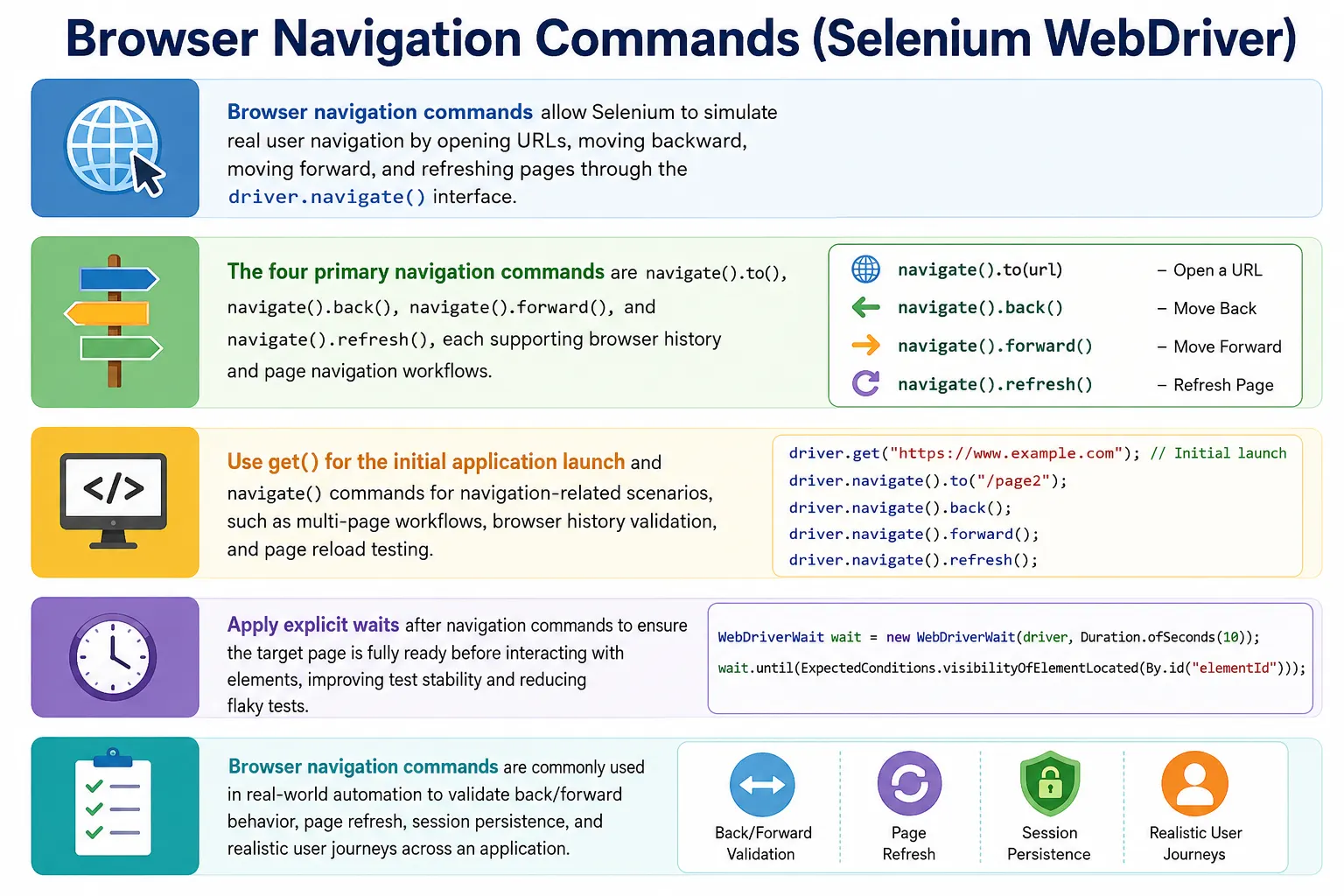
1. What Are Browser Navigation Commands
Definition:
Browser navigation commands enable Selenium to:
- Open URLs
- Move backward and forward in browser history
- Refresh the current page
They are accessed through:
driver.navigate()
These commands are essential for multi-page workflows, history validation, and realistic user simulation.
The navigation object represents browser-level movement, not application-specific business logic. When you
click a menu item or submit a form, the application decides what happens. When you call
driver.navigate().back(), Selenium asks the browser itself to move back in its history stack.
That difference is important. A link click validates that the link exists and works. A browser back command
validates how the application behaves when the user relies on browser history. Both are useful, but they
answer different testing questions.
Navigation commands are also useful for understanding how Selenium maintains a browser session. Moving from
one page to another through navigation does not automatically create a new browser. It does not clear cookies
or local storage. It does not reset the user session. The same WebDriver session remains active until the
test closes it with quit() or the browser crashes. This is why navigation tests can verify
session persistence, login state, shopping cart continuity, route restoration, and other stateful behavior.
2. navigate().to()
Purpose:
Navigates to a specified URL while maintaining browser history.
Key Points:
- Similar to clicking a link or typing a URL in the address bar
- Works with back() and forward()
- Slightly less strict about full page load than get()
When to Use:
- Navigation flows
- Page-to-page movement
- History-based scenarios
navigate().to() is similar to entering a URL in the address bar or moving the browser to a new
location as part of a navigation chain. In many simple examples, it produces the same visible result as
driver.get(): the requested page opens. The reason to choose navigate().to() is
usually intent. If the test is describing a browser navigation flow, the command reads naturally with
back(), forward(), and refresh(). If the test is only opening the
application base URL, get() is normally cleaner.
A practical example is a test that opens a search page, moves to a result details page by URL, goes back to
the search page, and verifies that filters remain selected. In that scenario, navigate().to()
makes sense because the test is intentionally working with browser movement and history. Another example is
a redirect-heavy authentication flow where the browser moves between an application page and an identity
provider. The navigation command starts the movement, but the test must still verify the final page state
after redirects complete.
3. navigate().back()
Purpose:
Simulates clicking the browser’s Back button.
Behavior:
- Navigates to the previous page in history
- Depends on history being available
Common Use Cases:
- Verifying back-navigation behavior
- Validating session persistence
- Testing breadcrumb or navigation consistency
Important Note:
If there is no previous page, this command has no effect.
navigate().back() is useful because users depend on the browser back button in many everyday
workflows. E-commerce users move from product details back to search results. Admin users move from a record
details page back to a list. Documentation users move from an article back to a category page. If the
application is a single-page application, back navigation may not perform a full browser reload, but it may
still change the route and trigger application logic. Selenium tests should validate the actual result the
user sees after the back command.
The most common mistake with back() is assuming that it always returns to the exact same state.
Browser history may restore a cached page, reload a page, or allow the application router to reconstruct
state. A search page may lose filters if the application does not preserve them in the URL or storage. A
form page may show browser resubmission warnings. A secure page may redirect to login if the session expired.
These outcomes are application behaviors worth testing, but the test should wait for and assert the expected
state instead of assuming it immediately appears.
4. navigate().forward()
Purpose:
Simulates clicking the browser’s Forward button.
Behavior:
- Moves to the next page in browser history
- Only works if back() was previously used
Common Use Cases:
- Forward navigation testing
- Browser history validation
navigate().forward() depends on prior history. If a test goes from page A to page B, then calls
back(), the browser may allow forward() to return to page B. If no back movement
happened first, there may be no forward entry available. This mirrors real browser behavior. Selenium does
not invent history entries; it asks the browser to use the history it already has.
Forward navigation is less common than back navigation in day-to-day automation, but it is valuable for testing history consistency. For example, after a user moves back from a details page to a list, pressing forward should return to the same details page. In applications with client-side routing, this verifies that route handling, stored state, and page rendering remain consistent across history movements.
5. navigate().refresh()
Purpose:
Reloads the current page.
Behavior:
- Re-requests the page from the server
- Re-renders the DOM
- Clears transient UI state
Common Use Cases:
- Validating page reload behavior
- Testing session handling
- Handling intermittent UI glitches
navigate().refresh() reloads the current page in the active browser session. This is similar to
a user pressing the browser refresh button. It can be useful for testing whether page state survives a reload,
whether a user remains authenticated, whether submitted data appears after reload, or whether a page correctly
re-fetches dynamic content. It is also useful in scenarios where an application is expected to be idempotent,
meaning the same refresh should not accidentally repeat a destructive action.
Refresh should be used carefully. Some beginners use refresh as a workaround when elements are stale or not visible. That may hide the real synchronization problem and make the test slower. If a page needs time to render, use explicit waits. If an element becomes stale because the DOM is replaced, locate the element again after the page update. Use refresh when the requirement is to validate reload behavior or when the workflow genuinely expects the user to refresh the page.
6. get() vs Navigation Commands (Quick Context)
| Action | Method |
|---|---|
| Initial app launch | get() |
| Page-to-page navigation | navigate().to() |
| Go back in history | navigate().back() |
| Go forward in history | navigate().forward() |
| Reload page | navigate().refresh() |
Use get() for stability, and navigate() for control.
This table is a useful rule of thumb, but it should not be understood as a strict law. Both
get() and navigate().to() can load a URL. The better choice is the one that makes
the test intent clear. When the test starts from the base URL, get() is concise. When the test
is focused on browser-level movement, navigate() keeps related commands together and makes the
flow easier to read.
In a framework, this difference often appears as a separation between setup and test steps. Setup opens the
application using get(). Test steps may use navigate().to(), back(),
forward(), and refresh() when the scenario requires browser navigation behavior.
This separation prevents the framework from becoming noisy and helps future maintainers understand why a
specific command was used.
7. Page Load & Synchronization Considerations
Navigation commands:
- Do not guarantee element readiness
- Often require explicit waits after execution
Best practice:
- Apply waits after navigation
- Validate page state before interaction
This prevents flaky tests.
Navigation commands tell the browser to move, but they do not understand when your application is ready for the next business action. A page may finish its main load event while JavaScript continues to build the screen. A dashboard may appear before the charts load. A list page may restore after back navigation but still be waiting for an API response. A refresh may recreate the DOM and make old WebElement references stale. These are not failures of navigation commands; they are normal realities of modern web applications.
The reliable pattern is to navigate, then wait for a page-specific condition. After
navigate().to(), wait for the expected title, URL, heading, or important element. After
back(), wait for the previous page's unique marker. After forward(), wait for the
destination page to return. After refresh(), wait for the page to finish re-rendering and then
re-locate elements. A stable automation framework usually wraps these waits inside page objects or helper
methods so tests remain readable.
Page load timeouts are related but not identical to explicit waits. A page load timeout controls how long Selenium waits for a navigation command to complete before throwing a timeout exception. An explicit wait controls how long the test waits for a specific application condition. Both may be needed. A slow server may trigger a page load timeout, while an asynchronously loaded table may require an explicit wait even after the browser considers navigation complete.
8. Real-Project Usage Patterns
- get() in setup (@BeforeMethod)
- navigate().to() during test steps
- back() and forward() for navigation validation
- refresh() for state-reset or reload scenarios
Navigation commands are rarely used in isolation—they’re part of user journeys.
In real projects, navigation commands usually appear in carefully chosen scenarios rather than every test. A login smoke test may not need browser back or forward at all. A checkout journey may need refresh testing after payment return. A search page may need back navigation validation from a details page. A report page may need refresh validation because data is updated on the server. A help center may need history validation across multiple articles. The command should match the risk being tested.
Frameworks often provide small utilities for navigation, but those utilities should not remove the meaning
from the test. A method named openUrl() can use get() or
navigate().to(), but a method named goBackToSearchResults() should clearly use
browser back navigation and assert that the search results page is restored. Good abstractions make repeated
behavior consistent while still preserving the purpose of the scenario.
9. Common Beginner Mistakes
- Using navigate().to() instead of get() for app launch
- Calling back() without navigation history
- Interacting with elements immediately after navigation without waits
- Overusing refresh() to fix synchronization issues
Another common mistake is confusing navigation with window handling. Browser navigation commands move within
the current window or tab history. They do not switch to another tab, select a popup window, or change frames.
For those actions Selenium provides APIs such as switchTo().window() and
switchTo().frame(). If a link opens a new tab, navigate().back() will not switch
you to the original tab automatically. The test must handle window handles explicitly.
Some testers also call navigation commands after driver.close() or driver.quit().
Once the session is closed, the driver can no longer navigate. Calling commands after quit causes session
errors. This is usually a framework lifecycle problem. Setup should create a driver, the test should use it,
and teardown should close it after all test actions and assertions are finished.
A final mistake is using browser history when the requirement is actually application navigation. If the
test needs to verify that a breadcrumb link works, click the breadcrumb. If the test needs to verify browser
back behavior, call navigate().back(). Those two tests may end on the same page, but they test
different behavior. Clear intent makes failures easier to understand.
10. Interview Perspective
Short Answer:
Browser navigation commands in Selenium include navigate().to(), back(), forward(), and refresh(), which control browser history and page reload behavior.
Real-Time Answer:
Selenium provides browser navigation commands through the navigate() interface to simulate user navigation, allowing tests to move backward, forward, refresh pages, and navigate between URLs while maintaining browser history.
A stronger interview answer connects the commands to practical design. You can say that
driver.get() is commonly used for initial application launch, while
driver.navigate() is used when the test needs browser navigation control. After using
navigation commands, explicit waits should validate page readiness because modern web applications may
continue rendering after navigation completes. You can also mention that navigation is different from window
handling and frame switching.
Interviewers may ask what happens if there is no previous page and back() is called. The
practical answer is that the command depends on browser history; if there is no previous entry, it has no
useful page to return to. They may also ask whether forward() works anytime. It only works
when forward history exists, usually after a previous back action. These answers show that you understand
browser behavior, not just Selenium syntax.
11. Key Takeaway
- Navigation commands simulate real user browser behavior
- get() is preferred for initial launch
- navigate() commands are used for history-based flows
- Proper waits are essential after navigation
Stable automation depends not just on navigation, but on validating page readiness after navigation.
The central idea is simple: navigation commands simulate what users do with the browser itself. They are not
replacements for application clicks, waits, session management, or window handling. Use them when the
browser's history or reload behavior is relevant to the test. Keep get() for clean initial
launch, use navigate().to() for navigation movement, use back() and
forward() for history, and use refresh() for reload validation. After each command,
assert the page state that matters.
When used intentionally, navigation commands make Selenium tests more realistic. They help verify how an application behaves when users move backward, return forward, refresh pages, revisit routes, and keep their session active across page movements. These behaviors often reveal issues that direct element interaction alone would miss.
12. Navigation Commands in Single-Page Applications
Single-page applications add an important layer to browser navigation testing. In a traditional website, a movement from one page to another often causes the browser to request a new HTML document from the server. In a single-page application, the browser may remain on the same document while JavaScript changes the route, updates the visible screen, and fetches new data. The URL may change, the content may change, and the browser history may update, but the page may not perform a full reload. Selenium navigation commands still work, but the test must understand what kind of application behavior is expected.
For example, after navigate().back() in a single-page application, the browser may restore a
previous route such as /products from /products/123. The application router then
decides which components to render. If the route changes but the component takes time to load, an immediate
assertion may fail. The better approach is to wait for a route-specific element, such as the product list
heading, selected filter chip, or search result count. This makes the test resilient to the way the
application actually renders.
SPA routing also makes refresh testing important. Some applications work correctly when users reach a route
through internal links, but fail when the same route is refreshed directly because server routing is not
configured correctly. A Selenium test using navigate().refresh() can catch this issue. If a
user refreshes /dashboard/reports, the application should still load the reports page instead
of showing a blank screen, a 404, or a login page unexpectedly. This is a real production risk, not just an
automation detail.
13. Redirects and Browser History
Redirects can make navigation behavior less obvious. A command may request one URL, but the browser may end
at another. This is common with authentication, authorization, localization, trailing slash normalization,
payment flows, and legacy URL redirects. For instance, navigate().to() may request a protected
dashboard URL, but the application redirects to a login page because the user is not authenticated. After
login, the application may redirect back to the original dashboard. The test should be written around the
expected final state, not only the initially requested URL.
Redirects can also affect browser history. Some redirects replace history entries while others add entries. From a user's perspective, this controls what happens when the back button is pressed. After login, pressing back should usually not return the user to a sensitive intermediate state. After logout, pressing back should not show a cached authenticated page. Selenium navigation commands can validate these behaviors, but the assertions must be specific. Check URL, visible page content, session state, and whether protected data is still accessible.
In interview discussions, this is a strong practical point. Browser navigation is not only a Selenium API topic. It is also related to application routing, security, caching, and user experience. A candidate who explains redirects, session state, and back-button behavior demonstrates real testing understanding.
14. Refresh Command Risks and Correct Usage
Refresh is one of the easiest navigation commands to misuse. It can make a flaky test pass temporarily by forcing the page to reload, but that does not fix the underlying issue. If an element is not ready because an API call is still running, the correct fix is usually an explicit wait. If an element reference becomes stale because the DOM changed, the correct fix is to locate the element again after the update. Refreshing may hide the problem, increase execution time, and make failures harder to diagnose.
The right use of refresh is requirement-driven. Use it when the product is expected to behave correctly
after the user reloads the page. A report page should reload with the same filters or with documented
defaults. A logged-in dashboard should preserve the session. A completed form submission should not create
duplicate records on refresh. A cart page should not lose items unexpectedly. These are meaningful tests,
and navigate().refresh() is the correct tool for them.
Refresh also has a technical implication: existing WebElement references may become stale. After refresh, the DOM is usually rebuilt. Even if an element looks identical to the user, Selenium may consider the old reference invalid because it belonged to the previous document. A reliable test should re-locate elements after refresh and wait for the refreshed page state before interaction.
15. Navigation Commands and Test Isolation
Navigation commands preserve the active browser session. This is useful when the test wants to verify stateful behavior, but it can be risky if tests accidentally depend on state from previous steps. Cookies, local storage, session storage, and browser cache may affect what the next navigation shows. A user who is already logged in may be sent to a dashboard instead of a login page. A user with saved preferences may see a filtered list. A cart item from a previous step may still be present.
Good test isolation decides what state should exist before navigation begins. For independent tests, the framework may start a fresh browser session for each test, clear cookies before opening the app, or create state through API setup. For journey tests, preserving state is intentional because the flow depends on it. The navigation command itself does not decide isolation. The framework and test design decide whether the current session should be clean or stateful.
This matters in parallel execution as well. Each parallel test should have its own WebDriver instance and its own browser history. If drivers are shared across tests, one test's navigation can interfere with another test's page state. That kind of failure is difficult to debug because the visible symptom may be a wrong URL or missing element, while the real cause is shared session management. Navigation commands are safe in parallel only when driver ownership is safe.
16. Debugging Navigation Failures
When a navigation command fails or produces an unexpected page, start by identifying where the browser actually ended. Capture the current URL, page title, screenshot, and relevant page source. If a test expected a dashboard but ended on login, the issue may be authentication. If it ended on an error page, the issue may be server-side routing or environment availability. If the URL is correct but the element is missing, the issue may be asynchronous rendering or an incorrect locator.
For back and forward failures, inspect the history assumptions. Did the test really create a previous page entry? Did a redirect replace the entry? Did the application use client-side routing? Did the user action open a new tab instead of navigating in the same tab? These questions separate Selenium API problems from application behavior problems. In many cases, Selenium did exactly what the browser allowed, and the test expectation needs to be adjusted to the real behavior.
For refresh failures, check whether the page is reload-safe. Some pages depend on data stored only in memory. A manual user refresh would lose that state too, which may be a product issue. Other pages should restore state from URL parameters, server data, or storage. A Selenium refresh test can expose whether the application has made the state durable enough for real browser usage.
17. A Practical Navigation Strategy for Frameworks
A mature framework usually keeps initial URL loading in setup and keeps browser navigation commands close
to the tests that need them. The setup layer may call driver.get(baseUrl). Page objects may
provide methods that click application links. Browser utilities may provide small helpers for
back(), forward(), and refresh() that also apply waits or logging.
This structure keeps low-level commands reusable without hiding the intent of the test.
Logging is useful for navigation. Before or after a command, the framework can record the intended URL, the current URL, the page title, and the command used. When a CI failure occurs, these details make it easier to see whether the browser went to the wrong page, redirected unexpectedly, timed out, or loaded the correct page but failed later. Navigation failures are much easier to debug when the framework leaves a clear trail.
The strategy should remain simple. Do not create complicated navigation abstractions for every possible
movement. Use get() for starting pages, page object clicks for application links, and
navigate() commands for browser history and refresh behavior. This keeps tests expressive and
avoids turning basic browser movement into unnecessary framework complexity.
18. Browser Navigation Commands Quick Reference
1. Basic Navigation Flow
WebDriver driver = new ChromeDriver();

driver.get("https://google.com");
driver.navigate().to("https://example.com");
driver.navigate().back();
driver.navigate().forward();
driver.navigate().refresh();

driver.quit();
Key Point
- All navigation commands come from driver.navigate()
2. get() vs navigate().to() (Quick Demo)
driver.get("https://site1.com");
driver.navigate().to("https://site2.com");
Difference
- get() means simple page load
- navigate().to() supports history control
3. Navigating Using URL Object
import java.net.URL;

URL url = new URL("https://example.com");
driver.navigate().to(url);
Interview Favorite
- get() does not accept URL object
- navigate().to() accepts URL object
4. Back Navigation
driver.navigate().back();Use Case
- Validate browser back button behavior
5. Forward Navigation
driver.navigate().forward();Use Case
- Validate browser forward button
6. Refresh Current Page
driver.navigate().refresh();Used For
- Reloading page after dynamic updates
- Handling stale UI issues
7. Navigation with Explicit Wait (Best Practice)
driver.navigate().to("https://example.com");

WebDriverWait wait = new WebDriverWait(driver, Duration.ofSeconds(10));
wait.until(ExpectedConditions.titleContains("Example"));
8. Navigation in Login Flow (Real Project Example)
driver.get("https://app.com/login");
// login steps
driver.navigate().to("https://app.com/dashboard");
9. Navigation Between Multiple Pages
driver.navigate().to("https://site1.com");
driver.navigate().to("https://site2.com");
driver.navigate().to("https://site3.com");

driver.navigate().back();
driver.navigate().back();
driver.navigate().forward();
10. Navigation Validation Using URL
driver.navigate().to("https://example.com");
String currentUrl = driver.getCurrentUrl();
Assert.assertTrue(currentUrl.contains("example"));
11. Navigation Validation Using Title
driver.navigate().to("https://example.com");
String title = driver.getTitle();
Assert.assertEquals(title, "Example Domain");
12. Refresh After Form Submission
driver.findElement(By.id("submit")).click();
driver.navigate().refresh();
Use Case
- Validate idempotency
- Detect duplicate submissions
13. Navigation with Cookies Preserved
driver.get("https://site1.com");
// cookies created
driver.navigate().to("https://site2.com");
Key Point
- Same browser session
- Cookies retained (same domain rules apply)
14. Navigation Inside TestNG Test
@BeforeMethod
public void setup() {
    driver = new ChromeDriver();
}

@Test
public void navigationTest() {
    driver.get("https://example.com");
    driver.navigate().refresh();
}

@AfterMethod
public void teardown() {
    driver.quit();
}
15. Navigation in JUnit 5
@Test
void testNavigation() {
    driver.get("https://example.com");
    driver.navigate().back();
}
16. Navigation in Headless Mode
ChromeOptions options = new ChromeOptions();
options.addArguments("--headless=new");

WebDriver driver = new ChromeDriver(options);
driver.navigate().to("https://example.com");
driver.navigate().refresh();
driver.quit();
Note
- Navigation works same as headed mode
17. Navigation with Page Load Timeout
driver.manage().timeouts()
      .pageLoadTimeout(Duration.ofSeconds(30));

driver.navigate().to("https://example.com");
18. Navigation Failure Handling (Try-Catch)
try {
    driver.navigate().to("https://invalid-url");
} catch (TimeoutException e) {
    System.out.println("Page load timeout");
}
19. Common Interview Mistake
driver.back(); // invalid
driver.forward(); // invalid
Correct
- driver.navigate().back();
- driver.navigate().forward();
20. Navigation vs Window Handling (Interview Trap)
// Navigation
driver.navigate().to("https://example.com");

// Window handling
driver.switchTo().window(windowHandle);
21. Navigation Commands Order Matters
driver.get("https://a.com");
driver.navigate().back(); // no previous page
Result
- No effect
22. Navigation After close() or quit() (Trap)
driver.quit();
driver.navigate().to("https://example.com"); // NoSuchSessionException
23. Navigation in Framework Utility Method
public void openUrl(WebDriver driver, String url) {
    driver.navigate().to(url);
}
24. Best Practice in Frameworks
// Initial launch
driver.get(baseUrl);

// Navigation within app
driver.navigate().to(profileUrl);
25. Interview Summary - Browser Navigation Commands
driver.navigate().to(url);
driver.navigate().back();
driver.navigate().forward();
driver.navigate().refresh();
Key Points
- navigate() controls browser history
- get() is simpler and cleaner for first load
- Refresh useful for dynamic pages
- Navigation commands simulate real user behavior