Browser Download Preferences in Selenium Java
1. Introduction
When automating file downloads in Selenium, browsers may show prompts such as Save As, Open or Save, Keep or Discard, download confirmation, or built-in file viewers. These prompts interrupt automation because Selenium WebDriver is designed to control the browser page, not the browser download manager or native save dialogs. To make download automation stable, the browser must be configured before it is launched.
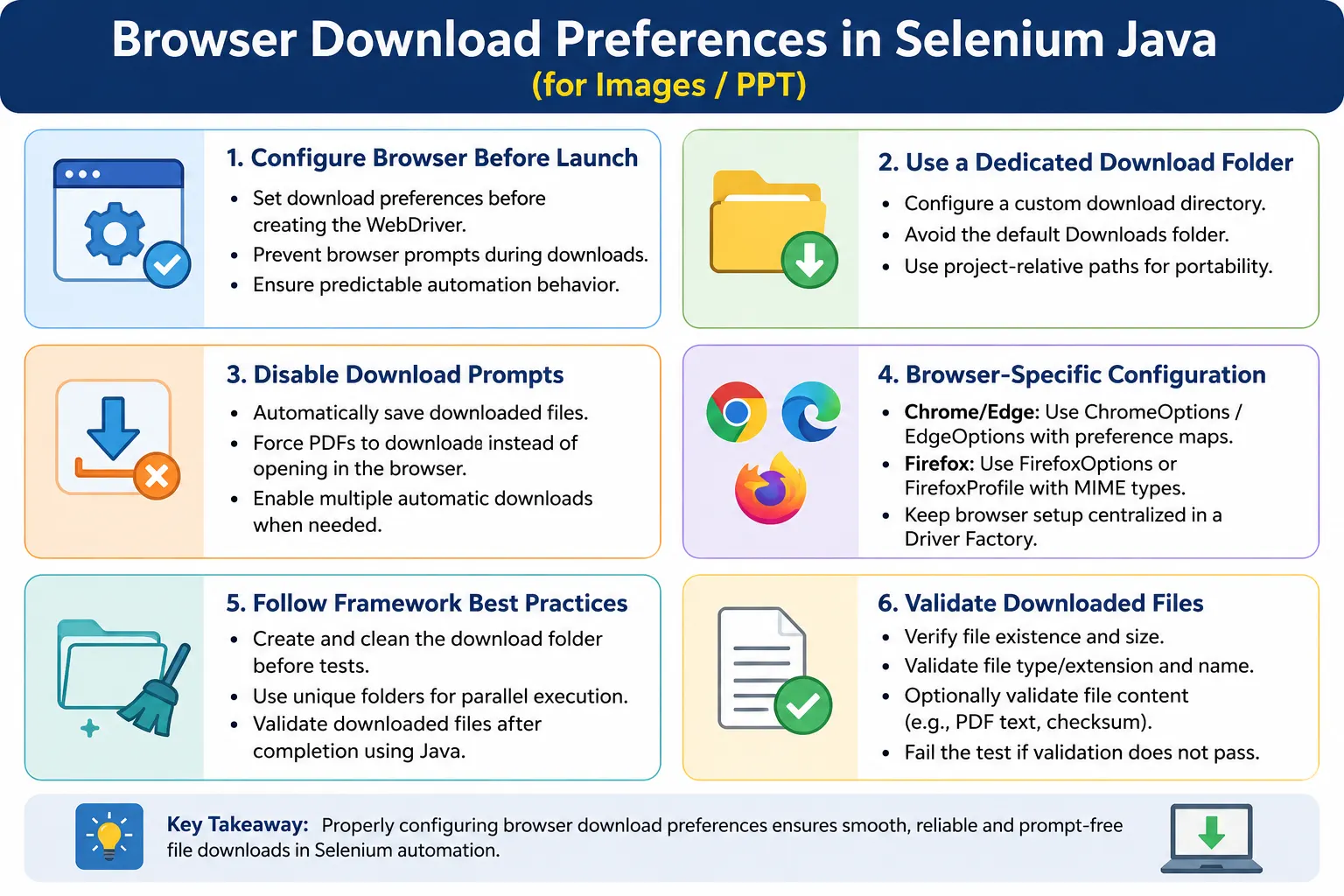
Browser download preferences are configuration settings that tell the browser how to handle downloaded files. They can set a custom download folder, disable prompts, force PDFs to download instead of opening in the browser, allow multiple automatic downloads, and make execution smoother in CI/CD pipelines. Without these preferences, download tests often become flaky, machine-dependent, or blocked by UI prompts.
Reliable file download automation begins before the first click. The test must launch the browser with the right preferences, use a predictable folder, trigger the download, wait for completion, and then validate the file using Java file-system checks. This article focuses on the browser configuration part of that process.
2. What Are Browser Download Preferences?
Browser download preferences are browser-specific configuration settings that control how downloaded files are handled. Instead of requiring a user to choose a save folder, the browser automatically saves files to a known location. Instead of opening PDFs in a built-in viewer, the browser can download them as files. Instead of stopping at a prompt, the browser can continue silently.
Click Download
      ↓
Automatically Save File
      ↓
Continue Automation
This is exactly what automation needs. The test should not wait for a human to select a folder. The test should know where the file will appear and then validate it from the filesystem.
3. Why Download Preferences Are Important
Without configuration, the browser may ask where to save the file, use a default Downloads folder, open the file in a browser viewer, block the download, or ask for confirmation. Each of these behaviors can stop automation. Selenium may successfully click the Download button, but the file may never appear in the expected location.
With preferences, the browser saves files automatically. The automation can then check the expected folder, wait for temporary files to disappear, and validate file existence, extension, size, and content where needed.
4. Common Browser Download Settings
Typical settings include the default download folder, disabling the download prompt, allowing directory upgrades, downloading PDFs instead of opening them, enabling safe browsing, and allowing multiple automatic downloads. The exact preference keys differ by browser. Chrome and Edge use preference maps through browser options. Firefox uses profile or option preferences and often requires MIME type configuration.
Because the settings differ, keep browser-specific download setup centralized in your driver factory or browser manager. Do not scatter preference maps across test classes.
5. Required Imports
import java.io.File;
import java.nio.file.Files;
import java.nio.file.Path;
import java.nio.file.Paths;
import java.util.HashMap;
import java.util.Map;

import org.openqa.selenium.By;
import org.openqa.selenium.WebDriver;
import org.openqa.selenium.chrome.ChromeDriver;
import org.openqa.selenium.chrome.ChromeOptions;
import org.openqa.selenium.edge.EdgeDriver;
import org.openqa.selenium.edge.EdgeOptions;
import org.openqa.selenium.firefox.FirefoxDriver;
import org.openqa.selenium.firefox.FirefoxOptions;
import org.openqa.selenium.firefox.FirefoxProfile;
import org.testng.Assert;
These imports support browser option setup, file path creation, folder creation, and basic validation. Your framework may use a smaller or larger import set depending on browser coverage.
6. Chrome Download Preferences
String downloadPath =
        System.getProperty("user.dir")
        + "\\downloads";

Map<String, Object> prefs =
        new HashMap<>();

prefs.put(
        "download.default_directory",
        downloadPath
);
prefs.put(
        "download.prompt_for_download",
        false
);
prefs.put(
        "download.directory_upgrade",
        true
);
prefs.put(
        "safebrowsing.enabled",
        true
);

ChromeOptions options =
        new ChromeOptions();

options.setExperimentalOption(
        "prefs",
        prefs
);

WebDriver driver =
        new ChromeDriver(options);
Chrome stores these settings as browser preferences. The preferences must be set before the ChromeDriver instance is created. Once the browser is running, changing these values from test code is not a reliable approach.
7. Chrome Preference Explanation
download.default_directory sets the folder where downloaded files will be saved. Instead of going to the user's default Downloads folder, files go to a project-controlled folder such as Project/downloads.
download.prompt_for_download disables the Save As prompt. This is essential for unattended automation. If this remains true, the browser may wait for user input and the test will fail.
download.directory_upgrade allows Chrome to use the specified folder. safebrowsing.enabled helps Chrome's download behavior remain compatible with safe browsing checks. In some projects, teams also set plugins.always_open_pdf_externally to force PDF files to download instead of opening in the browser.
8. Always Download PDF Instead of Opening It in Chrome
Map<String, Object> prefs =
        new HashMap<>();

prefs.put(
        "plugins.always_open_pdf_externally",
        true
);

ChromeOptions options =
        new ChromeOptions();

options.setExperimentalOption(
        "prefs",
        prefs
);
This setting is important when the test must verify the downloaded PDF file. If Chrome opens the PDF in a browser tab, no local file may appear in the download folder, and file-system validation will fail.
9. Allow Multiple Automatic Downloads in Chrome
prefs.put(
        "profile.default_content_setting_values.automatic_downloads",
        1
);
Some applications trigger multiple downloads in one workflow, such as downloading several reports or attachments. This preference helps Chrome allow multiple automatic downloads without blocking the later files.
10. Firefox Download Preferences
String downloadPath =
        System.getProperty("user.dir")
        + "\\downloads";

FirefoxProfile profile =
        new FirefoxProfile();

profile.setPreference(
        "browser.download.folderList",
        2
);
profile.setPreference(
        "browser.download.dir",
        downloadPath
);
profile.setPreference(
        "browser.helperApps.neverAsk.saveToDisk",
        "application/pdf,"
        + "application/octet-stream,"
        + "text/csv,"
        + "application/vnd.ms-excel"
);
profile.setPreference(
        "pdfjs.disabled",
        true
);

FirefoxOptions options =
        new FirefoxOptions();

options.setProfile(profile);

WebDriver driver =
        new FirefoxDriver(options);
Firefox uses profile preferences. The most important difference is MIME type handling. Firefox often needs to know which MIME types should be saved without prompting.
11. Firefox Preference Explanation
browser.download.folderList controls which folder Firefox uses. A value of 0 means Desktop, 1 means the default Downloads folder, and 2 means a custom folder. For automation, use 2.
browser.download.dir sets the custom folder path. browser.helperApps.neverAsk.saveToDisk lists MIME types that Firefox should save automatically. pdfjs.disabled disables the built-in PDF viewer so PDFs are downloaded instead of opened in the browser.
12. Firefox Options Style
FirefoxOptions options =
        new FirefoxOptions();

options.addPreference(
        "browser.download.folderList",
        2
);
options.addPreference(
        "browser.download.dir",
        "C:\\Downloads"
);
options.addPreference(
        "browser.helperApps.neverAsk.saveToDisk",
        "application/pdf,text/csv,application/vnd.ms-excel"
);

WebDriver driver =
        new FirefoxDriver(options);
Modern Selenium code can set Firefox preferences directly on FirefoxOptions. This keeps setup compact while still controlling download behavior.
13. Edge Download Preferences
String downloadPath =
        System.getProperty("user.dir")
        + "\\downloads";

Map<String, Object> prefs =
        new HashMap<>();

prefs.put(
        "download.default_directory",
        downloadPath
);
prefs.put(
        "download.prompt_for_download",
        false
);

EdgeOptions options =
        new EdgeOptions();

options.setExperimentalOption(
        "prefs",
        prefs
);

WebDriver driver =
        new EdgeDriver(options);
Microsoft Edge is Chromium-based, so download preferences are similar to Chrome. This makes it easier to share setup patterns between Chrome and Edge in a browser factory.
14. Download Folder Structure
AutomationProject
│
├── downloads
│      report.pdf
│      employees.xlsx
│      invoice.csv
│
├── src
├── pom.xml
A dedicated download folder makes cleanup and validation easier. It also avoids accidentally reading files from the user's personal Downloads folder.
15. Using Relative Download Path
String downloadPath =
        System.getProperty("user.dir")
        + "\\downloads";
This is more portable than hardcoding a path such as C:\Users\John\Downloads. It works better on different machines because it is based on the project execution directory.
16. Cross-Platform Download Path
Path downloadPath =
        Paths.get(
                System.getProperty("user.dir"),
                "downloads"
        );

String folder =
        downloadPath.toAbsolutePath()
                    .toString();
This approach is better for teams running tests on Windows, Linux, and macOS. It avoids manual path separators and makes CI execution cleaner.
17. Create Download Folder
File folder =
        new File(folder);

if (!folder.exists()) {
    folder.mkdirs();
}
Make sure the folder exists before downloading. In Java NIO style:
Files.createDirectories(
        downloadPath
);
Explicit folder creation prevents failures caused by missing directories or CI workspace cleanup.
18. Verify Download Folder
System.out.println(folder);Printing the resolved folder path is useful when debugging CI failures. It helps confirm where the browser was expected to save files.
19. Complete Chrome Setup
Path downloadDir =
        Paths.get(
                System.getProperty("user.dir"),
                "downloads"
        );

Files.createDirectories(downloadDir);

Map<String, Object> prefs =
        new HashMap<>();

prefs.put(
        "download.default_directory",
        downloadDir.toAbsolutePath().toString()
);
prefs.put(
        "download.prompt_for_download",
        false
);
prefs.put(
        "plugins.always_open_pdf_externally",
        true
);

ChromeOptions options =
        new ChromeOptions();

options.setExperimentalOption(
        "prefs",
        prefs
);

WebDriver driver =
        new ChromeDriver(options);
This setup creates the folder, configures the directory, disables prompts, and forces PDFs to download. It is a strong default for Chrome download tests.
20. Download Test Example
driver.findElement(By.id("download"))
      .click();

File downloaded =
        new File(
                downloadDir.toFile(),
                "report.pdf"
        );

Assert.assertTrue(
        downloaded.exists()
);
This basic test verifies file existence. In real tests, also wait for completion and validate size or extension.
21. Download Multiple Files
Browser preferences also support workflows that download multiple files. For example, an application may download Report.pdf, Invoice.pdf, and Summary.xlsx. Without multiple-download support, the browser may block later downloads.
For Chrome, use the automatic downloads preference. Then validate each expected file or validate the number and extensions of downloaded files.
22. Disable PDF Viewer
Many browsers open PDFs in a new tab. This is useful for users but inconvenient when the automation must verify the file on disk. Configure the browser to download PDFs automatically when file validation is required.
In Firefox, use pdfjs.disabled. In Chrome, use plugins.always_open_pdf_externally. Edge follows Chromium-style behavior. Always test this configuration in the same browser mode used by CI.
23. Real Project Example: Excel Export
driver.findElement(By.id("exportExcel"))
      .click();

File excel =
        new File(
                folder,
                "Employees.xlsx"
        );

Assert.assertTrue(excel.exists());
For a stronger test, verify the file size and optionally read workbook content using a library such as Apache POI.
24. Real Project Example: CSV Export
driver.findElement(By.id("downloadCSV"))
      .click();

File csv =
        new File(
                folder,
                "Report.csv"
        );

Assert.assertTrue(csv.exists());
CSV files can be validated by reading text and checking headers or expected records.
25. Real Project Example: PDF Invoice
driver.findElement(By.id("invoice"))
      .click();

File pdf =
        new File(
                folder,
                "Invoice.pdf"
        );

Assert.assertTrue(pdf.exists());
If the PDF opens in a browser tab instead of downloading, update PDF viewer preferences before launching the browser.
26. Headless Chrome Download Preferences
Map<String, Object> prefs =
        new HashMap<>();

prefs.put(
        "download.default_directory",
        "C:\\Downloads"
);

ChromeOptions options =
        new ChromeOptions();

options.addArguments("--headless=new");
options.setExperimentalOption(
        "prefs",
        prefs
);

WebDriver driver =
        new ChromeDriver(options);
Headless download behavior depends on browser version and configuration. Always verify downloads in the same headless mode used by the pipeline. Do not assume headed and headless behavior are identical.
27. Reusable Chrome Driver Factory
public WebDriver createDriver(
        String downloadFolder) {

    Map<String, Object> prefs =
            new HashMap<>();

    prefs.put(
            "download.default_directory",
            downloadFolder
    );
    prefs.put(
            "download.prompt_for_download",
            false
    );
    prefs.put(
            "plugins.always_open_pdf_externally",
            true
    );

    ChromeOptions options =
            new ChromeOptions();

    options.setExperimentalOption(
            "prefs",
            prefs
    );

    return new ChromeDriver(options);
}
Driver factories keep browser setup consistent. They also make it easier to support parallel execution by passing a unique download folder per test.
28. Centralizing Browser-Specific Configuration
Chrome, Firefox, and Edge use different preference mechanisms. A framework should centralize this logic in a driver manager, not inside test methods. Test classes should not care whether Firefox uses MIME types or Chrome uses a preference map. They should only request a browser configured for downloads.
Centralization reduces duplication and makes browser upgrades easier. If a preference changes, update one place.
29. Common Download Problems
If a download prompt appears, download.prompt_for_download may be missing or true. If a file opens instead of downloading, the browser's built-in viewer may be active. If the download folder is ignored, the path may be invalid, blocked by policy, or created too late. If permission is denied, the automation process may not have write access.
Debugging should start with the configured folder path, browser preferences, and actual browser behavior.
30. Enterprise Browser Policies
In some corporate environments, browser policies can override preferences. A company-managed browser may block downloads, force a default download folder, or prevent certain file types. If tests work on a personal machine but fail on an enterprise image, check browser policies.
For test automation machines, use controlled browser profiles and policies designed for automation. Document any policy assumptions in the test infrastructure setup.
31. Download Preferences in CI/CD
CI environments need writable folders and predictable paths. Use workspace-relative folders, create them during setup, and clean them before tests. Avoid default Downloads folders because CI agents may not have a normal user profile or may run as a service account.
For parallel execution, use separate folders per test or browser session. A shared folder can cause filename collisions and false positives.
32. Browser Preference Comparison
Chrome supports custom download folders, prompt disabling, PDF external download, safe browsing settings, and multiple automatic downloads through preference maps. Firefox supports custom folders through profile preferences and requires MIME type configuration for no-prompt downloads. Edge supports Chromium-style preference maps similar to Chrome.
The practical result is that Chrome and Edge setup can be very similar, while Firefox usually needs more MIME-specific attention.
33. Why Preferences Must Be Set Before Driver Creation
Download preferences are startup configuration. The browser reads them when the browser session is created. If the WebDriver instance is already running, changing a Java map or options object will not update the active browser. This is a common beginner mistake: create the driver, then build the preferences, and expect downloads to follow the new folder. That will not work reliably.
The correct sequence is to decide the download folder, create the folder, build browser preferences, attach them to the options object, and only then create the WebDriver instance. This sequence should be part of the driver factory. Test methods should receive a browser that is already configured for the scenario.
Path downloadDir =
        Paths.get("downloads")
             .toAbsolutePath();

Files.createDirectories(downloadDir);

ChromeOptions options =
        createChromeOptions(downloadDir);

WebDriver driver =
        new ChromeDriver(options);
This order makes the download behavior predictable from the first browser action.
34. Download Preferences and Driver Factory Design
A driver factory is the best place to configure browser download preferences. The factory can read the requested browser type, create a download folder, apply the correct browser-specific options, and return a configured driver. This keeps test classes clean and avoids duplicated setup code.
For example, a test should not contain Chrome preference keys directly. It should call a driver creation method with a download folder or test context. The factory can decide whether to use ChromeOptions, FirefoxOptions, or EdgeOptions. This separation becomes more important when a project supports multiple browsers.
WebDriver driver =
        DriverFactory.createDriver(
                "chrome",
                downloadFolder
        );
The test remains focused on behavior. The driver factory handles browser mechanics.
35. Unique Download Folders for Parallel Execution
Parallel execution is one of the most important reasons to avoid a shared download directory. If two tests download report.pdf at the same time into the same folder, one test may validate the other test's file. If one test cleans the folder while another test is downloading, both tests can become flaky.
The safest strategy is to create a unique download folder per test, per thread, or per browser session. The folder name can include the test name, thread ID, timestamp, or generated UUID. The path should still be inside the workspace or test output directory so cleanup remains safe.
String folderName =
        "downloads-" + Thread.currentThread().getId();

Path downloadDir =
        Paths.get("target", folderName)
             .toAbsolutePath();
This prevents cross-test contamination and makes failed test artifacts easier to inspect.
36. Firefox MIME Types in Real Projects
Firefox MIME type configuration is one of the trickiest parts of download preferences. The filename extension alone is not what Firefox uses. Firefox decides whether to prompt based on the MIME type returned by the server. A PDF may use application/pdf. A CSV may use text/csv, application/csv, or even application/octet-stream depending on the backend.
If Firefox still shows a prompt, inspect the response headers or ask the development team for the content type. Add the correct MIME type to browser.helperApps.neverAsk.saveToDisk. This is why Firefox download setup often needs more project-specific tuning than Chrome setup.
options.addPreference(
        "browser.helperApps.neverAsk.saveToDisk",
        "application/pdf,text/csv,application/octet-stream,application/zip"
);
Keep this MIME list centralized so every test uses the same browser behavior.
37. Handling PDF Behavior Across Browsers
PDF files are special because browsers often prefer to open them in a built-in viewer. That behavior is useful for users but not always useful for automation. If the test is validating file download, configure the browser to download the PDF. If the test is validating PDF preview in the browser, do not disable the viewer for that scenario.
This means PDF preference settings should match the test purpose. A reporting test may need the PDF downloaded so Java can verify the file. A viewer test may need the PDF to open in a tab so Selenium can verify the viewer page. Do not use one browser setup blindly for every PDF scenario if the application has both workflows.
38. Safe Browsing and Blocked Downloads
Chrome and Edge may block suspicious downloads. In test environments, generated files are usually safe, but unusual file types, unsigned executables, or insecure download responses can trigger browser warnings. The safebrowsing.enabled preference helps keep normal downloads smooth, but it should not be used to hide genuine security problems.
If the browser blocks a download, inspect the file type, response headers, and application behavior. For business documents like PDF, CSV, and Excel files, blocking usually indicates a configuration problem. For executable or script downloads, security rules may be intentional.
39. Download Preferences in Docker and Cloud Grids
Docker and cloud grid execution add another layer. The browser may run inside a container or remote node. The download folder configured in browser preferences belongs to that environment, not necessarily to the local developer machine. A path that works locally may not be visible outside the container unless it is mounted or exposed.
For Docker-based runs, configure a folder inside the container and mount it to the host if the test runner needs to inspect files from outside. For Selenium Grid or cloud vendors, check how downloaded files are retrieved. Some providers expose APIs or artifacts for downloaded files. Do not assume local filesystem validation works the same way remotely.
40. Headless Mode Considerations
Headless mode is common in CI, but download behavior should be verified explicitly. Modern headless Chrome supports downloads with preferences, but older versions required extra handling. Even with modern versions, directory permissions and container paths can still cause failures.
Run at least one download smoke test in the same headless mode used by CI. If it fails, print browser version, headless mode, download folder, and folder contents. Headless download failures are usually setup problems, not application problems.
41. Preference Setup for Multiple Browser Types
A multi-browser framework should expose one high-level download configuration concept while hiding browser-specific details. For example, the test configuration may say downloadsEnabled=true and provide a folder. The framework then maps that into Chrome, Edge, or Firefox preferences.
This prevents tests from becoming browser-specific. It also allows teams to run the same download test against Chrome and Firefox while changing only the driver setup layer.
42. Cleaning the Download Directory
Preferences decide where files go. Cleanup decides whether validation is reliable. If old files are left in the folder, a test can pass by finding yesterday's file. Clean the download directory before each download test or create a new unique directory for each test.
Cleanup must be scoped. Delete only test-owned folders, never the user's real Downloads directory. This is another reason to use project-specific download folders.
43. Verifying Preferences Worked
After configuring preferences, verify that they actually work with a small download test. Click a known download link, wait for the file, and confirm it appears in the configured folder. This simple smoke test catches incorrect paths, missing MIME types, PDF viewer problems, and permission issues early.
Do not wait until the full report test fails to discover that downloads are going to the wrong directory. A small browser setup verification test is useful when maintaining framework infrastructure.
This is also useful after browser upgrades. Download behavior can change between versions, and a focused smoke check quickly confirms whether the framework setup still works.
44. Real Project Example: Report Module Setup
In a report module, the driver factory may create a unique download folder for each test method. The report page object clicks Export. The download utility waits for a file by extension. The assertion checks file size and optionally content. Browser preferences make the download silent, while Java validation proves the result.
This pattern works for PDF reports, Excel exports, CSV exports, invoices, and generated statements. The browser setup is reused, and the page object remains focused on report actions.
45. Real Project Example: PDF Invoice Setup
For invoice PDFs, configure the browser to download PDFs externally. Then click the invoice download action and validate the latest PDF in the download folder. If the application sometimes opens the invoice preview and sometimes downloads it, split those into separate tests with separate browser configuration.
This avoids confusion between "PDF preview works" and "PDF download works". Both are valid behaviors, but they are different automation scenarios.
46. Preference Configuration and Test Readability
Download preference code is technical setup code, not business test logic. If every test method contains maps of Chrome preferences or Firefox MIME types, the test suite becomes noisy and harder to review. A readable test should describe user behavior: open reports, click export, verify downloaded file. The details of browser preference keys should live in setup classes.
This improves maintainability. When a browser version changes or a new file type must be added, the update happens in one driver configuration class instead of many tests. It also helps new team members because they can learn one download setup pattern instead of reverse-engineering many slightly different copies. Consistency here prevents subtle environment-specific failures.
47. Download Preferences and Test Evidence
Downloads often become test evidence. A generated PDF, CSV, or Excel file may be attached to a test report when a scenario fails. Using a predictable download folder makes this easier. The framework can copy the downloaded file into an evidence folder or print the path in the logs.
For important reports, storing the downloaded artifact on failure can speed debugging. Developers can inspect the exact file generated during the failed test instead of trying to reproduce the issue manually. This is especially useful for financial reports, invoices, and exports with dynamic content.
48. Common Beginner Mistakes
- Using the default Downloads folder.
- Hardcoding user-specific paths.
- Forgetting to create the download folder before launch.
- Configuring preferences after creating the driver.
- Ignoring browser prompts and built-in PDF viewers.
- Mixing Chrome and Firefox preference keys.
- Using one shared folder for parallel tests.
- Validating files before downloads finish.
49. Best Practices
- Configure browser preferences before creating the WebDriver instance.
- Use a dedicated download folder for each test run.
- Use project-relative or workspace-relative paths.
- Create the download directory before launching the browser.
- Disable download prompts for unattended automation.
- Configure PDFs to download when file verification is required.
- Use browser-specific settings for Chrome, Firefox, and Edge.
- Clean the download directory before tests to avoid false positives.
- Always verify the expected file after download.
50. Debugging Checklist
- Print the resolved download folder path.
- Confirm the folder exists and is writable.
- Confirm preferences are set before browser launch.
- Check whether a browser prompt is still appearing.
- Check whether PDFs open in the browser instead of downloading.
- Check Firefox MIME types for the downloaded file.
- Check enterprise browser policies.
- List folder contents after the download action.
51. Interview Perspective
A short interview answer is: browser download preferences configure browsers to download files automatically without showing save dialogs. These preferences specify the download directory, disable prompts, and control browser-specific behavior such as PDF opening and MIME handling.
A stronger real-time answer is: in Selenium automation, I configure download preferences before launching the browser. For Chrome and Edge, I use browser preference maps through ChromeOptions or EdgeOptions to set a custom download directory and disable prompts. For Firefox, I configure FirefoxOptions or FirefoxProfile with folder settings, MIME types, and PDF viewer settings. After that, I validate downloaded files using Java file handling.
52. Key Takeaway
Browser download preferences eliminate manual download dialogs and make file downloads predictable for automation. They must be configured before creating the WebDriver instance.
Chrome and Edge use options with preference maps. Firefox uses profile or option preferences and requires MIME type configuration. A dedicated download directory, disabled prompts, PDF download settings, and file-system validation together create reliable download automation.
Reliable file download automation begins before the first click. Proper browser preferences ensure files are saved silently, predictably, and in a location your Selenium framework can verify.