AutoIT Concept in Selenium Java
1. Introduction
AutoIT is a Windows automation tool used to automate native Windows applications and operating system dialogs. In Selenium automation, AutoIT is mostly discussed in the context of file upload dialogs, authentication popups, Save As dialogs, and other windows that are not part of the browser DOM. Selenium controls web browsers. AutoIT controls Windows GUI elements. That difference explains why AutoIT sometimes appears in Selenium projects.
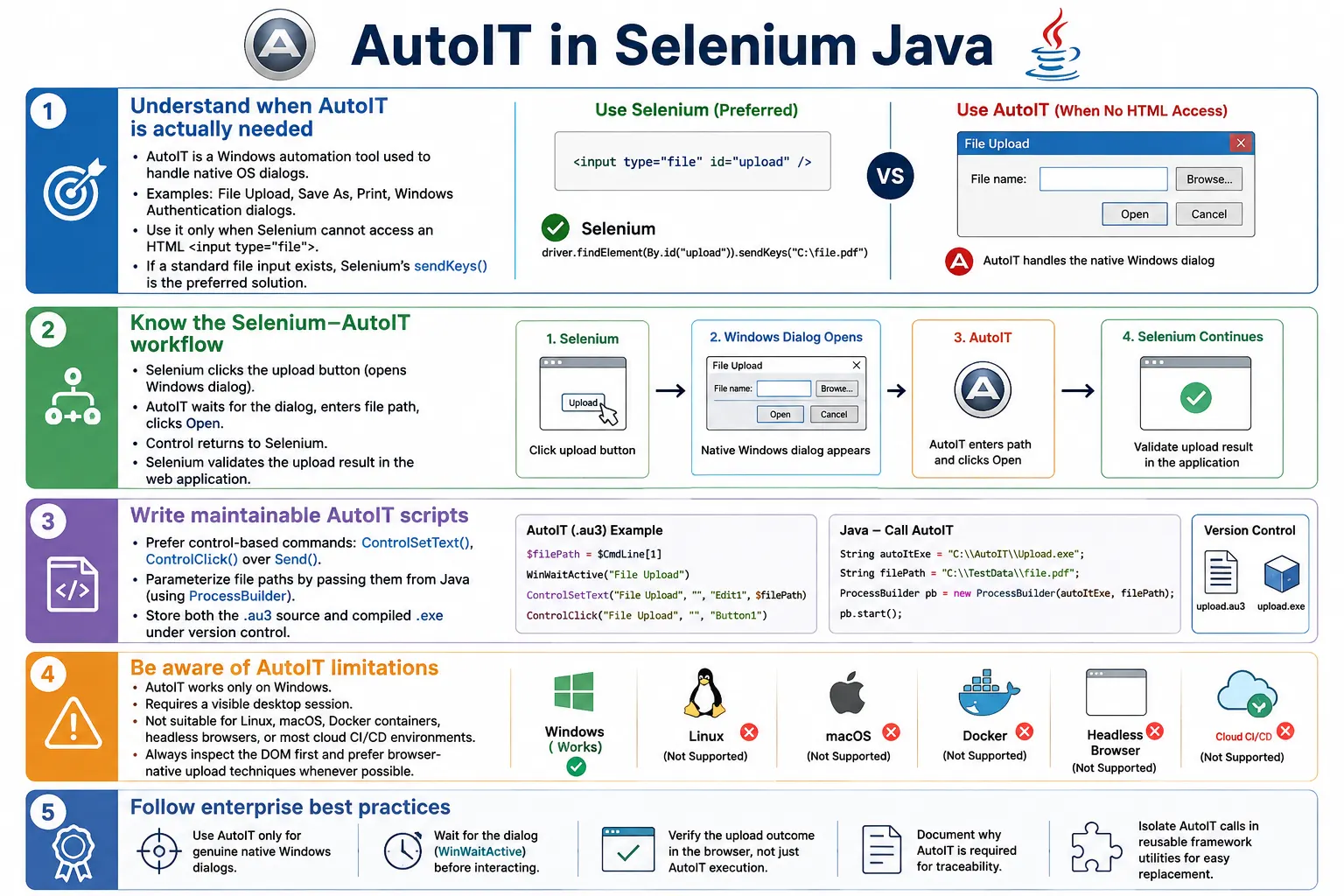
Although AutoIT was once widely used with Selenium, it is less common in modern projects. Most web applications expose a standard HTML file input, written as <input type="file">. That input can be handled directly with Selenium's sendKeys() method. When this input exists, AutoIT is unnecessary and usually less reliable. AutoIT should be treated as a fallback for genuine native Windows dialogs, not as the default file upload solution.
Understanding AutoIT is still useful for interviews and legacy automation work. Many older enterprise applications, especially Windows-heavy banking, insurance, intranet, and document systems, may still trigger native dialogs. A practical automation engineer should know what AutoIT does, when it is appropriate, how it is called from Selenium Java, and why it should be avoided when a browser-native solution exists.
2. What Is AutoIT?
AutoIT is a scripting language designed specifically for automating Windows GUI operations. It can interact with windows, dialogs, text fields, buttons, keyboard input, mouse clicks, and desktop applications. AutoIT scripts are written in .au3 files and can be compiled into executable .exe files. Selenium Java can launch those executables when a Windows dialog appears.
AutoIT can automate file upload windows, Save As dialogs, print dialogs, Windows authentication popups, legacy desktop windows, and other operating-system-level user interfaces. It is not a browser automation tool. It is a Windows automation tool. In a Selenium framework, it is used only when the browser opens something outside Selenium's normal control.
3. Why AutoIT Is Needed
Selenium communicates with the browser through WebDriver. Its world is the browser and the web page. It can locate HTML elements, click web controls, type into web fields, read page text, execute JavaScript, and switch frames or windows. It cannot directly inspect or control native operating system windows.
Selenium
     │
     ▼
Browser
When a web application opens a Windows file dialog, the control moves outside the browser DOM.
Browser
     │
     ▼
Windows File Dialog
The file picker belongs to Windows, not the web page. Selenium cannot locate the filename textbox inside that dialog with By.id() or By.xpath(). AutoIT can interact with that dialog because AutoIT works at the Windows GUI level.
4. Selenium vs AutoIT
Selenium automates web browsers. AutoIT automates Windows applications. Selenium controls HTML elements. AutoIT controls Windows GUI controls. Selenium is cross-platform in principle because WebDriver can run on Windows, Linux, and macOS. AutoIT is Windows-only. Selenium cannot access OS dialogs directly. AutoIT can.
This comparison matters because choosing the wrong tool makes tests fragile. If the upload control is an HTML file input, Selenium sendKeys() is the correct tool. If the application truly exposes only a native Windows dialog, AutoIT may be considered.
5. When Should AutoIT Be Used?
AutoIT is useful for Windows file upload dialogs, Windows authentication popups, Open File dialogs, Save As dialogs, native print dialogs, and legacy Windows applications. A typical upload flow may look like this:
Application
    ↓
Click Upload
    ↓
Windows File Dialog
    ↓
Select Resume.pdf
    ↓
Click Open
If Selenium cannot bypass the dialog through an HTML file input, AutoIT can type the path into the dialog and click Open. This is most common in legacy applications or applications with unusual upload components.
6. When AutoIT Is Not Needed
If the HTML contains a standard file input, AutoIT is not needed.
<input type="file" id="uploadFile">Use Selenium directly:
driver.findElement(By.id("uploadFile"))
      .sendKeys(filePath);
This is simpler, faster, more reliable, and more portable. Before choosing AutoIT, always inspect the DOM. In many cases, the visible Upload button is only a wrapper around a hidden file input. The file input is the real automation target.
7. AutoIT Workflow with Selenium
The typical workflow is: Selenium clicks the upload button, the Windows file dialog opens, Selenium launches the AutoIT executable, AutoIT enters the file path and clicks Open, and control returns to Selenium. After that, Selenium continues with browser validation.
Selenium
    ↓
Click Upload Button
    ↓
Windows File Dialog Opens
    ↓
AutoIT Executable Starts
    ↓
Enter File Path
    ↓
Click Open
    ↓
Return to Selenium
The handoff between Selenium and AutoIT is timing-sensitive. The dialog must exist before AutoIT attempts to interact with it. That is why AutoIT scripts commonly use WinWaitActive().
8. AutoIT Installation Concept
A typical setup involves downloading AutoIT, installing it on a Windows machine, optionally installing the SciTE editor, writing a .au3 script, compiling it into an .exe, and launching that executable from Selenium Java. The compiled executable is usually stored with the automation project or on a known test machine path.
In enterprise projects, the executable and source script should be version controlled. If the team keeps only an executable with no source script, maintenance becomes difficult. The source script explains what the executable does and allows future updates when dialog titles or control IDs change.
9. Basic AutoIT Script
WinWaitActive("Open")

Send("C:\Files\Resume.pdf")

Send("{ENTER}")
This script waits until the Open dialog is active, types the file path, and presses Enter. It is simple and easy to understand. However, raw keyboard typing is less stable than interacting with specific window controls because it depends on focus.
10. Better AutoIT Script
WinWaitActive("Open")

ControlSetText(
    "Open",
    "",
    "Edit1",
    "C:\Files\Resume.pdf"
)

ControlClick(
    "Open",
    "",
    "Button1"
)
This script is usually more stable because it targets the dialog controls directly. Edit1 is the filename textbox control. Button1 is commonly the Open button. Control IDs should be verified with the AutoIT Window Info Tool because they may differ by Windows version, browser, language, or dialog type.
11. Important AutoIT Commands
WinWaitActive() waits until a window becomes active. It is commonly used to wait for the Open dialog.
WinWaitActive("Open")Send() sends keyboard input.
Send("Hello")ControlSetText() sets text directly in a Windows control.
ControlSetText(
    "Open",
    "",
    "Edit1",
    "Resume.pdf"
)
ControlClick() clicks a Windows control.
ControlClick(
    "Open",
    "",
    "Button1"
)
For robust scripts, prefer control-based commands over raw keyboard typing whenever possible.
12. Compile AutoIT Script
An AutoIT source file may be named Upload.au3. It is compiled into Upload.exe. Selenium Java executes the compiled executable.
Upload.au3
    ↓
Compile
    ↓
Upload.exe
Compilation makes it easy to run the script from Java. But the team should still store the .au3 source in version control.
13. Executing AutoIT from Selenium
driver.findElement(By.id("upload"))
      .click();

Runtime.getRuntime().exec(
        "C:\\AutoIt\\Upload.exe"
);
Selenium clicks the upload button. AutoIT handles the dialog. After the executable finishes, Selenium can continue with upload validation. Make sure the upload dialog appears before AutoIT tries to operate on it.
14. Complete Selenium Example
driver.findElement(By.id("uploadButton"))
      .click();

Runtime.getRuntime().exec(
        "C:\\Scripts\\Upload.exe"
);

driver.findElement(By.id("submit"))
      .click();
This is a basic AutoIT integration flow. In a real framework, you would add waits, error handling, path configuration, and upload success validation.
15. AutoIT for Authentication Popup
Some older applications or environments may show a Windows authentication popup. AutoIT can send username, tab, password, and Enter.
WinWaitActive("Authentication Required")
Send("admin")
Send("{TAB}")
Send("password")
Send("{ENTER}")
Modern browser automation often handles authentication through URLs, browser profiles, headers, or environment configuration. AutoIT is a fallback when a genuine Windows dialog appears.
16. AutoIT for Save Dialog
AutoIT can also handle Save As dialogs.
WinWaitActive("Save As")
ControlSetText(
    "Save As",
    "",
    "Edit1",
    "C:\Downloads\report.pdf"
)
ControlClick(
    "Save As",
    "",
    "Button1"
)
For downloads, modern Selenium projects often prefer configuring the browser download directory and verifying the downloaded file from the filesystem. AutoIT is useful only when the application forces a native dialog that cannot be avoided.
17. AutoIT vs Robot Class
AutoIT and Java Robot both interact outside normal Selenium web automation. AutoIT is Windows-only and can identify Windows controls. Robot is Java-based and can simulate keyboard and mouse events, but it has limited window awareness. AutoIT is often stronger for Windows dialogs because it can target controls with ControlSetText() and ControlClick().
Robot can run beyond Windows in theory, but practical OS dialog behavior still varies by platform and desktop environment. Both approaches are more fragile than Selenium sendKeys() to a file input.
18. AutoIT vs sendKeys()
sendKeys() is excellent for HTML file inputs. AutoIT is not needed there. AutoIT is useful for native Windows dialogs. sendKeys() stays inside browser automation. AutoIT leaves browser automation and manipulates Windows GUI. For modern web automation, sendKeys() is the preferred approach whenever a file input exists.
A good rule is: inspect the DOM first, use sendKeys() if possible, and use AutoIT only when no browser-native solution exists.
19. Real Project Example: Legacy Banking Portal
A legacy banking portal may have an Upload Document button that opens a Windows file dialog without exposing a testable file input. Selenium clicks Upload. AutoIT selects the file. Selenium then verifies the upload success message.
driver.findElement(By.id("upload"))
      .click();

Runtime.getRuntime().exec(
        "C:\\Scripts\\Upload.exe"
);
This can be acceptable in a Windows-only legacy test environment. It is not ideal for cross-platform CI.
20. Real Project Example: Insurance Portal
An insurance claim portal may require uploading claim photos, repair invoices, and ID proofs through a native Windows dialog. AutoIT can select each file when the browser exposes no file input. After the AutoIT script runs, Selenium should verify that the document appears in the claim attachment list.
The important point is that AutoIT should not be the only validation. The final assertion belongs in Selenium against the web application UI.
21. AutoIT Script with Timeout
If WinWaitActive("Open", "", 10) Then
    Send("C:\Files\resume.pdf")
    Send("{ENTER}")
Else
    MsgBox(0, "Error", "Upload dialog not found")
EndIf
Adding a timeout prevents the script from waiting forever. In automation, hanging scripts are expensive because they can block the whole suite. Prefer clear timeout behavior and logging.
22. Passing File Path as Argument to AutoIT
Hardcoding file paths inside AutoIT scripts is not maintainable. A better design is to pass the path from Java.
$filePath = $CmdLine[1]

WinWaitActive("Open")
ControlSetText("Open", "", "Edit1", $filePath)
ControlClick("Open", "", "Button1")
Java can call the executable with an argument.
String filePath =
        "C:\\Files\\resume.pdf";

Runtime.getRuntime().exec(
        "C:\\AutoITScripts\\upload.exe " + filePath
);
For paths with spaces, ProcessBuilder is usually safer than string concatenation.
23. Using ProcessBuilder
ProcessBuilder builder =
        new ProcessBuilder(
                "C:\\AutoITScripts\\upload.exe"
        );

builder.start();
ProcessBuilder provides a cleaner way to start external processes. It is especially useful when passing arguments.
24. ProcessBuilder with File Path Argument
String filePath =
        "C:\\Files\\resume.pdf";

ProcessBuilder builder =
        new ProcessBuilder(
                "C:\\AutoITScripts\\upload.exe",
                filePath
        );

driver.findElement(By.id("uploadButton"))
      .click();

builder.start();
This avoids many quoting problems. If the file path contains spaces, ProcessBuilder treats it as a single argument.
25. Upload File Inside Frame Using AutoIT
driver.switchTo().frame("uploadFrame");

driver.findElement(By.id("uploadButton"))
      .click();

Runtime.getRuntime().exec(
        "C:\\AutoITScripts\\upload.exe"
);

driver.switchTo().defaultContent();
Selenium still needs to switch into the frame to click the upload button. AutoIT handles the Windows dialog after it appears. Frame handling and AutoIT solve different parts of the problem.
26. Verify Upload Success After AutoIT
driver.findElement(By.id("uploadButton"))
      .click();

Runtime.getRuntime().exec(
        "C:\\AutoITScripts\\upload.exe"
);

WebDriverWait wait =
        new WebDriverWait(
                driver,
                Duration.ofSeconds(15)
        );

String message =
        wait.until(
                ExpectedConditions
                        .visibilityOfElementLocated(
                                By.id("success")
                        )
        ).getText();

System.out.println(message);
Verification is essential. Launching AutoIT only proves the script ran. The test must prove that the web application accepted the file.
27. Upload Multiple Files Using AutoIT
WinWaitActive("Open")
ControlSetText(
    "Open",
    "",
    "Edit1",
    '"C:\Files\one.pdf" "C:\Files\two.pdf"'
)
ControlClick("Open", "", "Button1")
Multiple file selection through native dialogs can be fragile and depends on how the dialog accepts quoted paths. If the application has a multi-file input, Selenium sendKeys() with newline-separated paths is usually better.
28. AutoIT Script for Cancel Upload
WinWaitActive("Open")
Send("{ESC}")
This can be useful for testing cancel behavior. Selenium clicks the upload button, AutoIT cancels the dialog, and Selenium verifies that the application remains in the expected state.
29. Reusable Java Method for AutoIT Upload
public void uploadUsingAutoIT(
        By uploadButton,
        String autoItExePath) throws IOException {

    driver.findElement(uploadButton)
          .click();

    Runtime.getRuntime()
           .exec(autoItExePath);
}
Usage:
uploadUsingAutoIT(
        By.id("uploadButton"),
        "C:\\AutoITScripts\\upload.exe"
);
Centralize AutoIT execution so the framework does not scatter executable paths and process calls across tests.
30. Reusable Java Method with File Path Argument
public void uploadUsingAutoIT(
        By uploadButton,
        String autoItExePath,
        String filePath) throws IOException {

    driver.findElement(uploadButton)
          .click();

    new ProcessBuilder(
            autoItExePath,
            filePath
    ).start();
}
This is more flexible because the same AutoIT executable can upload different files based on the Java argument.
31. Common Issue: Window Title Changed
An AutoIT script may wait for Open, but the actual dialog title may be File Upload, Choose File to Upload, or localized text in another language. If the title changes, WinWaitActive("Open") fails.
Use the AutoIT Window Info Tool to inspect the current dialog. Keep scripts aligned with the actual environment. Avoid assuming every browser and OS version shows exactly the same title.
32. Common Issue: Incorrect Control ID
Edit1 and Button1 are common control IDs, but they are not guaranteed. A dialog may use Edit2 or another button ID. If ControlSetText() does nothing, inspect the control IDs again.
This is one of the maintenance costs of AutoIT. Windows UI details can change across versions, themes, languages, browsers, or security prompts.
33. Common Issue: Timing Problems
If AutoIT starts before the dialog appears, it may fail or wait. If Selenium clicks the upload button too early, the dialog may not open. Use explicit waits in Selenium before clicking the upload trigger, and use WinWaitActive() inside AutoIT after the click.
wait.until(
        ExpectedConditions
                .elementToBeClickable(
                        By.id("uploadButton")
                )
).click();
Synchronization is required on both sides: Selenium waits for the web button, AutoIT waits for the Windows dialog.
34. Limitations of AutoIT
AutoIT works only on Windows. It does not work on Linux or macOS. It adds an external tool to install and maintain. It requires compiled executables or scripts. It is less suitable for cloud-based Selenium grids, Docker containers, headless test execution, and cross-platform CI pipelines.
Because of these limitations, AutoIT should be used only when necessary. If the application provides a standard file input, use Selenium sendKeys().
35. Modern Alternatives
Modern Selenium projects usually prefer sendKeys() for HTML file inputs. For downloads, configure the browser download directory and verify files directly. For authentication, use environment-level configuration, headers, profiles, or test-friendly authentication flows when possible. For complex upload setup, APIs may be more stable than UI dialogs.
AutoIT remains useful mainly for legacy Windows-specific workflows. It is not a general-purpose replacement for proper web automation.
36. AutoIT in CI/CD
AutoIT depends on a visible Windows desktop session. It does not fit naturally into Linux-based CI agents, Docker containers, or headless cloud execution. If a project depends heavily on AutoIT, the pipeline must provide Windows agents with desktop interaction enabled.
This infrastructure cost is one reason teams prefer browser-native upload techniques. A test that uses sendKeys() on a file input can run almost anywhere. A test that relies on AutoIT is tied to Windows execution.
37. AutoIT and Test Data Paths
File paths should not be hardcoded inside AutoIT scripts. Pass them from Java so the same executable can work with multiple scenarios and environments. Use project-relative test data paths in Java and pass the resolved absolute path to AutoIT.
This keeps the file selection logic flexible and avoids recompiling the AutoIT script every time the file changes.
38. AutoIT Source Control Strategy
Store both the .au3 source script and any compiled executable strategy in the repository or a controlled artifact location. The source script is important for code review and maintenance. The executable is useful for runtime execution, but it is not enough by itself.
Document which Windows version, browser, dialog title, and control IDs the script was built for. This reduces confusion when the script fails on another machine.
39. Parameterizing AutoIT Scripts
Parameterization is one of the biggest improvements you can make to AutoIT usage. A hardcoded script that always uploads C:\Files\resume.pdf is useful for a demo, but weak for a framework. Real tests upload different files for different scenarios: PDF resumes, image files, CSV imports, invalid file types, oversized files, and negative test data. The AutoIT script should not need to be recompiled for each file.
A better pattern is to let Java decide the file path and pass it to AutoIT as a command-line argument. Java can build the path using project-relative test data, verify the file exists, and pass the final absolute path. AutoIT then focuses only on the Windows dialog.
$filePath = $CmdLine[1]

If WinWaitActive("Open", "", 10) Then
    ControlSetText("Open", "", "Edit1", $filePath)
    ControlClick("Open", "", "Button1")
EndIf
This design keeps Selenium responsible for test data selection and AutoIT responsible for dialog interaction. It is easier to maintain than creating one executable per file.
40. Quoting File Paths Correctly
Windows paths often contain spaces. A path such as C:\Test Files\Resume One.pdf can break if it is concatenated into a command string incorrectly. This is why ProcessBuilder is usually safer than Runtime.getRuntime().exec() with one long string. ProcessBuilder passes arguments as separate values, so the file path stays intact even when it contains spaces.
ProcessBuilder builder =
        new ProcessBuilder(
                "C:\\AutoITScripts\\upload.exe",
                filePath
        );

builder.start();
When AutoIT receives the path through $CmdLine[1], it can set the dialog textbox directly. This reduces quoting bugs and makes the Java side cleaner.
41. Waiting for AutoIT Process Completion
Sometimes the Selenium test must wait until the AutoIT executable finishes before continuing. If Selenium immediately clicks Submit while AutoIT is still typing the file path, the test can fail intermittently. Java's Process object can be used to wait for completion.
Process process =
        new ProcessBuilder(
                autoItExePath,
                filePath
        ).start();

int exitCode =
        process.waitFor();

System.out.println(
        "AutoIT exit code: " + exitCode
);
After the process completes, Selenium should still wait for the web application state. Process completion only means the AutoIT executable ended; it does not prove the web application uploaded or processed the file.
42. Validating AutoIT Execution Result
A common mistake is assuming that the AutoIT executable ran successfully because Java launched it. The executable may fail to find the dialog, may type into the wrong window, may use the wrong control ID, or may select the wrong file. The Selenium test should validate the browser result after AutoIT finishes.
Good validation examples include an uploaded filename appearing, a success message, a preview image, a document row, or an import summary. If the application shows a failure message, the test should capture that as well. AutoIT is only a helper; the real assertion belongs to Selenium and the web application.
43. AutoIT for Negative Scenarios
AutoIT can also support negative workflows. For example, a test may need to open the file dialog and cancel it. Another test may need to select an unsupported file type and verify that the application rejects it. AutoIT can press Escape, select a file, or interact with the dialog based on the scenario.
WinWaitActive("Open")
Send("{ESC}")
After canceling, Selenium should verify that no file is selected and the page remains stable. This kind of validation is more meaningful than simply proving AutoIT can press a key.
44. AutoIT and Browser Differences
Native file dialogs may look similar across browsers, but they are not guaranteed to behave identically. Chrome, Edge, and Firefox can trigger dialogs with slightly different titles or focus behavior. Windows language settings can also change dialog text. A script that waits for Open may fail on a machine where the dialog title is localized or customized.
This is another reason AutoIT is more fragile than Selenium-native file upload. Browser and OS differences create maintenance risk. If a hidden file input is available, it avoids most of these dialog-level differences.
45. AutoIT in Headless Mode
AutoIT depends on real Windows GUI interaction. Headless browser execution does not show a normal desktop dialog. If your Selenium tests are designed to run headless, AutoIT is usually a poor fit. A headless-friendly upload test should use sendKeys() on a file input, API setup, or another browser-supported mechanism.
This matters for modern CI/CD pipelines. Many teams run tests in containers or headless browsers for speed and scalability. AutoIT ties the test to a visible Windows desktop session, which makes scaling harder.
46. AutoIT Governance in Enterprise Projects
Because AutoIT adds an external dependency, enterprise teams should govern its use. There should be a clear reason why AutoIT is required, where the scripts live, how they are compiled, which environments support them, and how failures are debugged. Without that discipline, AutoIT scripts become hidden fragile dependencies.
A practical rule is to require a short comment or documentation note whenever AutoIT is introduced. The note should say why sendKeys() is not possible, which dialog is automated, and what final browser assertion proves success. This keeps AutoIT from becoming a casual workaround for poor locators or missing waits.
It is also useful to tag AutoIT-dependent tests separately. That allows teams to run them only on Windows-capable agents and keep normal browser-only regression suites portable.
47. Migration Away from AutoIT
Many teams eventually migrate away from AutoIT. The usual path is to ask developers to expose a standard file input, add stable test attributes, configure browser downloads, or provide API endpoints for test setup. These changes make tests faster and easier to run in CI.
Migration does not always happen immediately, especially in legacy systems. But even when AutoIT remains necessary, keep its usage isolated. If all AutoIT calls are wrapped in one utility class, replacing them later is much easier than editing dozens of test methods.
This isolation also makes risk visible. When only a small set of tests depend on AutoIT, the team can clearly understand which scenarios require Windows GUI support and which scenarios remain fully browser-native.
48. Common Beginner Mistakes
- Using AutoIT when Selenium
sendKeys()on a file input is sufficient. - Hardcoding file paths inside AutoIT scripts.
- Not waiting for the Windows dialog to appear.
- Assuming AutoIT works on Linux or macOS.
- Ignoring browser-native upload options.
- Using raw
Send()when control-based commands would be more stable. - Not verifying upload success after AutoIT runs.
- Keeping only the compiled executable without the source script.
49. Best Practices
- Inspect the HTML before deciding to use AutoIT.
- Prefer
sendKeys()whenever an<input type="file">exists. - Use AutoIT only for genuine native Windows dialogs.
- Keep AutoIT scripts small and focused.
- Prefer
ControlSetText()andControlClick()over raw keyboard typing. - Parameterize file paths instead of hardcoding them.
- Store AutoIT scripts in version control with the automation framework.
- Document why AutoIT is required and verify the final web application result.
50. Debugging Checklist
- Confirm that no usable
input[type='file']exists. - Confirm the upload button opens a real Windows dialog.
- Check the current dialog title with AutoIT Window Info Tool.
- Verify control IDs such as
Edit1andButton1. - Make sure AutoIT starts after the dialog appears.
- Check file path quoting, especially when paths contain spaces.
- Confirm the test runs on Windows with desktop interaction available.
- Verify upload success in the browser after AutoIT completes.
51. Interview Perspective
A short interview answer is: AutoIT is a Windows automation tool used with Selenium to handle native Windows dialogs, such as file upload windows, Save As dialogs, and authentication popups, which Selenium cannot control directly because they are outside the browser DOM.
A stronger real-time answer is: in Selenium projects, I first inspect whether the application exposes a standard HTML <input type="file">. If it does, I use sendKeys() because it is simpler, faster, and more reliable. I consider AutoIT only when the application relies entirely on a native Windows dialog that cannot be bypassed through the DOM. Since AutoIT is Windows-specific, I avoid it in cross-platform, Docker, cloud, or Linux-based CI environments whenever possible.
52. Key Takeaway
AutoIT automates Windows GUI components. In Selenium automation, it is mainly used for native Windows file upload dialogs, Save As dialogs, authentication popups, and other operating-system windows that WebDriver cannot control.
AutoIT should not be the first choice for file upload. If a standard HTML file input exists, Selenium sendKeys() is the better solution. AutoIT is Windows-only, adds maintenance cost, and is harder to use in modern CI and cloud environments.
The practical rule is clear: inspect the DOM first, use Selenium-native upload whenever possible, and reserve AutoIT for genuine Windows-native dialogs that cannot be avoided.