Auto-Suggestion Dropdowns
Auto-suggestion dropdowns (also called typeahead / autocomplete) are common in modern apps (Google search style). They are not <select> dropdowns, and their options appear dynamically after typing, usually via AJAX. In Selenium, these are a frequent source of flakiness unless you apply the correct waits and selection strategy.
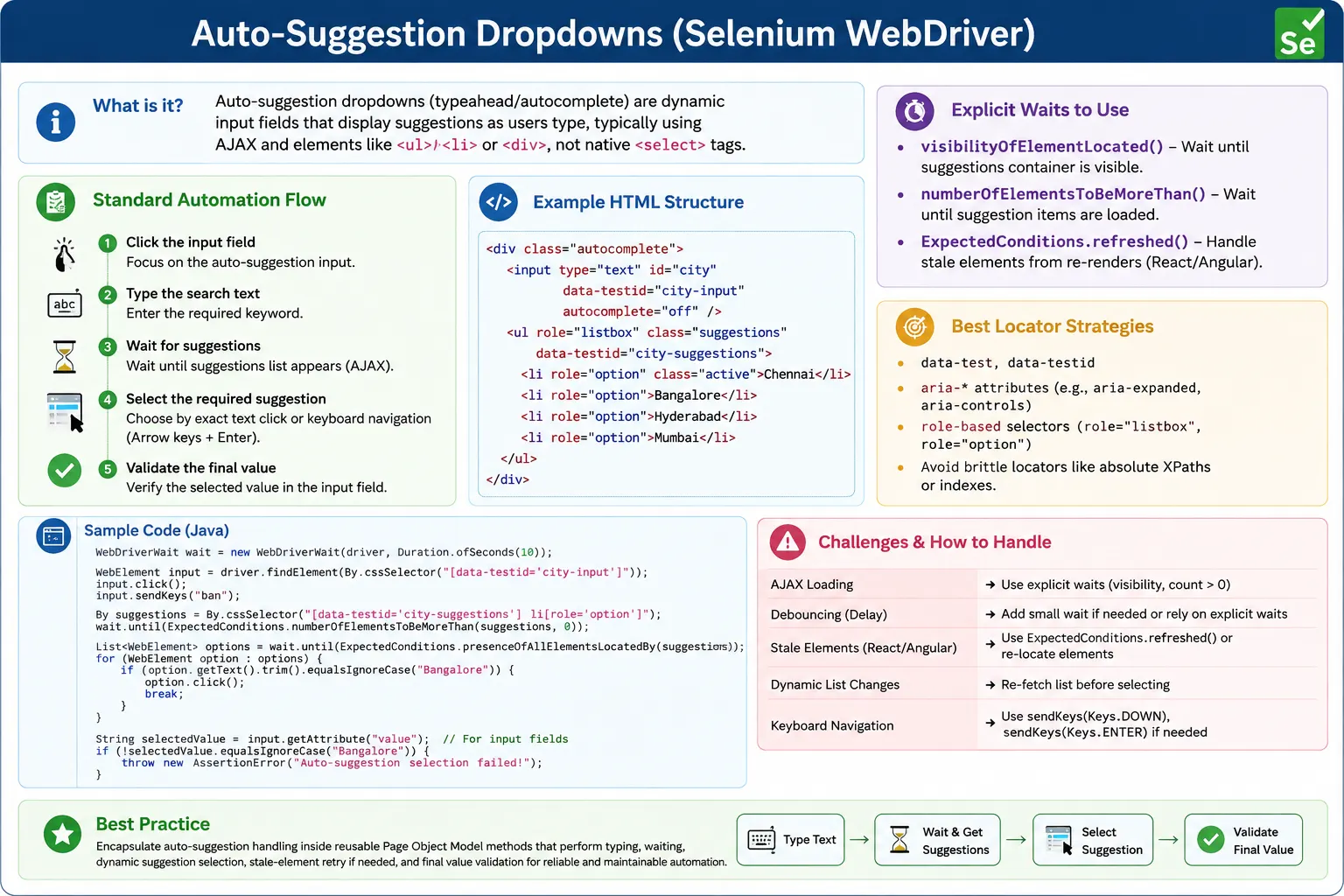
Understanding Auto-Suggestion Dropdowns in Selenium
Auto-suggestion dropdowns are dynamic input controls that display suggested values while the user types. They are sometimes called typeahead fields, autocomplete fields, predictive search boxes, suggestion lists, or smart search inputs. A user enters a few characters, the application searches matching records, and a list of suggestions appears below or near the input. The user can then click a suggestion or use keyboard navigation to choose one. This pattern is used in search bars, address fields, city selectors, product pickers, user assignment fields, customer lookup screens, tag inputs, and many modern enterprise forms.
From a Selenium point of view, auto-suggestion dropdowns are different from native HTML dropdowns. They are
not handled with Selenium's Select class because they are not built with the
<select> tag. The visible control is usually an input, and the suggestions
are usually rendered as li, div, span, or framework-specific option
elements. The suggestion list may not exist until typing begins. It may also refresh after every keystroke.
Because of this dynamic behavior, the automation strategy must combine typing, explicit waits, option
matching, stale-element handling, and final value validation.
Auto-suggestion fields are important because they expose real timing issues in UI automation. A simple text
box can be automated with clear() and sendKeys(). A static dropdown can be opened
and selected. An auto-suggestion field requires more awareness. Selenium has to wait for the application to
respond to typing, wait for the correct suggestion to appear, select the intended value, and then confirm
that the input or selected token reflects the choice. If any of those steps is skipped, the test may become
flaky or produce a false pass.
Why Auto-Suggestion Dropdowns Are Dynamic
Auto-suggestion dropdowns are dynamic because the available options depend on user input and application
data. A city field may show no suggestions before typing, then show Chicago,
Chickasha, and Chico after typing Chi. A product field may call an
API after each search phrase. A user assignment field may filter active employees based on permissions. A
search bar may rank results by popularity or recent activity. These suggestions are not fixed options in
the page source. They are often generated by JavaScript after the input value changes.
This means timing is central to reliable automation. When Selenium sends keys, the browser updates the input immediately, but the suggestions may appear later. The application may debounce the request, meaning it intentionally waits for the user to stop typing before searching. It may show a loading indicator. It may render partial results first and better results later. It may replace the suggestion list several times before settling. A fixed sleep may hide the issue for one environment, but it is not a robust solution. Explicit waits tied to actual UI conditions are the proper way to handle the behavior.
Dynamic behavior also affects locators. If suggestions appear inside a floating overlay or global portal, they may not be children of the input field. A locator that searches only under the input wrapper may fail. In React or Angular applications, suggestions may be added near the end of the DOM. In Material UI, Bootstrap, or custom component libraries, the panel may appear in a separate container. A good Selenium engineer inspects where the list is actually rendered and chooses locators based on the real DOM, not the visual layout alone.
Core Automation Flow for Auto-Suggestion Fields
Focus and Prepare the Input
The first step is to locate the input and prepare it for typing. In most cases, the test should click the field, clear any existing value, and type the search phrase. Clearing is important when the field may retain previous data from earlier test steps or browser state. If the application uses chips or selected tokens, clearing the text box alone may not remove existing selections, so the page object may need a separate method to remove selected values before entering a new one.
The search phrase should be chosen carefully. If the phrase is too broad, the suggestion list may contain
many similar options, and the test may click the wrong one. If the phrase is too specific, the application
may not show results until the full value is typed, or it may fail in another environment where the data is
slightly different. A strong test balances realistic behavior with predictable data. For example, typing
Chi and selecting exact text Chicago is better than typing C and
clicking the first result.
Wait for Suggestions to Appear
After typing, the test must wait for suggestions. The wait condition should reflect the UI behavior. If the
list appears only when at least one suggestion exists, use a condition such as
numberOfElementsToBeMoreThan. If the list container is always present but hidden, wait for
visibility. If the exact suggestion is known, wait for that option to become visible or clickable. Waiting
for the exact option is often the most direct and readable approach because it expresses the intent of the
test.
A common mistake is to wait for the input field after typing and then immediately click a suggestion. The input was already visible before typing, so that wait does not prove the suggestion list is ready. Another mistake is to wait only for presence when the option exists in the DOM but is hidden. A hidden option may not be clickable, and Selenium may fail with an interaction error. For dynamic controls, waits should be precise enough to confirm the next action can safely occur.
Select the Intended Suggestion
Once the suggestions are available, the test should select the intended suggestion. Selecting by exact text is usually safer than selecting by index. Index-based selection is fragile because suggestion order can change based on relevance, user profile, backend ranking, localization, or test data. Exact text selection is more meaningful. When exact text is not possible, a controlled partial match can be used, but the test should still guard against multiple similar matches.
There are two main selection styles: mouse click and keyboard selection. Clicking the suggestion is closest to what many users do and is easy to validate. Keyboard selection using arrow keys and Enter is useful when suggestion clicks are intercepted by overlays or when the component is designed for keyboard-first interaction. Some autocomplete libraries update active options only when keyboard events are used, so a page object may support both approaches.
Validate the Final Value
Validation is mandatory. A click on a suggestion does not automatically prove that the value was selected.
For input-based autocomplete controls, the selected value is usually read using
getAttribute("value"), not getText(). For token-based controls, the selected value
may be displayed as a chip or tag outside the input. For search bars, selecting a suggestion may navigate to
another page or filter a result set. The validation should match the expected business behavior.
Without validation, a test can pass after clicking a stale or wrong element. With validation, the test
confirms that the application accepted the selection. If the expected value is Chicago, assert
that the input value, selected token, URL, or filtered result reflects Chicago. This makes the
automation trustworthy rather than just action-driven.
Handling AJAX, Debounce, and Network Delays
Many auto-suggestion dropdowns fetch results asynchronously. The page may send a network request after the
user types. To reduce unnecessary requests, the application may debounce the search. Debouncing means the
application waits briefly after typing before calling the backend, so it does not search after every single
keypress. This is good for performance, but it means the suggestion list may not appear immediately after
sendKeys().
Selenium should handle this with explicit waits, not fixed sleeps. A wait can check that at least one
suggestion exists, that the exact suggestion is visible, that a loading indicator disappears, or that the
suggestion count reaches an expected minimum. In rare unstable components, a custom wait may verify that the
suggestion list has stopped changing before selecting. This is useful when the UI refreshes the list several
times during typing. A small pause inside a custom wait condition can be acceptable if it is controlled and
documented, but broad Thread.sleep() calls after every typeahead action should be avoided.
Network-driven suggestions also require stable test data. If the backend data differs by environment, the same search phrase may return different options in QA, staging, and production-like environments. Tests should either use seeded data, unique test records, or robust matching logic that accounts for expected environment differences. A failure message should explain which suggestions were found when the expected one was missing, because that makes data issues easier to diagnose.
Stale Element Handling in React and Angular Autocomplete
Auto-suggestion lists often re-render. When the user types, the framework may remove old suggestion nodes
and create new ones. If Selenium stores a list of WebElement objects and the DOM changes before
clicking, those references become stale. This produces StaleElementReferenceException. It is
one of the most common failures in React and Angular autocomplete tests.
The best prevention is to locate suggestions only when they are needed and avoid holding references longer
than necessary. Wait for the suggestions, read or match the current list, click quickly, and validate. If
the component still re-renders during selection, use ExpectedConditions.refreshed or a small
retry helper that re-locates the option before clicking. The retry should be limited and should throw a
clear exception if the desired suggestion cannot be selected.
Stale-element handling should not become a blanket catch that hides real defects. If the suggestion is never present, retrying stale references will not help. If the locator is wrong, retrying will not help. If the application keeps re-rendering indefinitely, that may be a performance or UI stability issue. Good automation handles normal framework refreshes while still exposing genuine application problems.
Keyboard Selection Strategy
Keyboard selection is valuable for auto-suggestion controls because many of them are designed with
accessibility and keyboard navigation in mind. A user can type a query, press Arrow Down to highlight a
suggestion, and press Enter to select it. Selenium can automate the same flow using Keys.ARROW_DOWN
and Keys.ENTER. This approach can be more stable when option click targets are small, covered
by overlays, or difficult to locate exactly.
Keyboard selection has its own risks. If the suggestion order changes, pressing Arrow Down once may select a different value. If the component does not focus the input correctly, keyboard events may go to the wrong element. If the list takes time to appear, pressing Enter too early may submit the form instead of selecting a suggestion. For these reasons, keyboard selection should still wait for the suggestion list and should be followed by validation. It is a useful strategy, not a replacement for reliable waits and assertions.
Locators for Auto-Suggestion Dropdowns
Good locators make autocomplete automation easier to maintain. The input locator should use a stable id,
name, role, label, placeholder, or test attribute. Many autocomplete inputs use
role="combobox", and many suggestion items use role="option". Accessibility
attributes can be excellent locators when they are stable and meaningful. Test-specific attributes such as
data-testid are also strong choices because they are less likely to change when visual styling
changes.
Suggestion locators should target the active list. A broad locator such as .suggestions li may
be fine on a simple page, but it can be risky when multiple autocomplete controls exist. XPath is useful for
matching visible text with normalize-space(). CSS is useful for stable roles and test
attributes. In real automation, both CSS and XPath are valid. The right locator is the one that identifies
the intended suggestion clearly without depending on fragile DOM positions.
Validation Patterns for Auto-Suggestion Fields
The validation pattern depends on how the component represents the selected value. A simple autocomplete
input often stores the selected value in the input's value attribute. In that case,
getAttribute("value") is the correct method. getText() usually returns an empty
string for input fields because the typed value is not text between opening and closing tags.
Some components replace the input text with a selected chip. In that case, validation should check the chip text. Some controls store a hidden id or code while showing a user-friendly label. In those scenarios, the test may need to validate both the visible label and the downstream behavior. For example, selecting a customer from an autocomplete field may populate customer details elsewhere on the page. Validating that the details appear is often stronger than checking the input alone.
Page Object Model Design for Auto-Suggestion Controls
Auto-suggestion logic should usually live in page objects or reusable component helpers. A test method should read like a business workflow: select city, choose customer, assign owner, search product. It should not repeat the details of typing, waiting, looping through suggestions, handling stale elements, and validating the selected value every time. Moving that logic into a page object makes tests shorter and reduces maintenance.
A reusable autocomplete helper can accept locators for the input, suggestion list, exact suggestion, loading
indicator, and selected value. It can expose methods such as typeSearchText,
selectByExactText, selectFirstSuggestion, selectUsingKeyboard, and
getSelectedValue. It can also centralize retry behavior for stale suggestions. This design
makes the automation framework consistent and prevents each tester from solving the same autocomplete
problem differently.
Common Mistakes with Auto-Suggestion Dropdowns
One common mistake is using a fixed sleep after typing. This may pass locally but fail in CI when network
timing changes. Another mistake is clicking the first suggestion without confirming that it is the intended
value. This is risky because suggestion order can change. A third mistake is validating with
getText() on an input field, which often returns nothing. A fourth mistake is storing
suggestion elements before the list finishes updating, which leads to stale references.
Another subtle mistake is typing too quickly into fields that have custom event behavior. Selenium's
sendKeys() is usually fine, but some applications respond differently to pasted text, rapid
typing, or JavaScript value assignment. If a component depends on keyboard events, setting the value with
JavaScript may not trigger suggestions. Real-user-like interaction through sendKeys() is
usually preferable, followed by explicit waits for the application response.
Real-World Scenarios for Auto-Suggestion Automation
Search Bars and Global Search
Global search boxes often show suggestions for pages, users, orders, or documents. Selecting a suggestion may navigate to a detail page. A strong test types the query, selects the exact suggestion, waits for navigation, and validates the destination page. The test should not only prove that the suggestion list appeared; it should prove that the selected result opened correctly.
Address and Location Fields
Address, city, state, and country autocomplete fields often rely on external services or backend APIs. They may return many similar results. Tests should use predictable values and exact matching. If an address field populates multiple dependent fields, validation should include those dependent fields as well.
User and Customer Lookup Fields
Assignment fields frequently use autocomplete because user and customer lists can be large. These controls may show names, emails, ids, avatars, or status labels. A good automation strategy selects a unique user or customer and validates the selected chip or populated form details. In permission-sensitive applications, this kind of validation is important because choosing the wrong person can change the meaning of the test.
Interview Perspective on Auto-Suggestion Dropdowns
In interviews, auto-suggestion dropdowns are usually discussed as dynamic custom dropdowns. A concise answer is that they are input-based suggestion lists that appear after typing, and we automate them by typing into the input, waiting for suggestions, selecting the desired suggestion by text or keyboard, and validating the selected value. This answer clearly distinguishes autocomplete fields from native select dropdowns.
A stronger answer adds real-time details. You can explain that suggestions may load through AJAX, may be
debounced, and may re-render in React or Angular. Therefore, you use explicit waits, avoid fixed sleeps,
handle stale elements when needed, use exact text matching or stable attributes, and validate with
getAttribute("value") for input fields. This demonstrates practical experience rather than
memorized syntax.
Troubleshooting Auto-Suggestion Failures
When an auto-suggestion test fails, debug it step by step instead of immediately adding a sleep. First,
confirm that the input locator is correct and the field is actually receiving the typed text. If the input
remains empty after sendKeys(), the issue may be focus, masking, disabled state, an overlay, or
the wrong element. Next, confirm that the suggestion list appears after typing. If the list does not appear,
the issue may be missing test data, delayed network response, a debounce period, or an application error.
If suggestions appear but the expected option is missing, capture the text of all visible suggestions in the
failure message. This is one of the fastest ways to identify whether the problem is a locator issue or a
data issue. For example, if the test expects Chicago but the log shows
Chicago Heights, Chico, and Chihuahua, the dropdown is working but
the exact data is not available. If the log shows an empty list, the wait may be checking too early or the
options may be rendered in a different container.
If the expected option is found but clicking fails, check for overlays, animations, scroll position, and stale elements. A screenshot at the moment of failure is useful because it shows whether the suggestion was visible, covered, or never opened. In CI environments, a screenshot plus a small DOM dump of the suggestion container gives enough evidence to fix the correct problem. Good automation is not just about making the test pass; it is about creating failures that explain what went wrong.
Test Data Design for Auto-Suggestion Controls
Auto-suggestion fields depend heavily on data. A city autocomplete, customer search, employee picker, or product lookup can return different suggestions depending on the database, user permissions, feature flags, environment, and search ranking. If the test relies on broad search text, the result order may change and the selected value may become unpredictable. Good test data design reduces that risk.
The best option is to use unique, controlled data where possible. If a test creates a customer named
AutoTest Customer 8421, searching for 8421 is much more reliable than searching
for Auto. If the test cannot create data, choose values that are stable and unlikely to be
renamed. For shared reference data such as countries or states, exact matching is usually acceptable. For
business data such as customers, orders, and users, seeded test records are more reliable.
Test data design also affects assertions. If the selected suggestion contains extra information such as
Chicago, Illinois, United States, decide whether the assertion should match the full label or a
meaningful subset. Full-label matching is stricter and catches formatting changes. Partial matching is more
flexible but may hide problems. The choice should match the purpose of the test.
Accessibility and User Behavior
Many auto-suggestion controls use accessibility roles such as combobox, listbox,
and option. These roles help screen readers understand the control and can also help Selenium
locators. A well-built autocomplete field should support keyboard navigation, announce suggestions, and
preserve focus correctly. When automation uses keyboard selection, it indirectly exercises some of this
behavior.
Accessibility-aware automation can catch important issues. If Arrow Down does not move through suggestions, keyboard users may be blocked. If Enter submits the form before selecting a suggestion, the component may not be handling focus correctly. If the input value changes visually but not programmatically, assistive technology may not receive the right state. Selenium tests are not a full accessibility audit, but they can reveal practical problems when they interact with controls the way users do.
CI Stability for Auto-Suggestion Tests
Auto-suggestion tests often behave differently in CI because the environment is slower, browsers run headless, network responses vary, and animations may take longer. A test that barely waits locally may fail often in a pipeline. To make these tests stable, avoid fixed sleeps, wait for visible or clickable suggestions, wait for loading indicators to disappear, and validate the final selected value.
CI stability also improves when helper methods include clear error messages. Instead of failing with a
generic NoSuchElementException, a helper can throw a message such as
Suggestion not found for query 'Chi'. Visible suggestions: Chico, Chihuahua, Chicago Heights.
This kind of message saves debugging time. It tells the engineer that the dropdown opened and returned
results, but the expected value was not present.
Another useful practice is to keep autocomplete tests independent. If a previous test leaves a selected token in the field, the next test may type into the wrong state. Each test should clear the field or open a fresh page before selecting a suggestion. Consistent setup and cleanup are especially important for stateful controls.
Choosing Between Click and Keyboard Selection
Click selection and keyboard selection both have valid uses. Clicking is clearer when the test knows the exact option text and can locate it reliably. It also mirrors how many users interact with suggestions. Keyboard selection is useful when the component's click targets are unstable, when options are rendered in complex overlays, or when the application is designed to select the highlighted suggestion with Enter.
A mature automation framework may support both strategies. The default helper can select by exact visible text with a click. A second helper can type a query, wait for suggestions, press Arrow Down a chosen number of times, press Enter, and then validate the value. This flexibility prevents teams from forcing every component into one interaction style. The most reliable method is the one that matches the control's real behavior and still proves the selected state.
Practical Takeaway
Auto-suggestion dropdown automation is about synchronizing with a dynamic UI. The correct pattern is to prepare the input, type a useful query, wait for the suggestion list, choose the intended suggestion, and validate the final state. When the component is searchable, debounced, re-rendered, or keyboard-driven, the automation must account for that behavior. With proper waits, stable locators, exact matching, and page object design, auto-suggestion dropdowns become predictable instead of flaky.
1. What Is an Auto-Suggestion Dropdown
Definition: An auto-suggestion dropdown is an input field that shows a list of suggestions based on what the user types, and the list updates as typing continues.
Typical structure:
- <input> for typing
- <ul>/<li> (or div list) for suggestions
- Suggestions load asynchronously
2. Core Automation Strategy (Standard Pattern)
- Click the input
- Type the query
- Wait for suggestions to appear
- Pick the correct suggestion
- Validate the selected value
3. Example 1: Select Suggestion by Exact Text (Most Common)
WebDriverWait wait = new WebDriverWait(driver, Duration.ofSeconds(10));
By inputLocator = By.id("searchBox");
By suggestionsLocator = By.cssSelector("ul.suggestions li");
WebElement input = driver.findElement(inputLocator);
input.click();
input.clear();
input.sendKeys("Ind");
wait.until(ExpectedConditions.visibilityOfElementLocated(suggestionsLocator));
List<WebElement> suggestions = driver.findElements(suggestionsLocator);
for (WebElement s : suggestions) {
    if (s.getText().trim().equals("India")) {
        s.click();
        break;
    }
}
4. Example 2: Select First Suggestion (When Exact Match Not Needed)
WebDriverWait wait = new WebDriverWait(driver, Duration.ofSeconds(10));
driver.findElement(By.id("searchBox")).sendKeys("New");
By suggestionsLocator = By.cssSelector("ul.suggestions li");
wait.until(ExpectedConditions.numberOfElementsToBeMoreThan(suggestionsLocator, 0));
driver.findElements(suggestionsLocator).get(0).click();
5. Example 3: Select Suggestion Using Keyboard (Down + Enter)
Useful when clicking suggestions is flaky due to overlays.
WebDriverWait wait = new WebDriverWait(driver, Duration.ofSeconds(10));
WebElement input = driver.findElement(By.id("searchBox"));
input.sendKeys("Ind");
By suggestionsLocator = By.cssSelector("ul.suggestions li");
wait.until(ExpectedConditions.numberOfElementsToBeMoreThan(suggestionsLocator, 0));
input.sendKeys(Keys.ARROW_DOWN);
input.sendKeys(Keys.ENTER);
6. Example 4: Wait Until Suggestions Stop Changing (Stability Wait)
Some UIs refresh suggestions multiple times while typing. Wait until list size stabilizes.
WebDriverWait wait = new WebDriverWait(driver, Duration.ofSeconds(10));
By suggestionsLocator = By.cssSelector("ul.suggestions li");
driver.findElement(By.id("searchBox")).sendKeys("San");
wait.until(driver -> {
    int size1 = driver.findElements(suggestionsLocator).size();
    try { Thread.sleep(200); } catch (InterruptedException ignored) {}
    int size2 = driver.findElements(suggestionsLocator).size();
    return size1 > 0 && size1 == size2;
});
Warning: This uses a tiny internal sleep only inside condition check-better than fixed sleeps outside, but use only if the UI is unstable.
7. Example 5: Handle StaleElementReferenceException (React Re-render)
public void selectSuggestionWithRetry(By suggestionsLocator, String text) {
WebDriverWait wait = new WebDriverWait(driver, Duration.ofSeconds(10));
for (int attempt = 0; attempt < 3; attempt++) {
        try {
            wait.until(ExpectedConditions.visibilityOfElementLocated(suggestionsLocator));
            List<WebElement> suggestions = driver.findElements(suggestionsLocator);
for (WebElement s : suggestions) {
                if (s.getText().trim().equals(text)) {
                    s.click();
                    return;
                }
            }
            throw new RuntimeException("Suggestion not found: " + text);
} catch (StaleElementReferenceException ignored) {
            // retry
        }
    }
    throw new RuntimeException("Failed due to stale suggestions list.");
}
8. Example 6: Auto-Suggest with Search + Scroll
Long lists may require scrolling.
WebDriverWait wait = new WebDriverWait(driver, Duration.ofSeconds(10));
driver.findElement(By.id("searchBox")).sendKeys("Uni");
By suggestionsLocator = By.cssSelector("ul.suggestions li");
wait.until(ExpectedConditions.numberOfElementsToBeMoreThan(suggestionsLocator, 0));
for (WebElement s : driver.findElements(suggestionsLocator)) {
    if (s.getText().contains("United")) {
        ((JavascriptExecutor) driver).executeScript("arguments[0].scrollIntoView(true);", s);
        s.click();
        break;
    }
}
9. Validation After Selection (Must Do)
Usually the input gets populated after choosing:
String finalValue = driver.findElement(By.id("searchBox")).getAttribute("value");
Assert.assertEquals(finalValue, "India");
✔ Use getAttribute("value") for inputs (not getText())
10. Best Practices (Enterprise)
- Use explicit waits:
- visibilityOfElementLocated
- numberOfElementsToBeMoreThan
- Avoid fixed Thread.sleep() after typing
- Prefer selecting by text match
- Use keyboard selection when click is intercepted
- Handle stale elements for React/Angular re-renders
- Validate final selected value in the input field
- Keep locators stable (data-testid, aria-*)
11. Interview Perspective
Short Answer:
Auto-suggestion dropdowns are dynamic lists shown after typing. We automate them by typing, waiting for suggestions to appear, selecting the correct item, and validating the selected value.
Real-Time Answer:
In Selenium, auto-suggest dropdowns are handled by sending keys to the input, using explicit waits for suggestions to appear, selecting the desired option by visible text or keyboard navigation, handling dynamic re-renders (stale elements), and validating the input value afterward.
12. Key Takeaway
Valid: Auto-suggest dropdowns are dynamic and require explicit waits
Valid: Select by text or keyboard
Valid: Validate using input value
Valid: Handle stale elements in React/Angular apps
Auto-Suggestion Dropdown Examples
1. Type and Click First Suggestion
driver.findElement(By.id("city")).sendKeys("Chi");
driver.findElement(By.cssSelector(".suggestions li")).click();
2. Type + Wait for Suggestions + Click First
driver.findElement(By.id("city")).sendKeys("Chi");
WebDriverWait wait = new WebDriverWait(driver, Duration.ofSeconds(10));
wait.until(ExpectedConditions.visibilityOfElementLocated(By.cssSelector(".suggestions li")))
    .click();
3. Select Suggestion by Exact Text
driver.findElement(By.id("city")).sendKeys("Chi");
WebDriverWait wait = new WebDriverWait(driver, Duration.ofSeconds(10));
wait.until(ExpectedConditions.visibilityOfElementLocated(
        By.xpath("//li[normalize-space()='Chicago']"))).click();
4. Select Suggestion Using contains()
driver.findElement(By.id("city")).sendKeys("Chi");
WebDriverWait wait = new WebDriverWait(driver, Duration.ofSeconds(10));
wait.until(ExpectedConditions.visibilityOfElementLocated(
        By.xpath("//li[contains(text(),'Chicago')]"))).click();
5. Select Suggestion Using Starts-With (XPath)
driver.findElement(By.id("city")).sendKeys("Chi");
WebDriverWait wait = new WebDriverWait(driver, Duration.ofSeconds(10));
wait.until(ExpectedConditions.visibilityOfElementLocated(
        By.xpath("//li[starts-with(normalize-space(),'Chic')]"))).click();
6. Select Suggestion from List Using Loop
driver.findElement(By.id("city")).sendKeys("Chi");
WebDriverWait wait = new WebDriverWait(driver, Duration.ofSeconds(10));
wait.until(ExpectedConditions.visibilityOfElementLocated(By.cssSelector(".suggestions li")));
List<WebElement> options = driver.findElements(By.cssSelector(".suggestions li"));
for (WebElement option : options) {
    if (option.getText().equals("Chicago")) {
        option.click();
        break;
    }
}
7. Select Suggestion Using data-test Attribute
driver.findElement(By.id("city")).sendKeys("Chi");
WebDriverWait wait = new WebDriverWait(driver, Duration.ofSeconds(10));
wait.until(ExpectedConditions.visibilityOfElementLocated(
        By.cssSelector("[data-test='suggestion-item']")));
// Example selecting a specific suggestion
driver.findElement(By.cssSelector("[data-test='suggestion-chicago']")).click();
8. Select Using Keyboard (Arrow Down + Enter)
WebElement input = driver.findElement(By.id("city"));
input.sendKeys("Chi");
WebDriverWait wait = new WebDriverWait(driver, Duration.ofSeconds(10));
wait.until(ExpectedConditions.visibilityOfElementLocated(By.cssSelector(".suggestions")));
input.sendKeys(Keys.ARROW_DOWN);
input.sendKeys(Keys.ENTER);
9. Select the Second Suggestion via Keyboard
WebElement input = driver.findElement(By.id("city"));
input.sendKeys("Chi");
WebDriverWait wait = new WebDriverWait(driver, Duration.ofSeconds(10));
wait.until(ExpectedConditions.visibilityOfElementLocated(By.cssSelector(".suggestions")));
input.sendKeys(Keys.ARROW_DOWN);
input.sendKeys(Keys.ARROW_DOWN);
input.sendKeys(Keys.ENTER);
10. Wait Until Suggestions Count > 0
WebElement input = driver.findElement(By.id("city"));
input.sendKeys("Chi");
WebDriverWait wait = new WebDriverWait(driver, Duration.ofSeconds(10));
wait.until(d -> d.findElements(By.cssSelector(".suggestions li")).size() > 0);
driver.findElements(By.cssSelector(".suggestions li")).get(0).click();
11. Clear Input Before Typing Again
WebElement input = driver.findElement(By.id("city"));
input.clear();
input.sendKeys("New");
WebDriverWait wait = new WebDriverWait(driver, Duration.ofSeconds(10));
wait.until(ExpectedConditions.visibilityOfElementLocated(By.cssSelector(".suggestions li")))
    .click();
12. Wait for Suggestions Container to Appear
driver.findElement(By.id("city")).sendKeys("Chi");
WebDriverWait wait = new WebDriverWait(driver, Duration.ofSeconds(10));
wait.until(ExpectedConditions.visibilityOfElementLocated(By.id("suggestionBox")));
13. Wait for Suggestions Container to Disappear After Selection
WebElement input = driver.findElement(By.id("city"));
input.sendKeys("Chi");
WebDriverWait wait = new WebDriverWait(driver, Duration.ofSeconds(10));
wait.until(ExpectedConditions.visibilityOfElementLocated(By.cssSelector(".suggestions li")))
    .click();
wait.until(ExpectedConditions.invisibilityOfElementLocated(By.id("suggestionBox")));
14. Validate Selected Value in Input
WebElement input = driver.findElement(By.id("city"));
input.sendKeys("Chi");
WebDriverWait wait = new WebDriverWait(driver, Duration.ofSeconds(10));
wait.until(ExpectedConditions.visibilityOfElementLocated(
        By.xpath("//li[normalize-space()='Chicago']"))).click();
String selected = input.getAttribute("value");
System.out.println("Selected: " + selected);
15. Handle Autocomplete That Uses DIV Options (React)
WebElement input = driver.findElement(By.cssSelector("input[role='combobox']"));
input.sendKeys("Chi");
WebDriverWait wait = new WebDriverWait(driver, Duration.ofSeconds(10));
wait.until(ExpectedConditions.visibilityOfElementLocated(By.cssSelector("div[role='option']")));
driver.findElement(By.xpath("//div[@role='option' and normalize-space()='Chicago']")).click();
16. Handle Shadow DOM Autocomplete (JS Query)
WebElement input = driver.findElement(By.id("city"));
input.sendKeys("Chi");
JavascriptExecutor js = (JavascriptExecutor) driver;
WebElement option = (WebElement) js.executeScript(
        "return document.querySelector('#shadow-host').shadowRoot" +
        ".querySelector(\"li[data-value='Chicago']\");"
);
js.executeScript("arguments[0].click();", option);
17. Handle Stale Suggestions (Re-render)
WebElement input = driver.findElement(By.id("city"));
input.sendKeys("Chi");
WebDriverWait wait = new WebDriverWait(driver, Duration.ofSeconds(10));
By optionBy = By.xpath("//li[normalize-space()='Chicago']");
wait.until(ExpectedConditions.refreshed(
        ExpectedConditions.elementToBeClickable(optionBy)
)).click();
18. Handle Suggestions Inside Modal
driver.findElement(By.id("openModal")).click();
WebDriverWait wait = new WebDriverWait(driver, Duration.ofSeconds(10));
wait.until(ExpectedConditions.visibilityOfElementLocated(By.id("modal")));
WebElement input = driver.findElement(By.id("city"));
input.sendKeys("Chi");
wait.until(ExpectedConditions.visibilityOfElementLocated(By.xpath("//li[text()='Chicago']")))
    .click();
19. Auto-Suggest with Debounce (Wait for Network Delay)
WebElement input = driver.findElement(By.id("city"));
input.sendKeys("Chi");
WebDriverWait wait = new WebDriverWait(driver, Duration.ofSeconds(10));
wait.until(d -> d.findElements(By.cssSelector(".suggestions li")).size() >= 3);
driver.findElements(By.cssSelector(".suggestions li")).get(2).click();
20. POM Method for Auto-Suggestion Dropdown
public class SearchPage {
private WebDriver driver;
    private WebDriverWait wait;
private By input = By.id("city");
    private By suggestions = By.cssSelector(".suggestions li");
public SearchPage(WebDriver driver) {
        this.driver = driver;
        this.wait = new WebDriverWait(driver, Duration.ofSeconds(10));
    }
public void selectCity(String cityName) {
        driver.findElement(input).clear();
        driver.findElement(input).sendKeys(cityName.substring(0, 3));
wait.until(d -> d.findElements(suggestions).size() > 0);
for (WebElement option : driver.findElements(suggestions)) {
            if (option.getText().equals(cityName)) {
                option.click();
                break;
            }
        }
    }
}
Auto-Suggestion Dropdown Best Practices
- Always wait for suggestions list to appear
- Prefer selecting by exact text using normalize-space()
- Use keyboard selection for better stability in some apps
- Handle re-render using ExpectedConditions.refreshed()
- Validate final selected value using getAttribute("value")
- Avoid Thread.sleep() unless debugging only