Alert accept() and dismiss() in Selenium Java
1. Introduction
When handling JavaScript alerts in Selenium, the two most important methods are accept() and dismiss(). These methods are available through Selenium's Alert interface after the test switches from the normal web page context to the browser alert context. They look simple, but they represent two different user decisions and often two different business flows.
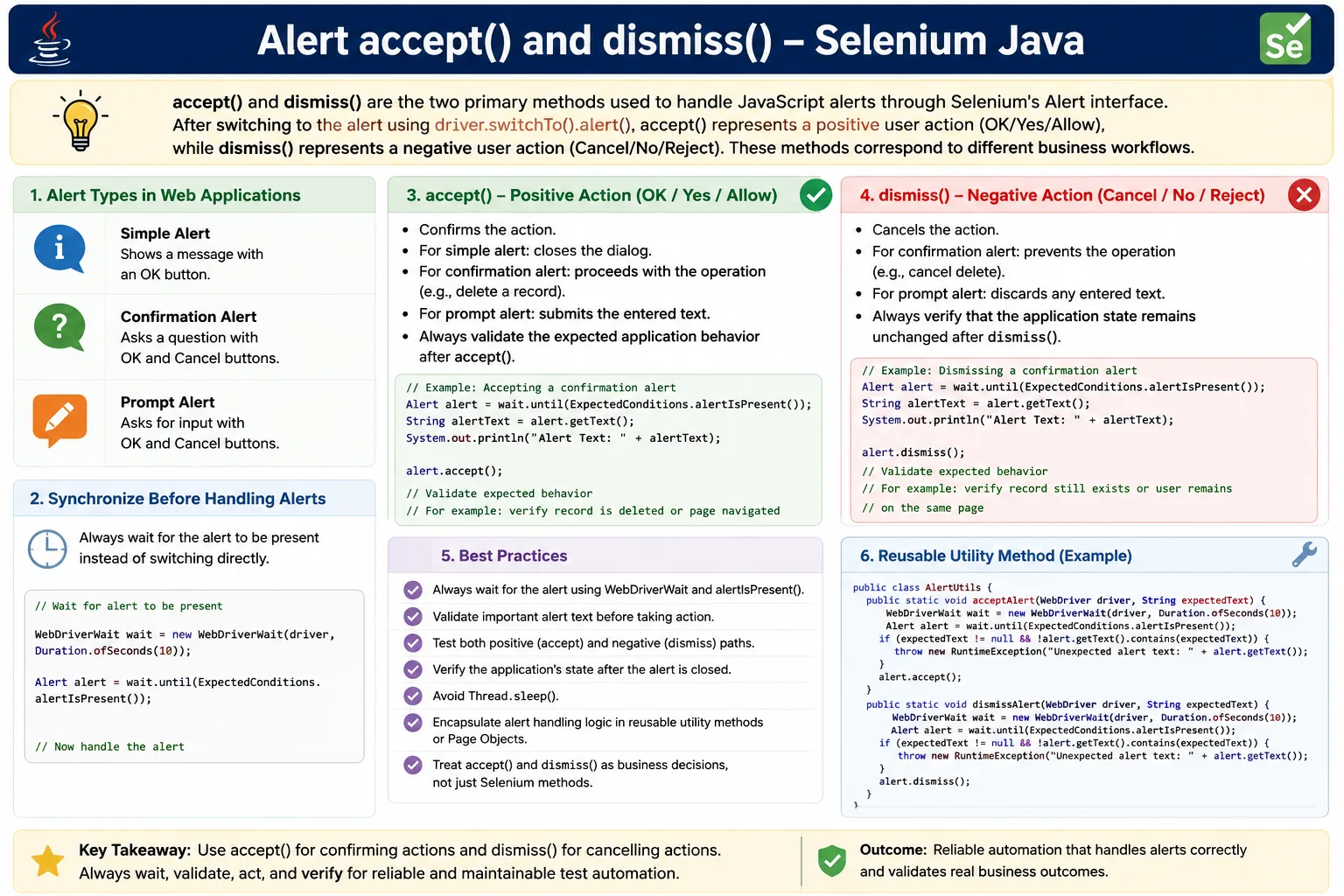
accept() is used when the user chooses the positive action, such as OK, Yes, Allow, or Accept. dismiss() is used when the user chooses the negative or cancel action, such as Cancel, No, Reject, or Dismiss. In a delete confirmation, accepting may delete a record, while dismissing should keep the record unchanged. In an unsaved changes warning, accepting may leave the page, while dismissing may keep the user on the current form.
A reliable Selenium test does not only call accept() or dismiss(). It triggers the alert, waits for it, validates the alert text if the message matters, handles the alert with the correct method, and validates the resulting application behavior. This is the difference between closing a popup and testing a real workflow.
2. Selenium Alert Context
JavaScript alerts are browser dialogs, not normal HTML elements. You cannot inspect their OK or Cancel buttons with CSS selectors. You cannot click them with findElement(). Selenium must switch to the alert context first.
Alert alert = driver.switchTo().alert();Once Selenium has an Alert object, the test can read the message, accept it, dismiss it, or send text if it is a prompt alert. Until the alert is handled, normal page interactions are blocked.
3. Required Imports
The common imports for accept and dismiss workflows are:
import org.openqa.selenium.Alert;
import org.openqa.selenium.NoAlertPresentException;
import org.openqa.selenium.JavascriptExecutor;
import org.openqa.selenium.support.ui.ExpectedConditions;
import org.openqa.selenium.support.ui.WebDriverWait;
import java.time.Duration;
Most real tests also use assertion imports from TestNG or JUnit. If alerts are triggered inside frames, normal frame-switching methods are also used before the alert appears.
4. What Is accept()?
The accept() method clicks the positive button on a JavaScript alert. Depending on the dialog and browser wording, this may mean OK, Yes, Allow, or Accept. It is equivalent to the user confirming the alert.
Alert alert = driver.switchTo().alert();

alert.accept();
On a simple alert, accepting usually just closes the message. On a confirmation alert, accepting continues the positive action. On a prompt alert, accepting submits the entered prompt value.
5. Simple Alert accept()
A simple alert has only one meaningful action: OK. Selenium uses accept() to close it.
driver.findElement(By.id("alertBtn")).click();

Alert alert = driver.switchTo().alert();

alert.accept();
After accepting the alert, control returns to the webpage. If the alert was only informational, the test may continue with the next step. If the alert confirms an operation, validate the result on the page.
6. Confirmation Alert accept()
A confirmation alert gives the user a positive and negative choice. In a delete flow, accepting usually confirms deletion.
driver.findElement(By.id("deleteBtn")).click();

Alert alert = driver.switchTo().alert();

alert.accept();
This is equivalent to the user clicking OK on a dialog such as:
Delete Employee?
[OK] [Cancel]
A good test should verify that the employee or record was actually deleted after the alert is accepted.
7. Prompt Alert accept()
Prompt alerts accept user input. The test types into the prompt with sendKeys() and then uses accept() to submit the input.
driver.findElement(By.id("promptBtn")).click();

Alert alert = driver.switchTo().alert();

alert.sendKeys("Suresh");
alert.accept();
After accepting, validate that the entered value was processed by the application. The value may appear in a status message, input field, saved record, or table.
8. What Is dismiss()?
The dismiss() method clicks the negative button on an alert. Depending on the dialog, this may mean Cancel, No, Reject, or Dismiss. It is equivalent to the user cancelling the action.
Alert alert = driver.switchTo().alert();

alert.dismiss();
On confirmation alerts, dismissing should usually stop the action. On prompt alerts, dismissing should cancel prompt input. On simple alerts, dismiss may behave like closing the alert depending on browser implementation, but for simple alert messages, accept() is the clearer choice.
9. Confirmation Alert dismiss()
Dismiss is commonly used for confirmation dialogs where the user chooses Cancel.
driver.findElement(By.id("deleteBtn")).click();

Alert alert = driver.switchTo().alert();

alert.dismiss();
This is equivalent to cancelling a dialog such as:
Delete Employee?
[OK] [Cancel]
The test should verify that the record still exists and no destructive operation occurred.
10. Unsaved Changes Alert dismiss()
Unsaved-change warnings are a useful real-world example. If a user edits a form and tries to leave, the application may show a confirmation alert. Dismissing the alert often means staying on the current page.
Alert alert = driver.switchTo().alert();

alert.dismiss();
After dismissing, validate that the browser remains on the current page and the unsaved data is still visible. This proves that the cancel path works correctly.
11. accept() vs dismiss()
| Method | User Action | Common Flow |
|---|---|---|
| accept() | OK, Yes, Allow, Accept | Positive or confirm flow |
| dismiss() | Cancel, No, Reject, Dismiss | Negative or cancel flow |
The difference is not only technical. It is functional. The application should behave differently after OK and Cancel in many workflows. Tests should cover both paths when both paths are business-relevant.
12. Complete Example with Alert Text
A complete alert flow reads the message before choosing an action.
driver.findElement(By.id("deleteBtn")).click();

Alert alert = driver.switchTo().alert();

String text = alert.getText();

System.out.println(text);

alert.accept();
If the output is Delete Employee?, the test can validate that the correct confirmation message appeared before continuing with deletion.
13. Validation After accept()
After accepting an alert, validate that the positive flow completed.
driver.findElement(By.id("deleteBtn")).click();

Alert alert = driver.switchTo().alert();

alert.accept();

String message =
    driver.findElement(By.id("successMsg")).getText();

Assert.assertEquals(message, "Employee Deleted");
This proves that accepting the alert did more than close the dialog. It confirmed that the application completed the expected operation.
14. Validation After dismiss()
After dismissing an alert, validate that the negative flow completed correctly.
driver.findElement(By.id("deleteBtn")).click();

Alert alert = driver.switchTo().alert();

alert.dismiss();

String message =
    driver.findElement(By.id("statusMsg")).getText();

Assert.assertEquals(message, "Deletion Cancelled");
Another good validation is to check that the original record is still displayed. For cancel flows, preserving state is often more important than showing a message.
15. Wait Before accept() or dismiss()
Never assume the alert appears immediately. The recommended pattern is to use an explicit wait.
WebDriverWait wait =
    new WebDriverWait(driver, Duration.ofSeconds(10));

Alert alert =
    wait.until(ExpectedConditions.alertIsPresent());

alert.accept();
The same wait can be used before dismissing.
Alert alert =
    wait.until(ExpectedConditions.alertIsPresent());

alert.dismiss();
This prevents NoAlertPresentException when JavaScript creates the alert after a short delay.
16. Wait and Accept Alert
Delayed alerts are common when alerts depend on server responses or timers.
driver.findElement(By.id("delayedAlert")).click();

WebDriverWait wait =
    new WebDriverWait(driver, Duration.ofSeconds(10));

Alert alert =
    wait.until(ExpectedConditions.alertIsPresent());

alert.accept();
This pattern should be the default for production automation. It is more reliable than direct switching and much better than Thread.sleep().
17. Wait and Dismiss Alert
The wait pattern applies equally to cancel flows.
driver.findElement(By.id("confirmButton")).click();

WebDriverWait wait =
    new WebDriverWait(driver, Duration.ofSeconds(10));

Alert alert =
    wait.until(ExpectedConditions.alertIsPresent());

alert.dismiss();
After dismissing, verify the page state. The test should prove that the application did not perform the cancelled operation.
18. Accept Only If Message Matches
Sometimes tests should accept only when the alert message is the expected one.
driver.findElement(By.id("deleteButton")).click();

Alert alert = driver.switchTo().alert();

if (alert.getText().equals("Delete this record?")) {
    alert.accept();
}
In many test suites, an unexpected message should fail the test instead of doing nothing. Conditional handling is useful, but assertion-first handling is usually clearer for required business flows.
19. Dismiss Based on Text
A test can also dismiss based on alert text.
driver.findElement(By.id("deleteButton")).click();

Alert alert = driver.switchTo().alert();

if (alert.getText().contains("Delete")) {
    alert.dismiss();
}
This is useful in flows where any delete-related confirmation should be cancelled. Still, the final assertion should verify that the record remains available.
20. Prompt accept() and dismiss()
Prompt alerts support both accepting and dismissing. Accepting submits the value. Dismissing cancels the prompt even if text was entered.
driver.findElement(By.id("promptButton")).click();

Alert alert = driver.switchTo().alert();

alert.sendKeys("Suresh");
alert.accept();
driver.findElement(By.id("promptButton")).click();
Alert alert = driver.switchTo().alert();
alert.sendKeys("Testing");
alert.dismiss();Prompt tests should validate what happens to the entered value. If dismissed, the value should usually not be applied.
21. Accept Multiple Alerts
Some applications or test pages show multiple alerts in sequence. Handle each alert separately.
driver.findElement(By.id("multipleAlerts")).click();

driver.switchTo().alert().accept();

driver.switchTo().alert().accept();
For stability, wait for each alert instead of assuming the next alert appears instantly.
22. Alert Inside Frame
If the button that triggers an alert is inside a frame, switch into the frame before clicking the button. The alert itself is still handled through driver.switchTo().alert().
driver.switchTo().frame("frame1");

driver.findElement(By.id("alertButton")).click();

driver.switchTo().alert().accept();

driver.switchTo().defaultContent();
After handling the alert, return to the correct frame or default content depending on the next test step.
23. JavaScript Generated Alert
Alerts can be generated directly with JavaScript for utility testing or learning.
JavascriptExecutor js = (JavascriptExecutor) driver;

js.executeScript("alert('Welcome to Selenium');");

driver.switchTo().alert().accept();
Confirmation alerts can also be generated and dismissed.
JavascriptExecutor js = (JavascriptExecutor) driver;

js.executeScript("confirm('Delete File?');");

driver.switchTo().alert().dismiss();
In real business tests, prefer triggering alerts through normal user actions.
24. NoAlertPresentException
NoAlertPresentException occurs when the test tries to switch before the alert exists.
Alert alert = driver.switchTo().alert();If the alert is delayed, this code may fail. Use alertIsPresent() to synchronize.
Alert alert = new WebDriverWait(driver, Duration.ofSeconds(10))
    .until(ExpectedConditions.alertIsPresent());
If the alert is optional, catch the exception only when the no-alert path is valid.
25. UnhandledAlertException
UnhandledAlertException happens when an alert is open and Selenium tries to interact with the page.
driver.findElement(By.id("save")).click();If an alert is still open, this page click cannot continue. The fix is to handle the alert before interacting with the page. Known alerts should be handled immediately after the action that triggers them.
26. Real Project Example: Delete Employee
A delete flow should validate the alert and then validate the final application state.
deleteButton.click();

Alert alert =
    wait.until(ExpectedConditions.alertIsPresent());

Assert.assertEquals(alert.getText(), "Delete employee?");

alert.accept();

wait.until(
    ExpectedConditions.invisibilityOf(employeeRow)
);
This confirms that the right alert appeared and that accepting it deleted the employee.
27. Real Project Example: Cancel Deletion
The cancel path verifies that dismissing the alert prevents deletion.
deleteButton.click();

Alert alert =
    wait.until(ExpectedConditions.alertIsPresent());

alert.dismiss();

Assert.assertTrue(employeeRow.isDisplayed());
This test is important because Cancel is a business requirement, not just a browser button. A serious application must not perform destructive actions after the user cancels.
28. Real Project Example: Unsaved Changes
Unsaved-change alerts often have two paths. Accepting may discard changes and leave the page. Dismissing may keep the user on the current page.
For the accept path, validate that the user navigates away or the original page is closed. For the dismiss path, validate that the user remains on the form and the unsaved values are still present. This kind of alert test is especially important in admin tools, CRM systems, banking forms, and healthcare applications where accidental data loss is serious.
29. Reusable Accept Alert Method
A reusable method can wait for and accept an alert.
public void acceptAlert() {
    WebDriverWait wait =
        new WebDriverWait(driver, Duration.ofSeconds(10));

    Alert alert =
        wait.until(ExpectedConditions.alertIsPresent());

    alert.accept();
}
Usage:
driver.findElement(By.id("alertButton")).click();

acceptAlert();
30. Reusable Dismiss Alert Method
A matching dismiss method keeps cancel flows consistent.
public void dismissAlert() {
    WebDriverWait wait =
        new WebDriverWait(driver, Duration.ofSeconds(10));

    Alert alert =
        wait.until(ExpectedConditions.alertIsPresent());

    alert.dismiss();
}
Usage:
driver.findElement(By.id("confirmButton")).click();

dismissAlert();
31. Utility Method with Text Validation
A stronger utility validates alert text before accepting.
public void acceptAlertWithText(String expectedText) {
    Alert alert = new WebDriverWait(driver, Duration.ofSeconds(10))
        .until(ExpectedConditions.alertIsPresent());

    Assert.assertEquals(alert.getText(), expectedText);

    alert.accept();
}
The same idea works for dismissing.
public void dismissAlertWithText(String expectedText) {
    Alert alert = new WebDriverWait(driver, Duration.ofSeconds(10))
        .until(ExpectedConditions.alertIsPresent());

    Assert.assertEquals(alert.getText(), expectedText);

    alert.dismiss();
}
32. Page Object Design
Page objects should expose business actions rather than raw alert mechanics. For example, use confirmDeleteEmployee() and cancelDeleteEmployee() instead of forcing every test to call alert.accept() directly.
public void confirmDeleteEmployee(String name) {
    clickDeleteForEmployee(name);
    acceptAlertWithText("Delete employee?");
    waitUntilEmployeeRemoved(name);
}
This keeps test cases readable and centralizes alert behavior. If the product later changes from JavaScript alerts to HTML modals, the test intent can remain the same while the page object implementation changes.
33. Common Mistakes
- Calling
accept()without switching to the alert. - Switching to the alert before it appears.
- Interacting with the page while the alert is still open.
- Using
accept()for every alert without testing cancel flows. - Ignoring alert text when the message is part of the requirement.
- Using
Thread.sleep()instead of explicit waits. - Forgetting to validate the page result after handling the alert.
34. accept() and dismiss() in Business Testing
Accept and dismiss should be treated as business decisions. In a deletion workflow, accept means "delete this data" and dismiss means "do not delete this data." In a navigation warning, accept may mean "discard changes" and dismiss may mean "stay and preserve changes." In a permission warning, accept may mean "continue" and dismiss may mean "stop."
Because the methods represent business decisions, both should be tested when both decisions matter. A test suite that only accepts every confirmation can miss serious defects in cancel behavior. Users rely on Cancel to protect data and prevent accidental actions.
35. Optional Alerts
Some alerts appear only under certain conditions. For example, an unsaved changes alert appears only if data has changed. In such cases, the test should define whether the alert is required or optional. If required, wait and fail when it does not appear. If optional, catch NoAlertPresentException or use a short optional wait.
try {
    Alert alert = driver.switchTo().alert();
    alert.accept();
} catch (NoAlertPresentException e) {
    System.out.println("No alert available.");
}
Do not hide required alert failures behind optional handling. Optional alert handling should be used only where both outcomes are valid.
36. Quick Code Patterns
36.1 Accept Simple Alert
driver.findElement(By.id("simpleAlert")).click();

driver.switchTo().alert().accept();
36.2 Dismiss Confirmation Alert
driver.findElement(By.id("confirmAlert")).click();

driver.switchTo().alert().dismiss();
36.3 Accept After Reading Text
Alert popup = driver.switchTo().alert();

System.out.println(popup.getText());

popup.accept();
36.4 Dismiss After Reading Text
Alert popup = driver.switchTo().alert();

System.out.println(popup.getText());

popup.dismiss();
36.5 Wait and Accept
Alert alert = new WebDriverWait(driver, Duration.ofSeconds(10))
    .until(ExpectedConditions.alertIsPresent());

alert.accept();
37. Common Issues and Fixes
| Issue | Cause | Fix |
|---|---|---|
| NoAlertPresentException | Alert not present yet | Wait with alertIsPresent |
| UnhandledAlertException | Page action while alert is open | Handle alert first |
| Cancel flow deletes data | Application defect | Validate dismiss behavior and report bug |
| Prompt value not applied | Prompt dismissed or input ignored | Use sendKeys then accept and validate result |
| Flaky alert handling | Timing issue | Use explicit wait and avoid sleep |
38. Designing Positive and Negative Alert Tests
Alert accept and dismiss tests should be designed as separate business scenarios. A positive scenario checks what happens when the user confirms the operation. A negative scenario checks what happens when the user cancels it. Keeping them separate makes failures easier to understand. If deletion after accept fails, the positive flow is broken. If the record disappears after dismiss, the cancel flow is broken.
In many teams, only the positive path is automated because it appears more important. That is risky. Cancel paths protect users from accidental destructive actions. A serious application should treat Cancel as a first-class behavior. Deleting a record after the user pressed Cancel is a high-impact defect, even though the automation line looks as simple as alert.dismiss().
When writing test cases, name them based on the expected outcome. Names such as deleteEmployeeAfterAcceptingConfirmation and keepEmployeeAfterDismissingConfirmation are more useful than alertAcceptTest and alertDismissTest. The method name should communicate business behavior, not just Selenium mechanics.
39. Validating Data State After accept()
For accept flows, success messages are useful, but data-state validation is often stronger. If the user accepts a delete confirmation, the row should disappear from the table, the record should no longer be searchable, or the details page should show that the entity no longer exists. A success message alone may appear even when the data operation failed.
A robust delete-accept test can validate multiple signals. First, validate the alert message. Second, accept the alert. Third, wait for the row to disappear. Fourth, optionally search for the deleted record and verify it is not found. The amount of validation depends on the risk of the feature. For high-risk workflows, deeper validation is justified.
deleteButton.click();

Alert alert = wait.until(ExpectedConditions.alertIsPresent());

Assert.assertEquals(alert.getText(), "Delete employee?");

alert.accept();

wait.until(ExpectedConditions.invisibilityOf(employeeRow));

searchEmployee(employeeName);

Assert.assertTrue(isNoRecordsMessageDisplayed());
This pattern proves that accepting the alert caused the intended backend-facing behavior, not just a temporary UI message.
40. Validating Data State After dismiss()
For dismiss flows, the best validation is usually preservation. The record should remain visible. The form values should remain unchanged. The current page should remain open. The selected item should still exist. The test should prove that the cancelled action did not accidentally proceed.
deleteButton.click();

Alert alert = wait.until(ExpectedConditions.alertIsPresent());

alert.dismiss();

Assert.assertTrue(employeeRow.isDisplayed());
Assert.assertEquals(getEmployeeStatus(employeeName), "Active");
Cancel tests should also check that the application is still usable after dismissal. For example, after cancelling deletion, the user should still be able to edit the record, open its details, or perform another action. A cancel flow that leaves the page frozen is also defective.
41. Accept and Dismiss for Prompt Alerts
Prompt alerts add one more dimension: user input. Accepting a prompt should submit the entered value. Dismissing a prompt should usually ignore the entered value. This makes prompt tests useful for validating both input handling and cancellation behavior.
For an accept prompt test, enter a known value, accept the alert, and validate that the value appears in the expected place. For a dismiss prompt test, enter a value, dismiss the alert, and validate that the value was not applied. This is especially important when prompts rename items, create labels, add comments, or collect short values.
driver.findElement(By.id("renameButton")).click();

Alert alert = wait.until(ExpectedConditions.alertIsPresent());

alert.sendKeys("New Folder Name");
alert.dismiss();

Assert.assertFalse(isFolderVisible("New Folder Name"));
This verifies that dismiss really cancelled the prompt input. Without this assertion, the test only proves that Selenium clicked Cancel, not that the application respected it.
42. Timing Issues with accept() and dismiss()
Timing problems are common in alert tests. A test may click a button and switch to the alert too early. Or it may accept an alert and immediately check a result before the page has updated. Synchronization is needed on both sides of the alert: wait for the alert before handling it, and wait for the page result after handling it.
The first wait is alertIsPresent(). The second wait depends on the business result. After accepting deletion, wait for row invisibility or a success message. After dismissing, wait for the page to be stable or validate that the original row is displayed. After accepting a prompt, wait for the prompt result.
Avoid replacing these waits with fixed sleeps. Sleeps slow down the suite and still fail if the application takes longer than expected. Condition-based waits are both faster and more reliable.
43. Unexpected Alert Behavior
Sometimes an application produces an alert that the test did not expect. This can happen due to validation, session timeout, unsaved changes, security checks, or JavaScript errors. If the framework automatically accepts every unexpected alert, it may hide real defects. If it ignores unexpected alerts, later commands may fail with UnhandledAlertException.
A practical strategy is to log unexpected alert text during failure handling and then close the alert as cleanup. The test should still fail because an unexpected alert indicates that the workflow did not behave as planned. The alert text is valuable diagnostic information and should be included in the report when possible.
For expected alerts, handle them explicitly in the page object or test. For unexpected alerts, treat them as evidence, not as something to silently dismiss.
44. accept() and dismiss() in Page Objects
Page objects should expose meaningful actions and hide alert details where appropriate. A page object for an employee list might provide methods such as confirmDeleteEmployee() and cancelDeleteEmployee(). Internally, these methods trigger the alert, wait for it, validate text, accept or dismiss, and verify page state.
public void cancelDeleteEmployee(String employeeName) {
    clickDeleteForEmployee(employeeName);

    Alert alert = wait.until(ExpectedConditions.alertIsPresent());

    Assert.assertEquals(alert.getText(), "Delete employee?");

    alert.dismiss();

    Assert.assertTrue(isEmployeeVisible(employeeName));
}
This design keeps test cases readable. The test can say employeePage.cancelDeleteEmployee("Suresh") and focus on the business expectation. The Selenium mechanics stay in one place, which reduces duplication and maintenance cost.
45. Handling Alerts in Test Cleanup
If a test fails while an alert is open, later cleanup steps may also fail. For example, screenshot capture, navigation, or logout may not work until the alert is closed. Some frameworks include a safe cleanup method that checks for an alert, logs its text, and dismisses it during teardown.
public void closeUnexpectedAlertIfPresent() {
    try {
        Alert alert = driver.switchTo().alert();
        System.out.println("Unexpected alert: " + alert.getText());
        alert.dismiss();
    } catch (NoAlertPresentException ignored) {
    }
}
This cleanup method should not replace proper alert assertions in test logic. It is only there to prevent one failed test from causing additional cleanup failures.
46. Browser and Environment Considerations
Alert handling is generally consistent across modern browsers, but timing and configuration can vary. Remote browser grids, headless mode, and browser capabilities may affect unexpected prompt handling. Some browser configurations can automatically accept or dismiss unexpected alerts. That may be useful in some suites, but it can also hide bugs.
For alert-focused tests, use explicit handling rather than relying on browser auto-handling. If the test is intended to validate user behavior, the test should see the alert, inspect its text, and choose accept or dismiss intentionally. This produces clearer test reports and more trustworthy coverage.
47. Difference from HTML Modal Buttons
Some applications use HTML modals that look like browser alerts. They may have OK and Cancel buttons, but they are normal DOM elements. In that case, alert.accept() and alert.dismiss() will not work because there is no JavaScript alert context. You must locate and click the modal buttons using normal Selenium locators.
The easiest way to identify the difference is to inspect the page. If the popup is present in the DOM and can be inspected with browser developer tools, it is probably an HTML modal. If page interaction is blocked by a native browser dialog and the dialog is not in the DOM, it is a JavaScript alert. Use the right strategy for the right popup type.
48. Logging accept() and dismiss() Decisions
In larger automation suites, it is useful to log which alert decision was taken and what text was shown. When a test fails later, this information helps explain the path the test followed. For example, if a delete workflow fails after accepting an alert, the report should show the alert text and that the test accepted it. If a cancel workflow fails, the report should show that the test dismissed the confirmation.
Logging is especially helpful when alert messages are dynamic or environment-specific. A production-like environment may show a different warning than a local test page. Recording the message before accept() or dismiss() makes debugging faster and avoids guessing which alert appeared.
Keep logs concise. A utility method can log the alert text and the action taken, then perform the action. This gives useful evidence without cluttering every test method with repeated print statements.
49. Enterprise Best Practices
- Use
accept()for OK, Yes, Allow, or Accept actions. - Use
dismiss()for Cancel, No, Reject, or Dismiss actions. - Always switch to the alert before calling either method.
- Use
ExpectedConditions.alertIsPresent()for synchronization. - Read alert text before handling when validation is required.
- Test both accept and dismiss paths for confirmation alerts.
- Use
sendKeys()only for prompt alerts. - Validate application behavior after closing the alert.
- Avoid
Thread.sleep(); use explicit waits. - Wrap reusable alert logic in utility methods or page objects.
50. Interview Perspective
A short interview answer is: accept() clicks the OK or Yes button on a JavaScript alert, while dismiss() clicks the Cancel or No button.
A stronger real-time answer is: In Selenium Java, after switching to an alert using driver.switchTo().alert(), I use accept() for positive flows such as confirming deletion and dismiss() for negative flows such as cancelling an action. I wait for the alert using ExpectedConditions.alertIsPresent(), validate the alert text if needed, and always verify the resulting application behavior after the alert is closed.
51. Final Summary
accept() and dismiss() are the two main methods for choosing alert actions in Selenium Java. accept() represents OK, Yes, Allow, or Accept. dismiss() represents Cancel, No, Reject, or Dismiss. Both methods require Selenium to switch to the alert first.
The most important point is that these methods represent different business flows. Accepting a delete confirmation should delete the record. Dismissing it should preserve the record. Accepting an unsaved-change alert may leave the page. Dismissing it should keep the user on the page. A reliable test validates these outcomes after handling the alert.
The key takeaway is simple: use accept() for positive alert decisions, use dismiss() for cancel decisions, wait before handling, and always prove the application behaved correctly afterward.