Actions Class Overview in Selenium Java
1. Introduction
The Actions class in Selenium Java is used to perform advanced user interactions that go beyond basic click() and sendKeys(). Modern web applications often include hover menus, drag-and-drop areas, sliders, right-click menus, double-click interactions, keyboard shortcuts, multi-select lists, tooltips, canvas interactions, and chained gestures. These interactions cannot always be handled reliably with simple WebDriver methods.
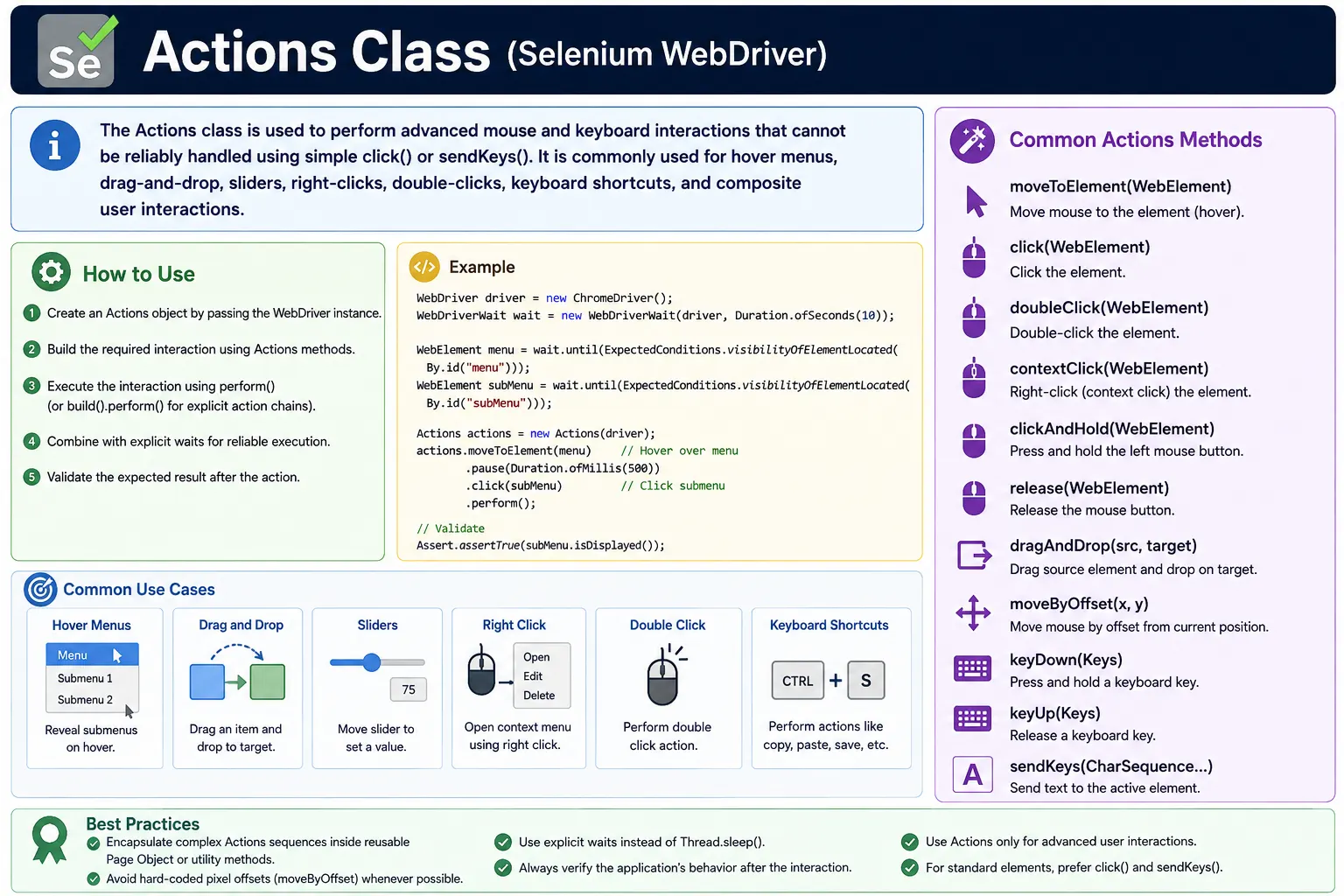
The Actions class simulates user-like mouse and keyboard behavior through the browser. It can move the pointer to an element, click at an offset, hold a mouse button, drag an element, press keyboard modifier keys, type text, pause between interactions, and execute multiple steps as one action sequence. This makes it critical for testing JavaScript-heavy applications, responsive interfaces, and complex UI widgets.
Actions is especially important for Selenium interviews because it proves that the candidate understands more than simple element location and button clicking. Real applications often require coordinated interactions. A tester must know when to use Actions, when normal WebDriver methods are enough, how to validate the result, and how to debug flaky interaction failures.
2. Why Actions Class Is Needed
Basic WebDriver methods such as click() and sendKeys() are enough for many simple controls. A normal button can be clicked. A text field can receive input. A link can be opened. But many UI interactions require behavior that is closer to what a real user does with a mouse or keyboard.
Actions is needed for hover-based menus, sliders, drag-and-drop, context menus, double-click behavior, multi-select using Control or Shift, click-and-hold behavior, and complex chained interactions. It is also useful when simple clicks are intercepted because the pointer must move over a menu first or because the UI displays hidden options only after hover.
- Hover-based menus
- Tooltips and hidden UI elements
- Right-click context menus
- Double-click controls
- Drag-and-drop widgets
- Sliders and range controls
- Keyboard combinations such as Control and Shift
- Composite user interactions
Use Actions when the application expects realistic pointer or keyboard behavior. Do not use it unnecessarily for simple clicks. A normal WebDriver click is usually simpler and clearer when it works.
3. Required Import
The Actions class belongs to Selenium's interactions package. The commonly required import is:
import org.openqa.selenium.interactions.Actions;Keyboard interactions often require:
import org.openqa.selenium.Keys;Pauses may require:
import java.time.Duration;In most real test classes, these imports appear along with WebDriver, WebElement, By, WebDriverWait, and ExpectedConditions imports.
4. Creating an Actions Object
To use Actions, create an object by passing the active WebDriver instance. The Actions object sends action sequences through that driver session.
WebDriver driver = new ChromeDriver();

Actions actions = new Actions(driver);
A simple action can be executed directly with perform():
actions.moveToElement(element).perform();Multiple actions can be chained together:
actions.moveToElement(element)
       .click()
       .sendKeys("Test")
       .build()
       .perform();
Chaining makes tests more expressive when a user flow requires multiple steps. However, long chains should still be readable and validated properly. If a chain becomes too complex, move it into a reusable utility method or page object method.
5. perform() vs build().perform()
The perform() method executes the action sequence. In Selenium's current API, calling perform() on a chain is usually enough because it builds and executes the sequence. The older style build().perform() explicitly builds the composite action first and then executes it.
In interviews, the common explanation is simple: perform() executes the current action, while build().perform() is used when you want to build a complete chain before execution. In practice, both are commonly seen in Selenium codebases, especially in older examples.
new Actions(driver)
    .moveToElement(menu)
    .click(subMenu)
    .build()
    .perform();
The important point is that an Actions chain does not affect the page until it is performed. Forgetting perform() is a common beginner mistake.
6. Mouse Hover
Mouse hover is one of the most common Actions use cases. Many menus and tooltips appear only after the pointer moves over a specific element.
WebElement menu = driver.findElement(By.id("menu"));

new Actions(driver)
    .moveToElement(menu)
    .perform();
Hover is used for dropdown menus, tooltip display, hidden buttons, mega menus, card overlays, and navigation items. After hovering, always validate the expected result. For example, wait until the submenu or tooltip becomes visible before clicking or asserting text.
7. Hover and Click Submenu
A common real-world pattern is hovering over a parent menu and clicking a submenu item that appears afterward.
WebElement menu = driver.findElement(By.id("menu"));
WebElement submenu = driver.findElement(By.id("submenu"));

Actions actions = new Actions(driver);

actions.moveToElement(menu)
       .click(submenu)
       .perform();
In many applications, the submenu element may not be visible until after hover. If Selenium locates it too early or tries to click before it appears, the test may fail. A stronger approach is to hover first, then wait for the submenu to become clickable, then click it.
8. Right Click or Context Click
Right-click is handled with contextClick(). It is useful when the application provides a custom context menu.
WebElement element =
    driver.findElement(By.id("rightClickArea"));

new Actions(driver)
    .contextClick(element)
    .perform();
After right-clicking, validate the context menu. For example, assert that the expected menu item is visible. Do not assume the action worked only because no exception was thrown.
9. Double Click
Double-click is used for controls that require two quick clicks, such as editable labels, file-style rows, special buttons, or application-specific widgets.
WebElement button =
    driver.findElement(By.id("doubleClickBtn"));

new Actions(driver)
    .doubleClick(button)
    .perform();
If double-click opens an editor, modal, or status message, validate the result. If the element re-renders after the first click, re-locating before the double-click may be necessary depending on the application behavior.
10. Drag and Drop
Drag-and-drop can be done with dragAndDrop(source, target) when the application supports standard pointer movement.
WebElement source = driver.findElement(By.id("drag"));
WebElement target = driver.findElement(By.id("drop"));

new Actions(driver)
    .dragAndDrop(source, target)
    .perform();
This method is clean and readable, but it does not work reliably with every JavaScript drag-and-drop implementation. HTML5 drag-and-drop, custom libraries, and framework-driven widgets may require more controlled actions.
11. Drag and Drop by Offset
Dragging by offset moves an element a specific number of pixels horizontally and vertically. This is common for sliders, resizable panels, maps, and canvas-like widgets.
WebElement source = driver.findElement(By.id("drag"));

new Actions(driver)
    .dragAndDropBy(source, 100, 0)
    .perform();
For sliders:
WebElement slider =
    driver.findElement(By.id("sliderHandle"));

new Actions(driver)
    .dragAndDropBy(slider, 50, 0)
    .perform();
Offsets should be used carefully. Hardcoded pixel values can fail on different screen sizes, browser zoom levels, responsive layouts, and operating system scaling. Whenever possible, calculate offsets based on element size.
12. Click and Hold, Move, and Release
For JavaScript-heavy applications, clickAndHold(), moveByOffset(), and release() often give more control than dragAndDrop().
WebElement source = driver.findElement(By.id("drag"));

new Actions(driver)
    .clickAndHold(source)
    .moveByOffset(100, 0)
    .release()
    .perform();
This is useful when the application responds to pointer-down, pointer-move, and pointer-up style interactions. It is often more reliable for sliders and custom drag widgets. You can also move to a target element before releasing:
WebElement source = driver.findElement(By.id("drag"));
WebElement target = driver.findElement(By.id("drop"));

new Actions(driver)
    .clickAndHold(source)
    .moveToElement(target)
    .release()
    .perform();
13. Click and Hold
Some interactions require holding a mouse button for a short period. The Actions class supports this pattern with clickAndHold(), pause(), and release().
WebElement element = driver.findElement(By.id("holdArea"));

new Actions(driver)
    .clickAndHold(element)
    .pause(Duration.ofSeconds(2))
    .release()
    .perform();
Use pauses carefully. A short pause may be appropriate when the UI explicitly requires hold duration or animation. Do not use pauses as a replacement for proper waits.
14. Click at a Specific Offset
Actions can click at a coordinate relative to an element. This is useful for canvas, maps, charts, sliders, and complex widgets where the target is not a normal HTML element.
WebElement element = driver.findElement(By.id("canvas"));

new Actions(driver)
    .moveToElement(element, 50, 20)
    .click()
    .perform();
Coordinate-based tests can be fragile. They should be used when the UI cannot expose a better locator or semantic element. Always validate the result after clicking.
15. Keyboard Actions
The Actions class can also perform keyboard interactions. This is useful for shortcut keys, modifier keys, tab navigation, multi-select, and controls that respond to keyboard input.
new Actions(driver)
    .sendKeys(Keys.ENTER)
    .perform();
To send keys to a specific element:
WebElement input = driver.findElement(By.id("username"));

new Actions(driver)
    .sendKeys(input, "admin")
    .perform();
Keyboard actions are especially valuable for accessibility-oriented testing because they can simulate interaction without a mouse.
16. Modifier Keys: Control and Shift
Actions can press and release modifier keys such as Control, Shift, Alt, and Command. This is useful for multi-select and shortcut workflows.
WebElement item1 = driver.findElement(By.id("item1"));
WebElement item2 = driver.findElement(By.id("item2"));

new Actions(driver)
    .keyDown(Keys.CONTROL)
    .click(item1)
    .click(item2)
    .keyUp(Keys.CONTROL)
    .perform();
Shift plus typing can simulate uppercase input:
new Actions(driver)
    .keyDown(Keys.SHIFT)
    .sendKeys("hello")
    .keyUp(Keys.SHIFT)
    .perform();
Always release modifier keys with keyUp(). Forgetting to release a modifier can cause unexpected behavior in later actions.
17. Select All, Copy, and Paste
Keyboard shortcuts are common in real applications. Actions can simulate shortcuts such as Control+A, Control+C, and Control+V.
WebElement input = driver.findElement(By.id("username"));

new Actions(driver)
    .click(input)
    .keyDown(Keys.CONTROL)
    .sendKeys("a")
    .keyUp(Keys.CONTROL)
    .perform();
Copy and paste example:
Actions actions = new Actions(driver);

actions.keyDown(Keys.CONTROL)
       .sendKeys("c")
       .keyUp(Keys.CONTROL)
       .perform();

actions.keyDown(Keys.CONTROL)
       .sendKeys("v")
       .keyUp(Keys.CONTROL)
       .perform();
On macOS, Command may be used instead of Control. Cross-platform test suites should account for operating system differences when using keyboard shortcuts.
18. Chained Composite Actions
A composite action combines multiple steps into one chain. This is useful when the application expects a realistic sequence.
new Actions(driver)
    .moveToElement(menu)
    .click(subMenu)
    .sendKeys(Keys.ENTER)
    .build()
    .perform();
Composite actions can simulate real user behavior more closely than isolated commands. However, they should still remain understandable. If a chain becomes hard to read, extract it into a page object method with a meaningful name.
19. Hover Multiple Elements in a Loop
Sometimes a test needs to hover over many elements, such as menu items, cards, or chart points. Actions can be used in a loop.
List<WebElement> items =
    driver.findElements(By.className("menu-item"));

Actions actions = new Actions(driver);

for (WebElement item : items) {
    actions.moveToElement(item)
           .pause(Duration.ofMillis(500))
           .perform();
}
Be careful when looping over elements in dynamic applications. If hovering causes the DOM to re-render, previously collected elements may become stale. In that case, re-locate elements inside the loop or use a stable locator strategy.
20. Move to Element and Pause
A short pause after moving to an element can help when an animation or tooltip needs time to appear.
WebElement element = driver.findElement(By.id("hoverArea"));

new Actions(driver)
    .moveToElement(element)
    .pause(Duration.ofSeconds(1))
    .perform();
Use pause() only when it represents actual user-like timing or when the UI animation requires it. Prefer explicit waits for conditions such as visibility or clickability.
21. Scroll to Element Using Actions
Moving to an element can cause the browser to scroll it into view. This is sometimes useful for elements near the bottom of the page.
WebElement element = driver.findElement(By.id("footer"));

new Actions(driver)
    .moveToElement(element)
    .perform();
If scrolling is the primary goal, JavaScript scroll or WebDriver's built-in scrolling behavior may also be considered. Use the method that is most stable for the application under test.
22. Hover and Validate Tooltip
Tooltips commonly appear after hover. A good test should hover and then validate tooltip content.
WebElement icon = driver.findElement(By.id("tooltipIcon"));

new Actions(driver)
    .moveToElement(icon)
    .perform();

String tooltip =
    driver.findElement(By.className("tooltip-inner")).getText();

System.out.println(tooltip);
For dynamic tooltips, wait until the tooltip is visible before reading text. Some tooltips are added to the end of the document body rather than inside the hovered element, so inspect the DOM carefully.
23. Actions and Explicit Waits
Actions should usually be combined with explicit waits. Moving to an element that is hidden, disabled, covered, or not yet attached to the DOM can fail. Before performing an action, wait for the right condition.
WebDriverWait wait =
    new WebDriverWait(driver, Duration.ofSeconds(10));

WebElement menu = wait.until(
    ExpectedConditions.visibilityOfElementLocated(By.id("menu"))
);

new Actions(driver)
    .moveToElement(menu)
    .perform();
After the action, wait for the expected result. For hover, wait for a submenu or tooltip. For drag-and-drop, wait for the item to appear in the target area. For a slider, wait for the value to update. This makes tests more reliable than fixed sleeps.
24. Common Issues and Fixes
| Problem | Cause | Fix |
|---|---|---|
| Hover not triggering | Element hidden or not ready | Wait for visibility and move to the correct element |
| Drag fails | JavaScript-based drag behavior | Use clickAndHold, move, and release |
| Click intercepted | Overlay or animation | Wait for clickability and overlay disappearance |
| Stale element | React or framework re-render | Re-locate the element before action |
| Offset incorrect | Hardcoded pixel values | Calculate offset from element size |
25. Debugging Flaky Actions Tests
Actions tests can become flaky when the UI is animated, the DOM re-renders, an overlay appears, browser zoom changes, or pointer movement depends on exact coordinates. When a test fails, first identify which step failed. Did Selenium fail to find the element? Did the action run but produce no result? Did the UI update later than expected? Did the element become stale after a re-render?
Use screenshots, logs, DevTools inspection, and better waits to diagnose the real cause. Do not hide every flaky action behind a long sleep. A sleep may reduce failures temporarily, but it usually makes the suite slower and does not address the root cause. A stable test waits for the condition that proves the UI is ready.
For drag-and-drop issues, try clickAndHold() with controlled movement instead of dragAndDrop(). For hover issues, verify that the pointer is moving to the correct element. For offset issues, calculate based on element dimensions. For stale elements, re-locate immediately before interacting.
26. Actions in Page Object Model
Repeated Actions logic should be wrapped inside page objects or utility classes. This improves readability and keeps complex interactions in one place.
public class MouseActionsUtil {

    private WebDriver driver;
    private Actions actions;

    public MouseActionsUtil(WebDriver driver) {
        this.driver = driver;
        this.actions = new Actions(driver);
    }

    public void hoverAndClick(By hoverElement, By clickElement) {
        actions.moveToElement(driver.findElement(hoverElement))
               .click(driver.findElement(clickElement))
               .perform();
    }
}
Usage:
MouseActionsUtil util = new MouseActionsUtil(driver);

util.hoverAndClick(By.id("menu"), By.id("submenu"));
A utility can also include wait logic, validation, and logging. This is better than duplicating long Actions chains across many test methods.
27. When to Use Actions Class
Use Actions when an element requires hover to become visible, a standard click fails because of interaction requirements, a keyboard combination is needed, a drag-and-drop workflow must be tested, a slider must be moved, or the application expects real user-like pointer movement.
Do not use Actions for every interaction. If element.click() is enough, it is simpler and easier to read. The Actions class is a tool for advanced interactions, not a replacement for all WebDriver commands.
28. When Not to Use Actions
Actions is powerful, but overusing it can make tests harder to read and debug. If a normal click() works reliably on a button, there is no need to replace it with moveToElement().click(). If a text field accepts sendKeys(), a full keyboard action chain is unnecessary. Simple WebDriver methods are easier for future maintainers to understand.
Do not use Actions as a shortcut to hide poor synchronization. If a click is intercepted because a spinner is still visible, the correct fix is usually to wait for the spinner to disappear, not to force a different pointer action. If an element is stale, re-locate it. If a locator is weak, improve the locator. Actions should solve interaction complexity, not cover up test design problems.
Also avoid using coordinate-based Actions when semantic locators are available. Clicking at an offset inside a normal button is weaker than clicking the button element directly. Coordinate-based interactions are useful for canvas, maps, sliders, and custom widgets, but they should not become the default style for standard HTML controls.
29. W3C Action Sequence Concept
Modern Selenium follows the W3C WebDriver action model. Instead of thinking of Actions as random mouse commands, it is better to understand them as sequences of low-level input actions. Selenium can send pointer actions, key actions, pauses, moves, button-down events, button-up events, and combined sequences through the browser driver.
This matters because modern web applications often listen to specific pointer and keyboard events. A drag operation may require pointer down, pointer move, and pointer up. A custom menu may require the pointer to move over the parent item before a submenu appears. A shortcut may require a modifier key to be held while another key is pressed. Actions gives Selenium a way to express these real interaction sequences.
Understanding this model helps with debugging. If dragAndDrop() fails, the application may not be responding to the exact sequence produced by that shortcut method. A manual chain using clickAndHold(), moveByOffset(), and release() may trigger the expected events more reliably.
30. Mouse, Keyboard, and Wheel Thinking
Advanced browser interactions can be grouped by input type. Mouse or pointer actions include hover, click, right-click, double-click, drag, hold, and release. Keyboard actions include typing, pressing Enter, holding Shift, selecting all with Control+A, or navigating with Tab and arrow keys. Scrolling actions may be handled through wheel input, JavaScript, or moving to an element depending on the Selenium version and test design.
Good automation engineers choose the input type that matches the user behavior. If users open a menu by hovering, use pointer movement. If users operate a range slider with arrow keys, keyboard actions may be better. If users select multiple list items with Control-click, combine key and mouse actions. If users navigate a custom widget with arrow keys, test that keyboard behavior directly.
This user-centered thinking improves test quality. It also supports accessibility testing because keyboard interactions reveal whether controls work without a mouse. A UI that works only with pointer movement may be inaccessible even if it passes a visual test.
31. Validating Results After Actions
Every advanced action should be followed by a meaningful validation. Moving the mouse over a menu should result in a visible submenu. Right-clicking should show a context menu. Double-clicking should open an editor or trigger the expected state. Dragging should move an item, reorder a list, update a drop zone, or change a value. Pressing a keyboard shortcut should produce the expected UI response.
Without validation, the test only proves that Selenium attempted an action. It does not prove that the application responded correctly. A hover may not open the menu. A drag may stop halfway. A modifier key may fail to select multiple items. A context menu may be blocked by an overlay. The assertion is what turns an interaction into a test.
Good validation is specific. For a tooltip, assert the tooltip text. For drag-and-drop, assert that the item appears in the target area. For a slider, assert the displayed value or attribute. For a keyboard shortcut, assert the selected text, field value, or state change. The validation should match the business purpose of the interaction.
32. Browser and Platform Differences
Actions behavior can vary across browsers, drivers, operating systems, zoom levels, and display scaling. Chrome, Edge, Firefox, and Safari follow the WebDriver standard, but real-world behavior can still differ in edge cases. Drag-and-drop, offsets, focus behavior, and keyboard shortcuts are especially sensitive.
Operating system differences matter for modifier keys. Windows and Linux commonly use Control for shortcuts, while macOS often uses Command. If a test suite runs across platforms, keyboard utility methods should account for the operating system. Browser zoom and device pixel ratio can affect coordinate-based actions. Responsive layout can change element size and position, making hardcoded offsets unreliable.
For enterprise suites, keep the execution environment predictable. Use supported browser versions, standard zoom, known screen sizes where needed, and stable test data. When testing responsive behavior, design the test intentionally for that viewport instead of accidentally depending on one machine's layout.
33. Actions with Dynamic Framework Applications
Modern React, Angular, Vue, and similar applications can re-render the DOM during or after interactions. This can affect Actions tests. An element may be located, then re-rendered before the action runs. A menu may appear and immediately replace part of the DOM. A drag operation may update state and recreate the handle. These changes can produce stale element references or missed interactions.
The fix is usually to locate elements as close as possible to the action, use explicit waits, and avoid holding WebElement references across major state changes. If a hover opens a submenu, wait for the submenu after the hover and then locate the submenu item. If a drag re-renders the list, validate with a fresh locator after the drag.
Framework applications also often use animations. An element may be visible but not ready for interaction while an animation is running. In that case, wait for clickability, stable state, or the absence of overlays. Actions works best when the UI is in a predictable state.
34. Actions vs JavaScriptExecutor
Actions and JavaScriptExecutor solve different problems. Actions simulates user input through the browser. JavaScriptExecutor directly runs JavaScript in the page context. For user interaction testing, Actions is usually more realistic. It can reveal whether hover, keyboard, focus, and pointer behavior works properly.
JavaScriptExecutor can be useful as a fallback when an application has a difficult custom widget or when setup requires direct state manipulation. For example, JavaScript may set a slider value when drag behavior is unreliable. But JavaScript can bypass real user behavior. If a user cannot perform the action manually, a JavaScript workaround may hide a real usability problem.
A practical rule is to prefer normal WebDriver actions first, use Actions for advanced user interactions, and use JavaScript only when there is a clear reason. When JavaScript is used, validate that the application state changed correctly and consider whether the test is still representing a real user scenario.
35. Designing Reusable Actions Utilities
Reusable Actions utilities should hide repetitive mechanics while keeping test intent readable. A test should say hoverAndClick(menu, submenu), dragToTarget(source, target), or rightClick(element) instead of repeating long action chains everywhere. Utilities can also include waits, logging, screenshots on failure, and final validation hooks.
However, utilities should not become too generic or magical. A method named performAction() that accepts many flags is hard to understand. Prefer small methods with clear names. A hover utility should hover. A drag utility should drag. A shortcut utility should send a shortcut. Clear utilities make test failures easier to diagnose.
Page object methods are often better than global utilities when the interaction is specific to one component. For example, a navigation menu page object can expose openReportsMenu(). A slider component can expose setValue(70). These names describe user intent rather than raw Selenium mechanics.
36. Enterprise Best Practices
- Always wait for elements before performing advanced actions.
- Use stable locators for all action targets.
- Prefer
clickAndHold(), movement, andrelease()whendragAndDrop()fails. - Avoid hardcoded pixel offsets when the offset can be calculated.
- Validate the result after every advanced action.
- Use keyboard actions for controls that are designed to support keyboard behavior.
- Use
pause()only when animation or hold behavior requires it. - Avoid
Thread.sleep(); use explicit waits. - Wrap repeated Actions logic in page objects or utility classes.
37. Interview Perspective
A short interview answer is: the Actions class in Selenium is used to perform advanced user interactions such as mouse hover, drag and drop, right-click, double-click, click-and-hold, keyboard combinations, and chained composite actions.
A stronger real-time answer is: In Selenium, I use the Actions class when simple WebDriver methods are insufficient. For example, I use it for hover-based menus, drag-and-drop widgets, sliders, custom context menus, double-click elements, and multi-selection using keyboard modifiers. I usually wait for the element first, perform the action, and validate the result. For composite interactions, I chain actions and use perform() or build().perform() depending on the code style.
38. Quick Code Patterns
38.1 Mouse Hover
WebElement menu = driver.findElement(By.id("menu"));

Actions actions = new Actions(driver);
actions.moveToElement(menu).perform();
38.2 Right Click
WebElement element =
    driver.findElement(By.id("rightClickArea"));

new Actions(driver)
    .contextClick(element)
    .perform();
38.3 Double Click
WebElement element =
    driver.findElement(By.id("doubleClickBtn"));

new Actions(driver)
    .doubleClick(element)
    .perform();
38.4 Drag Slider Using Actions
WebElement slider =
    driver.findElement(By.id("sliderHandle"));

new Actions(driver)
    .clickAndHold(slider)
    .moveByOffset(60, 0)
    .release()
    .perform();
38.5 Chain Multiple Actions
WebElement element = driver.findElement(By.id("button"));

new Actions(driver)
    .moveToElement(element)
    .click()
    .doubleClick()
    .contextClick()
    .perform();
39. Final Summary
The Actions class is Selenium's main tool for advanced mouse and keyboard interactions. It is required when basic WebDriver methods are not enough, especially for hover menus, context clicks, double-clicks, drag-and-drop workflows, sliders, keyboard shortcuts, and composite user actions. It simulates real user behavior more closely than isolated commands.
Reliable use of Actions requires good synchronization, stable locators, clear validation, and careful debugging. Always wait before performing the action and verify the result afterward. Avoid unnecessary hardcoded offsets, avoid fixed sleeps, and wrap repeated logic in reusable page object methods. When used thoughtfully, Actions is one of the most important Selenium Java tools for testing modern interactive web applications.