XPath vs CSS (HTML Impact)
Introduction
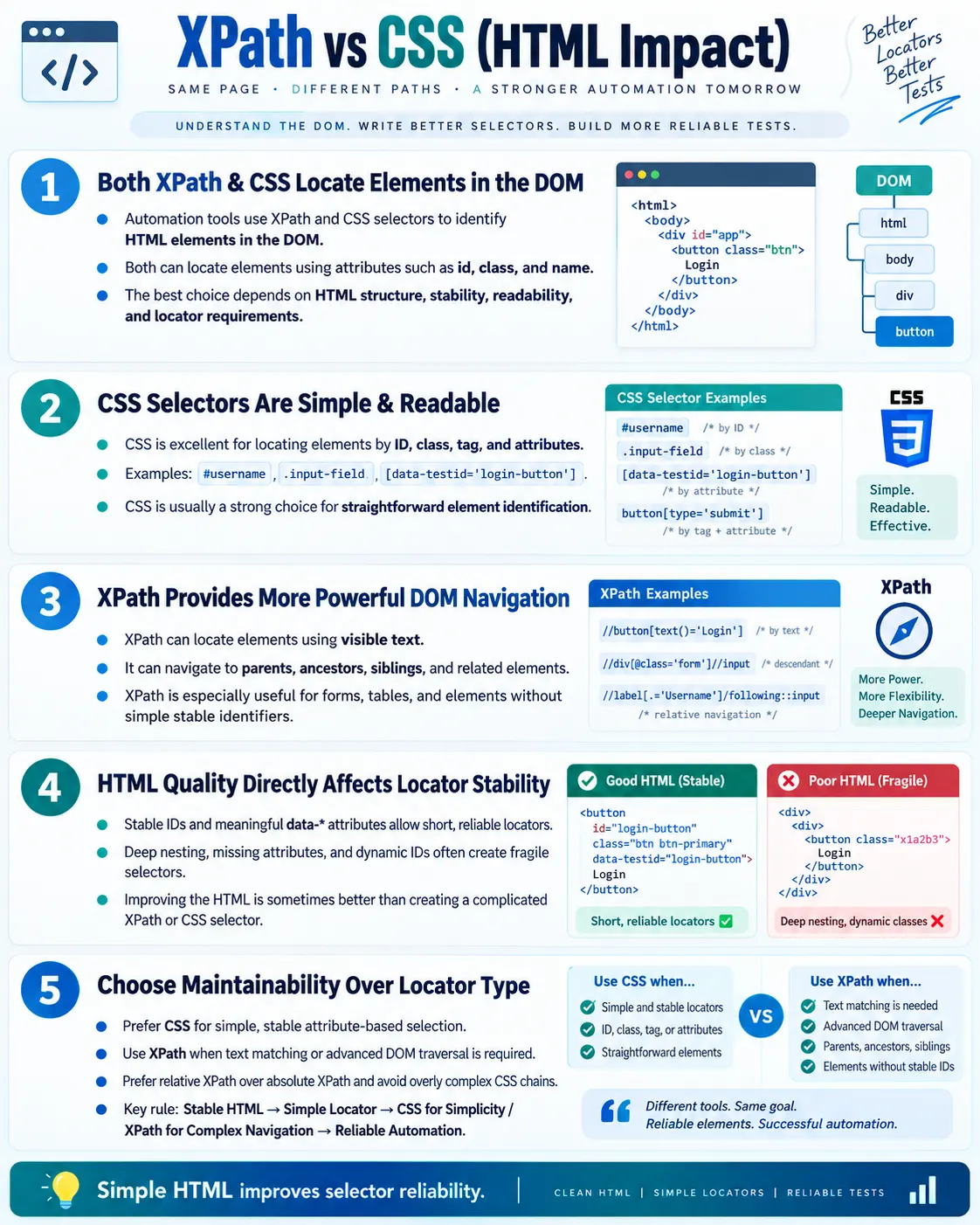
XPath and CSS Selectors are the two most commonly used locator strategies in UI automation to identify HTML elements. Automation tools such as Selenium, Playwright, Cypress, and Puppeteer use locators to find elements in the browser's DOM, then perform actions such as clicking, typing, selecting, reading text, and validating attributes. A tester who understands XPath, CSS selectors, and HTML structure can create locators that are shorter, clearer, and more stable.
Both XPath and CSS selectors locate elements in the DOM, but they work differently and have different strengths and limitations. CSS selectors are based on the same selector language used by stylesheets. They are usually simple, readable, and excellent for locating elements by ID, class, tag name, and attributes. XPath is a path expression language that can navigate the DOM more flexibly. It can locate elements by text, move upward to parents, traverse ancestors, and use advanced conditions.
The quality of the HTML has a direct impact on both locator types. Well-structured HTML with stable IDs, meaningful names, clear attributes, and dedicated data-* attributes allows automation testers to write simple locators. Poor HTML with deep nesting, missing attributes, duplicate elements, dynamic IDs, and generic wrappers often forces testers to write long and fragile locators. Locator reliability begins with HTML quality.
What Are XPath and CSS Selectors?
When a browser converts HTML into the DOM, automation tools use XPath or CSS selectors to locate elements. The locator is not applied to the raw visual page. It is evaluated against the current DOM. This matters because modern pages often change after loading. JavaScript may add, remove, or replace elements, so the locator must match the DOM state at the time the test runs.
HTML
  ↓
DOM
  ↓
XPath / CSS Selector
  ↓
Automation Tool
  ↓
Element Found
Both locator strategies can identify the same element in many cases. For example, an input with id="username" can be located by CSS as #username or by XPath as //input[@id='username']. The best choice depends on readability, stability, team standards, and whether the locator needs advanced traversal or text matching.
A good automation engineer does not choose XPath or CSS out of habit alone. They inspect the HTML, understand the element's attributes and relationships, then choose the locator that communicates intent with the least fragility. Sometimes CSS is the right choice. Sometimes XPath is the right choice. Often, a stable data-testid attribute makes either strategy straightforward.
Example HTML
Consider a simple login form. It contains a username input and a login button. The input has an ID, name, class, and type. The button has an ID and classes. This HTML can be located using either CSS or XPath because it contains usable attributes.
<form>
  <input
    id="username"
    name="username"
    class="input-field"
    type="text">

  <button
    id="loginBtn"
    class="btn primary">
    Login
  </button>
</form>
Because the HTML includes stable identifiers, the locators can be short. The username input can be found by ID. The button can be found by ID, class, or text. In real projects, ID is usually preferred if it is unique and stable. If the ID is dynamic or absent, another stable attribute or relationship may be needed.
CSS Selector Examples
CSS selectors are often concise. To locate an element by ID, use the hash symbol. To locate by class, use a dot. To locate by attribute, use square brackets. These patterns are easy to read and familiar to anyone who has worked with CSS.
Locate by ID:

#username

Selenium:

driver.findElement(
  By.cssSelector("#username"));

Locate by class:

.input-field

Locate button:

#loginBtn
CSS selectors are particularly useful for direct element identification. If an element has a stable ID, class, or data attribute, CSS is usually clean. For example, [data-testid='login-button'] is readable and stable when the application provides that attribute. CSS selectors also support parent-child and sibling relationships, though they do not support selecting a parent from a child in standard CSS.
XPath Examples
XPath expressions can also locate the same elements. XPath syntax is more verbose, but it supports advanced navigation. It can locate by attributes, text content, parent relationships, ancestors, descendants, and sibling axes. This makes it useful when HTML lacks simple stable identifiers.
Locate by ID:

//input[@id='username']

Locate by name:

//input[@name='username']

Locate button text:

//button[text()='Login']
The ability to locate by visible text is one of XPath's common advantages in Selenium. If a button has no stable ID or class but has reliable text, XPath can target that text. However, text-based locators can break when copy changes, translations are added, or whitespace differs. They are useful, but they should be chosen intentionally.
How CSS Selectors Work
CSS selectors identify elements using IDs, classes, tag names, attributes, parent-child relationships, and sibling relationships. CSS selectors were originally designed for applying styles, but browser selector engines are also used for element lookup. In automation, CSS selectors are popular because they are compact and align well with browser behavior.
- ID
- Class
- Tag name
- Attributes
- Parent-child relationships
- Sibling relationships
<input
  id="email"
  class="textbox">

CSS:

#email

or

.textbox
CSS selectors can also combine conditions. For example, input[type='email'] finds an input whose type is email. form#loginForm input[name='email'] scopes the search to a specific form. This scoping is useful when multiple similar fields appear on the page.
How XPath Works
XPath navigates through the DOM hierarchy. It can start from the root, search anywhere in the document, target attributes, match text, and move between related nodes. XPath was designed for XML documents, but HTML DOMs can also be queried with XPath in automation tools such as Selenium.
<div>
  <form>
    <input id="email">
  </form>
</div>

XPath:

//div/form/input

or

//input[@id='email']
The first XPath depends on the hierarchy: a div containing a form containing an input. The second XPath targets the input by ID and is more stable. This shows an important principle: XPath is powerful, but power should not be used to create unnecessarily fragile paths. Attribute-based relative XPath is usually better than long structural XPath.
HTML Impact on Locators
Good HTML creates simple locators. If an input has a stable ID, both CSS and XPath are easy. If the page contains deep nesting and missing attributes, locators become longer and more fragile. HTML structure directly affects automation maintainability.
Good HTML:

<input id="email">

Simple CSS locator:

#email

Simple XPath locator:

//input[@id='email']
Poor HTML:
<div>
<div>
<div>
<input>
</div>
</div>
</div>Poor HTML may require longer locators based on position or hierarchy. These locators break easily when containers are added, removed, or rearranged. The best solution is often not a more clever XPath. The best solution may be improving the HTML by adding a stable ID, name, label, or test-specific data attribute.
CSS Selector Strengths
CSS selectors have several strengths. They have simple syntax, are easy to read, work well for IDs, classes, and attributes, support modern HTML structures, and are generally shorter than equivalent XPath expressions. For straightforward element identification, CSS is often the cleanest option.
- Simple syntax
- Easy to read
- Excellent for IDs, classes, and attributes
- Supports modern HTML structures
- Generally shorter than equivalent XPath expressions
input[type='email']CSS selectors are also familiar to frontend developers. This makes collaboration easier. When testers and developers discuss a CSS selector, both sides often understand it quickly. CSS is a strong default choice for simple and stable locators.
XPath Strengths
XPath is more expressive than CSS in several areas. It can navigate upward to parent elements, traverse ancestors and siblings, locate elements by visible text, and use advanced conditions. This makes XPath useful when the element cannot be identified by a simple stable attribute.
- Navigate upward to parent elements
- Traverse ancestors and siblings
- Locate elements by visible text
- Use advanced conditions
- Build relationship-based locators
//button[text()='Submit']

//label[text()='Email']/following-sibling::input
XPath is especially useful in forms where an input is related to a label, in tables where a button belongs to a specific row, or in pages where text is the most stable identifier. However, XPath should still be kept readable. A powerful locator that nobody can maintain is not a good locator.
Parent Traversal
One major XPath advantage is parent traversal. CSS cannot directly select a parent element based on a child in standard Selenium CSS selectors. XPath can. This is useful when a child element has a stable identifier, but the test needs the parent container.
<div>
  <input id="email">
</div>

XPath:

//input[@id='email']/parent::div
Parent traversal can be useful for validation messages, form groups, table rows, and component containers. For example, a test may find a cell containing a product name, move up to the row, then find the Add to Cart button within that row. This type of relationship-based navigation is where XPath is often stronger than CSS.
Text-Based Selection
XPath can locate elements by visible text. Standard CSS selectors cannot match elements based on text content. This makes XPath useful when the visible text is the best available identifier, such as a button labeled Login, a link labeled Home, or a table cell containing a product name.
<button>
  Login
</button>

XPath:

//button[text()='Login']
Text matching should be used carefully. Text may change due to copy updates, localization, whitespace, or dynamic content. In multilingual applications, text-based locators can become difficult to maintain. When text is part of the user contract and stable, XPath text matching is useful. When text is likely to change, a stable attribute may be better.
Attribute Selection
Both CSS and XPath work well for attribute-based selection. Attribute locators are often stable and readable when the attribute represents the element's purpose. Examples include type, name, placeholder, href, aria-label, and data-testid.
<input
  type="email"
  placeholder="Email">

CSS:

input[type='email']

XPath:

//input[@type='email']
When attributes are unique and meaningful, either CSS or XPath can work well. CSS is usually shorter. XPath may be preferred if the attribute condition needs to be combined with text or navigation to related nodes.
Dynamic HTML
Modern applications often generate HTML dynamically. A button ID may change from one page load to another. A component may re-render and replace DOM nodes. A test that depends on generated values becomes fragile.
<button id="btn_12345">
  Next
</button>

Next page load:

<button id="btn_67890">
  Next
</button>
A better locator should use a stable attribute, stable class, visible text, or dedicated data attribute. For example, button.primary or //button[contains(@class,'primary')] may be more stable than a dynamic ID, though a dedicated data-testid is usually better when available.
Dynamic DOMs also require waits. A locator may be correct, but the element may not exist yet. Testers should combine good locators with explicit waits for visibility, clickability, or presence when dealing with dynamic content.
Relative vs Absolute XPath
Absolute XPath starts from the root of the document and follows every level of structure. It is usually brittle. If any container is added or removed, the locator breaks. Relative XPath searches based on attributes, text, or meaningful relationships and is generally more maintainable.
Bad:

/html/body/div/div/div/form/input

Good:

//input[@id='username']
Relative XPath is less dependent on the page layout. It focuses on the element's identity or relationship rather than its exact position. In automation, relative XPath should almost always be preferred over absolute XPath.
Browser Workflow
The workflow is the same for both locator strategies. HTML becomes the DOM. CSS or XPath is evaluated against the DOM. The matching element is located. The automation tool then performs an action or verification.
HTML
  ↓
DOM
  ↓
CSS / XPath
  ↓
Element Located
This workflow reinforces why the current DOM state matters. If JavaScript changes the page after load, the locator must match the updated DOM. If the element is inside an iframe, the automation must switch context first. If there are multiple matches, the locator must be refined.
CSS vs XPath Comparison
| Feature | CSS Selector | XPath |
|---|---|---|
| Syntax | Simple | More expressive |
| Readability | High | Moderate |
| Locate by ID | Supported | Supported |
| Locate by Class | Supported | Supported |
| Locate by Attribute | Supported | Supported |
| Locate by Text | Not supported in standard CSS | Supported |
| Traverse to Parent | Not directly supported | Supported |
| Traverse Ancestors | Not directly supported | Supported |
| Navigate Siblings | Limited with sibling combinators | Advanced axes supported |
| Performance | Often slightly faster in browsers | Usually very good, depends on expression |
In modern browsers, the performance difference is usually small compared with the importance of locator stability and readability. A slightly faster locator that breaks every week is worse than a stable locator that is easy to understand. Choose for maintainability first.
Locator Choice in Real Projects
In real automation projects, the question is rarely whether XPath is always better or CSS is always better. The practical question is which locator expresses the intent most clearly for the HTML that is available. A login button with a stable ID such as loginBtn can be located cleanly with #loginBtn. There is no need to write a long XPath when the browser already exposes a unique and meaningful attribute. On the other hand, if the page contains several buttons with similar classes and only the visible text separates them, XPath may communicate the purpose better because it can match the text directly.
This is why experienced testers do not treat locator strategy as a fixed rule. They inspect the DOM, understand how the element is structured, check which attributes are stable, and then choose the locator that is short, readable, and resistant to common UI changes. A CSS selector can be excellent when the element has predictable IDs, classes, names, roles, or data attributes. XPath can be excellent when the element must be found relative to a label, table row, card title, or nearby text. The HTML determines the right choice.
For example, a form field may not have a unique ID, but it may be placed beside a label that says Email Address. In that situation, an XPath that starts from the label and moves to the related input can be more meaningful than a CSS selector based on the third input in a form. The XPath expresses the human intention: find the input connected with the Email Address label. A CSS chain may express only the layout: find the input inside the second div inside the form. The first locator survives design changes better because it depends on meaning, not on visual nesting.
Maintainability Matters More Than Cleverness
A locator should be easy for another tester to understand months later. Very clever XPath expressions or deeply nested CSS selectors can be technically correct but difficult to maintain. Automation code is read more often than it is written. When a test fails, the tester must quickly decide whether the failure is a product defect, a test data issue, an environment issue, or a broken locator. If the locator is cryptic, debugging becomes slower.
Good locator design therefore favors clarity. A selector such as [data-testid='submit-order'] is immediately understandable. A selector such as div.checkout > div:nth-child(4) button:nth-child(2) may work today, but it hides the real purpose of the element. XPath has the same problem when it becomes too long. An expression that travels through many anonymous containers is usually a warning sign that the HTML does not provide enough stable hooks for testing.
When teams build large test suites, locator maintainability has a direct cost impact. A small UI refactor can break hundreds of tests if locators depend on visual layout. Stable attributes reduce that cost. Many mature teams deliberately add attributes such as data-testid, data-qa, or data-cy to important elements. These attributes do not need to affect styling or user experience. Their purpose is to give automation a reliable contract with the HTML.
Impact of DOM Changes
HTML pages are not static in modern applications. Frameworks such as React, Angular, Vue, and server-rendered templates can create, remove, or reorder elements based on application state. A button may not exist until an API response returns. A table row may be inserted after filtering. A modal may be created dynamically only when the user clicks an action. Locators must work with this changing DOM.
CSS and XPath both operate on the current DOM that the browser exposes. They do not locate elements in the original HTML source if JavaScript has changed the page. This is important for testers because the locator is evaluated against what exists at that moment. If an element is added after a delay, the locator itself may be correct, but the test may still fail if it searches too early. In Selenium, this is where waits become important. Locator quality and synchronization must work together.
DOM changes also affect locator stability. A CSS selector that depends on :nth-child may break when a new element is inserted before the target. An absolute XPath may break when an extra wrapper div is added. A text-based XPath may break if the visible label changes due to localization or content updates. No locator is immune to change, but locators based on stable purpose are usually more durable than locators based on temporary layout details.
Using Locators with Tables and Lists
Tables and repeated lists are common places where XPath becomes useful. Suppose a table contains many users and each row has an Edit button. A generic CSS selector such as .edit-btn may match every edit button. The test needs the button for a specific user, not just any button. In that case, the locator must connect the row content with the action inside that row.
XPath can express this relationship clearly. A tester can locate the row that contains a specific email address and then find the Edit button inside that row. This is a natural way to test data-driven pages. CSS can sometimes solve similar problems if the HTML provides stable row attributes, such as data-user-id. Without those attributes, XPath is usually more expressive for row-based relationships.
The same idea applies to cards, menus, accordions, and search result lists. When repeated components share the same class names, the locator must identify the correct component first and then find the element inside it. Good HTML makes this easier by adding meaningful attributes to containers. Poor HTML forces tests to depend on indexes, which are fragile when the order of items changes.
How Developers Can Make Testing Easier
XPath and CSS selector reliability is not only a testing concern. Developers strongly influence test stability through HTML design. When developers provide semantic structure, meaningful labels, unique IDs where appropriate, and stable test attributes for dynamic interfaces, automation becomes simpler and less fragile. The result is fewer false failures and faster feedback.
Adding good locators does not mean polluting the HTML with random test-only markers everywhere. It means intentionally exposing stable hooks on important user actions and business-critical elements. Login fields, checkout buttons, payment actions, confirmation messages, error alerts, tab controls, and table rows are good candidates. These are elements that tests must interact with repeatedly.
There is also value in accessible HTML. Labels, roles, names, and semantic elements make pages easier for users and easier for automation tools to understand. A form field connected to a real <label> is easier to locate and verify than an input surrounded by unrelated spans. A button with meaningful text is easier to identify than an icon-only div with click handlers. Better HTML improves accessibility, testability, and maintainability at the same time.
Debugging Locator Failures
When a locator fails, the first step is to confirm whether the element exists in the current DOM. The page source may not be enough because JavaScript can modify the page after load. DevTools inspection is more reliable because it shows the live DOM. If the element exists, check whether the locator matches it. If the locator matches multiple elements, the test may be interacting with the wrong one. If it matches none, the selector may be outdated or the element may not be loaded yet.
Next, check whether the element is visible and interactable. Selenium may locate an element but still fail to click it if it is hidden, covered by another element, disabled, or outside the viewport. This is not always a locator problem. Sometimes the locator is correct, but the application state is wrong. A good debugging process separates locator matching from visibility, timing, and interaction problems.
Finally, review whether the locator depends on unstable structure. If a small layout change broke the locator, replace it with a more meaningful one. Prefer an ID, a test attribute, a name, an accessible label, or a relationship based on stable text. If none exists, discuss with developers whether the HTML can expose a better hook. Strong automation is a collaboration between test code and application markup.
Best Practices
Good locator practice begins with stable HTML. Prefer unique ID attributes whenever available. Use CSS selectors for straightforward element identification. Use XPath when text matching or DOM traversal is required. Prefer relative XPath over absolute XPath. Use stable data-* attributes if available. Avoid overly complex locators.
- Prefer unique
idattributes whenever available - Use CSS selectors for straightforward element identification
- Use XPath when text matching or DOM traversal is required
- Prefer relative XPath over absolute XPath
- Use stable
data-*attributes if available - Avoid overly complex locators
Testers should also verify locators in DevTools before adding them to automation code. Confirm that the locator matches one intended element, not multiple hidden or unrelated elements. A locator that accidentally works is not reliable.
Common Mistakes
Absolute XPath is one of the most common mistakes. A path such as /html/body/div[2]/div[1]/div[4]/button can break when a single container changes. Depending on dynamic IDs is another common problem. IDs that change on every page load create unstable locators. Long CSS chains such as body div div div form input are also fragile because they depend on layout structure.
Another mistake is ignoring HTML structure. Understanding parent-child relationships helps create reliable locators. Testers also sometimes try to use CSS for text matching, but standard CSS selectors cannot locate elements by visible text. XPath is the right tool when text-based selection is required.
Selenium Examples
Selenium supports both CSS selectors and XPath. The syntax differs, but both strategies locate elements in the DOM. Simple examples show how the same target can be identified in different ways.
CSS:

driver.findElement(
  By.cssSelector("#username"));

XPath:

driver.findElement(
  By.xpath("//input[@id='username']"));

XPath by text:

driver.findElement(
  By.xpath("//button[text()='Login']"));

CSS by class:

driver.findElement(
  By.cssSelector(".login-btn"));
In real frameworks, locators are often wrapped in page objects or component objects. This keeps locator decisions centralized. If the HTML changes, the locator can be updated in one place instead of across many tests. Whether using CSS or XPath, maintainability should guide the design.
Locator Examples
| Requirement | CSS | XPath |
|---|---|---|
| ID | #loginBtn |
//button[@id='loginBtn'] |
| Class | .btn |
//button[@class='btn'] |
| Attribute | input[type='email'] |
//input[@type='email'] |
| Text | Not supported | //button[text()='Login'] |
| Parent | Not supported | //input/parent::div |
| Following sibling | label + input or label ~ input |
//label/following-sibling::input |
Common Interview Questions
What is the difference between XPath and CSS Selector? CSS selectors use CSS syntax to locate elements by IDs, classes, attributes, and structural relationships, while XPath uses XML path expressions to navigate the DOM and supports advanced features such as text matching and parent or ancestor traversal.
Which is faster? CSS selectors are often considered slightly faster in browsers because they are closely tied to browser selector engines, but in modern automation frameworks the performance difference is usually negligible compared to choosing a stable locator.
Can CSS locate an element by text? No. Standard CSS selectors cannot match elements based on visible text.
Can XPath locate parent elements? Yes. XPath provides axes such as parent::, ancestor::, and following-sibling::.
Which locator should be preferred? If a unique and stable ID or data-* attribute is available, either CSS or XPath works well. CSS is commonly preferred for simple element selection due to readability, while XPath is useful for complex relationships or text-based matching.
Interview-Ready Answer
XPath and CSS Selectors are locator strategies used by automation tools to identify HTML elements in the DOM. CSS selectors are simpler, more readable, and ideal for locating elements by ID, class, or attributes. XPath is more powerful because it can locate elements by text, navigate parent-child and ancestor relationships, and use advanced DOM traversal.
The quality of the HTML structure directly affects both locator types. Well-structured HTML with stable attributes such as id or data-* enables shorter, more reliable locators. In practice, CSS is often preferred for straightforward locators, while XPath is chosen when advanced navigation or text-based selection is required.
One-Line Insight
Good HTML creates reliable locators; CSS offers simplicity, while XPath provides flexibility for complex DOM navigation.