What Is Web Accessibility?
Introduction
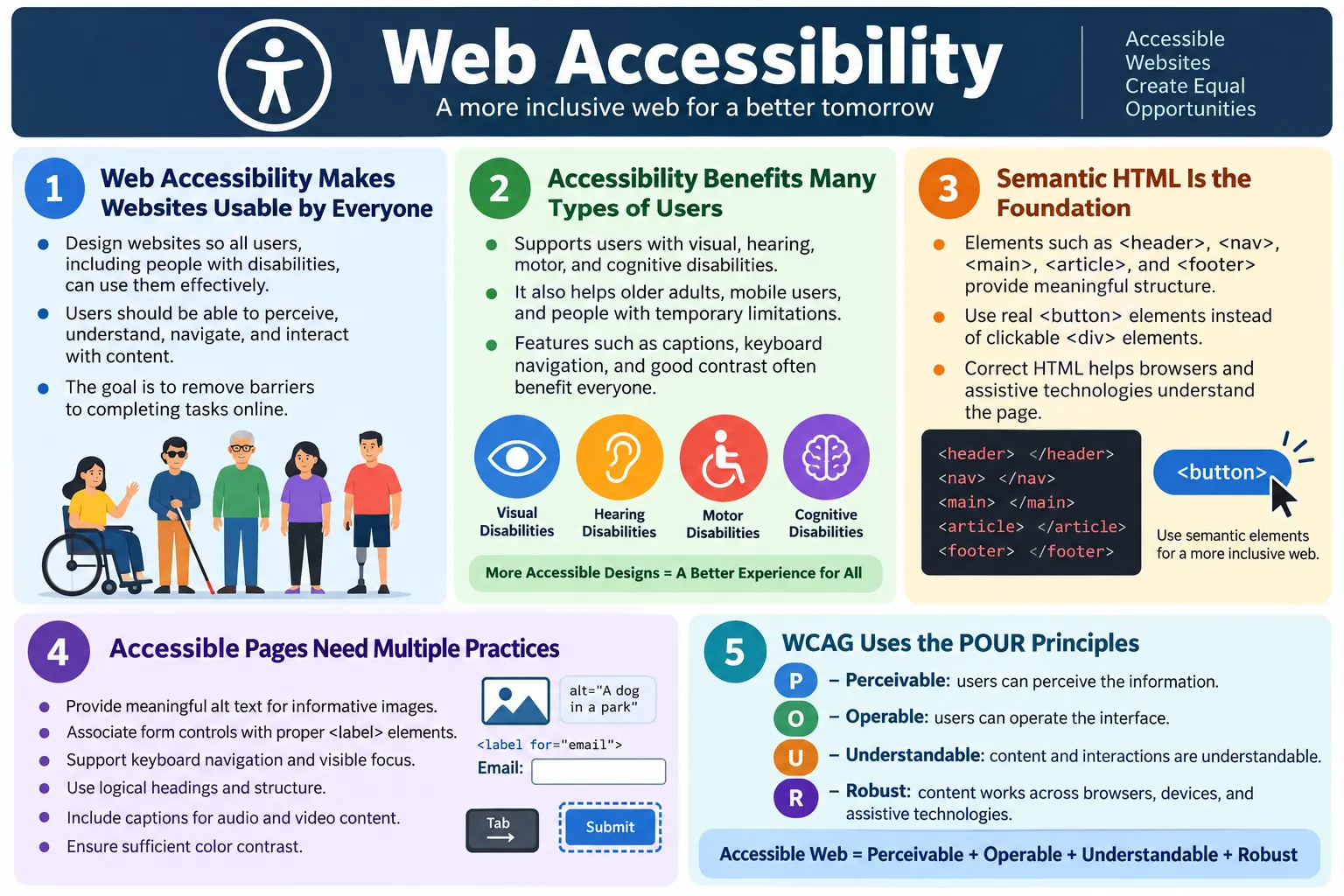
Web Accessibility is the practice of designing and developing websites so that everyone, including people with disabilities, can perceive, understand, navigate, and interact with web content effectively. A website is not truly successful if only some users can use it. The purpose of the web is to make information and services available, and accessibility ensures that access does not depend on perfect vision, hearing, mobility, memory, device type, browser environment, or input method.
Accessibility is often discussed in the context of disability, and that is important, but its impact is wider. It helps blind users who rely on screen readers, low-vision users who enlarge text, deaf users who need captions, keyboard-only users who cannot use a mouse, people with motor disabilities who use switch devices or voice control, and users with cognitive disabilities who benefit from clear structure and predictable interfaces. It also helps older adults, mobile users, people with temporary injuries, and users in difficult environments such as bright sunlight, noisy rooms, slow networks, or one-handed device use.
Web accessibility is not an optional decoration added at the end of a project. It is a quality requirement. It affects HTML structure, design choices, content writing, keyboard behavior, form construction, media handling, testing strategy, and overall user experience. When accessibility is built into the page from the beginning, the result is usually cleaner code, better navigation, stronger usability, improved search engine understanding, and a more professional website.
Definition
Web Accessibility means creating websites and web applications that can be accessed and used by all users, regardless of their physical or cognitive abilities. In simple terms, an accessible website removes barriers that would otherwise prevent users from reading information, understanding content, navigating pages, filling forms, watching media, making purchases, or completing tasks online.
Website
  |
  v
Accessible Design
  |
  v
Everyone Can Use It
This definition is important because accessibility is not limited to one feature. It is not only alt text, not only keyboard navigation, and not only screen reader support. It is the combined result of many decisions. A page needs meaningful structure, readable text, usable controls, clear labels, predictable navigation, sufficient contrast, helpful error messages, and compatibility with assistive technologies.
The goal is not to create a separate website for users with disabilities. The goal is to create one website that works for the widest possible range of users. Accessibility is inclusive design applied to web content.
Why Web Accessibility Is Important
Imagine a blind user trying to shop online. If product images do not have useful alternative text, if buttons are unlabeled, or if the checkout page cannot be navigated with a screen reader, the user may not be able to complete the purchase. Imagine a deaf user watching an educational video with no captions or transcript. The content exists visually, but the user cannot fully access the information. Imagine a person with limited hand movement trying to fill a form that requires precise mouse movement. If the form cannot be completed with a keyboard or assistive input device, the task becomes blocked.
Accessibility matters because the web is used for essential tasks: education, banking, employment, healthcare, public services, shopping, communication, transportation, and learning. When a website is inaccessible, it does not merely create inconvenience. It can exclude people from information and services that others can access easily.
Accessibility also matters for business and quality. Accessible websites reach more users, reduce frustration, improve completion rates, and often perform better on mobile devices. They also reduce legal and compliance risk in many regions where accessibility standards are connected to regulations. But even beyond compliance, accessibility is a practical measure of whether a website respects its users.
Goals of Accessibility
Web accessibility aims to ensure users can perceive content, operate the interface, understand information, interact successfully, and complete tasks independently. These goals sound simple, but each one affects many design and development choices.
Read
  |
  v
Navigate
  |
  v
Interact
  |
  v
Complete Task
To perceive content, users must be able to access information through available senses or assistive technology. Images need text alternatives when they communicate meaning. Audio needs transcripts or captions when it contains important information. Text needs sufficient contrast and readable sizing. Layout should not depend only on color or visual position.
To operate the interface, users must be able to use controls without a mouse. Buttons, links, form fields, menus, dialogs, and interactive widgets should be reachable and usable with a keyboard. Focus should be visible. Users should not become trapped inside a component.
To understand information, content should be clear, consistent, and predictable. Headings should describe sections. Labels should identify inputs. Error messages should explain what went wrong and how to fix it. Navigation should not change unexpectedly.
To interact successfully, the page should support real user workflows. It should not time users out too aggressively. It should not rely on gestures that have no alternative. It should not hide essential instructions. The final goal is task completion, not only technical compliance.
Who Benefits?
Accessibility benefits many types of users. The most obvious group is people with disabilities, but accessibility improvements often help everyone. A feature designed for one group can become useful in many situations. Captions help deaf users, but they also help people watching videos in a noisy room or quiet office. Keyboard navigation helps users with motor disabilities, but it also helps power users who prefer keyboard shortcuts. Clear headings help screen reader users, but they also help all readers scan a page quickly.
Users with visual impairments include blind users, low-vision users, and color-blind users. Blind users may use screen readers that convert page content into speech or Braille. Low-vision users may use zoom, magnifiers, high-contrast settings, or custom color schemes. Color-blind users may struggle when information is communicated only through red and green, or when contrast is weak.
Users with hearing impairments include deaf and hard-of-hearing users. They benefit from captions, transcripts, visual alerts, and content that does not depend solely on sound. If a video explains a technical concept, captions and transcripts make the information available to users who cannot hear the audio.
Users with motor disabilities may have limited hand movement, tremors, paralysis, or difficulty using a mouse. They may use keyboard navigation, voice control, switch devices, adaptive keyboards, or other assistive input methods. For these users, every interactive element must be reachable and usable without fine mouse control.
Users with cognitive disabilities may include people with dyslexia, memory impairments, attention-related conditions, learning disabilities, or processing difficulties. They benefit from simple language, consistent layouts, predictable interactions, clear instructions, visible progress, and helpful error messages.
Accessibility also helps users with temporary limitations. A person with a broken arm may temporarily need keyboard shortcuts or voice input. A user with eye strain may need larger text. A parent holding a baby may use a phone with one hand. A user in bright sunlight may need strong contrast. These situations show that accessibility is not a narrow edge case. It is part of real-world usability.
Mobile Users and Accessibility
Mobile users benefit strongly from accessibility improvements. Phones and tablets are used in varied environments: walking outdoors, sitting in vehicles, holding the device with one hand, dealing with glare, or using unstable network connections. Design choices that help accessibility often improve mobile usability too.
Large touch targets help people with motor disabilities, but they also help mobile users avoid accidental taps. Clear labels help screen reader users, but they also help mobile users understand forms quickly. Good contrast helps low-vision users, but it also helps anyone reading outside in sunlight. Logical headings help assistive technology users, but they also help mobile users scan long pages.
This overlap is one reason accessibility should not be treated as a separate concern. Accessible design and responsive design often support each other. A website that is easier to perceive, navigate, and operate is usually better on every device.
Common Accessibility Features
Accessible websites commonly include semantic HTML, keyboard navigation, alternative text for images, form labels, captions for videos, good color contrast, proper heading structure, focus indicators, and descriptive links. Each feature solves a specific type of barrier.
Semantic HTML gives meaning to page structure. Keyboard navigation allows users to move through interactive elements using the Tab key and activate controls without a mouse. Alternative text helps screen readers describe meaningful images. Form labels connect instructions to inputs. Captions and transcripts make audio and video content accessible. Good contrast keeps text readable. Proper headings create a navigable outline. Focus indicators show keyboard users where they are. Descriptive links make navigation meaningful even when links are read out of context.
These features are not advanced extras. They are basic expectations for a usable website. Many of them are easy to implement when developers use HTML correctly from the start.
HTML's Role in Accessibility
HTML provides the foundation for accessibility. Browsers and assistive technologies use HTML structure to understand what a page contains and how users can interact with it. Semantic elements such as <header>, <nav>, <main>, <article>, and <footer> create meaningful landmarks. Screen reader users can use these landmarks to jump to important parts of the page.
<header>
<nav>
<main>
<article>
<footer>
When developers use generic <div> elements for everything, the visual layout may still look correct, but the structure is less meaningful. Assistive technologies depend on semantic information. A navigation menu should be inside <nav>. The main content should be inside <main>. A button should be a real <button>, not a clickable <div>. Correct HTML provides built-in keyboard behavior, roles, names, and expectations.
HTML is not the only accessibility layer, but it is the first one. CSS can improve readability and focus visibility. JavaScript can create dynamic behavior. ARIA can add accessibility information when native HTML is not enough. But if the HTML foundation is poor, the rest of the accessibility work becomes harder.
Images and Alternative Text
Images need appropriate alternative text when they communicate meaning. A screen reader cannot automatically know what a meaningful image represents in the context of a page. Without alt text, the user may hear only the file name or nothing useful.
<img src="logo.png">This is incomplete when the image is meaningful. A better version gives the image a useful description.
<img src="logo.png" alt="SoftwareTips4U Logo">Good alt text depends on context. A product image might need alt="Blue running shoes". A decorative divider image may need an empty alt attribute, alt="", so assistive technology can skip it. A complex chart may need a short alt text plus a longer explanation nearby. The goal is to communicate the same meaningful information that sighted users get from the image.
Forms and Labels
Forms are one of the most important areas of accessibility because users often need forms to register, log in, search, purchase, apply, contact, or complete business workflows. Every form control should have an associated label. Without a label, screen reader users may not know what information the input expects.
<input type="email">This input may be visually understandable if placeholder text or nearby text exists, but it is not as robust as a proper label. A better version connects a <label> to the input using for and id.
<label for="email">Email</label>
<input id="email" type="email">
Labels improve accessibility and usability. Clicking the label can focus the input. Screen readers can announce the label when the field receives focus. Testing tools can also inspect whether inputs are labeled correctly. Placeholder text should not replace a label because placeholders disappear when users type and may not provide the same accessibility support.
Headings and Page Structure
Headings create the outline of a page. A logical heading hierarchy helps users understand the structure and move through content efficiently. Screen reader users often navigate by headings, so headings should describe real sections and follow a meaningful order.
<h1>HTML Tutorial</h1>
<h2>Introduction</h2>
<h2>Forms</h2>
A page should usually have one main <h1> that describes the page topic. Major sections use <h2>. Subsections use <h3>, and so on. Developers should not choose heading levels only for visual size. CSS can control size. HTML headings should communicate structure.
Skipping heading levels can make navigation confusing. A page that jumps from <h1> to <h4> without a structural reason may still render visually, but it creates a weaker document outline. Clear headings help all users, especially on long educational pages.
Keyboard Accessibility
Every interactive element should be usable without a mouse. Keyboard accessibility is essential because many users navigate with the keyboard, assistive switches, voice commands, or other input devices that depend on keyboard-like behavior. If a website requires a mouse, it excludes users who cannot use one.
Tab
  |
  v
Button
  |
  v
Tab
  |
  v
Link
  |
  v
Tab
  |
  v
Input Field
Keyboard users should be able to reach links, buttons, form fields, menus, dialogs, and controls in a logical order. They should be able to activate buttons with Enter or Space where appropriate. Focus should be visible so users know where they are. Modal dialogs should manage focus carefully, and users should be able to close them and return to the previous context.
Keyboard traps are serious accessibility problems. A keyboard trap happens when focus enters a component and the user cannot move away using the keyboard. Users should always have a way to continue navigating or exit the component.
Screen Readers
A screen reader converts webpage content into speech or Braille. Screen reader users do not experience a page as a visual screenshot. They experience it through structure, names, roles, states, and content order. Semantic HTML helps screen readers announce the structure correctly.
HTML
  |
  v
Screen Reader
  |
  v
Speech Output
  |
  v
User
For example, a real <button> is announced as a button and has built-in keyboard behavior. A real <nav> creates a navigation landmark. A properly labeled input announces its label. A heading announces its level. These details help users understand where they are and what actions are available.
Screen reader compatibility does not mean writing special content only for screen reader users. It means writing correct HTML and accessible behavior so assistive technology can communicate the same page meaning through a non-visual interface.
Accessibility Standards
The most widely used accessibility standard is the Web Content Accessibility Guidelines, commonly called WCAG. WCAG is developed by the World Wide Web Consortium, or W3C. It provides internationally recognized guidance for creating accessible web content.
WCAG is based on four principles: Perceivable, Operable, Understandable, and Robust. These principles are often remembered by the acronym POUR. Perceivable means information must be presented in ways users can perceive. Operable means users must be able to operate the interface. Understandable means content and interactions should be easy to understand. Robust means content should work with different browsers, devices, and assistive technologies.
POUR is useful because it explains accessibility at a high level. If users cannot perceive content, they cannot use it. If they cannot operate controls, they cannot complete tasks. If they cannot understand instructions, they will make mistakes. If the implementation is not robust, assistive technologies may fail to interpret it correctly.
Real-World Examples
In an e-commerce website, accessibility can determine whether a user can complete a purchase. Keyboard navigation should allow users to move from product search to product details, cart, checkout, payment, and order confirmation. Product images should have useful alt text. Form fields should have labels. Error messages should explain problems clearly. If these pieces work together, users can complete the order independently.
Shopping Website
  |
  v
Keyboard Navigation
  |
  v
Checkout
  |
  v
Order Completed
In online banking, accessibility is even more critical. Users need to log in, review balances, transfer money, pay bills, and read transaction details. Accessible forms, clear headings, readable tables, and screen reader-friendly controls are essential. A banking workflow that fails for assistive technology users can prevent access to important financial services.
In educational websites, captions and transcripts make videos accessible to deaf and hard-of-hearing learners. Clear headings and readable content help students with cognitive disabilities. Keyboard navigation helps students who cannot use a mouse. Accessibility directly supports learning outcomes.
Government portals also need accessibility because users may depend on them for public services. Applying for benefits, renewing documents, paying fees, or reading official information should not require a perfect device or a specific ability.
Benefits Beyond Accessibility
Accessibility improves more than disability support. It often improves SEO, code quality, mobile usability, user experience, and maintainability. Semantic HTML helps search engines and assistive technologies understand page structure. Descriptive links improve navigation and search relevance. Captions and transcripts can make media content searchable and easier to reuse.
Good accessibility practices also create cleaner code. Real buttons, labels, headings, and landmarks are easier to test and maintain than custom elements that imitate native behavior. When developers use HTML as intended, they get many accessibility features for free.
Mobile usability also improves. Good contrast, readable text, clear controls, visible focus styles, and predictable layouts benefit users on small screens. Accessibility is often a signal of thoughtful design, not a separate technical burden.
Common Mistakes
Missing alt text is a common mistake. If an image communicates meaning and has no useful alternative text, screen reader users may miss important information. A product image with no description can make shopping harder. A chart with no explanation can hide key data.
<img src="product.jpg"><img src="product.jpg" alt="Blue running shoes">Another mistake is using generic <div> elements instead of semantic elements. A visual header built with <div class="header"> may look correct, but <header> communicates meaning more clearly. A clickable <div> used instead of a button may lack keyboard behavior and proper role information.
Poor color contrast is also common. Text should have sufficient contrast against its background so it remains readable. Low contrast affects low-vision users, older users, mobile users outdoors, and anyone reading in difficult lighting.
Skipping form labels is another frequent issue. Every input, select, and textarea should have an accessible name. Labels are not only visual text. They connect the instruction to the control.
Keyboard traps, hidden focus indicators, vague link text, missing captions, inconsistent navigation, and unclear error messages are also common accessibility problems. Most of these can be prevented by designing and testing accessibility from the beginning.
Selenium Perspective
Automation testers often verify keyboard navigation, form labels, alt text, focus order, heading structure, ARIA attributes when applicable, and screen reader compatibility with the help of specialized tools. Selenium can automate many checks related to structure and behavior, but it should be combined with accessibility testing tools and manual review.
For example, Selenium can tab through a page and verify focus movement. It can check whether images have alt attributes. It can inspect labels and input associations. It can validate whether important buttons are reachable and enabled. It can confirm that error messages appear after invalid form submissions.
Accessibility testing is frequently combined with tools such as Axe, Lighthouse, and WAVE. These tools can detect many common issues, including missing labels, color contrast problems, invalid ARIA usage, missing alt text, and structural concerns. However, tools cannot fully judge whether the user experience makes sense. Human review is still required.
Manual Accessibility Testing
Manual testing is essential because accessibility is about real user experience. A quick keyboard-only test can reveal many problems. Start at the top of the page, press Tab repeatedly, and observe whether focus moves in a logical order. Check whether every interactive element can be reached and activated. Confirm that the focus indicator is visible. Try closing menus, dialogs, and popups without a mouse.
Screen reader testing can reveal whether the page structure is meaningful. Headings should announce clearly. Buttons should have accessible names. Form fields should announce labels and errors. Images should have useful descriptions or be skipped if decorative. Landmarks should help users move around the page.
Content review is also part of manual testing. Link text should make sense. Instructions should be clear. Error messages should tell users what went wrong and how to fix it. Accessibility is not only code; it is also communication.
Accessibility and ARIA
ARIA, which stands for Accessible Rich Internet Applications, can add accessibility information when native HTML is not enough. It can define roles, states, and properties for complex widgets. However, ARIA should be used carefully. The first rule is to prefer native HTML whenever possible.
A real <button> is better than a <div role="button"> in most cases because the native button already provides keyboard behavior and accessibility semantics. A real label is better than trying to simulate labeling through custom scripting. ARIA is powerful, but it does not automatically make broken interaction patterns accessible.
Use ARIA to enhance, not replace, good HTML. If a custom component is necessary, ARIA can communicate expanded states, selected states, dialog roles, live regions, and other important information. But developers must also implement keyboard behavior and focus management correctly.
Accessibility in the Development Process
Accessibility should be part of the normal development process, not a final cleanup task. Requirements should include accessibility expectations. Designs should consider contrast, focus states, touch target size, error states, and responsive behavior. Developers should use semantic HTML and test with keyboard navigation while building. QA should include accessibility checks in test cases.
When accessibility is delayed until the end, fixes become more expensive. A custom dropdown built without keyboard support may require major rework. A form built without labels may need structural changes. A color palette with poor contrast may require design changes across the site. Early accessibility review prevents these problems.
Teams can improve accessibility by adding linting, component guidelines, design tokens for contrast, reusable accessible components, automated accessibility scans, and manual testing checkpoints. The goal is to make accessibility a habit rather than a special project.
Accessibility Checklist
A practical accessibility checklist should include semantic HTML, logical heading order, meaningful alt text, keyboard access, visible focus indicators, labeled form controls, clear error messages, sufficient color contrast, captions or transcripts for media, descriptive link text, responsive layouts, and careful ARIA usage.
It should also include user workflow testing. Can a keyboard-only user complete the checkout? Can a screen reader user understand the form? Can a low-vision user read the content? Can a deaf user access video information? Can a user understand what went wrong after submitting invalid data?
Accessibility checklists are useful, but they should not become a mechanical exercise. The real question is whether users with different abilities and tools can successfully complete the intended tasks.
Accessibility and Content Quality
Accessibility is not only a technical concern. Content quality also affects whether users can understand and complete tasks. A page can have semantic HTML and still be difficult to use if the writing is confusing, instructions are vague, or error messages are unclear. Accessible content should be direct, organized, and written for the audience that needs to use it.
Clear language helps users with cognitive disabilities, users reading in a second language, mobile users scanning quickly, and anyone trying to complete a task under pressure. Short paragraphs, meaningful headings, descriptive labels, and predictable terminology all improve accessibility. For example, a form error that says "Invalid input" is less helpful than "Enter a valid email address, such as name@example.com."
Link text is another content issue. Links such as "click here" or "read more" can be confusing when read out of context. Screen reader users may navigate by a list of links, and repeated vague links do not explain where each one goes. A descriptive link such as "Read the HTML forms tutorial" is more useful because it communicates the destination clearly.
Accessible content also avoids relying only on visual location. Instructions like "click the button on the right" may not help users on mobile layouts or screen readers. A better instruction names the control: "Select the Continue button." This makes the instruction independent of layout and device.
Accessibility and Visual Design
Visual design has a major impact on accessibility. Color contrast, font size, spacing, layout consistency, and visible states all affect readability and usability. A design can look polished but still be inaccessible if text is too light, controls are too small, or focus indicators are removed.
Color should never be the only way to communicate meaning. If a form shows errors only by turning fields red, color-blind users may miss the message. Add text, icons, or clear error descriptions. If a chart uses only color to distinguish values, add labels, patterns, or a data table. The goal is to make meaning available through more than one signal.
Focus indicators are another design responsibility. Some designs remove browser focus outlines because they are considered visually distracting. This creates a serious keyboard accessibility problem. Keyboard users need a clear visual indication of the currently focused element. A custom focus style is fine, but removing focus visibility entirely is not.
Spacing and layout also matter. Crowded interfaces increase cognitive load and make touch targets harder to use. Buttons, links, and inputs should be easy to identify and activate. Visual hierarchy should support the document structure rather than fight against it.
Accessibility in Dynamic Interfaces
Modern websites often include dynamic behavior: menus open and close, dialogs appear, content updates without a full page reload, search suggestions appear while typing, and notifications display after actions. These patterns can be accessible, but they require careful implementation.
When content changes dynamically, users need to know what happened. If a form submission creates an error message, keyboard and screen reader users should be able to discover it easily. If a modal dialog opens, focus should move into the dialog, and the user should be able to close it with the keyboard. If a menu opens, the user should be able to navigate menu items predictably.
Dynamic updates may need ARIA live regions when important messages appear without moving focus. For example, a cart count update or validation result may need to be announced to assistive technology. However, live regions should be used carefully because too many announcements can become noisy and distracting.
The key principle is that visual changes must also be communicated through structure, focus, state, or announcement. If sighted mouse users can see that something changed, non-visual and keyboard users also need a way to understand and respond to that change.
Business and Legal Considerations
Many organizations treat accessibility as a business requirement because inaccessible websites can exclude customers, reduce conversions, increase support requests, and damage trust. A user who cannot complete checkout, submit a form, or read important information may leave the site or contact support. Accessibility improvements often reduce these barriers.
Accessibility can also have legal importance. Different countries and regions have laws or policies that reference accessible digital experiences, especially for public services, education, employment, finance, and commerce. Specific legal requirements vary, but WCAG is commonly used as a reference standard. Teams should understand the expectations that apply to their organization and audience.
Even when legal compliance is not the immediate focus, accessibility reduces risk and improves quality. It is much easier to build accessible components from the start than to repair a large inaccessible system later. A consistent accessible component library can save time across many pages and teams.
Accessibility as Shared Responsibility
Accessibility is not owned by only one role. Designers, developers, testers, content writers, product owners, and stakeholders all influence accessibility. Designers choose contrast, layout, focus states, and interaction patterns. Developers implement semantic HTML, keyboard behavior, and dynamic states. Testers verify workflows, assistive technology behavior, and regressions. Content writers create clear text, labels, headings, and instructions.
Product owners also play a role by including accessibility in acceptance criteria and release decisions. If accessibility is not included in planning, teams may treat it as optional. When it is part of the definition of done, it becomes part of normal quality work.
The strongest accessibility outcomes happen when teams discuss accessibility early. A design review can catch contrast problems before development. A component review can catch keyboard problems before many pages reuse the component. A content review can improve labels before translation or publication. Accessibility works best when it is integrated, not isolated.
Comparison Table
| Accessible Website | Inaccessible Website |
|---|---|
| Semantic HTML | Generic structure |
| Keyboard accessible | Mouse required |
| Images have alt text | Missing image descriptions |
| Proper form labels | Unlabeled inputs |
| Good color contrast | Poor readability |
| Screen reader friendly | Difficult for assistive technologies |
Common Interview Questions
What is web accessibility? Web accessibility is the practice of making websites usable by everyone, including people with disabilities.
Why is accessibility important? It removes barriers, improves usability, supports legal compliance in many regions, and benefits all users, not only users with disabilities.
What role does HTML play in accessibility? Semantic HTML provides meaningful structure that browsers and assistive technologies use to understand webpages.
What is WCAG? WCAG, or Web Content Accessibility Guidelines, is the internationally recognized standard for creating accessible web content.
What are the four WCAG principles? They are Perceivable, Operable, Understandable, and Robust, commonly remembered as POUR.
Does accessibility only help disabled users? No. It also improves usability for mobile users, older adults, users with temporary impairments, and people in challenging environments.
Interview-Ready Answer
Web Accessibility is the practice of designing and developing websites so that everyone, including people with disabilities, can access and use them effectively. It involves using semantic HTML, keyboard-friendly navigation, descriptive alternative text, properly labeled forms, sufficient color contrast, and other techniques that improve usability for assistive technologies. The primary standard for accessibility is the Web Content Accessibility Guidelines, or WCAG, which are based on the principles of Perceivable, Operable, Understandable, and Robust. Accessibility benefits not only users with disabilities but also mobile users, older adults, and anyone using websites in different environments.
One-Line Insight
Web accessibility ensures that every user, regardless of ability, can successfully use and interact with a website.