Web Workers (HTML Entry)
Introduction
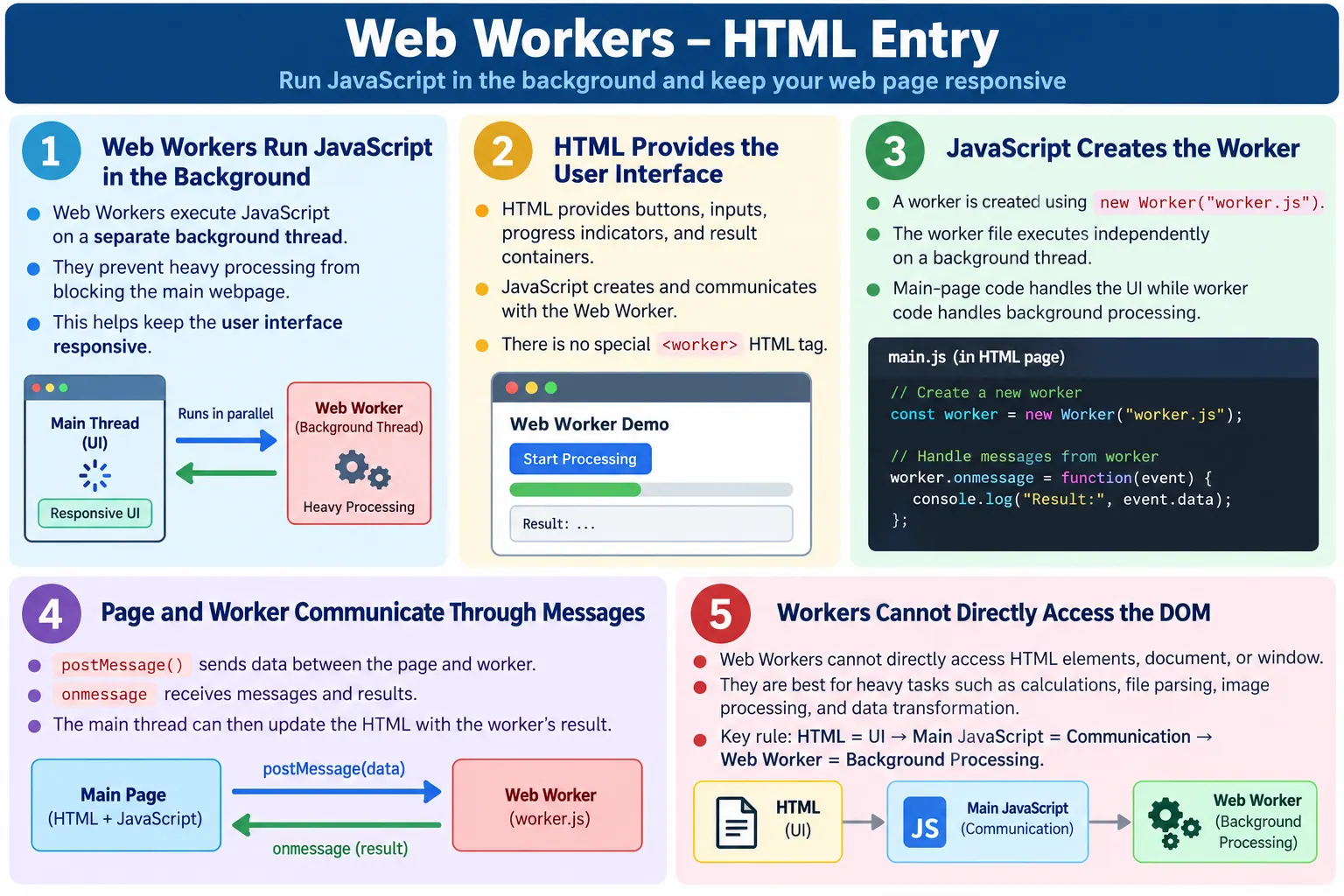
Web Workers are a browser feature that allows JavaScript code to run in the background on a separate thread without blocking the main webpage. They are useful when a page needs to perform time-consuming tasks while keeping the user interface responsive. A user should still be able to click buttons, type into fields, scroll, and see progress updates even when the application is doing heavy processing.
Although Web Workers are primarily a JavaScript feature, HTML plays an important role. HTML provides the page that contains buttons, input fields, status messages, progress areas, and result containers. JavaScript running from that HTML page creates the worker, communicates with it, and updates the page when the worker sends results back. The worker logic itself lives in a separate JavaScript file.
Web Workers are especially important because normal JavaScript runs on the main thread. The main thread is responsible for running scripts, handling user input, updating the DOM, calculating styles, laying out the page, and rendering changes. If a heavy task runs on the main thread, the browser may become unresponsive until that task finishes. Web Workers solve this by moving suitable work into a background thread.
What Are Web Workers?
A Web Worker is a JavaScript file that runs independently of the main webpage. Instead of executing everything on the main thread, the browser creates a separate background thread for the worker. The main page and the worker communicate by sending messages to each other.
Web Page
  ↓
Creates Worker
  ↓
Background Thread
  ↓
Performs Heavy Task
The worker does not share the same environment as the main page. It cannot directly access HTML elements, the DOM, the document object, or the normal page window object. This isolation is intentional. It allows workers to perform background processing without directly manipulating the page and without blocking rendering.
A useful way to think about a worker is as a helper running in the background. The page gives the worker a job. The worker performs the job. When it finishes or has progress to report, it sends a message back. The page receives that message and updates the HTML.
Why Are Web Workers Needed?
Normally, JavaScript runs on a single main thread in the browser. If a script performs a huge calculation or processes a large file on that thread, the page may freeze. The browser cannot respond to user input until the script finishes.
User Clicks Button
  ↓
JavaScript Starts
  ↓
Heavy Calculation
  ↓
Page Freezes
With a Web Worker, the heavy task can run in the background. The main thread stays available for user interaction and rendering.
User Clicks Button
  ↓
Create Worker
  ↓
Heavy Calculation
  ↓
UI Remains Responsive
This is valuable for applications that perform CPU-intensive work. Without workers, a large calculation, image transformation, file parsing operation, encryption step, or spreadsheet calculation may make the page feel broken. With workers, the page can continue to show progress, accept input, and remain usable.
HTML's Role in Web Workers
HTML provides the webpage that starts the worker and displays the results. It contains the interface elements: buttons, input fields, progress indicators, result containers, and script references. The worker itself is created by JavaScript, but the user interacts with the HTML page.
HTML Page
  ↓
JavaScript
  ↓
Worker File
  ↓
Background Processing
For example, HTML may include a Start Worker button and a paragraph that displays the result. JavaScript attached to the page listens for the button click, creates the worker, receives messages from it, and updates the paragraph. The worker performs the heavy calculation in the background.
This means HTML does not have a special <worker> tag. No new HTML element is required. The page uses normal HTML elements and scripts. The special behavior comes from JavaScript and the browser's Worker API.
Basic HTML Structure
A simple Web Worker demo begins with an ordinary HTML page. The page creates the interface that the user sees.
<!DOCTYPE html>
<html>

<head>
  <title>Web Worker Demo</title>
</head>

<body>

<h2>Web Worker Example</h2>

<button id="start">
  Start Worker
</button>

<p id="result">
  Waiting...
</p>

<script src="script.js"></script>

</body>
</html>
The HTML creates the visible interface. It does not perform the background task by itself. The external script.js file can attach behavior to the button and create the worker.
Creating a Worker
JavaScript creates a worker using the Worker constructor. The constructor receives the path to a worker JavaScript file.
const worker =
new Worker("worker.js");
The browser loads worker.js into a separate background thread. That file runs independently from the main page script. The page can then send messages to the worker and listen for messages from it.
Worker files are usually separate JavaScript files because the browser needs to load and execute them in a worker context. This separation also makes the architecture clearer: main page code handles UI, while worker code handles background processing.
Worker File
A worker file contains JavaScript that runs in the background. For example, it might perform a large calculation.
let total = 0;

for (let i = 0; i < 1000000000; i++) {
  total += i;
}

postMessage(total);
The calculation happens in the worker thread. When it finishes, the worker sends the result back to the main page using postMessage(). The main page can then update the HTML.
The worker can do calculations, parse data, transform files, process images, or perform other background tasks. It should not try to update the DOM directly because workers do not have DOM access.
Receiving Results
The main page listens for messages from the worker using onmessage or addEventListener("message", ...).
worker.onmessage =
function(event) {
  console.log(event.data);
};
The worker sends data back using:
postMessage(value);The message event carries the data in event.data. After receiving the result, the main page can update HTML elements such as result text, progress bars, tables, or status messages.
Browser Workflow
The browser workflow begins with the HTML page. The page loads JavaScript. JavaScript creates the worker. The worker processes data in the background. When processing is complete, the worker returns a result. The main page receives that result and updates the HTML.
HTML Page
  ↓
JavaScript
  ↓
Create Worker
  ↓
Background Thread
  ↓
Process Data
  ↓
Return Result
  ↓
Update HTML
This separation keeps the page responsive. The main thread remains available for UI work while the worker handles the heavy task.
Communication Between Page and Worker
The webpage can send data to the worker using worker.postMessage().
worker.postMessage("Start");The worker receives the message with onmessage.
onmessage =
function(event) {
  console.log(event.data);
};
The worker replies with postMessage().
postMessage("Done");The webpage receives the reply through its worker message handler. This message-based communication is the foundation of worker interaction. The page and worker do not share direct DOM access. They exchange data through messages.
Real-World Use Cases
Web Workers are commonly used for large calculations, image processing, file processing, data parsing, encryption, decryption, background synchronization, spreadsheet calculations, PDF generation, search indexing, and processing large JSON responses.
Upload Image
  ↓
Worker Resizes Image
  ↓
Display Result
For example, an image editing tool might use a worker to resize or filter an image. A spreadsheet-like web app might use a worker to recalculate formulas. A data-heavy dashboard might parse a large CSV file in a worker so the page does not freeze. A text editor might run background analysis without interrupting typing.
Advantages of Web Workers
The main advantage of Web Workers is responsiveness. They prevent UI freezing by moving heavy work off the main browser thread. This improves user experience, especially on slower devices or when tasks take noticeable time.
Workers also provide separate execution. Background processing can be organized away from UI code. This separation makes architecture clearer: the main page handles user interaction and rendering, while the worker handles computation. For CPU-intensive tasks, this separation can make a large difference in perceived performance.
Web Workers are suitable for operations that do not need direct DOM access. If a task can receive data, process it, and return a result, it may be a good worker candidate.
Limitations of Web Workers
Web Workers cannot directly access HTML elements, the DOM, the window object, the document object, or alert dialogs. The following code is not allowed inside a worker:
document.getElementById("demo");Instead, the worker sends data back to the main thread, and the main thread updates the page. This limitation is important because the DOM is managed on the main thread. Workers are designed for background processing, not direct UI manipulation.
Workers also have startup overhead. Creating a worker for a tiny calculation may be unnecessary. Workers are best for tasks that are heavy enough to justify the extra complexity.
Main Thread vs Worker
The main thread and worker thread have different responsibilities.
Main Thread
  ↓
DOM
  ↓
Buttons
  ↓
Forms
  ↓
Rendering

----------------

Worker Thread
  ↓
Calculations
  ↓
Processing
  ↓
No DOM Access
The main thread handles UI and rendering. The worker handles background processing. The two communicate through messages. This model keeps heavy work away from user interface updates.
Example Workflow
A typical workflow looks like this:
User Clicks
  ↓
Start Worker
  ↓
Worker Calculates
  ↓
Page Remains Responsive
  ↓
Worker Finishes
  ↓
Result Displayed
This workflow is useful because the user gets feedback and the page remains usable while the computation is running. A loading indicator, progress text, or cancel button can improve the experience further.
Browser Support
Modern browsers support Web Workers, including Chrome, Edge, Firefox, and Safari. No additional HTML tags are required. The page creates workers through JavaScript.
Although support is broad, applications should still handle cases where workers are not available or where a worker fails to load. A graceful fallback may run a simpler version of the task, show a message, or disable an advanced feature.
Security
A worker must usually be loaded from the same origin as the webpage, subject to browser security policies and proper server configuration. This restriction helps prevent pages from loading arbitrary background scripts from untrusted origins.
Workers cannot directly manipulate the webpage, which provides useful isolation for background processing. However, workers are not a security boundary for unsafe code. They still run as part of the web application environment, and messages should be validated when needed.
Worker Error Handling
Workers can fail. The worker file may not load, the worker may throw an error, or the task may produce invalid output. The main page should listen for worker errors and show a useful message instead of failing silently.
worker.onerror =
function(error) {
  console.error("Worker error:", error.message);
};
Good error handling improves reliability. If a background process fails, the user should know what happened and what to do next. For example, a file processing tool might show "Unable to process this file" instead of leaving the interface stuck on "Processing."
Terminating Workers
If a worker is no longer needed, it should be terminated. Terminating a worker frees browser resources and stops the background script.
worker.terminate();This is useful when a user cancels a task, leaves a feature, starts a new task that replaces the old one, or closes a processing panel. Long-running workers should not be left active without reason. Resource cleanup is part of a professional implementation.
When to Use Web Workers
Use Web Workers for tasks that are expensive enough to block the main thread. Good candidates include large calculations, parsing large files, processing images, generating reports, working with large datasets, encryption, compression, and data transformation.
Do not use workers for simple tasks that finish instantly. Creating a worker has overhead. If a task is small, ordinary JavaScript on the main thread is simpler and usually fine. The decision should be based on user experience: if the task can freeze or slow the UI, a worker may help.
When Not to Use Web Workers
Do not use Web Workers for tasks that require direct DOM manipulation. Workers cannot access the DOM, so the main thread must handle UI changes. Do not use a worker just because a function exists; use it when background execution actually improves responsiveness.
Workers also add architectural complexity. Code must be split across files, communication must be handled through messages, errors must be managed, and results must be synchronized with the UI. For small pages, this may be unnecessary.
Performance Considerations
Web Workers can improve responsiveness, but they do not make computations magically free. The browser still uses CPU resources. On low-powered devices, heavy worker tasks can still affect battery life and overall performance. The benefit is that the main UI thread remains more responsive.
Passing very large data between the main thread and a worker can also have cost. Data may need to be copied or transferred depending on the type of data and API used. For large binary data, transferable objects can be useful, but they require additional understanding. For beginner-level usage, keep messages simple and avoid sending unnecessary data repeatedly.
Progress Updates
A worker can send progress updates while processing. This helps the page show a progress bar or status message.
postMessage({
  type: "progress",
  value: 50
});
The main page can inspect the message type and update the UI accordingly. Progress feedback is important for long-running tasks because it tells the user that the application is still working.
Designing Worker Messages
Simple worker examples often send a plain string or number. Real applications usually benefit from structured messages. A structured message includes a type and a payload. This makes it easier for the main page to understand whether the worker is reporting progress, returning a final result, sending an error, or asking for more information.
postMessage({
  type: "result",
  payload: {
    total: 5000
  }
});
The main page can switch based on the message type.
worker.onmessage = function(event) {
  const message = event.data;

  if (message.type === "progress") {
    updateProgress(message.value);
  }

  if (message.type === "result") {
    showResult(message.payload);
  }
};
This pattern keeps communication predictable. It also makes debugging easier because each message has a clear purpose. When a worker grows beyond a simple demo, structured messages are much easier to maintain than passing unrelated strings back and forth.
Dedicated Workers and Shared Workers
The most common Web Worker type beginners encounter is a dedicated worker. A dedicated worker is created by one page or script and communicates with that creator. This is the type created with new Worker("worker.js"). It is enough for many use cases such as parsing a file, processing an image, or running a calculation for a single page.
Browsers also provide other worker-related patterns, such as Shared Workers and Service Workers. A Shared Worker can be shared by multiple browsing contexts from the same origin, depending on browser support. A Service Worker is different again; it is commonly used for offline behavior, caching, and network request handling in progressive web applications.
For this HTML entry topic, the key point is that regular Web Workers are used for background JavaScript processing. They are not the same as Service Workers. Service Workers sit between the page and the network. Web Workers run computation in the background. Interview questions often test this distinction.
Web Workers vs Service Workers
Web Workers and Service Workers both run separately from the main page, but they solve different problems. A Web Worker helps with CPU-intensive processing. A Service Worker helps with network control, caching, offline behavior, and push-related application patterns.
| Web Worker | Service Worker |
|---|---|
| Used for background computation | Used for network and offline features |
| Created by page JavaScript | Registered by page JavaScript |
| Runs while needed by the page | Can run independently of an open page for certain events |
| No direct DOM access | No direct DOM access |
| Common for calculations and parsing | Common for caching and offline support |
Knowing this difference helps developers choose the correct tool. If the page freezes during a large calculation, a Web Worker may help. If the application needs offline caching, a Service Worker is the relevant technology.
Worker Cancellation
Long-running tasks should often be cancellable. If a user starts processing a large file and then changes their mind, the application should not force them to wait. The main page can terminate the worker, or it can send a cancel message if the worker is designed to stop gracefully.
cancelButton.addEventListener("click", function() {
  worker.terminate();
  result.textContent = "Cancelled";
});
Terminating the worker stops it immediately. A graceful cancellation pattern may be better when the worker needs to clean up internal state before stopping. The right approach depends on the task. For simple calculations, termination may be enough. For more complex workflows, a cancel message and cleanup logic may be cleaner.
Cancellation should also update the UI. The page should remove loading indicators, re-enable disabled buttons, and tell the user what happened. A background task should never leave the interface stuck in a loading state.
File Processing with Web Workers
File processing is a strong use case for Web Workers. A browser application may allow users to upload or select a large file, parse it, validate it, transform it, and display a result. Doing all of that on the main thread can freeze the UI, especially with large CSV, JSON, image, or text files.
With a worker, the main page can read or pass file data to the worker, then receive progress and result messages. The user can continue interacting with the page while the worker processes the file. The page can show progress, allow cancellation, and display errors cleanly.
Select File
  ↓
Send File Data to Worker
  ↓
Worker Parses Data
  ↓
Worker Sends Result
  ↓
Page Displays Output
This pattern is common in data tools, spreadsheet importers, image editors, PDF tools, and browser-based utilities. It is especially useful when the application wants to avoid uploading data to a server and can process it locally in the browser.
Image Processing with Web Workers
Image processing can be CPU-intensive. Resizing, filtering, analyzing pixels, compressing, or converting images can take time. If these operations run on the main thread, the interface may freeze. A worker can perform the heavy calculation and return processed data to the page.
The page still handles the UI. It lets the user choose an image, shows a preview, displays progress, and renders the final result. The worker handles the expensive transformation. This separation creates a smoother experience.
When handling images, developers should also consider memory usage. Large images can consume significant memory, and transferring data between threads can have overhead. Workers help responsiveness, but they do not remove the need for efficient processing.
Data Parsing with Web Workers
Large data parsing is another practical use case. A dashboard may need to parse a large JSON response. A reporting tool may need to parse CSV files. A browser-based code tool may need to analyze source text. These tasks can be moved into a worker.
The worker can receive raw data, parse it, clean it, summarize it, and return only the data needed for display. This reduces main-thread work and helps the page remain responsive. The main page can then render the processed result in a table, chart, or report.
As with other worker tasks, avoid sending unnecessary data repeatedly. Send what the worker needs, process it, and return a compact result when possible.
Debugging Web Workers
Debugging workers can feel different from debugging normal page scripts because the worker runs in a separate context. Modern browser developer tools allow developers to inspect worker scripts, view console messages, set breakpoints, and observe worker behavior. Console logs from workers may appear separately or with worker context labels, depending on the browser.
A useful debugging practice is to use structured messages and clear error messages. If a worker sends { type: "error", message: "Invalid file format" }, the main page can display the message and the developer can understand the failure. Random strings and unclear failures make worker debugging harder.
Also test failure paths intentionally. Try missing files, invalid input, large input, repeated starts, cancellation, and worker script loading errors. A worker feature is only reliable when the failure behavior is predictable.
Worker File Organization
Worker logic should be organized separately from UI logic. The main page script should create the worker, send input, receive output, and update the DOM. The worker file should perform background processing and send messages back. Mixing UI assumptions into worker code creates confusion because workers cannot access the DOM.
A clean worker file usually has message handlers, processing functions, validation helpers, and result messages. A clean main script usually has event listeners, UI updates, worker lifecycle management, and error display logic. This separation makes the system easier to test and reason about.
For larger applications, teams may use build tools to bundle worker files. The concept remains the same: worker code runs in a background context and communicates through messages.
Accessibility and User Feedback
Web Workers improve responsiveness, but accessibility still depends on the page UI. If a background task starts, users need feedback. A loading message, progress indicator, or status text helps users understand what is happening. If a task completes, the result should appear in a predictable place. If a task fails, the error should be clear.
Keyboard users should be able to start and cancel worker tasks. Buttons should remain focusable and meaningful. If a long process updates progress, the page may need an accessible status region. The exact implementation depends on the application, but the principle is simple: background work should not make the interface mysterious.
A responsive page is not automatically accessible. Workers help prevent freezing, but developers still need semantic HTML, clear labels, focus management, and usable controls.
Practical Decision Checklist
Before using a Web Worker, ask whether the task is heavy enough to block the main thread. If the task is small and finishes instantly, a worker may add unnecessary complexity. Ask whether the task needs direct DOM access. If it does, the worker cannot perform that part; the main thread must update the DOM.
Ask whether the task can be expressed as input, processing, and output. Workers are well suited for this pattern. The main page sends input. The worker processes it. The worker returns output. Ask whether users need progress or cancellation. Long tasks often need both.
Finally, ask how the feature will be tested. A worker feature should have visible outcomes, error handling, and predictable state changes. If the behavior cannot be observed, it will be difficult to validate.
Common Mistakes
A common mistake is doing heavy work on the main thread.
for (let i = 0; i < 1000000000; i++) {
}
This may make the page unresponsive. A worker can move that work into the background.
Another mistake is trying to access the DOM from inside a worker.
document.getElementById("title");Workers cannot access HTML elements directly. Send data back to the main page and update the DOM there.
Developers also forget to terminate workers when they are no longer needed. If a worker continues running unnecessarily, it wastes resources. Another mistake is using workers for very small tasks, where the overhead is not worth it.
Selenium Perspective
Automation testers usually verify the visible effects of Web Workers rather than interacting with the worker itself. Since workers run inside the browser and communicate with the page, Selenium tests can check whether the UI remains responsive, results appear correctly, and loading indicators behave as expected.
Automation testers may verify that the worker starts successfully, background processing completes, UI remains responsive during processing, results appear correctly, progress indicators update, cancel buttons work, and errors are shown when processing fails.
For example, a test may click Start Worker, wait for a loading indicator, verify that the page still accepts interaction, and then wait until the result text changes. This tests the user-visible behavior rather than the internal worker thread directly.
Testing Checklist
When testing a Web Worker feature, verify that the worker file loads correctly, the task starts from the page, messages are sent and received, the result is displayed, and the UI remains usable during processing. Test large inputs, invalid inputs, cancellation, repeated starts, and worker errors.
Also verify that workers are terminated when appropriate. If the user starts a new task, the previous task may need to be cancelled. If the user leaves the page or feature, background work should not continue unnecessarily. Test resource cleanup in long-running workflows.
From an accessibility perspective, verify that progress indicators are understandable, buttons remain keyboard accessible, and results are announced or visible in a predictable place. A worker improves performance, but the interface still needs accessible feedback.
Comparison Table
| Feature | Main Thread | Web Worker |
|---|---|---|
| Updates DOM | Yes | No |
| Runs Background Tasks | No | Yes |
| UI Rendering | Yes | No |
| Heavy Calculations | Possible, but may block UI | Recommended |
| Access to window and document | Yes | No |
| Communication | Direct DOM and function calls | postMessage() and onmessage |
Common Interview Questions
What is a Web Worker? A Web Worker is a JavaScript program that runs in a background thread separate from the main webpage.
Why are Web Workers used? They are used to perform time-consuming tasks without blocking the user interface.
Does HTML create Web Workers? No. HTML provides the webpage, while JavaScript creates and communicates with the worker.
Can a Web Worker access the DOM? No. Workers cannot directly access the DOM, window, or document.
How do Web Workers communicate with the webpage? They communicate using the postMessage() method and the message event, commonly handled with onmessage.
Interview-Ready Answer
Web Workers are a browser feature that allows JavaScript to execute code in a background thread without blocking the main user interface. HTML provides the webpage that creates and communicates with the worker, while the worker logic resides in a separate JavaScript file. Web Workers are ideal for CPU-intensive operations such as large calculations, image processing, file parsing, encryption, and data transformation. They communicate with the main page using postMessage() and onmessage, but they cannot directly access the DOM, window, or document.
One-Line Insight
Web Workers keep webpages responsive by moving heavy JavaScript processing off the main browser thread.