WCAG Overview
Introduction
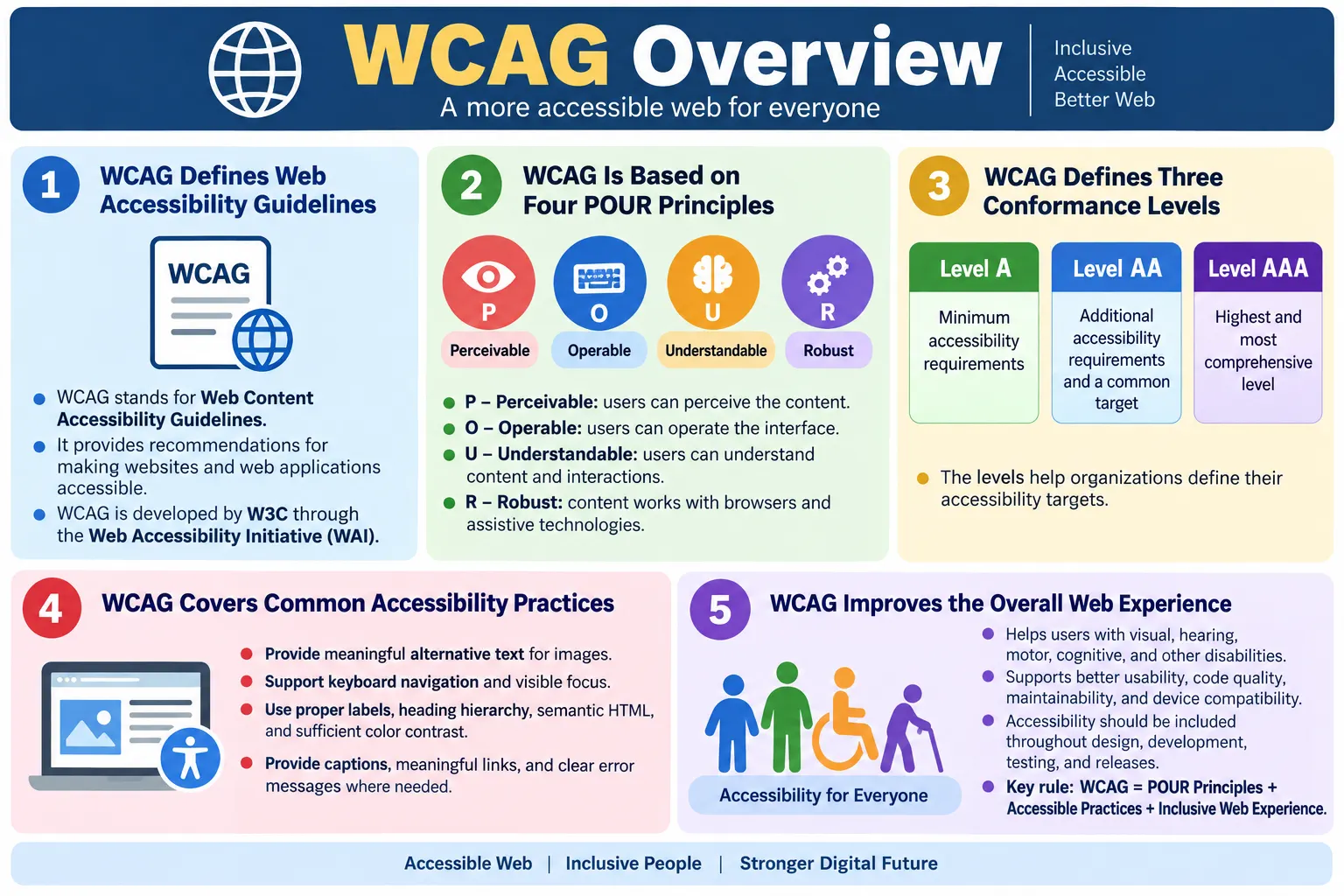
WCAG, which stands for Web Content Accessibility Guidelines, is the international standard for making websites and web applications accessible to everyone, including people with disabilities. It provides a structured set of recommendations that help teams design, develop, write, and test web content in a way that reduces barriers. A website may look modern and visually attractive, but if users cannot perceive its content, operate its controls, understand its instructions, or use it with assistive technologies, it is not truly accessible. WCAG exists to define what accessible web content should mean in a practical and measurable way.
The guidelines are developed by the World Wide Web Consortium, commonly known as W3C, through its Web Accessibility Initiative, or WAI. W3C is the main international organization responsible for developing web standards, and WAI focuses specifically on accessibility. Because of this, WCAG is widely recognized by governments, businesses, educational institutions, technology teams, and legal frameworks around the world. Many organizations use WCAG as the foundation for accessibility policies, audits, product requirements, and testing checklists.
WCAG helps developers create websites that are easier to use, accessible to assistive technologies, compatible across devices and browsers, and inclusive for all users. The guidelines are not limited to one disability group or one technology. They apply to websites, web applications, mobile web experiences, online documents, interactive content, forms, media, navigation, and dynamic interfaces. In modern web development, understanding WCAG is essential for anyone who works with HTML, CSS, JavaScript, UX design, QA testing, automation, or content writing.
What Is WCAG?
WCAG stands for Web Content Accessibility Guidelines. It is a collection of recommendations that explain how to make web content accessible. These recommendations are written so that teams can evaluate whether a page is usable by people with a wide range of abilities and assistive technologies. WCAG does not tell every team exactly how each website must look. Instead, it defines accessibility outcomes and success criteria that web content should satisfy.
The guidelines apply to websites, web applications, mobile web applications, online documents, interactive content, and rich interfaces. A simple article page, a banking dashboard, an online learning platform, a shopping cart, a government application form, and a video lesson can all be evaluated using WCAG concepts. The details may differ, but the core idea remains the same: users should be able to access information and complete tasks.
WCAG is especially useful because accessibility can otherwise become subjective. One person may say a page feels usable, while another may be blocked completely. WCAG gives teams a common vocabulary and measurable criteria. Instead of saying "make the page accessible" in vague terms, a requirement can say that images need text alternatives, forms need labels, keyboard users must be able to operate controls, and text needs sufficient contrast.
Who Developed WCAG?
WCAG is developed by the W3C through the Web Accessibility Initiative. The relationship can be understood as a simple flow: W3C provides the standards organization, WAI focuses on accessibility, and WCAG provides the specific guidelines for web content accessibility.
World Wide Web Consortium (W3C)
  |
  v
Web Accessibility Initiative (WAI)
  |
  v
WCAG
This matters because WCAG is not a private opinion or a single company's internal checklist. It is developed through a standards process and is intended to apply broadly across the web. The guidelines are used internationally because they provide a consistent framework for accessibility across countries, industries, and technology stacks.
W3C standards are important because the web works best when browsers, developers, tools, and assistive technologies share common expectations. WCAG contributes to this by explaining how web content can be built so that it works for users who access the web in different ways.
Why WCAG Was Created
WCAG was created because many websites were difficult or impossible for people with disabilities to use. Some pages used images without descriptions, making important visual information unavailable to screen reader users. Some videos had no captions, excluding deaf and hard-of-hearing users. Some forms had no labels, making it unclear what information should be entered. Some sites required a mouse, blocking keyboard-only users. Some pages used low contrast text, making content hard to read for low-vision users and many mobile users.
These barriers are not rare. They appear when accessibility is not considered during design and development. A page may look correct to a designer using a mouse and a large monitor, but fail for someone using a keyboard, screen reader, magnifier, voice control, switch device, mobile phone, or high-contrast settings. WCAG provides guidance to remove these barriers before they prevent users from completing tasks.
The larger purpose of WCAG is inclusion. The web is used for education, employment, banking, shopping, healthcare, public services, communication, entertainment, and learning. When web content is inaccessible, users can be excluded from essential services. WCAG gives organizations a way to build content that respects the diversity of users and devices.
Goals of WCAG
The primary goals of WCAG are to ensure that websites are accessible, inclusive, easy to navigate, compatible with assistive technologies, and consistent across devices. These goals are practical. Accessibility is not only about meeting a checklist. It is about whether users can perceive information, operate controls, understand instructions, and complete real tasks.
Accessible Website
  |
  v
Everyone Can Use It
An accessible website should not assume that every user sees the screen clearly, hears audio, uses a mouse, understands complex instructions quickly, or browses on the same device. WCAG encourages teams to build experiences that work across different abilities and contexts. A user with low vision should be able to read content. A keyboard user should be able to reach controls. A deaf user should be able to access video information. A screen reader user should be able to understand structure. A user with cognitive challenges should be able to follow instructions and recover from errors.
WCAG also supports consistency. A website may contain many pages, components, and workflows. Guidelines help teams apply accessibility principles across the whole product rather than fixing isolated issues one page at a time.
The Four WCAG Principles
WCAG is built on four fundamental principles: Perceivable, Operable, Understandable, and Robust. These are commonly remembered by the acronym POUR. The POUR model is one of the most important WCAG concepts because it explains accessibility at a high level. If a page fails any one of these principles, some users may be blocked.
P - Perceivable
O - Operable
U - Understandable
R - Robust
Perceivable means users must be able to perceive the information being presented. Operable means users must be able to operate the interface. Understandable means users must be able to understand the content and interactions. Robust means content must work reliably with browsers, assistive technologies, and future technologies. Each principle contains guidelines and success criteria that turn the principle into practical requirements.
Perceivable
Perceivable means information must be presented in ways users can perceive. If important information is available only visually, users who cannot see it may miss it. If important information is available only through audio, users who cannot hear it may miss it. If text has poor contrast, many users may struggle to read it. WCAG requires content to be available through accessible alternatives where needed.
Examples include images having alt text, videos including captions, audio having transcripts, and content maintaining sufficient color contrast. A logo image should have meaningful alternative text when it identifies the site or brand.
<img src="logo.png" alt="SoftwareTips4U Logo">Perceivable content also means that information should not depend only on color. For example, a form should not identify errors only by turning fields red. It should include text messages or icons with accessible descriptions. A chart should not rely only on color differences without labels or a data table. Users need more than one way to understand important information.
Operable
Operable means users must be able to operate the interface. A website should not require a mouse for essential actions. Users who rely on keyboards, switch devices, voice control, or other assistive input methods must be able to navigate and activate controls. Buttons, links, form fields, menus, dialogs, and custom widgets should be reachable and usable.
Tab
  |
  v
Button
  |
  v
Input
  |
  v
Submit
Keyboard navigation is a major part of operability. Users should be able to press Tab to move through interactive elements in a logical order. Focus should be visible. Users should not become trapped inside a menu, modal, or widget. If a component opens, users should be able to close it and continue. If a task has a time limit, users may need enough time or a way to extend the time.
Operability also includes avoiding content that may cause harm, such as flashing content that can trigger seizures. It includes providing ways to navigate content efficiently and making interactions predictable enough that users can complete tasks.
Understandable
Understandable means content and user interfaces should be easy to understand. A page can technically expose content to assistive technologies and still be difficult to use if instructions are confusing, navigation changes unexpectedly, or error messages do not explain what to do. WCAG encourages clear language, consistent navigation, predictable behavior, helpful labels, and meaningful error handling.
Enter Email
  |
  v
Validation Message
  |
  v
Correct Input
For example, a form error should not merely say "Invalid." It should explain the problem and how to fix it. A better message might say, "Enter an email address in the format name@example.com." Navigation should remain consistent across pages. Buttons should behave as users expect. A link should not unexpectedly submit a form or open a modal unless that behavior is clear.
Understandability benefits users with cognitive disabilities, users under stress, users on mobile devices, users reading in a second language, and anyone trying to complete a task quickly. Clear content is accessible content.
Robust
Robust means content should work with different browsers, screen readers, future technologies, and assistive devices. A robust page is built with valid, semantic markup and predictable behavior so that many tools can interpret it correctly.
<header>
<nav>
<main>
<footer>
Using semantic HTML is one of the simplest ways to support robustness. A real <button> communicates role and behavior better than a clickable <div>. A real <label> connected to an input communicates the input's purpose. A real heading communicates structure. Assistive technologies depend on this information.
Robustness becomes especially important in dynamic web applications. If JavaScript changes content, opens dialogs, or updates controls, the accessibility tree should remain accurate. ARIA can help when native HTML is not enough, but ARIA should be used carefully and correctly.
WCAG Conformance Levels
WCAG defines three levels of conformance: Level A, Level AA, and Level AAA. These levels help organizations understand the depth of accessibility support being targeted. They also help teams prioritize work and communicate requirements.
Level A represents minimum accessibility requirements. These are the most basic success criteria. If a page fails Level A requirements, some users may be completely blocked. Examples include providing text alternatives for images and ensuring basic keyboard access.
Level AA is the most commonly required level for public websites. It includes additional requirements such as better color contrast, consistent navigation, accessible forms, and stronger support for common accessibility needs. Many organizations aim to meet Level AA because it provides a practical balance between accessibility impact and implementation feasibility.
Level AAA is the highest accessibility level. It includes more comprehensive requirements such as enhanced contrast, sign language interpretation where applicable, and other advanced support. Not every website can realistically meet every AAA requirement for all content. For this reason, Level AAA is often used selectively for certain content or as an aspirational goal rather than a universal requirement.
WCAG Versions
WCAG has evolved over time as the web has changed. WCAG 1.0 was the first version and was published in 1999. WCAG 2.0 was a major update released in 2008 and introduced the POUR principles in a technology-neutral way. WCAG 2.1, released in 2018, added guidance related to mobile accessibility, low vision, and cognitive accessibility. WCAG 2.2, released in 2023, added additional improvements, including new criteria related to focus appearance, dragging movements, target size, and accessible authentication.
| Version | Description |
|---|---|
| WCAG 1.0 | First version, published in 1999 |
| WCAG 2.0 | Major update, published in 2008 |
| WCAG 2.1 | Added mobile and low-vision guidance in 2018 |
| WCAG 2.2 | Added additional accessibility improvements in 2023 |
WCAG 2.1 and WCAG 2.2 build upon earlier versions rather than replacing them entirely. This means newer versions include previous guidance plus additional success criteria. In practice, organizations often define a target such as WCAG 2.1 AA or WCAG 2.2 AA depending on current policy and project requirements.
Common WCAG Recommendations
WCAG encourages developers to use semantic HTML, provide image alternative text, label form controls, support keyboard navigation, maintain proper heading hierarchy, ensure sufficient color contrast, avoid flashing content that may trigger seizures, provide meaningful link text, and display clear error messages.
These recommendations may sound straightforward, but they cover many real problems. Missing alt text can hide meaningful images from screen reader users. Unlabeled fields can make forms unusable. Poor heading order can make long pages hard to navigate. Low contrast can make text difficult to read. Mouse-only controls can block keyboard users. Vague errors can prevent users from correcting mistakes.
The most effective teams treat these recommendations as normal development practices, not as special exceptions. Accessible HTML patterns should be part of component libraries, code reviews, design systems, and QA checklists.
HTML and WCAG
HTML is the foundation of WCAG compliance. While WCAG covers more than HTML, many accessibility problems begin with incorrect markup. Good headings, proper labels, semantic landmarks, real buttons, meaningful links, and correct form structure solve many issues before they appear.
<h1>HTML Tutorial</h1>
<h2>Forms</h2>
A logical heading structure helps users understand the page and navigate by section. Headings should represent structure, not just visual size. CSS can change appearance, but heading levels should describe the document outline.
<label for="email">Email</label>
<input id="email" type="email">
Proper labels help users understand form controls. Screen readers can announce the label when the field receives focus. Labels also improve usability for mouse and touch users because clicking a label can focus the related field.
<header>
<nav>
<main>
<footer>
Semantic structure creates landmarks that assistive technologies can expose. Users can move directly to navigation, main content, or footer areas instead of listening through the entire page from the beginning.
Real-World Examples
In a shopping website, WCAG affects the full purchase journey. Product images need alternative text. Filters need labels and keyboard support. Add-to-cart buttons must be reachable. Checkout forms must be labeled and provide useful errors. Payment steps must be operable without a mouse. If these requirements are met, a keyboard user or screen reader user can complete the purchase.
Accessible Product Page
  |
  v
Keyboard Checkout
  |
  v
Successful Purchase
In a banking website, accessibility affects security and independence. Users need accessible login forms, clear error messages, readable transaction tables, and controls that work with assistive technologies. A screen reader user should be able to transfer money without needing someone else to read or operate the page.
In an education portal, videos should include captions, transcripts should be available where useful, headings should organize lessons, and interactive quizzes should work with keyboard navigation. Accessibility directly supports learning.
In a government website, users may need to apply for services, submit documents, renew licenses, or read official information. These services often affect daily life, so accessibility is not merely a nice improvement. It is part of fair access.
Benefits of Following WCAG
Following WCAG improves accessibility, user experience, SEO, code quality, maintainability, and device compatibility. Semantic HTML helps both search engines and assistive technologies understand page structure. Clear headings and descriptive links help users scan pages and help search engines interpret content. Captions and transcripts improve media access and make content easier to index and reuse.
WCAG also improves code quality because it encourages native elements and predictable behavior. A real button is easier to test and maintain than a custom clickable element that must recreate all button behavior manually. A labeled form field is easier for users and easier for automated tests to verify. A logical heading structure makes content more maintainable.
Following WCAG can also help organizations meet accessibility requirements that may apply under laws and regulations in many countries. Legal details vary by region and context, but WCAG is commonly used as a reference point. Even when compliance is not the only motivation, WCAG provides a reliable path toward inclusive quality.
Common Mistakes
Missing alt text is one of the most common issues. If an image communicates meaning and has no text alternative, screen reader users may miss important information.
<img src="book.jpg"><img src="book.jpg" alt="HTML Programming Book">Mouse-only navigation is another common barrier. Every interactive element should also support keyboard interaction. If a menu, carousel, dropdown, or dialog cannot be operated with the keyboard, it fails many users.
Poor heading structure also creates problems. A page that jumps from <h1> to <h4> without reason may look fine visually, but it creates a confusing outline. Use a logical hierarchy instead.
Unlabeled form fields are frequent and serious. Users need to know what each field expects. Placeholder text should not replace labels. Labels should remain available when the user enters data.
Poor color contrast makes text hard to read. This affects low-vision users, older users, mobile users outdoors, and anyone in difficult lighting. Contrast should be considered during design, not patched after development if possible.
Selenium Perspective
Automation testers often verify WCAG-related requirements such as keyboard navigation, focus order, form labels, alt text, semantic landmarks, heading hierarchy, and ARIA attributes when applicable. Selenium can inspect the DOM, move through interactive elements, read attributes, and validate that expected accessibility-related structures exist.
Selenium is often combined with accessibility testing tools such as Axe, Lighthouse, and WAVE to automate accessibility checks. These tools can identify many issues, including missing labels, missing alt text, color contrast failures, invalid ARIA attributes, and landmark problems. Selenium can drive the page into specific states, and accessibility tools can scan those states.
However, automation alone is not enough. Some accessibility questions require human judgment. Is the alt text meaningful in context? Is the error message helpful? Is the reading order logical? Does the keyboard workflow make sense? Automated tools are valuable, but they should be part of a broader accessibility testing strategy.
Testing WCAG in Practice
Testing WCAG in practice usually combines automated scans, manual keyboard testing, screen reader checks, design review, and content review. Automated tools are good at finding repeatable structural issues. Manual testing is better at evaluating real workflow quality.
A practical test session may start with a keyboard-only pass. Can the tester reach every interactive element? Is the focus order logical? Is focus visible? Can menus and dialogs be opened and closed? Can the user complete the main task without a mouse?
Next, a tester may run an accessibility scanner. The scanner may identify missing labels, duplicate IDs, contrast issues, ARIA mistakes, or missing alternative text. Then the tester reviews issues manually to confirm impact and priority.
Screen reader testing can then validate structure, labels, headings, landmarks, and dynamic announcements. Finally, content review checks whether instructions, links, and error messages are understandable. This layered approach is stronger than relying on any single method.
WCAG in Agile and Enterprise Projects
In Agile projects, WCAG should be part of acceptance criteria and definition of done. A user story for a login form should not only say that users can enter credentials. It should also expect labels, keyboard access, visible focus, meaningful validation errors, and compatibility with assistive technologies. When accessibility is included early, it becomes normal quality work.
Enterprise projects often use design systems and component libraries. This creates an opportunity. If buttons, inputs, dialogs, tabs, accordions, tables, and alerts are built accessibly once, many teams can reuse them. If shared components are inaccessible, the same defects spread across many products. WCAG should therefore be part of component review and design system governance.
Large organizations may also run accessibility audits, maintain accessibility statements, train teams, and track WCAG issues like other quality risks. The goal is not only passing an audit once. The goal is sustaining accessible development over time.
WCAG and Legal Compliance
WCAG is frequently referenced in accessibility laws, regulations, settlements, procurement rules, and organizational policies. Specific legal obligations vary by country, industry, and type of organization, so teams should consult appropriate legal or compliance guidance when necessary. From a technical perspective, WCAG provides the practical standard that many compliance efforts use.
It is important to understand that legal compliance and good user experience are related but not identical. A page can pass many automated checks and still be frustrating. A team should aim for both: meet the required standard and create a website that real users can actually use successfully.
For developers and testers, the practical takeaway is to understand the target conformance level, usually Level AA for many public-facing websites, and to apply WCAG principles consistently during implementation and testing.
Best Practices
Start with semantic HTML. Use the right element for the job. A button should be a button, navigation should be in a navigation landmark, headings should represent structure, and form controls should have labels. Native HTML provides accessibility behavior that custom elements must otherwise recreate manually.
Design with contrast, focus, and readability in mind. Do not remove focus indicators. Do not communicate meaning only through color. Provide enough spacing and touch target size. Keep layouts predictable and responsive.
Write clear content. Use descriptive links, meaningful headings, helpful error messages, and simple instructions. Provide captions and transcripts for media where needed. Test with keyboard navigation and use automated accessibility tools, but also perform manual review.
Finally, treat WCAG as an ongoing practice. Accessibility can regress when new components, content, or scripts are added. Include accessibility checks in code review, QA, design review, and release readiness.
WCAG and Design Systems
Design systems are one of the most effective places to apply WCAG consistently. A design system usually contains reusable buttons, inputs, menus, dialogs, cards, tables, alerts, tabs, and navigation patterns. If these shared components are accessible, every team that uses them benefits. If they are inaccessible, the same accessibility defects can spread across many pages and products.
For example, a design system button should have visible focus styles, adequate color contrast, clear disabled states, and correct HTML implementation. A form component should include a label pattern, help text pattern, validation error pattern, and accessible error association. A modal dialog should manage focus, support keyboard closing, announce its purpose, and return focus to the triggering control when closed.
WCAG should therefore influence both visual design and component behavior. It is not enough for a component to look consistent. It must also be perceivable, operable, understandable, and robust. When accessibility is built into the design system, teams do not need to solve the same problems repeatedly. They start from accessible defaults.
WCAG and Content Strategy
WCAG is often discussed as a development standard, but content strategy is also important. The words on a page can either help users complete tasks or create confusion. Clear headings, descriptive link text, simple instructions, useful labels, and helpful error messages all support accessibility.
Content should avoid vague phrases when a specific description is better. A link that says "click here" does not explain the destination when read alone. A link that says "Download the accessibility checklist" is more meaningful. A button that says "Submit" may be acceptable in a simple form, but a button that says "Create account" or "Pay invoice" often communicates the action more clearly.
Error messages should be written to help users recover. A message such as "Invalid field" is weak because it does not explain the problem. A better message identifies the field and gives the expected format. WCAG's Understandable principle depends heavily on this kind of clear communication.
Mapping WCAG to User Impact
WCAG success criteria can feel technical, but each one connects to real user impact. Alternative text helps users who cannot see images. Keyboard access helps users who cannot use a mouse. Captions help users who cannot hear audio. Contrast helps users who have low vision or read in difficult lighting. Labels help users understand form fields. Focus order helps keyboard users move through a page predictably.
This user-impact view helps teams prioritize. A missing visible focus indicator is not just a minor styling issue; it can make keyboard navigation confusing or impossible. An unlabeled input is not just an HTML detail; it can prevent a screen reader user from completing a form. Poor contrast is not just a design preference; it can make content unreadable.
When teams understand the human effect behind each guideline, WCAG becomes easier to apply with judgment. The goal is not to satisfy a tool for its own sake. The goal is to remove real barriers for real users.
WCAG and Dynamic Web Applications
Modern web applications are often dynamic. Content changes without full page reloads, dialogs open, notifications appear, validation messages update, filters change result lists, and single-page applications replace views. WCAG applies to these dynamic experiences just as much as it applies to static pages.
When content changes dynamically, users must be able to perceive the change. If a validation message appears after a form submission, it should be associated with the relevant field or announced appropriately. If a modal dialog opens, focus should move into it. If a menu expands, its state should be communicated. If search results update, the page should make that update understandable to users who are not visually scanning the screen.
Dynamic interfaces also need robust keyboard behavior. Custom controls such as tabs, accordions, dropdowns, and dialogs should follow expected keyboard patterns. A visually polished widget can still fail WCAG if users cannot operate it without a mouse or if assistive technologies cannot understand its state.
Prioritizing WCAG Issues
In real projects, teams may find many accessibility issues. Prioritization helps them fix the most serious problems first. Issues that block task completion should receive high priority. Examples include a checkout form that cannot be completed with a keyboard, a login page with unlabeled fields, or a modal that traps focus.
Issues that affect many pages should also be prioritized. If a shared component has an accessibility defect, fixing the component may improve the entire site. For example, repairing focus handling in a reusable dialog can resolve defects across many workflows.
Automated tool results should be reviewed carefully. Some findings are clear failures. Others need context. A missing alt attribute on a meaningful image is a problem. An empty alt attribute on a decorative image may be correct. Prioritization requires both technical knowledge and understanding of the user journey.
Practical WCAG Review Checklist
A practical WCAG review should ask whether each page has a logical structure, meaningful headings, descriptive links, useful alternative text, accessible forms, keyboard support, visible focus indicators, sufficient contrast, clear errors, and predictable behavior. It should also ask whether dynamic content changes are communicated and whether custom widgets have correct semantics and keyboard support.
Reviewers should test important workflows, not only isolated components. Can a user log in, search, filter, buy, submit, download, or complete the main task using only the keyboard? Can a screen reader user understand the structure and controls? Can users recover from mistakes? Does the page still work when zoomed or viewed on smaller screens?
This checklist mindset turns WCAG from a document into a development practice. Each release should preserve accessibility, not accidentally break it.
Comparison Table
| WCAG Principle | Goal |
|---|---|
| Perceivable | Users can perceive the content |
| Operable | Users can operate the interface |
| Understandable | Users can understand the content and interactions |
| Robust | Content works with browsers and assistive technologies |
Common Interview Questions
What does WCAG stand for? WCAG stands for Web Content Accessibility Guidelines.
Who develops WCAG? WCAG is developed by the World Wide Web Consortium through its Web Accessibility Initiative.
What are the four WCAG principles? The four principles are Perceivable, Operable, Understandable, and Robust, commonly remembered as POUR.
What is the most common compliance level? Level AA is the level most organizations target for public websites.
Is WCAG only for blind users? No. WCAG addresses accessibility for users with a wide range of disabilities, including visual, hearing, motor, cognitive, and other impairments.
Does semantic HTML help meet WCAG? Yes. Semantic HTML improves structure and compatibility with assistive technologies, making it an important part of accessible web development.
Interview-Ready Answer
WCAG, or Web Content Accessibility Guidelines, is the international standard for creating accessible websites and web applications. Developed by the W3C through its Web Accessibility Initiative, WCAG provides recommendations to ensure web content is usable by people with disabilities. The guidelines are based on four core principles: Perceivable, Operable, Understandable, and Robust. WCAG also defines three conformance levels: A, AA, and AAA. Level AA is the most commonly adopted standard for public-facing websites. Following WCAG improves accessibility, usability, SEO, code quality, and compatibility with assistive technologies.
One-Line Insight
WCAG provides the globally recognized blueprint for building websites that everyone can access and use effectively.