Video Tag (<video>)
Introduction
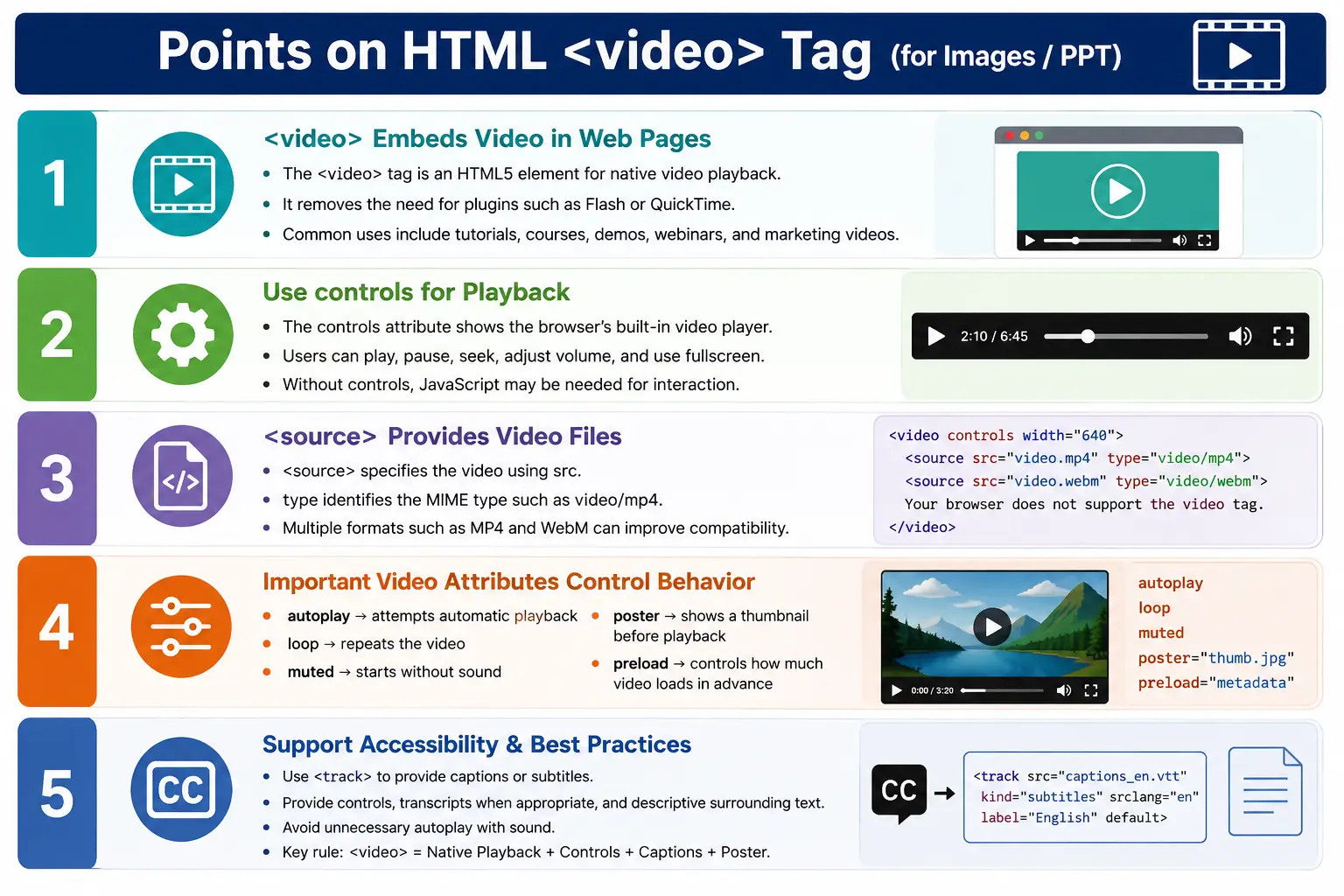
The <video> tag is an HTML5 element used to embed and play videos directly inside a web page. It allows browsers to play video content without requiring external plugins such as Adobe Flash, Microsoft Silverlight, or QuickTime. This native support changed the way video worked on the web because websites no longer had to depend on separate plugin installations or inconsistent third-party players for basic playback.
With the <video> element, users can play videos, pause videos, seek forward and backward, adjust volume, watch videos in fullscreen, and in some browsers change playback speed or use picture-in-picture mode. When captions or subtitles are provided, users can also enable text alternatives for spoken content.
A simple video example looks like this:
<video controls>
    <source src="tutorial.mp4" type="video/mp4">
</video>
The browser displays a built-in video player. The exact appearance of the player varies between browsers and operating systems, but the purpose is consistent: users can watch and control the video directly on the page.
What Is the <video> Tag?
The <video> tag tells the browser to load a video resource, display a video player, and allow the user to watch it. Unlike images, videos require playback controls, buffering, media decoding, and sometimes captions or subtitles. The video element acts as the HTML container for all of this behavior.
Load this video
      ↓
Display a video player
      ↓
Allow the user to watch it
In practical terms, the video element is used whenever visual motion content needs to be embedded as part of a webpage. This may include tutorials, product demonstrations, lessons, marketing clips, webinars, company introductions, or educational content.
Why the Video Tag Was Introduced
Before HTML5, websites commonly relied on plugins such as Adobe Flash, Microsoft Silverlight, or QuickTime to play video. These plugins created several problems. They introduced security vulnerabilities, required installation and updates, consumed significant CPU resources, and often worked poorly on mobile devices.
Plugin-based video also created browser compatibility issues. A video that worked in one environment might fail in another because the required plugin was missing or blocked. Mobile browsing made the problem worse because many mobile browsers did not support traditional desktop plugins well.
HTML5 introduced the native <video> element to eliminate these problems. Video playback became part of the browser platform. This improved security, compatibility, mobile support, and developer control.
Basic Syntax
The basic structure of a video element includes the <video> container and one or more <source> elements.
<video>
    <source src="movie.mp4">
</video>
In most real pages, the controls attribute is added so users can play, pause, seek, and control the video.
<video controls>
    <source src="movie.mp4"
            type="video/mp4">
</video>
The browser output is a native video player. It commonly includes a play button, timeline, volume control, duration, and fullscreen option. Some browsers also include playback speed, download controls, and picture-in-picture options.
Browser Rendering Process
When the browser parses the HTML document and finds a <video> element, it reads the source list, selects a supported video format, prepares the media player, and displays the video area. Depending on the preload attribute and browser behavior, it may download metadata, buffer part of the video, or wait until the user clicks play.
HTML Parser
    ↓
Finds <video>
    ↓
Reads <source>
    ↓
Downloads Video
    ↓
Displays Video Player
    ↓
User Clicks Play
    ↓
Video Starts
Video rendering is more complex than image rendering because the browser must handle streaming, buffering, decoding, synchronization of audio and video, captions, controls, and fullscreen behavior.
The controls Attribute
The controls attribute displays the browser's built-in video controls. This is one of the most important attributes because without controls, users may not be able to interact with the video unless custom JavaScript controls are provided.
<video controls>
    <source src="lesson.mp4">
</video>
Typical controls include play, pause, progress bar, volume, fullscreen, playback duration, playback speed in some browsers, and picture-in-picture in supported browsers.
Without controls, the video element may exist in the page but the user cannot play it through the visible interface.
<video>
    <source src="lesson.mp4">
</video>
Video Exists
↓
No Player Controls
↓
User Cannot Play ItFor most content pages, tutorials, courses, and documentation, visible controls are the safest and most user-friendly choice.
The <source> Tag
The <source> element specifies the video file. It is placed inside the video element and usually includes a src attribute and a type attribute.
<video controls>
    <source src="tutorial.mp4"
            type="video/mp4">
</video>
The source element is especially useful because developers can provide multiple video formats. Different browsers may support different formats, so the browser can choose the first one it supports.
<video controls>
    <source src="video.mp4"
            type="video/mp4">

    <source src="video.webm"
            type="video/webm">
</video>
This improves compatibility because the page does not depend on a single media format.
The src and type Attributes
The src attribute specifies the video file location. It can be a relative path within the project or an absolute URL from another server.
<source src="movie.mp4">The browser downloads or streams the file referenced by src. The type attribute identifies the video format using a MIME type.
<source src="movie.mp4"
        type="video/mp4">
Correct MIME types help browsers decide whether they can play the file efficiently.
| Video Format | MIME Type |
|---|---|
| MP4 | video/mp4 |
| WebM | video/webm |
| Ogg | video/ogg |
Supported Video Formats
MP4 is the most widely supported format for web video. It is commonly used for online courses, marketing videos, tutorials, company introductions, and general websites. The file extension is .mp4, and the MIME type is video/mp4. In most practical cases, MP4 is the safest default format.
WebM is an open web format that provides excellent compression and is supported by many modern browsers. Its file extension is .webm, and its MIME type is video/webm. WebM can be useful when performance and file size are important.
Ogg video, often using the .ogv extension, is less common today but may still appear as an additional fallback in some older examples. Modern projects usually focus on MP4 and sometimes WebM.
Fallback Content
Fallback content can be placed inside the video element. Older browsers that do not support HTML5 video can display this text.
<video controls>
    <source src="lesson.mp4"
            type="video/mp4">

    Your browser does not support HTML5 video.
</video>
Modern browsers ignore the fallback text when they support the video element. Older browsers can show the message so users understand why the video player is not available.
The autoplay Attribute
The autoplay attribute attempts to start playback automatically when possible.
<video autoplay>
    <source src="intro.mp4">
</video>
Modern browsers often block autoplay unless the video is muted or the user has interacted with the page. This protects users from unexpected sound and unwanted data usage.
Autoplay should be used carefully. It may be acceptable for muted background videos or short visual loops, but it is usually a poor choice for instructional videos, lectures, product explanations, and content where users should control playback.
The loop Attribute
The loop attribute repeats the video continuously. When playback reaches the end, the browser automatically restarts it.
<video controls loop>
    <source src="background.mp4">
</video>
Play
↓
End
↓
Restart
↓
RepeatThis is useful for background videos, product animation loops, or visual effects. It should be avoided for long instructional videos unless repeated playback is clearly intended.
The muted Attribute
The muted attribute starts the video without sound.
<video controls muted>
    <source src="promo.mp4">
</video>
Muted is often combined with autoplay because many browsers allow muted autoplay more readily than autoplay with sound. For example, a homepage may use a short muted background video. Even then, the page should not rely on video alone to communicate essential information.
The poster Attribute
The poster attribute displays an image before playback starts. It acts like a video thumbnail and gives users a meaningful preview before they press play.
<video controls
       poster="thumbnail.jpg">
    <source src="course.mp4">
</video>
A good poster image improves the user experience because the video area does not appear blank. It also helps users understand what the video is about before loading or playing it.
The preload Attribute
The preload attribute controls how much of the video the browser should download before playback. The common values are none, metadata, and auto.
<video preload="none">preload="none" tells the browser not to download video data until the user presses play. This is useful when a page contains multiple videos.
<video preload="metadata">preload="metadata" downloads only basic information such as duration, dimensions, and metadata. This is often a balanced option.
<video preload="auto">preload="auto" allows the browser to download much more of the video in advance. This may make playback faster once the user starts, but it can consume significant bandwidth.
Relative and Absolute Paths
Video sources can use relative paths that point to files inside the project.
<video controls>
    <source src="videos/html.mp4">
</video>
project/
index.html
videos/
html.mp4They can also use absolute URLs:
<video controls>
    <source src="https://example.com/video.mp4">
</video>
When video is served from another server, the server must allow access and send the correct MIME type. Large videos also benefit from proper streaming and CDN configuration.
Video With Captions
HTML5 supports captions and subtitles using the <track> element. Captions are essential for accessibility because they make spoken content available to users who are deaf or hard of hearing. They are also useful in noisy environments, quiet environments, and situations where users cannot play audio.
<video controls>
    <source src="lesson.mp4"
            type="video/mp4">

    <track src="lesson-en.vtt"
           kind="captions"
           srclang="en"
           label="English">
</video>
The <track> element points to a WebVTT file. The kind attribute identifies the track type, srclang identifies the language, and label gives users a readable name for the track.
Accessibility Best Practices
Accessible video should provide playback controls, captions or subtitles, transcripts when appropriate, and descriptive surrounding text. Users should be able to pause and control video playback. Avoid autoplay with sound because it can disrupt users, especially screen reader users or users in quiet environments.
Captions are one of the most important accessibility features for video. A transcript is also valuable because it lets users read the content, search within it, translate it, and access the information without playing the video.
Video should not be the only way essential information is communicated. If a video explains an important process, the page should include a written summary or transcript so the information remains accessible.
SEO Best Practices
Search engines cannot fully understand video content without additional context. Improve discoverability by providing titles, descriptions, transcripts, captions, and structured data where appropriate. The surrounding HTML content helps search engines understand what the video is about.
A tutorial video page should include a clear heading, useful description, relevant text around the video, and ideally a transcript. This improves both SEO and user experience. Captions and transcripts are not only accessibility improvements; they also make the video content more understandable to search systems.
Common Use Cases
The video tag is commonly used for online courses, product demonstrations, tutorials, company introductions, marketing videos, webinars, educational content, and short feature explanations. A course platform may embed lessons. A product page may show how a feature works. A company website may use video to introduce a service.
Whenever a page needs native video playback without a third-party player, the <video> element is the standard HTML solution.
Common Mistakes
One common mistake is forgetting the controls attribute.
<video>
    <source src="lesson.mp4">
</video>
Users cannot control playback unless JavaScript provides custom controls. A better version is:
<video controls>
    <source src="lesson.mp4">
</video>
Another mistake is missing a poster image. Without a poster, the video area may look blank or unattractive before playback starts.
<video controls
       poster="course-thumbnail.jpg">
    <source src="course.mp4">
</video>
Using only one video format can reduce compatibility, although MP4 is widely supported. Autoplay with sound is also a bad practice because it can annoy users and is often blocked by browsers.
Real-World Example
A SoftwareTips4U course page could embed an HTML introduction video with controls, a poster image, a source file, and fallback text.
<h2>HTML Introduction</h2>

<video controls
       poster="html-course.jpg">
    <source src="html-introduction.mp4"
            type="video/mp4">

    Your browser does not support HTML5 video.
</video>
This markup is practical because it gives users controls, shows a thumbnail before playback, identifies the file type, and provides fallback content.
Browser Rendering Workflow
A typical browser workflow for video starts with the HTML parser finding the video element. The browser downloads the poster image, displays the player, waits for user interaction, and then downloads or buffers video data when playback begins.
HTML Parser
    ↓
Video Element
    ↓
Download Poster
    ↓
Display Player
    ↓
User Clicks Play
    ↓
Download/Buffer Video
    ↓
Play Video
This workflow shows why poster and preload decisions matter. The poster affects the initial visual experience, while preload affects bandwidth and playback readiness.
Selenium Perspective
From a Selenium testing perspective, the video element can be located and inspected like any other HTML element. Automation tests can verify that the video element exists, the correct source file is configured, a poster image is present, controls are available, and captions are included when required.
WebElement video =
driver.findElement(By.tagName("video"));
A test can check the poster attribute:
String poster =
video.getAttribute("poster");
It can also check autoplay and controls:
String autoplay =
video.getAttribute("autoplay");

String controls =
video.getAttribute("controls");
Automation tests often verify that the video element exists, the correct source file is configured, the poster image is configured, controls are available, captions are present, and the video loads successfully. Actual playback validation may require additional media-specific testing, but HTML attribute validation is straightforward.
Common Interview Questions
A common interview question is: what is the purpose of the <video> tag? It embeds video directly into a web page without external plugins. Another question is: why use the <source> tag? It allows multiple video formats so browsers can choose a supported one.
Which attribute displays video controls? The answer is controls. What is the purpose of the poster attribute? It displays a thumbnail image before playback begins. How do you add captions to a video? By using the <track> element. What does the preload attribute control? It specifies how much of the video should be downloaded before playback.
Comparison Table
| Attribute | Purpose |
|---|---|
controls |
Displays playback controls |
autoplay |
Attempts to start playback automatically |
loop |
Repeats the video |
muted |
Starts the video without sound |
poster |
Displays a thumbnail before playback |
preload |
Controls preloading behavior |
src |
Specifies the video file location |
type |
Identifies the video format |
Interview-Ready Answer
The <video> tag is an HTML5 element used to embed videos directly into web pages. It commonly contains one or more <source> elements specifying different video formats. Attributes such as controls, poster, autoplay, loop, muted, and preload control playback behavior, while the <track> element is used to provide captions and subtitles for accessibility.
Key Takeaway
The <video> tag provides native, plugin-free video playback with built-in controls, accessibility support, and broad browser compatibility. A good video implementation includes controls, a useful poster image, correct source and type values, fallback text, captions when needed, and careful use of autoplay and preload.
One-Line Insight
The <video> tag provides native, plugin-free video playback with built-in controls, accessibility support, and broad browser compatibility.