Unordered Lists (<ul>)
Introduction
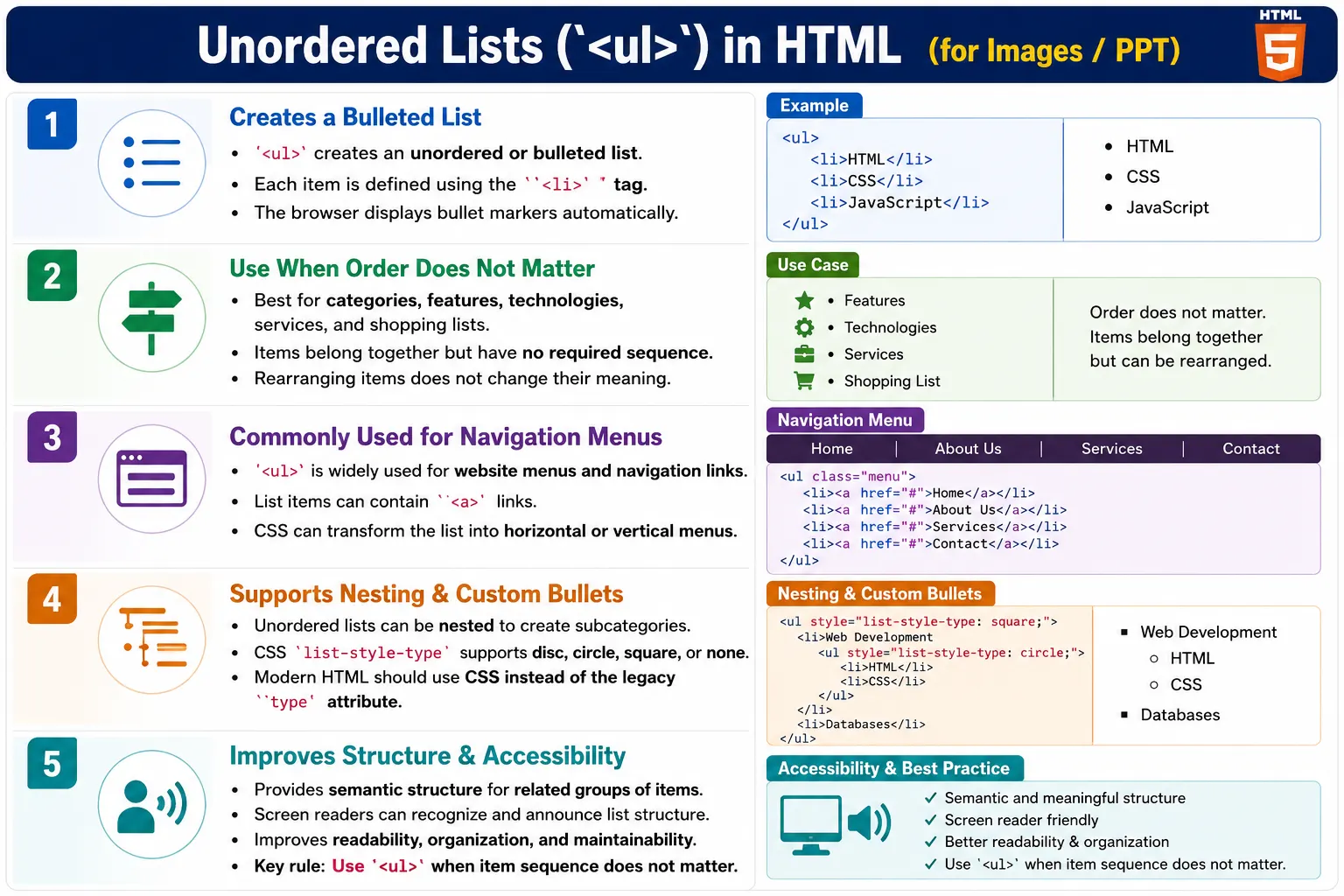
An unordered list is an HTML element used to display a collection of related items where the order does not matter. The browser displays each item with a bullet marker by default. The unordered list element is <ul>, and each list item is represented using <li>.
Unordered lists are one of the most commonly used HTML structures. They appear in course pages, documentation, feature sections, navigation menus, product categories, shopping lists, service lists, tag groups, sidebars, footer links, and related-content blocks. Whenever a group of items belongs together but does not need a strict sequence, an unordered list is usually the right semantic choice.
The important idea is meaning. An unordered list does not say that one item comes before another in a required order. It simply says that the items are related. HTML, CSS, and JavaScript can be listed as related web technologies. Apple, Mango, and Orange can be listed as fruits. Home, Courses, and Contact can be listed as navigation links. In each case, the list groups items clearly without implying ranking or step order.
What Is an Unordered List?
An unordered list displays items without ranking, sequence, or priority. A simple example is a group of web technologies.
• HTML
• CSS
• JavaScript
Since the order is not important, an unordered list is the correct choice. If CSS appears before HTML, the list still communicates the same general meaning: these are web technologies. Nothing in the content requires a first step, second step, or third step.
This is different from a procedure. If the content says install Java, configure environment variables, and verify installation, the order matters. But if the content simply lists supported technologies, available services, or course features, an unordered list is more accurate.
Why Use Unordered Lists?
Use unordered lists when order does not matter, when displaying categories, when showing features, when creating navigation menus, when listing products, when displaying tags, and when showing related items. The list format makes content easier to scan than a dense paragraph.
• Apple
• Mango
• Orange
Changing the order does not change the meaning. The list still represents fruits. This is the key test for choosing <ul>: if you can rearrange the items and the meaning remains the same, an unordered list is likely appropriate.
Unordered lists also improve page organization. Users can scan grouped items quickly. Developers can style list groups consistently. Assistive technologies can announce list structure. Search engines can interpret the content as a related group of items.
Basic Syntax
The basic syntax of an unordered list starts with <ul>. Every item inside the list should be placed inside an <li> element.
<ul>
  <li>Item 1</li>
  <li>Item 2</li>
  <li>Item 3</li>
</ul>
A real example might list core web technologies.
<ul>
  <li>HTML</li>
  <li>CSS</li>
  <li>JavaScript</li>
</ul>
The browser displays the output as a bulleted list.
• HTML
• CSS
• JavaScript
The bullet marker is generated by the browser. Developers do not need to type bullet characters manually. This keeps the HTML semantic and easier to maintain.
Structure of an Unordered List
The structure of an unordered list is simple. The <ul> element acts as the parent container, and each <li> element represents a list item.
ul
 │
 ├── li
 ├── li
 └── li
In HTML, the structure looks like this:
<ul>
  <li>HTML</li>
  <li>CSS</li>
  <li>JavaScript</li>
</ul>
The list items should be direct children of the list container. This structure helps browsers render the list correctly and helps assistive technologies identify the number of items and their relationship.
Browser Rendering
Browsers automatically add bullet markers to unordered lists. For example:
<ul>
  <li>Apple</li>
  <li>Mango</li>
  <li>Orange</li>
</ul>
The output appears as:
• Apple
• Mango
• Orange
The default marker is usually a filled disc, but browsers may use different markers for nested levels. The visual marker can be changed with CSS, but the semantic meaning remains the same: a group of related items without a required order.
Unordered List vs Ordered List
An unordered list is used when order does not matter.
<ul>
  <li>Apple</li>
  <li>Mango</li>
</ul>
• Apple
• MangoAn ordered list is used when order matters.
<ol>
  <li>Step 1</li>
  <li>Step 2</li>
</ol>
1. Step 1
2. Step 2The difference is not just visual. It is semantic. If the items represent steps, rankings, or procedures, use <ol>. If the items represent a collection, category, menu, or group, use <ul>.
When to Use Unordered Lists
Use unordered lists when order does not matter. Common examples include product categories, technologies, navigation links, shopping lists, website features, service offerings, related articles, course benefits, and tag lists.
A technology list is a typical example.
<ul>
  <li>HTML</li>
  <li>CSS</li>
  <li>JavaScript</li>
  <li>React</li>
</ul>
The output is a simple group of related technologies.
• HTML
• CSS
• JavaScript
• React
A shopping list is another common example.
<ul>
  <li>Milk</li>
  <li>Bread</li>
  <li>Eggs</li>
</ul>
• Milk
• Bread
• EggsThe items belong together, but there is no meaningful first, second, and third step.
Nested Unordered Lists
Lists can contain other lists. A nested unordered list is useful when one item has subitems. For example, Frontend can contain HTML and CSS.
<ul>
  <li>Frontend
    <ul>
      <li>HTML</li>
      <li>CSS</li>
    </ul>
  </li>
  <li>Backend</li>
</ul>
The output is conceptually:
• Frontend
   ○ HTML
   ○ CSS

• Backend
The nested list should be placed inside the parent <li>. This shows that HTML and CSS belong under Frontend. If the nested list is placed outside the parent item, the structure becomes invalid or misleading.
Multi-Level Nested Lists
Unordered lists can be nested across multiple levels. This is useful for course outlines, product categories, documentation maps, and menu systems.
<ul>
  <li>Web Development
    <ul>
      <li>Frontend
        <ul>
          <li>HTML</li>
          <li>CSS</li>
        </ul>
      </li>
    </ul>
  </li>
</ul>
Multi-level lists should be used with care. They are helpful when the hierarchy is important, but too many levels can make content harder to read. If a nested list becomes deeply complex, headings and separate sections may be clearer.
Default Bullet Types
Browsers typically use different bullets for nested levels. Level 1 often uses a filled disc, level 2 often uses a circle, and level 3 often uses a square.
Level 1: •
Level 2: ○
Level 3: ▪
A nested example might appear as:
• Frontend
   ○ HTML
      ▪ Forms
These default markers help users visually understand hierarchy. CSS can customize them, but the default behavior is already useful for many simple documents.
Navigation Menus Using Unordered Lists
Professional websites commonly use unordered lists for navigation menus because navigation links are a group of related items. The order may be chosen for usability, but the items are still grouped as a menu rather than a strict numbered sequence.
<nav>
  <ul>
    <li><a href="home.html">Home</a></li>
    <li><a href="courses.html">Courses</a></li>
    <li><a href="contact.html">Contact</a></li>
  </ul>
</nav>
Without CSS, this appears as a vertical bulleted list.
• Home
• Courses
• Contact
With CSS, the same semantic structure can become a horizontal menu. This is one of the strengths of HTML and CSS: HTML provides meaning, while CSS controls presentation.
Unordered Lists With Links
Unordered lists commonly contain links. This pattern is used in sidebars, footers, menus, related article sections, and course navigation.
<ul>
  <li>
    <a href="html.html">HTML</a>
  </li>
  <li>
    <a href="css.html">CSS</a>
  </li>
  <li>
    <a href="javascript.html">JavaScript</a>
  </li>
</ul>
The list groups related links, and each link provides navigation. This structure is better than placing several links in a paragraph separated only by spaces because it communicates that the links are a related set.
The type Attribute Is Legacy
Older HTML allowed the type attribute on unordered lists to change bullet style.
<ul type="circle">
  <li>HTML</li>
  <li>CSS</li>
</ul>
This could render as:
○ HTML
○ CSS
Another older example uses square bullets.
<ul type="square">
  <li>HTML</li>
  <li>CSS</li>
</ul>
▪ HTML
▪ CSSModern websites should use CSS instead of the type attribute. HTML should describe structure, and CSS should control visual style.
CSS Bullet Customization
CSS can customize bullet style using list-style-type.
ul {
list-style-type: square;
}The output uses square markers.
▪ HTML
▪ CSSCommon values include:
list-style-type: disc;
list-style-type: circle;
list-style-type: square;
list-style-type: none;
CSS gives developers flexibility without changing the semantic HTML structure.
Removing Bullets
Bullets can be removed with CSS. This is common in navigation menus where the list structure is semantic but the visual design should not show bullet markers.
ul {
    list-style-type: none;
}
The output appears without bullets.
HTML
CSS
JavaScript
Removing bullets does not remove the list meaning from the HTML. The structure remains a list, which is useful for accessibility and maintainability.
Real-World Example: Website Features
Feature lists are a natural use case for unordered lists because each feature is related, but the order usually does not change the meaning.
<h2>Course Features</h2>

<ul>
  <li>Video Tutorials</li>
  <li>Practice Exercises</li>
  <li>Interview Questions</li>
  <li>Certification</li>
</ul>
The output is a clear list of benefits.
• Video Tutorials
• Practice Exercises
• Interview Questions
• Certification
Real-World Example: Services
Service lists are another common example. A company can list its services using a simple unordered list.
<ul>
  <li>Web Development</li>
  <li>API Testing</li>
  <li>Automation Testing</li>
  <li>Performance Testing</li>
</ul>
The list groups related offerings without implying that one service must come before another.
Accessibility Benefits
Screen readers recognize proper list structures. For example:
<ul>
  <li>HTML</li>
  <li>CSS</li>
  <li>JavaScript</li>
</ul>
A screen reader may announce:
List with 3 items
HTML
CSS
JavaScript
This helps users understand that the content is a grouped set of related items. If the same content is written with line breaks only, assistive technologies may not communicate that structure.
SEO Benefits
Lists help search engines understand categories, features, topics, and related content. A list like this represents a clear content grouping:
<ul>
  <li>HTML</li>
  <li>CSS</li>
  <li>JavaScript</li>
</ul>
Search engines can recognize that the items belong together. This does not mean unordered lists automatically improve rankings, but they improve structure, readability, and content clarity, which support better user experience and SEO quality.
Common Mistakes
A common mistake is using line breaks instead of a real list.
HTML<br>
CSS<br>
JavaScript
This has no semantic list structure. A better version uses <ul> and <li>.
<ul>
  <li>HTML</li>
  <li>CSS</li>
  <li>JavaScript</li>
</ul>
Another mistake is forgetting <li>.
<ul>
HTML
CSS
</ul>
The correct version is:
<ul>
  <li>HTML</li>
  <li>CSS</li>
</ul>
Using an ordered list when order does not matter is another common issue.
<ol>
  <li>Apple</li>
  <li>Mango</li>
</ol>
A better version uses an unordered list.
<ul>
  <li>Apple</li>
  <li>Mango</li>
</ul>
Incorrect nesting can also create problems.
<ul>
  <li>Frontend</li>
  <ul>
    <li>HTML</li>
  </ul>
</ul>
The nested list should be inside the parent item.
<ul>
  <li>
    Frontend
    <ul>
      <li>HTML</li>
    </ul>
  </li>
</ul>
Selenium Perspective
From a Selenium automation perspective, unordered lists can be located using the ul tag.
WebElement list =
driver.findElement(
  By.tagName("ul")
);
All list items can be collected using the li tag.
List<WebElement> items =
driver.findElements(
  By.tagName("li")
);
A test can print list items or validate expected values.
for(WebElement item : items)
{
    System.out.println(
        item.getText()
    );
}
Automation can verify that feature lists, navigation menus, and related-content blocks contain the expected items. For menu testing, Selenium can also verify that each list item contains a link with the correct destination.
Comparison Table
| Feature | <ul> |
|---|---|
| Bulleted List | Yes |
| Order Matters | No |
| Supports Nesting | Yes |
| Accessibility Friendly | Yes |
| Common in Navigation Menus | Yes |
| SEO Friendly | Yes |
Common Interview Questions
A common interview question is: what is the purpose of <ul>? The answer is that it creates an unordered or bulleted list.
Another common question is which tag represents a list item. The answer is <li>. Interviewers may ask when <ul> should be used. It should be used when the order of items is not important.
They may also ask whether unordered lists can be nested. Yes, unordered lists can contain nested lists. Another common question is how to remove bullets. The CSS answer is list-style-type: none;.
Interview-Ready Answer
The <ul> element creates an unordered list where item order is not important. Each list item is defined using <li>, and browsers display items with bullet markers by default. Unordered lists are commonly used for navigation menus, categories, features, and grouped content.
Key Takeaway
Unordered lists are used when items belong together but do not need to appear in a specific sequence. They are ideal for categories, technologies, navigation links, features, shopping lists, tags, and related content. They improve readability, accessibility, and content organization.
The most important decision is semantic. Use <ul> when sequence does not matter. Use <ol> when sequence does matter. Style the list with CSS, but keep the HTML structure meaningful.
One-Line Insight
Use <ul> whenever items belong together but their sequence does not matter.