<title> Tag
Introduction
The <title> tag is one of the most important elements in an HTML document. It defines the official title of a webpage and is placed inside the <head> section. Even though the title is not displayed as visible content inside the webpage body, it plays a major role in how browsers, users, search engines, bookmarks, browser history, accessibility tools, and automation scripts identify the page.
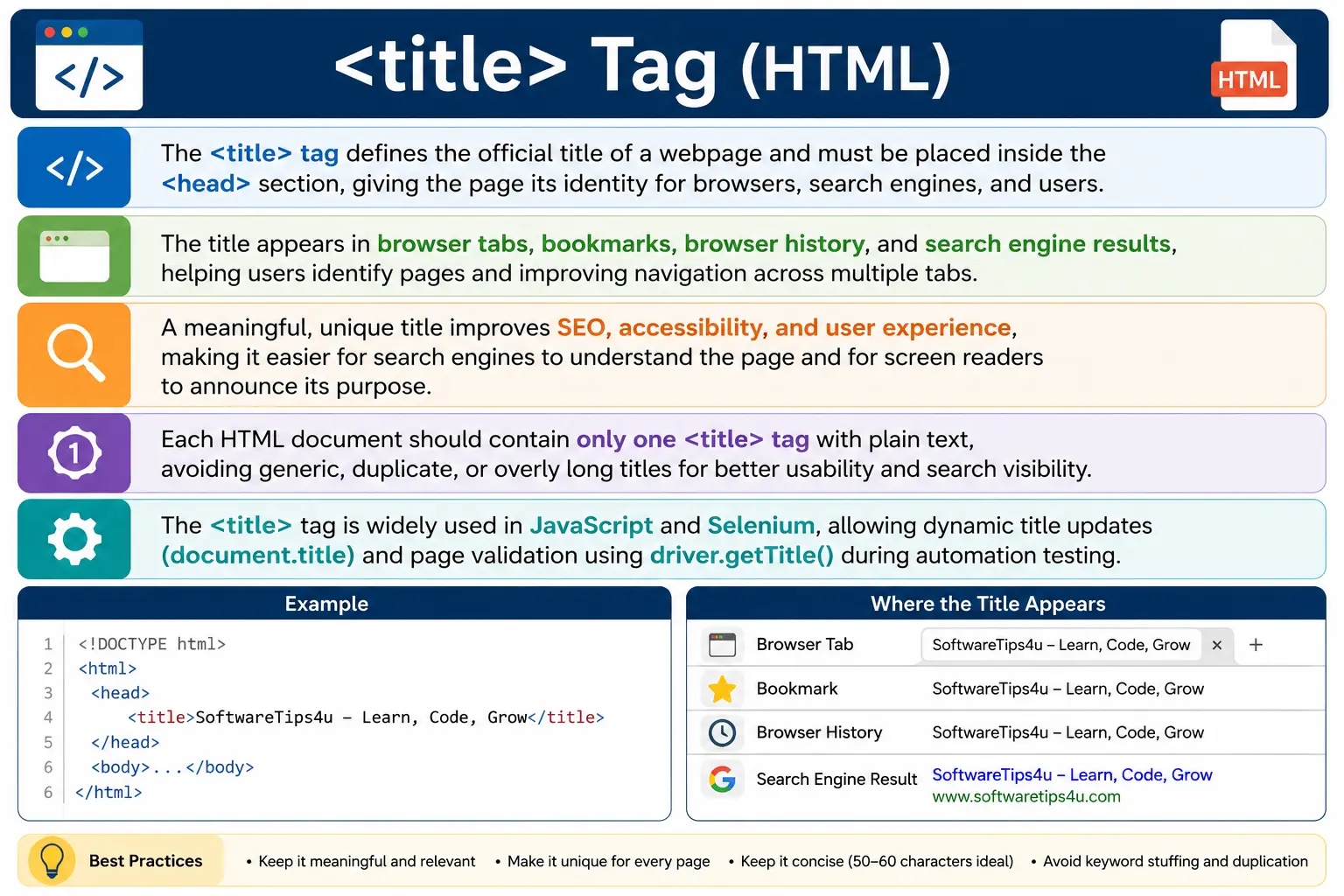
A basic title tag looks like this:
<title>SoftwareTips4U - HTML Tutorial</title>The text inside the <title> element becomes the name of the webpage. This name appears in the browser tab, search engine results, bookmarks, and history entries. Because of this, the title tag is not just a technical HTML element. It is also an important usability, SEO, accessibility, and testing element.
Many beginners think the title tag is less important because it does not appear directly inside the page content. That is a mistake. The title tag helps users understand which page they are viewing, helps search engines understand what the page is about, and helps automation tools validate whether the correct page has loaded.
In simple terms, the <title> tag gives a webpage its identity.
What Is the <title> Tag?
The <title> tag defines the title of an HTML document.
Example:
<title>SoftwareTips4U - HTML Tutorial</title>The text between the opening and closing title tags becomes the document title.
The title is not shown inside the visible body content of the page. Instead, it is used by the browser and other tools to identify the page.
For example, if your HTML contains:
<title>Learn HTML Basics</title>the browser tab will usually display:
Learn HTML BasicsThis makes it easier for users to recognize the page, especially when multiple tabs are open.
Location of the <title> Tag
The <title> tag must be placed inside the <head> section of the HTML document.
Correct structure:
<!DOCTYPE html>
<html>

<head>
    <title>SoftwareTips4U</title>
</head>

<body>
    <h1>Welcome</h1>
</body>

</html>
Incorrect structure:
<body>
    <title>SoftwareTips4U</title>
</body>
The title tag belongs in the head because it describes the document. It is metadata, not visible page content.
The <head> section contains information about the page, while the <body> section contains the visible content of the page. Since the title describes the page rather than appearing as page content, it belongs inside <head>.
Where Is the Title Displayed?
The title tag appears in several important places.
Browser Tab
The most common place users see the title is in the browser tab.
Example:
<title>SoftwareTips4U</title>Browser tab:
SoftwareTips4UWhen users have multiple tabs open, the title helps them identify which tab belongs to which page.
Browser Window Title
In some browsers or operating systems, the page title may also appear in the browser window title area.
This is especially useful when users switch between windows or applications.
Bookmarks
When a user bookmarks a page, the default bookmark name usually comes from the title tag.
Example:
<title>HTML Tutorial for Beginners</title>Bookmark name:
HTML Tutorial for BeginnersA clear title helps users find saved pages later.
Search Engine Results
Search engines often use the title tag as the clickable headline in search results.
Example:
<title>HTML Tutorial for Beginners | SoftwareTips4U</title>Search result may appear as:
HTML Tutorial for Beginners | SoftwareTips4U
www.softwaretips4u.com
This makes the title tag highly important for SEO.
A strong title can improve click-through rate because users can quickly understand what the page offers.
Browser History
Browser history also uses the page title.
Example history list:
SoftwareTips4U
HTML Basics
CSS Tutorial
Java Tutorial
If every page has a meaningful title, users can easily identify previously visited pages.
Why the <title> Tag Is Important
The title tag is important because it affects multiple areas of web development and user experience.
It affects:
- SEO
- User experience
- Accessibility
- Browser navigation
- Bookmarks
- Automation testing
- Page identification
A missing, vague, or duplicated title can create confusion for users and reduce search engine clarity.
SEO Importance of the Title Tag
Search engines rely heavily on the title tag to understand the topic of a webpage.
For example:
<title>HTML Tutorial for Beginners</title>This title clearly tells search engines that the page is about learning HTML for beginners.
A poor title would be:
<title>Home</title>This gives very little information. Search engines and users cannot understand the page topic clearly.
A better title would be:
<title>HTML Tutorial for Beginners | SoftwareTips4U</title>This title includes the topic and the brand name.
For SEO, a good title should be descriptive, relevant, unique, and keyword-focused without being spammy.
User Experience Importance
Users often open many browser tabs at the same time.
Example tabs:
HTML Tutorial
CSS Tutorial
Java Tutorial
Selenium Tutorial
If each page has a clear title, users can quickly move between tabs.
Bad titles such as:
<title>Page</title>
<title>Home</title>
<title>Untitled</title>
make navigation difficult.
Good titles improve usability by helping users understand where they are.
Accessibility Importance
Screen readers often announce the page title when a page loads.
Example:
<title>Online Banking Dashboard</title>A screen reader user immediately understands that they are on the banking dashboard page.
If the title is missing or vague, users relying on assistive technologies may become confused.
For accessibility, the title should clearly describe the purpose of the page.
Syntax of the <title> Tag
The basic syntax is simple:
<title>Page Title</title>Example:
<head>
    <title>Learn HTML Basics</title>
</head>
Only text should be placed inside the title tag.
Avoid placing HTML elements inside it.
Incorrect:
<title><h1>Hello</h1></title>Correct:
<title>Hello</title>Rules for the <title> Tag
One Title Per Document
Each HTML document should have only one title tag.
Correct:
<title>HTML Tutorial</title>Incorrect:
<title>HTML</title>
<title>CSS</title>
Multiple title tags can confuse browsers and search engines.
Must Be Inside <head>
Correct:
<head>
    <title>My Website</title>
</head>
Incorrect:
<body>
    <title>My Website</title>
</body>
The title is document metadata, so it belongs inside the head section.
Text Only
The title should contain plain text.
Good:
<title>SoftwareTips4U</title>Bad:
<title><h1>SoftwareTips4U</h1></title>The title tag is not meant for HTML markup.
Title vs Heading <h1>
Many beginners confuse the <title> tag with the <h1> heading.
They are not the same.
The title tag appears in the browser tab, bookmarks, history, and search results.
Example:
<title>SoftwareTips4U</title>The heading appears inside the visible webpage content.
Example:
<h1>Learn HTML</h1>Full example:
<head>
    <title>SoftwareTips4U</title>
</head>

<body>
    <h1>Learn HTML</h1>
</body>
Result:
Browser tab:
SoftwareTips4UPage content:
Learn HTMLThe title identifies the page externally. The heading introduces the visible page content.
Best Practices for Writing Good Titles
Be Descriptive
A good title clearly explains what the page is about.
Good:
<title>HTML Forms Tutorial | SoftwareTips4U</title>Bad:
<title>Page</title>Descriptive titles help users and search engines.
Include Important Keywords
If the page is about HTML interview questions, the title should say that.
Good:
<title>HTML Interview Questions | SoftwareTips4U</title>This helps search engines understand the page topic.
Keep It Reasonably Short
Search engines often truncate long titles.
A common recommendation is to keep titles around 50–60 characters when possible.
Example:
<title>HTML Basics for Beginners | SoftwareTips4U</title>Long titles are not invalid, but users may not see the full text in search results or browser tabs.
Make Every Page Title Unique
Each page should have its own title.
Bad:
<title>SoftwareTips4U</title>used on every page.
Good:
<title>HTML Tutorial | SoftwareTips4U</title>
<title>CSS Tutorial | SoftwareTips4U</title>
<title>Java Tutorial | SoftwareTips4U</title>
Unique titles help users, search engines, and browser history.
How Browsers Process the Title
When the browser receives an HTML document, it parses the head section.
Flow:
Receive HTML
      ↓
Parse Head
      ↓
Find Title Tag
      ↓
Set Browser Tab Text
The browser uses the text inside the title tag as the document title.
This happens early during page loading because the title helps identify the page before the full content is rendered.
DOM Representation of the Title
The title tag becomes part of the DOM.
Example:
<head>
    <title>SoftwareTips4U</title>
</head>
DOM:
head
 │
 title
 │
 SoftwareTips4U
Although the title is not visible inside the body content, it still exists in the DOM under the head section.
JavaScript and the Title
JavaScript can read or change the page title dynamically.
Example:
document.title = "New Title";When this code runs, the browser tab updates immediately.
This is commonly used in modern applications to update titles based on page state.
Examples:
Inbox (3) - Mail App
Order Confirmed
Dashboard - Admin Panel
Dynamic titles can improve user experience by giving live page context.
Selenium and the Title Tag
Selenium frequently uses the page title for validation.
Example:
String title = driver.getTitle();If the page title is:
<title>SoftwareTips4U</title>then:
driver.getTitle();returns:
SoftwareTips4UA common test assertion is:
Assert.assertEquals(
    driver.getTitle(),
    "Login Page"
);
This helps verify that the correct page has loaded.
For automation testers, the title tag is useful for page validation, navigation checks, and smoke testing.
Real-World Examples
Amazon may use a title like:
<title>Amazon.com: Online Shopping</title>Google uses:
<title>Google</title>YouTube uses:
<title>YouTube</title>These titles are short, clear, and recognizable.
Large websites usually optimize titles carefully because they affect branding, navigation, and search visibility.
Common Mistakes with the Title Tag
Missing Title
Bad:
<head>
</head>
A page without a title is harder to identify.
Generic Title
Bad:
<title>Home</title>This is too vague.
Better:
<title>Software Testing Tutorials | SoftwareTips4U</title>Duplicate Titles Across Pages
Using the same title on every page is poor practice.
It confuses users and search engines.
Each page should describe its own content.
Overly Long Title
Very long titles may be truncated.
Bad:
<title>This Is a Very Long HTML Tutorial Page That Explains Everything About HTML From Basic to Advanced Level for Beginners and Professionals</title>Better:
<title>HTML Tutorial for Beginners | SoftwareTips4U</title>Common Interview Questions
What Is the Purpose of the <title> Tag?
The title tag defines the document title shown in the browser tab, bookmarks, history, and search engine results.
Where Should the <title> Tag Be Placed?
It should be placed inside the <head> section.
Can a Page Have Multiple Title Tags?
No. A page should have only one title tag.
Does the Title Appear Inside the Webpage?
No. It does not appear inside the visible body content. It appears in the browser tab, bookmarks, history, and search results.
How Do You Get the Page Title in Selenium?
Using:
driver.getTitle();Interview-Ready Answer
The <title> tag defines the title of an HTML document. It is placed inside the <head> section and is displayed in browser tabs, bookmarks, browser history, and search engine results. It is important for SEO, accessibility, user navigation, and automation testing because it helps identify the page clearly.
Key Takeaway
The <title> tag is a small element with major importance. It gives the webpage an official name, helps users identify browser tabs, supports search engine understanding, improves accessibility, and helps automation tools verify page navigation. Although it is not displayed inside the webpage body, it plays a critical role in how the page is understood and identified by browsers, users, search engines, and testing tools.
One-Line Insight
The <title> tag names the webpage for browsers, users, search engines, bookmarks, history, and automation tools.