Textarea Usage
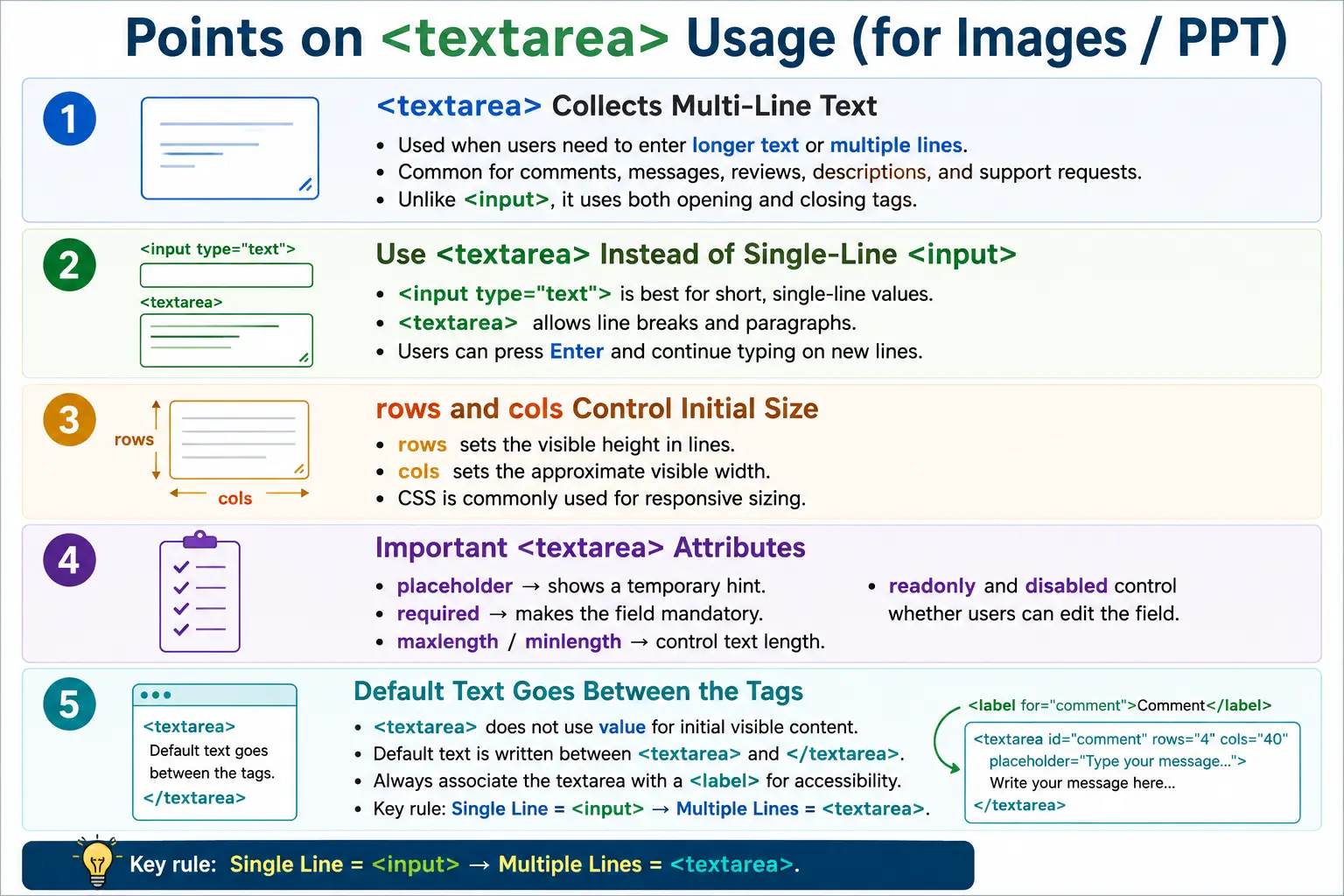
Introduction
The <textarea> element is an HTML form control used to collect multi-line text input from users. Unlike the <input> element, which is commonly used for single-line values such as names, emails, usernames, and short search terms, <textarea> is designed for longer text. It allows users to write paragraphs, comments, messages, descriptions, reviews, support requests, and other content that may span multiple lines.
Textareas are common in contact forms, feedback forms, comment sections, product reviews, support tickets, blog editors, job applications, address fields, biography sections, and profile pages. Whenever users need more room than a single-line input can provide, a textarea is usually the correct HTML control.
Using a textarea correctly improves usability because users can see and edit longer text more comfortably. It also improves accessibility and form clarity when paired with labels, validation rules, sensible sizing, and helpful instructions.
What Is a textarea?
A <textarea> creates a multi-line text box where users can type or paste several lines of text. Its syntax is different from most input elements because it has both an opening and closing tag.
<textarea>
</textarea>
This is an important difference. Many input elements are empty elements, such as <input type="text">. A textarea is not written that way. The opening and closing tags are required, and any default text is placed between them.
Why Use a textarea?
A normal text input accepts only one line. It is suitable for small values, but it is not suitable for long messages or paragraphs.
<input type="text">____________________If users press Enter in a normal text input, the browser typically does not create a new line. Depending on the form, pressing Enter may submit the form or move focus. This behavior is fine for short fields, but it is not acceptable for messages, reviews, and descriptions.
A textarea supports multiple lines.
<textarea>
</textarea>
____________________
____________________
____________________Users can press Enter, create paragraphs, paste longer content, and edit text in a larger writing area.
Basic Example
A basic textarea should usually be paired with a label. The label tells users what content should be entered.
<label for="message">Message</label>
<textarea id="message" name="message">
</textarea>The browser displays a labeled multi-line text field.
Message
____________________
____________________
____________________The id connects the label to the textarea, and the name identifies the field during form submission.
Common Uses
Textareas are ideal for customer feedback, product reviews, comments, suggestions, support requests, project descriptions, addresses, biography sections, "About Me" fields, application statements, and complaint forms. In all these cases, users may need to enter more than a few words.
For example, a customer feedback form may need a user to explain what went well or what problem occurred. A support ticket may require step-by-step details. A product review may contain several sentences. A job application may require a candidate to describe experience or motivation. A single-line input would feel cramped for these tasks.
The rows Attribute
The rows attribute specifies the visible height of the textarea in lines.
<textarea rows="5">
</textarea>
This displays a textarea with space for approximately five visible lines.
____________________
____________________
____________________
____________________
____________________
The rows value controls the initial visible height, not the maximum amount of text users can enter. Users can still enter more lines, and the textarea may scroll depending on browser behavior and styling.
The cols Attribute
The cols attribute specifies the visible width of the textarea in average character columns.
<textarea cols="40">
</textarea>
The actual rendered width may vary depending on CSS, fonts, browser styling, and layout constraints. In modern responsive design, CSS often controls textarea width more precisely than cols.
Using rows and cols Together
The rows and cols attributes can be used together to define the initial visible size.
<textarea rows="4" cols="50">
</textarea>
This creates a textarea that is initially four rows tall and about fifty character columns wide. The final appearance may still be adjusted by CSS.
Placeholder Attribute
The placeholder attribute displays helper text until the user starts typing.
<textarea placeholder="Enter your feedback">
</textarea>
The browser displays the hint inside the textarea.
Enter your feedbackPlaceholders are useful for examples or hints, but they should not replace labels. A placeholder disappears when the user types, while a label remains visible and provides lasting context.
Default Text
Unlike <input>, a textarea does not use the value attribute for its initial content. Default content is placed between the opening and closing tags.
<textarea>
Welcome!
</textarea>
The browser displays:
Welcome!This detail is commonly asked in interviews. If you write value="Hello" on a textarea, that is not the correct way to set its initial visible text.
The name Attribute
The name attribute identifies the field when the form is submitted.
<textarea name="comments">
</textarea>
If the user enters "Great Course", the submitted data may look like this:
comments=Great+CourseWithout a name, the field may not be included in normal form submission. This makes name important for backend processing.
Required, Readonly, and Disabled
The required attribute makes the textarea mandatory. The browser prevents submission until the field contains a value.
<textarea required>
</textarea>
The readonly attribute allows users to view but not edit the content. Readonly content is still submitted with the form.
<textarea readonly>
Terms...
</textarea>
The disabled attribute prevents editing and excludes the field from form submission.
<textarea disabled>
Unavailable
</textarea>
The difference between readonly and disabled matters in real forms and tests. Readonly fields can be submitted; disabled fields usually are not.
Maximum and Minimum Length
The maxlength attribute limits the number of characters the user can enter.
<textarea maxlength="200">
</textarea>
This is useful when the application expects short feedback, concise descriptions, or database fields with length limits.
The minlength attribute requires a minimum number of characters.
<textarea minlength="20">
</textarea>
This is useful when the application needs meaningful feedback or descriptions. For example, a support ticket description with only two characters is unlikely to be useful.
Resizing Behavior
Most browsers allow users to resize a textarea by dragging its corner.
Small Box
  ↓
Drag Corner
  ↓
Larger Box
Developers can control this behavior with CSS.
textarea {
    resize: none;
}
Common resize values include both, horizontal, vertical, and none. Allowing vertical resizing is often useful because users can make the writing area taller without breaking the page layout. Completely disabling resizing should be done carefully because it may reduce usability for users entering long text.
Browser Workflow
The browser displays the textarea, allows the user to type multiple lines, stores newline characters when the user presses Enter, and submits the final value with the form.
Load Page
  ↓
Display Textarea
  ↓
User Types
  ↓
User Presses Enter
  ↓
Multiple Lines Stored
  ↓
Submit Form
This workflow is what makes textarea different from a single-line text input.
Difference Between input and textarea
| Feature | <input type="text"> |
<textarea> |
|---|---|---|
| Lines | Single | Multiple |
| Closing Tag | No | Yes |
| Default Value | value attribute |
Between opening and closing tags |
| Enter Key | Typically ends editing or submits depending on context | Inserts a new line |
| Best For | Names, email, username | Comments, descriptions, messages |
Complete Example
The following form uses a textarea for feedback.
<form>
    <label for="feedback">Feedback</label>

    <textarea
        id="feedback"
        name="feedback"
        rows="5"
        cols="40"
        placeholder="Share your thoughts..."
        maxlength="500"
        required>
    </textarea>

    <br><br>

    <button type="submit">Submit</button>
</form>
This textarea has a label, name, visible size, hint text, character limit, and required validation. In production, spacing would usually be handled with CSS rather than line breaks.
Accessibility Best Practices
Always associate a textarea with a label. This helps screen readers announce the purpose of the field and helps all users understand what they should type.
<label for="bio">Biography</label>
<textarea id="bio">
</textarea>
Avoid relying solely on placeholder text. Placeholders can be useful hints, but labels provide stable context. If character limits are important, consider showing visible helper text such as "Maximum 500 characters" so users understand the rule before submission.
Real-World Example
A SoftwareTips4U contact form might include a message textarea.
<form>
    <label for="message">Message</label>

    <textarea
        id="message"
        name="message"
        rows="6"
        placeholder="Type your message here..."
        required>
    </textarea>

    <button type="submit">Send</button>
</form>
This allows users to enter detailed questions or feedback instead of being limited to a single line.
Common Mistakes
A common mistake is using a text input for long messages.
<input type="text">A better choice is:
<textarea>
</textarea>
Another mistake is missing the label.
<textarea>
</textarea>
A better version is:
<label>Comments</label>
<textarea>
</textarea>
Another common mistake is trying to use the value attribute for default text.
<textarea value="Hello">
</textarea>
The correct approach is:
<textarea>
Hello
</textarea>
Developers also sometimes forget character limits. Without maxlength, users can enter very large amounts of text, which may not be appropriate for every application.
Testing Scenarios
Textareas should be tested with short text, long text, multiple lines, pasted content, special characters, and empty values when the field is required. If maxlength is present, testers should verify that the limit is enforced. If minlength is present, testers should verify that too-short values are rejected.
Readonly and disabled states should also be tested. A readonly textarea should not allow editing, but its value may still be submitted. A disabled textarea should not allow editing and should not be submitted. These differences can affect backend behavior and should be verified when relevant.
When to Use textarea
Use a textarea when the expected answer is open-ended and may require more than one line. A message field, review field, complaint description, support issue, address, project summary, or biography is usually better as a textarea than as a text input. Users need room to think, write, review, and edit their content.
A textarea is not necessary for short predictable values. Names, usernames, email addresses, phone numbers, search terms, and short codes are usually better as single-line inputs. Choosing between input and textarea should be based on the expected length and structure of the user's answer.
If the answer may contain paragraphs, line breaks, or detailed explanations, a textarea is the right control. If the answer should be a compact single value, a normal input is usually better.
User Experience Considerations
The visible size of a textarea should match the expected amount of text. A support ticket description should be larger than a short note field. A biography field should provide enough vertical space for users to read what they are writing. If the textarea is too small, users may feel constrained and make more mistakes.
Helpful instructions can improve the quality of submitted content. For example, a support form can ask users to include steps to reproduce, expected result, and actual result. A review form can ask users to describe what they liked and what could be improved. The textarea itself collects text, but surrounding guidance helps users provide useful text.
Character counters are also useful when a field has a maximum length. If users can enter only 500 characters, showing the remaining count helps them adjust their message before submission. Without a counter, users may discover the limit only after reaching it.
Validation and Backend Handling
Textarea validation should happen on both the client and server. Browser validation can check required, minlength, and maxlength rules, but the server must still validate the submitted data. Users can bypass client-side checks or submit requests manually.
Backend systems should also handle whitespace carefully. A textarea containing only spaces or new lines may technically contain characters, but it may not be meaningful. Applications often trim input or validate that the text contains real content. If line breaks are important, the backend should preserve them correctly when storing and displaying the text.
Security also matters. Textareas often accept free-form user content, which can include special characters or markup-like text. Applications should escape or sanitize output properly to prevent injection issues when user-submitted text is displayed later.
Selenium Perspective
Selenium can locate a textarea, enter text, read the entered value, and clear existing text.
WebElement message =
driver.findElement(By.id("message"));
Text can be entered using sendKeys.
message.sendKeys("This course is excellent!");The entered value can be read using the value property through getAttribute.
String value =
message.getAttribute("value");

System.out.println(value);
Existing text can be cleared.
message.clear();Automation testers commonly verify text entry, placeholder text, required validation, readonly and disabled states, maximum character limits, minimum character limits, submitted values, and line breaks.
Comparison Table
| Feature | <input type="text"> |
<textarea> |
|---|---|---|
| Purpose | Single-line input | Multi-line input |
| Typical Use | Name, email, username | Comments, messages, descriptions |
| Supports Multiple Lines | No | Yes |
| Uses rows and cols | No | Yes |
| Default Content | value attribute |
Between opening and closing tags |
Common Interview Questions
What is the purpose of the <textarea> element? It collects multi-line text input.
What is the difference between <input type="text"> and <textarea>? A text input is for single-line input, while a textarea supports multiple lines.
How do you specify the initial size of a textarea? Use the rows and cols attributes.
How do you set default text in a textarea? Place the text between the opening and closing <textarea> tags.
Does a textarea use the value attribute for initial content? No. Its initial content is defined between the opening and closing tags.
Which attributes are commonly used with textarea? Common attributes include name, id, rows, cols, placeholder, required, maxlength, minlength, readonly, and disabled.
Interview-Ready Answer
The <textarea> element is used to collect multi-line text input such as comments, messages, reviews, addresses, and descriptions. Unlike <input type="text">, it supports multiple lines and uses both opening and closing tags, with any default text placed between them. Common attributes include rows, cols, placeholder, required, maxlength, minlength, readonly, and disabled. Every textarea should be associated with a <label> to improve accessibility and usability.
One-Line Insight
Use <textarea> whenever users need to write paragraphs, not just a single line of text.