Text, Password, Email Inputs
Introduction
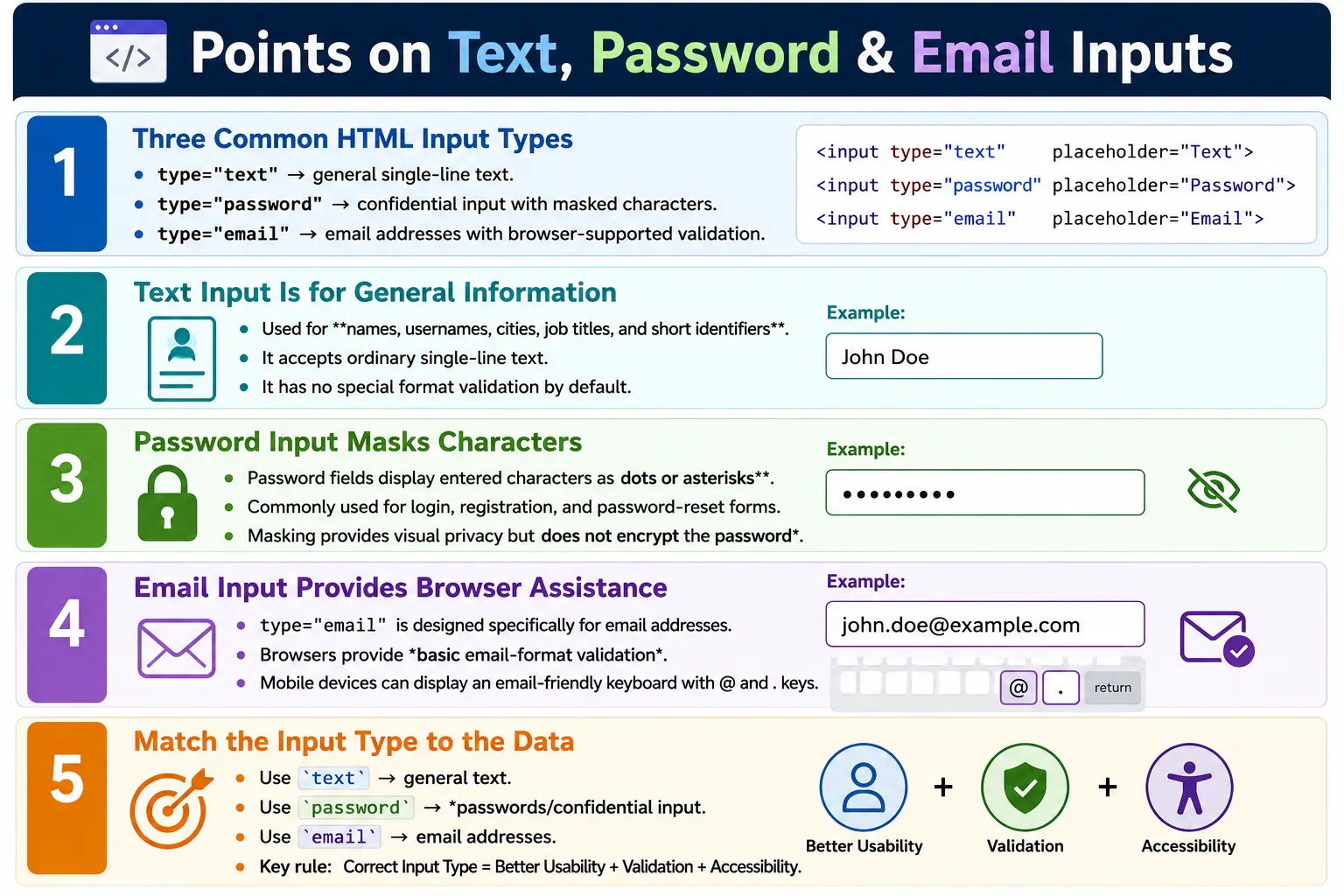
The <input> element is one of the most frequently used HTML elements for collecting user information. Among all input types, text, password, and email are the most common because they appear in nearly every web application. Login forms, registration forms, contact forms, search forms, profile pages, checkout pages, and account settings pages all rely on these input types.
Although all three controls use the same <input> element, their behavior changes based on the type attribute. A text input accepts ordinary single-line text. A password input masks characters while the user types. An email input provides browser-supported email validation and often displays an email-friendly keyboard on mobile devices.
Choosing the correct input type is important because it improves user experience, accessibility, mobile usability, validation, and automation reliability. A developer who uses type="text" for every field may still produce a visible form, but the form will lose many useful browser features. Professional forms use the input type that matches the expected data.
Why Different Input Types Exist
Different data requires different handling. A name should be visible while typing, so it belongs in a text input. A password should be hidden from casual viewing, so it belongs in a password input. An email address has a recognizable format and benefits from an email-optimized mobile keyboard, so it belongs in an email input.
User Information
  ↓
Name
  ↓
Text Input

Password
  ↓
Password Input

Email
  ↓
Email Input
Using the correct input type gives the browser more information about the field. That information helps the browser choose the right control behavior, validation rules, autofill suggestions, and mobile keyboard layout. It also helps assistive technologies understand the expected input more clearly.
Text Input
A text input allows users to enter a single line of plain text. It is the most general-purpose input type and is commonly used for names, usernames, cities, states, company names, job titles, and short identifiers.
<input type="text">The browser displays a simple single-line text box.
____________________Text inputs are appropriate when the expected value is ordinary text and does not require specialized browser behavior. For example, a full name field can use a text input because names may contain letters, spaces, punctuation, and many language-specific characters.
Text Input Example
A good text input is usually paired with a label. The label explains the purpose of the field and improves accessibility.
<label for="name">Full Name</label>
<input type="text" id="name" name="name">
The browser displays the label and the input field together.
Full Name
______________________
The id connects the label to the input through the label's for attribute. The name identifies the field when the form is submitted.
Common Text Input Attributes
Text inputs often use attributes such as name, id, placeholder, maxlength, minlength, required, readonly, disabled, and autocomplete.
<input
    type="text"
    name="username"
    placeholder="Enter username"
    maxlength="20"
    required>
The required attribute tells the browser that the field must be filled before submission. The maxlength attribute limits the number of characters. The placeholder gives a short hint, but it should not replace a proper label.
Password Input
A password input collects sensitive information while masking the characters entered by the user. This protects the value from people casually looking at the screen.
<input type="password">Instead of displaying the actual characters, the browser shows dots or asterisks.
************Password inputs are commonly used in login forms, registration forms, password reset pages, account settings, and secure confirmation dialogs.
Password Input Example
A typical password input also uses a label, id, name, and validation attributes.
<label for="password">Password</label>
<input type="password" id="password" name="password">
The browser displays a field where the user can type the password, but the value is visually masked.
Password
************
Password masking is useful, but it is only a visual feature. It does not encrypt the password and does not secure the password during transmission. Forms that submit passwords must use HTTPS, and the server must store passwords securely using proper hashing practices.
Common Password Attributes
Password fields commonly use required, minlength, maxlength, and autocomplete.
<input
    type="password"
    required
    minlength="8"
    maxlength="20"
    autocomplete="current-password">
The minlength attribute can enforce a minimum password length. The autocomplete="current-password" value helps browsers and password managers understand that the field expects an existing password. For new account creation or password reset flows, autocomplete="new-password" is often more appropriate.
Email Input
An email input is designed specifically for collecting email addresses.
<input type="email">Modern browsers provide helpful behavior for email inputs. They can perform basic email format validation, show an email-friendly mobile keyboard, and provide better autofill suggestions.
john@example.comThe value above is a valid email-style value. A value such as johnexample is invalid because it does not follow the basic email format expected by the browser.
Email Input Example
A typical email input includes a label, id, name, and sometimes autocomplete.
<label for="email">Email</label>
<input type="email" id="email" name="email">
When an email field is marked as required, the browser checks both presence and basic email format before submission.
<input type="email" required>If the user enters a value such as john@, most browsers display a validation error before allowing the form to submit.
Mobile Keyboard Difference
One practical advantage of email inputs appears on mobile devices. A text input usually displays a standard keyboard. An email input often displays keys commonly used in email addresses, such as @ and ..
Text input:
ABCDEFGHIJKLMNOPQRSTUVWXYZ

Email input:
ABCDEFGHIJKLMNOPQRSTUVWXYZ
@
.
This small improvement makes form completion faster and reduces typing errors. It is one reason why using the correct input type matters even when custom validation exists.
Comparing the Three Inputs
| Input Type | Purpose | Special Behavior |
|---|---|---|
text |
General text | No special validation |
password |
Password entry | Characters are masked |
email |
Email address | Built-in email validation |
The three controls may look similar at first, but their behavior differs significantly. The text input is general. The password input protects against casual screen viewing. The email input provides browser-supported email behavior.
Complete Login Form Example
The following example combines text, email, and password inputs in one form.
<form>
    <label for="username">Username</label>
    <input type="text" id="username" name="username" required>

    <br><br>

    <label for="email">Email</label>
    <input type="email" id="email" name="email" required>

    <br><br>

    <label for="password">Password</label>
    <input type="password" id="password" name="password" required>

    <br><br>

    <button type="submit">Login</button>
</form>
In a production form, spacing should normally be handled with CSS instead of repeated line breaks. The example is kept simple to focus on input behavior.
Browser Workflow
When a user opens the form, the browser displays controls based on their input types. The user enters a name, email, and password. Before submission, the browser validates the required fields and checks the email format. If validation passes, the form is submitted.
User Opens Form
  ↓
Enter Name
  ↓
Enter Email
  ↓
Enter Password
  ↓
Browser Validates Email
  ↓
Submit Form
This workflow shows how input types influence behavior before the data even reaches the server.
Validation Behavior
A text input has no special format validation by default. If required is used, the browser checks whether a value is present.
<input type="text" required>A password input also checks whether a value exists when required is used. Additional rules such as length can be added using minlength and maxlength, and complexity rules can be implemented with JavaScript or server-side validation.
<input type="password" required>An email input checks both required presence and basic email format when required is present.
<input type="email" required>Browser validation is useful for user experience, but it should never be the only validation. Server-side validation is still required because client-side validation can be bypassed.
Accessibility Best Practices
Always associate inputs with labels. Labels help all users understand what information is expected, and they help assistive technologies announce the field correctly.
<label for="email">Email</label>
<input type="email" id="email">
A field without a label is harder to use, especially for screen reader users.
<input type="email">Placeholders can provide hints, but they should not replace labels. A placeholder disappears as soon as the user types and may not provide enough context when reviewing a completed form.
<input type="text" placeholder="Enter your name">Autocomplete can also improve accessibility and usability because it reduces repetitive typing.
<input type="email" autocomplete="email">Common Mistakes
A common mistake is using text input for email addresses.
<input type="text">A better choice is:
<input type="email">Another mistake is using text input for passwords.
<input type="text">A better choice is:
<input type="password">Missing labels is also a serious form mistake. A placeholder alone is not enough.
<label>Password</label>
<input type="password">
Another mistake is assuming password fields are secure. Password masking hides characters from view, but it does not encrypt the data. Secure forms require HTTPS, server-side validation, and secure password storage practices such as hashing on the server.
Real-World Example
A SoftwareTips4U login form may use text, email, and password fields together.
<form action="/login" method="post">
    <label for="username">Username</label>
    <input type="text" id="username" name="username" required>

    <label for="email">Email</label>
    <input
        type="email"
        id="email"
        name="email"
        autocomplete="email"
        required>

    <label for="password">Password</label>
    <input
        type="password"
        id="password"
        name="password"
        autocomplete="current-password"
        required>

    <button type="submit">Login</button>
</form>
This form uses POST, labels, appropriate input types, autocomplete values, and required validation. It is more meaningful and usable than a form where every field is only a text input.
Selenium Perspective
Automation testers frequently validate text, email, and password inputs because they are central to login, registration, and profile workflows. Selenium can locate each field, enter values, and verify attributes.
WebElement username =
driver.findElement(By.id("username"));

username.sendKeys("John");
An email field can be located and filled the same way.
WebElement email =
driver.findElement(By.id("email"));

email.sendKeys("john@example.com");
A password field can be filled using sendKeys.
WebElement password =
driver.findElement(By.id("password"));

password.sendKeys("MyPassword123");
The input type can be verified using getAttribute.
String type =
password.getAttribute("type");

System.out.println(type);
Automation testers commonly verify field visibility, input type, placeholder text, validation messages, entered values, required field behavior, enabled or disabled state, and successful submission.
Comparison Table
| Feature | text |
password |
email |
|---|---|---|---|
| Purpose | General text | Password entry | Email address |
| Characters Visible | Yes | No, masked | Yes |
| Built-in Validation | No special validation | No special format validation | Basic email format |
| Mobile Keyboard Optimization | Standard | Standard | Email keyboard with @ and . |
| Common Uses | Names, usernames | Login passwords | Email addresses |
Common Interview Questions
What is the purpose of type="text"? It accepts single-line plain text input.
What is the purpose of type="password"? It masks characters entered by the user while collecting passwords.
Does type="password" encrypt the password? No. It only hides the characters visually. Use HTTPS to secure data in transit.
What is the advantage of type="email"? It provides built-in email format validation and displays an email-friendly keyboard on mobile devices.
Which input type should be used for usernames? Use text.
Which input type should be used for email addresses? Use email.
Which input type should be used for passwords? Use password.
Choosing the Right Input in Real Projects
In real projects, choosing between text, password, and email should be based on the actual meaning of the data, not only on how the field looks. A username should usually be a text input because usernames may contain letters, numbers, underscores, or other application-specific characters. An email address should use an email input because the browser can provide basic format validation and a better mobile keyboard. A password should use a password input because the value should not be openly visible while typing.
Some fields require product-level decisions. For example, a login form may allow users to sign in using either username or email address. In that case, a text input may be more appropriate than email because the field accepts more than one kind of identifier. The label can say "Username or Email" to make the expectation clear. If the field accepts only an email address, type="email" is the better choice.
Good form design comes from matching the input type, label, validation rule, and backend expectation. If the frontend says email but the backend accepts usernames too, users may be confused. If the frontend accepts any text but the backend requires an email, users may see errors too late. The input type should support the actual business rule.
Security and Privacy Notes
Password inputs provide privacy on the screen, but they are not a complete security solution. They do not encrypt values, prevent browser inspection, protect against network interception, or guarantee secure storage. The browser only masks the characters visually. Secure password handling requires HTTPS, server-side validation, rate limiting, secure session management, and password hashing on the server.
Email inputs also require careful handling. Email addresses are personal information in many applications. They should not be exposed unnecessarily in URLs, logs, or public pages. If an email field is part of a registration or login flow, the application should protect the submitted data and avoid showing excessive information in error messages.
Testing Checklist
When testing these inputs, verify that each field uses the correct type. The username or name field should not accidentally be configured as password or email. The password field should mask characters. The email field should reject clearly invalid formats when browser validation is expected.
Also test required field behavior, minimum and maximum length rules, autocomplete behavior, copy and paste behavior, disabled or readonly states, and validation messages. For password fields, verify that the value is not displayed as plain text. For email fields, test valid examples such as john@example.com and invalid examples such as johnexample or john@. These small checks catch many common form defects.
Interview-Ready Answer
type="text", type="password", and type="email" are three of the most commonly used HTML input types. A text input accepts general single-line text, a password input masks entered characters for privacy, and an email input provides built-in validation for email addresses and displays an email-optimized keyboard on mobile devices. Choosing the appropriate input type improves usability, accessibility, and browser-supported validation.
One-Line Insight
Choose the input type based on the data you expect: text for general text, password for confidential input, and email for email addresses with built-in browser assistance.