Tables for Reporting Data
Introduction
HTML tables are primarily designed to present structured data in rows and columns. One of their most common and valuable real-world uses is displaying reporting data. Reports are used whenever users need to read, compare, summarize, and analyze information. A report may show sales numbers, employee details, student marks, financial expenses, inventory levels, test execution results, attendance data, customer records, or banking transactions.
Reporting data is different from ordinary paragraph content because users rarely read it from beginning to end like a story. Instead, they scan rows, compare columns, look for totals, identify patterns, verify values, and make decisions. HTML tables are ideal for this kind of information because they clearly express the relationship between records and their attributes.
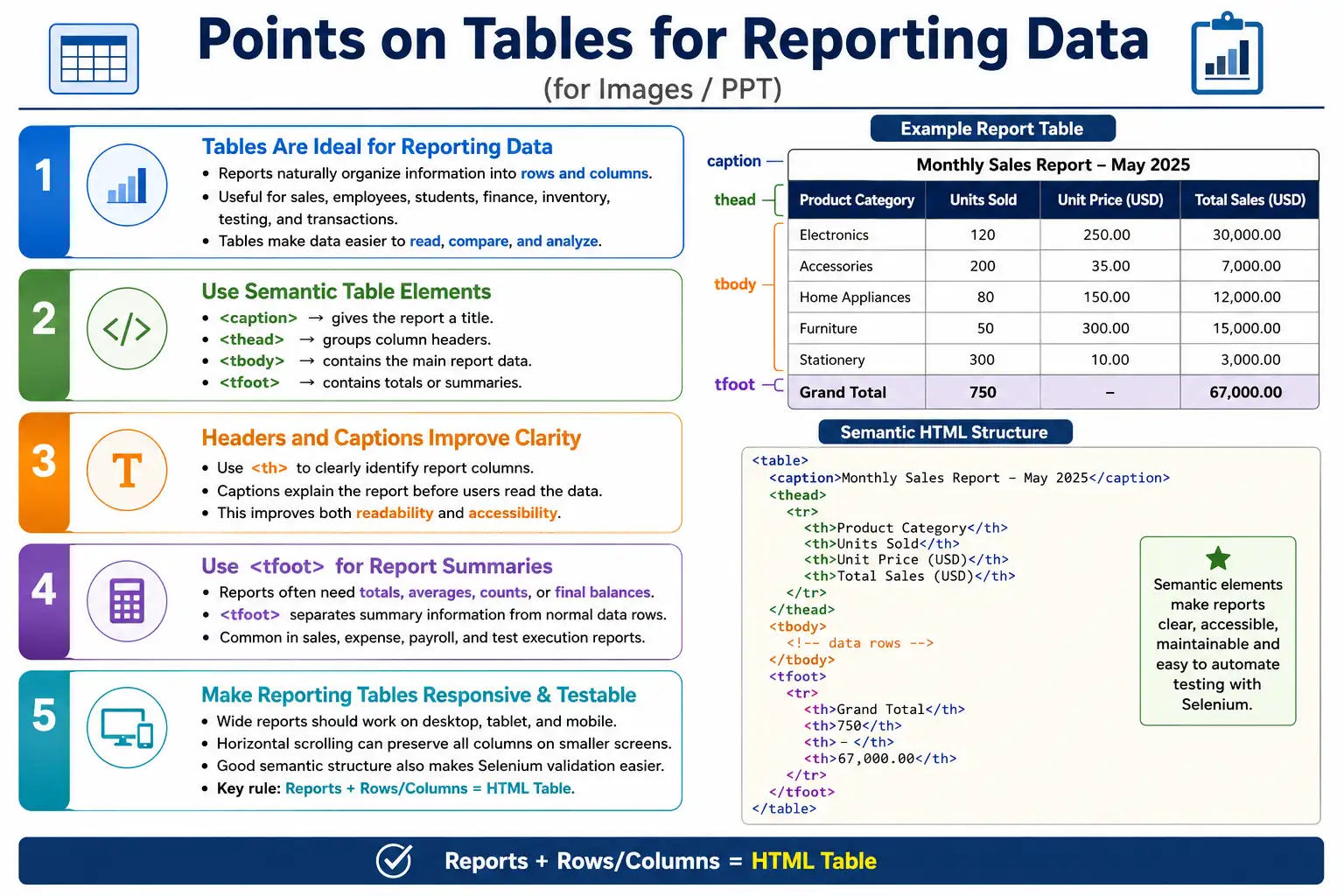
A well-designed reporting table does more than display values. It gives the report a title, organizes headings, groups data rows, includes summaries where needed, supports accessibility, adapts to screen size, and remains easy to validate through manual or automated testing. This makes tables one of the most important HTML structures for business and enterprise applications.
What Is Reporting Data?
Reporting data is organized information presented in a structured format for analysis, comparison, monitoring, or decision-making. Reports are common in almost every industry, including business, banking, education, healthcare, e-commerce, human resources, government, and software testing.
Examples of reporting data include sales reports, employee reports, student result sheets, inventory reports, test execution reports, financial statements, attendance reports, payroll reports, expense summaries, and transaction histories. Each of these reports contains data that naturally fits into rows and columns.
A report usually has records and attributes. In an employee report, each employee becomes one row. The employee ID, name, department, salary, and location become columns. In a sales report, each month or product may become one row, while sales amount, profit, region, and growth percentage become columns.
Employee
  ↓
ID
Name
Department
Salary
This structure is exactly what HTML tables are designed to represent.
Why Use Tables for Reports?
Reports contain data that users need to compare. A paragraph is poor for comparison because values are buried inside sentences. Lists can show multiple items, but they do not clearly express row and column relationships. Tables are better because each value appears in a predictable position.
For example, if a report shows employee names and salaries, a table allows users to scan the salary column quickly. If a student result report shows marks for multiple subjects, users can compare subject scores across students. If a test execution report shows pass and fail statuses, QA teams can quickly identify failed scenarios.
Tables also support summaries. A report can include totals, averages, counts, or final balances in a footer section. This makes tables useful not only for displaying raw data but also for presenting conclusions from that data.
Real-World Reporting Examples
HTML reporting tables are used in many real-world systems. Sales reports show monthly or product-wise performance. Customer lists show names, contact details, account status, and activity. Product inventory tables show stock counts, prices, suppliers, and warehouse locations. Banking transaction tables show date, description, debit, credit, and balance. Student mark sheets show subject scores and totals. Hospital patient records show patient ID, diagnosis, doctor, and appointment status. Payroll reports show employee salary details and deductions. Software testing reports show test cases, statuses, execution times, and defects.
The common pattern is that the information has records and attributes. That is why tables are the natural HTML choice.
Example: Employee Report
An employee report is a simple example of tabular reporting data. Each row represents one employee, and each column represents an employee attribute.
<table>
    <caption>Employee Report</caption>
    <thead>
        <tr>
            <th>ID</th>
            <th>Name</th>
            <th>Department</th>
            <th>Salary</th>
        </tr>
    </thead>
    <tbody>
        <tr>
            <td>101</td>
            <td>John</td>
            <td>IT</td>
            <td>$5000</td>
        </tr>
        <tr>
            <td>102</td>
            <td>Alice</td>
            <td>HR</td>
            <td>$4500</td>
        </tr>
    </tbody>
</table>
The browser represents the report as a clear grid.
+-----+--------+------------+--------+
| ID  | Name   | Department | Salary |
+-----+--------+------------+--------+
|101  | John   | IT         | 5000   |
|102  | Alice  | HR         | 4500   |
+-----+--------+------------+--------+
This structure allows users to compare employees, departments, and salaries quickly.
Example: Sales Report
A sales report often contains monthly values and a total. This is a strong use case for <tfoot> because the footer can summarize the data shown in the body.
<table>
    <caption>Monthly Sales Report</caption>
    <thead>
        <tr>
            <th>Month</th>
            <th>Sales</th>
        </tr>
    </thead>
    <tbody>
        <tr>
            <td>January</td>
            <td>$8000</td>
        </tr>
        <tr>
            <td>February</td>
            <td>$9500</td>
        </tr>
        <tr>
            <td>March</td>
            <td>$10200</td>
        </tr>
    </tbody>
    <tfoot>
        <tr>
            <td>Total</td>
            <td>$27700</td>
        </tr>
    </tfoot>
</table>
The footer makes the total visually and semantically separate from the monthly rows. This helps users understand that the value is a summary, not another month.
Example: Student Results
Student result reports are another common table use case. They allow teachers, students, and administrators to compare marks across subjects and students.
<table>
    <caption>Student Marks</caption>
    <thead>
        <tr>
            <th>Student</th>
            <th>Math</th>
            <th>Science</th>
            <th>Total</th>
        </tr>
    </thead>
    <tbody>
        <tr>
            <td>Emma</td>
            <td>95</td>
            <td>91</td>
            <td>186</td>
        </tr>
        <tr>
            <td>Liam</td>
            <td>88</td>
            <td>94</td>
            <td>182</td>
        </tr>
    </tbody>
</table>
Here, the total column is part of the report's meaning. Users can compare individual subjects and total performance in one structure.
Example: Product Inventory
Inventory reports are used in e-commerce, retail, warehouse management, and supply chain systems. A product inventory table may show product name, stock quantity, and price.
<table>
    <caption>Inventory Report</caption>
    <thead>
        <tr>
            <th>Product</th>
            <th>Stock</th>
            <th>Price</th>
        </tr>
    </thead>
    <tbody>
        <tr>
            <td>Laptop</td>
            <td>20</td>
            <td>$1200</td>
        </tr>
        <tr>
            <td>Mouse</td>
            <td>150</td>
            <td>$30</td>
        </tr>
    </tbody>
</table>
This table helps users identify stock levels, compare product prices, and decide which items may need restocking.
Software Testing Report
Software testing reports are especially relevant for QA engineers and automation testers. A test execution report may show test case names, execution status, execution time, and sometimes linked defect IDs.
<table>
    <caption>Test Execution Report</caption>
    <thead>
        <tr>
            <th>Test Case</th>
            <th>Status</th>
            <th>Execution Time</th>
        </tr>
    </thead>
    <tbody>
        <tr>
            <td>Login Test</td>
            <td>Passed</td>
            <td>3 sec</td>
        </tr>
        <tr>
            <td>Payment Test</td>
            <td>Failed</td>
            <td>5 sec</td>
        </tr>
    </tbody>
</table>
This type of report is frequently seen in automation dashboards, CI/CD pipelines, test management tools, and QA status pages. Teams use it to identify failed tests, track execution time, and decide whether a build is stable enough to move forward.
Financial Report Example
Financial reports often need summaries because users care about totals, balances, and category-wise spending. The <tfoot> element is useful for presenting totals.
<table>
    <caption>Expense Report</caption>
    <thead>
        <tr>
            <th>Category</th>
            <th>Amount</th>
        </tr>
    </thead>
    <tbody>
        <tr>
            <td>Travel</td>
            <td>$600</td>
        </tr>
        <tr>
            <td>Food</td>
            <td>$300</td>
        </tr>
    </tbody>
    <tfoot>
        <tr>
            <td>Total</td>
            <td>$900</td>
        </tr>
    </tfoot>
</table>
The report becomes easier to understand because users can read individual categories and then see the total in a dedicated summary area.
Why Reports Need Table Headers
Headers explain what each column represents. Without headers, values lose meaning. A row containing John, 25, and 5000 may represent name, age, and salary, but users should not have to guess.
Without headers:

John
25
5000
With headers, the values become understandable.
Name    Age    Salary
John    25     5000
Always use <th> for report headers. Header cells improve readability and accessibility. They also make the table easier to test because automation scripts can identify header values separately from data values.
Why Reports Need Captions
A report caption tells users what the report contains before they start reading the table. This is especially useful when a page has multiple reports.
<caption>Quarterly Sales Report</caption>A caption should be clear and specific. "Report" is too vague. "Quarterly Sales Report" gives immediate context. "Employee Salary Report - March 2026" is even more specific when the time period matters.
Captions also improve accessibility because screen reader users can hear the purpose of the table before navigating its rows and columns.
Why Reports Often Include Footers
Many reports include summaries. A sales report may show total sales. An expense report may show total expenses. A test execution report may show total passed and failed tests. A payroll report may show total salary cost.
January   500
February  600
March     700
---------------
Total    1800
This summary is typically implemented with <tfoot>. The footer separates summary rows from normal data rows and gives the report a cleaner structure.
Accessibility in Reports
Reporting tables often contain important information, so accessibility is essential. A well-structured report should include a caption, table head, table body, table footer when applicable, header cells, and scope attributes where appropriate.
The <caption> describes the report. The <thead> groups the column headings. The <tbody> contains the main report data. The <tfoot> contains totals or summaries. The <th> element identifies headers. The scope attribute can clarify whether a header applies to a row or column.
This structure helps screen readers interpret the report correctly. It also helps all users understand the report faster because the visual and semantic structure are aligned.
Responsive Reporting Tables
Business reports may contain many columns. An employee report may show employee name, department, manager, salary, bonus, location, joining date, and status. On desktop, these columns may fit. On mobile, they may overflow.
Employee
Department
Manager
Salary
Bonus
Location
Joining Date
Responsive techniques such as horizontal scrolling, responsive layouts, and priority-based columns can improve usability on smaller screens. For many large reporting tables, wrapping the table in a horizontally scrollable container is a practical solution because it preserves all columns.
When designing mobile report tables, avoid hiding important information without an alternative way to access it. Reports are often used for decision-making, so missing columns can lead to incomplete understanding.
Styling Reports
Report tables often need styling to improve readability. Common CSS improvements include header background colors, zebra striping, hover effects, borders, spacing, and right-aligned numeric values. Numeric alignment is especially useful for financial and statistical reports because it makes values easier to compare.
thead {
    background-color: #003366;
    color: white;
}
Styling should support the data, not distract from it. A report table should feel clear and stable. Excessive colors, heavy borders, and complex visual effects can make reports harder to scan.
Browser Rendering Process
When a browser renders a reporting table, it loads the HTML, creates the table structure, renders headers, renders data rows, renders the footer if present, applies CSS, and displays the final report.
Load HTML
    ↓
Create Table
    ↓
Render Headers
    ↓
Render Rows
    ↓
Render Footer
    ↓
Display Report
If the table is well structured, the browser can build a clear layout. If the table is inconsistent, missing headers, or using incorrect spans, the rendered output may become confusing.
Common Mistakes
One common mistake is using paragraphs instead of tables for structured report data.
<p>
John
IT
5000
</p>
This is not a good way to present reporting data because the relationship between values is unclear. Structured data belongs in a table.
Another mistake is missing headers. A row with John and 5000 does not tell users what 5000 means. It could be salary, score, employee ID, or monthly target. Headers remove ambiguity.
Reports also often benefit from totals. If a report contains numbers that should be summarized, missing totals can reduce usefulness. The <tfoot> element should be used when totals or other summaries are needed.
Inconsistent columns are another common problem. All rows should have the same number of columns unless rowspan or colspan is intentionally used. Inconsistent structure makes reports harder to read and harder to validate.
Real-World Applications
HTML reporting tables are used in ERP systems, CRM systems, banking portals, school management systems, hospital management systems, HR portals, e-commerce dashboards, test management tools, and analytics dashboards. These systems rely on tables because users need structured information that can be compared and analyzed.
For example, an HR portal may show attendance, payroll, performance ratings, and leave balances. A banking portal may show deposits, withdrawals, transfers, and balances. A test management tool may show pass percentage, failed test cases, blocked tests, and linked defects. In each case, tables provide the structure users need.
Selenium Perspective
Automation testers frequently validate report tables. Selenium can locate the table, read rows, read headers, and validate specific cells. This is useful for checking whether reports display correct values after filtering, sorting, searching, or backend calculations.
WebElement table =
driver.findElement(By.tagName("table"));
All rows can be read using <tr>.
List<WebElement> rows =
driver.findElements(By.tagName("tr"));
Headers can be validated using <th>.
List<WebElement> headers =
driver.findElements(By.tagName("th"));
A specific cell can be located with XPath when needed.
WebElement salary =
driver.findElement(By.xpath("//tr[2]/td[4]"));

System.out.println(salary.getText());
Automation teams commonly verify report headers, row count, column count, totals, cell values, sorting behavior, filtering behavior, pagination, and exported data. Good semantic table structure makes these validations easier and more reliable.
Reporting Table Checklist
| Best Practice | Benefit |
|---|---|
Use <caption> |
Describes the report |
Use <thead> |
Groups column headings |
Use <tbody> |
Contains report data |
Use <tfoot> |
Displays totals or summaries |
Use <th> |
Identifies headers |
| Keep columns consistent | Improves readability |
| Make tables responsive | Better mobile experience |
| Test accessibility | Supports all users |
Common Interview Questions
Why are HTML tables suitable for reports? They organize structured data into rows and columns, making it easy to read, compare, summarize, and analyze.
Which HTML elements are commonly used in reporting tables? Reporting tables commonly use <table>, <caption>, <thead>, <tbody>, <tfoot>, <tr>, <th>, and <td>.
Why is <tfoot> useful in reports? It displays summaries such as totals, averages, counts, or final balances.
Should reports use captions? Yes. A caption provides a clear title and improves accessibility.
Why should report tables be responsive? Business reports are often viewed on different devices, so responsive design ensures the data remains usable on smaller screens.
Interview-Ready Answer
HTML tables are the preferred way to display reporting data because reports naturally consist of rows and columns. A well-designed reporting table uses semantic elements such as <caption>, <thead>, <tbody>, <tfoot>, <th>, and <td> to organize information clearly. This structure improves readability, accessibility, maintainability, and makes it easier for users to compare, summarize, and analyze data.
One-Line Insight
Whenever information needs to be compared row by row and column by column, such as reports, results, or summaries, an HTML table is the right choice.