Table Head, Body, Footer (<thead>, <tbody>, <tfoot>)
Introduction
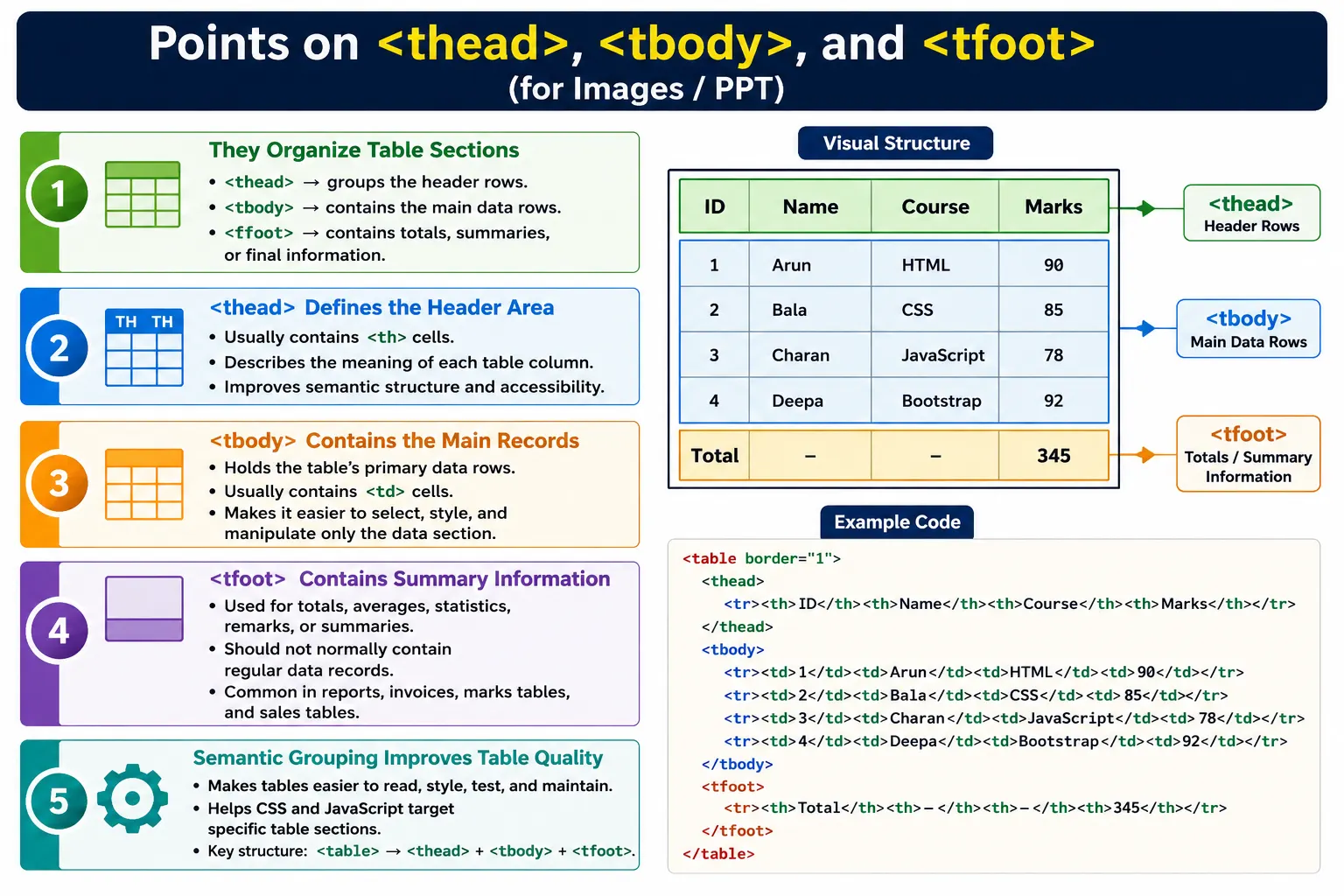
HTML provides three semantic elements for organizing table content: <thead>, <tbody>, and <tfoot>. These elements divide a table into logical sections. The <thead> element defines the table header. The <tbody> element contains the main table data. The <tfoot> element defines the table footer, usually used for totals, summaries, statistics, remarks, or final notes.
These elements are optional in simple tables, but they are considered a best practice in professional HTML. They improve readability, maintainability, accessibility, CSS styling, and JavaScript manipulation. A small table can work without them, but as tables grow larger, grouping becomes much more useful.
A table with clear sections is easier to understand because the purpose of each row becomes obvious. Header rows are separated from data rows. Data rows are separated from summary rows. This organization helps both humans and machines interpret the table correctly.
Why These Elements Are Needed
Consider a large table with hundreds of rows. Without grouping, the table becomes a long sequence of row elements. A developer reading the markup must inspect each row to understand whether it is a heading, a data row, or a summary row.
Without Grouping

Table
  ↓
Many Rows
  ↓
Difficult to Understand
With grouping, the structure becomes much clearer. The table has a header section, a body section, and a footer section.
With Grouping

Table
  ↓
Header
  ↓
Body
  ↓
Footer
This organization makes the table easier to style, easier to test, easier to maintain, and easier for assistive technologies to interpret.
Table Structure Overview
A professionally structured table often follows this layout:
<table>
    <thead>
        Header Rows
    </thead>

    <tbody>
        Data Rows
    </tbody>

    <tfoot>
        Summary Rows
    </tfoot>
</table>
The <thead> appears at the top of the structure, the <tbody> holds the main records, and the <tfoot> provides final summary information. This arrangement mirrors how users usually read a report: first the headings, then the data, then the summary.
The <thead> Element
The <thead> element groups all header rows of a table. A header row usually contains <th> cells that describe the meaning of each column.
<thead>
    <tr>
        <th>Name</th>
        <th>Age</th>
        <th>City</th>
    </tr>
</thead>
The browser understands these cells as column headings. Visually, the header row may appear bold or styled differently depending on browser defaults and CSS. Semantically, it tells browsers and assistive technologies that these rows label the table's data.
Using <thead> provides several benefits. It gives the table semantic structure, makes CSS styling easier, improves accessibility, and simplifies JavaScript selection. For example, CSS can target thead directly to style only the header area.
The <tbody> Element
The <tbody> element contains the main data rows of a table. These rows usually contain <td> cells, although row headers can also be used in more advanced tables.
<tbody>
    <tr>
        <td>John</td>
        <td>25</td>
        <td>London</td>
    </tr>

    <tr>
        <td>Alice</td>
        <td>30</td>
        <td>Paris</td>
    </tr>
</tbody>
The body section clearly separates actual records from headings and summary information. In a large report, this makes the data easier to locate and manipulate. JavaScript can select only body rows without accidentally including header or footer rows.
The <tfoot> Element
The <tfoot> element groups footer rows. It is usually used for totals, grand totals, summaries, statistics, remarks, or other final information related to the table.
<tfoot>
    <tr>
        <td colspan="2">Total</td>
        <td>500</td>
    </tr>
</tfoot>
The footer should not normally contain ordinary records. It should contain information that summarizes or explains the data. For example, a price table may use <tfoot> for the total amount. A student marks table may use it for class average. An employee table may use it for total employee count.
Complete Table Example
A complete table can use all three semantic sections together.
<table>
    <thead>
        <tr>
            <th>Name</th>
            <th>Age</th>
            <th>City</th>
        </tr>
    </thead>

    <tbody>
        <tr>
            <td>John</td>
            <td>25</td>
            <td>London</td>
        </tr>

        <tr>
            <td>Alice</td>
            <td>30</td>
            <td>Paris</td>
        </tr>
    </tbody>

    <tfoot>
        <tr>
            <td colspan="3">2 Employees</td>
        </tr>
    </tfoot>
</table>
In the browser, users see a table with column headers, employee records, and a final summary row. The structure is readable in the markup and meaningful in the rendered page.
Visual Hierarchy and DOM Structure
The visual hierarchy of a professional table is simple: table, header, body, footer.
TABLE
  ↓
HEADER
  ↓
BODY
  ↓
FOOTER
The DOM structure reflects that organization:
table
 |
 +-- thead
 |     +-- tr
 |           +-- th
 |           +-- th
 |           +-- th
 |
 +-- tbody
 |     +-- tr
 |     +-- tr
 |
 +-- tfoot
       +-- tr
This structure is especially useful for automated testing, scripting, and styling because each section can be selected independently.
Employee Table Example
An employee table can use the footer to show the number of employees listed.
<table>
    <thead>
        <tr>
            <th>ID</th>
            <th>Name</th>
            <th>Department</th>
        </tr>
    </thead>

    <tbody>
        <tr>
            <td>101</td>
            <td>John</td>
            <td>IT</td>
        </tr>

        <tr>
            <td>102</td>
            <td>Alice</td>
            <td>HR</td>
        </tr>
    </tbody>

    <tfoot>
        <tr>
            <td colspan="3">Total Employees: 2</td>
        </tr>
    </tfoot>
</table>
Product Price and Student Marks Examples
A product price table can use <tfoot> to show the total price.
<table>
    <thead>
        <tr>
            <th>Product</th>
            <th>Price</th>
        </tr>
    </thead>

    <tbody>
        <tr>
            <td>Laptop</td>
            <td>$1200</td>
        </tr>

        <tr>
            <td>Mouse</td>
            <td>$30</td>
        </tr>
    </tbody>

    <tfoot>
        <tr>
            <td>Total</td>
            <td>$1230</td>
        </tr>
    </tfoot>
</table>
A student marks table can use the footer for class average or summary availability.
<table>
    <thead>
        <tr>
            <th>Student</th>
            <th>Math</th>
            <th>Science</th>
        </tr>
    </thead>

    <tbody>
        <tr>
            <td>Emma</td>
            <td>95</td>
            <td>91</td>
        </tr>

        <tr>
            <td>Liam</td>
            <td>88</td>
            <td>94</td>
        </tr>
    </tbody>

    <tfoot>
        <tr>
            <td colspan="3">Class Average Available</td>
        </tr>
    </tfoot>
</table>
Browser Parsing
When a browser parses a table, it reads the table element, identifies the grouped sections, and renders each section appropriately.
Find <table>
    ↓
Find <thead>
    ↓
Render Header
    ↓
Find <tbody>
    ↓
Render Data
    ↓
Find <tfoot>
    ↓
Render Footer
In HTML markup, <tfoot> may appear before or after <tbody>. Browsers render the footer at the bottom of the table. In practice, many developers place <tfoot> after <tbody> because it matches the visual reading order and improves source readability.
Accessibility Benefits
Grouped table sections improve accessibility because assistive technologies can better understand the structure. Screen readers can distinguish the header, the main data, and the summary information.
Header
  ↓
Data
  ↓
Summary
This helps users navigate tables more confidently. When tables are large, semantic grouping can reduce confusion and make the table feel more like a structured report rather than a long list of unrelated rows.
Maintainability Benefits
Table grouping also improves maintainability. When a developer returns to a table after several weeks or months, a clearly grouped structure is easier to understand than a long list of ungrouped rows. The purpose of each section is immediately visible in the markup.
In a real project, tables often change over time. New columns may be added, data rows may be generated dynamically, totals may be recalculated, and styles may be updated. If the table is already separated into header, body, and footer sections, these changes are easier to make without accidentally modifying the wrong part of the table.
For example, if a report table needs a new summary row, the developer knows it belongs inside <tfoot>. If a new employee record is added, it belongs inside <tbody>. If a column label changes, it belongs inside <thead>. This separation reduces mistakes and makes the code more readable.
Multiple <tbody> Sections
An HTML table can have multiple <tbody> sections. This is useful when the body data is divided into logical groups. For example, an employee table might group employees by department. A sales report might group rows by region. A marks table might group students by class or section.
<table>
    <thead>
        <tr>
            <th>Name</th>
            <th>Department</th>
        </tr>
    </thead>

    <tbody>
        <tr>
            <td>John</td>
            <td>IT</td>
        </tr>
    </tbody>

    <tbody>
        <tr>
            <td>Alice</td>
            <td>HR</td>
        </tr>
    </tbody>
</table>
This does not mean every table needs multiple body sections. Most simple tables use only one <tbody>. Multiple body sections are useful only when there is a genuine grouping requirement. The important rule is that each group should make the table easier to understand, not more complicated.
When These Elements Are Optional
The <thead>, <tbody>, and <tfoot> elements are not mandatory for every small table. A very small table with only two rows may still render correctly without explicit grouping. Browsers are also able to insert a <tbody> into the DOM automatically when rows are placed directly inside a table.
However, relying on browser correction is not the same as writing clear HTML. Explicit grouping is better when the table has a clear header, a meaningful set of data rows, or a summary row. It also prevents confusion when JavaScript queries the DOM. A developer might write a selector expecting a <tbody> and get different behavior depending on how the browser normalized the table.
For professional projects, explicit structure is usually preferred. It communicates intent to developers, browsers, assistive technologies, CSS, and tests.
Relationship with Table Styling
Grouped table sections make styling more predictable. A header often needs a different background color, stronger font weight, or sticky positioning. A body often needs alternating row colors. A footer often needs bold text or a summary style. With semantic grouping, these styles can be applied cleanly.
tbody tr:nth-child(even) {
    background: #f5f8fd;
}
This selector styles only body rows. It does not accidentally style the header or footer. Similarly, a footer can be highlighted independently:
tfoot td {
    font-weight: 700;
}
This is cleaner than relying on row positions such as first row or last row. Position-based selectors can break when new rows are inserted. Semantic section selectors remain stable because they describe the purpose of the rows.
CSS Benefits
One of the practical benefits of <thead>, <tbody>, and <tfoot> is simpler styling. CSS can target each section directly.
thead {
    background-color: navy;
    color: white;
}
tbody {
background: white;
}tfoot {
font-weight: bold;
background: lightgray;
}Without these grouping elements, styling specific table areas requires more fragile selectors. Semantic grouping gives CSS a clean target.
JavaScript Benefits
JavaScript can also use table grouping elements to select specific parts of a table. For example, scripts can select only body rows without including header and footer rows.
const bodyRows =
document.querySelectorAll("tbody tr");
The header and footer can be selected directly:
const header =
document.querySelector("thead");

const footer =
document.querySelector("tfoot");
This is useful for sorting, filtering, pagination, row counting, validation, and report calculations.
Common Mistakes
A common mistake is not using <thead> in tables that clearly have headings.
<table>
    <tr>
        <th>Name</th>
    </tr>
</table>
A better version groups the heading row:
<table>
    <thead>
        <tr>
            <th>Name</th>
        </tr>
    </thead>
</table>
Another mistake is putting ordinary data inside <thead>. The header should contain heading rows, typically using <th> elements.
<thead>
    <tr>
        <td>John</td>
    </tr>
</thead>
Using <tfoot> for regular data is also incorrect. Footer rows should contain summary information rather than ordinary records.
Although browsers will usually create a <tbody> automatically if it is omitted, explicitly including it makes the table structure clearer and easier to style or manipulate with JavaScript.
Real-World Sales Report
A sales report is a strong example because it naturally has headings, data rows, and a total row.
<table>
    <thead>
        <tr>
            <th>Month</th>
            <th>Sales</th>
        </tr>
    </thead>

    <tbody>
        <tr>
            <td>January</td>
            <td>$5000</td>
        </tr>

        <tr>
            <td>February</td>
            <td>$6200</td>
        </tr>
    </tbody>

    <tfoot>
        <tr>
            <td>Total</td>
            <td>$11200</td>
        </tr>
    </tfoot>
</table>
This table reads like a report. The headings identify the columns, the body lists monthly values, and the footer gives the final total.
Selenium Perspective
From a Selenium testing perspective, grouped table sections are very useful. Automation testers can locate the table, header, body, and footer separately.
WebElement table =
driver.findElement(By.tagName("table"));
WebElement head =
driver.findElement(By.tagName("thead"));
WebElement body =
driver.findElement(By.tagName("tbody"));
WebElement footer =
driver.findElement(By.tagName("tfoot"));All body rows can be found from the body section:
List<WebElement> rows =
body.findElements(By.tagName("tr"));
Automation testers commonly verify header text, number of body rows, footer totals, and summary values. Grouping elements make these checks more precise because tests do not accidentally count header or footer rows as data rows.
Common Interview Questions
A common interview question is: what is the purpose of <thead>? It groups the header rows of a table. What is stored inside <tbody>? The main data rows. Why is <tfoot> used? It displays totals, summaries, or other footer information.
Are these elements mandatory? No. However, they are strongly recommended for semantic structure, accessibility, styling, and maintainability. Can a table have multiple <tbody> elements? Yes. A table may contain multiple body sections to logically group related sets of rows, but it can have only one <thead> and one <tfoot>.
Comparison Table
| Element | Purpose |
|---|---|
<thead> |
Groups header rows |
<tbody> |
Groups main data rows |
<tfoot> |
Groups footer or summary rows |
Interview-Ready Answer
The <thead>, <tbody>, and <tfoot> elements provide semantic structure to HTML tables. <thead> contains the header rows, <tbody> contains the primary data, and <tfoot> contains summary or total rows. Although optional, these elements improve accessibility, simplify CSS styling and JavaScript manipulation, and make large tables easier to understand and maintain.
One-Line Insight
Think of a professional HTML table like a report: <thead> is the title row, <tbody> contains the data, and <tfoot> presents the final summary.