Table Basics (<table>, <tr>, <td>, <th>)
Introduction
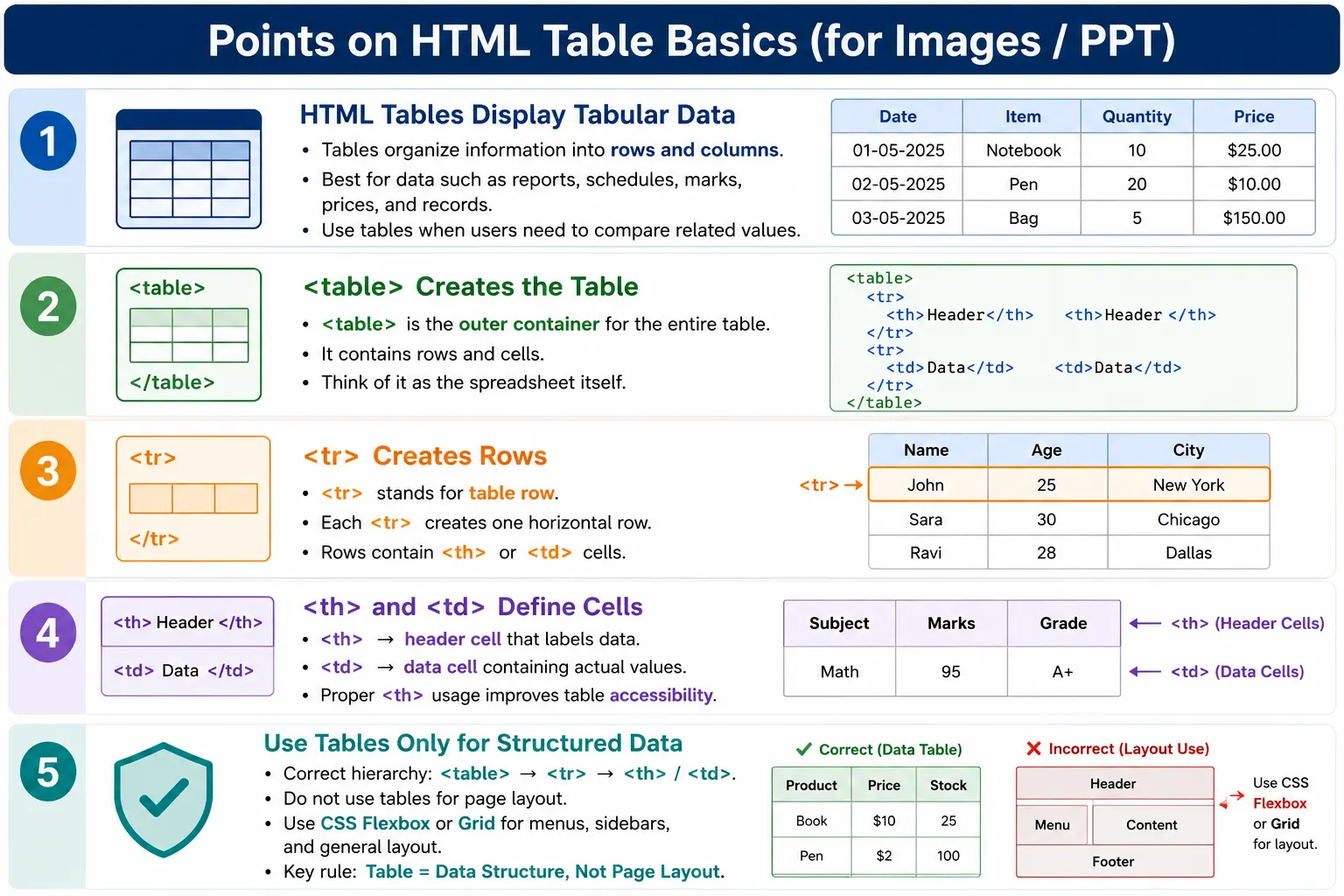
Tables are HTML elements used to display structured data in rows and columns. They are ideal for presenting information that naturally belongs in a grid, such as reports, schedules, invoices, price lists, employee records, sales data, bank statements, and exam results. A table makes related values easy to read, compare, and understand because it groups data by rows and columns instead of presenting it as unstructured text.
In HTML, tables are created with a small set of core elements. The <table> element creates the table container. The <tr> element creates rows. The <th> element creates header cells. The <td> element creates normal data cells. These four elements form the foundation of almost every HTML table.
A table can be compared to a spreadsheet. The table itself is the sheet, rows divide the sheet horizontally, headers label the data, and data cells store the actual values. This simple structure is powerful because it gives browsers, developers, users, search engines, and assistive technologies a clear way to understand structured information.
What Is an HTML Table?
An HTML table is a collection of rows, columns, and cells. Each row contains one or more cells. Columns are formed when cells appear in the same position across multiple rows. The browser reads the table structure and renders it as a grid.
        Columns
      +------+-----+------+
Rows  | Name | Age | City |
      +------+-----+------+
      | John | 25  | NY   |
      +------+-----+------+
      | Mary | 30  | LA   |
      +------+-----+------+
The value of a table comes from relationships. A value like 25 is more meaningful when it appears under a header such as Age and next to a name such as John. Tables preserve those relationships visually and semantically.
Why Use Tables?
Tables should be used when data naturally belongs in rows and columns. Student marks, employee details, bank statements, product price lists, flight schedules, timetables, sales reports, financial statements, and comparison reports are common examples.
If users need to compare values across multiple records, a table is often the right choice. For example, comparing student marks across subjects is easier in a table than in a paragraph. Comparing product prices is easier when product names and prices align in columns. Reading a course schedule is easier when courses, instructors, and durations are arranged row by row.
Tables should not be used simply because they create a grid-like visual layout. Modern CSS tools such as Flexbox and Grid should be used for page layout. HTML tables are intended for tabular data, not for arranging menus, sidebars, and content blocks.
Main Table Elements
HTML tables are built using four fundamental elements. Each element has a specific role, and using the correct element makes the table easier to read, maintain, and test.
| Tag | Purpose |
|---|---|
<table> |
Creates the table |
<tr> |
Creates a table row |
<th> |
Creates a header cell |
<td> |
Creates a data cell |
These tags are small, but their structure matters. Cells should appear inside rows, and rows should appear inside a table. Header cells should be used for labels, while data cells should be used for actual values.
The <table> Element
The <table> element is the outer container. It represents the complete table and contains the rows and cells inside it.
<table>

</table>
You can think of it as the box that contains the entire table. Inside that box, rows are added with <tr>, and cells are added inside those rows.
Table
  ↓
Rows
  ↓
Cells
A table without rows and cells has no visible data. The <table> element provides the container, but the content comes from row and cell elements.
The <tr> Element
The <tr> element stands for table row. Each <tr> creates one horizontal row in the table.
<tr>

</tr>
Multiple rows can be added inside one table.
<table>
    <tr></tr>
    <tr></tr>
    <tr></tr>
</table>
Each row normally contains cells. A row by itself only defines a horizontal structure. The browser needs <th> or <td> inside the row to display meaningful content.
The <th> Element
The <th> element stands for table header. Header cells describe the meaning of the data in a column or row. Browsers usually render header cells in bold and center-aligned by default, although CSS can change the visual styling.
<tr>
    <th>Name</th>
    <th>Age</th>
    <th>City</th>
</tr>
These headers tell users that the first column contains names, the second column contains ages, and the third column contains cities. Header cells are important not only visually but also semantically. Assistive technologies can use them to understand the relationship between headings and data values.
The <td> Element
The <td> element stands for table data. It contains the actual information inside a table row.
<tr>
    <td>John</td>
    <td>25</td>
    <td>London</td>
</tr>
This row contains three data values: a name, an age, and a city. The meaning of each value becomes clear because it aligns with the header row above it.
Basic Table Example
A simple table usually begins with a header row followed by one or more data rows.
<table>
    <tr>
        <th>Name</th>
        <th>Age</th>
        <th>City</th>
    </tr>

    <tr>
        <td>John</td>
        <td>25</td>
        <td>London</td>
    </tr>

    <tr>
        <td>Alice</td>
        <td>30</td>
        <td>Paris</td>
    </tr>
</table>
The browser represents this as a grid where each row is horizontal and each cell lines up with the corresponding column. CSS can later be used to add borders, spacing, colors, and responsive behavior.
Table Hierarchy
The hierarchy of a basic table is easy to understand when viewed as a tree. The table contains rows, and each row contains header or data cells.
table
 |
 +-- tr
 |    +-- th
 |    +-- th
 |    +-- th
 |
 +-- tr
 |    +-- td
 |    +-- td
 |    +-- td
 |
 +-- tr
      +-- td
      +-- td
      +-- td
This hierarchy is important because invalid structure can create unpredictable rendering and accessibility problems. Cells should not be placed directly inside a table without a row.
Understanding Rows and Columns
One <tr> equals one row. For example, the following row contains two cells:
<tr>
    <td>John</td>
    <td>25</td>
</tr>
This represents a row with the values John and 25. Columns are created automatically by placing cells in the same position across rows. If every row has three cells, the browser creates three columns.
<tr>
    <td>John</td>
    <td>25</td>
    <td>London</td>
</tr>
This row creates three cell positions. When other rows follow the same pattern, the table becomes consistent and easy to read.
Mixing <th> and <td>
A typical table uses <th> elements in the first row and <td> elements in the remaining rows. The headers describe the columns, while the data cells contain the values.
<table>
    <tr>
        <th>Name</th>
        <th>Age</th>
    </tr>

    <tr>
        <td>John</td>
        <td>25</td>
    </tr>
</table>
This structure is simple, readable, and semantically correct for basic tabular data.
Multiple Rows Example
Tables become useful when multiple records are represented. An employee department table can show each employee as one row.
<table>
    <tr>
        <th>Name</th>
        <th>Department</th>
    </tr>

    <tr>
        <td>John</td>
        <td>IT</td>
    </tr>

    <tr>
        <td>Alice</td>
        <td>HR</td>
    </tr>

    <tr>
        <td>David</td>
        <td>Finance</td>
    </tr>
</table>
Each row follows the same structure, making the table predictable and easy to scan.
Student Marks Table
A student marks table is a classic example because marks naturally belong in rows and columns.
<table>
    <tr>
        <th>Student</th>
        <th>Math</th>
        <th>Science</th>
    </tr>

    <tr>
        <td>Emma</td>
        <td>95</td>
        <td>91</td>
    </tr>

    <tr>
        <td>Liam</td>
        <td>88</td>
        <td>94</td>
    </tr>
</table>
Users can easily compare scores by student or subject because the grid preserves relationships between labels and values.
Product and Employee Tables
A product price table can list product names and prices in a compact way.
<table>
    <tr>
        <th>Product</th>
        <th>Price</th>
    </tr>

    <tr>
        <td>Laptop</td>
        <td>$1200</td>
    </tr>

    <tr>
        <td>Mouse</td>
        <td>$30</td>
    </tr>
</table>
An employee table can identify staff by ID, name, and role.
<table>
    <tr>
        <th>ID</th>
        <th>Name</th>
        <th>Role</th>
    </tr>

    <tr>
        <td>101</td>
        <td>John</td>
        <td>Developer</td>
    </tr>
</table>
Browser Rendering Process
When a browser renders a table, it parses the HTML, finds the table element, creates the table structure, reads rows, reads cells, and displays the grid.
HTML Parser
    ↓
Find <table>
    ↓
Create Table
    ↓
Read Rows
    ↓
Read Cells
    ↓
Render Grid
The browser uses the table structure to determine how cells align. CSS can then style borders, padding, colors, spacing, and responsiveness, but the semantic table structure comes from HTML.
Accessibility Benefits of <th>
Using header cells improves accessibility. A screen reader can understand that a <th> cell is a heading for related data. For example, when a user navigates to a salary value, the screen reader can associate that value with the Salary heading when the table is structured properly.
<th>Salary</th>This is why using <td> for headers is not recommended. Visual styling alone cannot communicate the same semantic meaning to assistive technologies.
Common Mistakes
A common mistake is using <td> for headers. This may look acceptable if CSS makes the cells bold, but it is semantically wrong.
<tr>
    <td>Name</td>
    <td>Age</td>
</tr>
A better version uses <th>:
<tr>
    <th>Name</th>
    <th>Age</th>
</tr>
Another mistake is forgetting <tr> and placing cells directly inside the table.
<table>
    <td>John</td>
</table>
The correct structure places the cell inside a row:
<table>
    <tr>
        <td>John</td>
    </tr>
</table>
Unequal numbers of cells across rows can also create inconsistent table structure. If one row has three columns and another has only one, the table may become confusing unless colspan or a deliberate structure is being used.
Avoid Tables for Page Layout
One of the most important table rules is that tables should not be used for page layout. In older web development, tables were sometimes used to create menus, sidebars, and content columns. Modern websites should use CSS Flexbox or CSS Grid for layout.
<table>
    <tr>
        <td>Menu</td>
        <td>Content</td>
    </tr>
</table>
This is poor modern practice because it creates incorrect semantics. A layout is not tabular data. Tables should be reserved for structured data that belongs in rows and columns.
Real-World Example
A course schedule is a good real-world table because course, instructor, and duration values are related columns.
<table>
    <tr>
        <th>Course</th>
        <th>Instructor</th>
        <th>Duration</th>
    </tr>

    <tr>
        <td>HTML</td>
        <td>John</td>
        <td>30 Days</td>
    </tr>

    <tr>
        <td>CSS</td>
        <td>Alice</td>
        <td>25 Days</td>
    </tr>
</table>
This table lets users quickly compare course options and understand who teaches each course and how long it takes.
Selenium Perspective
From a Selenium testing perspective, tables are common targets for validation. Automation testers often need to verify row counts, column counts, header text, cell values, and table contents.
WebElement table =
driver.findElement(By.tagName("table"));
Rows can be located using <tr>:
List<WebElement> rows =
driver.findElements(By.tagName("tr"));
Header cells and data cells can be located separately:
List<WebElement> headers =
driver.findElements(By.tagName("th"));

List<WebElement> cells =
driver.findElements(By.tagName("td"));
Row count can be printed like this:
System.out.println(rows.size());Automation testers frequently validate the number of rows, number of columns, header text, cell values, and whether expected records appear in the table.
Common Interview Questions
A common interview question is: what is the purpose of the <table> tag? It creates a table for displaying tabular data. What does <tr> stand for? It stands for table row.
Another question is: what is the difference between <th> and <td>? The <th> element defines header cells, while <td> defines data cells. Can <td> exist without <tr>? No. Data cells must be inside a table row.
Should tables be used for page layout? No. Tables should be used only for tabular data. Modern page layouts should be built using CSS Flexbox or Grid.
Comparison Table
| Element | Purpose |
|---|---|
<table> |
Table container |
<tr> |
Creates a row |
<th> |
Header cell |
<td> |
Data cell |
Interview-Ready Answer
An HTML table is used to display tabular data in rows and columns. The <table> element defines the table, <tr> creates rows, <th> defines header cells, and <td> contains the actual data. Tables should be used only for structured data, while modern page layouts should be built using CSS Flexbox or Grid.
One-Line Insight
Think of an HTML table as a spreadsheet: <table> is the sheet, <tr> creates rows, <th> labels the columns, and <td> stores the data.