Table Accessibility
Introduction
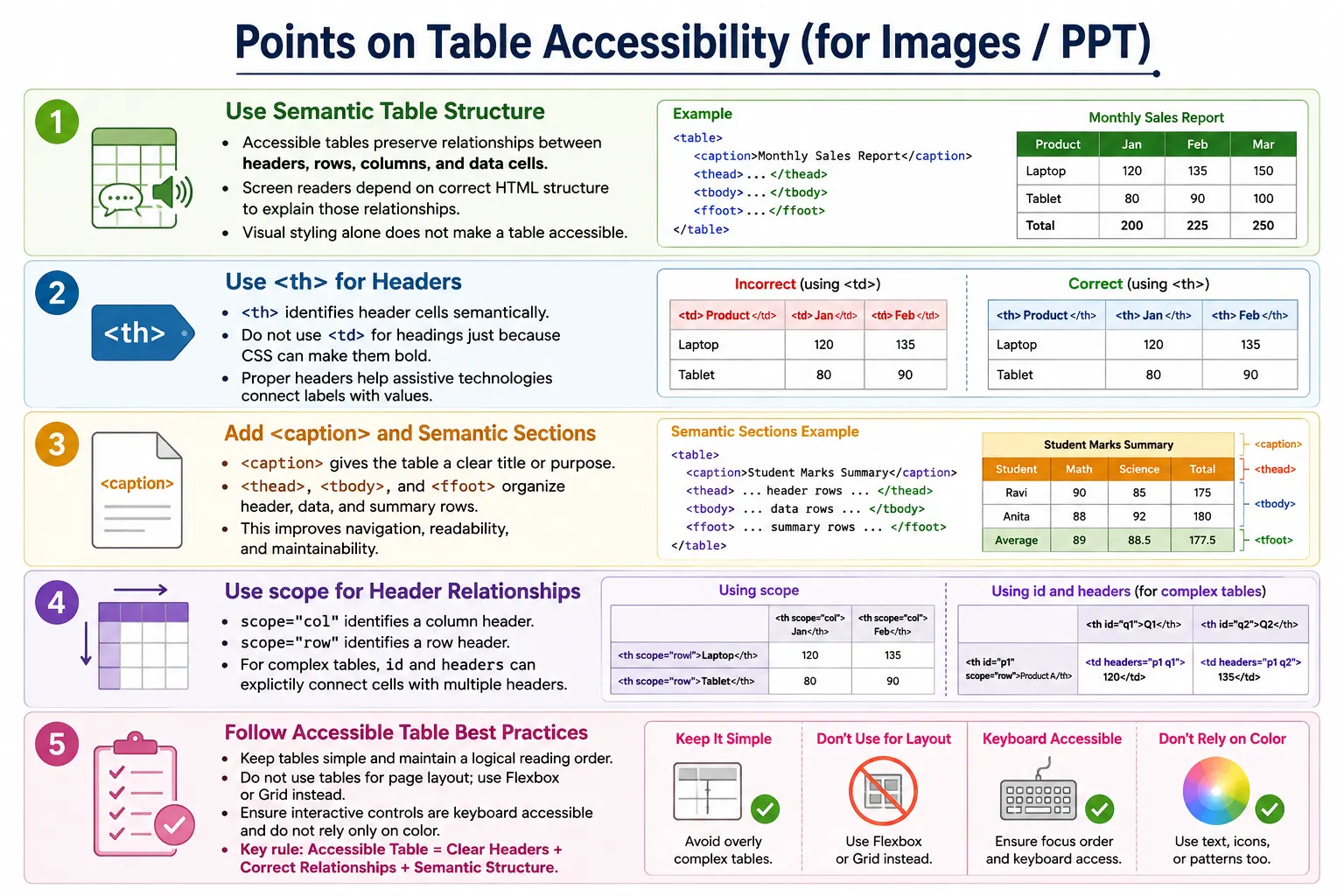
Table accessibility is the practice of designing HTML tables so that everyone, including users of screen readers and other assistive technologies, can understand and navigate tabular data effectively. A visually attractive table is not automatically an accessible table. Accessibility depends on meaningful structure, correct semantics, logical reading order, clear captions, proper header relationships, and responsible use of styling.
Tables often present critical information. Financial reports, student marks, medical records, employee information, flight schedules, product pricing, statistical data, and compliance reports may all appear as tables. When this information is inaccessible, users can misunderstand important values or lose access to essential content entirely.
The goal of table accessibility is to preserve the relationship between rows, columns, headers, and data cells. A sighted user can visually scan a grid and connect a value to its heading. A screen reader user needs the HTML structure to communicate that same relationship. Proper markup makes that possible.
Why Table Accessibility Is Important
Imagine a screen reader reading only the following values from a table: John, 25, London. Without proper table semantics, the user may hear the cell values without understanding what they represent. Is John a customer, employee, or student? Is 25 an age, score, ID, or quantity? Is London a city, branch, destination, or department?
John
25
London
With accessible markup, the relationships become clear. The screen reader can associate each data value with its header.
Name
John

Age
25

City
London
This difference is critical. Accessibility is not only about allowing users to reach the table. It is about making the table understandable once they are there.
How Screen Readers Read Tables
Screen readers use table semantics to announce table structure, row and column information, headers, and cell values. A simple accessible table may be announced as a table with a certain number of columns and rows, followed by the associated headers and values.
<table>
    <tr>
        <th>Name</th>
        <th>Age</th>
        <th>City</th>
    </tr>

    <tr>
        <td>John</td>
        <td>25</td>
        <td>London</td>
    </tr>
</table>
A screen reader may announce:
Table
3 Columns
2 Rows
Name
John
Age
25
City
London
The user understands each value because the header cells are connected to the data cells. Without those header relationships, the table becomes much harder to interpret.
Use <th> Instead of <td> for Headers
One of the most important table accessibility rules is to use <th> for headers. A header cell identifies the meaning of related data cells. A normal data cell does not.
<tr>
    <td>Name</td>
    <td>Age</td>
</tr>
This is incorrect because the row visually looks like headers, but the HTML says they are ordinary data cells. The correct version uses <th>:
<tr>
    <th>Name</th>
    <th>Age</th>
</tr>
The <th> element tells browsers and assistive technologies that these cells are headers. CSS can make a <td> look bold, but visual styling does not create semantic meaning.
Use <caption>
Every meaningful table should have a caption. The <caption> element gives the table a title or short description. Screen readers announce the caption before reading the table, which helps users understand the table's purpose immediately.
<table>
    <caption>
        Employee Details
    </caption>
    ...
</table>
A good caption should be specific. "Employee Details" is useful. "Table" is not useful. Captions are especially important when a page contains multiple tables because they help users distinguish one table from another.
Use <thead>, <tbody>, and <tfoot>
Semantic grouping elements make tables easier to understand and maintain. The <thead> element groups header rows, <tbody> groups main data rows, and <tfoot> groups summary rows.
<table>
    <thead>
        ...
    </thead>

    <tbody>
        ...
    </tbody>

    <tfoot>
        ...
    </tfoot>
</table>
These elements improve organization, navigation, accessibility, and code clarity. They also make CSS styling and JavaScript selection more precise. For accessibility, they help reinforce the table's structure as a meaningful report rather than a loose collection of rows.
Use the scope Attribute
The scope attribute explicitly associates header cells with the data they describe. It can identify whether a header applies to a column or a row.
<th scope="col">
    Name
</th>
This tells assistive technologies that the header applies to a column. For row headers, use scope="row":
<th scope="row">
    John
</th>
In simple tables, browsers often infer header relationships correctly. However, scope makes the relationship explicit and improves clarity. It becomes more valuable as tables become more complex.
Column Header Example
A basic table with column headers can use scope="col" for each header cell.
<table>
    <tr>
        <th scope="col">Name</th>
        <th scope="col">Age</th>
        <th scope="col">City</th>
    </tr>

    <tr>
        <td>John</td>
        <td>25</td>
        <td>London</td>
    </tr>
</table>
Each header clearly applies to the cells below it. This structure is simple, readable, and accessible.
Row Header Example
Some tables need row headers. A student marks table may use student names as row headers and subjects as column headers.
<table>
    <tr>
        <th></th>
        <th scope="col">Math</th>
        <th scope="col">Science</th>
    </tr>

    <tr>
        <th scope="row">John</th>
        <td>95</td>
        <td>90</td>
    </tr>
</table>
Here, "John" is the row header. The value 95 is understood in relation to both the row header John and the column header Math.
Complex Tables
Large or complex tables may include multiple header rows, grouped columns, merged cells, or nested header relationships. For these tables, simple header inference may not be enough. Developers may need attributes such as scope, id, and headers to explicitly connect data cells to their relevant headers.
<table>
    <tr>
        <th id="name">Name</th>
        <th id="age">Age</th>
    </tr>

    <tr>
        <td headers="name">John</td>
        <td headers="age">25</td>
    </tr>
</table>
The headers attribute points to the IDs of the header cells relevant to a data cell. This is especially useful when a cell relates to more than one header.
Avoid Empty Header Cells
Empty header cells can confuse users and assistive technologies. A header should communicate meaning. If an empty header is truly necessary, make sure the table structure remains understandable and that users do not lose important context.
<th></th>In many cases, a better design or a clearer label can avoid the need for empty headers. Simpler structure usually improves accessibility.
Keep Tables Simple
Simpler tables are easier for everyone to understand. A table with clear column headers and consistent rows is easier than a table with many merged cells, nested headers, and unclear groupings.
Good:
Name | Age | City

Avoid when possible:
Multiple nested merged complex headers
Complex tables may be necessary for some financial, scientific, or statistical data. When they are necessary, relationships must be made explicit with proper semantics. When complexity is not necessary, simplify the table.
Do Not Use Tables for Layout
Tables should be reserved for tabular data. They should not be used to create page layouts such as sidebars, menus, and content columns.
<table>
    <tr>
        <td>Menu</td>
        <td>Content</td>
    </tr>
</table>
This creates incorrect semantics. A layout is not a data table. Assistive technologies may announce it as a table even though users are navigating page layout rather than tabular data. Modern layouts should use CSS Grid or Flexbox.
Use Meaningful Captions
A caption should describe the table's purpose. Vague captions do not help users.
<caption>
    Table
</caption>
A better caption is specific:
<caption>
    Monthly Sales Report
</caption>
The caption should be short but meaningful. If more explanation is needed, provide a paragraph before the table.
Ensure Logical Reading Order
Screen readers read tables according to the HTML structure. The order of the markup should match the logical reading order. Values should appear in rows and columns that make sense when read sequentially.
Name
John
Age
25
City
London
If visual styling changes the order while the HTML remains confusing, screen reader users may receive information in a different and less useful sequence. Structure should come first; styling should enhance it, not contradict it.
Use Proper Cell Relationships
Every meaningful data cell should have an associated header. The relationship between a value and its label is the core of table accessibility.
Name
  ↓
John

Age
  ↓
25
If a table contains values without clear headers, users may not know what those values mean. This problem affects screen reader users most strongly, but it can also affect sighted users when tables are large or poorly designed.
Keyboard Accessibility
Static tables themselves usually do not require special keyboard handling. Users read them as content. However, if a table contains interactive elements such as links, buttons, checkboxes, dropdowns, or form controls, those elements must be reachable and usable with the keyboard.
Users should be able to tab to interactive controls inside the table, activate them, and understand what each control does. A table of records with "Edit" or "Delete" buttons must preserve keyboard focus order and visible focus indicators.
Color Is Not Enough
Color should not be the only way to communicate important information. A table that uses green for pass and red for fail may be difficult for color-blind users or users on low-quality displays.
Bad:
Green = Pass
Red = Fail
A better approach includes explicit text labels:
Pass
Fail
Symbols can help visually, but text should remain available so the meaning is clear to everyone.
Responsive Tables
Large tables can overflow on small screens. Responsive table design is part of accessibility because mobile users also need access to the same information. Common solutions include horizontal scrolling, simplified mobile views, responsive layouts, or breaking large tables into smaller sections.
The important principle is that users should not lose access to data on small screens. If horizontal scrolling is used, it should be obvious and usable. If the table is transformed into cards, the relationship between labels and values should remain clear.
Browser Accessibility Tree
Browsers expose semantic HTML through an accessibility tree that assistive technologies can use. A well-structured table produces a meaningful accessibility tree.
Table
  ↓
Caption
  ↓
Headers
  ↓
Rows
  ↓
Cells
If the table is built with incorrect elements or used for layout, the accessibility tree becomes less useful. Correct HTML is the foundation of accessible output.
Accessibility Checklist
A practical table accessibility checklist includes using <caption>, using <th> for headers, grouping sections with <thead>, <tbody>, and <tfoot>, using scope where appropriate, keeping tables simple, avoiding layout tables, ensuring keyboard accessibility for interactive content, and writing meaningful captions.
This checklist should be applied during development, review, and testing. Accessibility is easier to build correctly from the start than to repair after tables become complex.
Common Mistakes
The most common mistake is using <td> instead of <th> for headers. Another common mistake is omitting captions from meaningful tables. Developers also sometimes use tables for layout, which creates incorrect semantics and difficult navigation for assistive technology users.
Complex tables without proper header associations are another serious issue. If a table has multiple levels of headers, use scope or headers and id appropriately so assistive technologies can determine the correct relationships.
Real-World Example
A course schedule table can be semantic, accessible, screen reader friendly, and easy to maintain.
<table>
    <caption>
        SoftwareTips4U Course Schedule
    </caption>

    <thead>
        <tr>
            <th scope="col">Course</th>
            <th scope="col">Duration</th>
        </tr>
    </thead>

    <tbody>
        <tr>
            <td>HTML</td>
            <td>30 Days</td>
        </tr>

        <tr>
            <td>CSS</td>
            <td>25 Days</td>
        </tr>
    </tbody>
</table>
This table has a meaningful caption, column headers, explicit scope attributes, a structured body, and data that naturally belongs in rows and columns.
Selenium Perspective
Automation testers often verify table accessibility-related structure. Selenium can locate tables, captions, headers, and attributes such as scope.
WebElement table =
driver.findElement(By.tagName("table"));
Caption text can be verified:
String caption =
driver.findElement(By.tagName("caption"))
      .getText();
Headers and scope attributes can also be checked:
List<WebElement> headers =
driver.findElements(By.tagName("th"));

String scope =
headers.get(0).getAttribute("scope");
Automation commonly validates header count, caption text, scope attributes, row and column counts, and table structure. These checks do not replace manual accessibility testing, but they help catch missing or inconsistent markup early.
Common Interview Questions
A common interview question is: why should <th> be used instead of <td> for headers? The answer is that <th> identifies header cells, allowing browsers and assistive technologies to associate them with related data.
What is the purpose of the scope attribute? It explicitly identifies whether a header cell applies to a row or a column. Why is <caption> important? It provides a title that helps users and screen readers understand the table before reading its contents.
Should tables be used for page layout? No. Tables should be used only for tabular data. Use CSS Flexbox or Grid for page layouts. When should the headers attribute be used? Primarily in complex tables where a data cell relates to multiple header cells and scope alone is not sufficient.
Comparison Table
| Accessibility Feature | Benefit |
|---|---|
<caption> |
Describes the table |
<th> |
Identifies header cells |
scope |
Explicitly associates headers with rows or columns |
<thead> |
Groups header rows |
<tbody> |
Groups data rows |
<tfoot> |
Groups summary rows |
headers/id |
Associates data with multiple headers in complex tables |
Interview-Ready Answer
Table accessibility ensures that users, including those using screen readers, can understand and navigate tabular data effectively. Best practices include using <caption> to describe the table, <th> for header cells, <thead>, <tbody>, and <tfoot> for semantic structure, scope for row and column header associations, and headers with id for complex tables. Tables should represent data only and should never be used for page layout.
One-Line Insight
An accessible table does not just display data; it clearly communicates the relationship between headers and data to every user, regardless of how they access the page.