SVG Basics
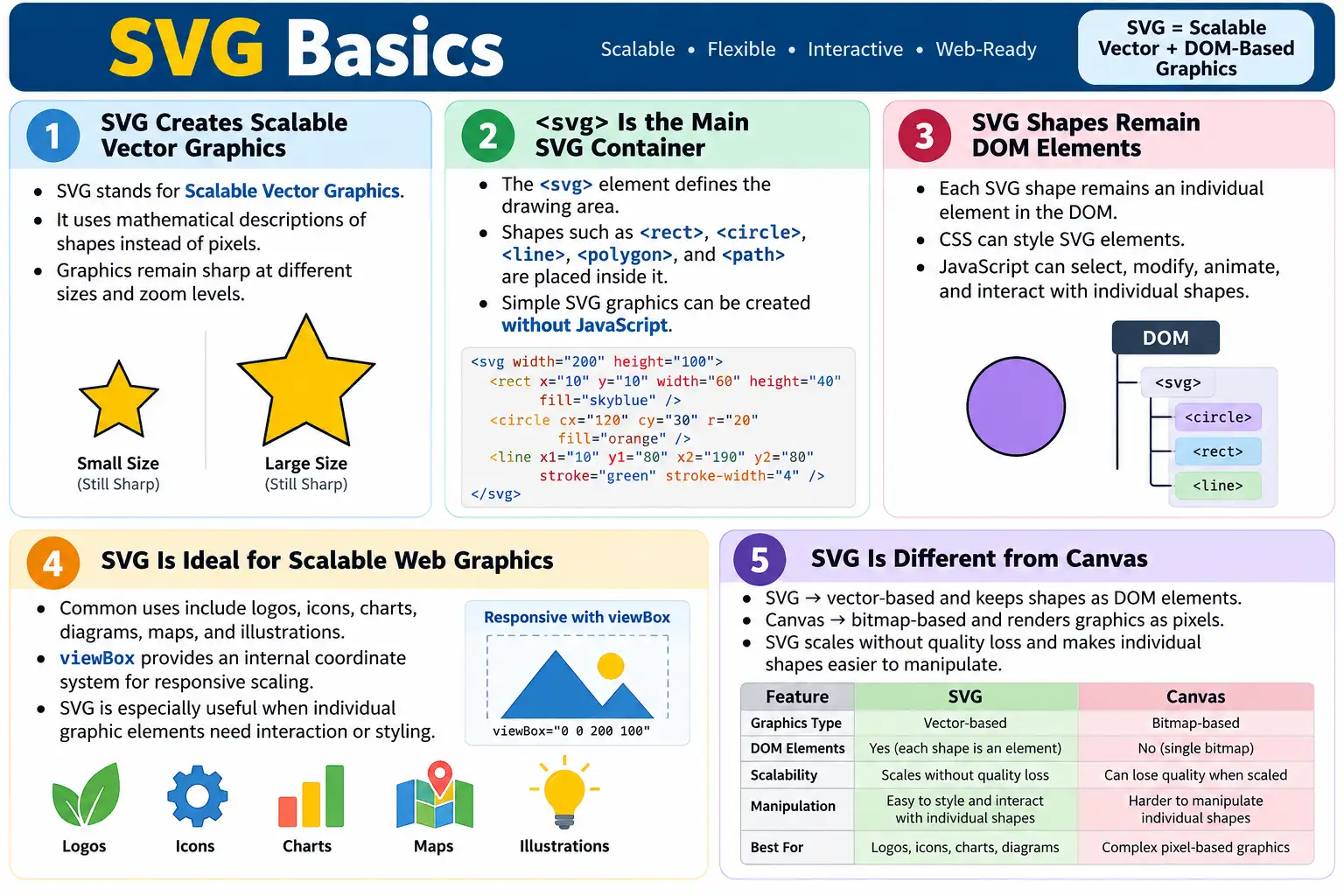
Introduction
SVG, or Scalable Vector Graphics, is an XML-based image format used to create vector graphics directly in HTML. Unlike bitmap image formats such as JPEG, PNG, or WebP, SVG graphics are made from mathematical descriptions of shapes. An SVG image can contain lines, circles, rectangles, paths, text, gradients, masks, and groups. Because the browser understands those shapes as structured elements, SVG graphics can scale to different sizes without losing quality.
This makes SVG especially valuable in responsive web design. A logo may need to look sharp on a small phone, a laptop, and a large high-resolution monitor. A bitmap logo can become blurry when enlarged, but an SVG logo stays crisp because the browser redraws the shapes mathematically at the required size. SVG is commonly used for logos, icons, charts, diagrams, maps, infographics, illustrations, and animations.
SVG is also different from the HTML <canvas> element. Canvas draws pixels onto a bitmap surface. SVG keeps shapes as individual elements in the DOM. That means SVG elements can be styled with CSS, selected with JavaScript, tested with Selenium, and made accessible with labels and descriptions. Understanding this difference helps developers choose the right graphics technology for each situation.
What Is SVG?
SVG stands for Scalable Vector Graphics. It is an HTML-supported technology that describes graphics using XML elements. Since SVG is XML-based, its syntax looks similar to HTML. It uses tags, attributes, opening and closing elements, and nested structures.
<svg width="300" height="200">
  <circle cx="100" cy="100" r="50" fill="red"></circle>
</svg>
This example creates an SVG drawing area and places a red circle inside it. The browser reads the SVG markup, creates DOM elements, and renders the vector graphic. Unlike canvas, the circle remains an individual DOM element after rendering. JavaScript can find it, CSS can style it, and browser tools can inspect it.
SVG can be written inline inside HTML, stored as a separate .svg file, embedded as an image, used as a background image, or generated dynamically by JavaScript. Inline SVG gives the most control because the SVG elements are part of the page DOM.
Why Was SVG Introduced?
Before SVG became common, developers often relied on bitmap images for graphics. Bitmap images are made of pixels. They are good for photographs and complex raster artwork, but they have limitations for icons, diagrams, logos, and scalable UI graphics. When a bitmap image is enlarged beyond its natural resolution, it can look blurry or pixelated. Editing individual parts of a bitmap image is also difficult in the browser.
SVG solves these problems by using mathematical descriptions. A rectangle is described by position, width, height, and styling. A circle is described by center point, radius, and styling. A path is described by drawing commands. Because the browser redraws the graphic from these descriptions, the graphic remains sharp at any size.
This is why SVG is ideal for modern responsive interfaces. A single SVG icon can work across multiple screen sizes, pixel densities, zoom levels, and themes. Developers can change colors with CSS, animate parts with JavaScript or CSS, and keep the graphic lightweight when it is designed well.
HTML's Role
HTML provides the SVG container. The <svg> element can be placed directly inside an HTML document. Inside that container, developers write SVG shape elements. The browser reads the SVG markup and renders vector graphics.
HTML
  ↓
SVG Element
  ↓
Browser
  ↓
Vector Graphics
No JavaScript is required for simple SVG graphics. A rectangle, circle, line, logo, or icon can be created entirely with HTML and SVG markup. JavaScript becomes useful when the graphic needs interactivity, dynamic updates, animation, or data-driven behavior.
Basic SVG Example
A basic SVG element creates a drawing area. If it contains no shapes, it appears empty.
<svg width="300" height="150">
</svg>
This creates an empty SVG drawing area. To make something visible, shapes must be added inside the SVG.
<svg width="300" height="150">
  <rect x="20" y="20" width="100" height="60" fill="blue"></rect>
</svg>
The browser draws a blue rectangle. The rectangle remains a real SVG element in the DOM, which is one of the biggest practical differences between SVG and canvas.
Width, Height, and ViewBox
SVG size is commonly defined using width and height attributes. These control the displayed size of the SVG viewport.
<svg width="300" height="200">
  ...
</svg>
The viewBox attribute is also important. It defines the internal coordinate system of the SVG. A viewBox allows SVG graphics to scale cleanly while preserving their internal proportions.
<svg width="300" height="200" viewBox="0 0 300 200">
  ...
</svg>
The viewBox values mean minimum x, minimum y, width, and height. With a proper viewBox, the same SVG can scale to different display sizes without losing quality. This is one of the reasons SVG works so well for responsive design.
Browser Workflow
The browser workflow for SVG is different from canvas. The browser reads the SVG markup, creates DOM elements for the SVG and its child shapes, applies styles, and renders the vector graphic.
HTML
  ↓
SVG
  ↓
Read Shapes
  ↓
Render Graphics
Because SVG shapes become DOM elements, they can be inspected in browser developer tools. A circle can be selected. A rectangle can be styled. A path can be modified. This makes SVG highly flexible for icons, charts, diagrams, maps, and interactive graphics.
Drawing a Rectangle
The <rect> element draws a rectangle. It uses attributes such as x, y, width, height, and fill.
<svg width="300" height="200">
  <rect
    x="20"
    y="20"
    width="100"
    height="60"
    fill="blue">
  </rect>
</svg>
The browser draws a blue rectangle starting 20 units from the left and 20 units from the top. Rectangles are used for bars in charts, UI blocks, backgrounds, diagrams, and simple illustrations.
Drawing a Circle
The <circle> element draws a circle. It uses cx and cy for the center point and r for the radius.
<svg width="300" height="200">
  <circle
    cx="150"
    cy="90"
    r="50"
    fill="red">
  </circle>
</svg>
This draws a red circle. Circles are useful for indicators, dots, map markers, avatars, chart points, diagrams, and icons.
Drawing a Line
The <line> element draws a straight line between two points. It uses x1, y1, x2, and y2.
<svg width="300" height="100">
  <line
    x1="20"
    y1="50"
    x2="250"
    y2="50"
    stroke="black"
    stroke-width="3">
  </line>
</svg>
Lines are useful in diagrams, charts, separators, connectors, maps, timelines, and technical drawings.
Drawing an Ellipse
The <ellipse> element draws an oval shape. It is similar to a circle, but it has separate horizontal and vertical radii.
<svg width="300" height="160">
  <ellipse
    cx="150"
    cy="80"
    rx="100"
    ry="45"
    fill="orange">
  </ellipse>
</svg>
Ellipses are useful for diagrams, decorative shapes, shadows, badges, and illustrations.
Drawing a Polygon
The <polygon> element draws a closed shape from multiple points. It is useful for triangles and other multi-sided shapes.
<svg width="300" height="200">
  <polygon
    points="150,20 250,180 50,180"
    fill="green">
  </polygon>
</svg>
The browser connects the points and closes the shape. Polygons are used in icons, map regions, diagrams, arrows, and custom illustrations.
Adding Text
SVG supports text through the <text> element. SVG text remains sharp at every zoom level because it is vector-rendered.
<svg width="300" height="120">
  <text
    x="20"
    y="60"
    font-size="30"
    fill="black">
    SVG Text
  </text>
</svg>
SVG text can be useful in charts, labels, maps, diagrams, and illustrations. However, normal HTML text is usually better for regular page content because it is naturally selectable, accessible, responsive, and easier to style for reading.
Coordinate System
SVG uses a coordinate system similar to many screen graphics systems. The default origin (0, 0) is the top-left corner. X increases to the right, and Y increases downward.
(0,0)

+------------------------>

|

|

|

↓
Understanding coordinates is essential when positioning shapes. If a circle has cx="100" and cy="50", its center is 100 units from the left and 50 units from the top. With a viewBox, those units scale according to the SVG viewport.
Common SVG Elements
| Element | Purpose |
|---|---|
<rect> | Rectangle |
<circle> | Circle |
<ellipse> | Ellipse |
<line> | Straight line |
<polygon> | Polygon |
<polyline> | Multiple connected lines |
<path> | Complex shapes |
<text> | Text |
The Path Element
The <path> element is one of the most powerful SVG elements. It can draw complex shapes using path commands. Paths can create icons, curves, logos, illustrations, and detailed diagrams.
<svg width="300" height="200">
  <path
    d="M 20 100 L 120 20 L 220 100 Z"
    fill="purple">
  </path>
</svg>
The d attribute contains drawing commands. M moves to a point, L draws a line, and Z closes the path. Many SVG icons use paths because paths can describe complex shapes compactly.
Real-World Uses
SVG is commonly used for company logos because logos must remain sharp at many sizes.
Logo
  ↓
Scales Perfectly
SVG is also widely used for icons such as Home, Search, Settings, Profile, Menu, and Close. SVG icons remain crisp on all screen sizes and can be styled with CSS.
Charts are another common use. Sales data can become a bar chart, line chart, pie chart, or custom visualization. Libraries such as D3.js often generate SVG charts because SVG elements remain interactive and editable.
Sales Data
  ↓
Bar Chart
Maps are also a strong SVG use case. Countries, states, and cities can remain individual selectable shapes.
Country
  ↓
States
  ↓
Cities
Flowcharts, network diagrams, engineering drawings, infographics, and illustrations can also be created with SVG.
SVG Styling
SVG elements can be styled using attributes or CSS. CSS can control fill color, stroke color, stroke width, opacity, transforms, and more.
circle {
  fill: red;
  stroke: black;
  stroke-width: 3;
}
Styling SVG with CSS is useful for themes, hover effects, active states, icons, and responsive designs. Inline SVG can inherit CSS variables and current text color when designed properly.
<svg width="100" height="100">
  <circle cx="50" cy="50" r="40" class="status-dot"></circle>
</svg>
Because SVG elements are DOM elements, they can have classes and IDs like HTML elements. This makes styling and scripting direct and flexible.
SVG and JavaScript
SVG elements are part of the DOM when they are inline. JavaScript can select them and update their attributes dynamically.
document
  .getElementById("myCircle")
  .setAttribute(
    "fill",
    "blue"
  );
This can change a circle's color at runtime. JavaScript can also move shapes, update chart values, highlight map regions, respond to clicks, show tooltips, or animate attributes. SVG is powerful for interactive graphics because individual shapes remain addressable.
SVG Animation
SVG supports animation through CSS, JavaScript, and SVG animation elements, though support for SVG animation elements can vary across browsers. CSS animations are commonly used for simple effects such as rotation, opacity, movement, or scaling. JavaScript is used when animation depends on data or user interaction.
Circle
  ↓
Move
  ↓
Rotate
  ↓
Scale
SVG animation is useful for icons, loading indicators, charts, diagrams, and interactive illustrations. For complex high-performance games or large particle systems, canvas may be more suitable. For smaller vector animations and interactive diagrams, SVG is often a good fit.
Accessibility
SVG can be made accessible. Developers can use <title>, <desc>, ARIA attributes, meaningful labels, and accompanying text. Accessibility depends on how the SVG is used. A decorative icon may need to be hidden from assistive technologies. An informative diagram may need a clear text alternative.
<svg role="img" aria-labelledby="chartTitle chartDesc">
  <title id="chartTitle">Sales Chart</title>
  <desc id="chartDesc">A bar chart showing sales growth by month.</desc>
  ...
</svg>
If the SVG communicates important information, provide an accessible name and description. If the SVG is only decorative, avoid making it noisy for screen reader users. Accessibility decisions should follow the purpose of the graphic.
SVG vs Bitmap Images
SVG is vector-based, while JPEG, PNG, and WebP are bitmap-based. Bitmap images are excellent for photographs and complex raster images. SVG is excellent for shapes, icons, logos, diagrams, charts, and illustrations.
Using SVG for photographs is usually a bad choice. A photo has thousands or millions of color variations and is naturally raster. JPEG, PNG, or WebP is better. Using bitmap images for simple icons can also be inefficient because the icon may blur when scaled and may require multiple resolutions for different devices.
Choose the format based on content. Photos usually need bitmap formats. Scalable interface graphics often benefit from SVG.
SVG vs Canvas
| SVG | Canvas |
|---|---|
| Vector graphics | Bitmap graphics |
| XML-based | JavaScript drawing API |
| DOM elements | Pixels only |
| Easy to edit individual shapes | Entire drawing usually needs to be redrawn |
| Excellent for icons, diagrams, charts | Excellent for games and animations |
| Scales without quality loss | Can lose quality when scaled |
Use SVG when individual shapes matter, when the graphic must scale sharply, or when the graphic needs DOM-level interaction. Use canvas when the application needs fast pixel rendering, many continuous redraws, image processing, or game-like animation.
Performance Considerations
SVG is powerful, but extremely detailed SVG files can affect rendering performance. A simple icon with a few paths is usually lightweight. A complex illustration with thousands of path points, filters, masks, and gradients can become expensive to render. Large numbers of SVG DOM elements can also slow down updates.
Optimize SVG files before production when possible. Remove unnecessary metadata, simplify paths, avoid excessive filters, and keep icons clean. Good SVG is both scalable and efficient.
Common Mistakes
A common mistake is using SVG for photographs. Photographs are better stored as JPEG, PNG, or WebP. Another mistake is using large numbers of complex paths without optimization. Extremely detailed SVG files can hurt performance.
Developers also forget width, height, or an appropriate viewBox. Without good sizing, SVG may not scale as expected. Another mistake is assuming SVG is bitmap-based. SVG uses mathematical vectors, not pixels.
Accessibility is another common gap. Informative SVG graphics should have labels or descriptions. Decorative SVG graphics should not distract screen reader users.
Complete Example
The following complete example draws a rectangle, a circle, and text.
<!DOCTYPE html>
<html>

<head>
  <title>SVG Demo</title>
</head>

<body>

<svg
  width="300"
  height="200">

  <rect
    x="20"
    y="20"
    width="100"
    height="60"
    fill="blue">
  </rect>

  <circle
    cx="200"
    cy="80"
    r="40"
    fill="red">
  </circle>

  <text
    x="20"
    y="150"
    font-size="24">
    SVG Demo
  </text>

</svg>

</body>
</html>
This example shows how SVG creates graphics directly inside HTML. The shapes remain separate SVG DOM elements.
Selenium Perspective
Automation testers commonly verify SVG visibility, icons, charts, interactive maps, dynamic color changes, hover effects, and clickable SVG elements. Because inline SVG elements are part of the DOM, Selenium can interact with many of them directly.
WebElement svg =
driver.findElement(
    By.tagName("svg"));
A circle can be located with a CSS selector.
WebElement circle =
driver.findElement(
    By.cssSelector("circle"));
Tests can inspect attributes such as fill, stroke, cx, cy, or custom attributes. For charts and maps, testers should verify both the visual behavior and the underlying data or accessible alternatives.
Testing Checklist
When testing SVG, verify that the SVG is visible, dimensions are correct, viewBox works as expected, shapes render correctly, colors and strokes match design, hover and click behavior works, and dynamic updates change the correct elements. For responsive layouts, zoom and resize the page to confirm that SVG remains sharp.
Accessibility checks should verify whether meaningful SVG graphics have names and descriptions. Decorative SVGs should be hidden appropriately when needed. Interactive SVG elements should be keyboard accessible if they represent controls.
Inline SVG vs External SVG
SVG can be used inline inside an HTML document or stored as a separate file. Inline SVG places the <svg> markup directly in the page. This gives developers full control over individual shapes because they become part of the page DOM. CSS and JavaScript can target those shapes directly.
<svg width="100" height="100" viewBox="0 0 100 100">
  <circle cx="50" cy="50" r="40" fill="red"></circle>
</svg>
External SVG files can be used with an <img> element, CSS background image, or other embedding methods. This keeps HTML cleaner and allows the same file to be cached and reused. However, when SVG is loaded as an image, its internal shapes are not directly available as DOM elements in the parent page.
<img src="logo.svg" alt="Company Logo">Use inline SVG when you need to style or script individual parts. Use external SVG when the graphic is static, reusable, and does not need internal DOM interaction. This choice affects styling, caching, accessibility, and test automation.
SVG Symbols and Reuse
SVG supports reusable symbols. A symbol defines a graphic once, and the <use> element can reference it multiple times. This is useful for icon systems because the same icon shape can be reused across a page.
<svg style="display:none">
  <symbol id="icon-home" viewBox="0 0 24 24">
    <path d="M3 12 L12 3 L21 12 V21 H3 Z"></path>
  </symbol>
</svg>

<svg width="24" height="24">
  <use href="#icon-home"></use>
</svg>
This pattern reduces duplication and creates consistent icons. It also allows designers and developers to maintain icon shapes in one place. For large design systems, SVG sprite techniques are common.
When using symbols, accessibility still matters. A reused icon that communicates meaning should have an accessible label. A purely decorative icon should be hidden appropriately so it does not create extra noise for assistive technology users.
Responsive SVG
SVG works very well in responsive layouts because it is vector-based. A graphic can scale larger or smaller while staying sharp. The viewBox attribute is central to responsive SVG because it defines the internal coordinate system independently from the displayed size.
<svg viewBox="0 0 300 200" width="100%" height="auto">
  <rect x="20" y="20" width="100" height="60" fill="blue"></rect>
</svg>
With a good viewBox, the browser can scale the SVG to fit different containers. This is useful for charts, diagrams, icons, and illustrations. Developers should test SVG at different screen sizes and browser zoom levels to ensure labels, strokes, and spacing remain readable.
Responsive SVG is not only about scaling. Sometimes a complex diagram that looks good on desktop becomes unreadable on mobile. In that case, the design may need a simplified mobile version, scrollable container, or alternative text summary.
Stroke, Fill, and Current Color
Two of the most common SVG styling concepts are fill and stroke. Fill controls the inside of a shape. Stroke controls the outline. Stroke width controls how thick the outline is.
<circle
  cx="50"
  cy="50"
  r="40"
  fill="yellow"
  stroke="black"
  stroke-width="4">
</circle>
SVG icons often use currentColor so the icon inherits the text color from CSS. This makes icons easy to theme.
<svg width="24" height="24" viewBox="0 0 24 24">
  <path
    d="M4 12 H20"
    stroke="currentColor"
    stroke-width="2">
  </path>
</svg>
If the surrounding button or link changes color, the SVG can follow automatically. This is a practical pattern for icon libraries and design systems.
Interactive SVG
Because inline SVG elements are part of the DOM, they can receive events. A map region can respond to clicks. A chart bar can show a tooltip on hover. An icon can animate when a button is activated.
document
  .querySelector("circle")
  .addEventListener("click", function() {
    this.setAttribute("fill", "blue");
  });
This direct interaction is one of the major strengths of SVG. Each shape can be targeted individually. In canvas, developers usually need custom hit detection because shapes become pixels. In SVG, the browser already knows each shape as an element.
Interactive SVG should be designed accessibly. If an SVG shape acts like a button or link, it needs keyboard support and an accessible name. Often, it is better to wrap SVG inside a real HTML button or link instead of making the SVG shape itself behave like a control.
SVG for Icons
SVG is one of the best formats for web icons. Icons are usually made from simple shapes and paths, so vector graphics are ideal. SVG icons stay sharp at every size, support CSS colors, and can adapt to dark or light themes.
An icon can be inline, loaded from an external file, or used through an icon sprite. Inline icons are easy to style with CSS. External icons are easy to cache. Sprite systems are useful when a site has many icons.
For accessibility, icons need context. A decorative icon next to visible text usually does not need to be announced. An icon-only button needs an accessible label, such as an aria-label on the button. The SVG itself should not create confusion for screen readers.
SVG for Charts and Diagrams
SVG is strong for charts and diagrams because each visual part can remain an individual element. A bar in a chart can be a rectangle. A point in a line chart can be a circle. A map region can be a path. Tooltips and hover effects can target specific elements.
This makes SVG useful for data visualizations where interaction with individual parts matters. Libraries such as D3.js often use SVG because it maps data to DOM elements. Developers can bind data to shapes, update attributes, and animate transitions.
However, charts must still be accessible. A chart should not be the only representation of critical data. Provide summaries, tables, labels, or descriptions. Users who cannot visually inspect the chart should still be able to understand the information.
SVG for Maps
SVG is ideal for many map-like diagrams because each region can be an individual path. A country map can contain states. A state map can contain districts. Each region can have its own color, label, tooltip, and click behavior.
This is much easier than using a single bitmap image when the regions need interactivity. With a bitmap, the application must calculate which pixel region was clicked. With SVG, the browser can attach events directly to each path element.
For complex geographic maps with zooming, panning, and large datasets, specialized map libraries may be more appropriate. But for diagrams, simplified maps, seating charts, floor plans, and selectable regions, SVG is often a strong choice.
Optimizing SVG
SVG files exported from design tools may contain unnecessary metadata, editor-specific attributes, hidden layers, excessive decimals, or overly complex paths. Optimization removes unnecessary content and reduces file size.
A clean SVG is easier to read, faster to render, and simpler to maintain. For icons, paths should be as simple as practical. For illustrations, unnecessary groups and metadata can often be removed. Teams commonly use SVG optimization tools in their build process.
Optimization should be done carefully. Removing IDs or attributes may break CSS, JavaScript, accessibility labels, or animation. Always test optimized SVGs after processing.
Security Considerations
SVG is XML-based and can contain more than simple shapes. Depending on how it is used, SVG may include scripts, links, external references, or embedded content. This means untrusted SVG files should be handled carefully. A site should not blindly inject user-provided SVG markup into the page.
If users can upload SVG files, validate and sanitize them. Many applications restrict SVG uploads or process them carefully to prevent security risks. When using SVG as an image through <img>, browser behavior is more restricted than inline SVG, but security review is still important for upload workflows.
For normal developer-created icons and illustrations, SVG is safe when treated as source code and reviewed like other frontend assets.
When to Use SVG
Use SVG for logos, icons, diagrams, simple illustrations, scalable graphics, interactive maps, and charts where individual shapes matter. SVG is a good choice when the graphic must stay sharp at multiple sizes and when styling or interaction with individual parts is useful.
SVG is also useful when graphics need to match theme colors. An inline SVG icon can inherit text color, change on hover, or adapt to dark mode without generating separate image files. This makes SVG a practical part of modern design systems.
When Not to Use SVG
Do not use SVG for ordinary photographs or highly detailed raster artwork. JPEG, PNG, or WebP is better for photos. Do not use SVG when the file becomes extremely complex and heavy. In some cases, a bitmap image may be smaller and faster.
Do not use SVG to replace normal HTML text or layout. HTML is better for documents, paragraphs, buttons, forms, and readable content. SVG is for graphics. If content needs to be searchable, selectable, and naturally accessible as text, HTML should usually be used.
Practical Decision Checklist
Before choosing SVG, ask whether the graphic is made of shapes, lines, icons, diagrams, or labels. If yes, SVG may fit. Ask whether the graphic must scale sharply. If yes, SVG is a strong candidate. Ask whether individual parts need hover, click, animation, or styling. If yes, inline SVG may be useful.
Ask whether the graphic is a photograph. If yes, SVG is probably not appropriate. Ask whether the SVG is too complex. If yes, optimize it or consider another format. Ask whether the graphic communicates important information. If yes, provide accessible labels, descriptions, or text alternatives.
Comparison Table
| HTML Role | SVG Role |
|---|---|
Hosts the <svg> element | Defines vector graphics |
| Provides page structure | Creates shapes and graphics |
| Integrates SVG into webpages | Renders scalable graphics |
| Supports CSS and JavaScript interaction | Individual shapes remain editable in the DOM |
Common Interview Questions
What is SVG? SVG is an XML-based vector graphics format used to create scalable graphics in HTML.
What does SVG stand for? SVG stands for Scalable Vector Graphics.
Is SVG vector or bitmap? SVG is vector-based.
Can SVG be styled using CSS? Yes. SVG elements can be styled with CSS and manipulated with JavaScript.
Can JavaScript modify SVG? Yes. SVG elements are part of the DOM and can be updated dynamically.
What are common uses of SVG? Logos, icons, charts, diagrams, maps, illustrations, and scalable graphics.
Interview-Ready Answer
SVG, or Scalable Vector Graphics, is an XML-based vector graphics format supported by HTML. The <svg> element allows developers to create scalable graphics such as logos, icons, charts, diagrams, and maps directly within a webpage. Unlike bitmap images or the HTML <canvas> element, SVG graphics remain individual DOM elements, allowing them to be styled with CSS, manipulated with JavaScript, tested with automation tools, and scaled without any loss of quality. SVG is best suited for graphics that require sharp rendering at different sizes and interactive behavior.
One-Line Insight
SVG creates graphics using mathematical shapes, allowing them to stay perfectly sharp at any size.