Select & Option Tags
Introduction
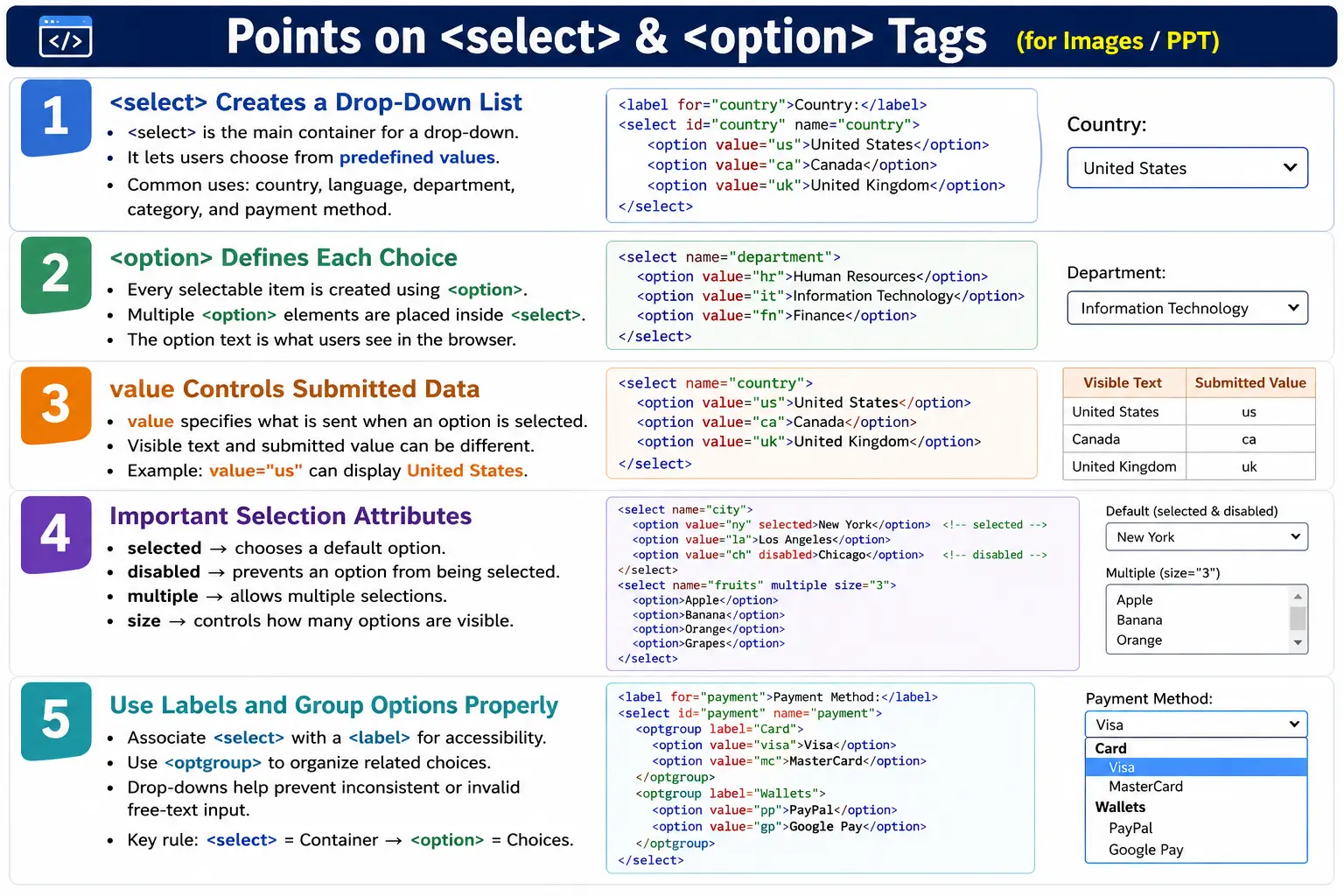
The <select> and <option> elements are used to create drop-down lists in HTML forms. A drop-down allows users to choose one or more predefined options instead of typing their own values. This makes forms more controlled, more consistent, and easier to use.
Drop-down lists are commonly used for country selection, state selection, language selection, department selection, payment methods, product categories, course selection, shipping options, and many other form fields where the available answers are already known. Instead of allowing users to type any value, the form presents a fixed list of valid choices.
Using drop-downs can save space, prevent invalid input, improve consistency, and reduce data-cleaning problems. For example, if users type their own country names, one user may type USA, another may type United States, another may type US, and another may type America. A drop-down can standardize the submitted value.
What Is the select Element?
The <select> element creates a drop-down list. By itself, it defines the container for the list, but it does not provide any choices. Options must be added using <option> elements.
<select>
</select>
An empty select element displays an empty control. It becomes useful only when options are placed inside it. The select element commonly uses attributes such as name, id, required, multiple, size, disabled, and autofocus.
What Is the option Element?
The <option> element defines an individual item inside a select list. Each option represents one selectable value.
<option>HTML</option>Options must normally be placed inside a <select> element or inside an <optgroup> within a select. The visible text inside the option is what users see in the browser.
Basic Structure
A basic drop-down contains one select element and multiple option elements.
<select>
    <option>HTML</option>
    <option>CSS</option>
    <option>JavaScript</option>
</select>
The browser may initially show the first option.
▼ HTMLWhen the user opens the drop-down, all available options are shown.
HTML
CSS
JavaScript
Why Use a Drop-Down?
A drop-down is useful when the application needs a controlled list of accepted values. Without a drop-down, users may type different variations of the same value.
User Types Country

Possible entries:
USA
United States
US
America
These values may all refer to the same country, but they are inconsistent. A drop-down prevents this problem by allowing users to choose from predefined options.
▼ United StatesThe application can submit a consistent internal value while displaying a user-friendly label.
Basic Example
A course selection drop-down may look like this:
<label for="course">Choose a Course</label>

<select id="course" name="course">
    <option>HTML</option>
    <option>CSS</option>
    <option>JavaScript</option>
</select>
The label tells users what the drop-down is for. The id connects the label to the select element. The name identifies the field when the form is submitted.
The value Attribute
Each option should usually include a value attribute. The visible text is what users see, while the value is what the browser submits with the form.
<select name="course">
    <option value="html">HTML</option>
    <option value="css">CSS</option>
    <option value="js">JavaScript</option>
</select>
If the user selects HTML, the displayed text is HTML, but the submitted value is html. The server receives the value, not necessarily the visible text. If no value is provided, the option text is submitted instead.
Using a value is important because applications often need stable internal values. The label shown to users can change, but the submitted value can remain consistent.
Default Selected Option
The selected attribute marks an option as selected by default.
<option value="css" selected>CSS</option>The browser initially displays CSS as the selected option.
▼ CSSDefault selection is useful when there is a common or recommended choice. However, for important fields, it may be better to require the user to actively choose a value instead of accepting a default by accident.
Disabled Option
The disabled attribute prevents an option from being selected.
<option disabled>Coming Soon</option>The option may still be visible in the list, but users cannot select it. Disabled options are useful for unavailable choices, future features, or category labels in simple cases. However, for real grouping, <optgroup> is usually better.
Placeholder Option
A common pattern is to use a disabled and selected option as a prompt.
<select required>
    <option value="" selected disabled>Select a Country</option>
    <option value="us">United States</option>
    <option value="ca">Canada</option>
</select>
The first option acts as an instruction and cannot be submitted as a valid choice. The empty value helps required validation detect that the user has not selected a real value.
Multiple Selection
The multiple attribute allows users to select more than one option.
<select multiple name="skills">
    <option>HTML</option>
    <option>CSS</option>
    <option>JavaScript</option>
</select>
Instead of a normal drop-down, the browser displays a list where multiple items can be selected. Users often select multiple items using keyboard shortcuts such as Ctrl-click or Cmd-click depending on the operating system.
Multiple select controls can be useful, but they are not always the most user-friendly choice. For short lists where multiple selections are common, checkboxes may be easier because all options are visible and selection is more obvious.
The size Attribute
The size attribute controls how many options are visible without opening the drop-down.
<select size="4">
    ...
</select>
If the list contains HTML, CSS, JavaScript, and React, all four items can be visible at once.
HTML
CSS
JavaScript
React
The size attribute is useful when users should see several options immediately. It changes the interaction from a compact drop-down to a visible list box.
Grouping Options with optgroup
The <optgroup> element groups related options under a labeled heading.
<select>
    <optgroup label="Frontend">
        <option>HTML</option>
        <option>CSS</option>
    </optgroup>

    <optgroup label="Backend">
        <option>Java</option>
        <option>Python</option>
    </optgroup>
</select>
The browser displays related options under group labels.
Frontend
  HTML
  CSS

Backend
  Java
  Python
Grouping improves readability when a drop-down contains many options. It is common in course lists, product categories, locations, and permission groups.
Common Attributes of select
| Attribute | Purpose |
|---|---|
name | Form field name |
id | Unique identifier |
required | Requires a selection |
multiple | Allows multiple selections |
size | Number of visible options |
disabled | Disables the entire control |
autofocus | Automatically focuses the control when the page loads |
Common Attributes of option
| Attribute | Purpose |
|---|---|
value | Value submitted with the form |
selected | Default selected option |
disabled | Makes the option unavailable |
label | Alternative label used in specific scenarios |
Browser Workflow
When a browser loads a select element, it renders the select box, displays the available options, lets the user choose an option, and submits the selected value with the form.
Load Page
  ↓
Render Select Box
  ↓
Display Options
  ↓
User Selects Option
  ↓
Selected Value Submitted
If the selected option has a value attribute, that value is submitted. If no value is present, the option text is submitted.
Accessibility Best Practices
Every drop-down should be associated with a label. A label tells users what the select control represents and helps assistive technologies announce it correctly.
<label for="country">Country</label>
<select id="country">
    ...
</select>
Avoid relying only on nearby text. Use proper label association with for and id, or wrap the select inside a label when appropriate. Also avoid overly long option lists when a searchable component would be more usable.
Form Submission
A select element submits the selected option's value under the select element's name.
<select name="country">
    <option value="us">United States</option>
</select>
If United States is selected, the submitted data is:
country=usThis distinction between visible text and submitted value is important in backend processing and automated testing.
Common Mistakes
A common mistake is missing the value attribute.
<option>HTML</option>A better option includes a stable value.
<option value="html">HTML</option>Another mistake is using a select without a label. Labels improve usability and accessibility.
<label>Course</label>
<select>
    ...
</select>
A placeholder option should usually have value="" and be disabled and selected.
<option value="" disabled selected>Select Country</option>Another usability mistake is using a select for very few choices. For two or three mutually exclusive options, radio buttons may be better because all choices are visible without opening a menu.
Real-World Example
The following registration form uses a country drop-down with a required placeholder.
<form>
    <label for="country">Country</label>

    <select id="country" name="country" required>
        <option value="" disabled selected>Select Country</option>
        <option value="us">United States</option>
        <option value="ca">Canada</option>
        <option value="in">India</option>
    </select>

    <button type="submit">Register</button>
</form>
This form prevents free-text country entry and submits a consistent country code.
Selenium Perspective
Automation testers often work with drop-down lists. Selenium provides a Select class for standard HTML <select> elements.
WebElement country =
driver.findElement(By.id("country"));

Select select =
new Select(country);
An option can be selected by visible text.
select.selectByVisibleText("India");An option can also be selected by value.
select.selectByValue("in");Selection by index is also possible, though it can be more fragile if option order changes.
select.selectByIndex(2);Automation testers commonly verify available options, default selected option, multiple selection support, disabled options, correct submitted value, and validation behavior when no valid option is selected.
When to Use a Select
A select element is a good choice when users must choose from a known list of values and free typing would create inconsistent or invalid data. Country, state, department, category, language, currency, and payment method fields are common examples. In these cases, the application usually has a defined list of accepted values, and a drop-down prevents users from entering unexpected text.
Select controls are also useful when screen space is limited. A long list of options can be collapsed into a compact control, keeping the form shorter. This is why drop-downs are common in registration forms, checkout pages, filters, dashboards, and admin panels.
However, a select is not always the best choice. If there are only two or three important choices, radio buttons may be easier because all options are visible immediately. If there are hundreds of options, a searchable select or autocomplete field may be better than a long native drop-down.
Validation Considerations
Validation for select elements usually checks whether the user has selected a real option. When using a placeholder option, the placeholder should have an empty value and should not count as a valid selection. Combining required with a placeholder option is a common approach.
<select name="country" required>
    <option value="" selected disabled>Select Country</option>
    <option value="us">United States</option>
    <option value="in">India</option>
</select>
Client-side validation improves user experience, but the server must still validate the submitted value. A user can modify HTML in the browser and submit a value that was not present in the original list. The backend should verify that submitted values belong to the allowed set.
Testing Scenarios
When testing a select element, verify that all expected options are present, option labels are spelled correctly, submitted values are correct, the default selection is correct, and disabled options cannot be selected. If the select is required, verify that the form cannot be submitted with only the placeholder selected.
For multiple select controls, test selecting one option, multiple options, deselecting options, and submitting the selected values. Also test keyboard behavior because many users interact with dropdowns through the keyboard. For grouped options, verify that group labels are meaningful and options appear under the correct group.
Usability Guidelines
Drop-down lists should be clear and predictable. Option labels should use user-friendly text, while option values can use stable internal codes. Sort options logically. Countries may be sorted alphabetically, payment methods may be sorted by business preference, and course categories may be grouped by topic.
Avoid overly long drop-downs when users need to search quickly. A list of five countries is easy to scan, but a list of thousands of cities can become frustrating. In such cases, an autocomplete search field may provide a better experience. Also avoid vague placeholder text such as "Choose" when a more specific instruction like "Select a Country" would be clearer.
Comparison Table
| Feature | <select> |
<option> |
|---|---|---|
| Purpose | Creates a drop-down list | Defines an individual choice |
| Can Exist Alone | Yes, but useful with options | No, must be inside <select> or <optgroup> |
| Accepts User Selection | Yes | Represents a selectable value |
| Common Attributes | name, id, multiple, required, size |
value, selected, disabled |
Common Interview Questions
What is the purpose of the <select> tag? It creates a drop-down list.
What is the purpose of the <option> tag? It defines an individual selectable item within a <select> element.
Which attribute sets the default selected option? The selected attribute.
Which attribute allows multiple selections? The multiple attribute.
What is the purpose of the value attribute? It specifies the value submitted with the form when the option is selected.
What does the size attribute do? It controls how many options are visible without opening the drop-down.
What is <optgroup> used for? It groups related options under a labeled heading.
Interview-Ready Answer
The <select> element creates a drop-down list, while the <option> element defines each selectable item within that list. The value attribute specifies the data submitted to the server, selected defines the default option, multiple allows users to select more than one option, and size controls how many options are displayed. Related options can be grouped using <optgroup>, and every drop-down should be associated with a <label> to improve accessibility.
One-Line Insight
<select> provides the container, <option> provides the choices, and together they create a controlled, user-friendly way to collect predefined input.