Screen Readers & HTML
Introduction
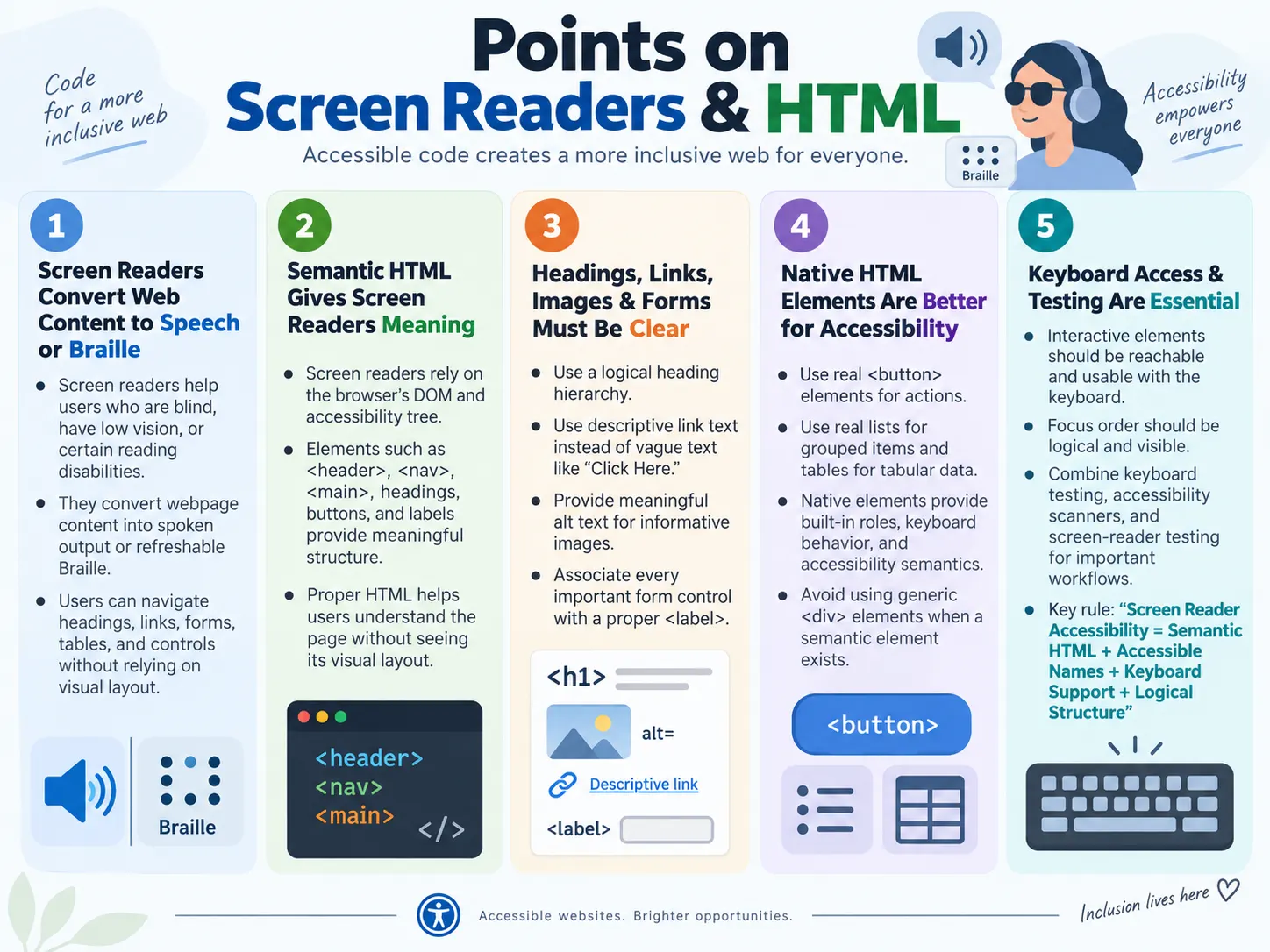
Screen readers are assistive technologies that help people who are blind, have low vision, or have certain reading disabilities use websites and applications. They work by converting webpage content into spoken output or sending it to a refreshable Braille display. For users who cannot rely on the visual appearance of a page, a screen reader becomes the primary way to read content, understand structure, navigate sections, fill forms, activate buttons, and complete tasks online.
HTML plays a critical role in this process because screen readers do not simply "look" at a webpage the way a sighted user does. They rely on the browser's interpretation of the page, the Document Object Model, and the accessibility information created from semantic HTML. A page with meaningful headings, landmarks, labels, buttons, links, lists, tables, and image descriptions can be communicated clearly. A page built mostly from generic <div> elements, unlabeled controls, vague links, and missing alt text can become confusing or unusable.
Using proper HTML can make the difference between a page that screen reader users can navigate independently and a page that blocks them from completing basic actions. This is why screen reader accessibility is not only a testing concern. It begins with writing correct HTML. When developers use semantic elements as intended, browsers and assistive technologies can expose meaningful structure to users.
What Is a Screen Reader?
A screen reader is software that converts webpage content into spoken output or refreshable Braille output. Instead of seeing the page visually, users hear or feel its content. The screen reader announces text, headings, links, buttons, form controls, table headers, image descriptions, landmarks, and other information that helps the user understand and interact with the page.
HTML Page
  |
  v
Screen Reader
  |
  +-- Speech
  |
  +-- Braille Display
Screen readers are used on desktop computers, laptops, tablets, and phones. They work with browsers, operating systems, and accessibility APIs to communicate what is on the screen. A user may navigate by headings, jump to landmarks, move through links, tab between controls, read the current line, or ask the screen reader to list form fields. The experience is structured around meaning, not around visual layout.
This is why proper HTML matters so much. If the HTML communicates meaning, the screen reader can announce that meaning. If the HTML is vague or incorrect, the screen reader may not be able to provide useful context.
Why Screen Readers Are Needed
People with visual impairments cannot always rely on the visual layout of a webpage. A blind user may not see headings, menus, buttons, images, visual grouping, or error messages. A low-vision user may combine zoom, high contrast settings, and screen reader output. A user with a reading disability may use speech output to support comprehension. Screen readers make web content accessible through non-visual channels.
A screen reader helps users read text, navigate menus, fill out forms, click buttons, read tables, access images through descriptions, understand page structure, and complete workflows. Without proper HTML, those tasks become much harder. The user may hear "button" without knowing what the button does, "edit text" without knowing what input is expected, or a file name instead of a meaningful image description.
For example, a shopping page might visually show a product image, product title, price, size selector, and Add to Cart button. A screen reader user needs equivalent access to that information and action. The page must provide a meaningful product heading, image description if the image communicates product details, clear labels for options, and a button with meaningful text. Accessibility is about preserving the same task path through a different interface.
How Screen Readers Work
A screen reader does not primarily analyze how a webpage appears visually. Instead, the browser parses the HTML, creates the DOM, and exposes semantic information through accessibility APIs. The screen reader then reads that structured information and presents it as speech or Braille.
HTML
  |
  v
Browser Creates DOM
  |
  v
Screen Reader Reads DOM
  |
  v
Speech Output
This workflow explains why semantic HTML is so important. Visual styling alone does not tell a screen reader that something is a heading, a navigation region, a button, or a form label. HTML semantics communicate those roles. CSS can make a <div> look like a button, but the screen reader may not treat it as a real button unless additional work is done. A native <button> already has the correct role, keyboard behavior, and accessibility expectations.
The browser also creates an accessibility tree based on the DOM. This accessibility tree includes roles, names, states, and relationships. For example, a labeled input has an accessible name. A heading has a level. A table cell may be associated with headers. A navigation element creates a landmark. Screen readers use this information to help users move through the page efficiently.
HTML's Role
HTML provides meaning. Semantic HTML elements describe the purpose of content and regions. Elements such as <header>, <nav>, <main>, and <footer> create meaningful page areas. A screen reader can announce these as landmarks, allowing users to jump quickly from navigation to main content or footer.
<header>
<nav>
<main>
<footer>
With semantic HTML, the screen reader can understand header, navigation, main content, and footer. Without semantic HTML, a page may be a series of generic containers. A sighted user may understand layout visually, but a screen reader user receives less structure.
Good HTML gives users a map of the page. Headings describe sections. Lists describe grouped items. Tables describe relationships between data. Labels identify form fields. Links identify destinations. Buttons identify actions. These semantic cues allow screen reader users to navigate with confidence instead of listening line by line through every piece of content.
Reading Headings
Headings are one of the most important navigation tools for screen reader users. Many users jump from heading to heading to understand the structure of a page. A logical heading hierarchy allows users to scan the page in a non-visual way, similar to how sighted users visually scan large bold section titles.
<h1>HTML Tutorial</h1>
<h2>Forms</h2>
<h2>Tables</h2>
A screen reader can announce "Heading level 1, HTML Tutorial" and "Heading level 2, Forms." This tells the user both the text and the structural level. The level matters because it communicates hierarchy. The <h1> is the main page title. <h2> elements are major sections. <h3> elements are subsections.
Headings should not be chosen only for visual size. If a developer wants smaller text, CSS should control the size. HTML heading levels should describe structure. Skipping levels without a logical reason can make the page outline confusing.
Reading Links
Links should have meaningful text because screen reader users often navigate through a list of links. If every link says "Click Here" or "Read More," the user may not know where each link goes when heard out of context.
<a href="html.html">Learn HTML</a>This link can be announced as "Link, Learn HTML." The destination is clear. A weak example is a link that says only "Click Here."
<a href="html.html">Click Here</a>The phrase "Click Here" provides little context. It also assumes a mouse-style interaction. Better link text describes the destination or action, such as "Download HTML Guide," "Read the forms tutorial," or "View accessibility checklist." Descriptive links help screen reader users, keyboard users, search engines, and all users scanning a page.
Reading Images
Images need meaningful alternative text when they communicate information. Without alt text, a screen reader may announce only that an image exists, read the file name, or provide no useful description depending on the browser and screen reader combination.
<img src="logo.png">This is not enough when the image is meaningful. A better version provides a useful description.
<img src="logo.png" alt="SoftwareTips4U Logo">The screen reader can announce "Image, SoftwareTips4U Logo." For a product image, alt text might describe the product, such as "HTML Programming Book" or "Blue running shoes." For decorative images, an empty alt attribute, alt="", can tell assistive technology to skip the image. The right alt text depends on the image's purpose in context.
Alt text should be useful but not overloaded. It should communicate the information the user needs from the image. If the image is a complex chart, a short alt text may need to be paired with a longer explanation nearby.
Reading Forms
Forms are a major area where semantic HTML affects screen reader usability. Without labels, a screen reader user may hear only a generic control type such as "edit text" and not know what to enter.
<input type="email">A better version uses a label associated with the input.
<label for="email">Email</label>
<input id="email" type="email">
With this markup, the screen reader can announce "Email, edit text." The purpose of the field is clear. Labels also help sighted users because clicking the label can focus the input. They improve testing because automation tools and accessibility scanners can verify the relationship.
Forms should also provide clear error messages. If a user enters invalid data, the message should identify the problem and explain how to fix it. Screen reader users should be able to discover the message and understand which field it relates to.
Reading Buttons
Buttons represent actions. A native <button> element is announced as a button and supports expected keyboard behavior. The text inside the button becomes its accessible name.
<button>Submit</button>A screen reader can announce "Button, Submit." Meaningful button text is important. Buttons such as "OK," "Go," or "Submit" may be acceptable in context, but more specific labels are often better. "Create Account," "Add to Cart," "Save Changes," and "Download Report" communicate the action more clearly.
Developers should avoid making generic elements behave like buttons unless there is a strong reason. A clickable <div> requires additional role, keyboard handling, focus management, and accessible naming. A real button provides these foundations by default.
Reading Lists
Lists communicate grouped content. When HTML uses <ul>, <ol>, and <li> correctly, screen readers can announce that the user is entering a list and how many items it contains.
<ul>
  <li>HTML</li>
  <li>CSS</li>
</ul>
A screen reader may announce "List, 2 items" and then read "HTML" and "CSS." This helps the user understand that the items are related. Lists are useful for navigation menus, feature lists, steps, grouped options, and content summaries.
Using line breaks or styled <div> elements instead of real lists can remove this structural information. The page may look like a list visually, but assistive technology may not communicate it as one.
Reading Tables
Tables are useful for structured tabular data. When tables are marked up correctly, screen readers can associate data cells with their corresponding headers. This is essential because a screen reader user hears one cell at a time and needs context.
<table>
  <tr>
    <th>Name</th>
    <th>Age</th>
  </tr>
  <tr>
    <td>John</td>
    <td>25</td>
  </tr>
</table>
In this example, the value "John" belongs under the Name header, and "25" belongs under the Age header. Screen readers can use the header cells to provide context. More complex tables may require additional attributes such as scope or more careful structure.
Tables should be used for data, not for page layout. Layout tables create confusing reading order and unnecessary structure. CSS should handle layout, while tables should represent real rows and columns of related data.
Landmark Navigation
Semantic elements create landmarks that screen reader users can use for quick navigation. Instead of reading from the top of the page every time, users can jump directly to navigation, main content, or other important regions.
<header>
<nav>
<main>
<footer>
Header
|
v
Navigation
|
v
Main
|
v
FooterLandmarks are especially useful on long pages. A tutorial site, dashboard, documentation page, or e-commerce page may contain repeated navigation, sidebars, main content, and footer links. Landmarks help users move to the region they need without unnecessary listening.
Developers should avoid creating too many unnamed landmarks of the same type. If multiple navigation regions exist, accessible labels can help distinguish them, such as primary navigation and footer navigation.
Keyboard Navigation
Most screen reader users also rely heavily on keyboard navigation. Typical navigation may involve pressing Tab to move through interactive elements, using arrow keys inside certain widgets, pressing Enter or Space to activate controls, and using screen reader shortcuts to jump by headings, landmarks, links, or form fields.
Tab
  |
  v
Button
  |
  v
Link
  |
  v
Input
  |
  v
Submit
All interactive elements should be reachable and usable from the keyboard. Focus should move in a logical order. Focus indicators should be visible. Users should not become trapped inside components. Menus, dialogs, tabs, accordions, carousels, and custom widgets need careful keyboard behavior.
Keyboard testing is one of the simplest ways to detect accessibility problems. If a tester cannot complete a workflow without a mouse, many screen reader users and keyboard-only users may also be blocked.
Common Screen Readers
Popular screen readers include NVDA, JAWS, VoiceOver, Narrator, TalkBack, and Orca. NVDA and JAWS are commonly used on Windows. VoiceOver is built into macOS and iOS. Narrator is built into Windows. TalkBack is used on Android. Orca is used on Linux.
| Screen Reader | Platform |
|---|---|
| NVDA | Windows |
| JAWS | Windows |
| VoiceOver | macOS / iOS |
| Narrator | Windows |
| TalkBack | Android |
| Orca | Linux |
These screen readers interpret semantic HTML in similar ways, though behavior can vary slightly. Differences may appear because of browser choice, operating system accessibility APIs, screen reader settings, and user navigation mode. This is why testing across common combinations can be useful for important applications.
Real-World Example
Consider an online shopping workflow. A screen reader user opens a product page. The product name should be a clear heading. The product image should have useful alt text if it communicates product information. The description should be readable in a logical order. Size and color controls should have labels. The Add to Cart button should be announced as a button with meaningful text. Checkout forms should be labeled and keyboard accessible.
Product Page
  |
  v
Heading
  |
  v
Product Image
  |
  v
Description
  |
  v
Add to Cart Button
  |
  v
Checkout
With proper HTML, the user can navigate and complete the purchase independently. Without proper HTML, the user may not know what product is shown, what options are available, or how to activate the purchase flow. The visual design may look successful, but the non-visual experience may fail.
Benefits of Semantic HTML
Semantic HTML helps screen readers identify headings, recognize navigation regions, understand forms, describe images, interpret tables, and announce buttons and links correctly. It also benefits keyboard users, automation testers, search engines, and developers maintaining the code.
Semantic HTML reduces the need for extra ARIA and custom scripting. A native element already communicates much of what assistive technology needs. A real button is better than a simulated button. A real list is better than visually styled text. A real table is better for tabular data than a collection of generic elements.
Good HTML creates a shared language between the page, the browser, assistive technology, automated tools, and users. This shared language is the foundation of accessibility.
Common Mistakes
A common mistake is using <div> for everything. A <div class="header"> may look like a header, but <header> communicates meaning. A clickable <div> may look like a button, but a real <button> provides correct semantics and keyboard behavior.
<div class="header">...</div><header>...</header>Missing alt text is another common issue. If an image communicates meaning, it needs a useful description. Missing form labels are also serious because users may not know what each input means. Poor heading structure makes page navigation harder. Meaningless link text such as "Click Here" is unclear when read out of context.
Another mistake is assuming that visual design alone is enough. A page can look organized while having a confusing reading order. It can show clear labels visually but fail to associate them with form inputs. It can use icons without accessible names. Accessibility requires the HTML and accessibility tree to communicate what the visual design communicates.
Selenium Perspective
Automation testers often verify the presence of semantic landmarks, heading hierarchy, alt text, form labels, keyboard accessibility, and ARIA attributes when used. Selenium can inspect elements, read attributes, move focus, activate controls, and validate that important accessibility-related structures exist.
For example, Selenium can check that each meaningful image has an alt attribute, form inputs are associated with labels, buttons have meaningful text, and headings appear in a logical sequence. It can also simulate keyboard navigation by sending Tab and Enter keys, though full screen reader behavior usually requires additional manual or specialized testing.
Selenium is frequently combined with tools such as Axe, Lighthouse, and WAVE to identify accessibility issues automatically. These tools can scan pages and report problems such as missing labels, invalid ARIA, insufficient color contrast, missing alt text, and landmark problems. Automation helps catch repeatable defects, while manual review checks real user experience.
Testing with Screen Readers
Testing with a screen reader requires more than turning it on and listening randomly. A useful test follows real user goals. Start by navigating the page headings. Can the page structure be understood? Then navigate landmarks. Can the user find navigation and main content? Move through links. Are link texts meaningful? Move through form controls. Are labels announced clearly?
Next, test interactive workflows. Can a user open and close menus? Can a dialog be operated? Does focus move to the right place? Are validation errors announced or discoverable? Can the user complete the task without visual help?
Screen reader testing has a learning curve because each screen reader has its own shortcuts and modes. Testers do not need to become expert users immediately, but they should understand enough to validate common workflows and recognize obvious barriers. For critical applications, testing with experienced screen reader users can provide stronger feedback.
Screen Readers and ARIA
ARIA can help screen readers when native HTML is not enough, but it must be used carefully. ARIA can define roles, states, and properties for complex components. For example, it can communicate whether a menu is expanded, whether a tab is selected, or whether a live region has updated.
However, ARIA should not replace good HTML. A native <button> is usually better than <div role="button"> because the native button includes keyboard behavior and expected semantics. If ARIA is added incorrectly, it can make the experience worse by giving screen readers inaccurate information.
The practical rule is to use native HTML first. Add ARIA only when needed, and test the result with keyboard and assistive technology. ARIA can describe states, but developers still need to implement behavior correctly.
Best Practices
Use semantic HTML wherever possible. Create a logical heading structure. Use meaningful link text. Provide useful alt text for meaningful images and empty alt text for decorative images. Label every form control. Use real buttons for actions and real links for navigation. Use lists for grouped list content and tables for tabular data.
Ensure every interactive element is keyboard accessible. Keep focus visible. Avoid keyboard traps. Manage focus in dialogs and dynamic components. Make error messages clear and associate them with relevant fields. Use ARIA carefully when native HTML cannot express the required semantics.
Test with keyboard navigation, automated accessibility tools, and screen reader checks. Remember that screen readers understand the page through HTML structure and semantics. If the structure is poor, the user experience will be poor even if the visual design looks polished.
Screen Reader Reading Order
Reading order is one of the most important concepts in screen reader accessibility. A sighted user can visually scan a layout and understand that content on the left, right, top, or bottom belongs to a particular area. A screen reader user usually experiences content in the order exposed by the DOM and accessibility tree. If the DOM order does not match the logical reading order, the experience can become confusing.
For example, a page may visually show a product title, then an image, then a price, then a Buy button. If the DOM places the Buy button before the product title, a screen reader user may hear the action before understanding what product it belongs to. CSS can visually move items around, but screen reader order still depends heavily on source order. Developers should therefore keep HTML order logical and avoid relying only on visual positioning.
Reading order matters in forms, cards, dashboards, modals, and responsive layouts. When a two-column layout collapses on mobile, the order should still make sense. When a dialog opens, the content inside the dialog should be read in a logical sequence. When error messages appear, they should be placed or referenced so users can connect them to the correct fields.
Accessible Names and Roles
Screen readers announce controls based on their accessible name and role. The role tells the user what kind of element it is, such as button, link, checkbox, heading, table, or text field. The accessible name tells the user what that element is called. A button with the text "Submit" has the role button and the name Submit.
Problems appear when controls do not have useful names. An icon-only button may visually show a search icon, but a screen reader may announce only "button" if no accessible name is provided. Users then do not know what the button does. A better implementation provides an accessible name through visible text, an appropriate label, or another valid accessible naming technique.
Roles should also match behavior. A link should navigate. A button should perform an action. A checkbox should toggle a checked state. When developers use elements incorrectly, screen reader users receive misleading information. For example, a link styled as a button but used to submit a form may confuse both users and automation. Choosing the correct native element is the simplest way to get the right role and expected behavior.
Dynamic Content and Announcements
Modern websites often update content without reloading the page. Search suggestions appear, form validation messages update, cart totals change, success messages display, and notifications arrive. Sighted users may notice these changes visually, but screen reader users need the change to be exposed in an accessible way.
Some changes can be handled through focus. For example, when a modal dialog opens, focus should usually move into the dialog so the user knows a new interaction has started. When a form submission fails, focus may move to an error summary or the first invalid field depending on the design. Other changes may need ARIA live regions so updates are announced without forcing focus to move.
Dynamic announcements should be used carefully. Too many automatic announcements can overwhelm users. Important updates such as form errors, successful submissions, loading completion, or critical alerts may need announcement. Decorative or frequent updates may not. The goal is to communicate meaningful changes without creating noise.
Forms, Errors, and Help Text
Forms need more than labels. Many forms also need help text, required field indicators, validation messages, and error summaries. Screen reader users need these pieces to be connected clearly to the relevant controls. A label tells the user what the field is. Help text explains how to fill it. An error message explains what went wrong.
For example, a password field may need a label and a hint such as "Use at least 8 characters." If the user enters a weak password, the error message should be announced or discoverable and should explain how to fix the issue. A vague message such as "Invalid password" is less helpful than "Password must contain at least 8 characters."
Required fields should be communicated in text, not only through color or an asterisk with no explanation. If an asterisk is used, the page should explain what it means. Screen reader users should know which fields are required before submitting the form. Error recovery is a major part of accessible forms because users should be able to correct mistakes independently.
Screen Readers and Visual-Only Cues
Visual-only cues can create barriers. If a page says "fields marked in red are required," users who cannot see color may not get the information. If an icon communicates success or failure but has no accessible text, screen reader users may miss the meaning. If a chart depends only on colored lines, some users may not be able to interpret the data.
Information should be communicated through text or semantic structure in addition to visual styling. A required field can include visible text and proper attributes. An error can include a text message. A status icon can have an accessible name or nearby text. A chart can include a data table or written summary.
This does not mean visual design should be removed. It means visual design should be supported by accessible information. Screen reader users should receive the same essential meaning through the HTML and accessibility tree.
Screen Reader Testing Workflow
A practical screen reader testing workflow begins with structure. Navigate by headings and confirm that the page outline makes sense. Navigate by landmarks and confirm that major regions are available. Move through links and confirm that link text is meaningful. Move through form controls and confirm that labels, help text, and errors are understandable.
Next, test workflows. Can the user search, filter, submit, purchase, download, or complete the main task? Does focus move logically after actions? Are important updates announced? Can the user recover from validation errors? Can dialogs and menus be operated and closed?
Finally, compare the screen reader experience with the visual experience. If sighted users can see a state, screen reader users should be able to understand it. If visual users can identify a section, non-visual users should have structural cues. If visual users can complete a workflow, screen reader users should be able to complete it too.
Developer Checklist
Developers can prevent many screen reader issues by following a simple checklist. Use native elements first. Keep source order logical. Provide accessible names for controls. Label form fields. Use headings to describe structure. Use landmarks for major regions. Provide meaningful alt text. Avoid vague links. Keep keyboard behavior intact.
When building custom components, check roles, states, keyboard support, focus management, and announcements. If a component behaves like a button, ask why it is not a real button. If it behaves like a dialog, manage focus and closing behavior. If content updates dynamically, decide whether users need to be notified.
Before shipping, test with keyboard navigation and at least one accessibility scanner. For important workflows, perform a screen reader pass. Automated tools catch many structural issues, but they cannot fully judge whether the screen reader experience is understandable.
Comparison Table
| Good HTML | Poor HTML |
|---|---|
| Semantic elements | Generic <div> elements |
| Descriptive alt text | Missing image descriptions |
| Proper form labels | Unlabeled inputs |
| Logical heading hierarchy | Skipped or inconsistent headings |
| Meaningful link text | "Click Here" links |
Common Interview Questions
What is a screen reader? A screen reader is assistive software that reads webpage content aloud or outputs it to a refreshable Braille display.
Why is semantic HTML important for screen readers? Semantic HTML provides structure and meaning, enabling screen readers to identify headings, landmarks, forms, tables, and other content correctly.
What happens if an image has no alt attribute? The screen reader may announce only the image or file name, or provide no meaningful description, depending on the browser and screen reader.
Why are labels important for forms? Labels allow screen readers to identify the purpose of each input field.
Can screen readers use keyboard navigation? Yes. Most screen reader users rely heavily on keyboard navigation to move through webpages.
Interview-Ready Answer
Screen readers are assistive technologies that convert webpage content into speech or Braille for users who are blind or have low vision. They rely on semantic HTML to understand the structure and meaning of a webpage. Elements such as headings, landmarks like <header>, <nav>, <main>, and <footer>, labels, tables, buttons, and descriptive alt text help screen readers provide accurate navigation and context. Using semantic HTML and following accessibility best practices significantly improves the experience for screen reader users and supports compliance with WCAG guidelines.
One-Line Insight
Screen readers do not see your webpage; they understand it through your HTML structure and semantics.