Responsive Images (srcset, sizes)
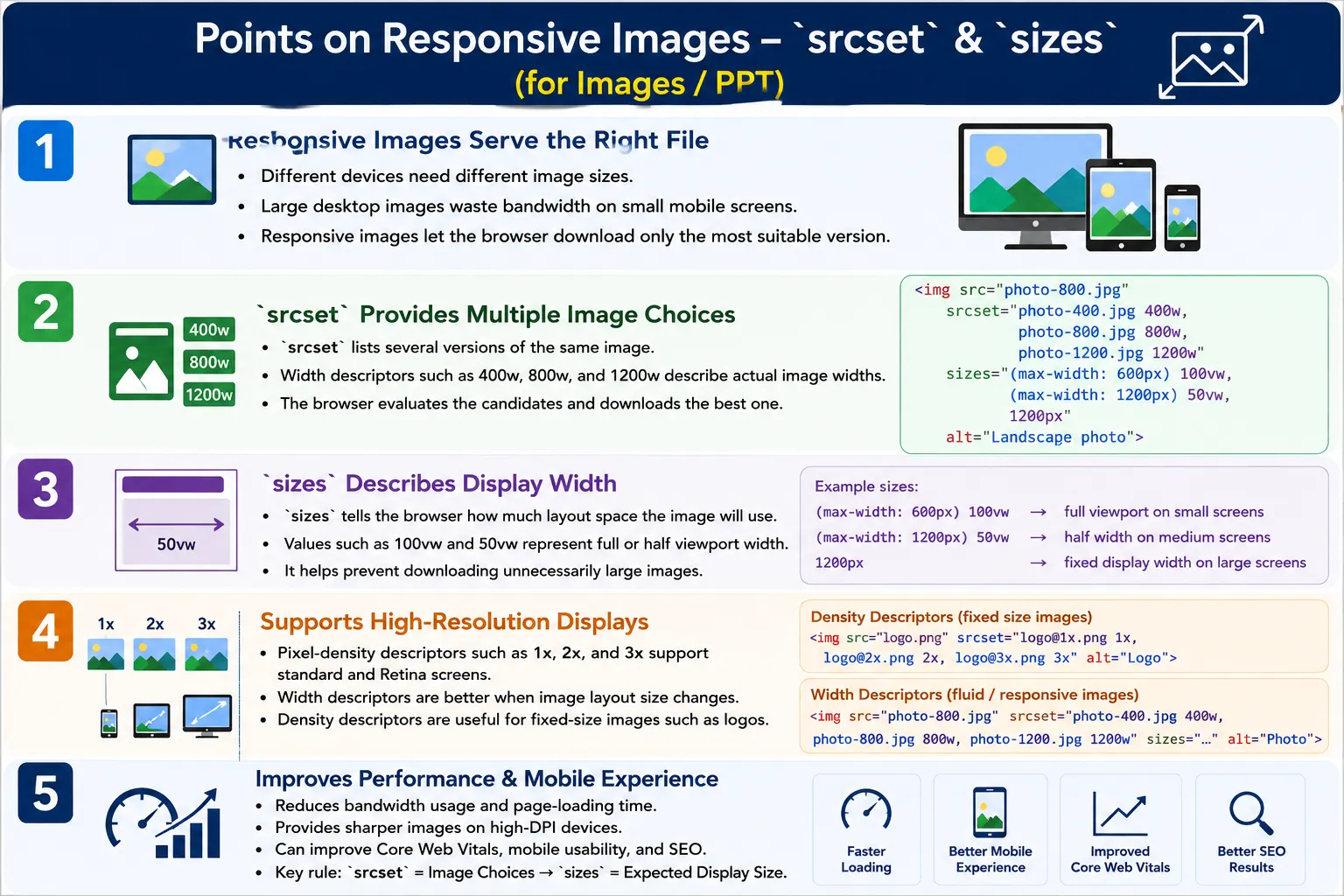
Introduction
Modern websites are viewed on a wide variety of devices, including phones, tablets, laptops, desktops, and high-resolution displays. A single fixed image file rarely serves all these situations well. If a large desktop image is sent to a small phone, bandwidth is wasted. If a small image is sent to a high-resolution screen, the image may look blurry. Responsive images solve this problem by allowing the browser to choose the most appropriate image for the user's device and layout.
HTML provides the srcset and sizes attributes to help browsers select the best image file. These attributes improve website performance, mobile experience, loading speed, bandwidth usage, SEO through better Core Web Vitals, and image quality on different screens.
Responsive images are not only a design feature. They are a performance feature. They help users download only the image they actually need instead of forcing every device to download the same large file.
Why Responsive Images Are Needed
Consider a banner image that is 2000 pixels wide. On a desktop screen, that may be reasonable. On a mobile phone where the image is displayed at only 400 pixels wide, downloading the full 2000 pixel image wastes bandwidth.
Large Desktop Image
2000 px
      ↓
Mobile Screen
400 px
      ↓
Most Downloaded Pixels Are Never Used
This wasted data slows page loading, especially on mobile networks. It also increases data usage for users. Responsive images solve the problem by allowing different image versions to be supplied and letting the browser select the best candidate.
What Are Responsive Images?
Responsive images allow the browser to choose the most suitable image based on screen size, screen resolution, device pixel density, viewport width, and layout. Instead of providing only one image file, the developer provides multiple versions of the same image.
banner.jpgbecomes:
banner-400.jpg
banner-800.jpg
banner-1200.jpg
banner-2000.jpg
The browser evaluates the candidates and downloads the best one. It does not download all images. It downloads only the selected image.
The srcset Attribute
The srcset attribute provides multiple image sources. Each image candidate includes a file name and a descriptor that tells the browser something about that file.
<img
  src="banner.jpg"
  srcset="
    banner-400.jpg 400w,
    banner-800.jpg 800w,
    banner-1200.jpg 1200w"
  alt="Website Banner">
The browser reads the srcset, checks the screen and layout conditions, chooses the best image, and downloads only that file.
Reads srcset
      ↓
Checks Screen Width
      ↓
Chooses Best Image
      ↓
Downloads Only That Image
The src attribute still provides a fallback image. The srcset attribute gives the browser better choices.
Understanding Width Descriptors
A width descriptor tells the browser the actual width of an image file. For example:
banner-400.jpg 400wThis means the image file is 400 pixels wide. The w stands for width descriptor. The descriptor must match the actual image width. If the image is actually 800 pixels wide but labeled as 400w, the browser may make poor decisions.
<img
  src="photo.jpg"
  srcset="
    photo-400.jpg 400w,
    photo-800.jpg 800w,
    photo-1200.jpg 1200w"
  alt="Mountain">
In this example, the browser decides which image to use based on the available image widths and the expected display size.
Why sizes Matters
If the sizes attribute is omitted while using width descriptors, the browser assumes the image occupies the full viewport width. In many layouts, this assumption is incorrect.
<img
  srcset="
    400.jpg 400w,
    800.jpg 800w"
  alt="Example">
If the image is actually displayed in a card that uses only half the page width, the browser may choose a larger image than necessary. The sizes attribute prevents that by describing the expected layout width.
The sizes Attribute
The sizes attribute tells the browser how much space the image will occupy in different viewport sizes. Its syntax is based on media conditions and display sizes.
<img
  src="photo.jpg"
  srcset="
    photo-400.jpg 400w,
    photo-800.jpg 800w,
    photo-1200.jpg 1200w"
  sizes="
    (max-width: 600px) 100vw,
    (max-width: 900px) 50vw,
    33vw"
  alt="Mountain">
This means that if the screen is 600 pixels wide or less, the image uses the full viewport width. If the screen is 900 pixels wide or less, the image uses half the viewport width. Otherwise, it uses one-third of the viewport width.
What Is vw?
The unit vw means viewport width. A value of 100vw means the entire screen width. A value of 50vw means half the screen width.
100vw
      ↓
Entire Screen Width

50vw
      ↓
Half Screen Width
The browser uses these values to estimate how wide the image will appear before the CSS layout is fully rendered. That estimate helps it choose the best image candidate early.
Browser Decision Process
The browser combines the candidates from srcset with the layout information from sizes. It also considers device pixel ratio.
srcset
400w
800w
1200w

sizes
50vw

Browser process:
Screen Width
      ↓
Expected Image Size
      ↓
Choose Best Candidate
      ↓
Download Only One Image
For example, on a 1200 pixel laptop screen where the image occupies 50 percent of the viewport, the displayed width is about 600 pixels. The browser may choose the 800 pixel image to maintain quality.
Mobile and Laptop Examples
On a mobile phone with a 400 pixel screen where the image occupies 100 percent of the viewport, the browser can choose the 400 pixel image instead of a 1200 pixel image.
Screen width: 400 px
Image occupies: 100%
Browser downloads: 400 px image
On a laptop with a 1200 pixel screen where the image occupies 50 percent of the viewport, the displayed width is 600 pixels. The browser may choose an 800 pixel image for better quality.
Screen width: 1200 px
Image occupies: 50%
Displayed width: 600 px
Browser may choose: 800 px image
High-DPI Displays
High-DPI displays, often called Retina displays, pack more physical pixels into the same visible space. A device may display an image at 400 CSS pixels but need 800 physical pixels for sharp rendering.
Display Width
400 px

Device Pixel Ratio
2
      ↓
Image Needs
800 px
The browser accounts for this automatically when selecting from srcset. This is why a high-resolution phone may download a larger image than a standard-density phone with the same CSS layout width.
Pixel Density Descriptors
Instead of width descriptors, you can provide pixel-density versions using 1x, 2x, and 3x.
<img
  src="logo.png"
  srcset="
    logo.png 1x,
    logo@2x.png 2x,
    logo@3x.png 3x"
  alt="Company Logo">
The 1x image is intended for standard screens. The 2x image is intended for high-resolution displays with a device pixel ratio of 2. The 3x image is intended for ultra high-resolution displays.
Width Descriptor vs Pixel Density Descriptor
Width descriptors such as 400w, 800w, and 1200w are based on layout width. Pixel density descriptors such as 1x, 2x, and 3x are based on screen resolution.
Use width descriptors when the same image can appear at different layout sizes across viewports. Use pixel density descriptors when the image has a fixed layout size but needs sharper versions for high-DPI screens. Logos are a common case for pixel density descriptors.
Responsive Logo Example
A logo may use pixel density descriptors because its layout size is usually fixed, but high-resolution screens need sharper image files.
<img
  src="logo.png"
  srcset="
    logo.png 1x,
    logo@2x.png 2x"
  alt="SoftwareTips4U Logo">
Standard screens load logo.png. Retina screens load logo@2x.png.
Responsive Banner Example
A full-width banner is a good use case for width descriptors.
<img
  src="banner-800.jpg"
  srcset="
    banner-400.jpg 400w,
    banner-800.jpg 800w,
    banner-1200.jpg 1200w,
    banner-2000.jpg 2000w"
  sizes="100vw"
  alt="Homepage Banner">
Because the banner uses the full viewport width, sizes="100vw" accurately describes its layout.
Responsive Product Images
Product images often appear full width on mobile and half width on desktop.
<img
  src="laptop.jpg"
  srcset="
    laptop-small.jpg 500w,
    laptop-medium.jpg 900w,
    laptop-large.jpg 1500w"
  sizes="
    (max-width: 768px) 100vw,
    50vw"
  alt="Laptop">
On mobile, the image uses the full viewport width. On larger screens, it uses about half the viewport width. The browser uses that information to choose a suitable file.
Benefits of Responsive Images
Responsive images provide faster page loading, reduced bandwidth usage, better mobile experience, improved Core Web Vitals, better SEO, and sharper images on high-resolution screens. Users on mobile devices avoid unnecessary downloads. Users on high-DPI devices receive images that look crisp. Website owners reduce bandwidth and improve perceived performance.
Relationship with CSS
Responsive images complement CSS. CSS controls how large the image is displayed. The srcset and sizes attributes help the browser decide which image file to download.
img {
    max-width: 100%;
    height: auto;
}
This CSS makes the displayed image flexible, while srcset and sizes optimize the downloaded file. They do different jobs and should be used together.
picture vs srcset
The srcset attribute is used when you have the same image in different sizes. The <picture> element is used when you need different images for different conditions. This is called art direction.
srcset:
Same Image
Different Sizes

picture:
Different Images
Different Conditions
For example, a desktop page may use a wide landscape image, while a mobile page may use a cropped portrait version. That situation is better handled with <picture>.
Performance and SEO Benefits
Without responsive images, a desktop-sized image may be downloaded and displayed tiny on mobile. With responsive images, a smaller image is downloaded and displayed correctly.
Without responsive images:
Desktop Image
      ↓
Downloaded
      ↓
Displayed Tiny On Mobile

With responsive images:
Small Image
      ↓
Downloaded
      ↓
Displayed Correctly
This results in faster loading and less data usage. SEO also benefits because responsive images can improve Largest Contentful Paint, page loading speed, mobile usability, and overall user experience. These factors contribute to better search performance.
Common Mistakes
A common mistake is using only one huge image.
<img src="5000px-photo.jpg" alt="Large Photo">All devices download the same large file. Another mistake is forgetting sizes when using width descriptors.
<img
  srcset="
    400.jpg 400w,
    800.jpg 800w"
  alt="Example">
Without sizes, the browser may make less optimal choices. Incorrect width values are also dangerous.
400.jpg 800wIf the file is actually 400 pixels wide, it should not be labeled 800w. Another mistake is using responsive image techniques for tiny icons. Icons are usually better as SVG.
Real-World Example
A learning platform course image can use responsive image attributes like this:
<img
  src="html-course-800.jpg"
  srcset="
    html-course-400.jpg 400w,
    html-course-800.jpg 800w,
    html-course-1200.jpg 1200w"
  sizes="
    (max-width: 768px) 100vw,
    50vw"
  alt="HTML Course">
This is suitable for a responsive learning platform where the image may appear full width on mobile and smaller inside a desktop layout.
Selenium Perspective
From a Selenium perspective, responsive image attributes can be inspected like normal attributes.
WebElement image =
driver.findElement(By.tagName("img"));

String src =
image.getAttribute("src");
The srcset and sizes attributes can also be read.
String srcset =
image.getAttribute("srcset");

String sizes =
image.getAttribute("sizes");
Automation can verify that responsive image attributes are present on important images.
System.out.println(srcset);
System.out.println(sizes);
Comparison Table
| Feature | src | srcset | sizes |
|---|---|---|---|
| Specifies Image Source | Yes | Yes, multiple sources | No |
| Supports Multiple Image Files | No | Yes | No |
| Helps Browser Choose Image | No | Yes | Yes |
| Optimizes Performance | Limited | Yes | Yes |
| Supports Responsive Design | No | Yes | Yes |
Common Interview Questions
A common interview question is: what is the purpose of srcset? It provides multiple image sources so the browser can choose the most appropriate one based on the device and display characteristics.
Another question is: what is the purpose of sizes? It tells the browser how much layout space the image is expected to occupy at different viewport sizes. Interviewers may ask what 400w means. It means the referenced image is 400 CSS pixels wide. They may ask what 2x means. It means the image is intended for devices with a device pixel ratio of 2, such as many Retina displays.
They may also ask whether srcset and CSS perform the same job. No. CSS controls how large the image is displayed. srcset and sizes help the browser decide which image file to download.
Interview-Ready Answer
Responsive images use the srcset attribute to provide multiple versions of the same image and the sizes attribute to describe how much layout space the image will occupy. Based on the viewport size, device resolution, and layout, the browser automatically downloads the most appropriate image, reducing bandwidth usage while maintaining image quality across different devices.
Key Takeaway
The srcset attribute gives the browser image choices. The sizes attribute tells the browser how large the image is expected to appear. Together, they help the browser choose the right file before downloading.
Responsive images improve performance, mobile usability, image sharpness, and SEO. They are especially important for banners, product images, course thumbnails, and other large images that appear at different sizes across devices.
One-Line Insight
srcset gives the browser choices, sizes tells it how much space the image will occupy, and together they ensure users download only the image they actually need.